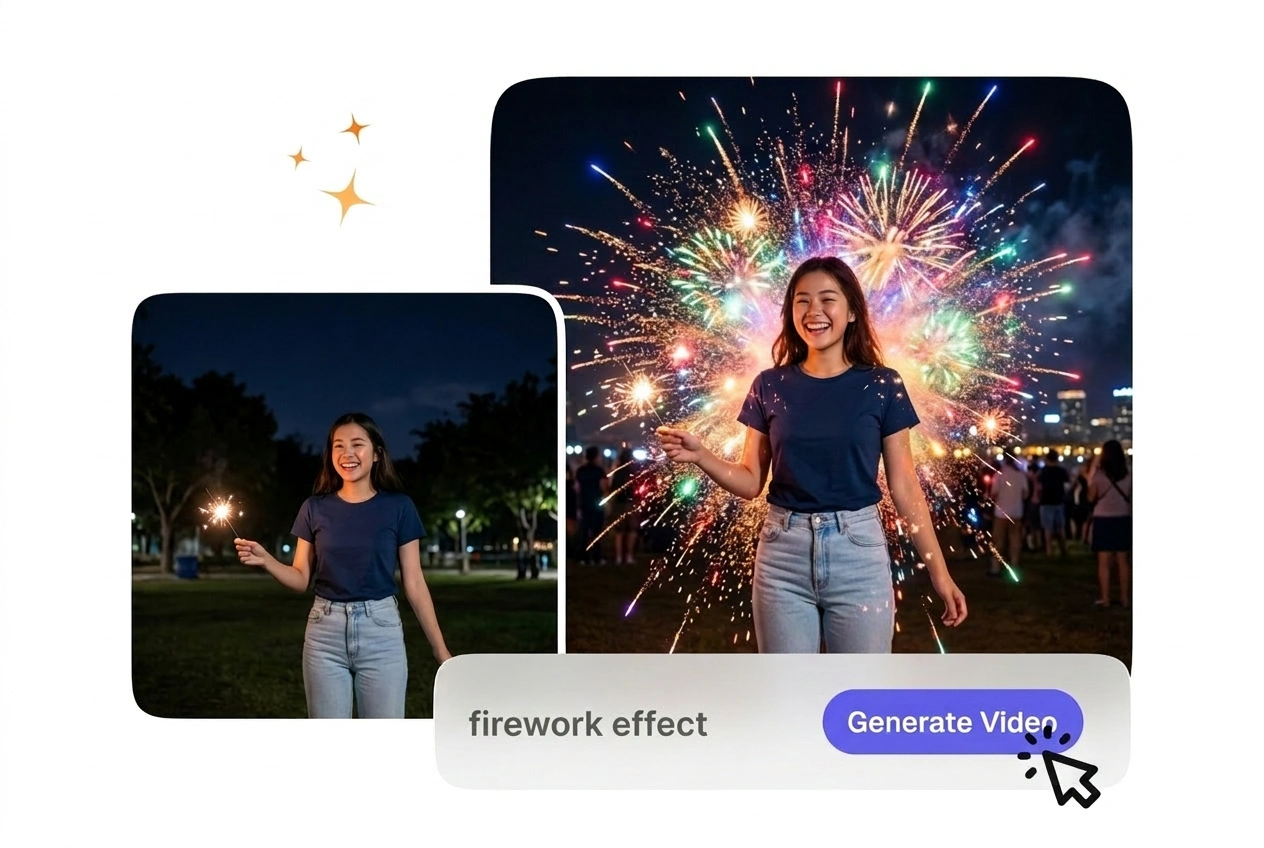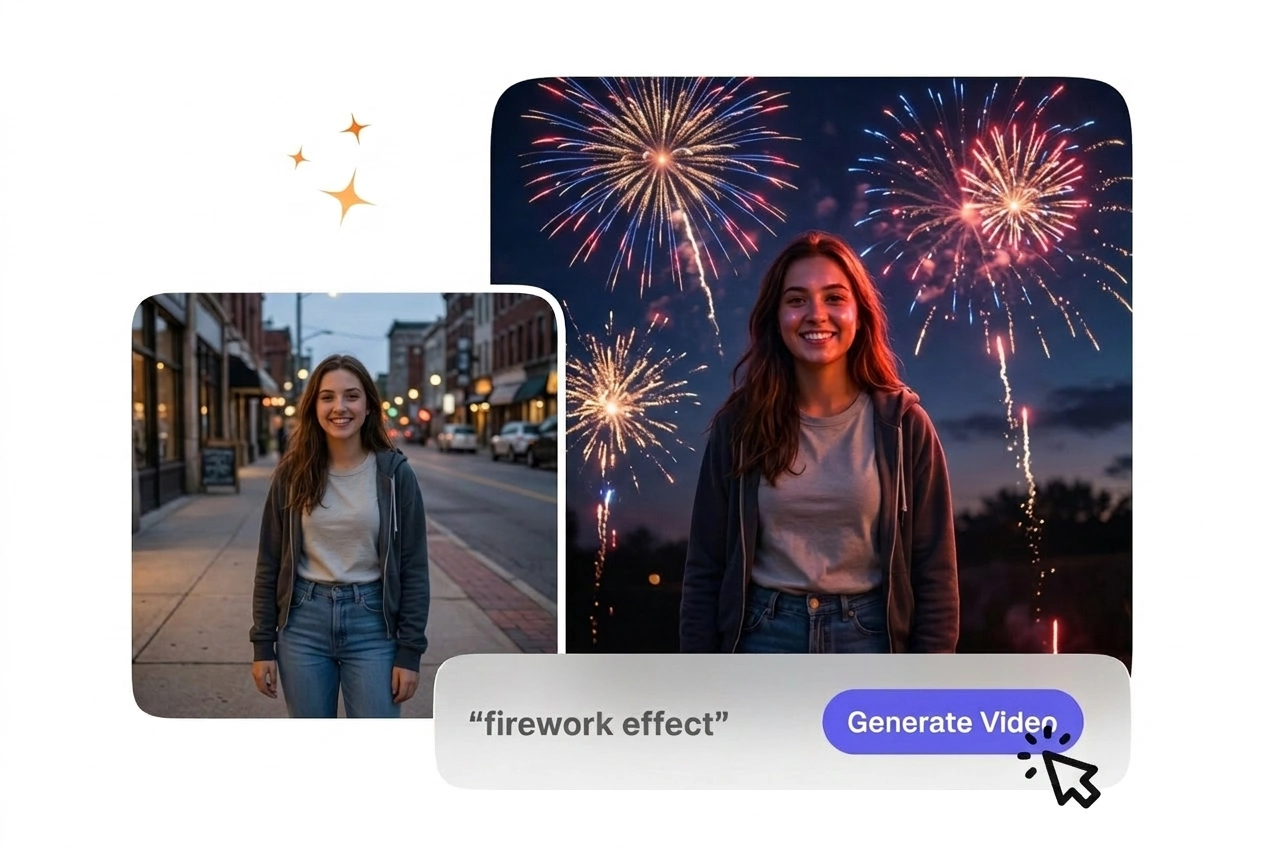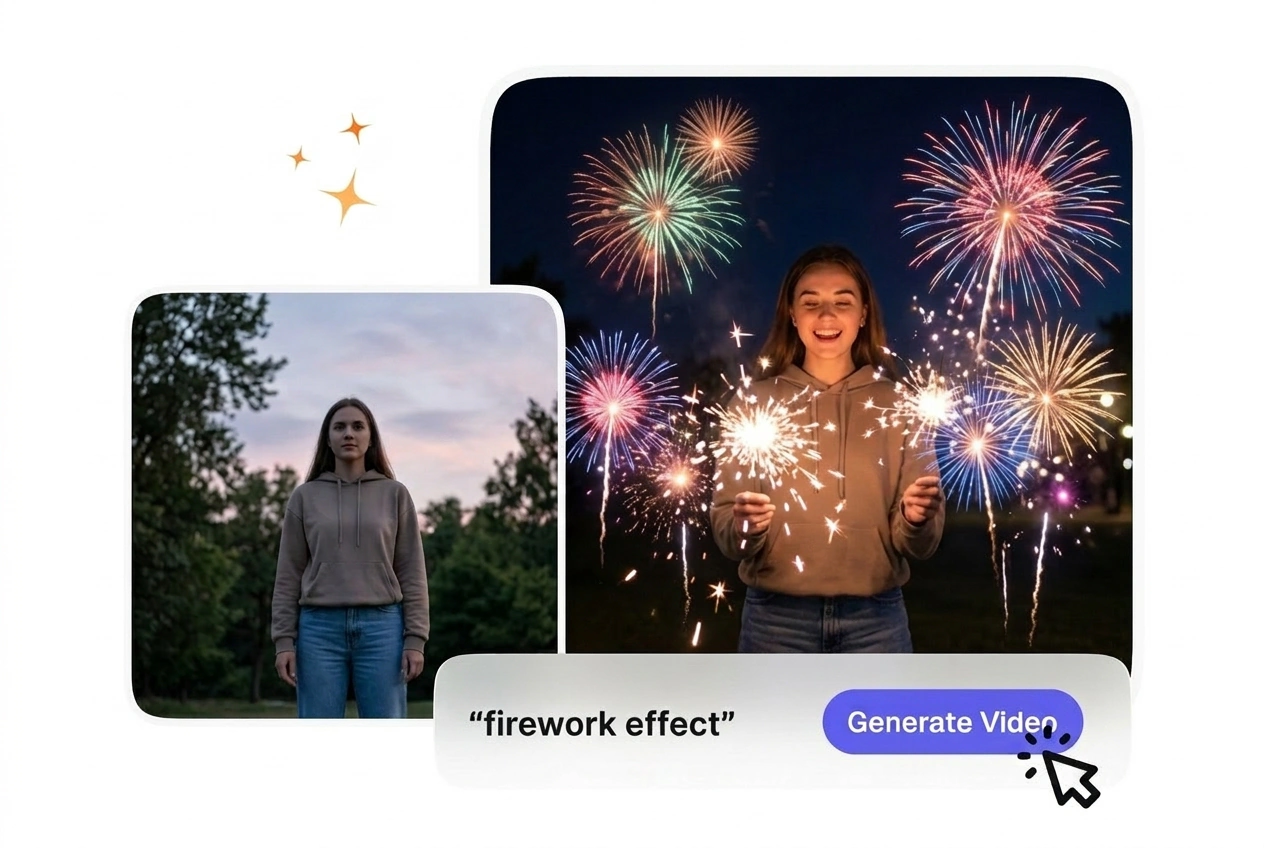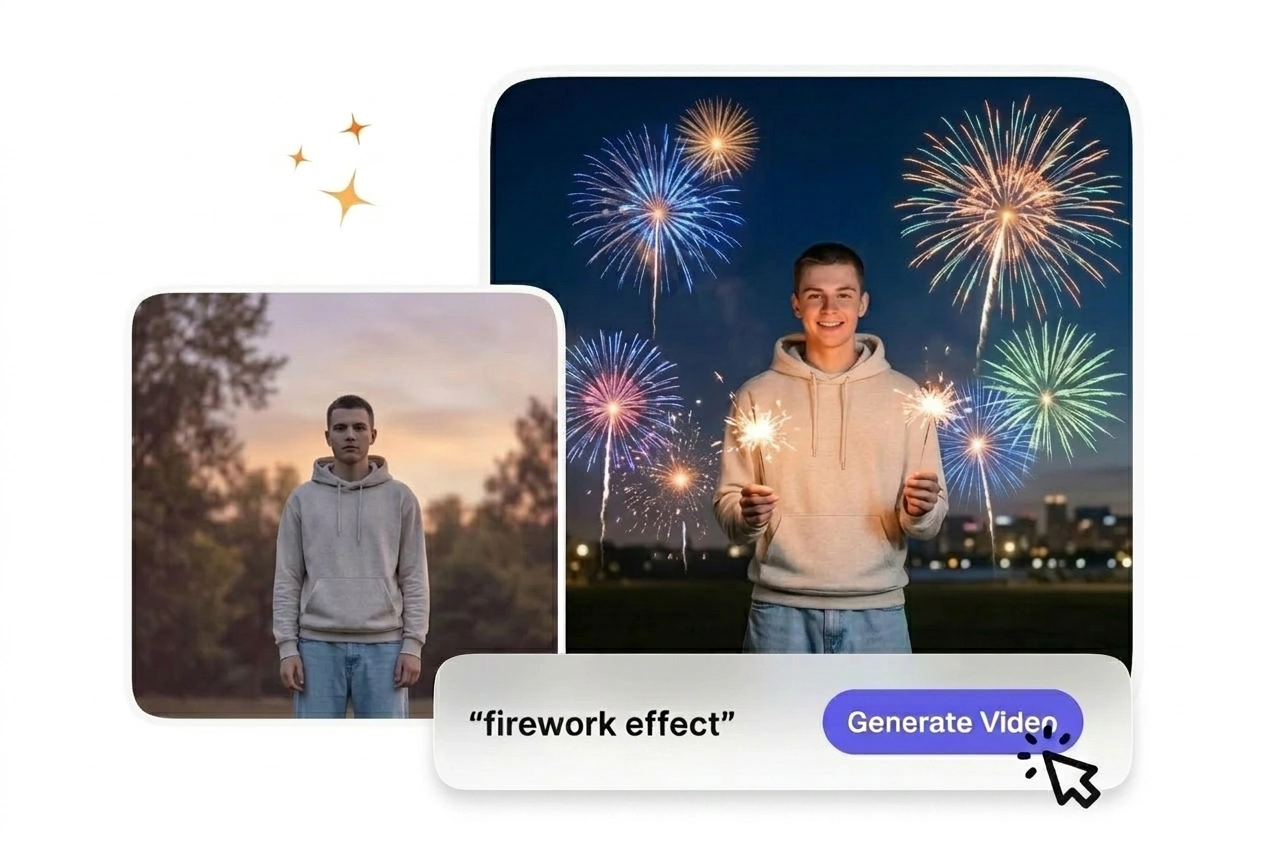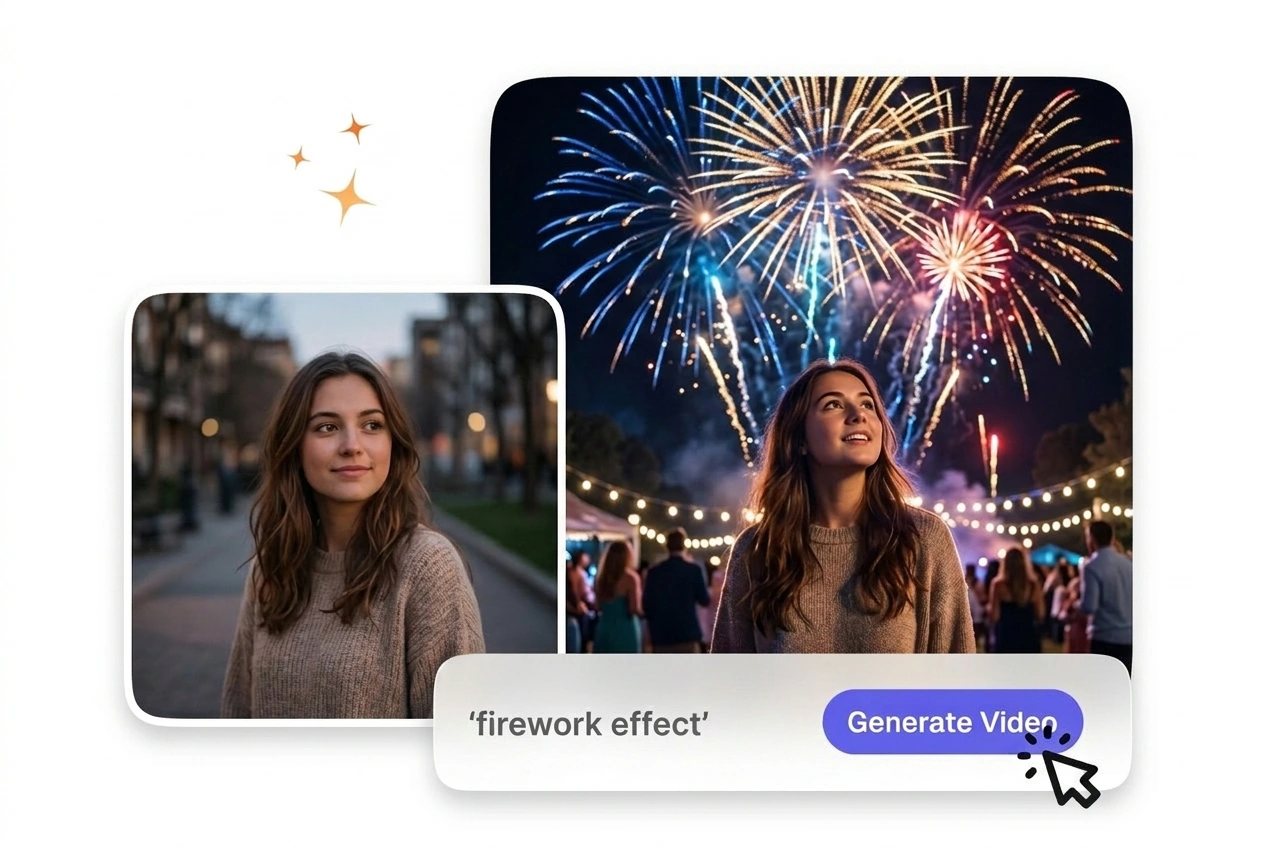
Free Firework Video Generator

A clear prompt paired gives Firework Effect enough structure to produce bright, controlled burst visuals. Footage with limited camera shake is easier to preview, and the exported output usually keeps edges and motion more coherent.

Generate a Firework Effect Online

VideoAI builds a bright particle video from your uploaded frames. You get a clean cut that keeps viewer attention on your subject.

Firework Effect VideoAI hero showcase transition preview
Who Uses the Firework Effect

Event promoters and educators use this AI video Transition generator to connect distinct visual ideas. Predictable pacing helps maintain focus across scene changes.

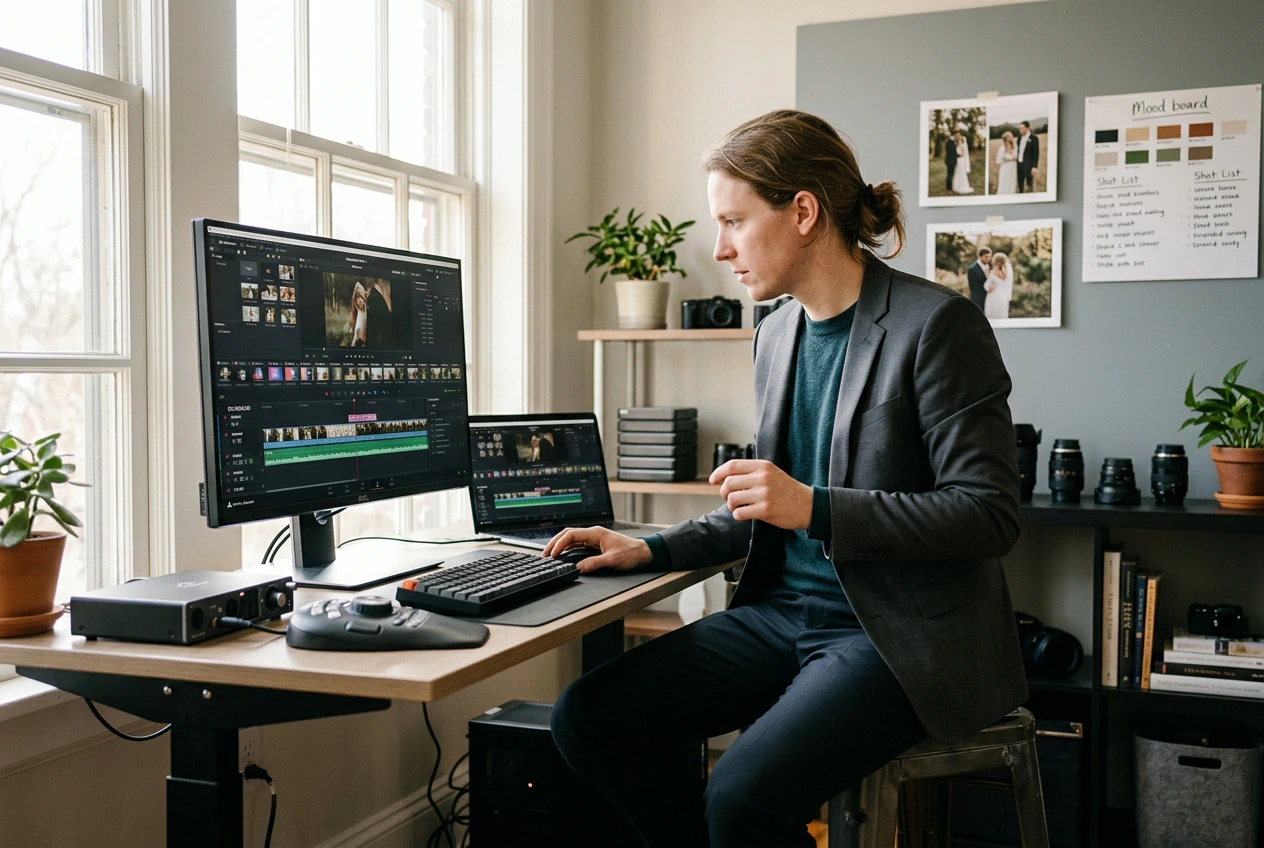
Creator using Firework Effect for simple edits
First Time Creators

New users often struggle with complex timeline settings. VideoAI provides a straightforward Fireworks transition from your basic text prompt. You export a usable file quickly without needing to adjust complicated keyframes or manual particle layers.


Business owner applying Firework Effect to products
Small Business Owners

Retailers need engaging product reveals for social media campaigns. A festive firework wipe connects your product images with professional polish. This keeps production costs low while delivering consistent visual quality for your weekly promotional posts.

Educator adding Firework Effect to lesson slides
Explainer Video Editors

Instructional channels require motion that supports the lesson structure. The New Year fireworks effect video AI style highlights major topic shifts clearly. Controlled pacing ensures the visual change does not distract students from the core message.

How to Build a Firework Effect

Upload your static frames and let VideoAI handle the complex particle generation. You review the motion preview before exporting the final file.

Step 1

Upload Your Frames

You upload a starting image and an optional ending image so we can analyze the visual composition. After that, the system sets a baseline duration for the burst to prepare the transition path.

Step 2

Define the Prompt

If you want specific colors, type them into the prompt box so VideoAI reads your text. The engine then generates a matching night sky spark transition and updates the preview for your review.

Step 3

Export the Video

You confirm the settings and click generate so VideoAI can compile the frames into a smooth sequence. Then you simply download the completed file to use directly in your project.

Core Firework Effect Features

VideoAI gives you structured tools to manage particle behavior and timing. These features ensure your final export matches your initial creative intent.

Firework Effect color prompt control interface preview

Color Prompt Control

VideoAI adjusts the explosion palette based on your text descriptions. You type specific hues to match your brand guidelines exactly. When the prompt is highly detailed, the resulting sparkle bloom firework effect aligns closely with your vision.

Firework Effect motion pacing adjustment timeline view

Motion Pacing Adjustment

The engine scales the burst speed to fit your chosen duration. You select a slower pace for dramatic reveals or a fast pop for quick cuts. This firework effect works best with clear high contrast source images.

Firework Effect scene reveal blending before after

Scene Reveal Blending

VideoAI uses the fading embers to expose your second uploaded frame naturally. You do not need to mask the layers manually in another program. The Firework effect looks cleanest when the second image is well lit.

Firework Effect particle density selection visual comparison

Particle Density Selection

The tool generates either sparse sparks or thick smoke based on your settings. You pick the density level before rendering the final file. A lighter density helps maintain focus on the underlying subject during the cut.

Questions About the Firework Effect

Can I use my firework effect video for commercial client work, paid ads, or resale?

Commercial use requires an active paid membership under our terms. Free access is for personal testing only, not for client work, paid ads, or resale. Open the pricing plan page for current commercial allowances.

Do I have to upload a video file, or can I generate the effect from still images and text only?

No, the system only accepts static images and text prompts to generate the motion. If you upload a video file, the tool will reject it. This design ensures predictable rendering times for creators building an AI transition.

How long does it usually take to generate a firework transition once I start a render?

Most standard renders finish in under two minutes depending on server load. Complex prompts with high particle counts might take slightly longer to process completely. Fast turnarounds allow social media managers to iterate on multiple ideas quickly.

Can I change the background color or tone of the scene using my prompt?

Sure, you can specify background tones directly in your text prompt before generating. Darker backgrounds generally make the bright sparks stand out much better. This control benefits designers who need the output to match specific brand colors.

Are there limits on export resolution or quality, and does that differ between free and paid accounts?

Export limits and max resolution follow whatever caps the live product shows for your account. Free access stays non commercial under the terms, not for client delivery or paid ads. Open the pricing plan page for details; we do not enumerate plan SKUs in this FAQ.

Try the Firework Effect Today

Upload your starting frame and see how VideoAI handles the transition. You can test different prompt styles before downloading the final video.