
Al Image Colorizer

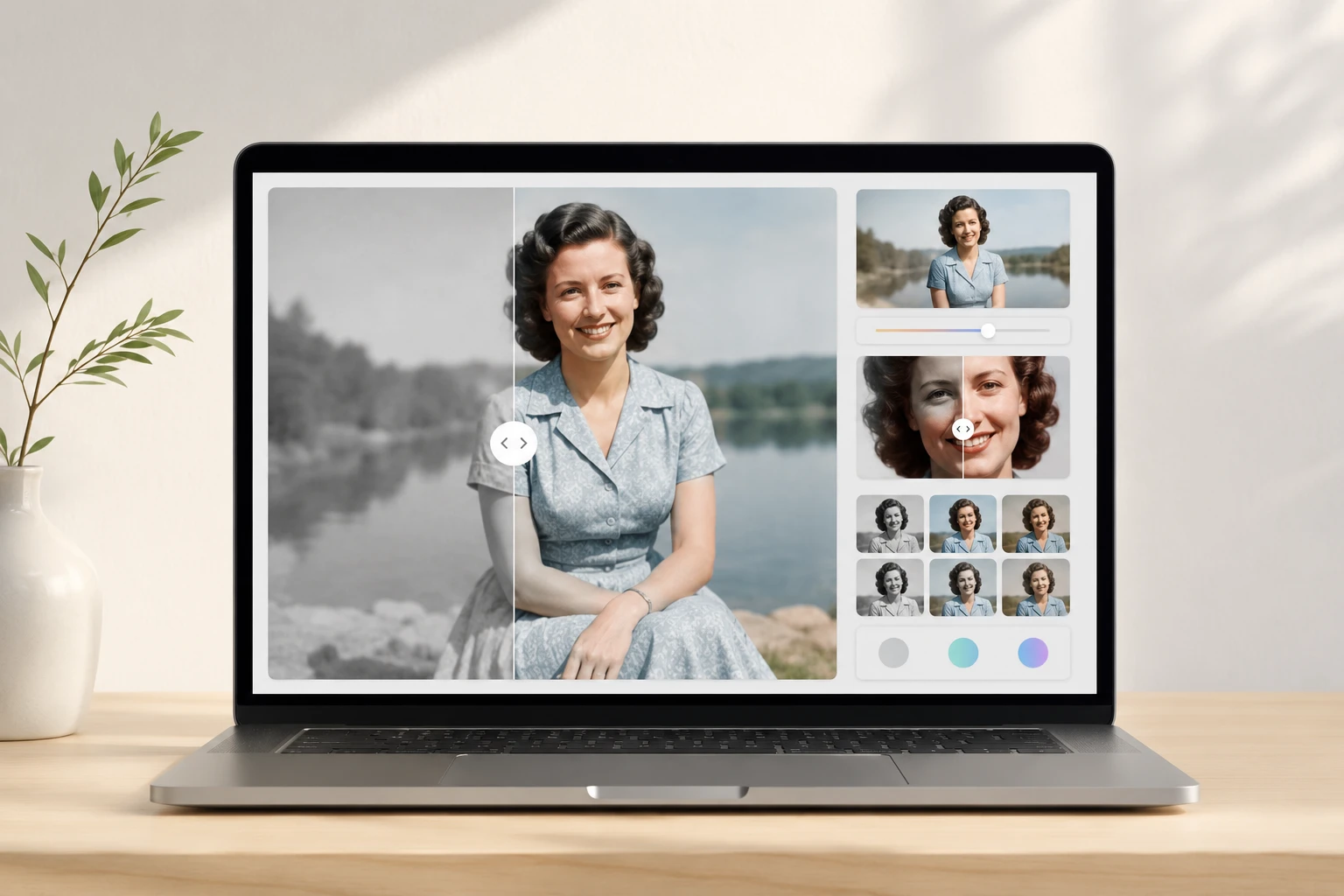
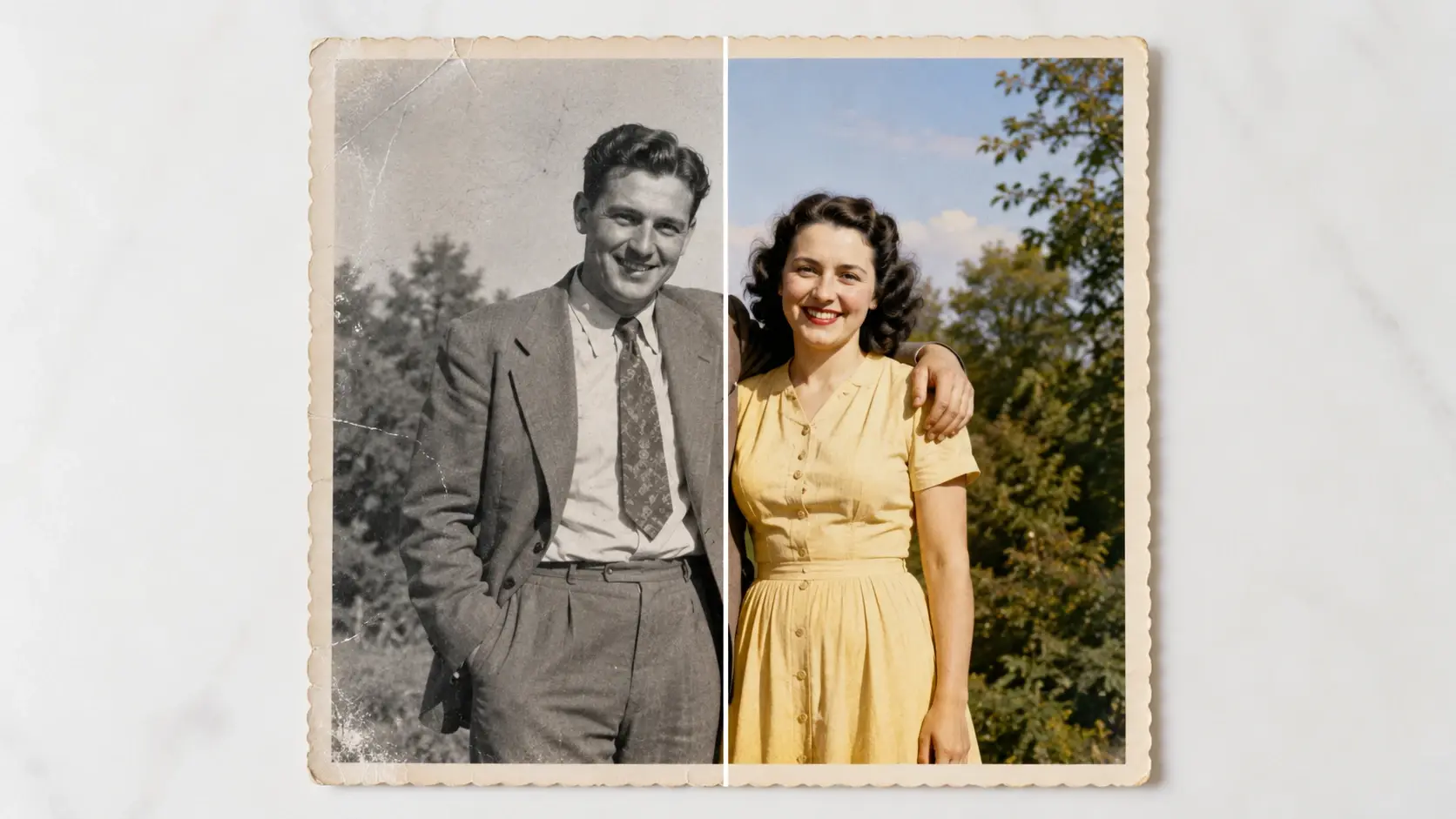
This image colorizer reads your black and white source file to fill natural hues across scenes. For best results, upload high-resolution scans.

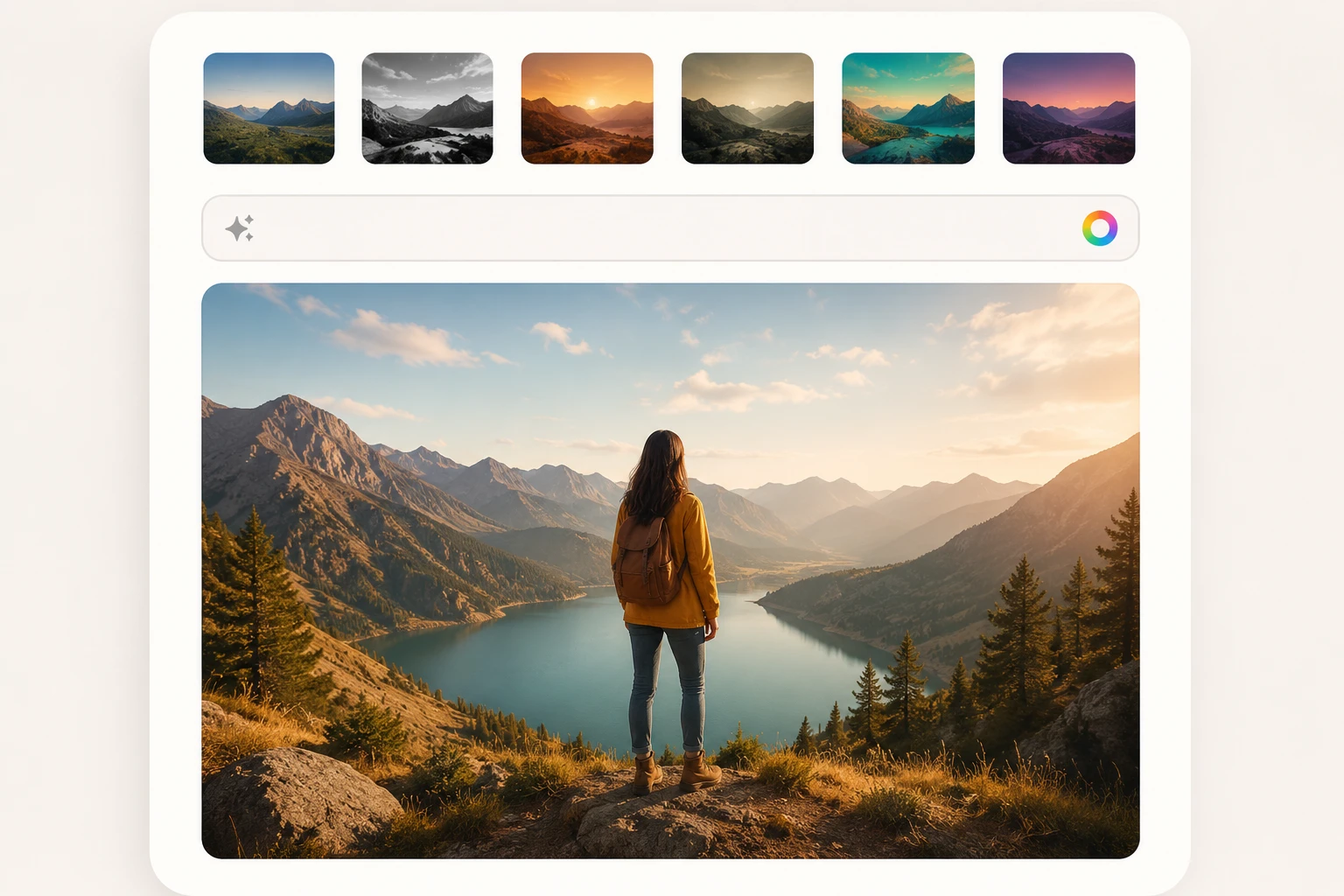
Banner preview

Clear Image Colorizer for Historical Archives

VideoAI analyzes your monochrome upload and applies realistic hues to subjects. You get a natural Image Colorizer output ready for digital publishing.

Who Uses This Image Colorizer

Archivists and educators need a predictable Image Colorizer to restore visual history. VideoAI keeps textures intact so your audience focuses on the subject.

Curator using Image Colorizer for historical archives

Historical Archive Managers

Museum curators require accurate colorized photos to engage modern visitors. VideoAI reads the grayscale depth to assign realistic tones to clothing and architecture. High-contrast source files yield the most authentic historical reproductions for your exhibits.

Genealogist using Image Colorizer on family portraits

Family History Researchers

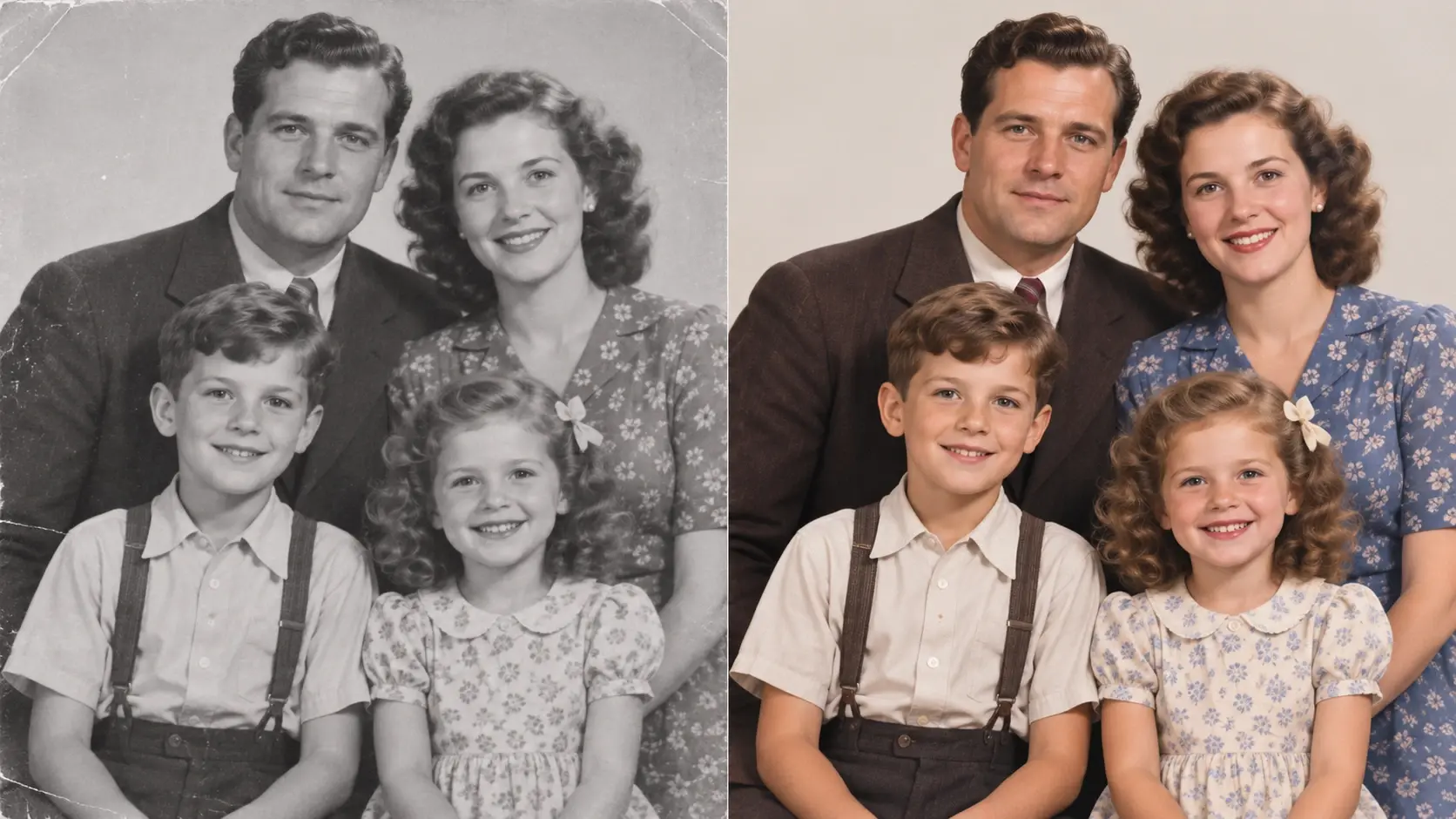
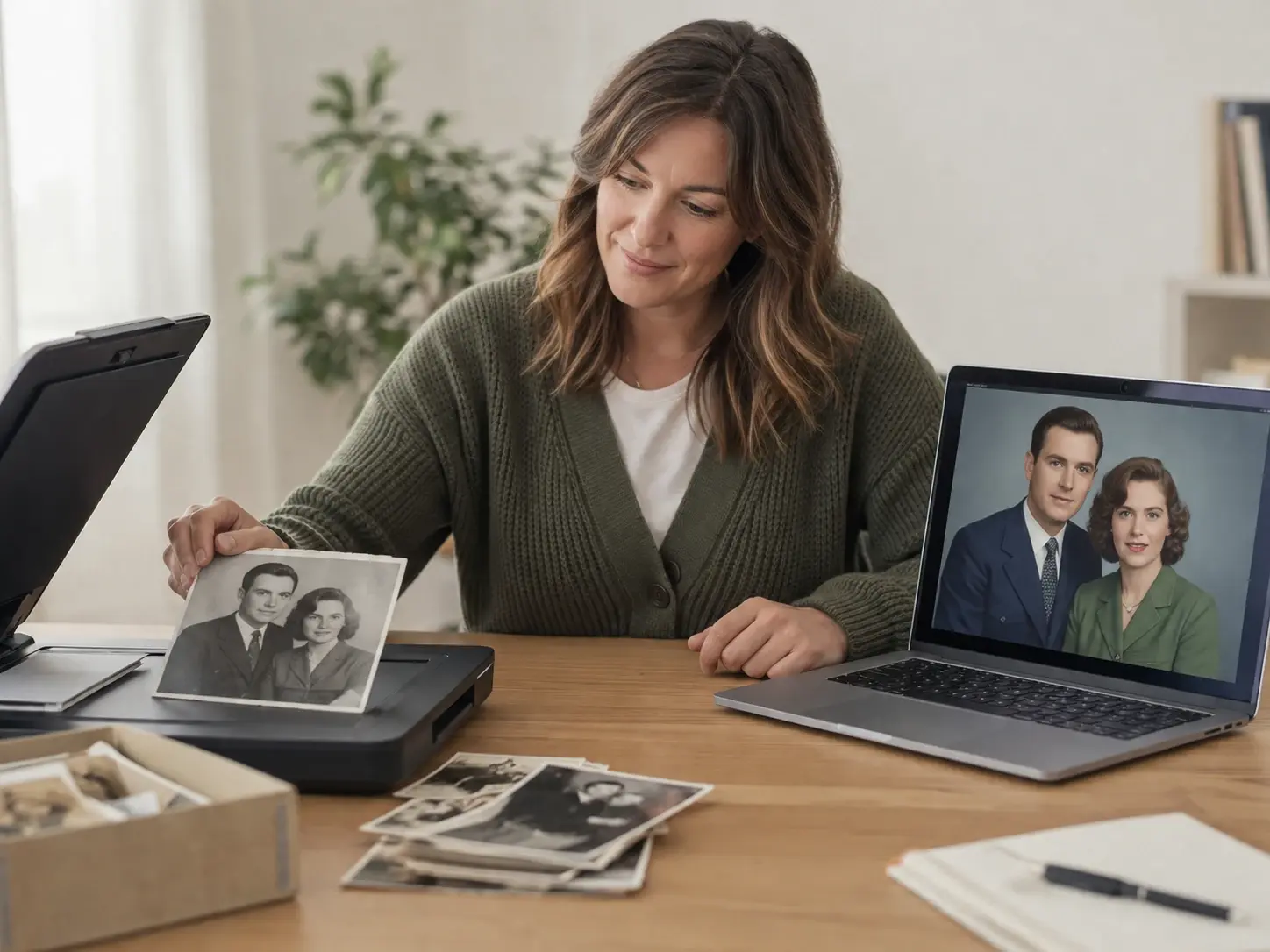
Genealogists want to add color to black and white photo collections without losing delicate facial details. The model preserves original lighting while filling natural skin tones. Clean scans ensure your relatives look realistic rather than painted.

Director using Image Colorizer for documentary assets

Documentary Content Creators

Directors need consistent colorized pictures to match modern footage sequences. The Image Colorizer handles the recolor image process while maintaining film grain and edge sharpness. This keeps your visual narrative cohesive across different historical eras and scenes.

How the Image Colorizer Works

You provide a grayscale reference, and this Image Colorizer maps the appropriate colors. Review the preview, then export your file for immediate social sharing.

Step 1

Upload Source File

You upload a faded or monochrome image into the Image Colorizer workspace. VideoAI scans the visual structure to identify distinct elements like sky, foliage, and faces. Clear uploads give the model better context.

Step 2

Review Color Mapping

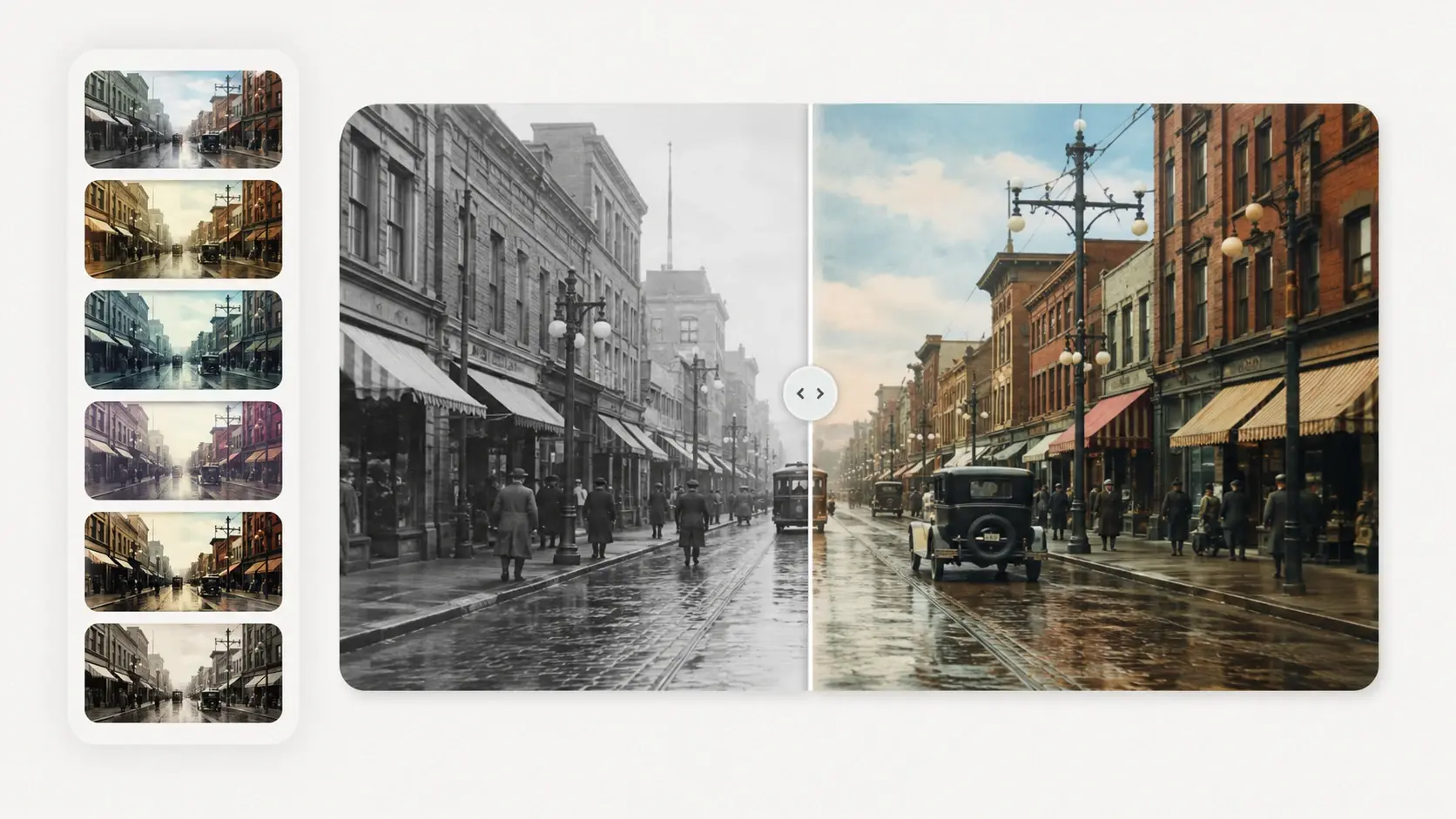
VideoAI applies natural hues based on the detected scene context. You check the preview to ensure skin tones and textures look accurate. Complex patterns might require a higher resolution source file.

Step 3

Export Final Image

After confirming the colors, you download the finished static graphic. The output retains its original sharpness alongside the new palette. You can then drop the file directly into your editing timeline.

Predictable Image Colorizer Features

This Image Colorizer targets specific elements in your upload to prevent color bleeding. You get clean edges and realistic saturation without manual masking.

Contextual Color Recognition

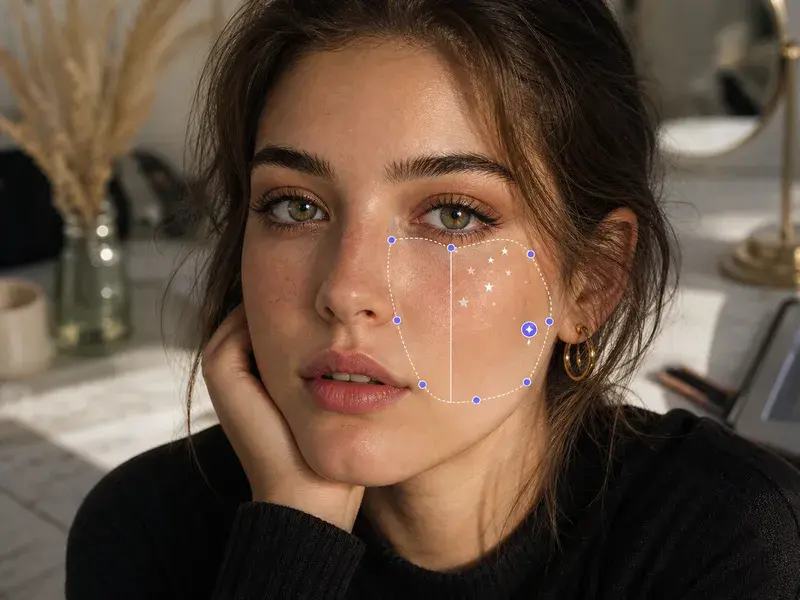
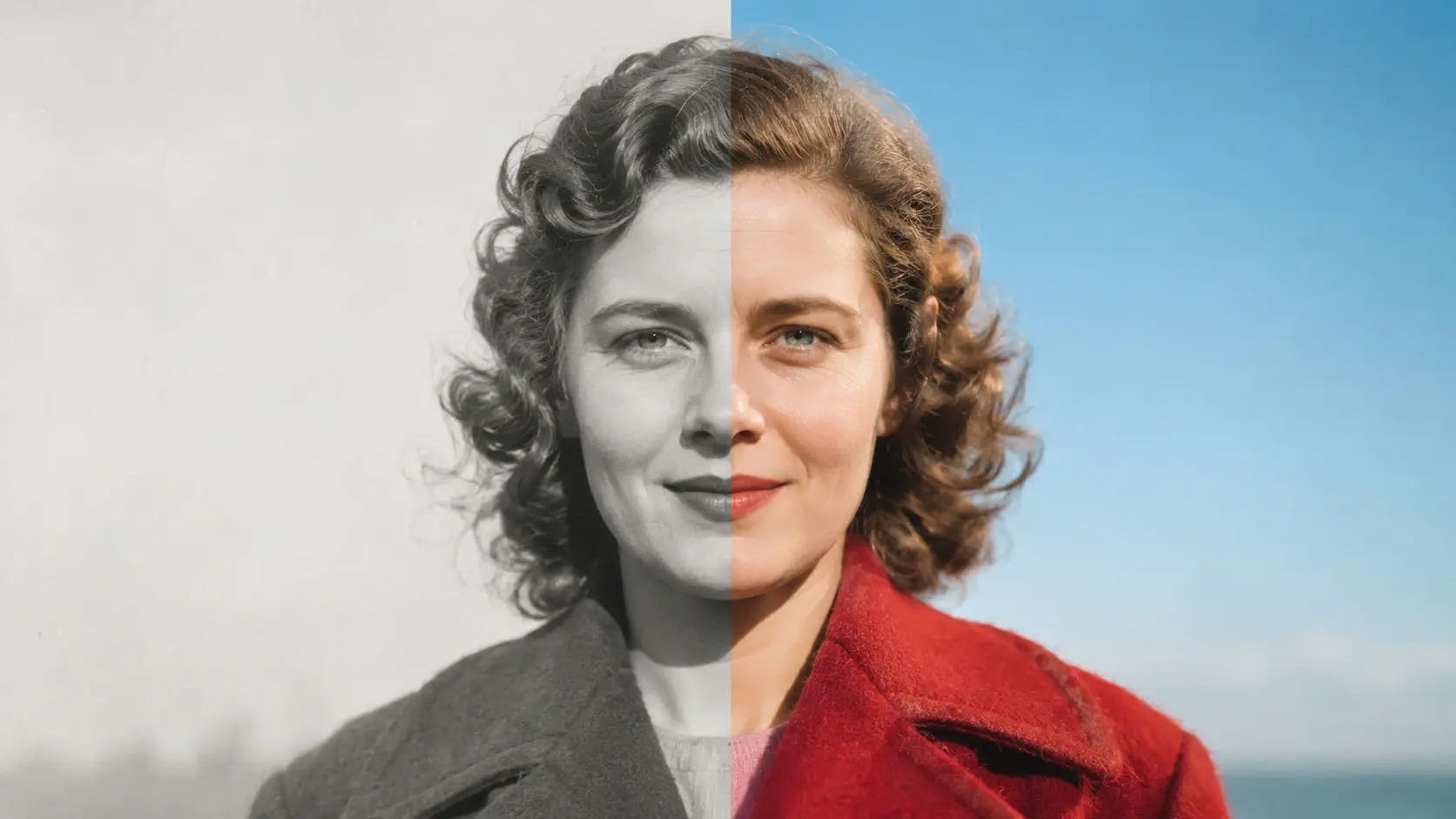
When the model detects human subjects, it prioritizes natural skin tones and fabric colors. You simply upload the source file and wait for the render. This works best when faces are clearly visible and well-lit.

Image Colorizer contextual color recognition for faces

Texture and Detail Retention

The Image Colorizer maintains the original contrast and grain while adding color to the scene. You do not have to worry about the output looking artificially smoothed. Heavily damaged photos may still need manual scratch removal before colorization.

Image Colorizer texture retention on historical clothing

Clean Edge Boundaries

The engine separates foreground objects from backgrounds to prevent unwanted color spill. You review the distinct color zones in the preview window. Busy backgrounds with low contrast can occasionally blend, requiring a sharper input file.

Image Colorizer clean edge boundaries for subjects

Clarity and Lighting Enhancement

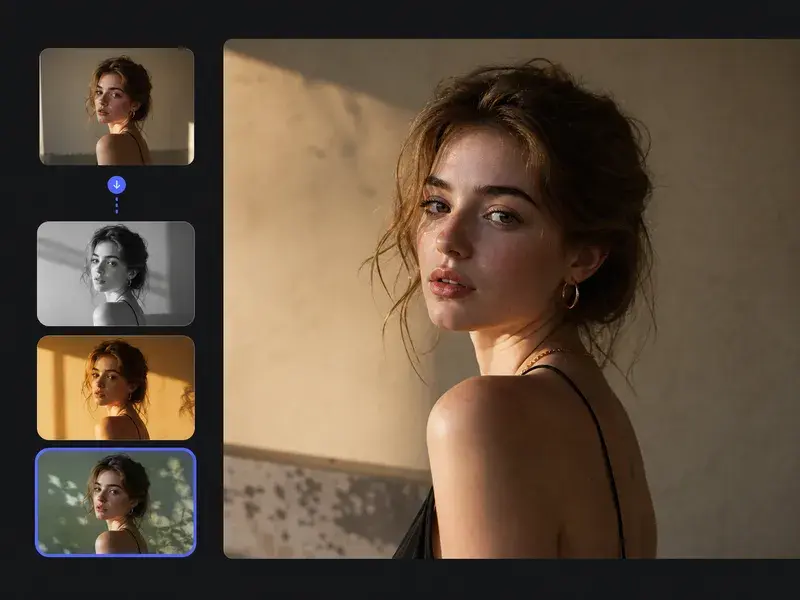
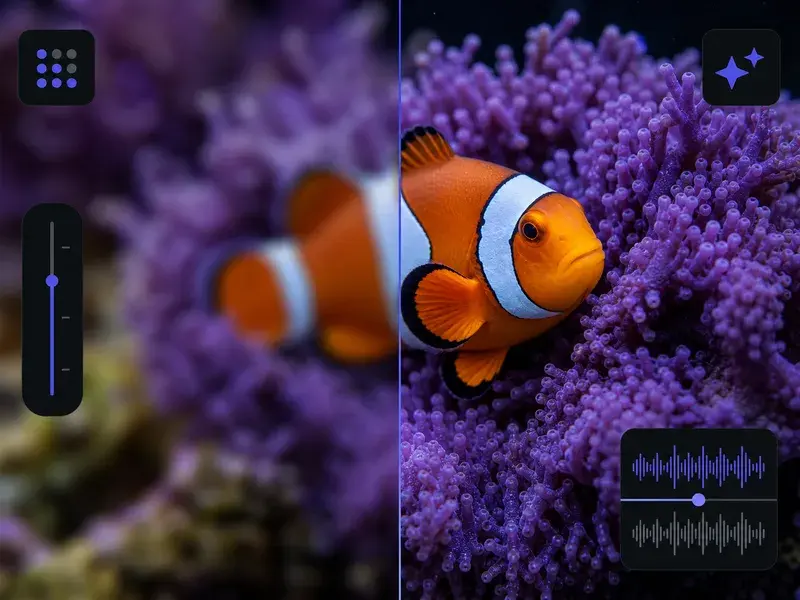
If your original scan lacks depth, VideoAI balances the shadows and highlights during the color pass. You receive a vibrant image that feels dimensional. Extremely dark source files limit how much detail the model recovers.

Image Colorizer clarity enhancement for dark scans

Image Colorizer Common Questions

Yes, you can process damaged files through the Image Colorizer online. However, deep scratches or missing sections will remain visible in the output. Repairing physical damage first ensures the model applies color accurately for your archival projects.

Try the Best Image Colorizer Today

Upload your historical photos to this free photo colorizer and see how VideoAI handles the mapping. Export clean, realistic images.

Get Started