

animate photos
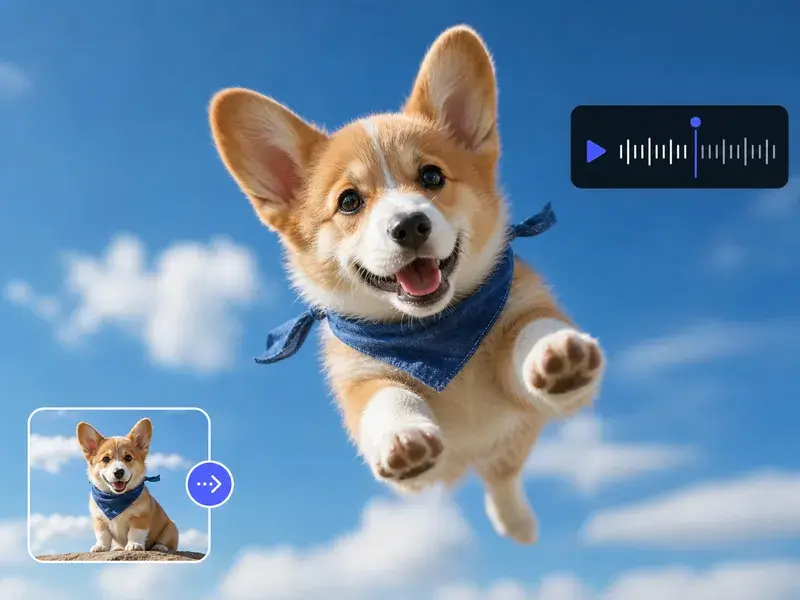
Upload a still photo, choose your motion style, and VideoAI generates a video with smooth, natural movement. Preview the motion before you export and adjust the intensity until the result fits the shot.
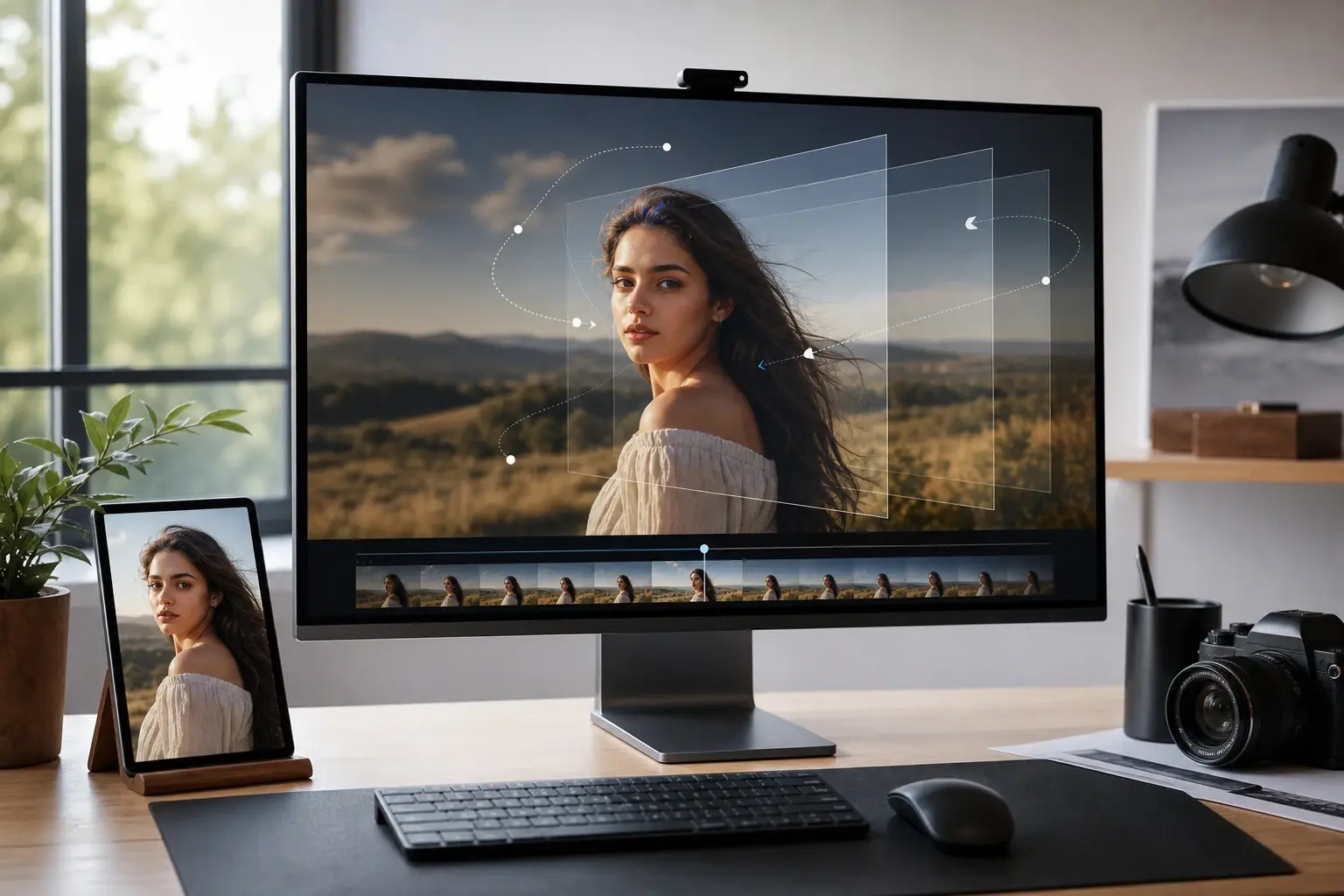
Who Should Animate Photos Here
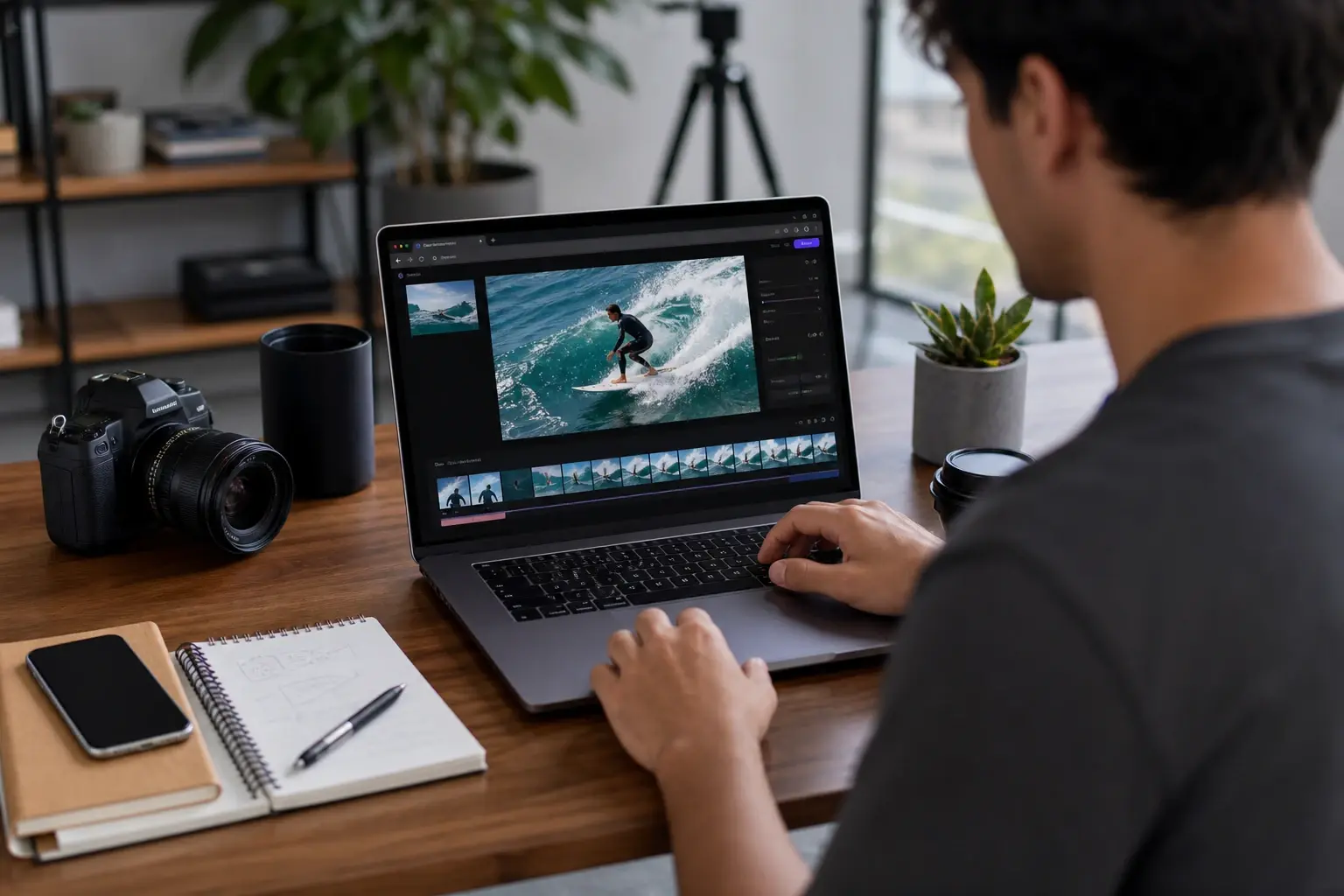
Short Form Content Creator
You post regularly and a static image no longer holds attention in a feed. Upload the photo, select a subtle camera move or subject motion, and the output is a loopable video clip ready for social. When the subject is clear and well lit, the output is cleaner and needs fewer adjustments before posting. VideoAI lets you animate photos quickly and get back to publishing. This is the fastest path when you need to animate photos for one post.
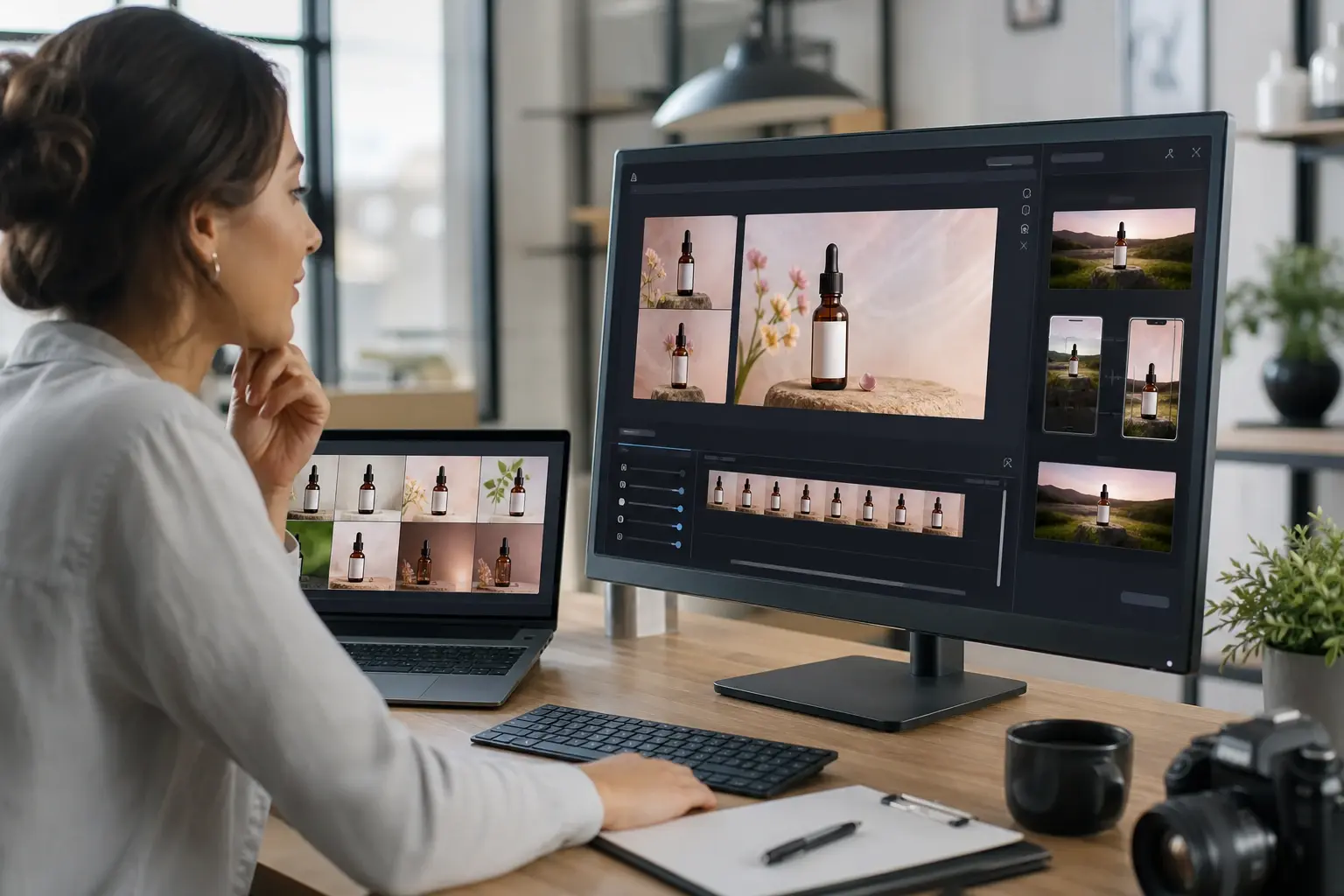
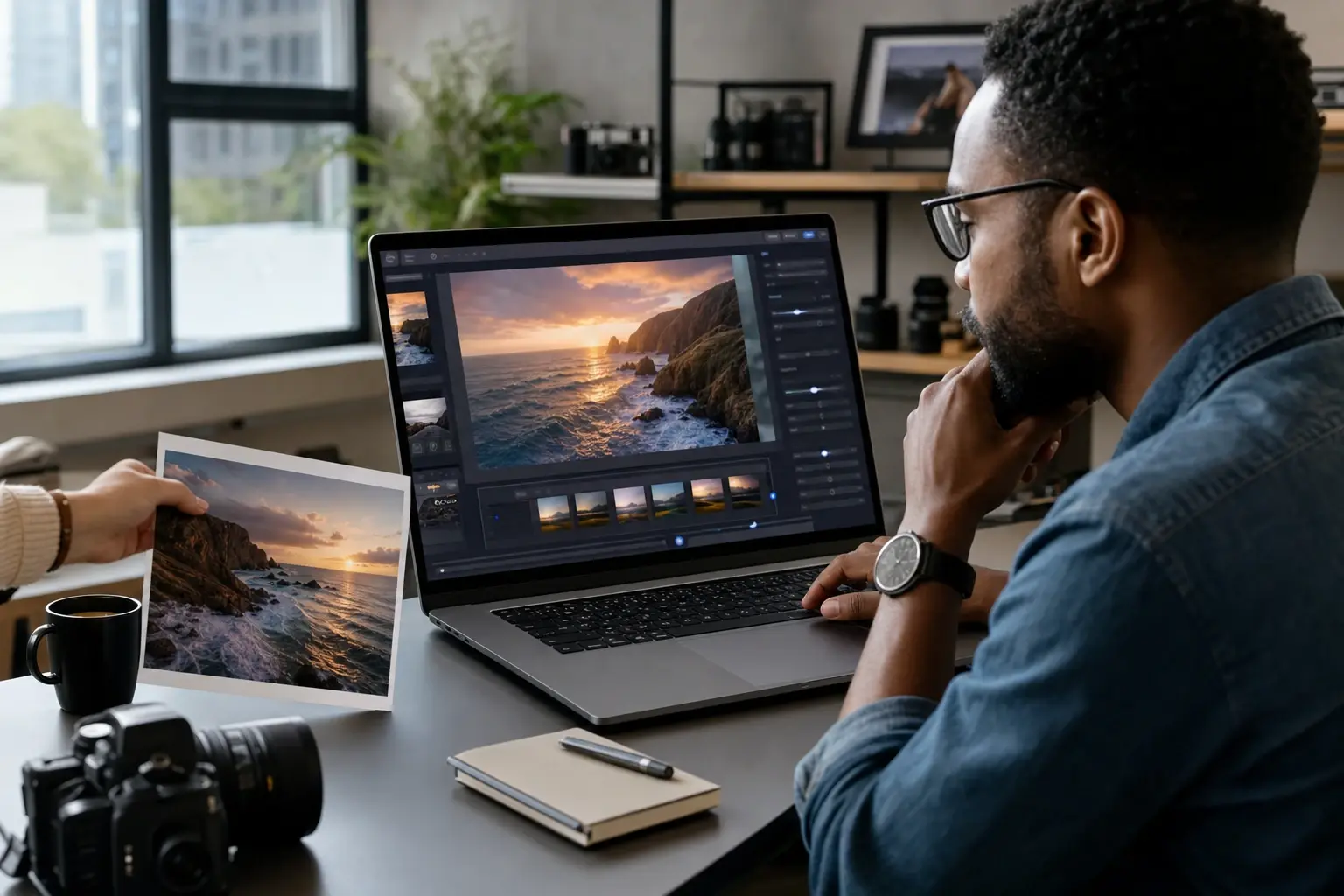
How to Animate Photos in Three Steps
The workflow moves from photo upload to exported video without leaving the browser. Each step asks for one decision so the output stays predictable. The sequence helps you animate photos without guessing which setting caused a result.
Upload and Assess Your Photo
Start by uploading a JPG or PNG. VideoAI displays the photo in the editor and highlights areas where the subject is clear and where edges may cause instability during animation. Check that the main subject has clear space around it before moving to the next step. Animate photos that have sharp subjects and open edges to get the most stable output. The readiness check helps you decide whether to swap the source before any generation time is spent. This first pass makes it easier to animate photos with stable edges.
Choose Motion Style and Intensity
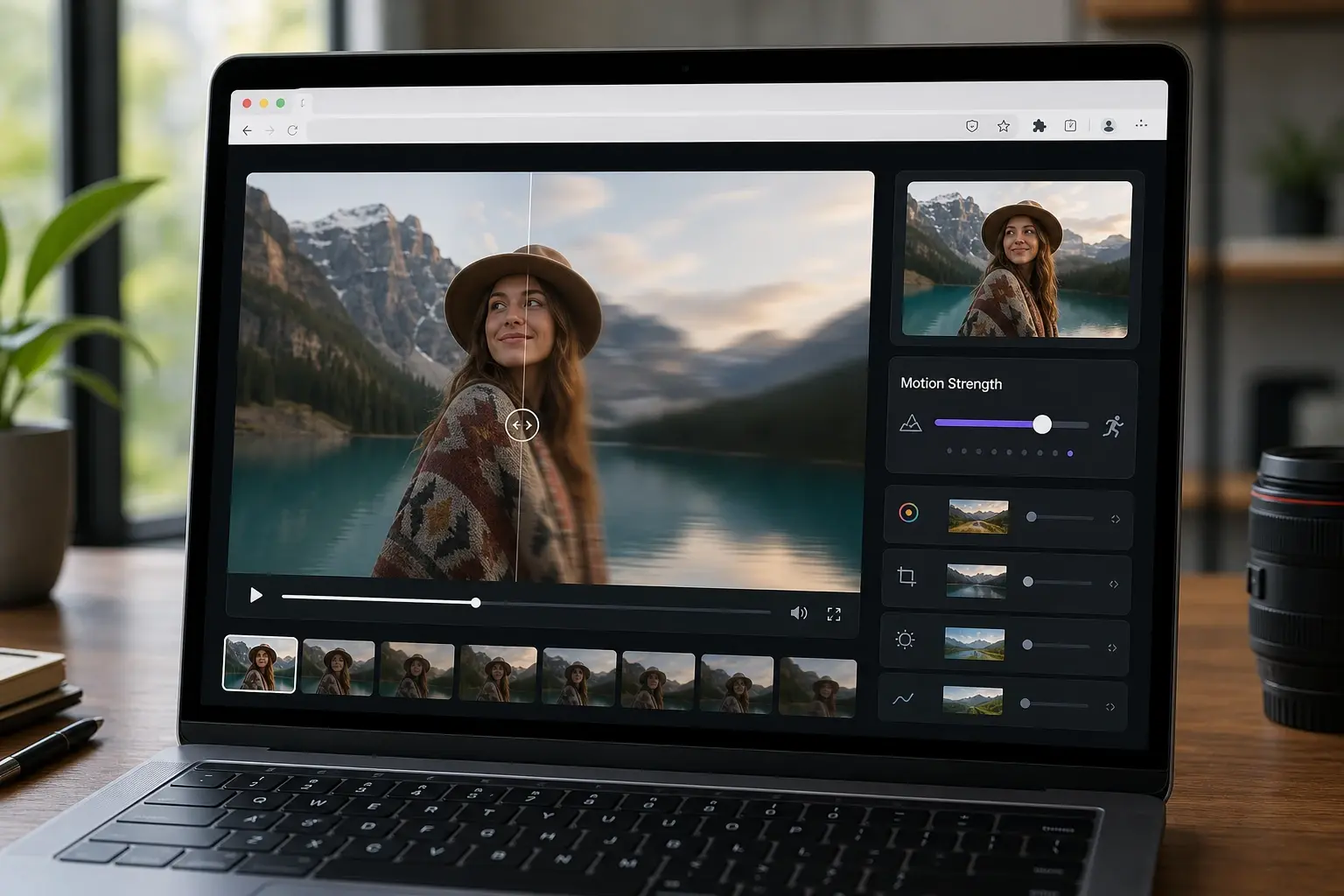
Select between a camera drift, a scene atmosphere motion, or a subject motion effect. Set the intensity using the motion strength slider: a lower setting produces a subtle, almost imperceptible movement; a higher setting creates visible subject or camera action. Preview the result in the editor before committing. VideoAI covers the full range of AI animate photos motion from near still to expressive, and you choose the level before generation begins.
Preview, Adjust, and Export
Play the animated preview at full duration. If the motion distorts a face or pulls at a cropped edge, reduce the intensity or switch motion styles. Confirm the result and export the video file in a shareable format ready for upload or delivery. Animate photos with confidence because you approve every frame before the final file is generated. When your reference image has clear subject separation, the exported clip is typically close to final on the first pass. Final preview gives you one more chance to animate photos at a safer strength.
Features That Animate Photos With Control
Each feature below changes something specific in how your photo moves, not just how it looks in a thumbnail. These controls help you animate photos with fewer trial and error rounds.
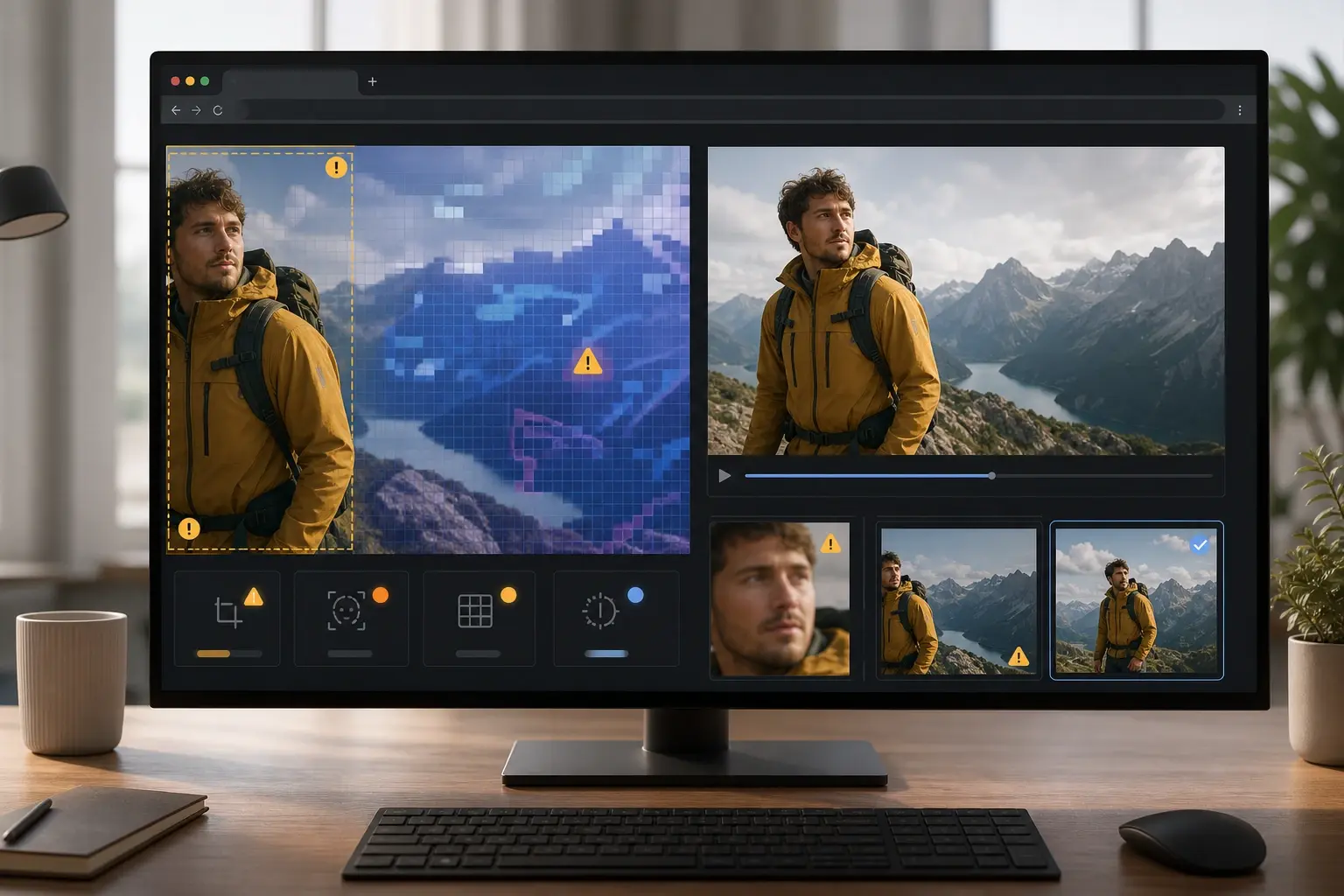
Photo Readiness Check
VideoAI scans the uploaded image and flags areas where subject edges are cut off, where facial detail is low, or where background complexity may bleed into the subject during motion. You see the flags before generation starts, so you can swap to a better source photo instead of discovering the problem after waiting for output. Works best when the subject occupies a clear portion of the frame with visible space at the edges. Animate photos that pass this check and the output is far more stable.
Motion Strength Slider
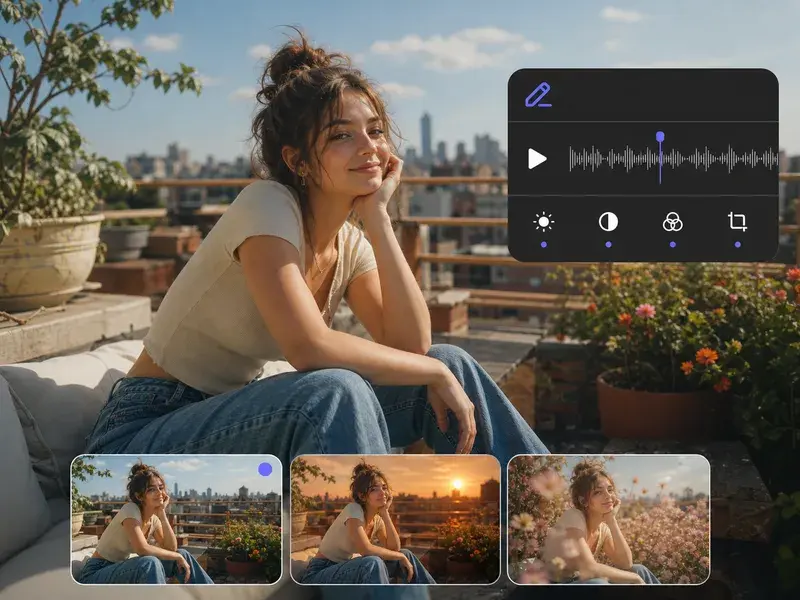
The slider runs from near still to expressive motion and updates the preview in real time as you drag. Subtle settings add a slow camera drift that makes a landscape or portrait feel alive without altering the subject. Stronger settings add visible subject movement suited to action scenes or product reveals, though very strong motion on a low resolution source blurs fine detail. VideoAI gives you full range to animate photos at exactly the intensity the shot calls for. Use the slider to animate photos gently before testing stronger motion.
Subject vs Scene Motion Mode
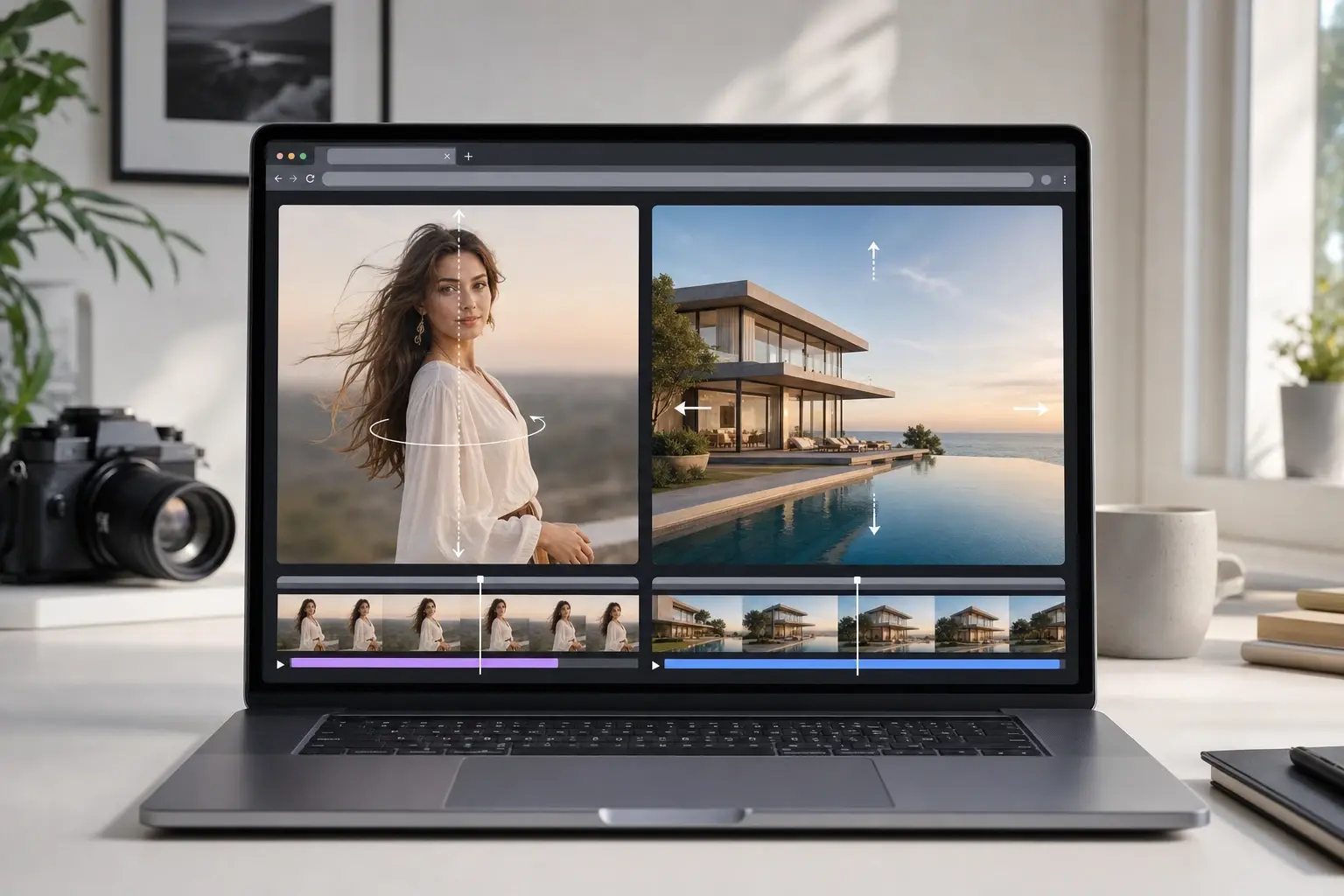
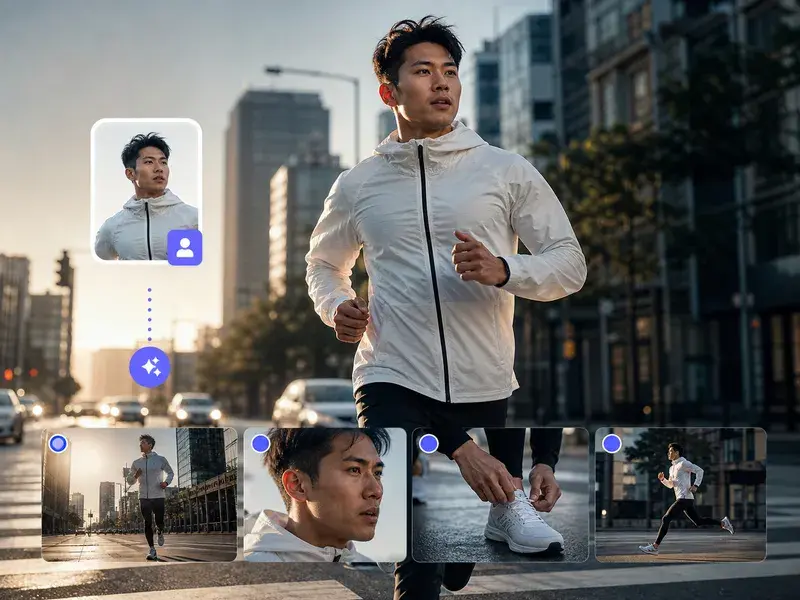
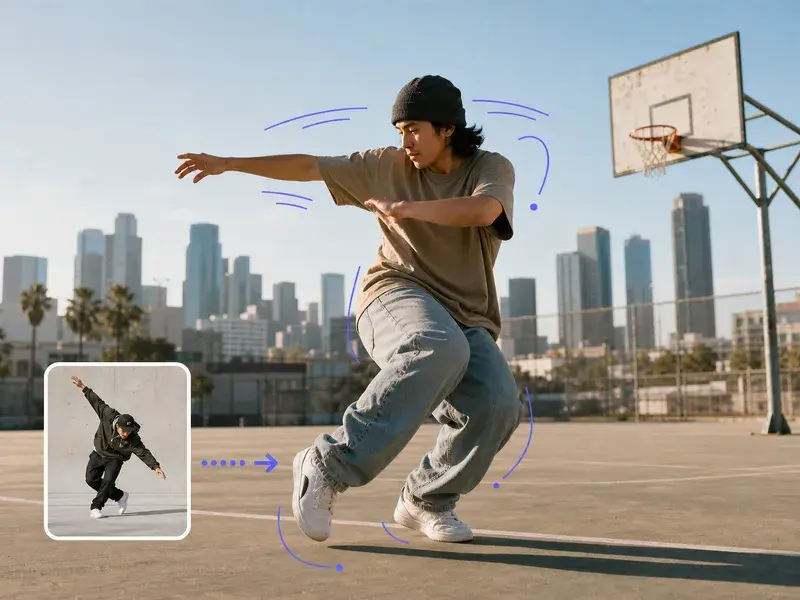
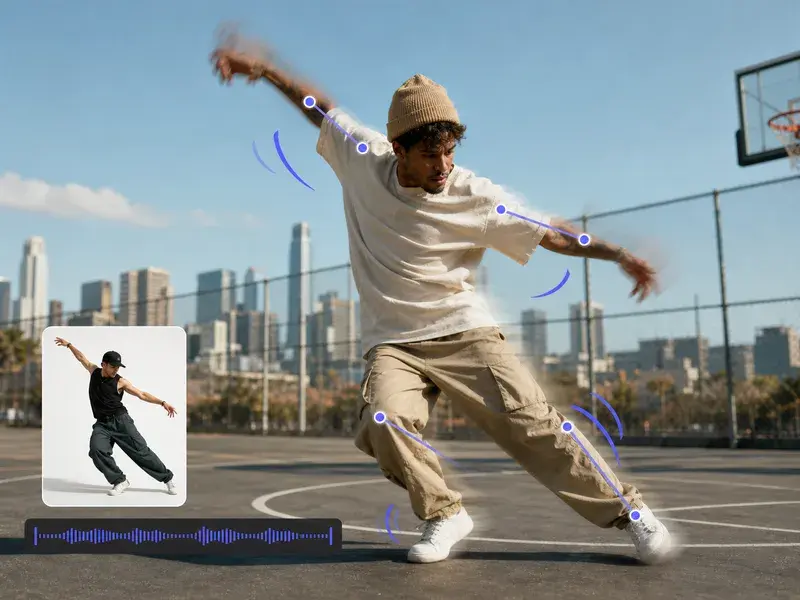
When you animate photos of people or characters, subject motion mode tracks the figure and generates movement that follows the body axis rather than drifting the entire frame. Scene motion mode works on landscapes, architecture, and product shots where the camera moves but the subject holds still. Choosing the wrong mode for the photo type is the most common source of awkward animation artifacts, so VideoAI labels each mode with a plain description of when it applies. This mode helps you animate photos without moving the whole frame by accident.
In Browser Preview and Trim
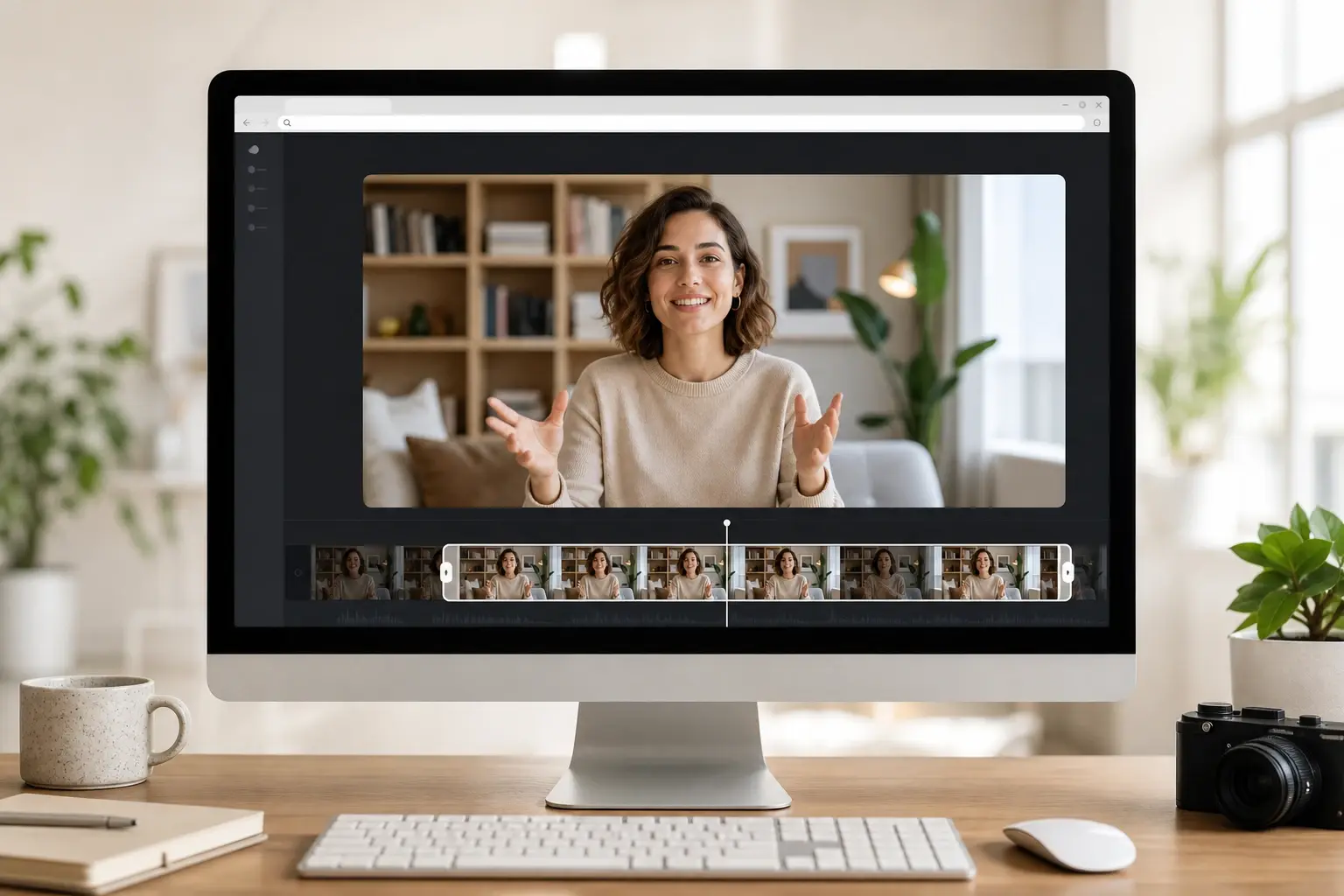
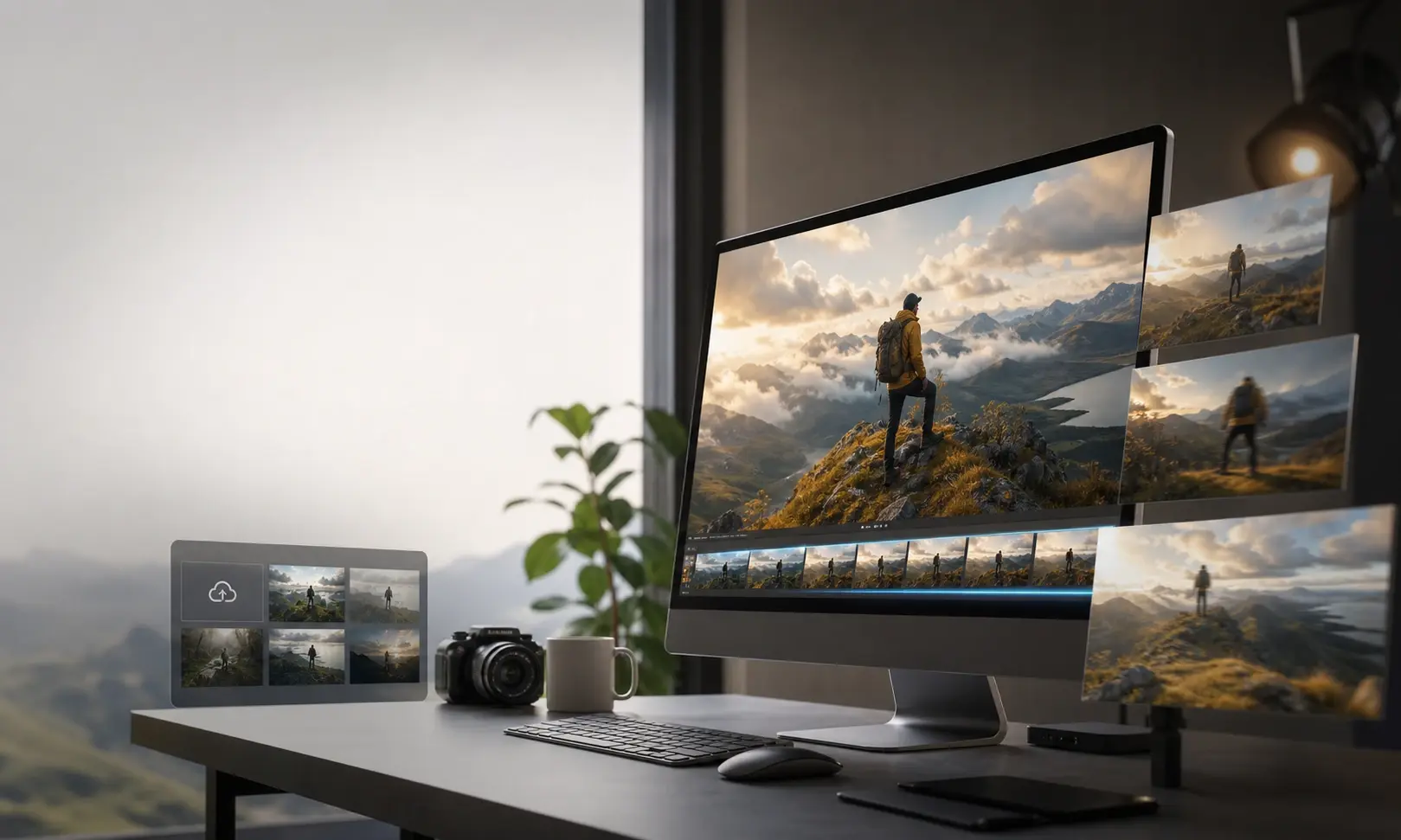
The preview player shows the full animated clip at output resolution before any file is generated. Scrub to any frame to check faces, hands, or brand elements for distortion when you animate photos with expressive motion. If a specific moment looks unstable, trim the clip start or end in the editor and regenerate only the adjusted range. The entire photo animation online process stays in one browser tab from upload to export.
Common Questions About How to Animate Photos
Explore
Discover our AI design tools







Explore related tools
See How Your Photo Moves With VideoAI.
Upload a photo, choose a motion style, and preview the animated result before you export. Animate photos from your library in a few steps and download a video file ready to share. VideoAI is the photo animation maker and AI photo animator built for creators who want control before they commit to an export. Try the photo animation online workflow and see what motion does to a single still. Animate photos with confidence and deliver a clip your audience will actually watch.
Get Started