

ai video generator from image
VideoAI reads the source image you upload alongside the prompt you write, then outputs an MP4 with directed motion and consistent subject detail. Review the generated clip before you save. One clear creative input pair, one reviewable result.
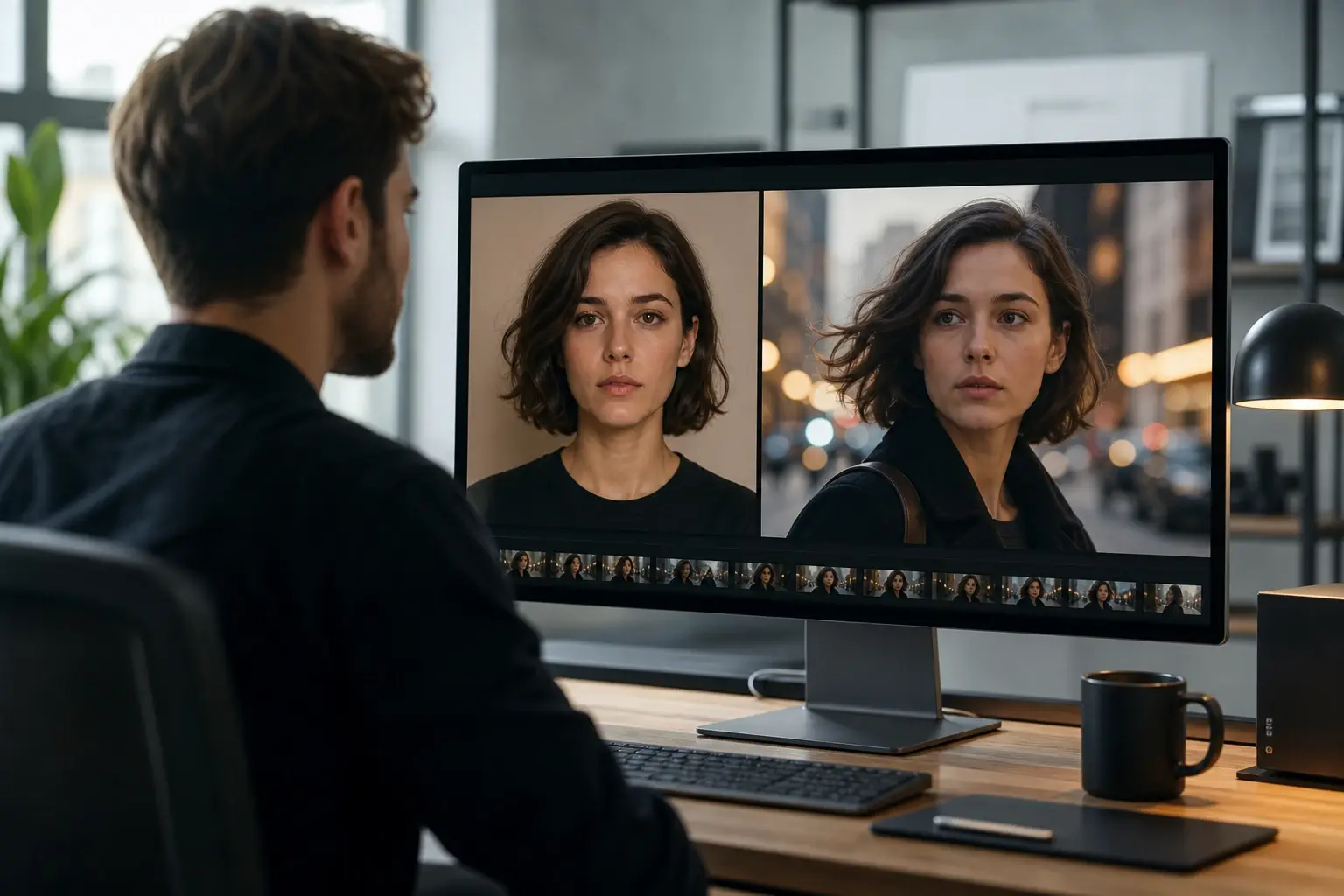
How the AI Video Generator from Image Works
Three steps take you from a static source file to a reviewable video clip. Each step is a creative decision, not just a button press.
Select the Reference Frame
Add a JPG or PNG that contains the subject and scene you want to animate. The ai video generator from image reads the composition, the subject position, and the depth layers in your file before anything moves. A clearly framed subject with surrounding space gives the model the most to work with.
Pair Prompt With Visible Detail
Describe the action you want: what the subject does, which direction the camera moves, and how the atmosphere shifts. The ai video generator from image and prompt workflow uses both inputs together, so a prompt referencing what is already visible in the image tends to produce more accurate motion. When your subject is clearly defined in the source, a short specific prompt outperforms a long general one.
Review the Clip and Export
VideoAI renders the generated clip and plays it in a preview player before producing the final file. Check that subject detail holds through the motion, that the prompt direction is readable in the output, and that no edge distortion appeared at the frame boundary. If the result is usable, export the MP4 as your video from image ai output. Use the ai video generator from image preview before export, especially for ai video from picture workflows.
AI Video Generator from Image: Four Output Controls
Each feature shapes something specific in the generated clip. The goal is a reviewable output that matches what the source image and your prompt described.
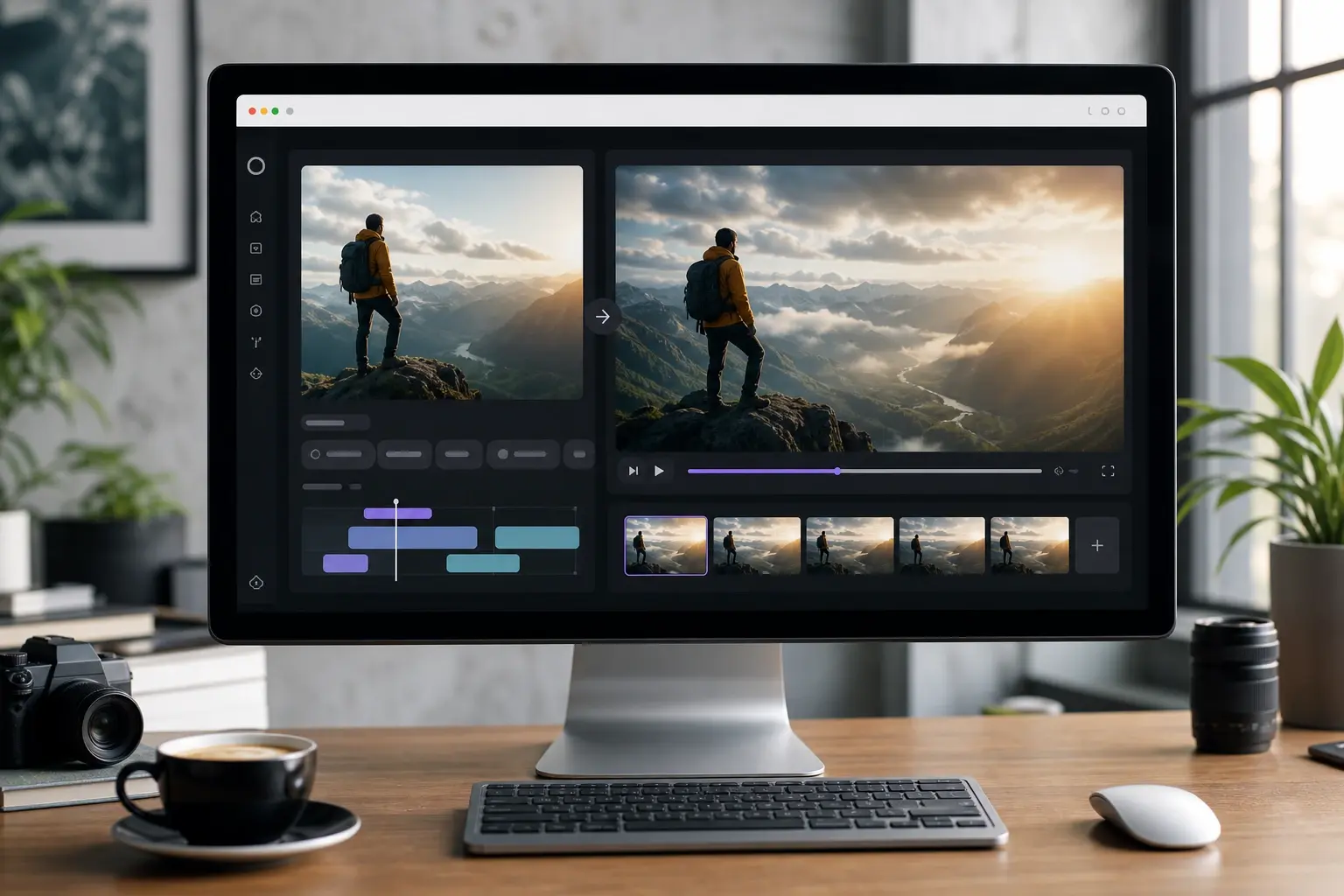
Prompt and Image Pairing
VideoAI reads the source image and the motion prompt as a combined input, not two separate signals. The model maps prompt instructions onto the subject and scene already present in the uploaded file, so the video from image ai reflects both the visual starting point and your written direction. Works best when the prompt names elements that are visible in the image rather than introducing objects not present in the source.
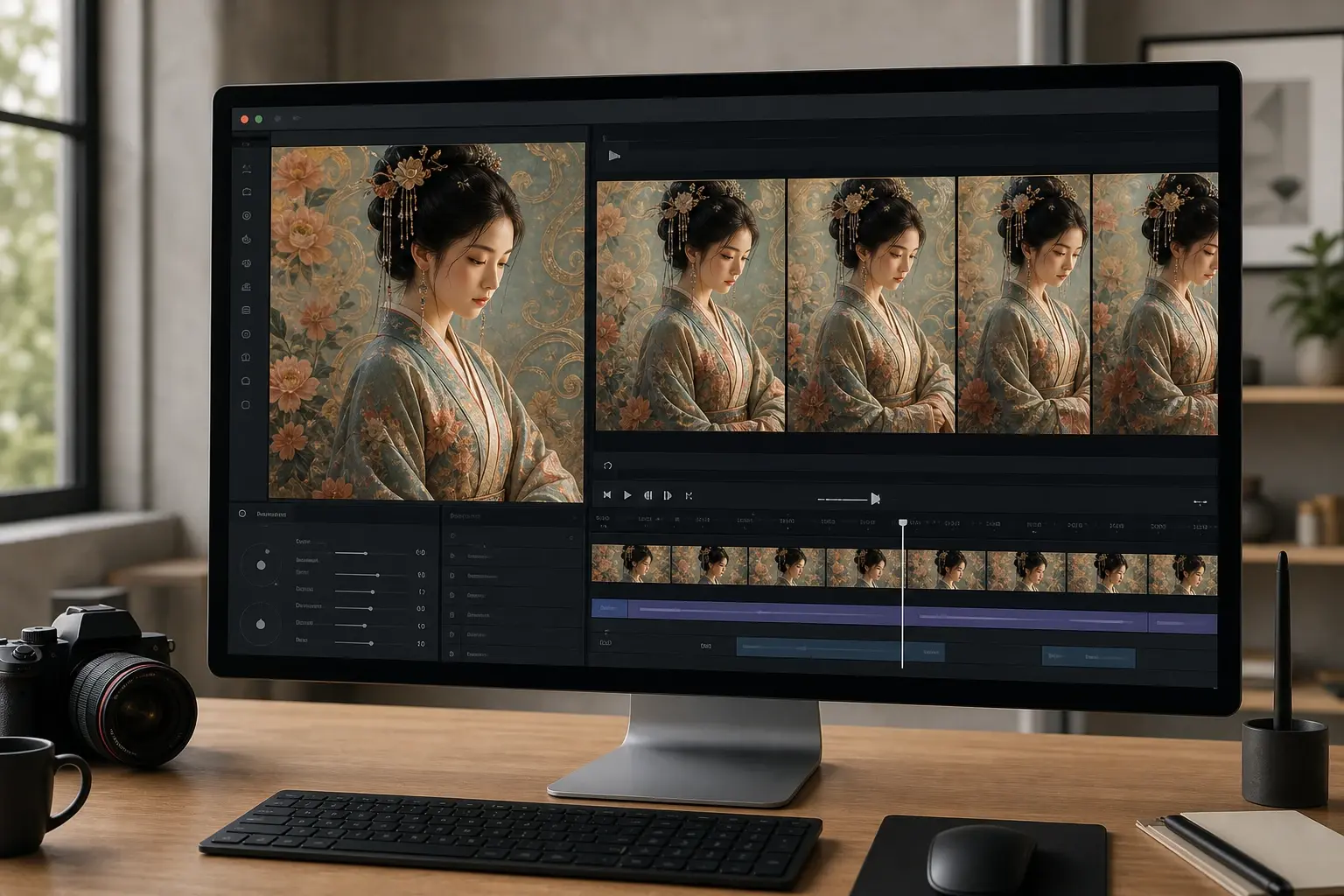
Source Detail Retention
When you animate a picture with fine texture, a complex illustrated background, or a detailed subject, VideoAI tracks those details through each generated frame to reduce subject drift. The output clip holds the color relationships and edge definition from the source image across the duration of the motion. Detail retention is strongest when the source file is sharp and the subject occupies a clear area with minimal occlusion.
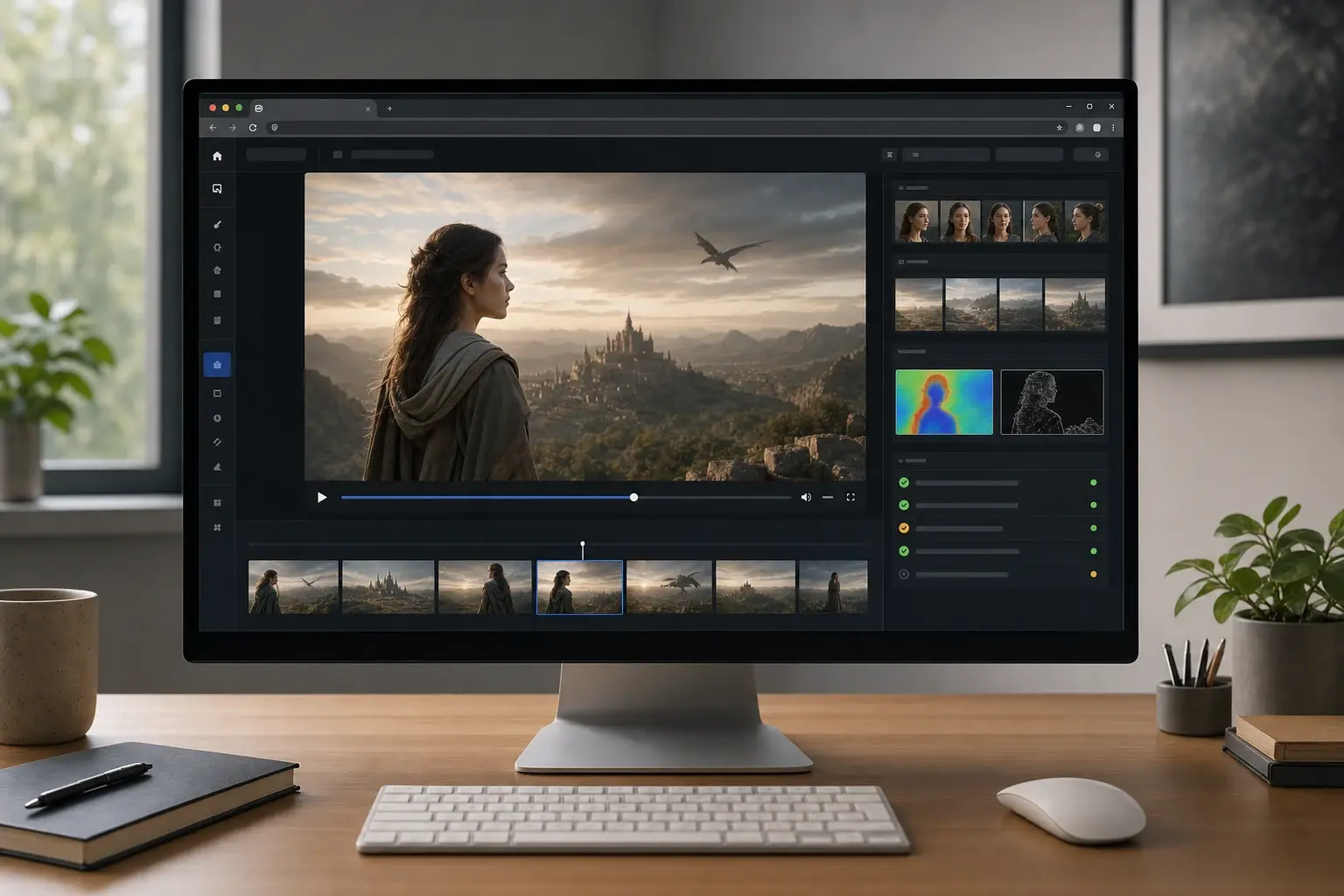
Clip Quality Preview
Before the final MP4 is produced, VideoAI plays the full generated clip in a preview player at output resolution. Use the preview to check subject consistency, prompt adherence, and whether any frame shows distortion at the scene edge. If the result does not match your prompt direction, adjust the prompt text and regenerate without losing the source image selection.
Output Ratio from Source
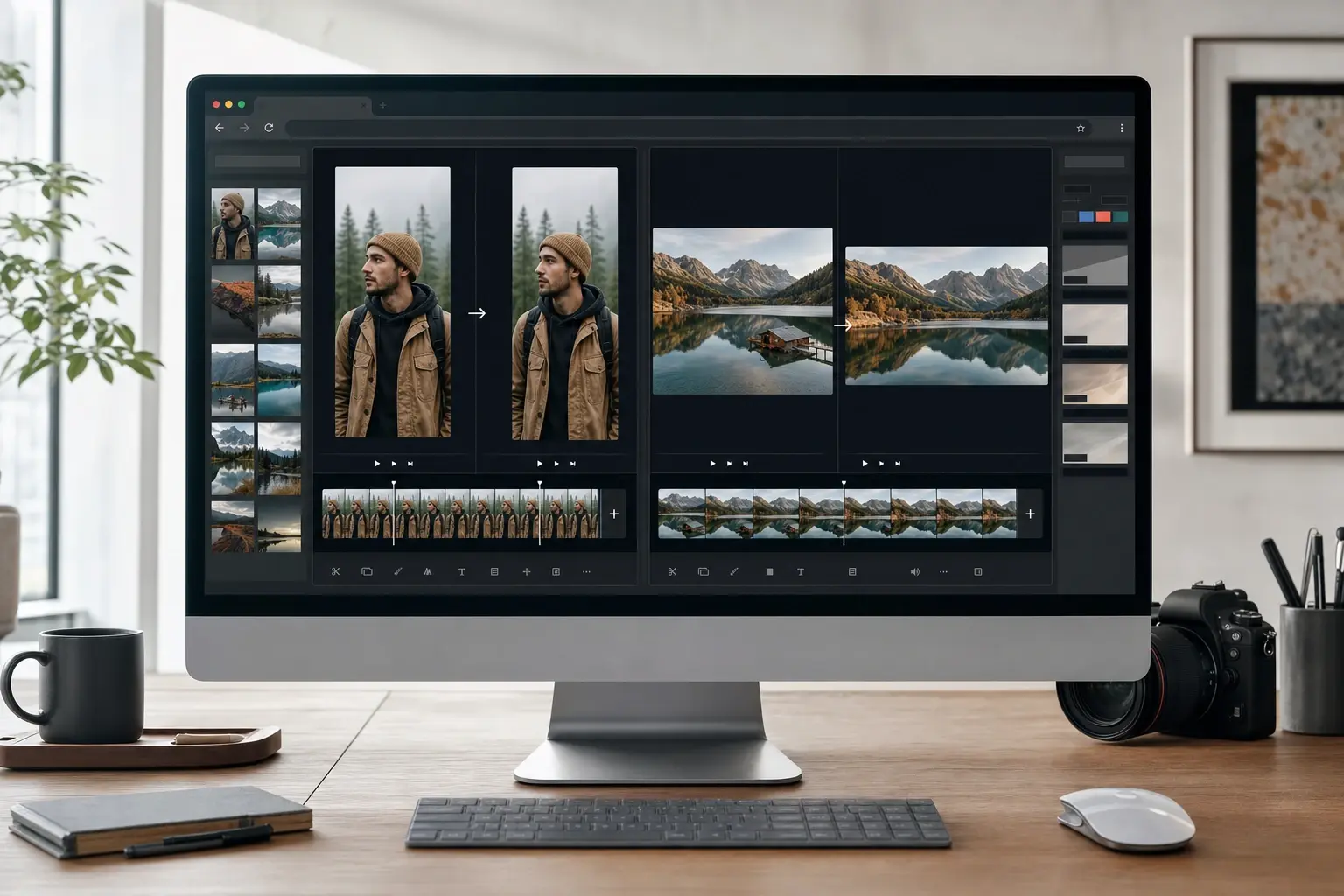
The output aspect ratio follows the proportions of the uploaded source image, so a vertical photo produces a vertical video clip and a horizontal photo produces a horizontal one. This keeps the subject framing consistent between the static input and the animated output without manual cropping. If your target platform requires a specific ratio, verify the source image matches that format before uploading.
Outputs from the AI Video Generator from Image
These four examples show the range of clips a single source image plus a focused prompt can produce across real creator workflows.
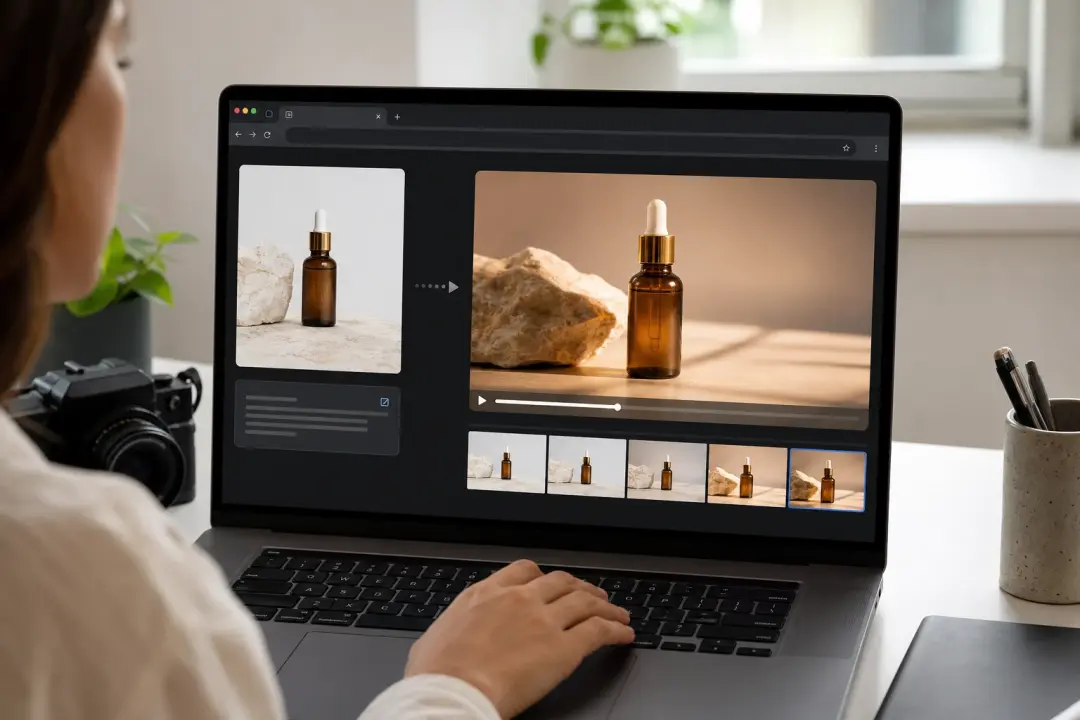
Product Shot with Camera Drift
An ecommerce seller uploads a clean product photo on a neutral background and writes a prompt describing a slow forward push with a warm light shift. The ai video generator from image outputs a short MP4 where the product surface detail stays sharp as the camera moves in. The clip replaces the need for a motion control rig on a simple product shoot and works directly in social placements. This workflow also supports ai video generator from picture searches when the source is a product or illustration.
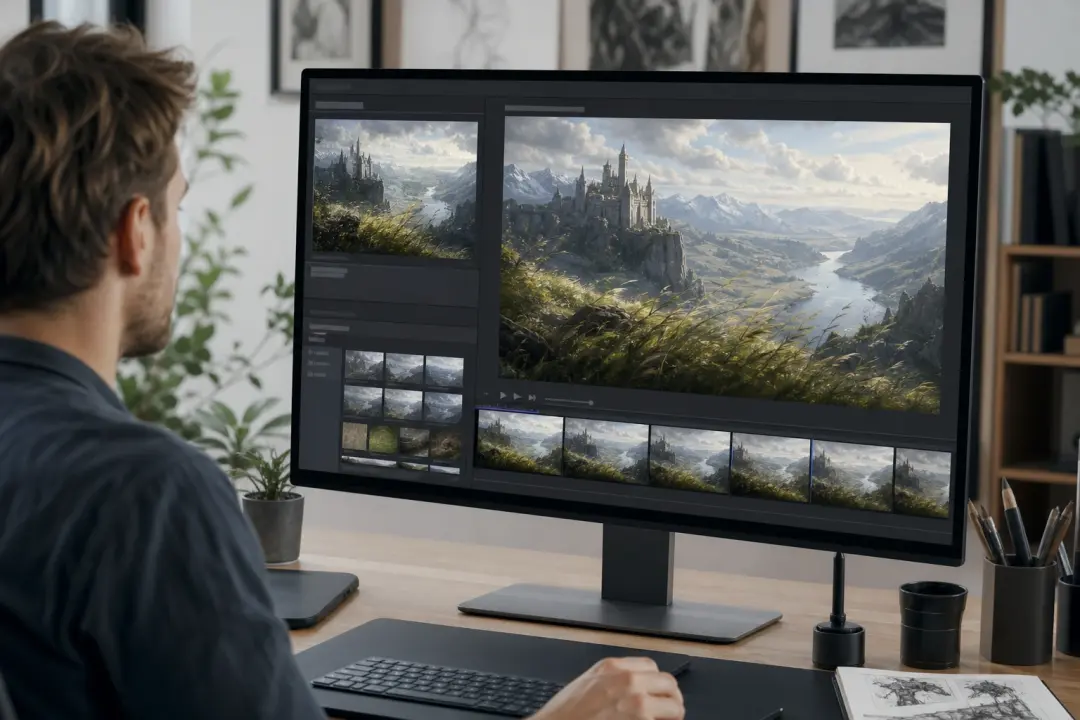
Concept Art Brought to Motion
A digital artist uploads a finished illustration of a fantasy landscape and uses the ai video generator from picture to animate picture elements: wind moving through the foreground grass and a slow pan across the horizon. VideoAI generates a video from image that carries the painted style through the motion without flattening texture or shifting the color palette. If you animate static images like this, the source art style is the reference the model follows. Users who search for ai video generator from images often want the same source image workflow applied to a selected visual.
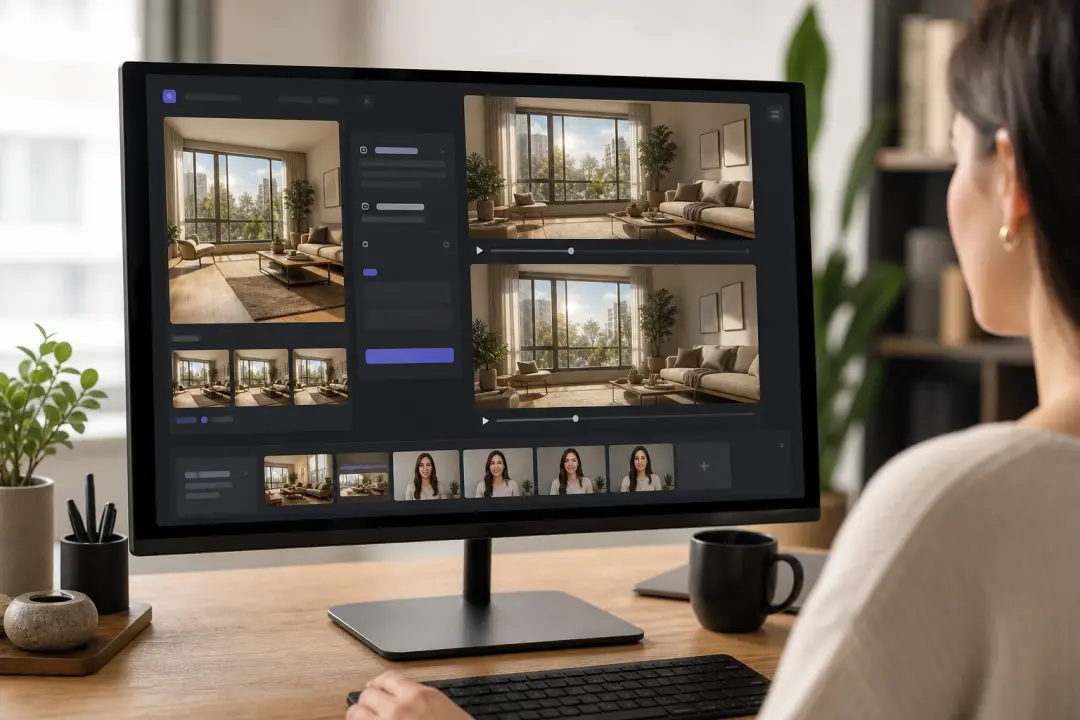
Reels Background from a Single Frame
A content creator needs a loopable background for a talking head Reels video but has only one location photo. The free ai video generator from image and prompt approach specifies a subtle scene atmosphere motion: light shimmer on a window and a gentle camera drift. VideoAI produces a short video from images that works as a background layer without distracting subject movement in the foreground.
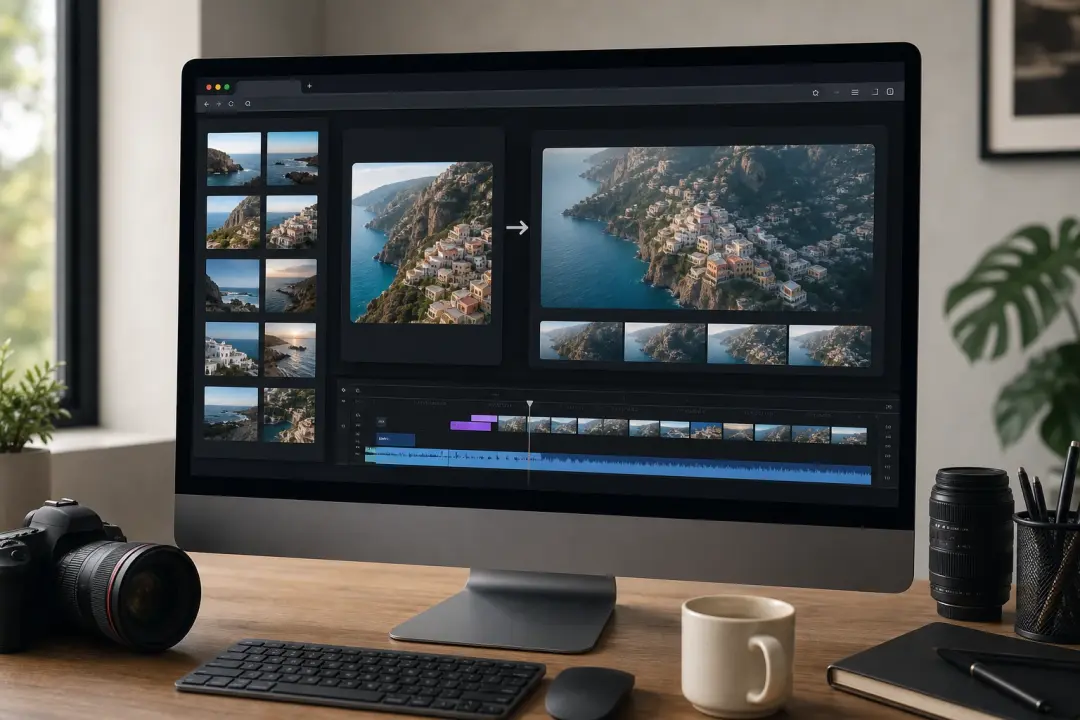
B roll Clip from a Reference Photo
A video editor needs a transitional B roll shot to cover a cut in a travel documentary but has no matching footage. A reference photo from the shoot goes into the ai video generator from image with a prompt describing a slow aerial tilt and environmental detail. The output clip provides usable filler footage that matches the visual tone of the surrounding edit without a reshoot.
Common Questions About the AI Video Generator from Image
Explore
Discover our AI design tools

Explore related tools
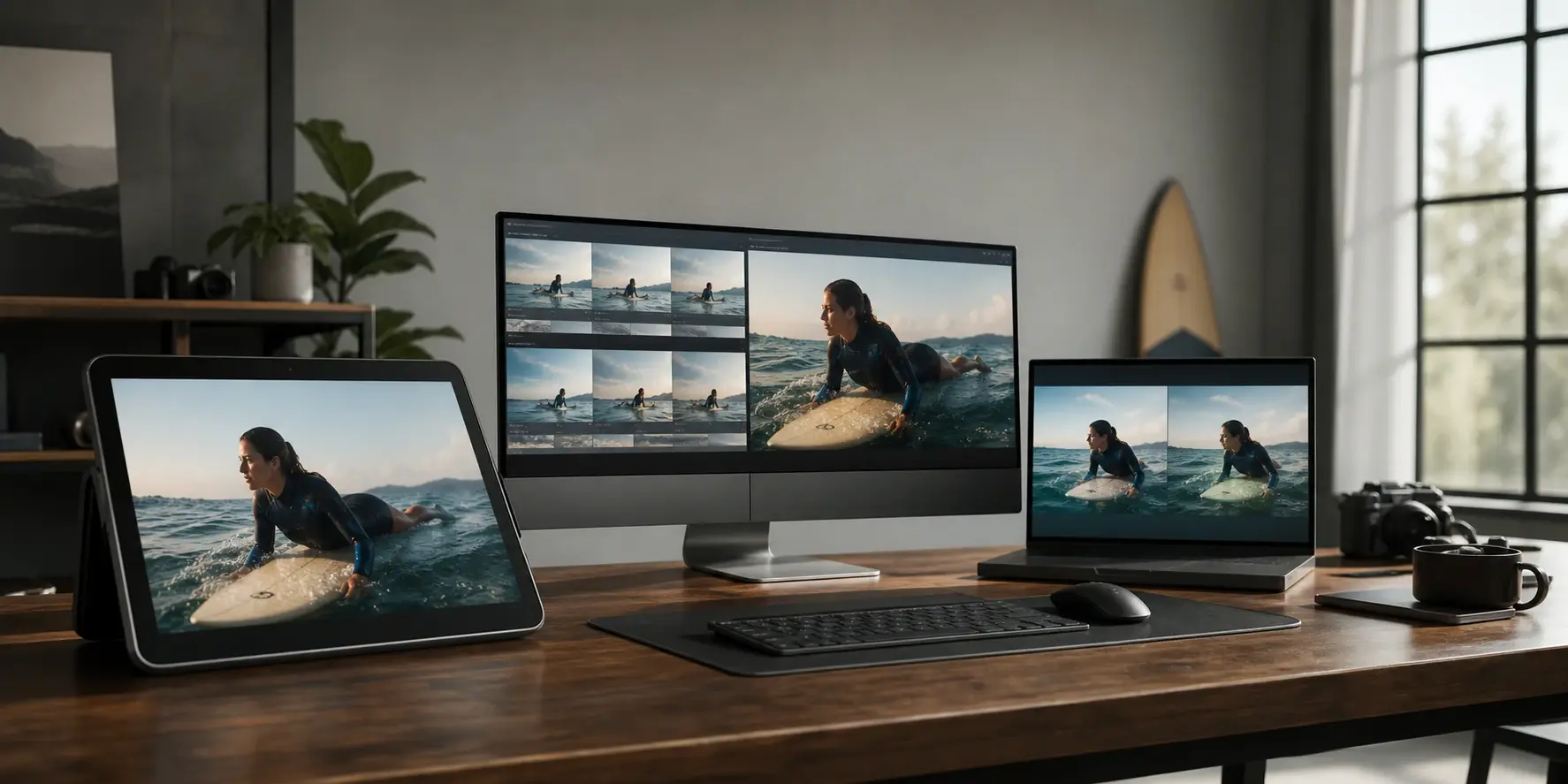
Try the AI Video Generator from Image on Your Own Source File
Upload a photo or illustration, write a motion prompt, and review the generated clip before you export. The ai video generator from image workflow keeps source detail intact and gives you a reviewable result before anything is saved.
Get Started