
Writing To Video Workflow

Chat GPT Video Generator

Use a Chat GPT Video Generator workflow in two steps: draft your prompt or script in ChatGPT, then paste it into VideoAI to direct shots, references, sound, and the final MP4.

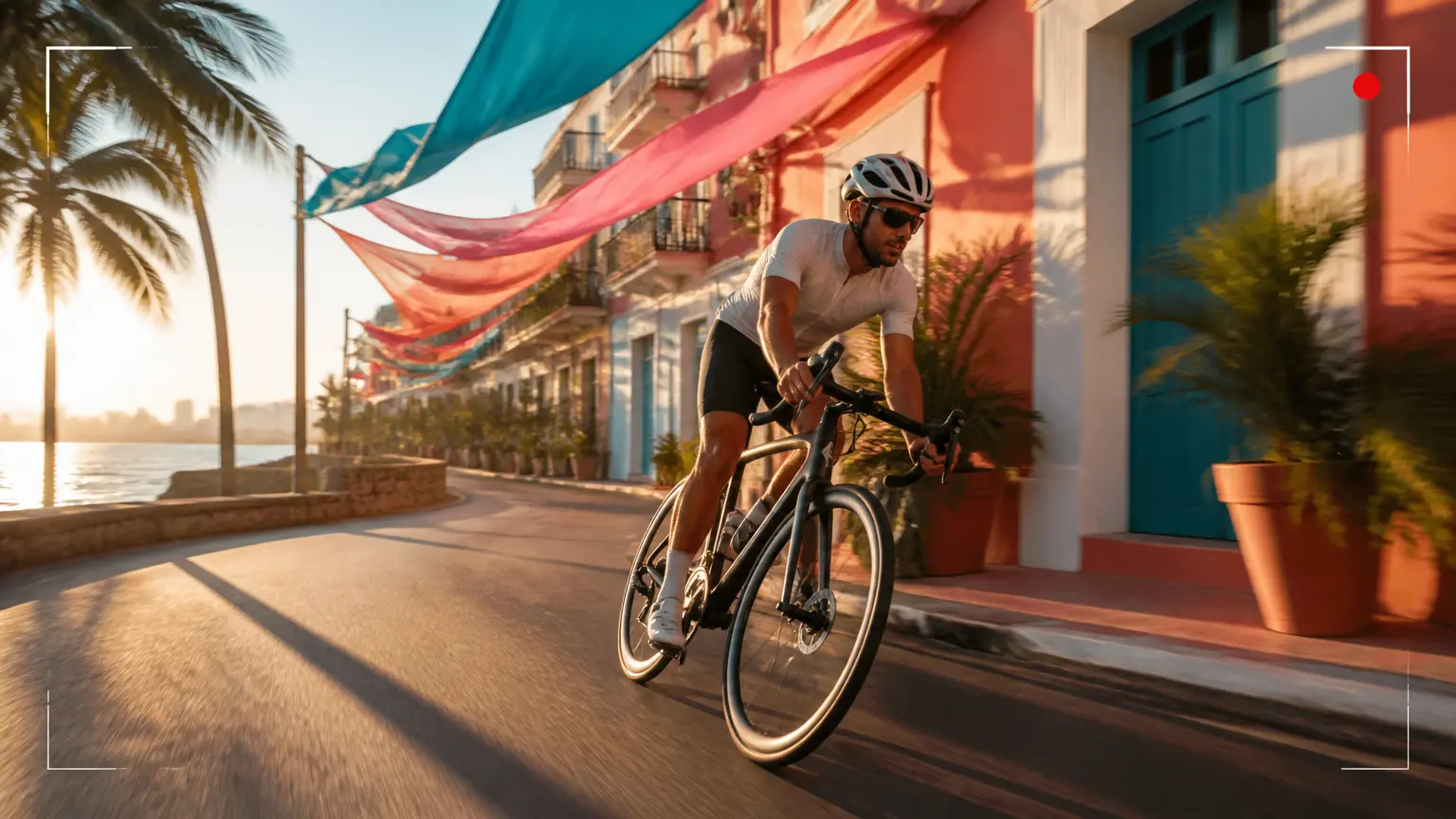
Cinematic social video scene of a cyclist moving through a bright seaside street at golden hour

Who Uses This Two-Step Workflow

Short video creator directing a vertical dance scene on a bright daylight studio set

Short Video Creators

A Chat GPT Video Generator workflow suits creators who draft ideas before directing footage. In VideoAI, you set shot order, vertical or square framing, motion, voice, and sound before the first render.

Small brand team arranging product and visual references around a sunlit campaign set

Small Brand Teams

Small teams can use a Chat GPT Video Generator workflow to move from campaign writing to visual drafts. Copy the chosen concept into VideoAI, add product images, logos, clips, and audio, then assign references with @ to guide the brand direction.

Freelance producer guiding a client video shoot in an airy location studio

Freelance Producers

For client work, a Chat GPT Video Generator workflow separates script approval from generation. Refine the concept first, then arrange the approved text as timed shot notes in VideoAI. Preview each version and revise it with written direction.

Chat GPT Video Generator Workflow Features

Start with a prompt, script, template, or stock media. VideoAI handles generation while you direct what appears, when it moves, how it sounds, and where the video will be published.

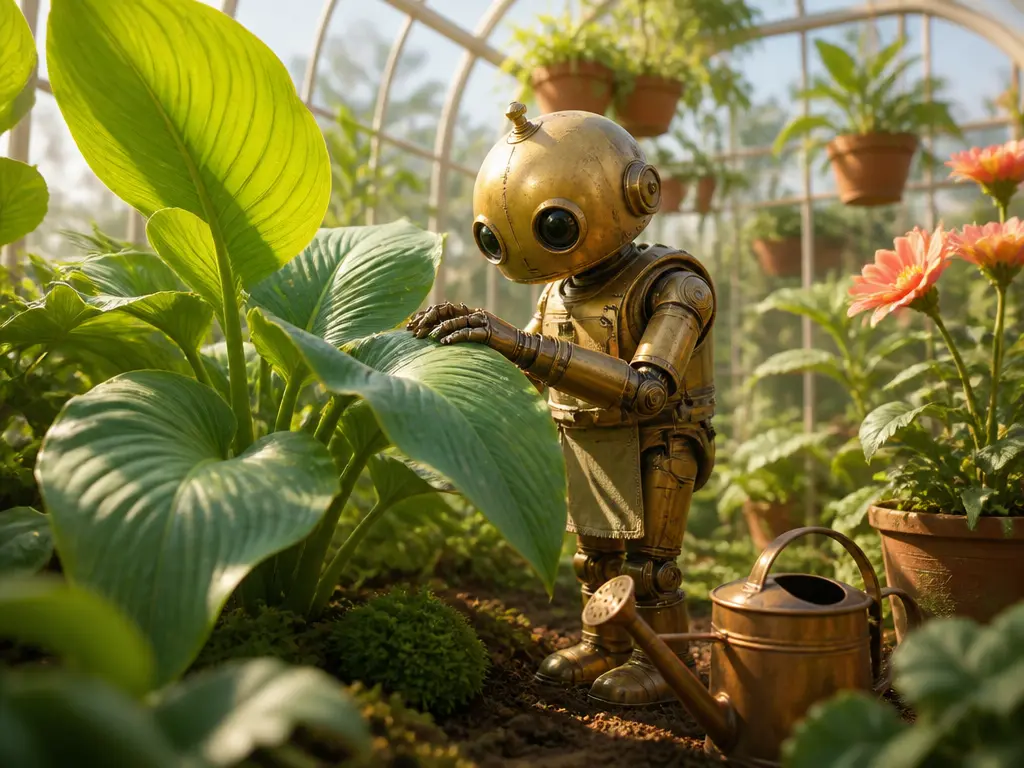
Cinematic opening shot of a handcrafted robot gardener developed from a rough story concept

Prompt and Script Input

The writing stage of a Chat GPT Video Generator workflow ends with a prompt or rough script you can paste into VideoAI. VideoAI can also expand a loose concept into script text, but you decide which lines become shots and how each shot is timed.

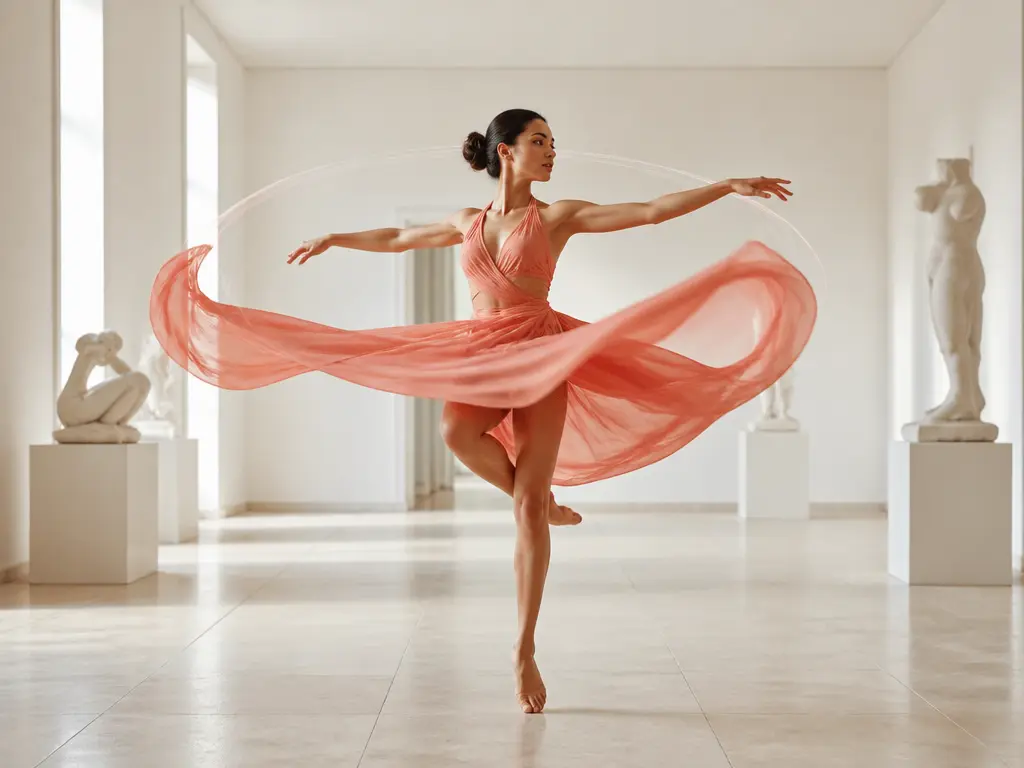
Dancer captured mid-turn with controlled motion trails and precise cinematic framing marks

Shot Timing By Second

Timing matters in a Chat GPT Video Generator workflow. In VideoAI, write each segment by second, naming its visual, action, and sound cue. The shot breakdown stays under your control rather than being assigned automatically.

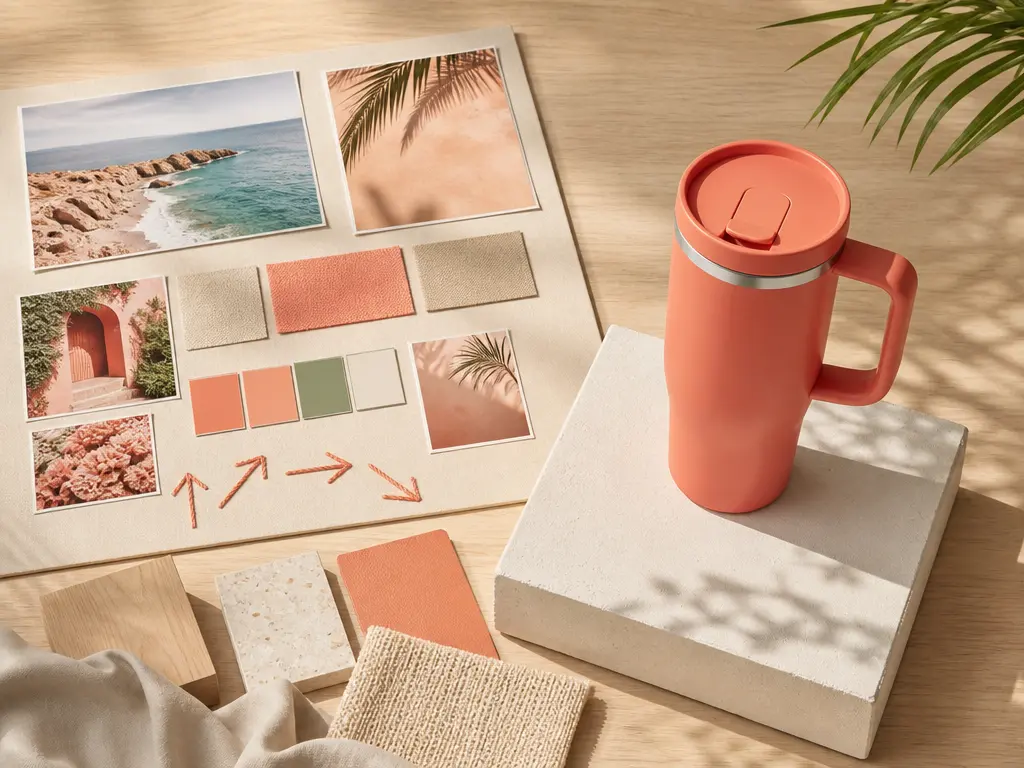
Coordinated product film set matching a tactile board of subject, color, and camera references

Reference Roles With @

Bring visual and audio direction into your Chat GPT Video Generator workflow with reusable references in VideoAI. Text, images, video, and audio can sit beside the prompt. Mark an asset with @ for a first frame, subject, camera move, music, or scene.

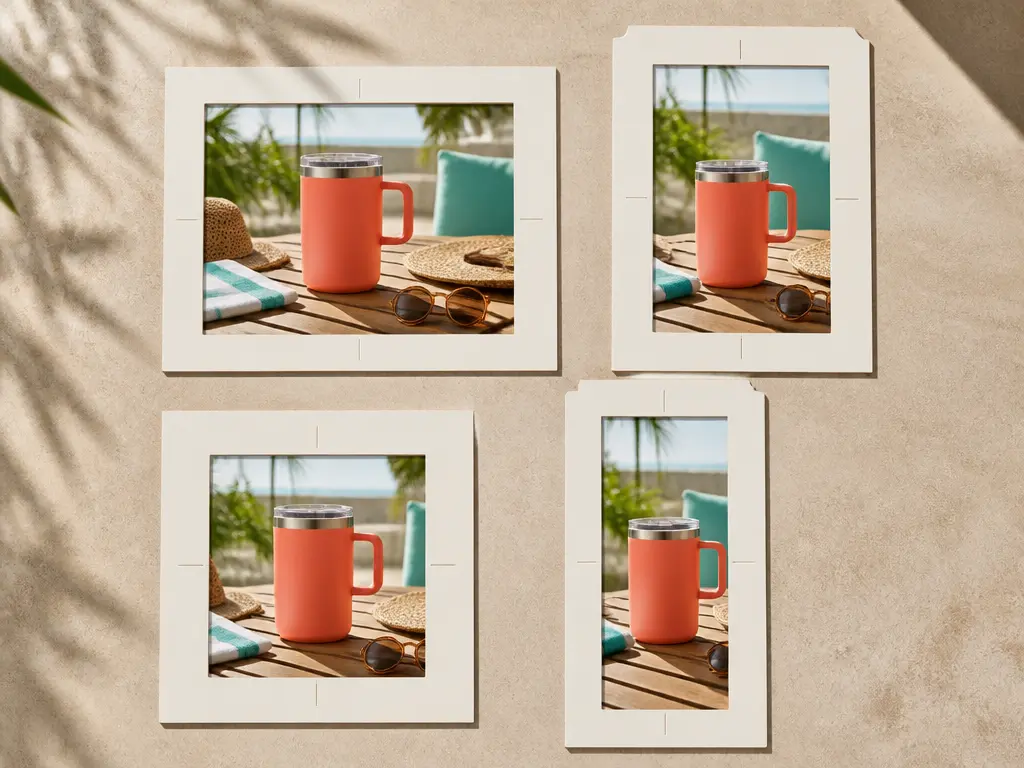
Finished lifestyle video scene presented through clean landscape, portrait, square, and vertical crop mats

MP4 Delivery For Channels

The VideoAI stage of a Chat GPT Video Generator workflow delivers MP4 in 16:9, 9:16, 1:1, or 4:5, with 4K output available. It also supports voiceover, background music, sound effects, batch generation, 10 starting credits, no watermark, and commercial use of finished videos.

Your Chat GPT Video Generator Workflow

Refine the idea first, then paste it into VideoAI, assign references, generate, preview, and revise with text.

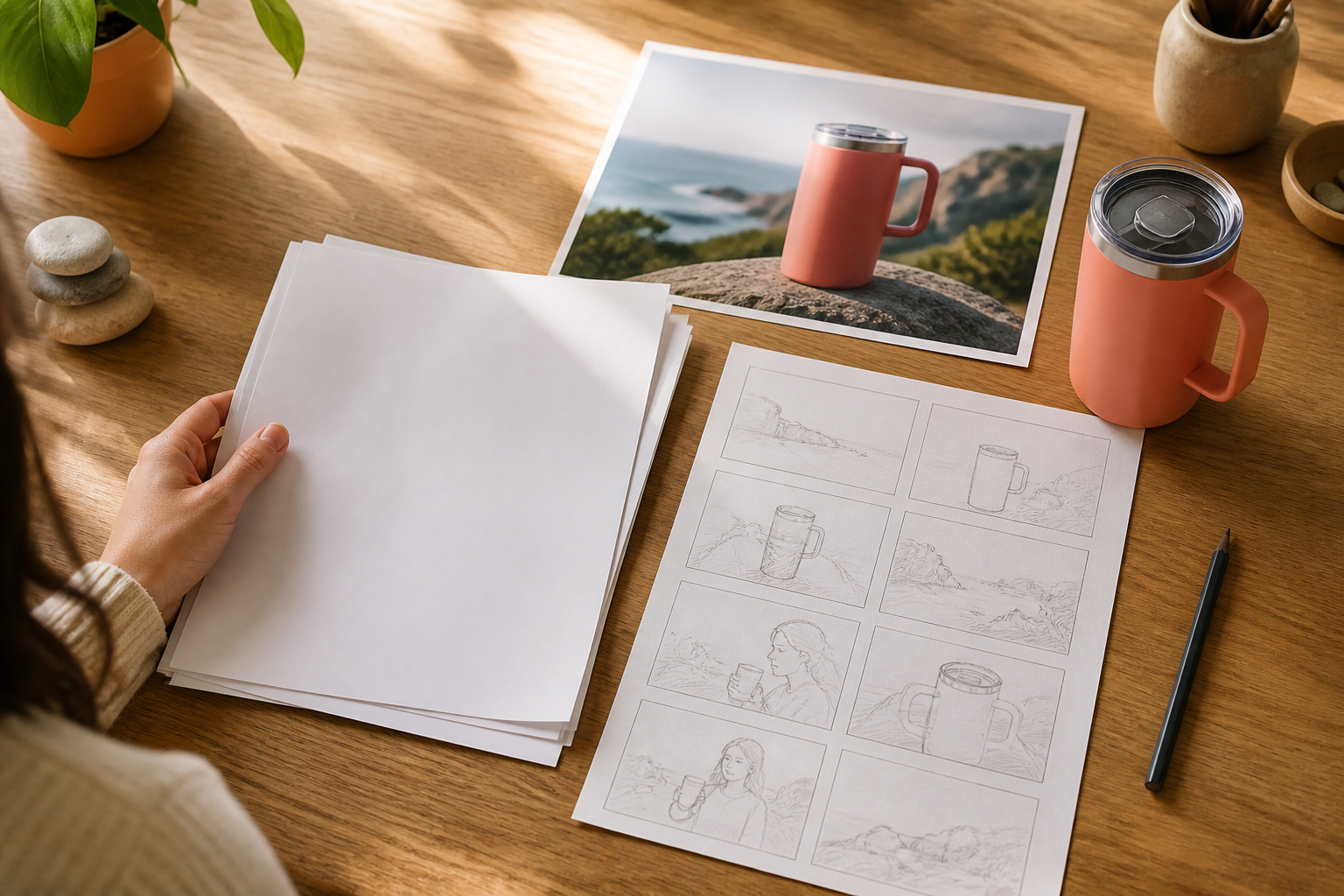
Creator placing a rough campaign script beside a coral travel mug on a sunlit production desk

Step 01

Paste The Prompt Or Script

Start your Chat GPT Video Generator workflow by drafting or refining the text in ChatGPT, then copy it into VideoAI. Keep the useful lines and arrange the shot plan yourself before generating. You can also write directly in VideoAI.
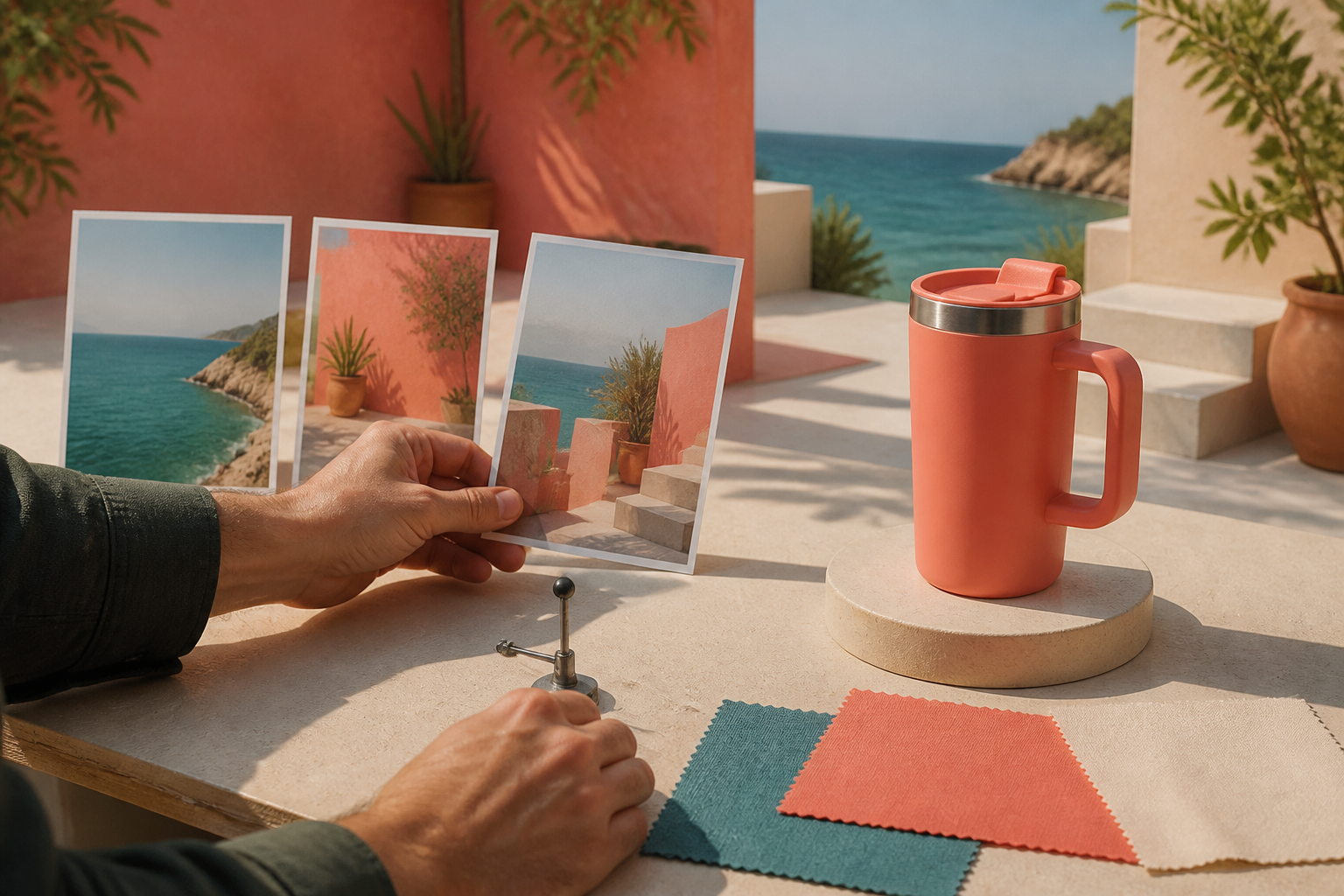
Director aligning visual references and camera movement cues around the same coral travel mug set

Step 02

Assign Timing And References

Write each segment by second, then describe the picture, motion, voice, music, and sound effect for that part. You keep the timing decisions while @ tags define the role of each reference in VideoAI.

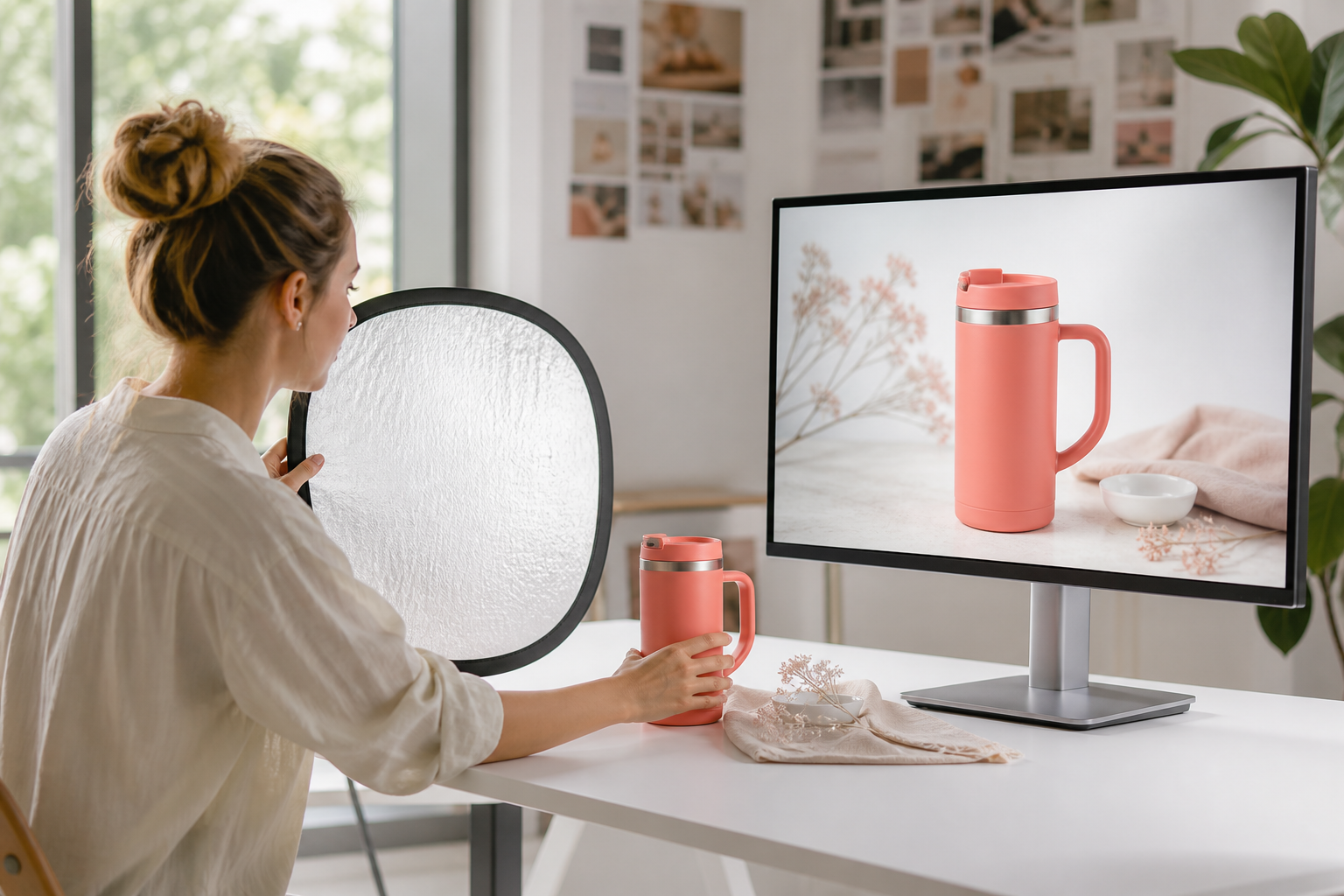
Producer reviewing the finished coral travel mug video scene and refining its final composition

Step 03

Generate Preview And Revise

Generate the first draft in VideoAI, review it in your workspace, and type the changes you want to see. If the prompt needs a different rhythm, revise the text and generate again before downloading MP4.

Where This Workflow Fits

Choose a Chat GPT Video Generator workflow when a written idea is ready to direct but the video still needs shots, sound, references, and an output ratio.

01

Scripted Social Shorts

A creator has a ChatGPT script for Reels, Shorts, or TikTok, but needs scenes and movement. In VideoAI, the creator maps the script into shots, adds voice, music, and sound effects, and chooses a ratio suited to the channel.

02

Chat GPT Video Generator Example

For a 12-second product clip, draft the concept in ChatGPT, then bring it and a product image into VideoAI. You can plan 0-4s as an opening view, 4-8s as a close-up, and 8-12s as a final product shot. Assign the image with @, describe the sound, generate, and review the result.

03

Explainer Drafts

A subject matter expert starts with one sentence and needs a clear teaching sequence. VideoAI can expand the concept into script text, then the creator sets each segment so the explanation has a planned order and sound.

04

Client Video Options

A freelancer tests several ChatGPT-assisted directions for a client without rebuilding every draft from blank. In VideoAI, revision prompts change visuals, pace, sound, or reference use while the project stays in the workspace.

FAQ

Chat GPT Video Generator Questions

In this workflow, ChatGPT helps draft or refine the script. VideoAI performs the video generation after you paste the text and add shot notes, references, voice, and sound direction.

It refers to trying the VideoAI generation step with 10 starting credits. ChatGPT is a separate service; its availability and pricing are not included in the VideoAI offer.

Yes. Draft the idea or script first, then paste it into VideoAI to arrange shots, add reference media, generate, revise by text, and export MP4 in a channel-ready ratio.

Begin with a prompt or rough script. In VideoAI, define each shot by second, assign images, clips, or audio with @, generate a preview, revise with text, and download MP4.

VideoAI accepts text, image, video, and audio references in the workspace. Use @ to mark a first frame, subject, camera move, music, or scene.

No direct integration is claimed on this page. The services are separate steps: draft or refine the text in ChatGPT, copy it into VideoAI, then generate the video with your shot, reference, and sound direction.

VideoAI can export MP4 in 16:9, 9:16, 1:1, and 4:5, with 4K output available for detailed results.
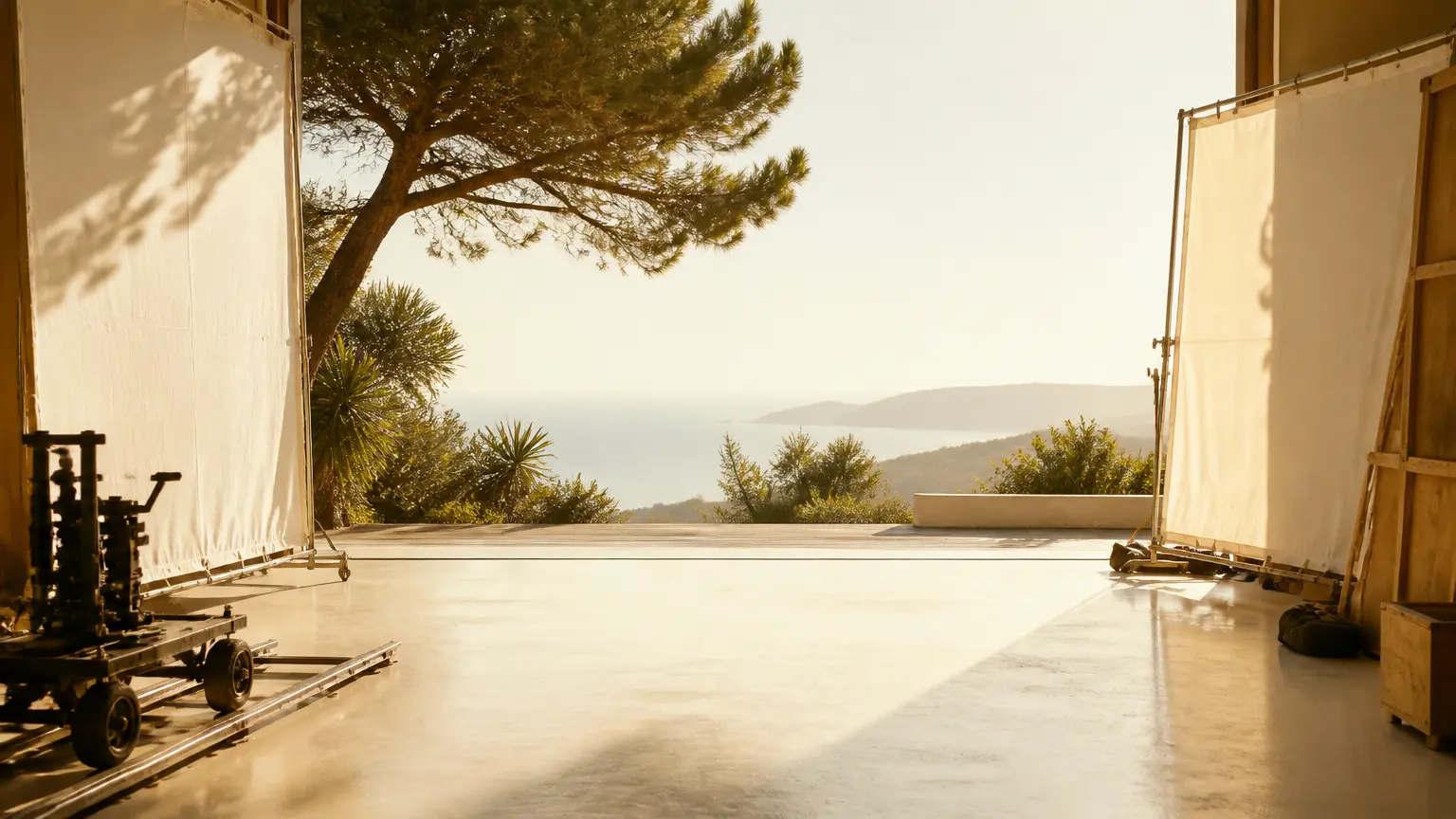
Wide sunlit film set ready for a new prompt-led video production

Create the Video in VideoAI

Continue your Chat GPT Video Generator workflow in VideoAI: paste your draft, add references, then shape the result with shot timing, sound direction, text revision, and MP4 export.

Get Started
Chat GPT Video Generator - GPT Video - VideoAI