
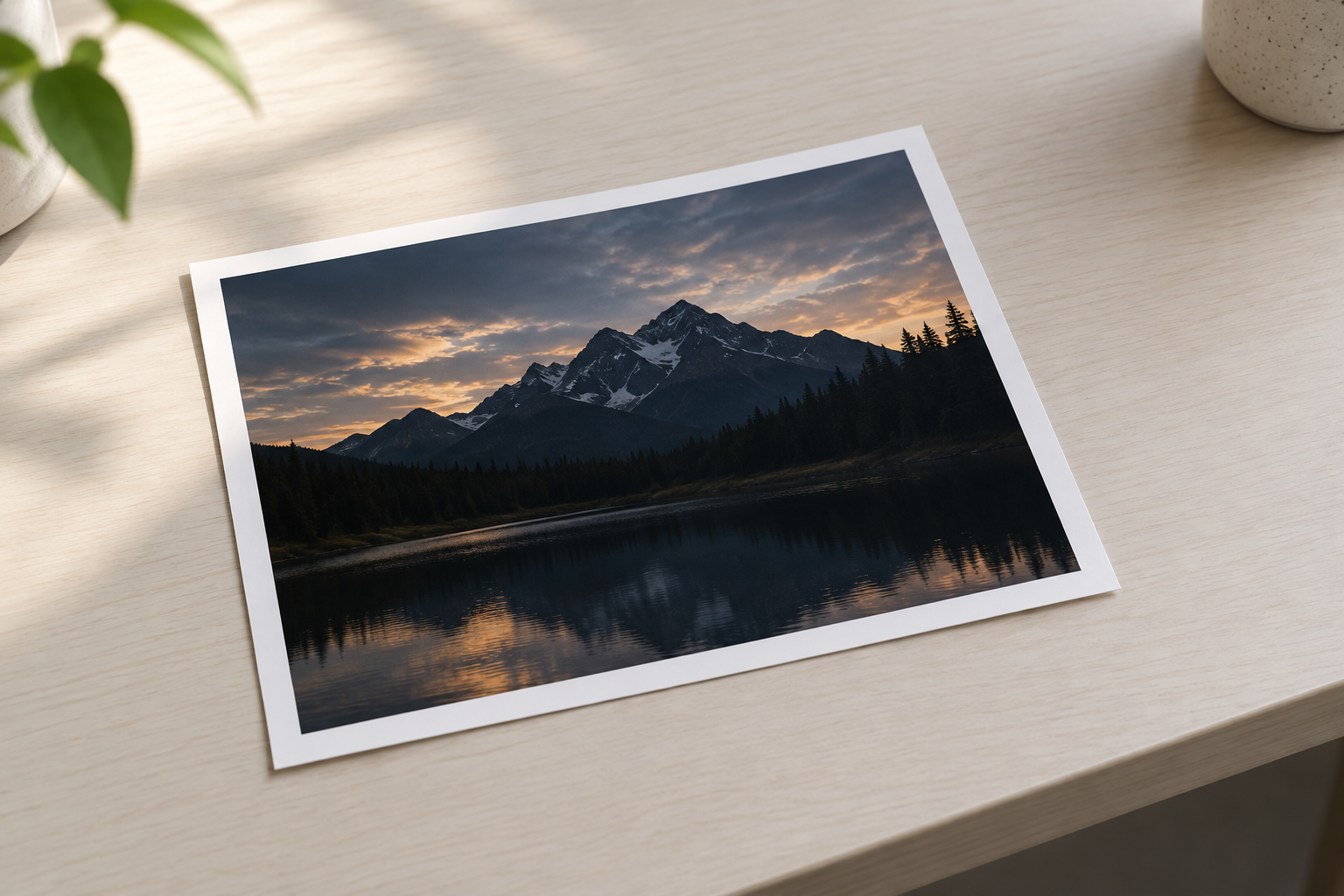
Step 01
Upload the Photo
Choose the underexposed, overexposed, or high-contrast image you want to correct.

Upload a dark image that needs more light, or tone down a photo that is too bright, and adjust brightness while keeping the scene natural.
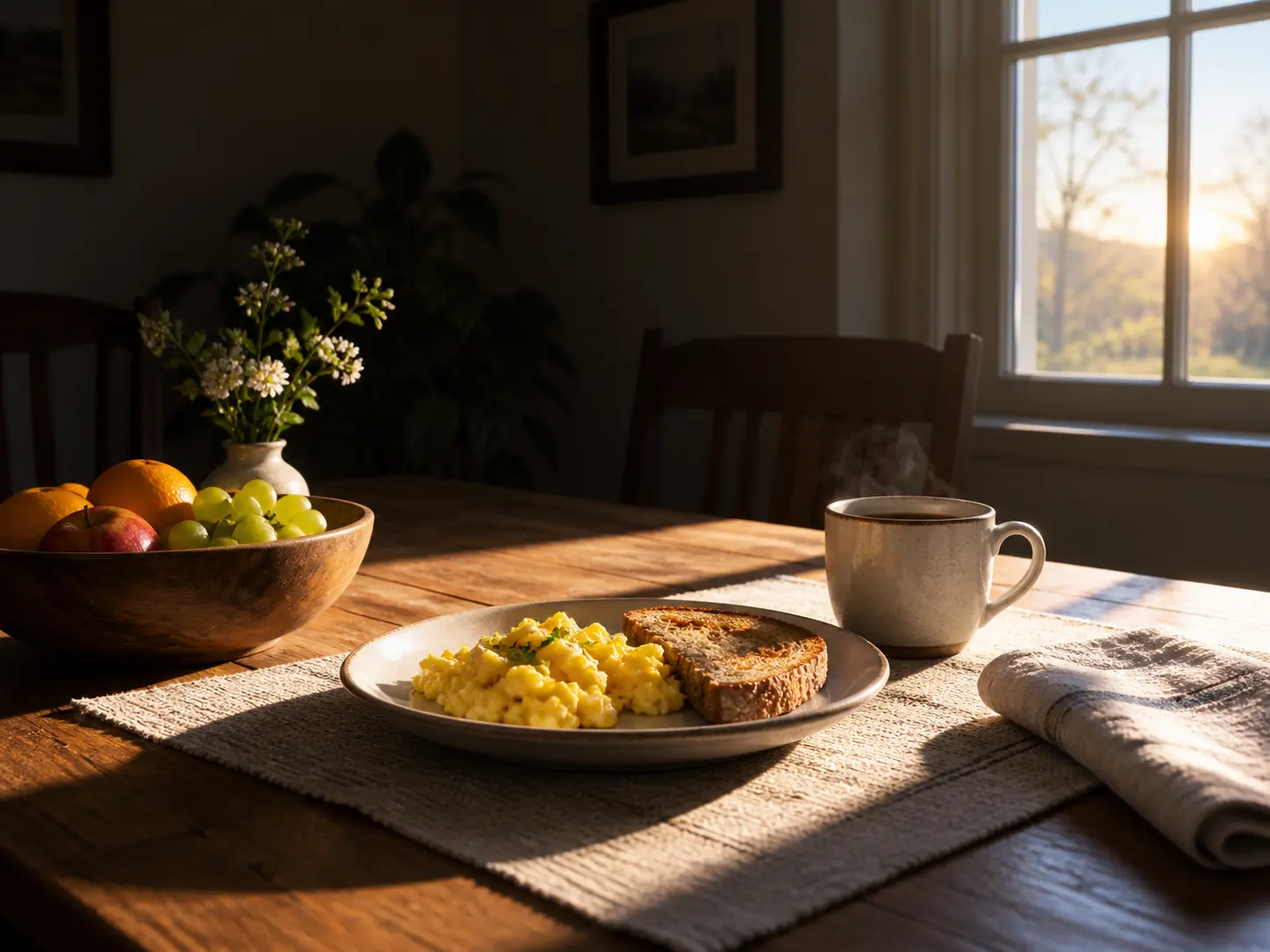
One simple brightness workflow for photos that were captured with too little or too much light.
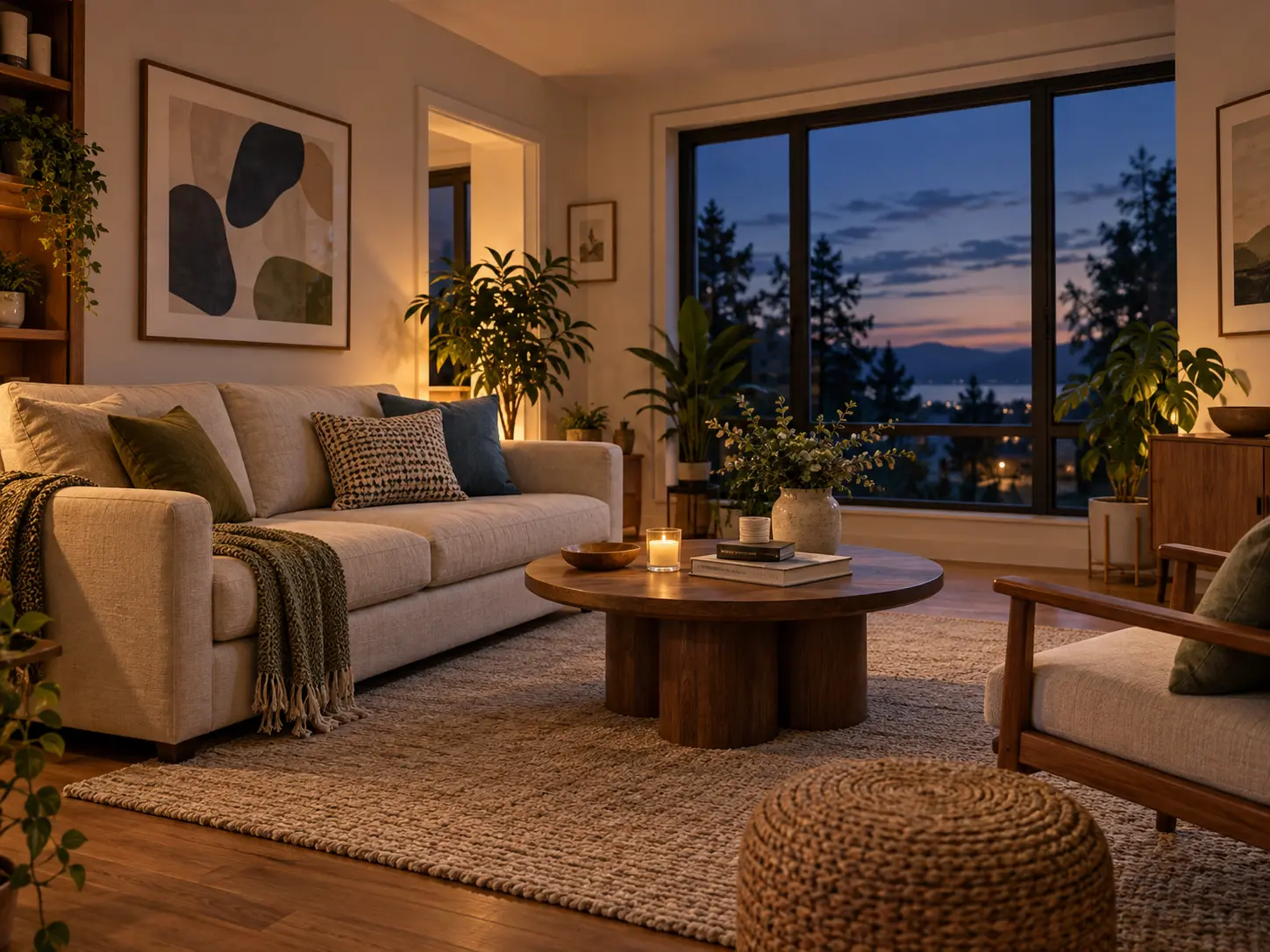
Bring shape and color back into underexposed interiors, evening portraits, and shaded scenes. The dark image editor raises visibility while keeping shadows from turning flat and gray.
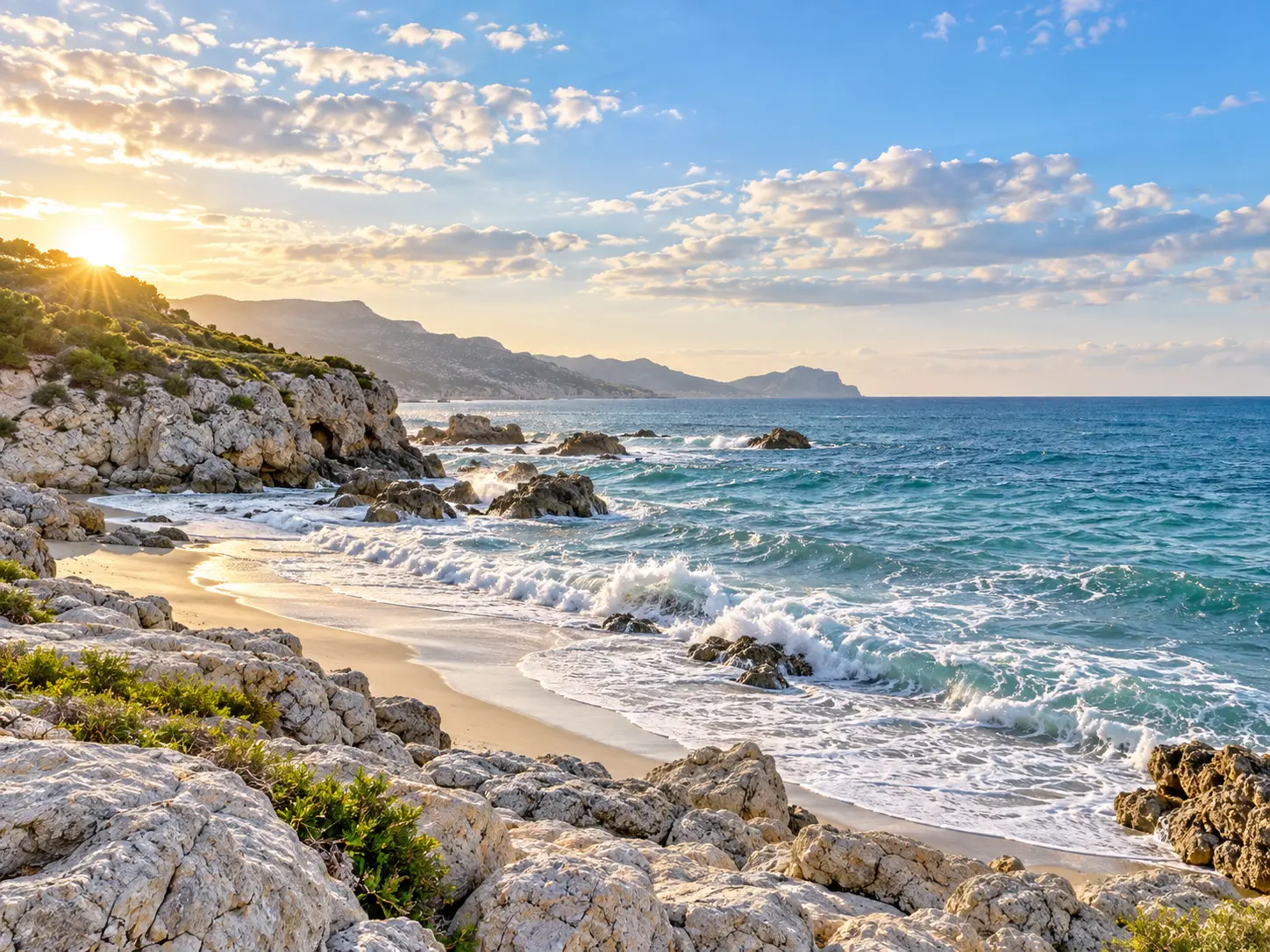
When window light burns out a face or a bright sky swallows the shapes below, lower the exposure with a dark image editor so highlights regain detail instead of clipping.
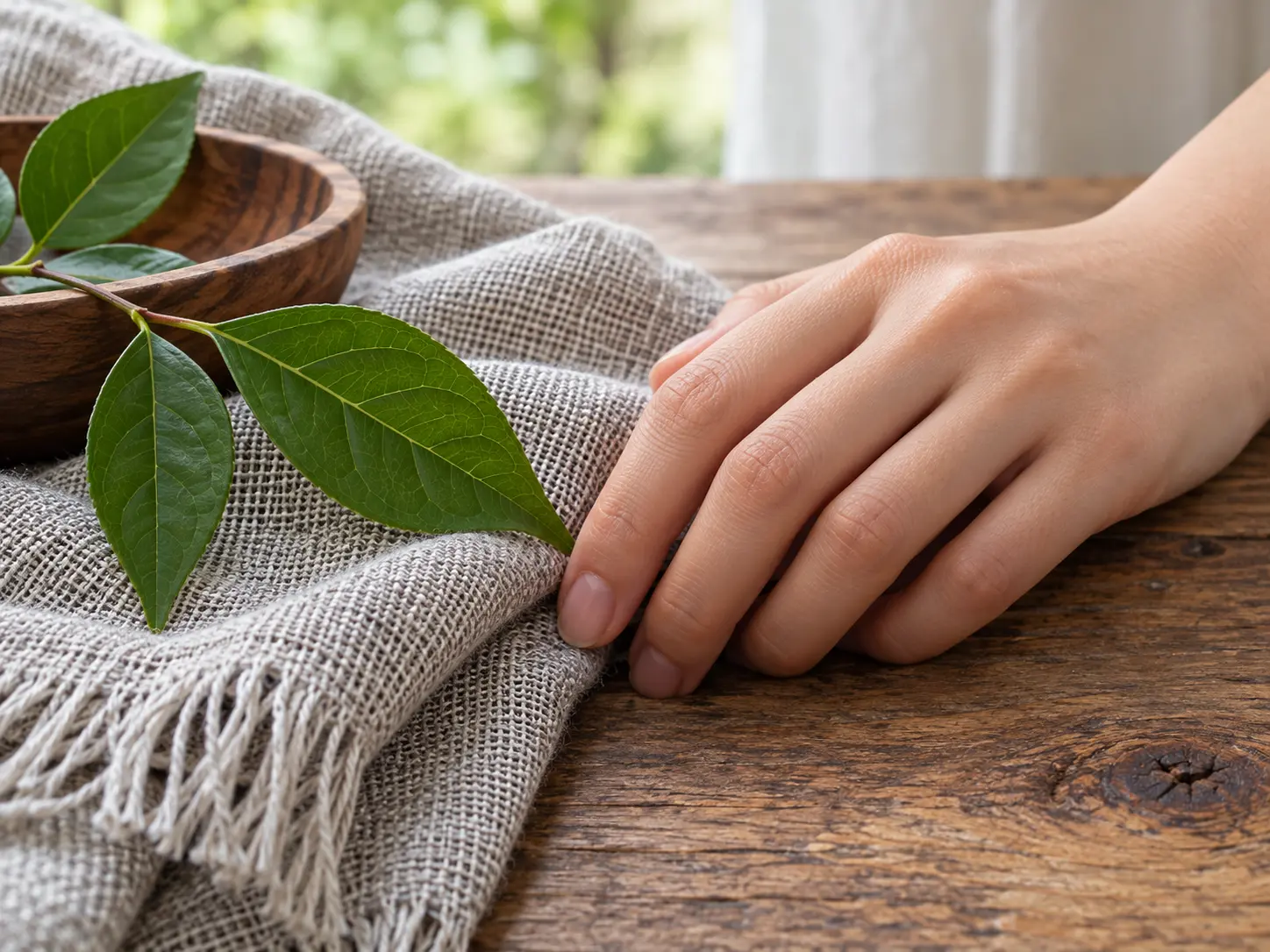
Sharpening brightness alone can expose noise or wash out fabric, skin, and foliage. This workflow balances light while retaining the texture that tells you what the photo is really made of.
Three direct steps take the photo from upload to a balanced result.
Step 01
Choose the underexposed, overexposed, or high-contrast image you want to correct.
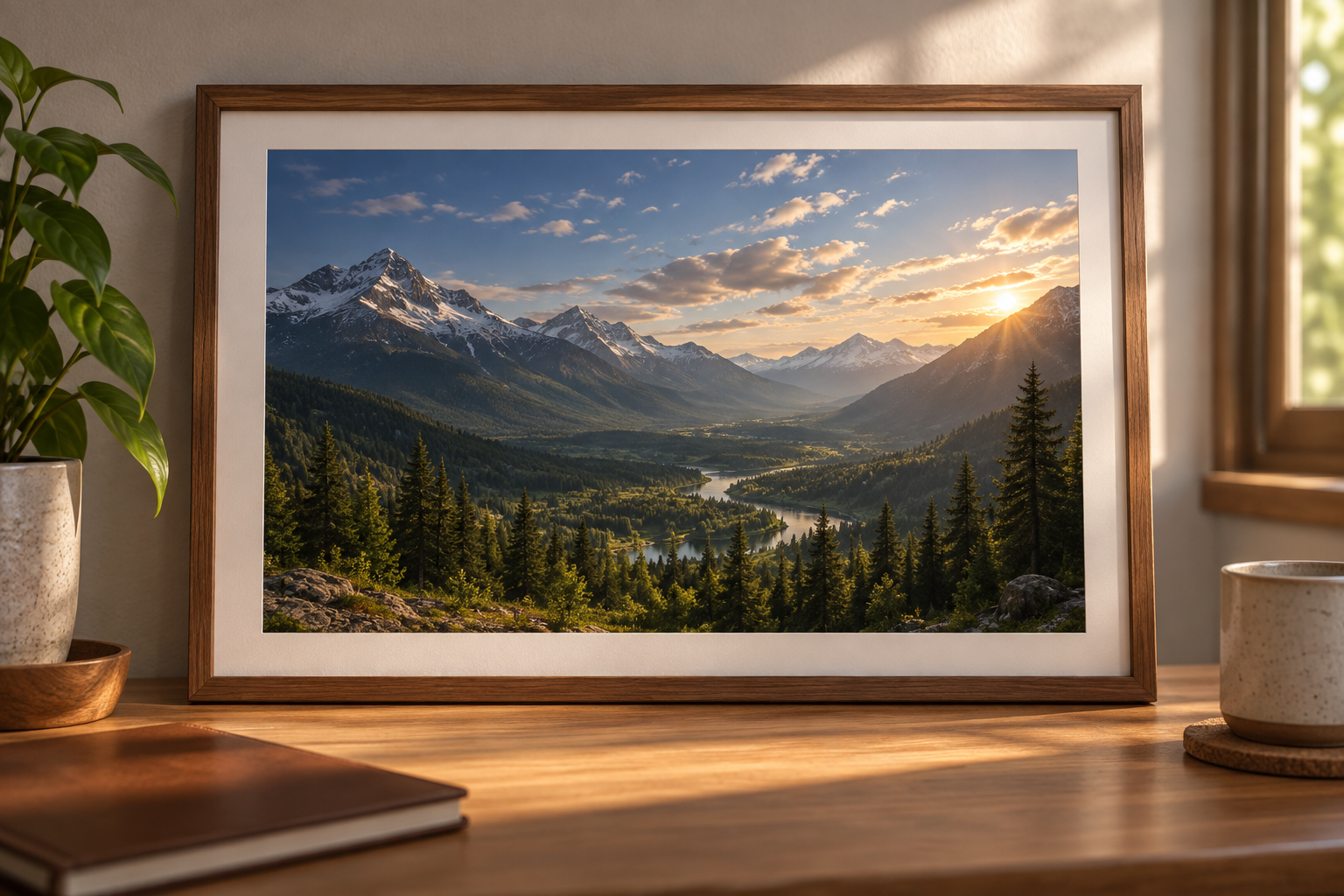
Step 02
Brighten a dark image or reduce excessive light, keeping the scene natural as the exposure changes.
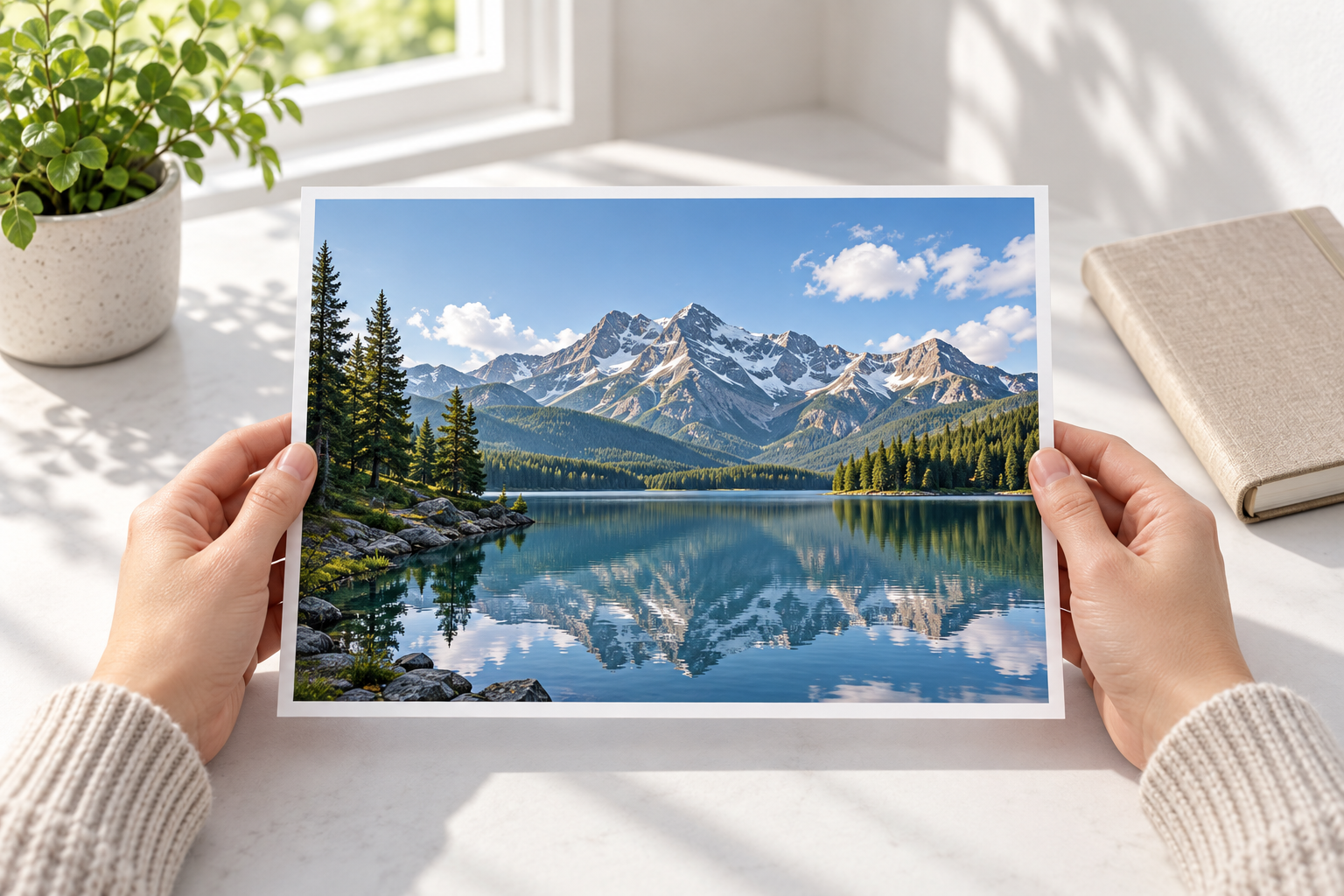
Step 03
Check shadows, highlights, and midtones, then download the balanced picture.

Rescue a usable frame from a low-light shoot or soften a blast of window light, without rebuilding the photograph from scratch.

Even out product photos taken near a bright window or in a dim room so key details and surfaces remain easy to judge.
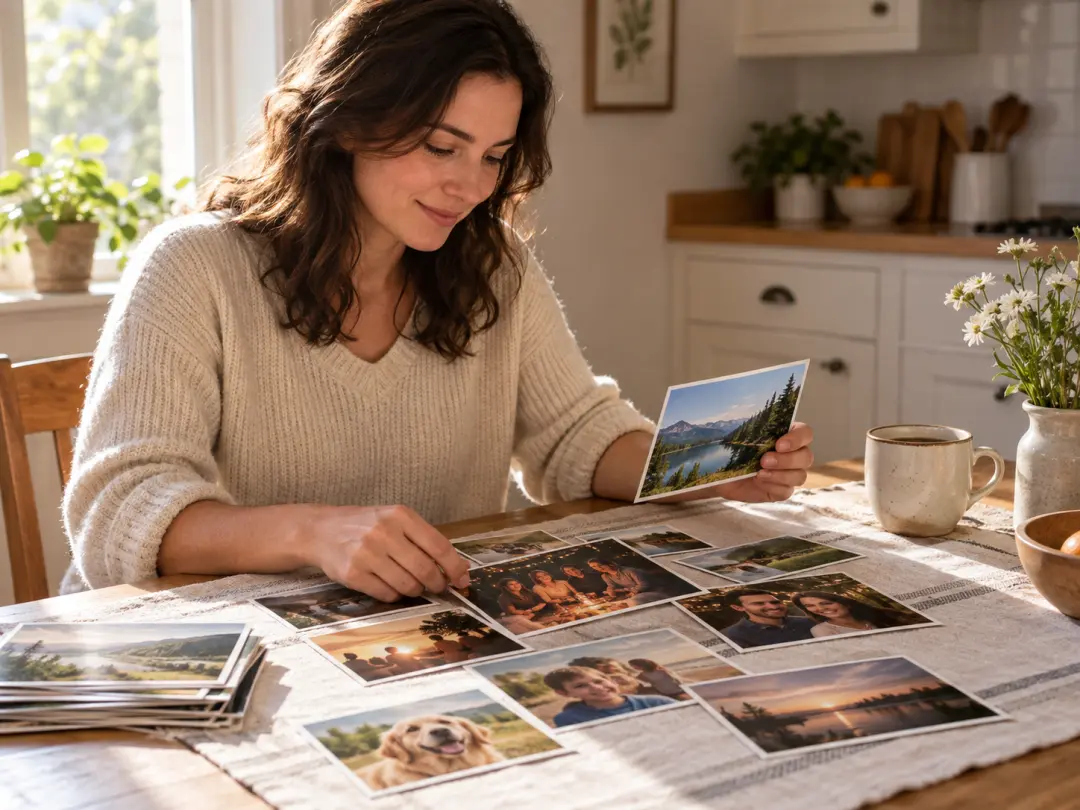
Improve family pictures, travel shots, and phone photos that are too dark or too bright before sending or printing them.
The same brightness workflow fits photos taken in difficult or uneven light.
Lift furniture, décor, and room details from a dark photo without making the whole scene look artificially exposed.
Bring a face closer to the brightness of a window or sky while protecting the highlights around the subject.
Reduce a bright sky or reflective water so clouds, rocks, and land regain shape and color.
Even out a dark image of a product before it goes into a listing, catalog, or social post.

Upload a dark image or an overexposed shot and adjust the light in one simple step.
Get Started