






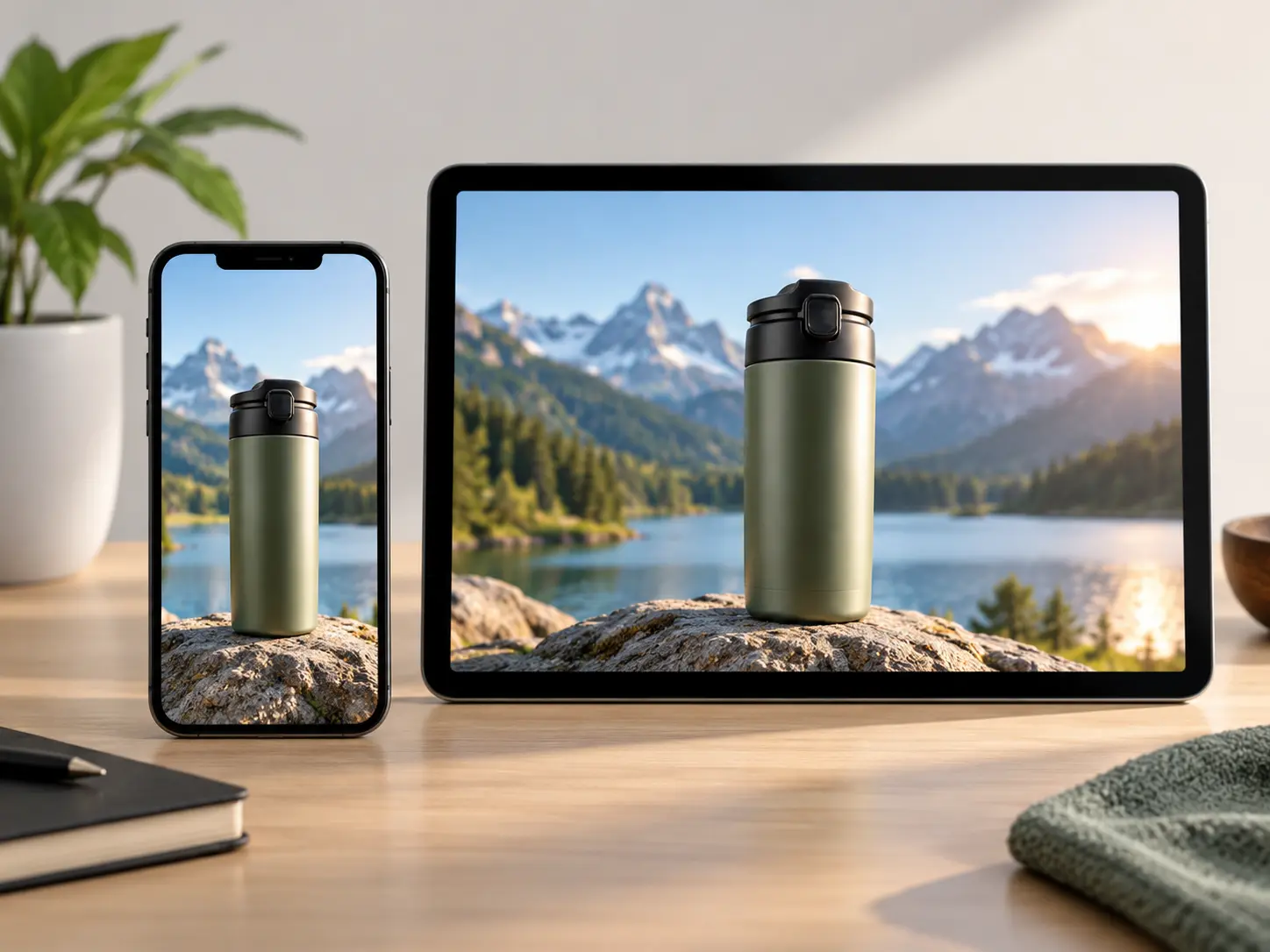

Product video planning

Ecommerce Video Creator

Use VideoAI to turn product photos, clips, selling points, and sound direction into a controlled ecommerce video maker workflow.

Product photos, clips, logo, and scene notes arranged for an ecommerce video

Plan with ecommerce video creator

Start from the product decision, then shape what viewers see first, next, and last.

Turn still photos into motion

When your product images are ready but the listing feels static, use VideoAI as an ecommerce video creator to add scene notes, usage mood, and detail shots. The result is a product video that gives buyers more to look at than one flat image.

Prepare a new product reveal

For a launch clip, write the selling points in the order you want them seen. Attach reference images to the opening, close detail, usage moment, and ending so the first version follows your product story.

Adapt one item for placements

A product may need a landscape hero video, a vertical social version, and a square shop clip. Choose 16:9, 9:16, 1:1, or 4:5 so each output fits the space you are preparing.

Revise an existing short clip

When a product video already exists but the message has changed, upload it as a reference and describe the new focus. VideoAI lets you ask for the next version with different pacing, shot emphasis, or on screen wording.

Who needs ecommerce video creator

Store owner arranging product photos and selling points for a showcase video

Store owners organizing product proof

Store owners can use an ecommerce video creator to arrange product photos, short clips, logo references, and selling points into one downloadable showcase video. You decide which detail opens the story and which message closes it.

Refine ecommerce video creator scenes

VideoAI gives you practical controls for product order, scene references, audio direction, and final output.

Product images, short clips, audio, and logo references assigned with @ mentions

Product assets become references

Upload product images, video clips, audio references, and a logo for the current video. Use @ mentions to tell VideoAI what each file should guide, from the product closeup to the music direction.

Time segments for opening, product detail, usage scene, and closing message

Shot order stays yours

Decide the opening, product detail, usage scene, and closing message by time segment. The ecommerce video creator follows your planned sequence instead of choosing the product structure for you.

Voiceover, background music, sound effect mood, and short on screen text controls

Audio supports the sale

Add voiceover direction, background music, sound effect mood, and short text inside the frame. These choices help the product explanation match the pace and tone of the video.

MP4 export options for 16:9, 9:16, 1:1, and 4:5 product videos

MP4 outputs fit channels

Export MP4 video in 16:9, 9:16, 1:1, or 4:5, with resolution up to 4K. A single generation can run up to 30 seconds, and you can extend when the product story needs more room.

Build each product video clearly

The workflow moves from your product materials to planned scenes, preview, revision, and MP4 download.

Product photos, clips, logo, and audio references uploaded with selling order notes

Step 01

Write the selling order

Describe the product benefit, the first detail viewers should notice, and the closing message. Upload product photos, clips, logo, and audio references so VideoAI has the right material for the ecommerce video creator session.

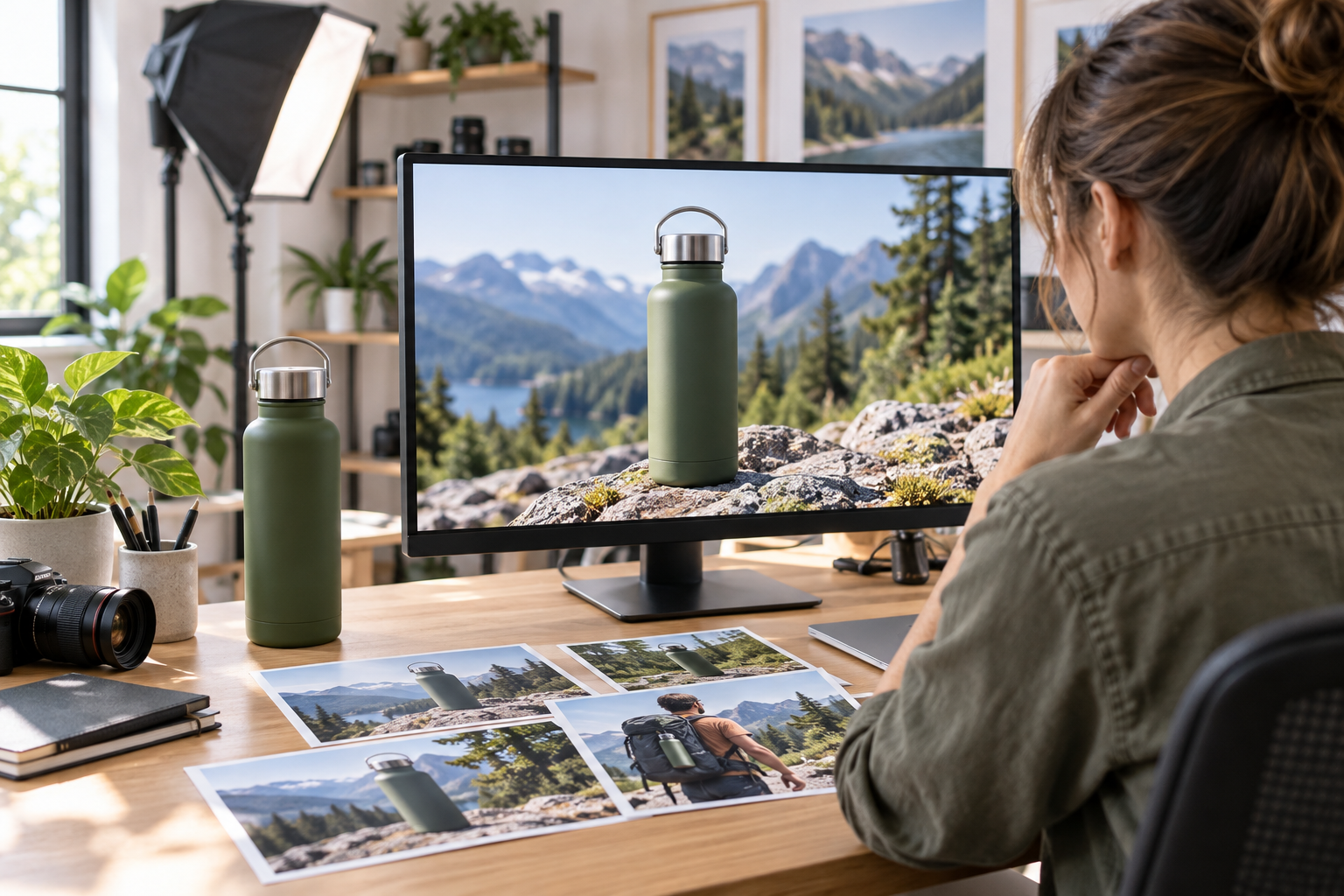
Scene plan with @ mentions for product images, reference videos, and soundtrack ideas

Step 02

Assign materials to scenes

Choose a template or start with a blank description. Use @ mentions for product images, reference videos, soundtrack ideas, or scene uses, then arrange the opening, detail, usage moment, and ending by time segment.

Preview screen with text revision notes and selected MP4 aspect ratio

Step 03

Preview and revise by text

Generate the video, review the shots and rhythm, then ask for changes in plain text. When the ecommerce video creator result is ready, download the MP4 at the aspect ratio and resolution you selected.

FAQ

ecommerce video creator questions

Yes, the ecommerce video creator can use your product photos as references. You can add clips, audio, logo files, and written selling points to guide the result.

Start with the detail that makes the product understandable fastest. In VideoAI, you can place that opening moment in your time plan and attach the most useful reference image to it.

Use 16:9 for wide placements, 9:16 for vertical viewing, 1:1 for square spaces, and 4:5 when a taller product frame helps. The ecommerce video creator lets you choose before output.

Yes, finished videos from VideoAI can be used commercially and exported with no watermark. Use product images, logo files, audio, and clips that you have the right to provide.

After preview, write what should change in the shot order, pace, visual focus, or information emphasis. The ecommerce video creator can generate a revised version from that direction.

The ecommerce video creator can use product clips as video references along with images, text, and audio. Use @ mentions to explain where each reference belongs in the planned product story.

One generation can be up to 30 seconds, which works well for a focused product showcase, promo, or explainer. You can continue extending when the message needs more space.

VideoAI supports batch generation for several product video versions. Each version can follow its own product message, uploaded references, and chosen aspect ratio.
Start your product video video scene with open space for the call to action

Start your product video

Upload your product materials, decide the viewing order, and shape the next VideoAI ecommerce video with text guided control.

Get Started