

Step 01
Add Reference Media
Upload the video or reference material connected to the scene, subject, or visual treatment you want to shape. This gives VideoAI a clear starting point for the personalized video.


Turn an idea and reference media into a downloadable video while keeping the creative direction in your hands.
Partnering with global industry leaders to power your creativity output


Start with the decision your audience needs to understand, then shape the video around it.

A campaign team has a visual direction but needs a draft for review. Upload relevant reference media, then use VideoAI to personalize video with the message and scene you want. The preview gives the next decision something concrete.

A product explanation feels abstract when it lives only in words. Describe the visual sequence in a text prompt and add reference media to personalize video with VideoAI. You get a visible draft that clarifies the story.

An existing clip needs a different treatment for a social post. Upload it as reference, describe the intended change, and refine the video through text instructions. The preview gives you a clear version to review.

A client needs to respond to a visual concept before editing moves forward. Combine reference media with a specific prompt in VideoAI, then personalize video around the requested direction. The preview gives the discussion a shared visual starting point.

A social creator starts with reference media and a clear visual goal. VideoAI turns that direction into a video the creator can preview, revise with text, and download for the next publishing decision.

A campaign producer uses reference media to set the visual starting point, then writes the scene and change to test. Personalize video around that brief, inspect the preview, and carry a clearer concept into review.

An explainer writer needs the audience to see the point, not only read it. Describe the intended sequence, add a reference, and use text revisions to personalize video until the visual explanation matches the message.
VideoAI keeps the creative decision visible from reference media to preview and revision.

A more focused draft starts with a decision you can state plainly. Tell VideoAI which scene, change, or visual emphasis you want, and it uses your prompt to shape the generated video.
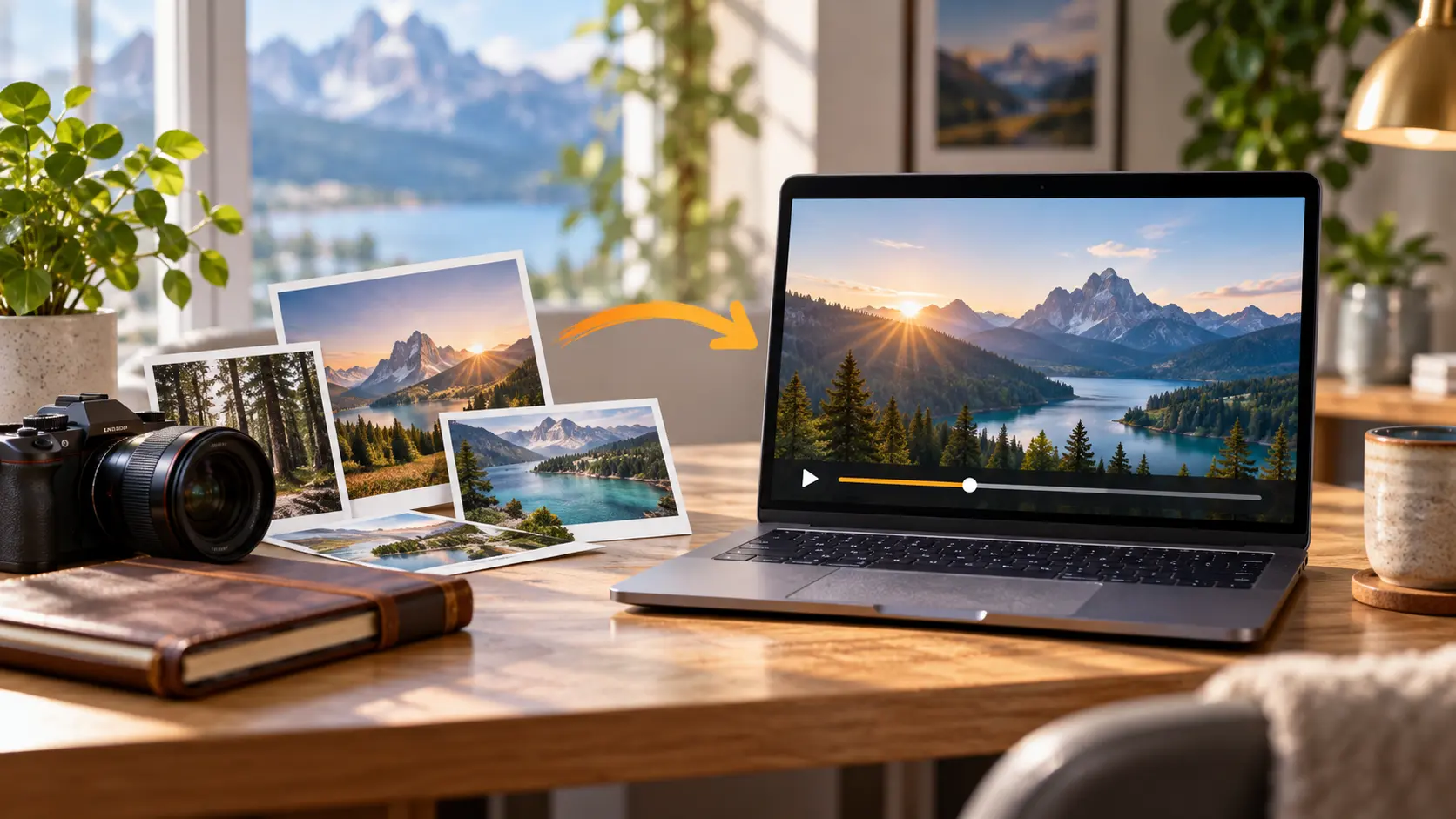
The source material gives the result a defined visual starting point. Upload relevant reference media, then personalize video around the subject, scene, or treatment you want to explore.
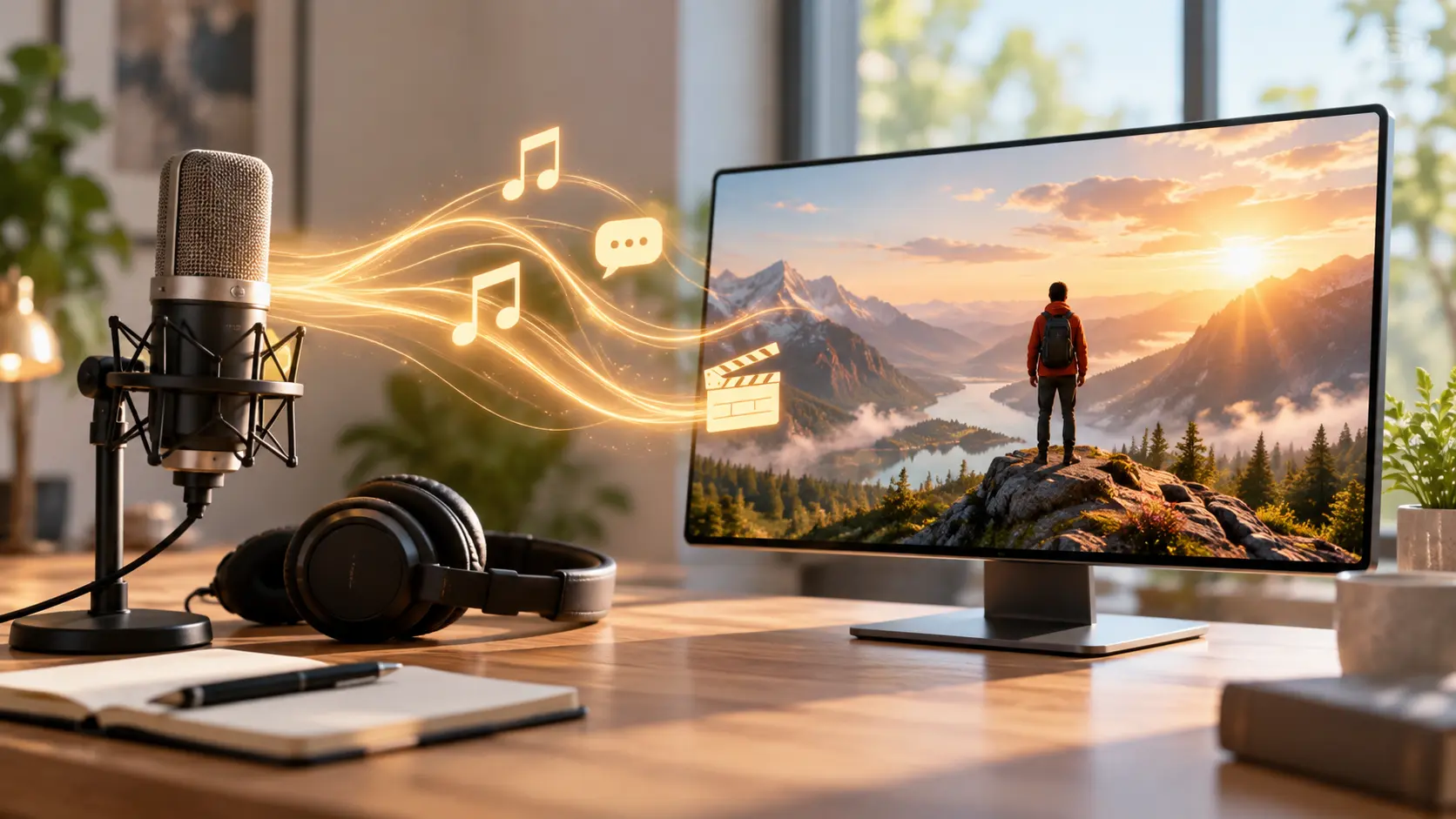
Music, narration, or sound effects can follow an uploaded audio reference when sound matters to the project. Add that reference alongside visual media and text direction to personalize video with a deliberate audio role.
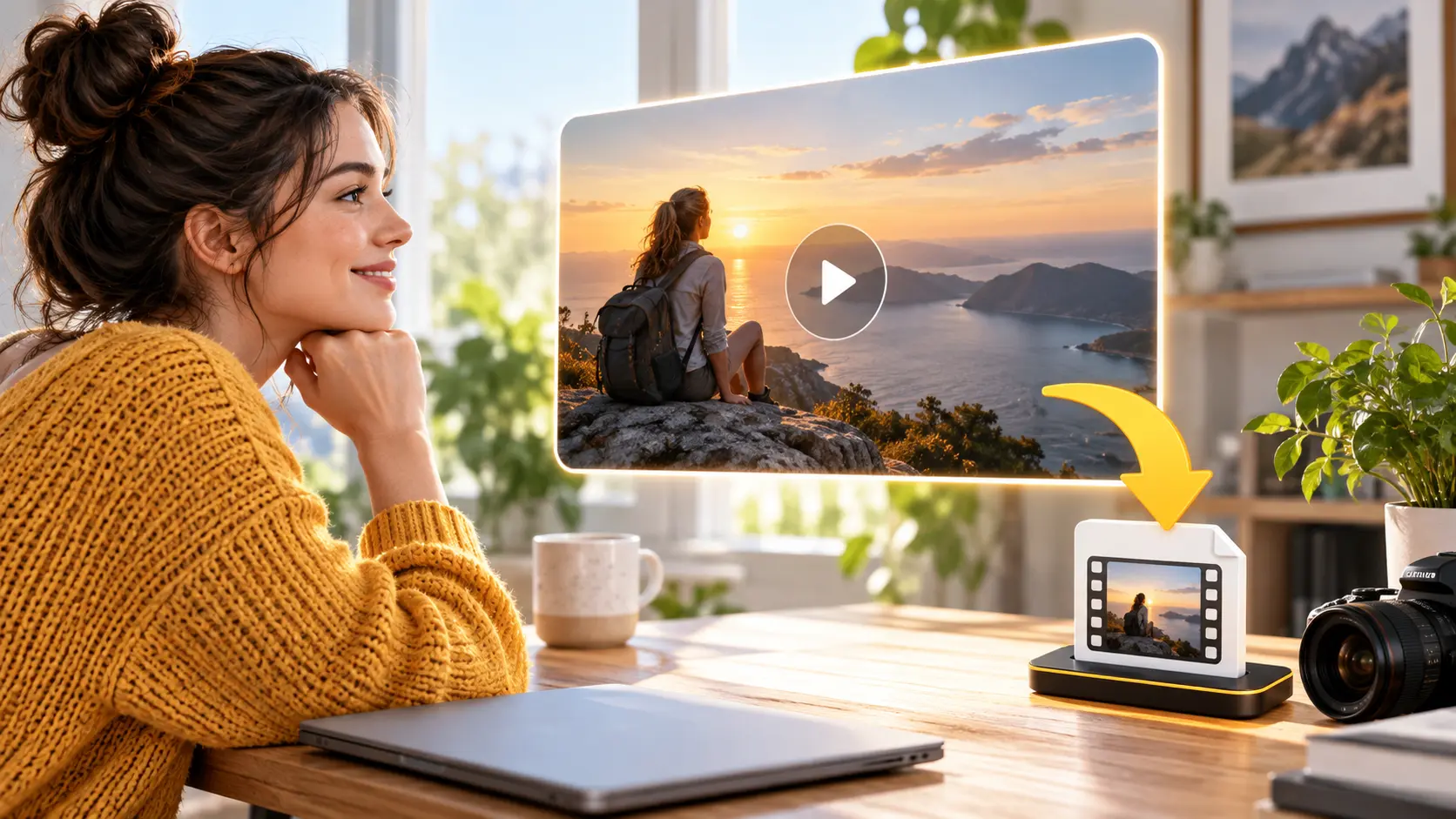
Generated work can be inspected in preview before you download it. When the scene or emphasis needs a change, give VideoAI another text instruction and keep refining the video around your goal.
The workflow moves from reference media and text direction to generation, preview, refinement, and download.
Step 01
Upload the video or reference material connected to the scene, subject, or visual treatment you want to shape. This gives VideoAI a clear starting point for the personalized video.

Step 02
Write a text prompt that explains the scene, change, and visual outcome you want. When sound matters, add an audio reference for music, narration, or sound effects.
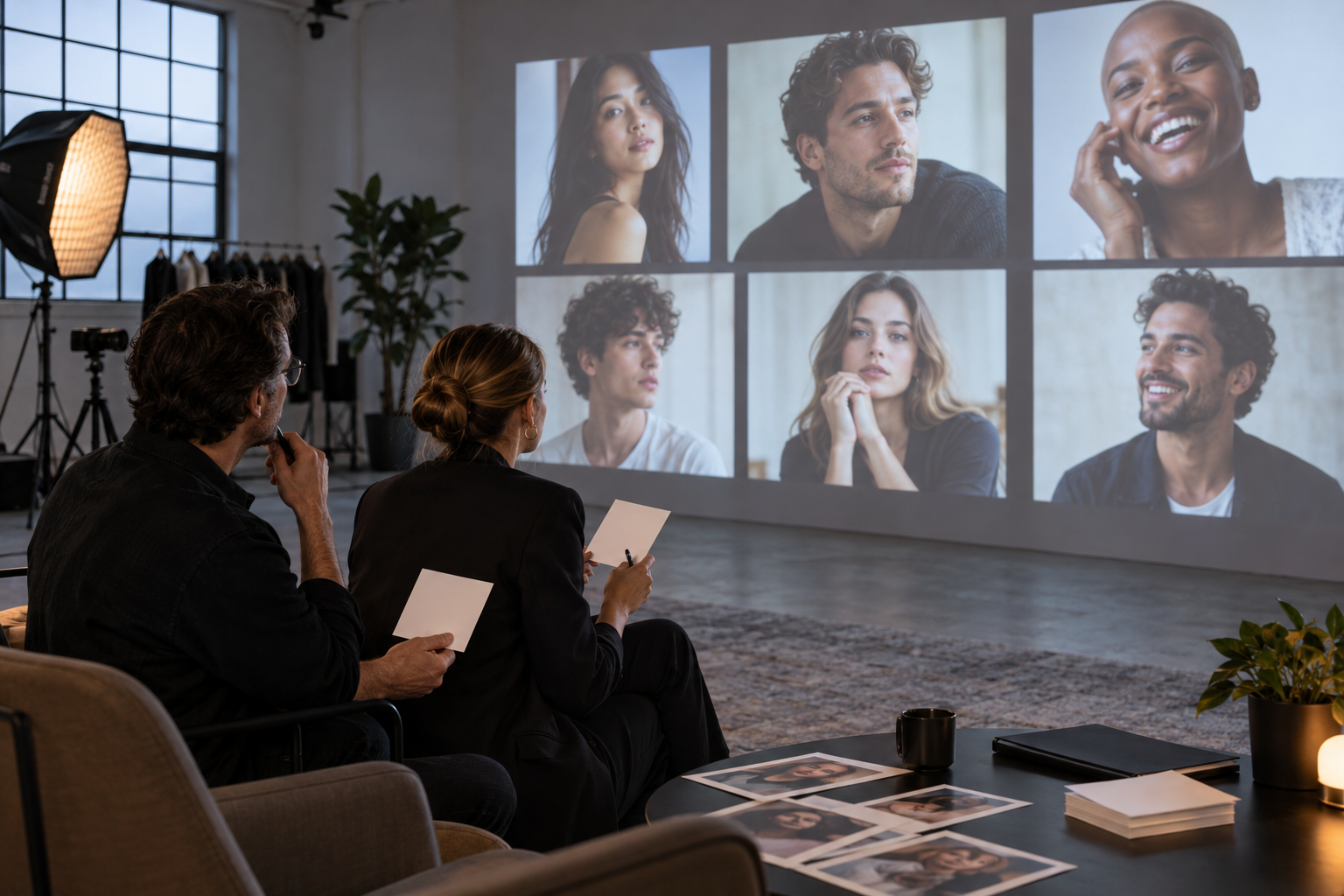
Step 03
Generate the video and inspect the preview. If the result needs a different emphasis, continue with another text instruction to personalize video, then download the version that fits your goal.

Upload a reference, describe the result, and let VideoAI give you a video to review and refine.
Get Started