Polaroid Filter

Use this Polaroid Filter to turn a normal photo into an instant-camera style print, or turn pictures into polaroids, with a square image area, a clean white border, and soft retro color. Upload a portrait, travel scene, product shot, or memory, then describe how strong the film look should be. Review the crop and skin tones before downloading a finished photo for social, albums, cards, or print.

No picture on hand? Try with one of these

A Polaroid Filter Built Around the Whole Print

The result should feel like an instant photograph, not just a brown tint placed over the original image.

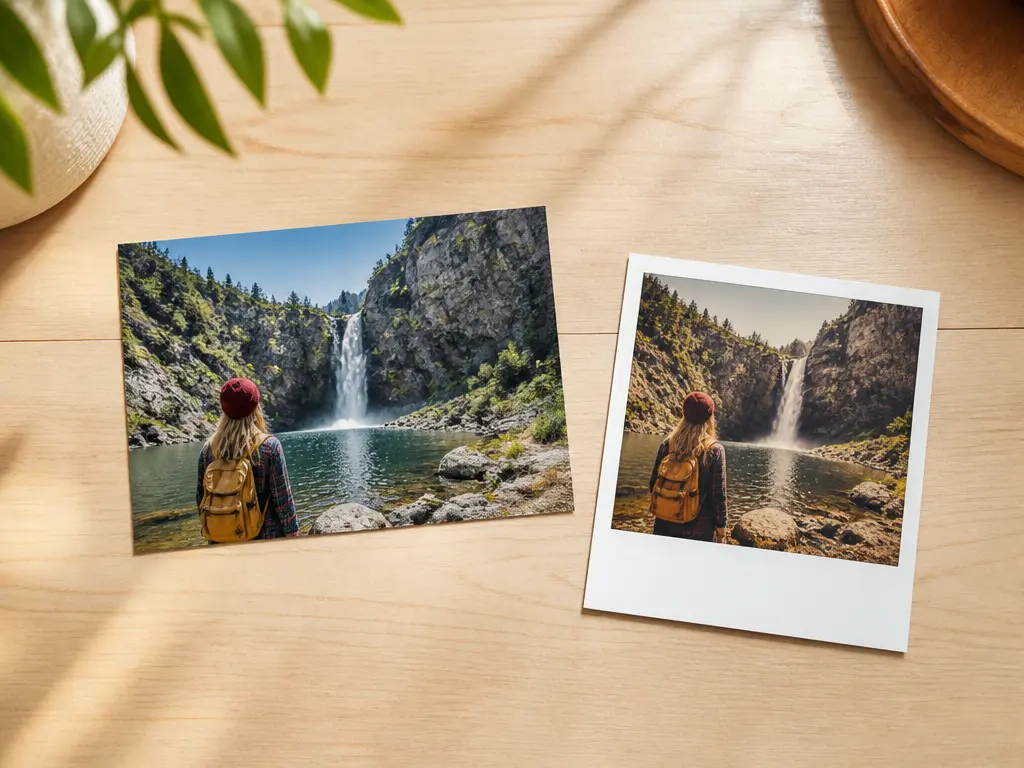
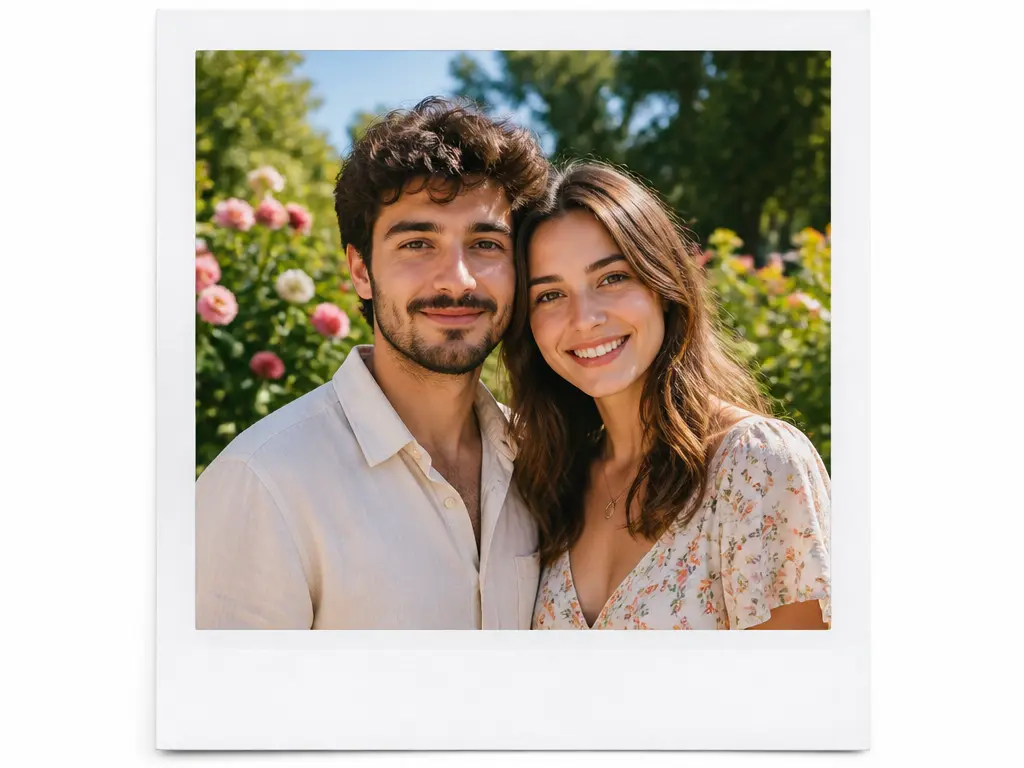
Polaroid Filter producing a square image area, white frame, and film-toned print

Frame, Square Crop, and Film Tone Together

A convincing instant photo depends on more than a white outline. The picture area needs a square or near-square crop, the border needs believable proportions, and the colors should shift only enough to suggest older film. Use the Polaroid Filter with a clear description of the frame and mood you want to make photos look like polaroids. Inspect the lower margin, corners, and image edge as one complete composition rather than treating the border as a separate decoration.

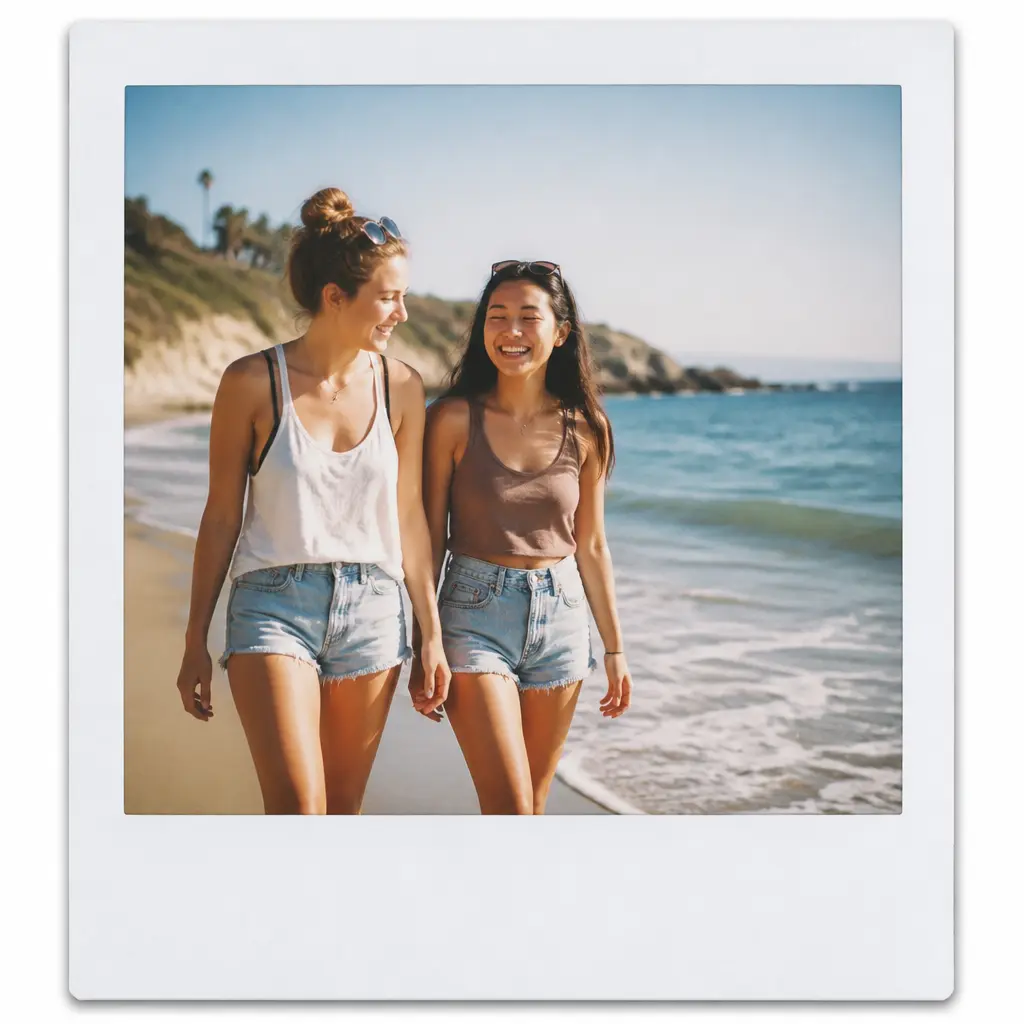
Polaroid Filter keeping a couple centered inside a square instant-photo crop

Protect Faces and Keep the Main Subject Readable

Square cropping can remove important space around a person, group, pet, or product. Tell the Polaroid Filter what must remain visible and keep the focal point away from the outer edge. Soft retro color should not turn skin unnatural or make a white product look dirty. If the first version cuts too tightly, describe the subject position and ask for more room inside the frame before trying a heavier vintage treatment.

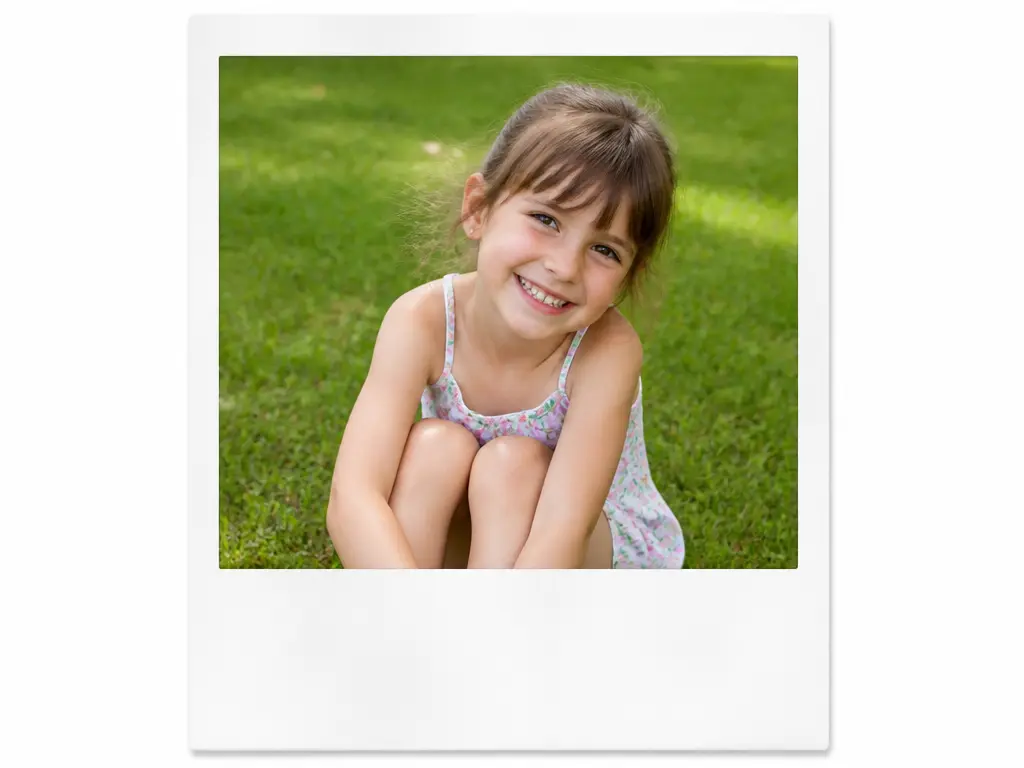
Polaroid Filter print with open white caption space beneath a portrait

Use the White Margin for a Written Note

The empty lower edge of an instant photo is part of its character. Leave enough room to add a date, name, short message, or handwritten note after you download the image. The Polaroid Filter should preserve a clean margin without placing generated writing inside it. This is useful for albums, wedding place cards, gift tags, memory walls, or a small photo series that will be finished by hand or in another design tool.

Make a Polaroid Photo in Three Steps

Start with a clear original, describe the instant-film treatment, and review the crop before downloading the finished print.

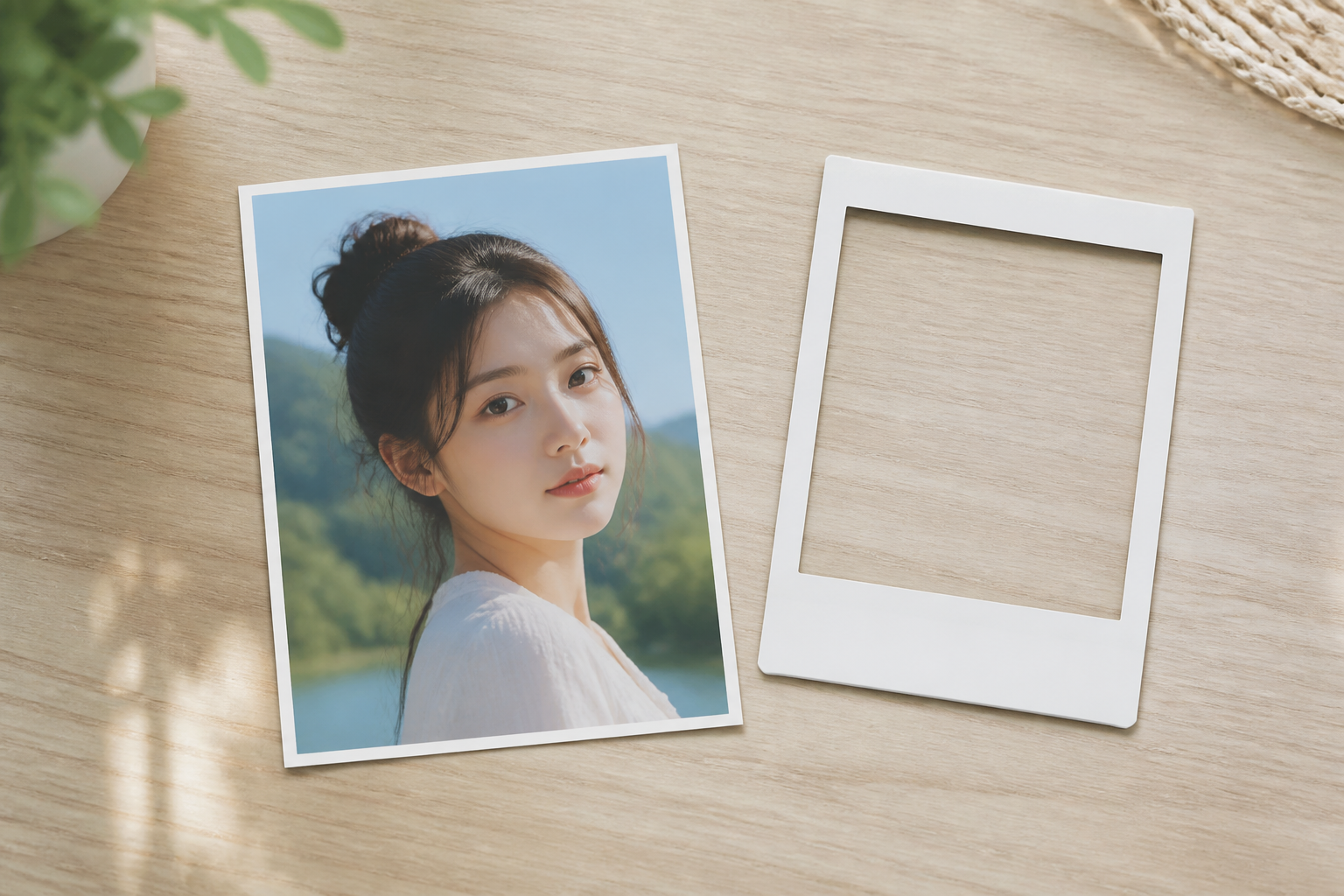
Original portrait being prepared for a Polaroid Filter result

Step 01

Upload a Photo With the Right Subject

Choose a sharp image where the person, place, or object you care about is already visible. The Polaroid Filter will reshape the composition into an instant-photo format, so keep enough space around the subject in the source photo.
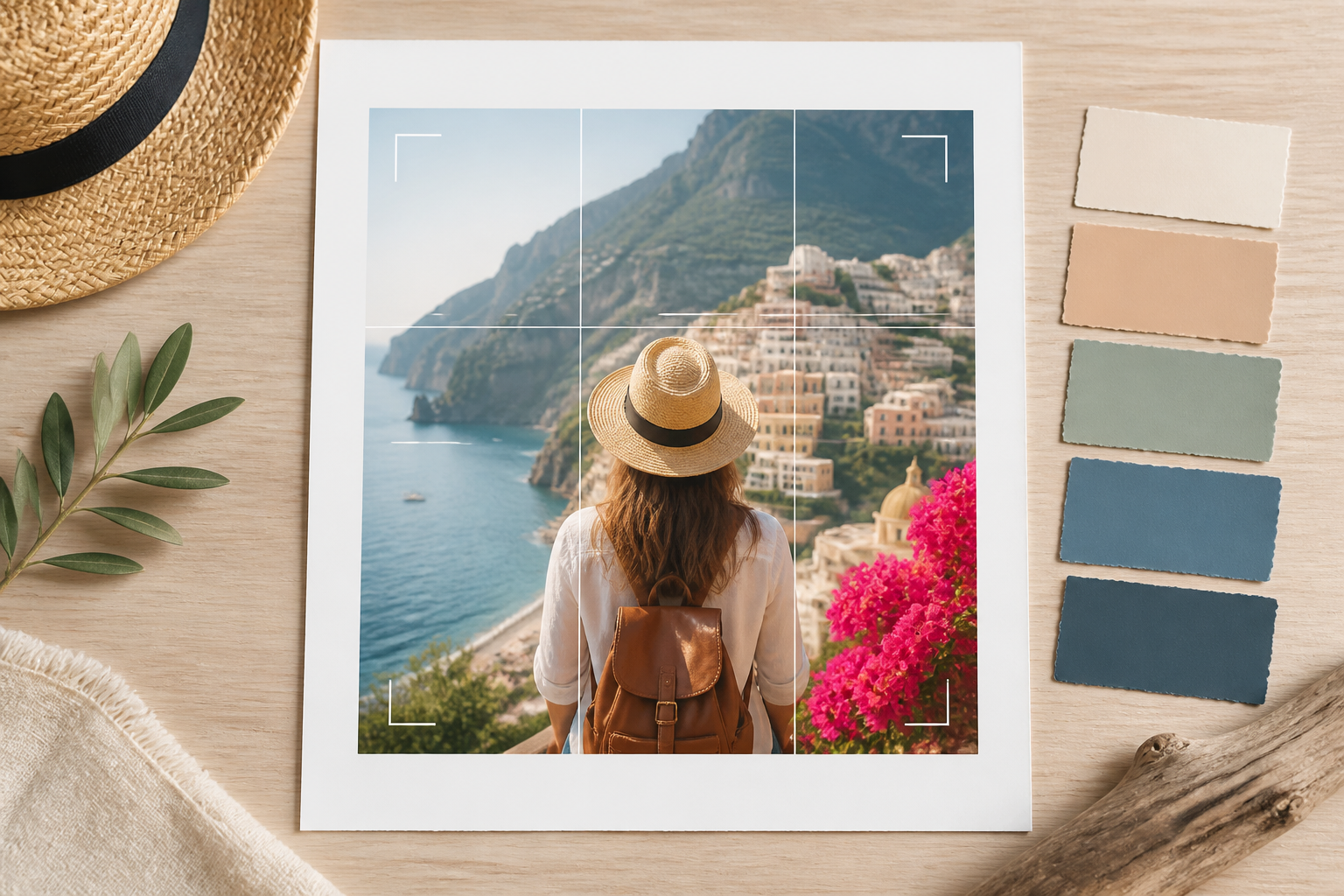
Polaroid Filter direction shown through color swatches and a square crop guide

Step 02

Describe the Crop and Retro Mood

Mention the subject position, preferred square crop, border, color softness, and whether you want a subtle or stronger film look. Keep faces natural and describe the mood with simple words such as faded, warm, quiet, or bright.

Polaroid Filter results spread out for a final color and crop review

Step 03

Review the Print and Download

Check the final Polaroid Filter result for a complete subject, believable border, natural skin tone, and balanced color. Compare it with the original before downloading, especially if the photo will be printed or used in a matching memory set.

Ways to Use a Polaroid Filter

The treatment works best when the photo needs a memory-like object, a softer social mood, or a consistent retro series.

Polaroid Filter photo series for a coordinated social media collection

Social Photo Series

Create a set of instant-style posts from a trip, weekend, or seasonal collection. Keep the border proportions and color treatment similar so the images feel related rather than like unrelated presets.

Polaroid Filter event photos prepared for a wedding memory display

Wedding and Event Memories

Turn candid moments, table details, and guest photos into cards for a memory wall or thank-you note. Ask for a clear caption margin when people will write on the printed image later.

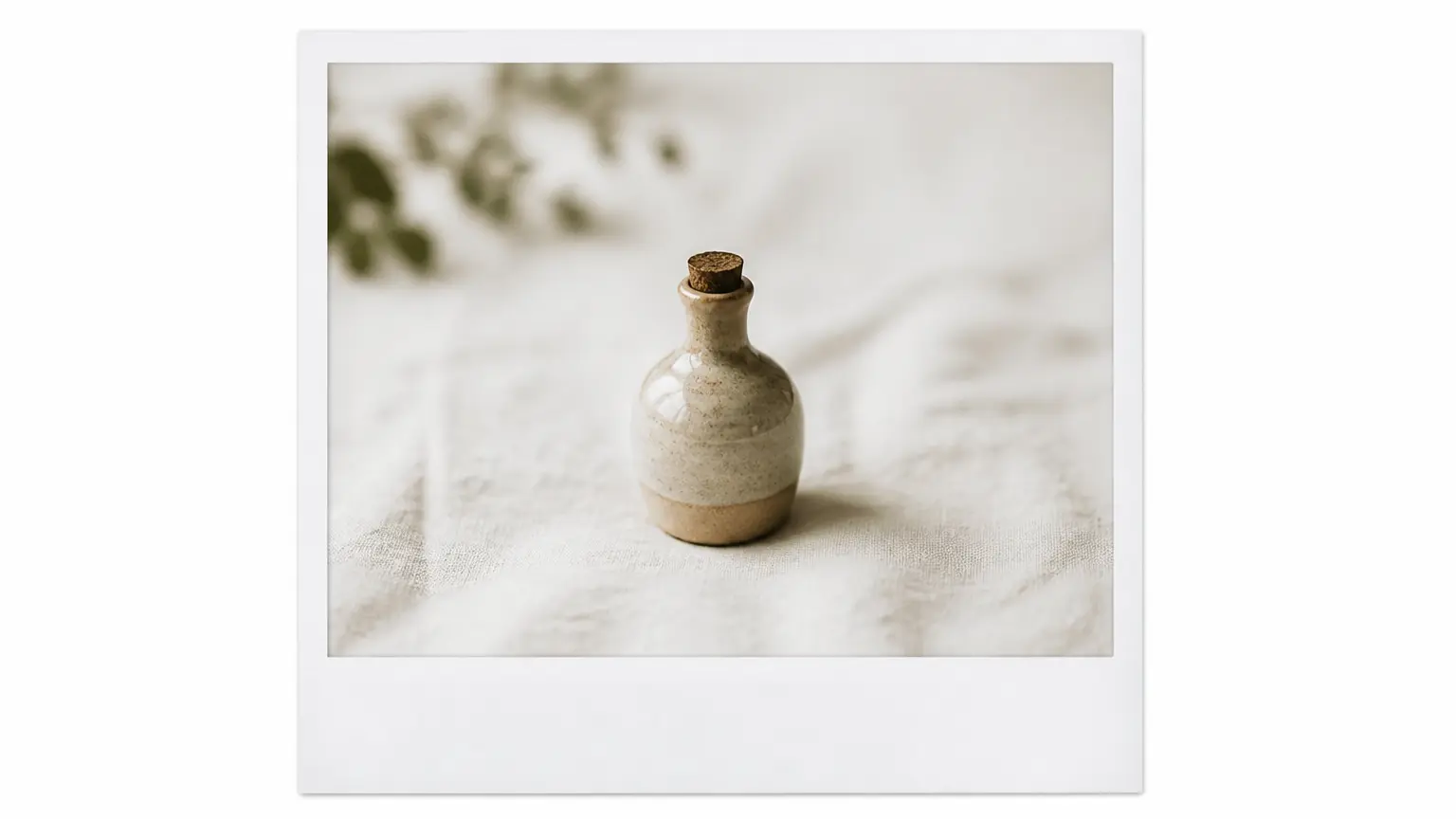
Polaroid Filter used for a restrained retro product photo

Retro Product Storytelling

Give a product photo a softer, handmade mood for a campaign or small-shop story. Keep the product color and label area readable, and choose a restrained Polaroid Filter treatment when accurate product presentation matters.

Who Reaches for a Polaroid Filter

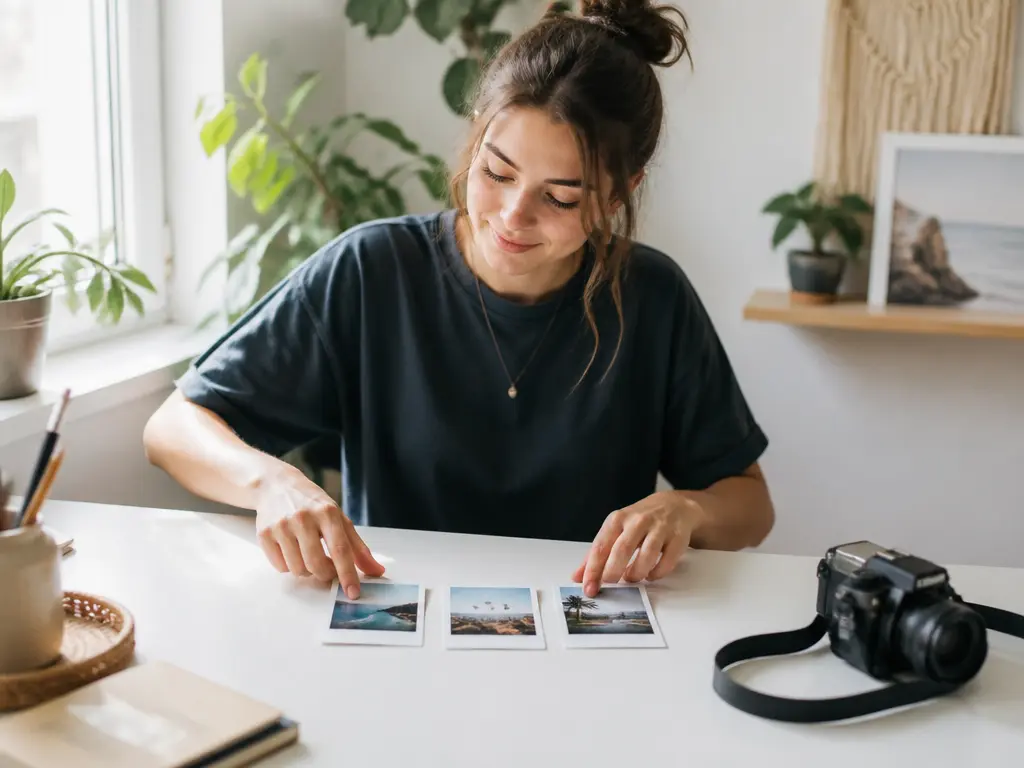
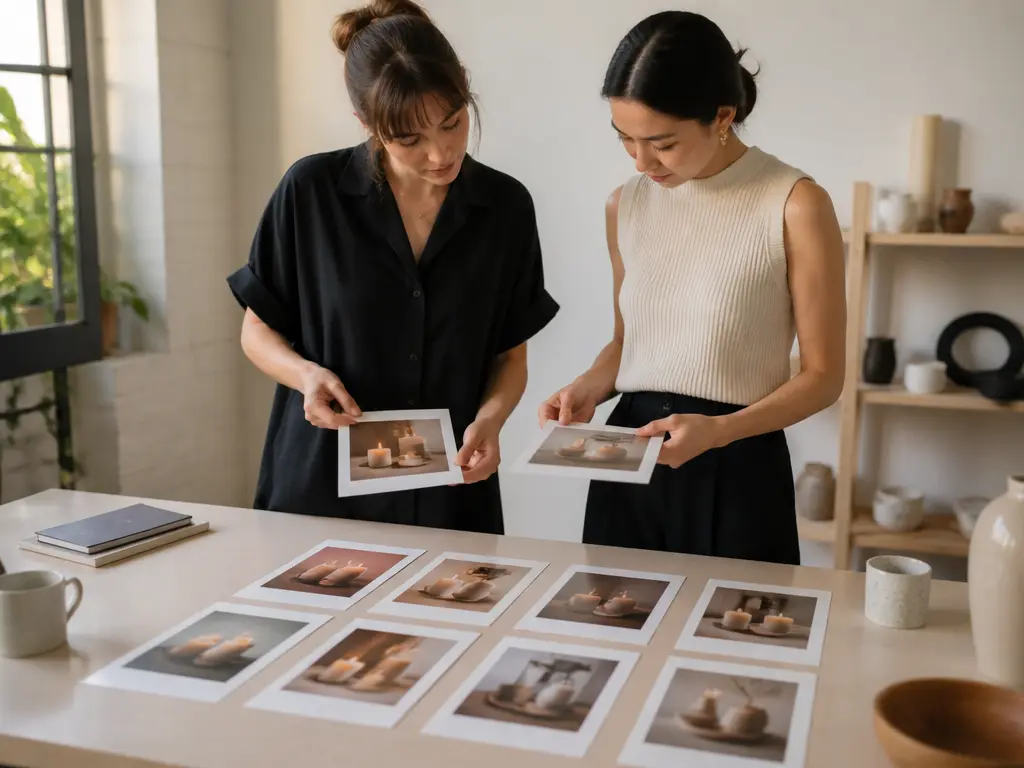
Social media creator arranging Polaroid Filter memories on a desk

Give Everyday Photos a Softer Memory

Use the Polaroid Filter for travel, friends, food, or daily moments that would feel warmer as a small instant print. Keep faces readable and match the treatment across a series so your profile still looks intentional.

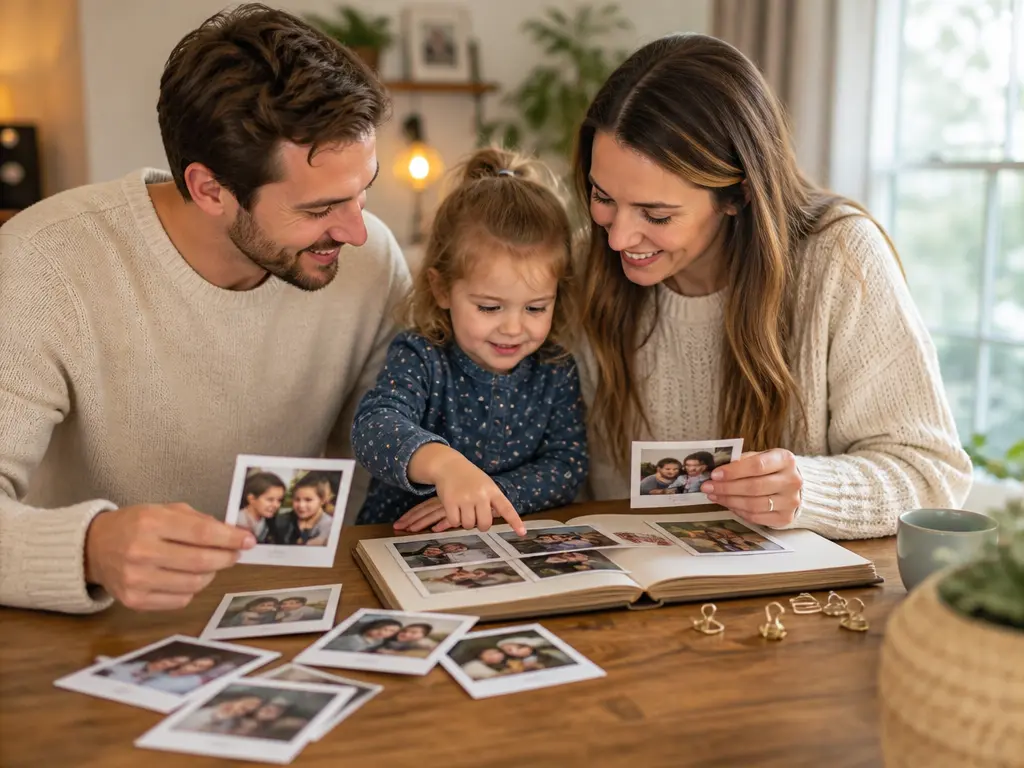
Family reviewing Polaroid Filter keepsakes before placing them in an album

Make a Set of Shareable Keepsakes

Turn engagement, wedding, family, or holiday moments into instant-photo keepsakes. Protect faces during the square crop and leave a clean lower margin when the prints will be signed or displayed together.

Small brand team reviewing a consistent set of Polaroid Filter product images

Build a Consistent Retro Visual

Small teams can use the Polaroid Filter to create packaging inserts, campaign images, or shop stories with a handmade feel. Keep the product color and important details readable, and review a complete set before publishing.

Polaroid Filter Questions

A Polaroid Filter should affect the complete instant-photo structure, including the square crop, white border, deeper bottom margin, softened contrast, and restrained film color. A simple brown preset changes tone without creating that object-like print. Use this page when you want a finished instant-photo composition, not when you only need a tinted version of the original picture. The best Polaroid Filter result keeps the print structure and the photo readable together.

Cropping depends on where the subject sits and how the instant-photo frame is arranged. Describe the face, group, pet, product, or scenery that must stay visible, and keep the main subject away from the outer edge in the source image. Review every Polaroid Filter result before download because a square shape can remove more of a wide photo than expected.

Yes. Ask for a restrained Polaroid Filter look with soft contrast and only a slight warm or faded shift. Strong vintage treatments can make skin too yellow, orange, or dull. Compare the result with the original, especially indoors and in mixed lighting, and reduce the film effect if the person no longer looks natural. A clean border can carry the retro mood without heavy color distortion. This is the practical answer to how to make a photo look like a polaroid without overprocessing it.

Yes. Describe a broad blank lower margin and avoid requesting text inside the image. The space can be used for a date, name, short caption, or handwritten message after download. Check that the lower border is large enough for your intended pen size and that the frame remains balanced around the square photo area. A Polaroid Filter margin can also stay plain if you prefer to add the note later.

Yes. Keep the crop, border proportions, color direction, and film softness consistent across each prompt. Changes in lighting and subject will still affect the result, so compare a complete set rather than judging one image alone. Reuse the strongest result as a reference when you need the group to feel more cohesive. Writing down the Polaroid Filter direction helps keep the series consistent.

No. This is an independent image tool that creates a Polaroid Filter style, not an official Polaroid product, camera, or scan. The downloaded file is a new digital image based on your source photo. You can print it or use it online, but the result will not contain the exact chemistry or physical texture of a specific instant film stock.
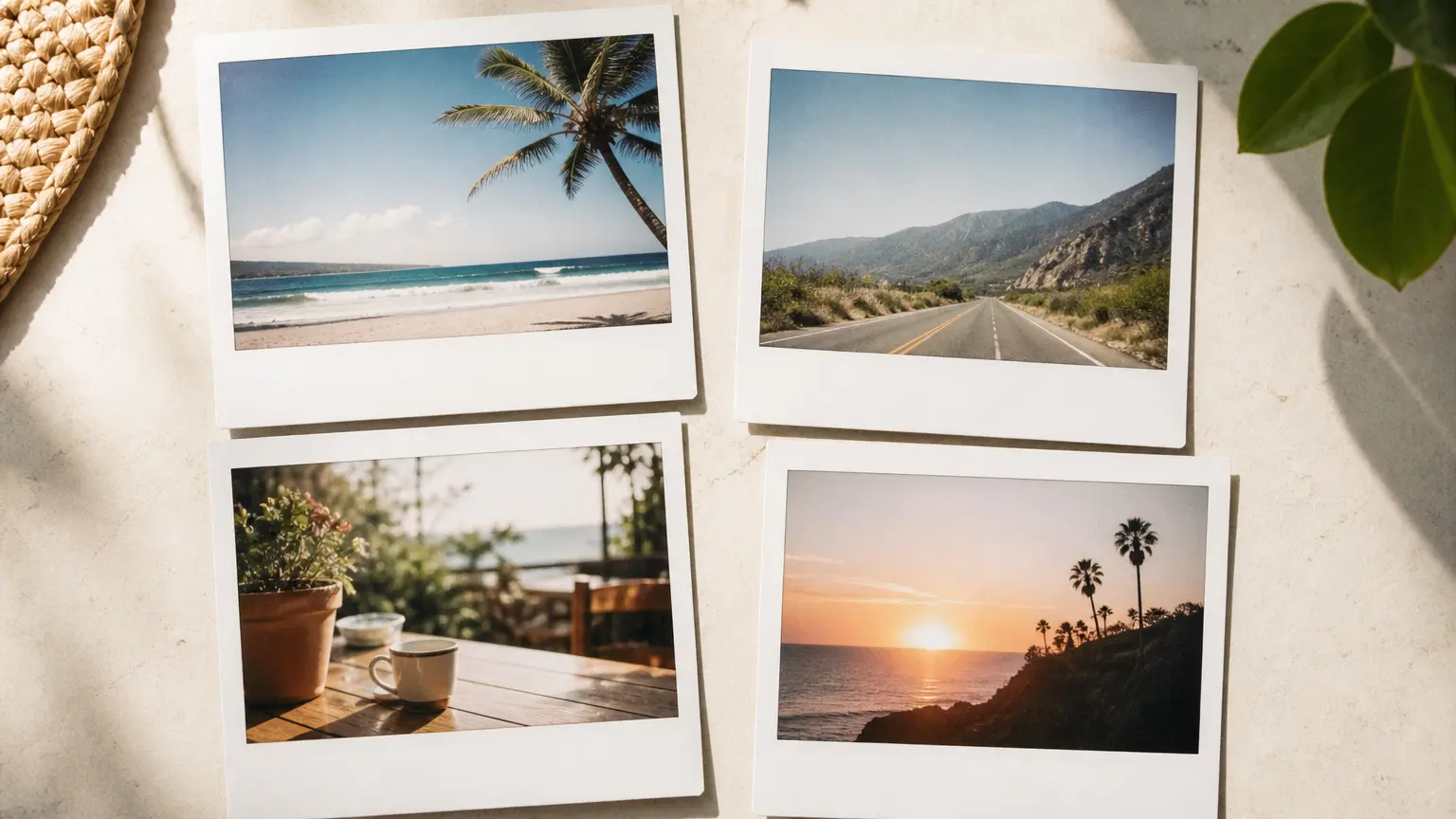
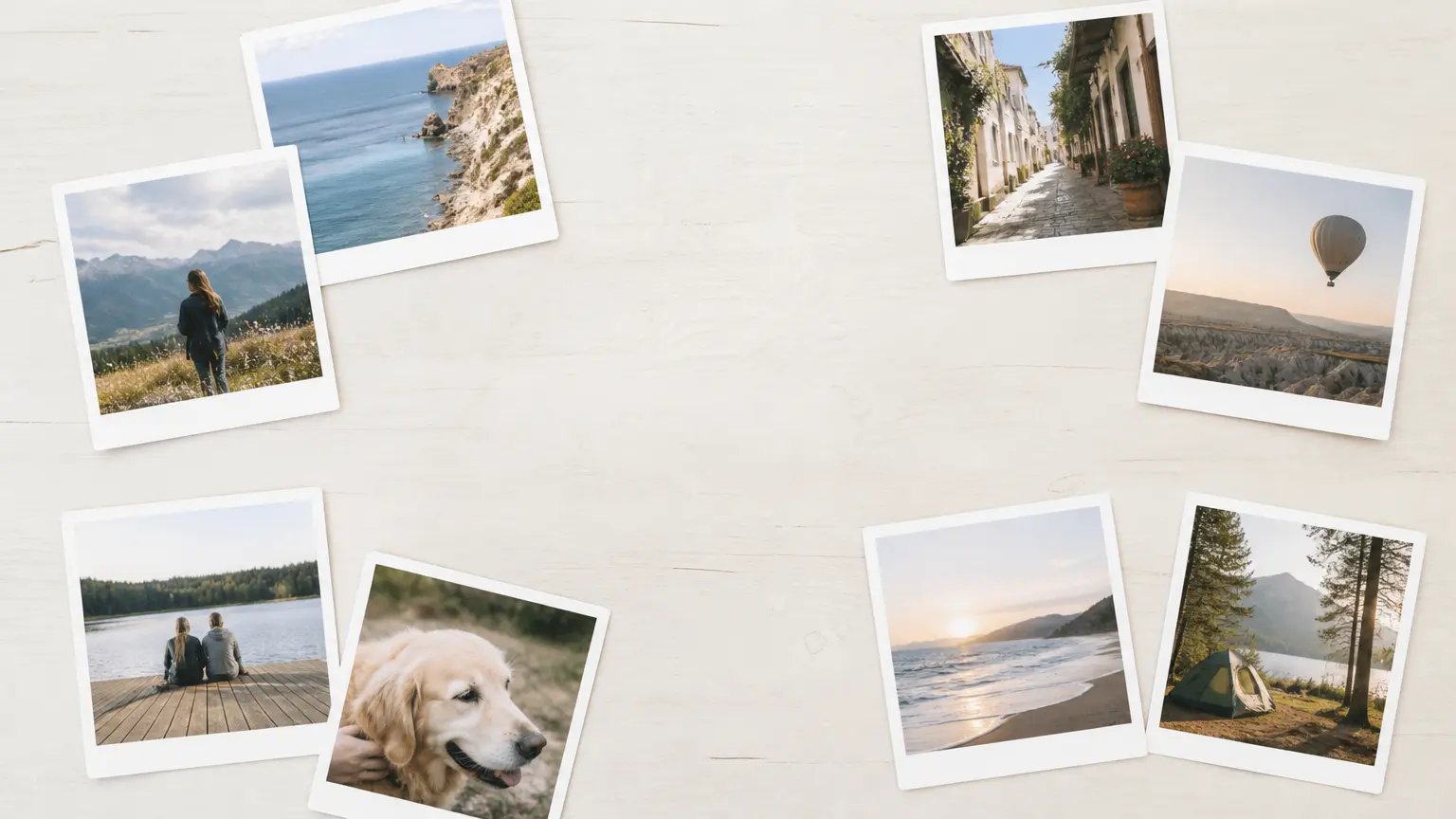
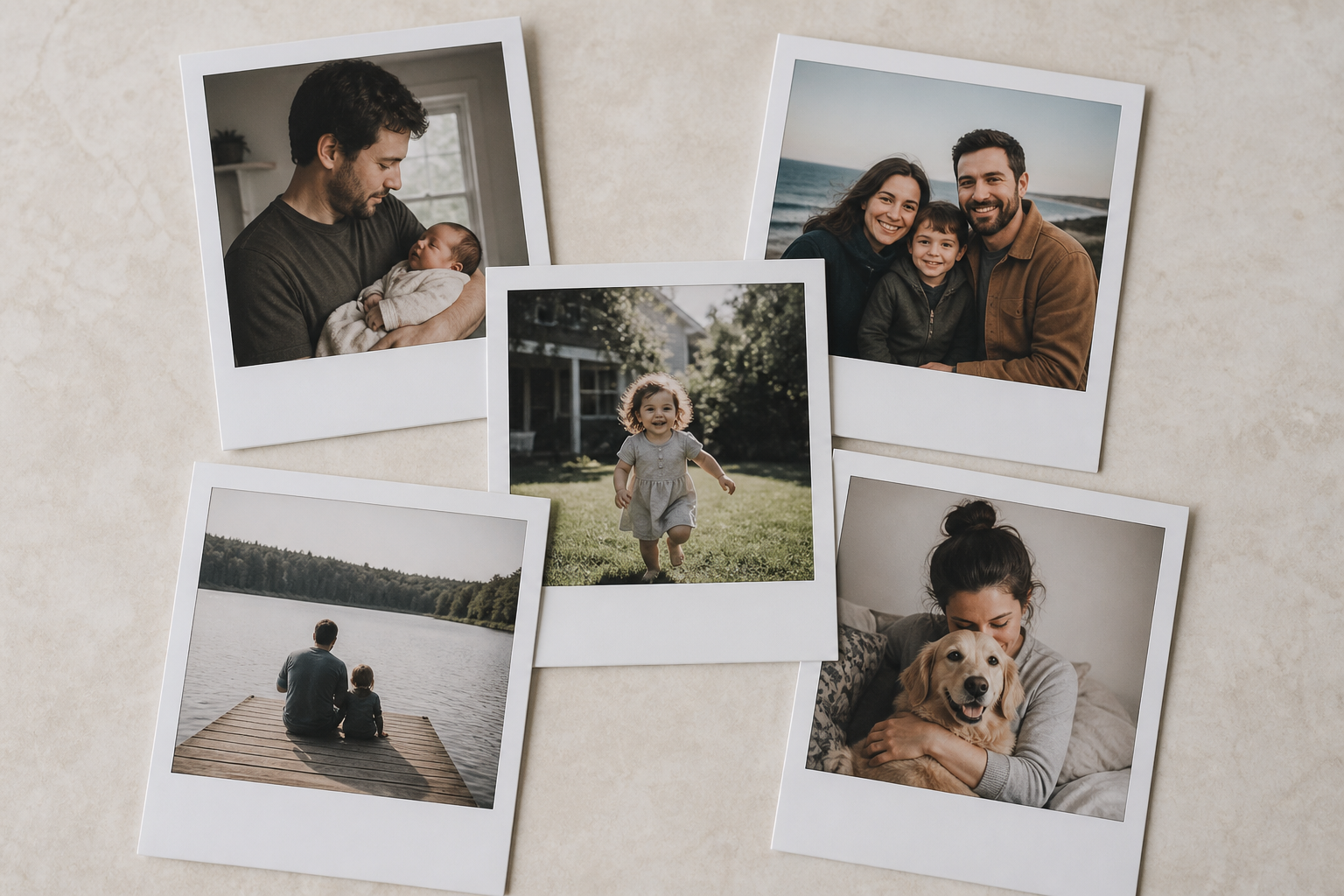
Wide tabletop scene with instant-style photos and open white borders after Polaroid Filter processing

Turn a Favorite Photo Into an Instant Memory

Upload the original, shape the square crop and white border, and use the Polaroid Filter to create a softer print-ready image.

Get Started
Polaroid Filter - Make Instant Photo Style Images - VideoAI