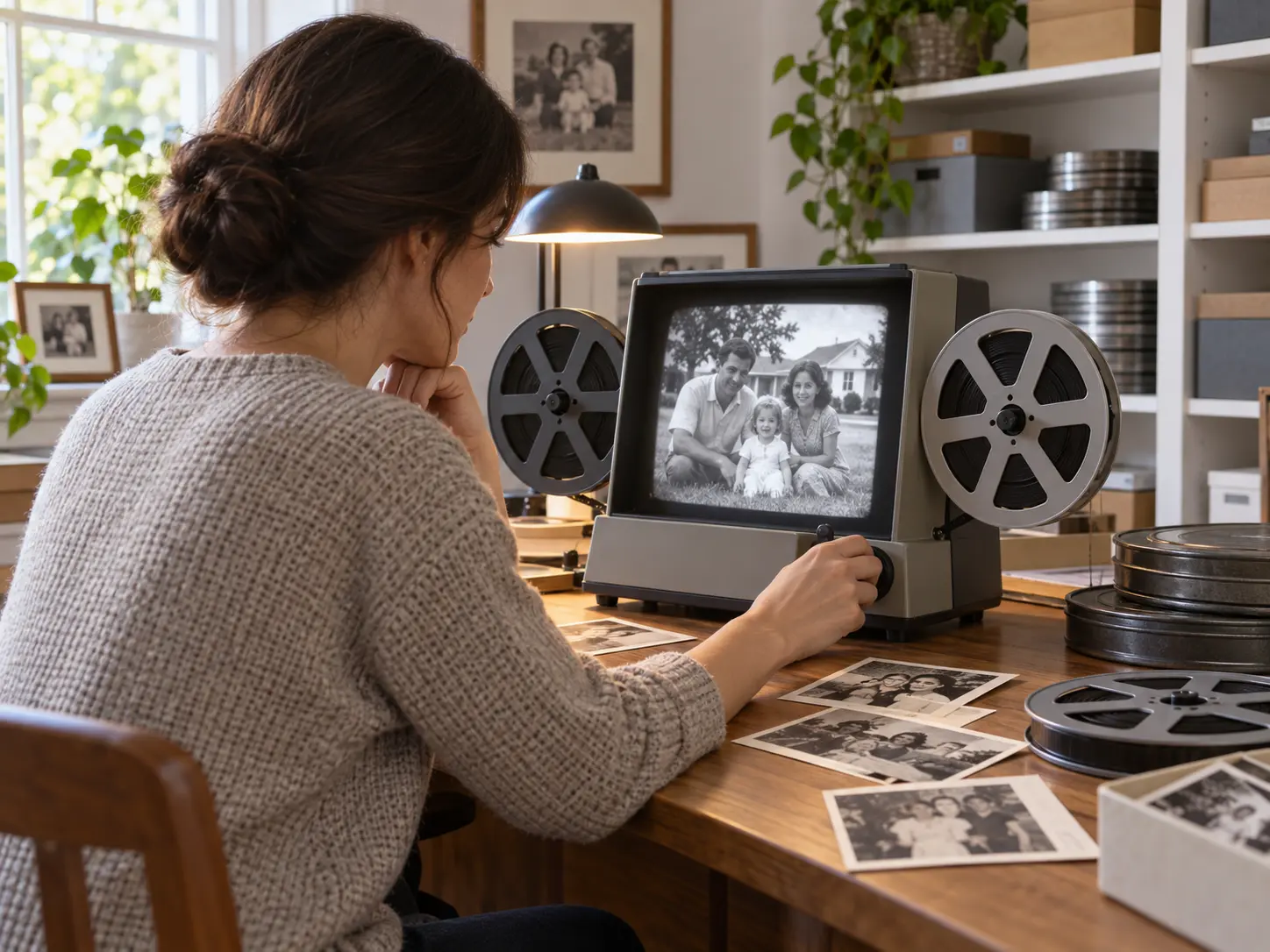
Step 01
Upload existing video files
Add one or more existing video files in the browser to begin. VideoAI accepts common video formats and lets you continue with multiple files in the same online workflow.

Upload an existing video to VideoAI to purify video frame by frame, then review the finished result before download.

Upload an existing file, let VideoAI choose the repair path, and inspect the completed video before download.
Step 01
Add one or more existing video files in the browser to begin. VideoAI accepts common video formats and lets you continue with multiple files in the same online workflow.

Step 02
VideoAI analyzes frames for motion blur, out of focus areas, compression artifacts, and low light noise. It selects the relevant repair path and rebuilds edges and detail where the picture needs it.

Step 03
Review the completed video, then continue to 2K or 4K output and smooth motion at 30fps or 60fps when useful. Download the watermark free result for your next edit or delivery.
Different footage shows different damage. Start with the visible problem, then inspect the areas that matter to your final video.
An older family recording or phone clip may carry noise, blur, and compression in the same shot. Upload it to VideoAI and purify video before checking faces and background detail in the completed result.
Repeated exports can leave blocky artifacts around edges and gradients. Use VideoAI to clean the footage, then inspect flat walls, skies, and small text to see whether the picture reads more cleanly.
Night scenes and concert footage often make noise obvious in the shadows. Purify video with a cleanup pass, then check dark areas to confirm that important forms remain clear.
Game recordings and live replays combine compression with fast movement. Purify video for the visible artifacts, then use frame interpolation separately and inspect whether motion is more continuous at 30fps or 60fps.

Post production editors turn to purify video when a cut is close to delivery but a few shots still show blur, noise, or compression. VideoAI cleans those frames before the final check, helping the editor focus on the weakest moments.
VideoAI keeps cleanup first, then gives you practical output choices for editing, publishing, or client delivery.

Cleaner edges and more readable detail start with identifying the frame issue. VideoAI checks motion blur, out of focus areas, compression artifacts, and low light noise frame by frame, then repairs the areas that need attention.
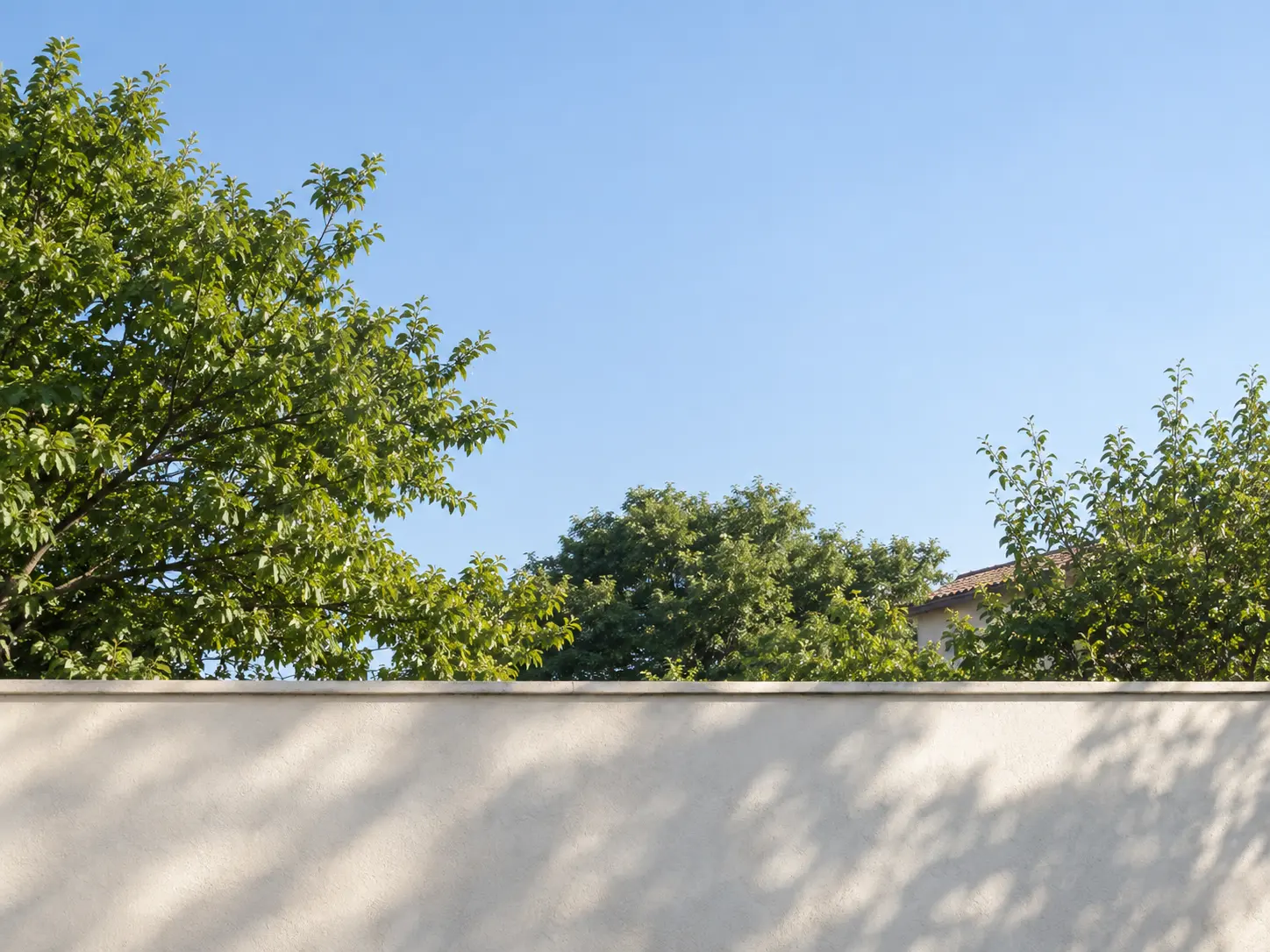
Repeated exports can leave blocky artifacts around edges and gradients, while dark footage can carry visible noise. Purify video with cleanup focused on those areas, then inspect skies, walls, and shadows for a cleaner image.

Softened areas can regain clearer boundaries and useful detail through frame based reconstruction. The result is guided by information in the source, so review faces, fine textures, and small features before delivery.

After cleanup, continue to a 2K or 4K output and inspect whether text and edges read more clearly. Download the completed result without a watermark for commercial use.

Upload an existing file to VideoAI, use 10 free credits for a first test, and review what purify video produces before your next project.
Get Started