
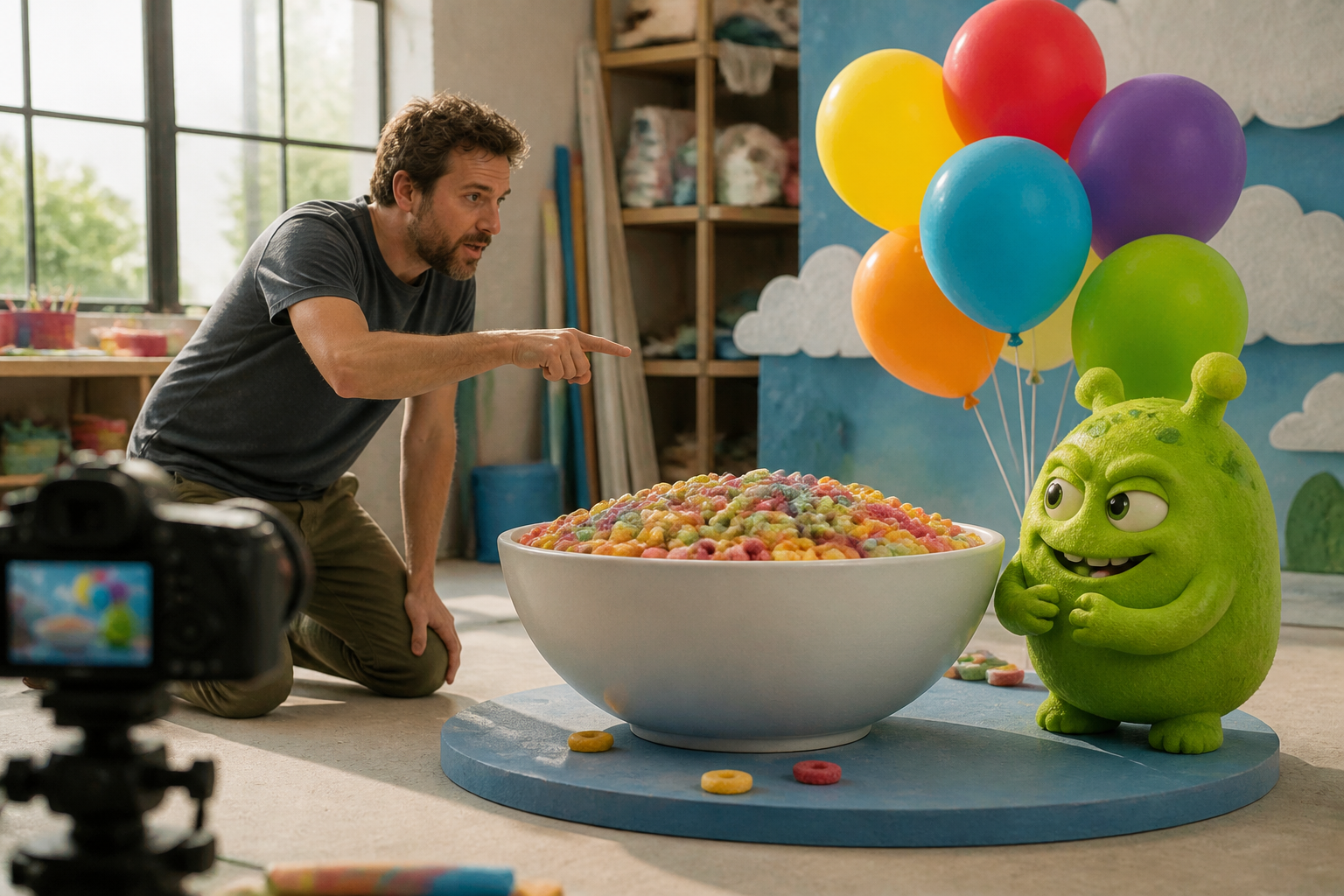
Step 01
Write the scene goal
Describe the subject, viewing context, and visual requirements, then add optional logo, image, video, music, or voice references to the workspace.


Social Video Planning
Use VideoAI to plan timed scenes, reusable references, text, logo, audio cues, and the ratio you choose for each social video.
Partnering with global industry leaders to power your creativity output


VideoAI keeps each creative choice visible, so your prompt becomes planned scenes rather than a loose request.

Set each segment by seconds, then map the shot, action, text, music, and rhythm before VideoAI generates the version.

Bring in text, images, video, audio, or a logo, then use @ to tell VideoAI how each reference should guide the result.
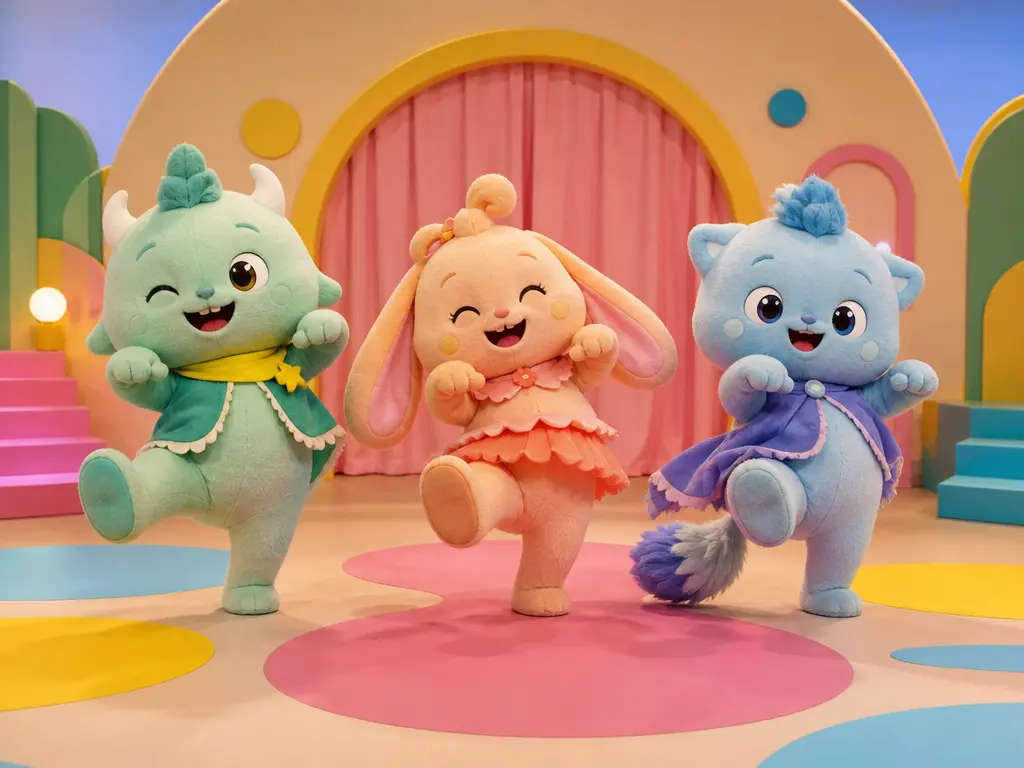
Start from a template, choose a preset, or describe a custom storyboard when a specific scene order matters.
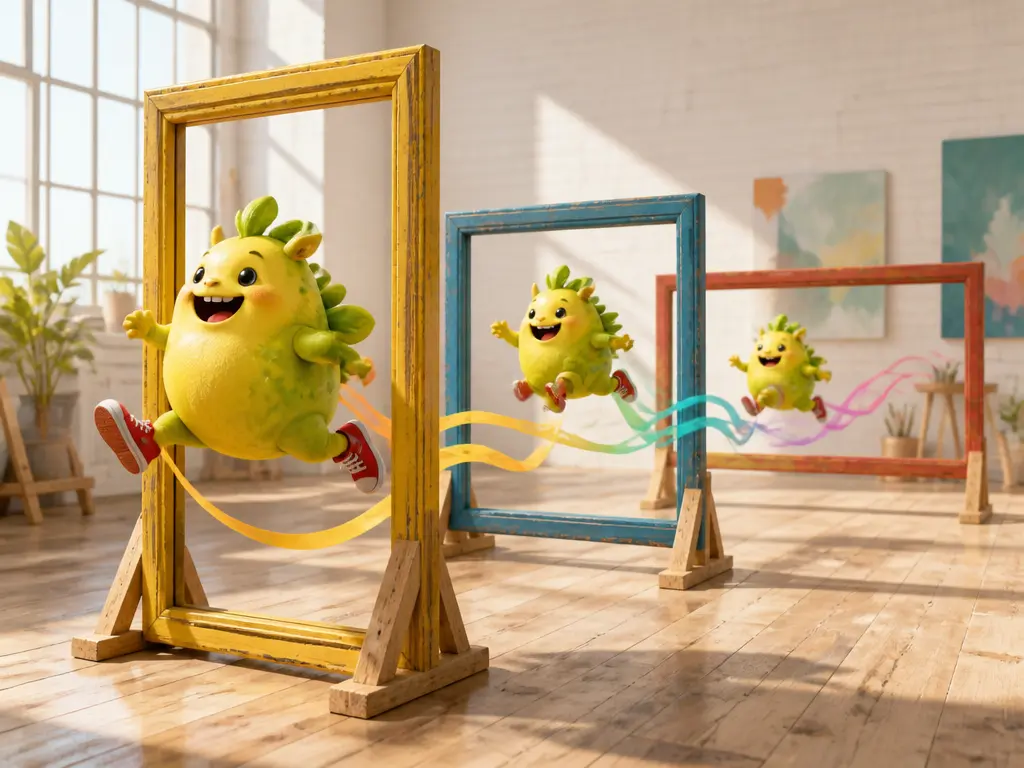
Choose confirmed social ratios such as 16:9, 9:16, 1:1, or 4:5, then export no watermark videos or prepare batch variants.
The workflow moves from creative intent to references, timing, generation, preview, and export.
Step 01
Describe the subject, viewing context, and visual requirements, then add optional logo, image, video, music, or voice references to the workspace.
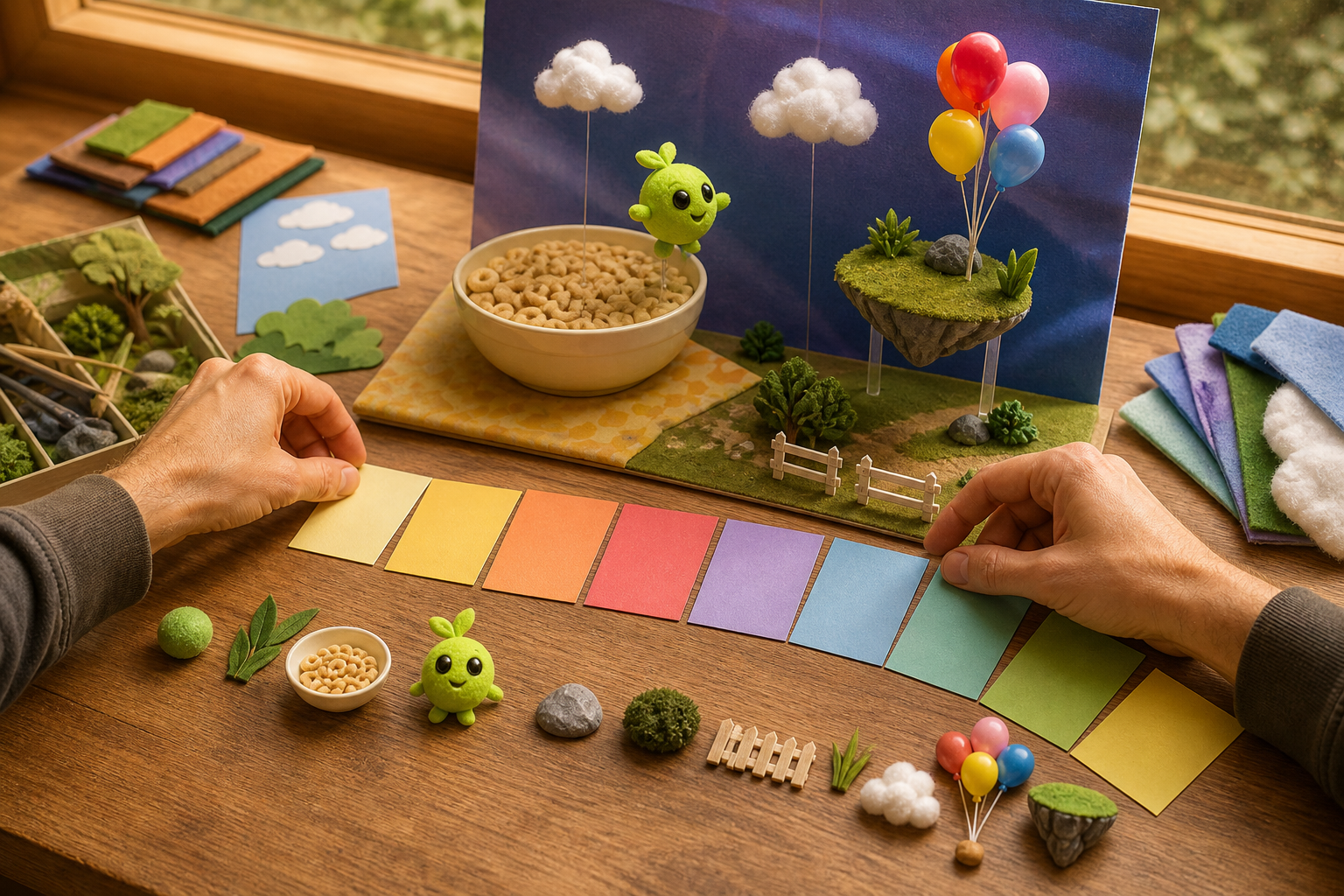
Step 02
Use @ to mark each asset's purpose, set each segment by seconds, and decide where text, action, music, and rhythm should change.
Step 03
Choose a template or preset, or submit your storyboard from scratch, then preview, revise with text instructions, select 16:9, 9:16, 1:1, or 4:5, and export no watermark video up to 30 seconds.
Use the AI Viral Video Generator workflow when one creative idea needs several controlled versions for real channels.
When a short video creator compares first scenes before posting, they can arrange different openings, pacing, and captions in VideoAI, then review versions with the same core idea.
If a small brand has one campaign message but several placements, the team can choose 9:16, 1:1, and 4:5 outputs while keeping logo and on screen text aligned.
When a freelancer needs a shareable first draft, they combine a client logo, reference clip, voiceover, and music cue so feedback focuses on direction.
A product educator can keep the main point visible by scripting scene text, setting timing by seconds, and exporting a concise draft.

Creators use VideoAI when a social video needs to reflect their own hook, pacing, captions, and audio choices rather than a generic prompt.

Teams can keep reusable logos, campaign references, and music direction in the workspace, then create ratio specific versions for social placements.

Freelancers can build several client review drafts from templates, presets, or custom storyboards, then adjust the chosen direction with text instructions.

Bring your idea, references, timing, text, logo, and audio cues into VideoAI, then generate a version you can preview and refine.
Get Started