
Step 01
Upload the Source Image
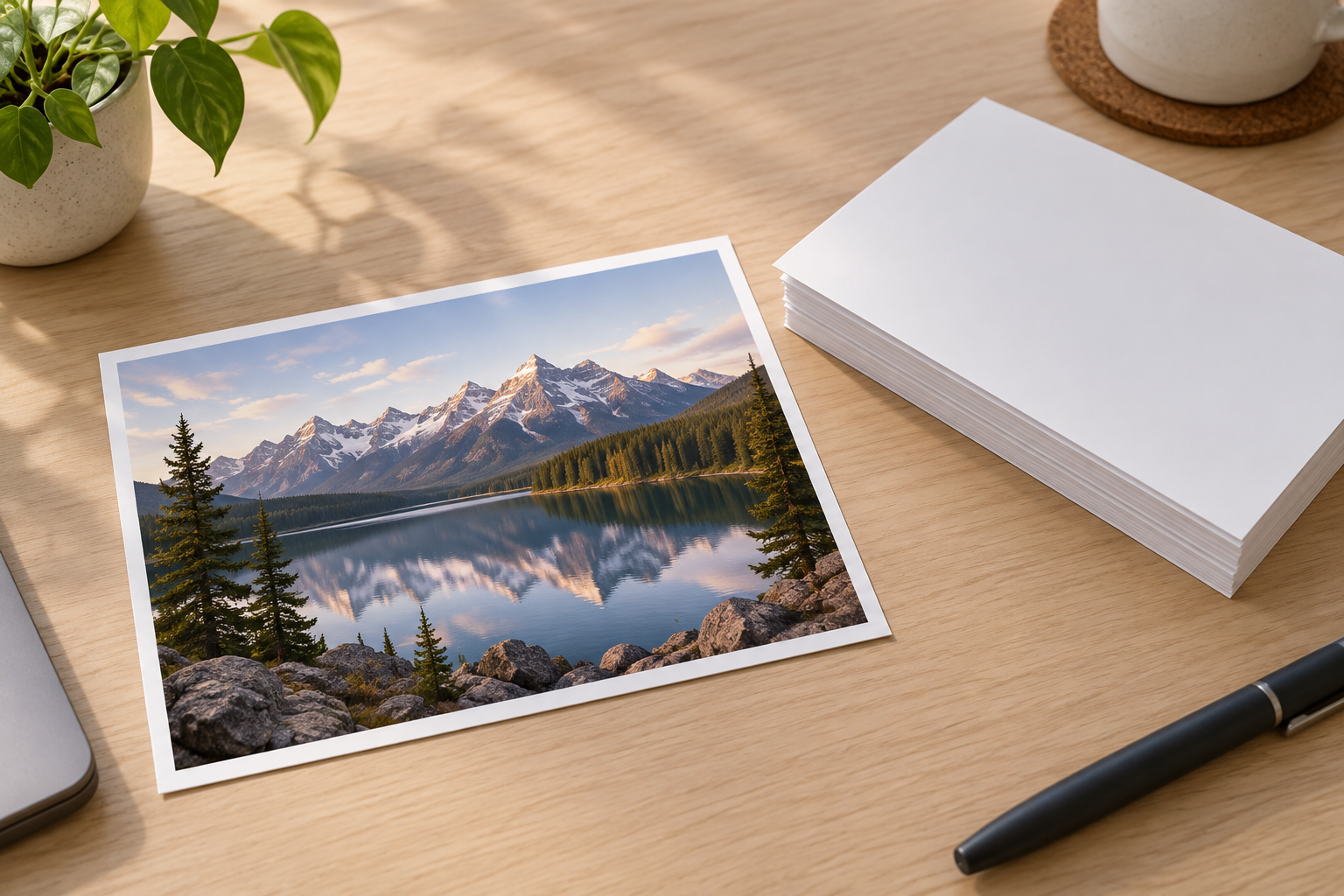
Choose the photo you want to make image 4K and upload it in a common format. A sharper, less compressed source gives the upscaler more reliable information to work from.

Use this 4K image upscaler when a photo needs more pixels for print, a large screen, or a detailed layout. Upload the source image, choose the 4K image upscaler direction, and let the workflow reconstruct cleaner edges without changing the subject or composition. Review the result at full size, then download the clearer image for its next use.


No picture on hand? Try with one of these
The job is to make image 4K while keeping the same subject, crop, and visual meaning. The workflow increases pixel dimensions and reconstructs plausible edge and texture detail where the source supports it. It does not recover information that was never captured, so a reasonably sharp original usually produces the strongest result.
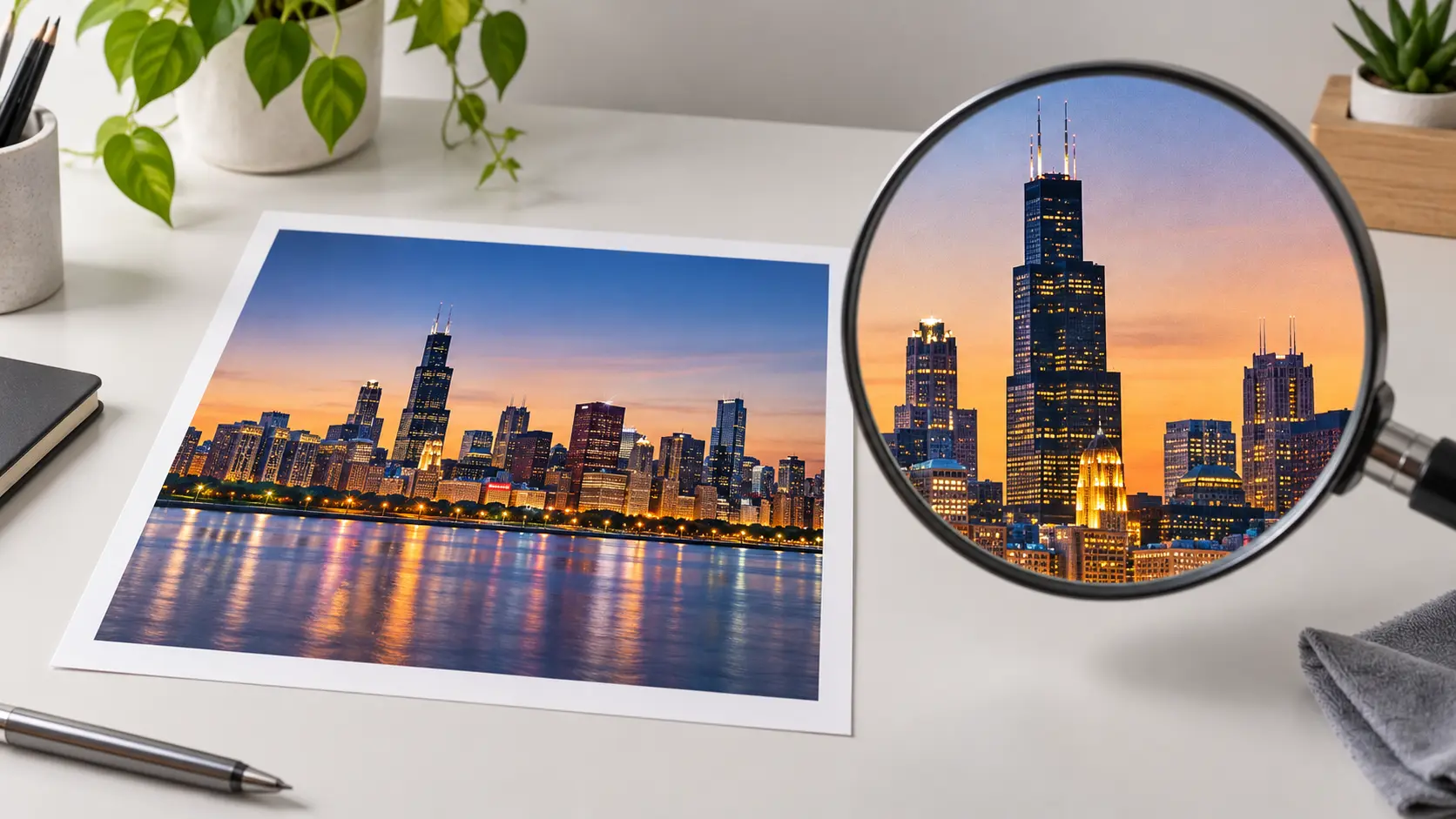
A 4K image upscaler creates a larger image for print, a high-resolution display, or a layout that needs more pixels. Instead of stretching the original and accepting soft edges, the workflow rebuilds detail at the new output size. Use the 4K view to check how the result behaves at the scale you plan to publish, and choose a sensible enlargement level for the source.
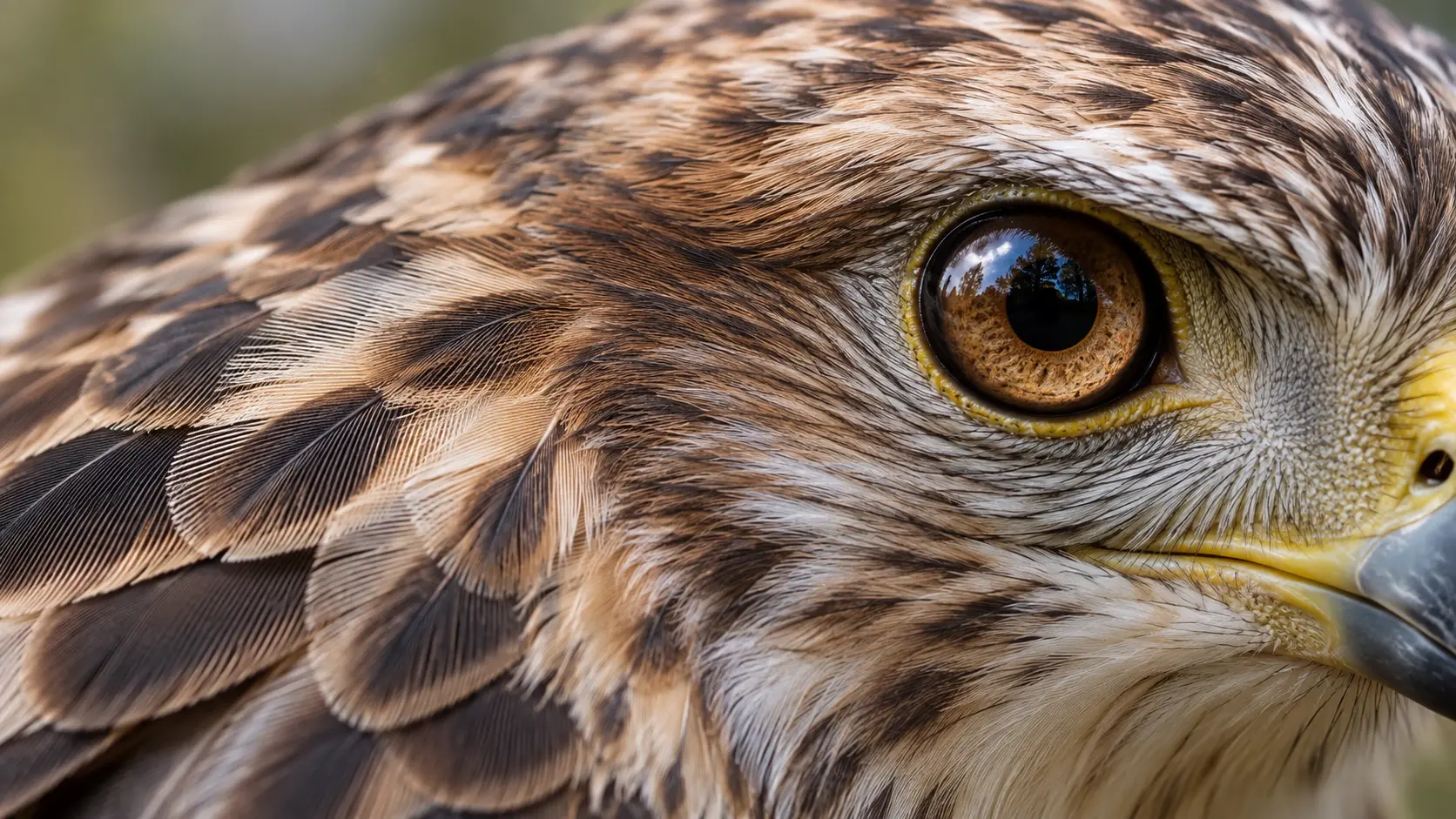
The 4K image upscaler improves perceived clarity by strengthening edges and adding definition to hair, fabric, product labels, architecture, and other textured surfaces. The result is an AI reconstruction rather than a perfect camera original. Inspect small patterns and fine text closely, because any enlarged image can invent detail that looks convincing without being literally present in the source file.

The upscale workflow is designed to preserve the uploaded crop, subject position, and overall composition so the new file can replace the original in the same design. That saves time when you need a larger image without rebuilding a layout. Review faces, product shapes, and important edges after processing, especially when the source is very small or has already been compressed several times.
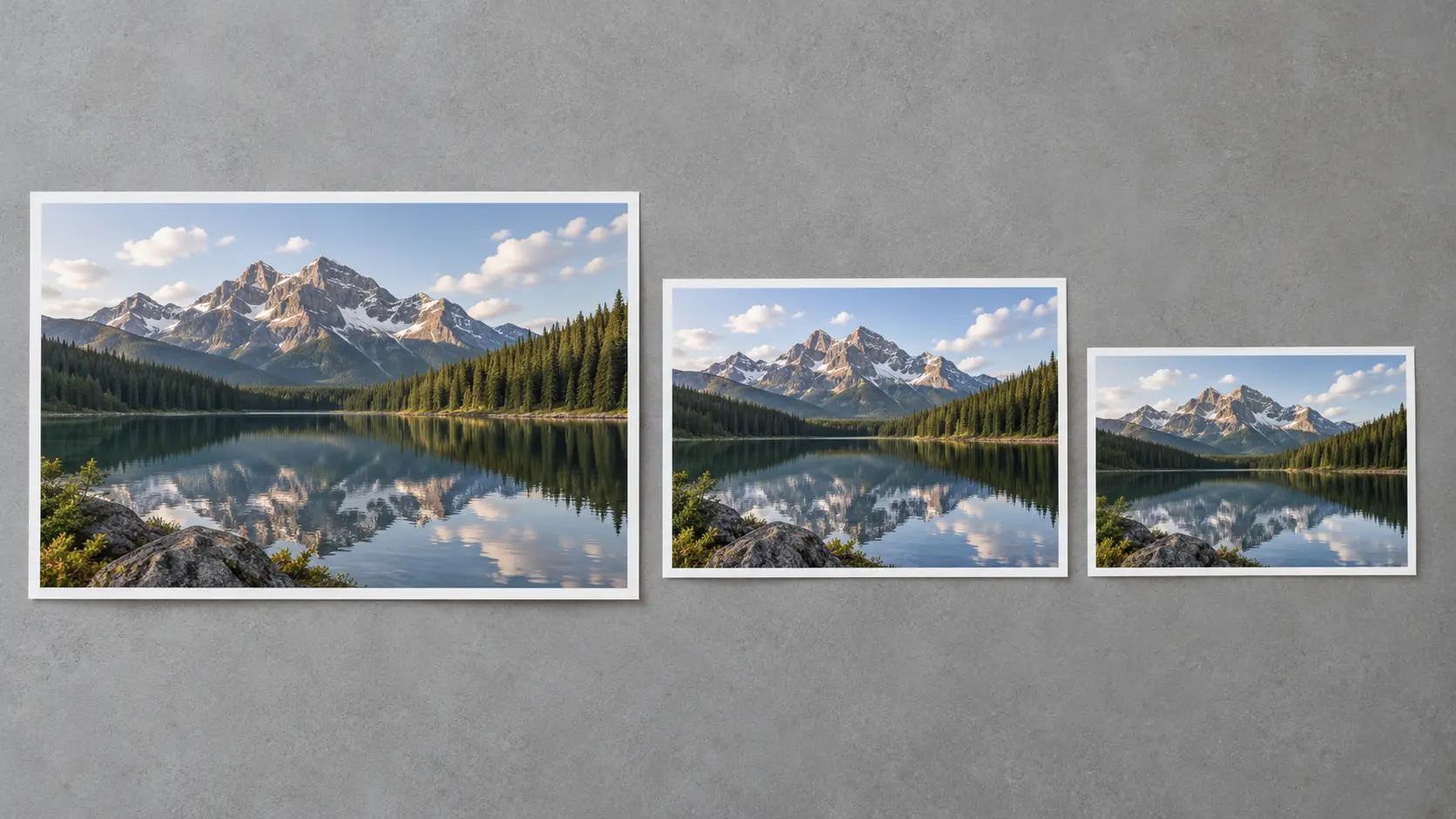
Not every image needs the maximum size. The 4K image upscaler lets you decide how far to push the resolution so a social post is not weighed down by a print-sized file. Start from the largest source you have, pick a target that matches the final placement, and keep the aspect ratio intact. If you plan to crop later, upscale first and crop after, so the detail rebuild happens on the full frame.
Three focused steps take a small or soft source image into a higher-resolution review workflow.
Step 01
Choose the photo you want to make image 4K and upload it in a common format. A sharper, less compressed source gives the upscaler more reliable information to work from.
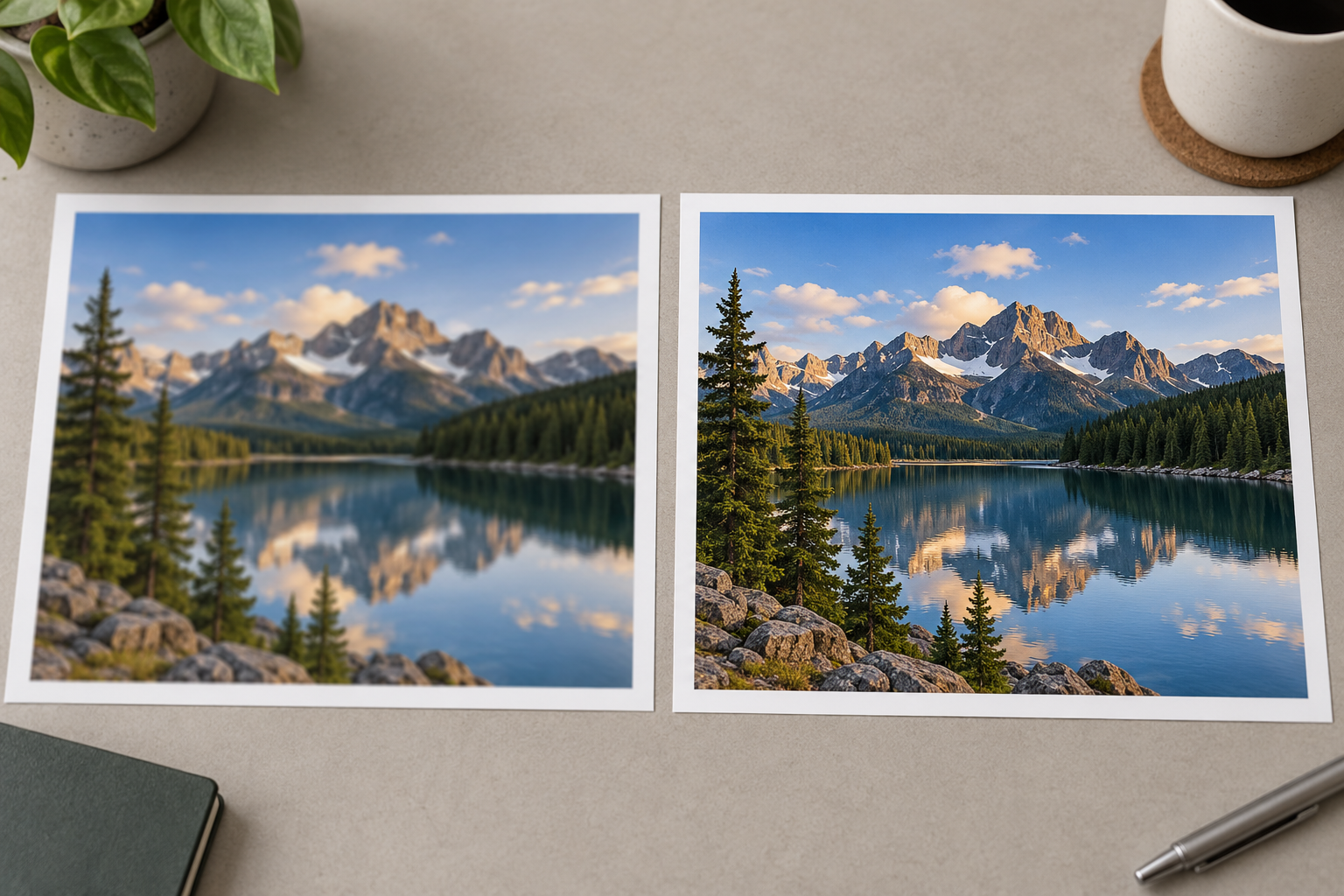
Step 02
Use the available enlargement setting and confirm the intended output. The 4K image upscaler then reconstructs the image at the larger resolution while keeping the original subject and crop.
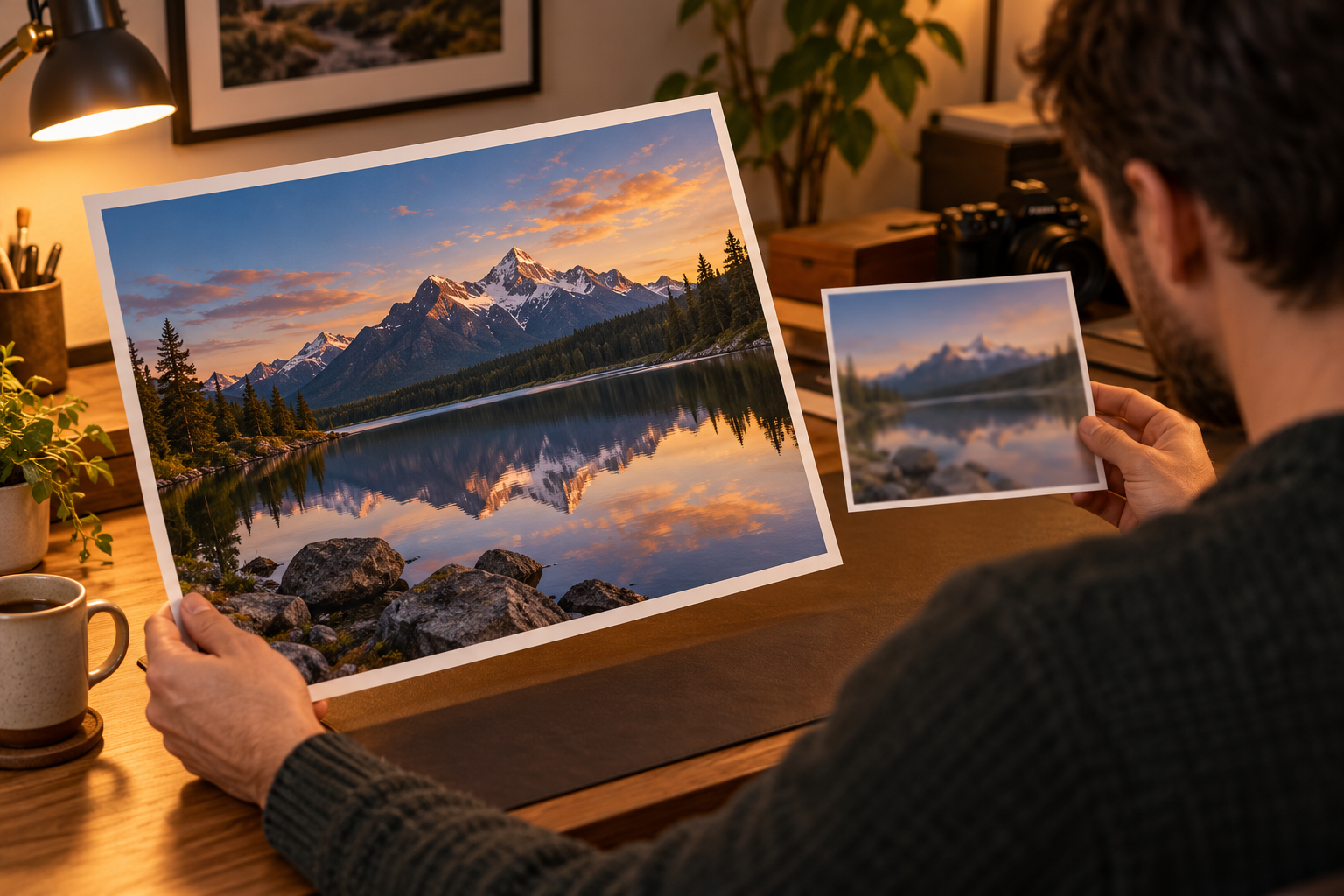
Step 03
Compare the result with the source at full size. Check edges, texture, faces, and small patterns, then download the version that holds up in the destination layout.
The 4K image upscaler fits tasks where the content is right but the current file is too small, too soft, or below the resolution a destination expects.
Enlarge older marketplace images for a larger product page while keeping the product shape and composition recognizable.
Prepare a stronger file for a poster, menu, or display when the source has enough usable detail to support a larger output.
Improve a small visual for a big screen, landing page, or detailed report without rebuilding the original design.
Give an older photo a cleaner enlarged version for a family project, memorial piece, or social post when the original cannot be reshot.
A focused upscaling workflow removes the need to stretch a low-resolution file or schedule a new shoot for every larger placement.
A 4K image upscaler rebuilds the image instead of only pulling pixels apart, which helps a larger placement avoid the soft, blocky look of simple enlargement.
Give approved campaign, catalog, or archive images another useful life in formats that need more resolution.
Upload a source, upscale it, and review the result without installing desktop editing software or learning a complex resampling panel.
Compare the source and enlarged result before downloading, so you can judge whether the 4K output is honest for the intended viewing distance.
Phone photos, screenshots, and older scans respond differently, so check each result at full size instead of assuming one setting fits every file.
Each run returns a single upscaled image you can download right away, with no layered project to manage or export settings to chase.
Upload a small or soft image, choose the higher-resolution direction, and review the clearer result before download.
Get Started