
Image Enlarger

This image enlarger takes a picture that is too small for the size you need and scales it 2x, 4x, or 8x. VideoAI rebuilds the edges and detail as it grows, so the larger image stays clean.

BeforeAfter
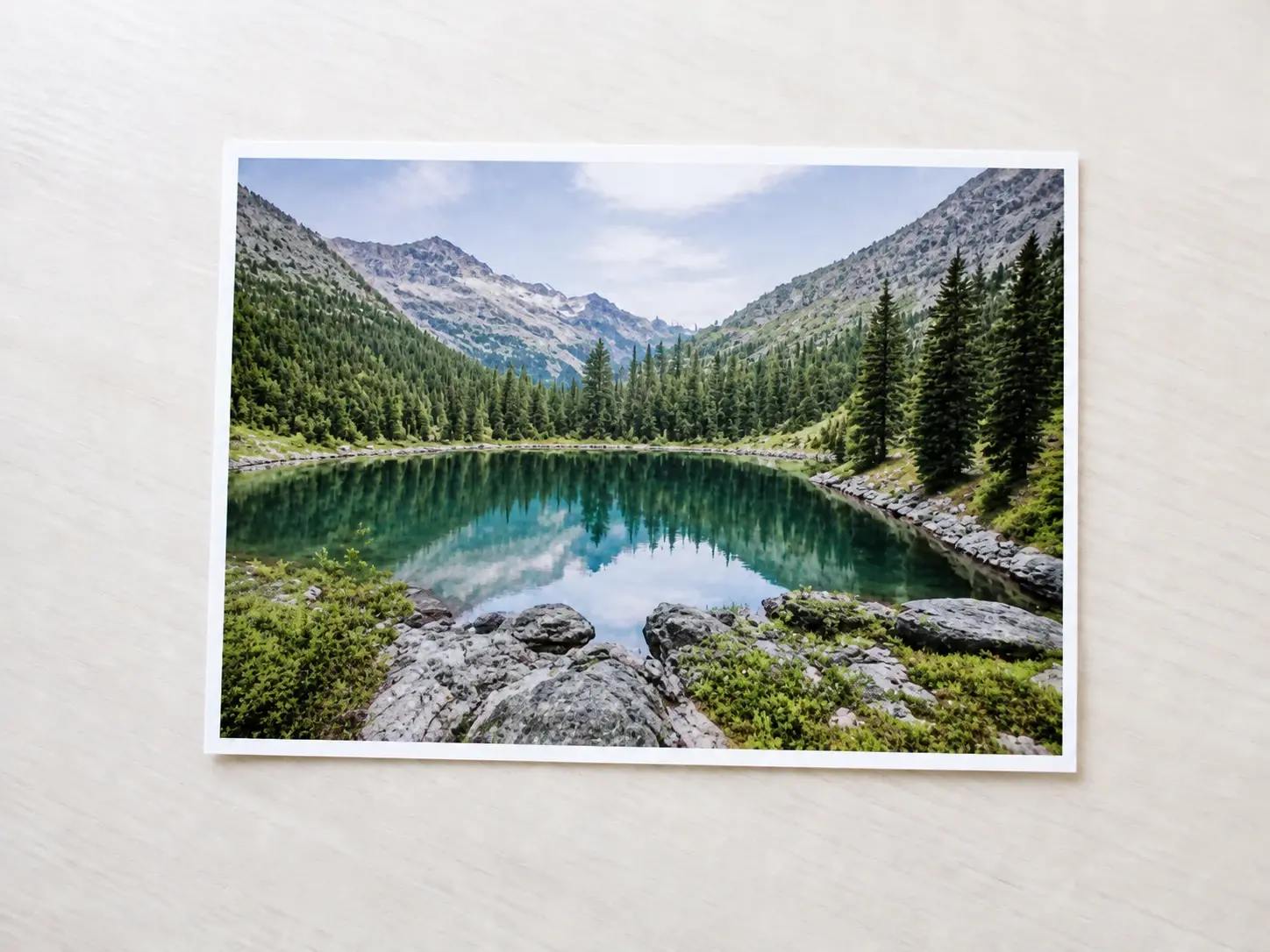
The same mountain lake photograph enlarged with crisp rebuilt edges and leaf detail
A small soft photograph of a mountain lake before it is enlarged

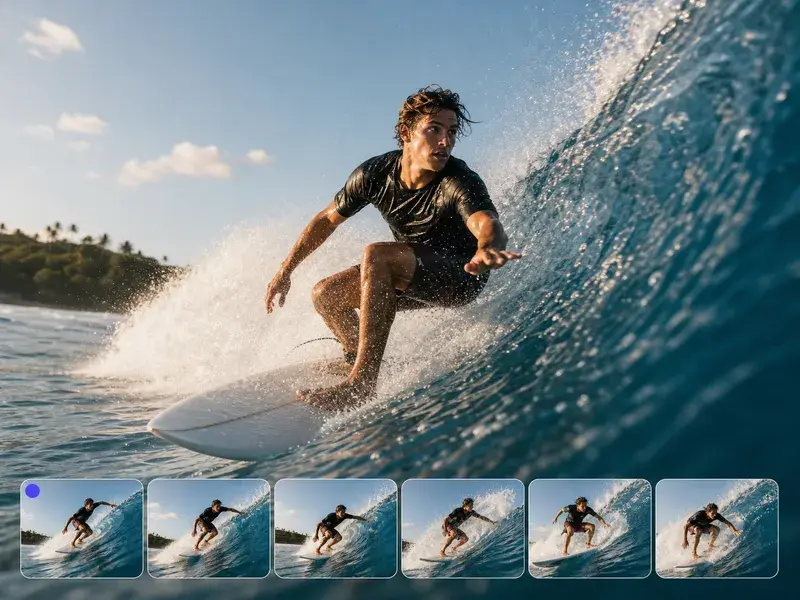
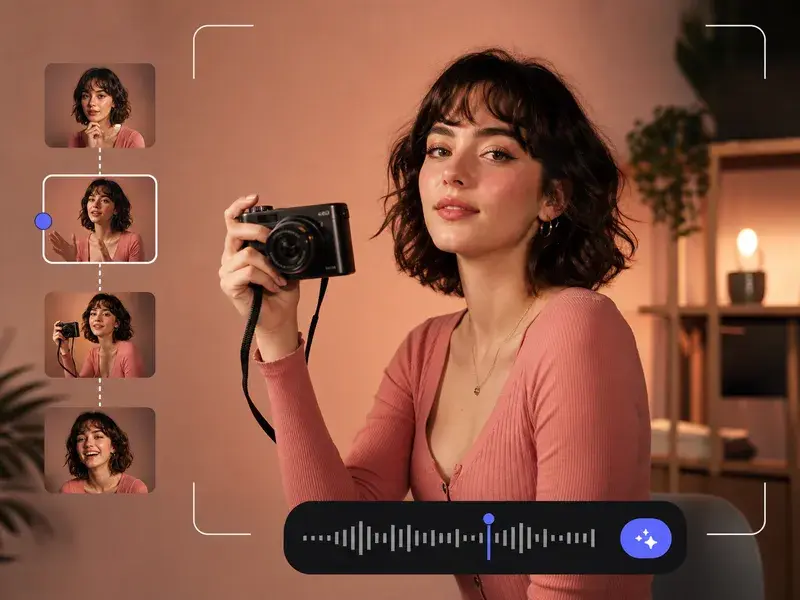
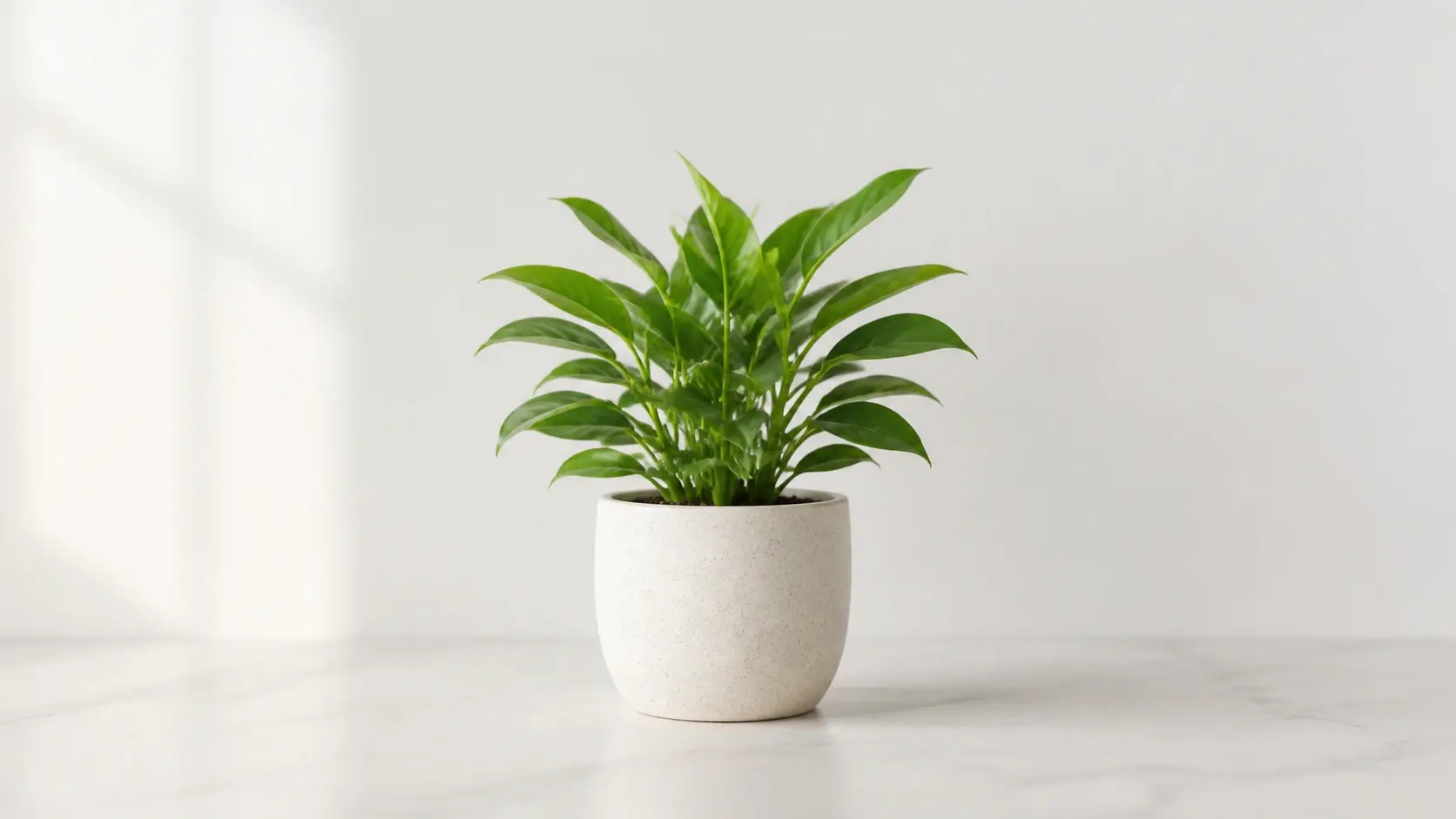
No picture on hand? Try with one of these

The Image Enlarger Built For Clean Detail

Pick how big you want it, and this image enlarger rebuilds the edges and detail as it works to increase image resolution.

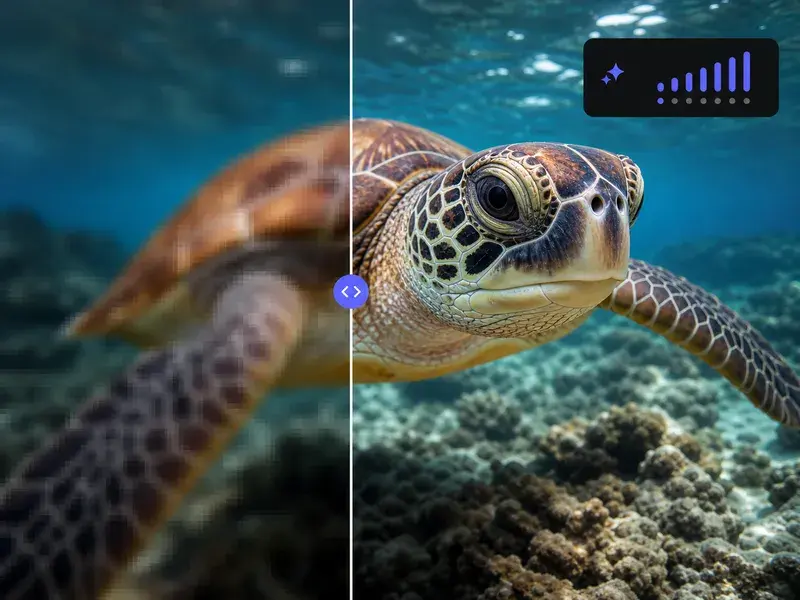
A blocky low resolution photo beside the same photo enlarged with clean rebuilt edges

Clean Edges When It Scales Up

You see sharp edges and readable detail instead of the blocky, blurred look you get from stretching pixels. As it scales, the image enlarger rebuilds what a low resolution copy loses, so the larger picture reads clearly at its new size.

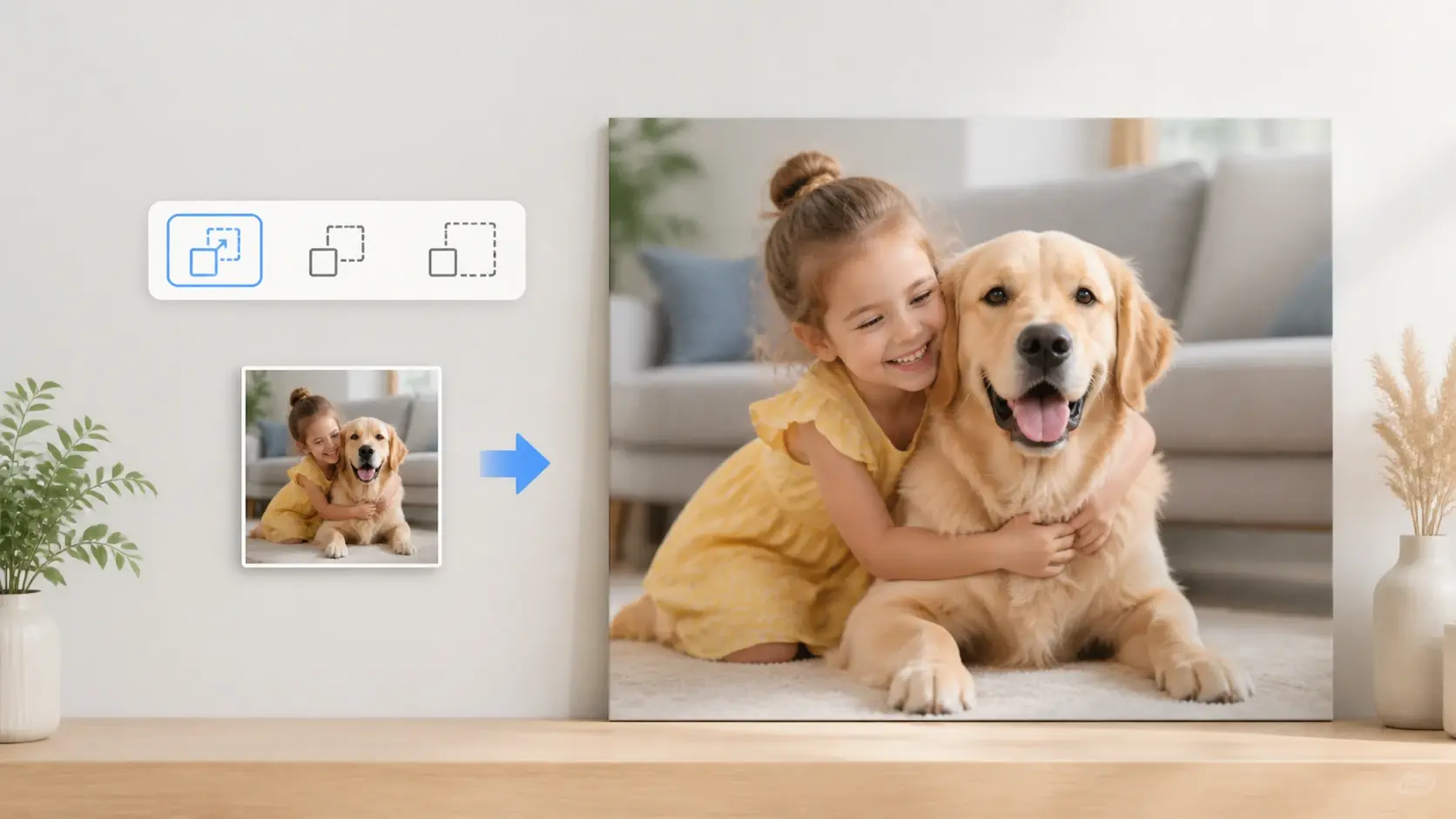
A size menu showing 2x, 4x and 8x above a small photo being blown up to poster size

Choose 2x, 4x, Or 8x

You decide how much bigger the picture gets by choosing 2x, 4x, or 8x. That single choice is the only control you set, so the image enlarger can blow up image files to the size a poster or listing needs. It is a quick way to make image bigger without touching sliders or settings.

A photo enlarging from one size setting with no sliders or marked regions on screen

You Set The Size, Nothing Else

Once you choose the magnification, the image enlarger works out where the picture is soft, how to rebuild each edge, and how much detail to add back. There are no sliders to test and no regions to mark, so one ai enlarge image pass runs from that single setting.

A grid of thirty small photos being enlarged together in a single batch pass

Enlarge Up To 30 At Once

Upload as many as thirty files and enlarge photos in a single pass, which helps when a full set of product shots or old scans needs the same size increase. The image enlarger returns each result ready to download.

Enlarge Your Photo In Three Steps

As an online image enlarger, VideoAI takes you from a small upload to a larger download in three moves.

Several small photos in common formats being uploaded to enlarge in the workspace

Step 01

Upload The Pictures You Need Bigger

Add the picture in any common image format; whether you reach for a jpg enlarger or a png enlarger, both upload the same way. You can bring in up to thirty at once, and everything is saved to your workspace to reuse later.


A magnification menu with 2x, 4x and 8x selected for an uploaded photo

Step 02

Pick 2x, 4x, Or 8x

Choose how much larger you want the picture to be. This is the only setting you touch, because the image enlarger decides where to rebuild the edges and detail on its own once the size is set.

A finished 4K enlarged photo with no watermark ready to download from the workspace

Step 03

Start And Download The Result

Press start, and the image enlarger scales and rebuilds the picture at your chosen size while the content and composition stay the same. Download the result at up to 4K with no watermark, cleared for commercial use, and saved to your workspace.

Where An Image Enlarger Helps Most

Whatever the source, this photo enlarger gives you a bigger picture that still holds up.

Enlarge Screenshot

A screenshot looks fine on your monitor but breaks apart the moment you blow it up for a frame, a slide, or a cover. Bring it in, pick a magnification, and the image enlarger brings the text edges and thin lines back clean at the larger size.

Enlarge Old Photo

That family print you dug out is only a few inches across, and scaling it for keepsakes turns every face into color blocks. Here the image enlarger grows it while detail is rebuilt, so the size is there and the outlines of faces and clothing come back.

Enlarge Scanned Photo

Scans often come out at a small size, so dropping one into a document or a display board leaves it soft. Set the magnification and the image enlarger grows the scan with clean edges, ready to sit on a much larger layout.

Product Shots For A Listing

Your marketplace asks for a larger image than the shot you have, and the small one gets rejected at upload. Scale it up first so the product fills the frame at a bigger size, and the image enlarger keeps the edges clean.

Creators Who Reach For This Tool

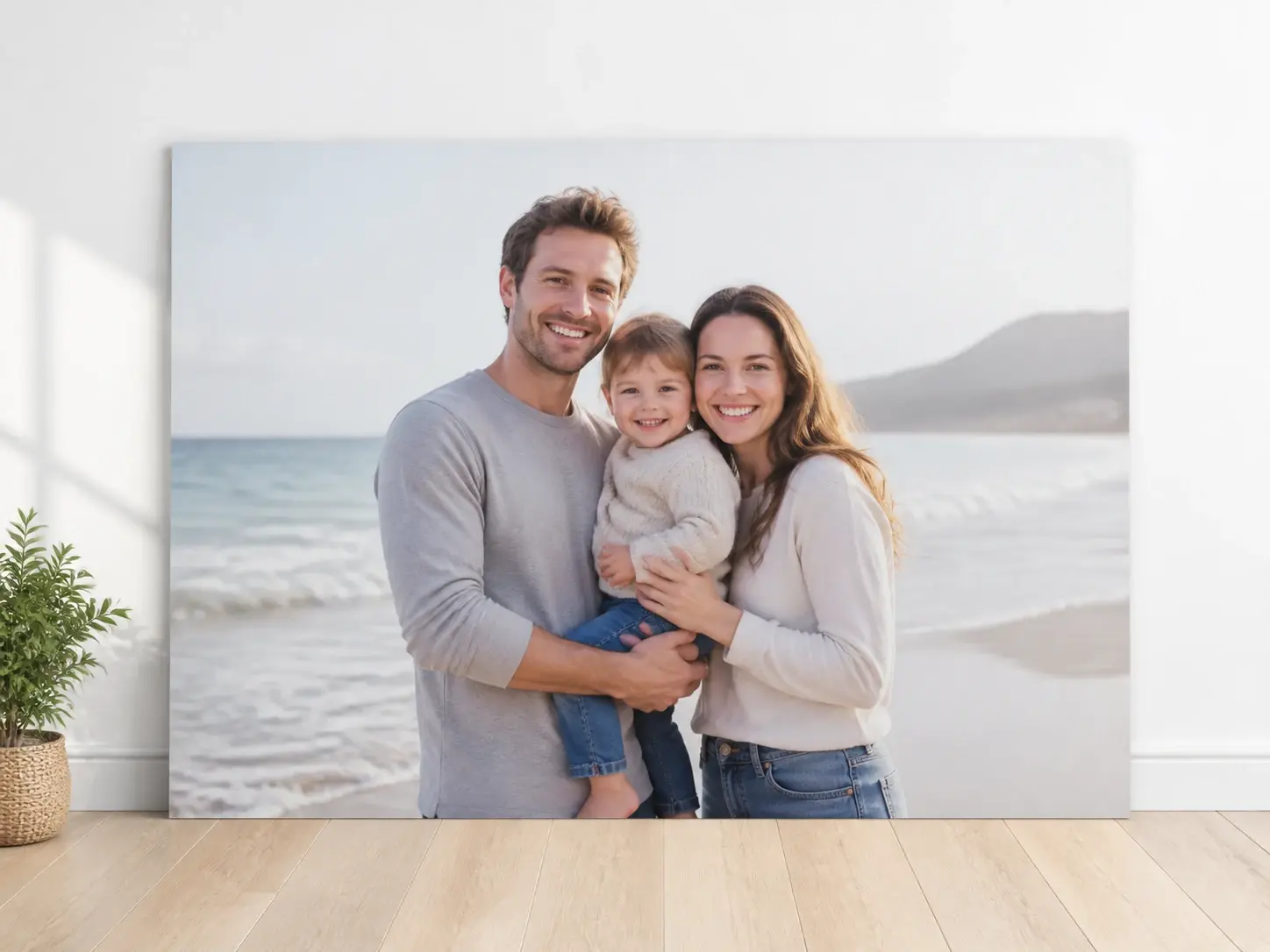
A once small thumbnail photo placed onto a large banner layout by a creator

Reuse A Small Photo Big

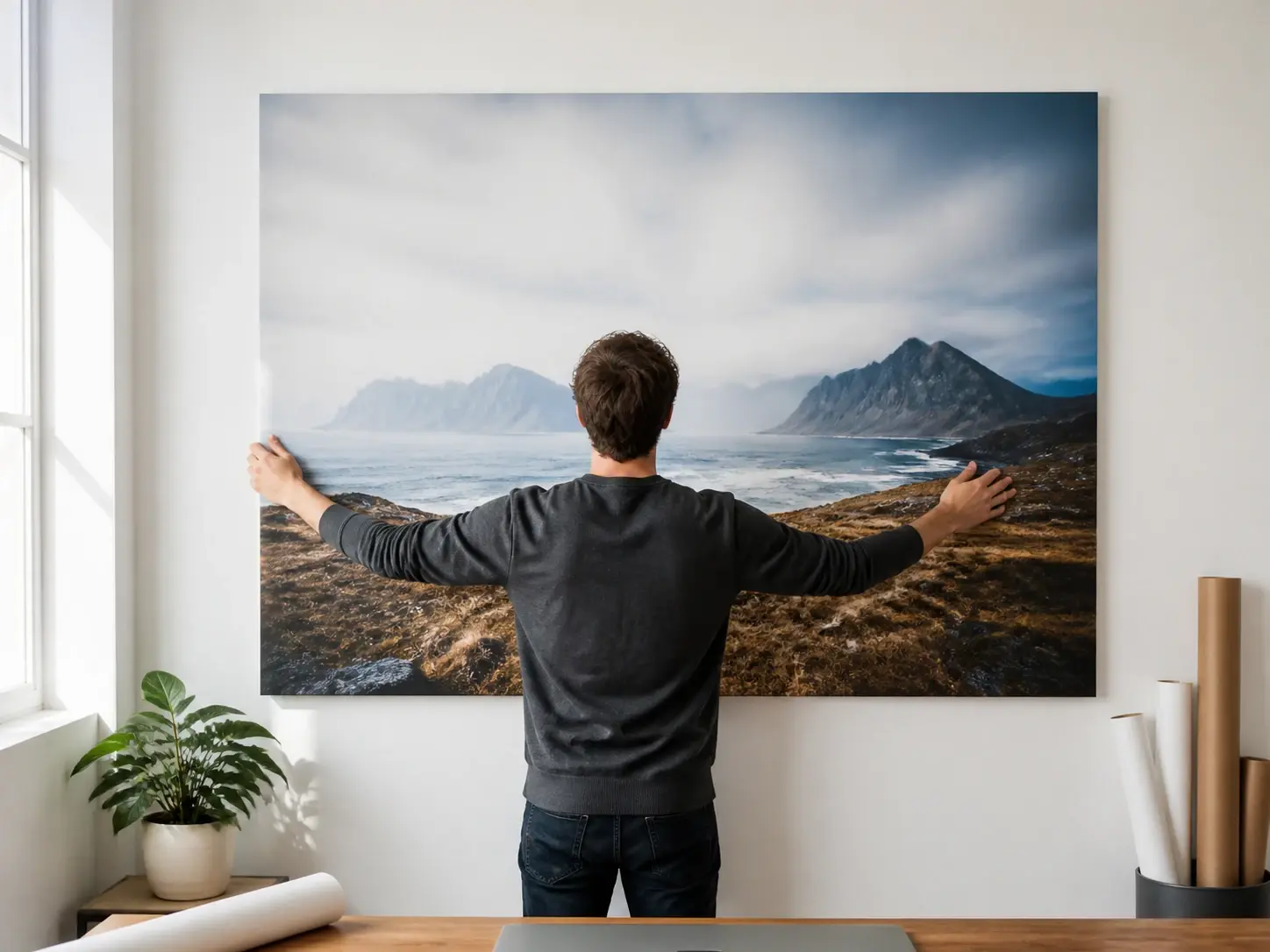
When you want to post, print, or repurpose a small photo on a large layout, the image enlarger gives you the size without the mush, so a picture that only lived as a thumbnail can carry a banner or a slide.

Common Questions About The Image Enlarger

Upload your picture, choose 2x, 4x, or 8x, and the image enlarger scales it while rebuilding the edges and detail as the picture grows. The larger version keeps clean edges and readable detail instead of the blocky, blurred look that stretching pixels leaves behind.

Pixelation appears when a picture is stretched and the same blocky squares only get bigger. Instead, this image enlarger rebuilds each edge as it scales, so lines and text stay defined. If you have wondered how to enlarge an image without those blocks, that rebuild step is the reason it stays clean.

The image enlarger scales the picture up to 4K, which is enough resolution for posters, canvas prints, and large format displays. Once it downloads at that size, the file is ready when you send it to print.

You choose from 2x, 4x, or 8x, and the image enlarger outputs up to 4K. That range covers a slightly bigger social post through to a full sized print, so you pick the level that matches the size you need.

Yes. You can upload up to thirty pictures and run them through the image enlarger tool in a single pass, which saves time when a full set needs the same size increase.

The content and composition stay the same, and only the size and clarity change. You get the same picture back from the image enlarger, just larger and cleaner along the edges.

Free credits let you start with 10 credits, enough for 5 images, and every result downloads with no watermark. Finished pictures are cleared for commercial use, so they can go on listings, social posts, or printed material.
Soft gradient surface showing a small frame growing into a large clean canvas

Give Your Small Image Room To Grow

Upload a picture, pick 2x, 4x, or 8x, and this picture enlarger returns a larger version that still looks clean.

Get Started
Image Enlarger - Increase Image Resolution - VideoAI