

Improve Video Quality
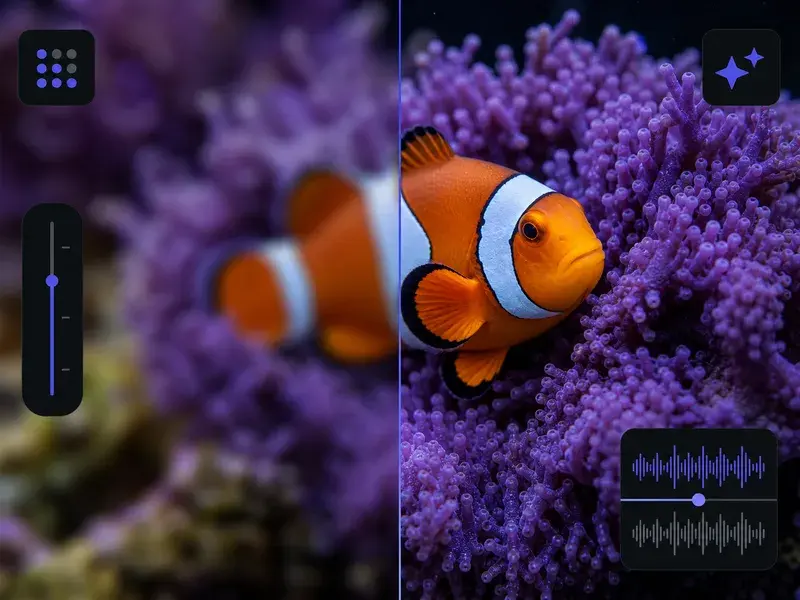
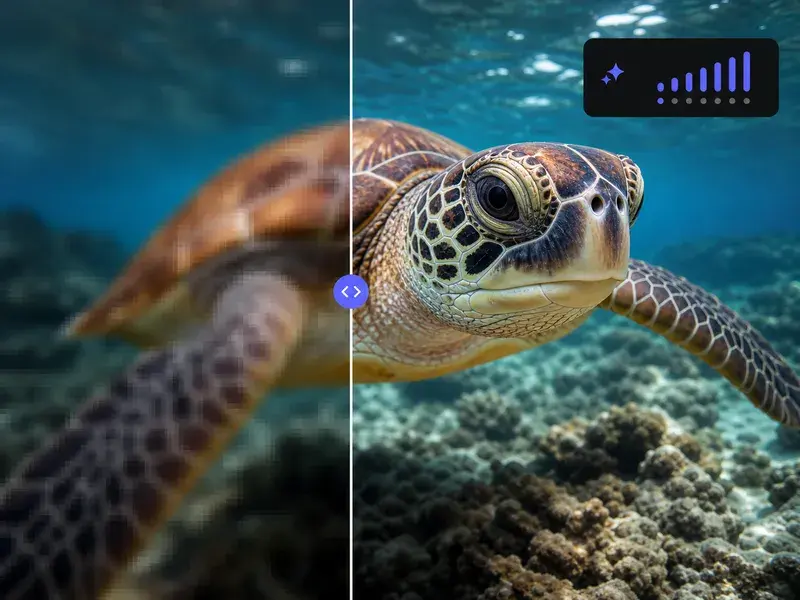
Upload a blurry or old clip to improve video quality, and VideoAI rebuilds it frame by frame, then upscales it toward a sharper, higher resolution result up to 4K.

Who Reaches For VideoAI

Short Video And Social Creators
When your source clip is not sharp enough to post, this improve video quality AI rebuilds the detail and lifts the resolution first, so you publish a cleaner, higher resolution cut instead of holding back a good idea over rough footage.


Improve Video Quality Step By Step
Three moves improve video quality, taking a rough clip from upload to a cleaner, higher resolution download.
Upload The Clip You Want Fixed
Choose the blurry, old, or compressed video you want to repair and add it in a common format such as MP4 or MOV. That single file starts the processing task, so pick the clip whose picture quality bothers you most.
Let The AI Analyze Each Frame
VideoAI works through the clip frame by frame to improve video quality, spotting blur, compression damage, low light, and noise, then repairing each problem and upscaling where it helps.
Preview Then Download The Result
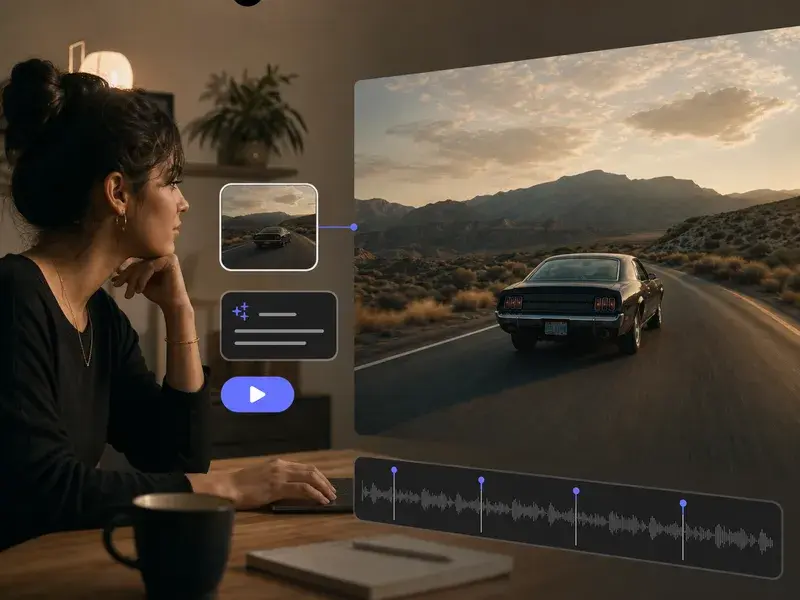
Check the rebuilt clip in the preview to see how you improve video quality with sharper detail and higher resolution, then download it, upscaled as far as 4K.
What VideoAI Does To Improve Video Quality
Two results in one pass: cleaner, sharper frames and a higher resolution output, built from the actual detail in your clip.
Frame By Frame Problem Detection
VideoAI reads each frame to improve video quality and finds where the picture went wrong, whether that is motion blur, soft focus, compression artifacts, or low light noise. It repairs those specific areas instead of sharpening the whole frame at once.
Rebuilt Detail And Sharper Edges
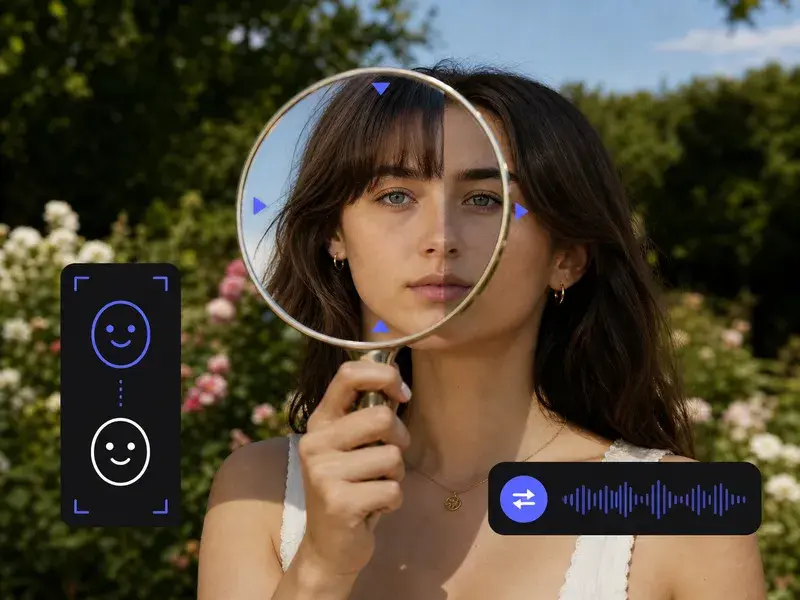
Cleaner faces and crisper edges come back as VideoAI reconstructs the lost pixel detail in a soft or grainy shot. This is a rebuild of missing information, not a plain stretch.
Upscaling Up To 4K
You can improve video resolution by upscaling a low resolution clip to 2K or 4K, paired with color correction and noise reduction. The clearer picture and the higher resolution arrive together.
Automatic Online Processing
There is nothing to install and nothing to set by hand. The AI analyzes every frame and applies the best enhancement on its own, so you never box a region or drag a strength slider.
When To Improve Video Quality
Common footage that comes out soft, dark, or compressed, and how a rebuild works for each.
Old Family And Home Recordings
Those early home videos often come back soft, dark, and heavy with grain. Running one through the tool rebuilds what detail the source still holds, so the picture reads clearer for a copy worth archiving or sharing.
Social Clips Crushed By Compression
A clip that looked fine on your phone turns mushy after TikTok, Instagram, or YouTube compress it again on upload. Feeding that muddy version back helps repair and reduce that compression damage.
Low Resolution Game Highlights
Saved a 720p highlight or stream replay that looks small and soft on a big screen? Upscaling it lifts the reel toward a higher resolution, so the play stays sharper when you show it off.
Dark Handheld Phone Footage
Grabbed in a hurry, low light phone clips arrive dim and blurry with visible noise. The AI cleans the noise and rebuilds detail where the source allows, so a dim, rough clip comes back clearer.
Questions About Sharper Video
Explore
Discover our AI design tools















Explore related tools

Turn A Rough Clip Sharp
Upload the video that has been bugging you and improve video quality as VideoAI rebuilds it into a sharper, higher resolution result you can download.
Get Started