

Add Audio to Video
Bring a video and a track, describe how the sound should land, and VideoAI matches music, voice, or effects to the beats on screen.

Built for Video Creators and Teams

Creators Posting to Social
You shoot fast and post often, and every clip needs the right track before it goes live. VideoAI lets you add music to video and match it to your edit, so a short is ready to publish without opening a separate editor.
How to Add Audio to Video
Three steps take you from two separate files to one clip that carries the sound.
Upload Your Video and Audio
Add the video you are working on along with the track you want to hear, whether that is a song, a recorded narration, or a sound effect. Reference each file with a tag such as @video1 or @audio1 so the next step knows what belongs where.
Describe How the Audio Fits
Write a prompt that says how the sound should be used, such as a steady score, a moment matched to the beat, or quiet ambience, then assign the audio with its tag. You are directing with words here, not dragging clips along a timeline.
Preview Then Save the Result
VideoAI generates the video with your audio applied so you can watch it back before committing. If the mix or the timing feels off, adjust the prompt and run it again, then download the clip once it looks right.
Add Audio to Video, Your Way
Every card here is one thing VideoAI actually does with your footage and your chosen track.
Guided by Your Own Track
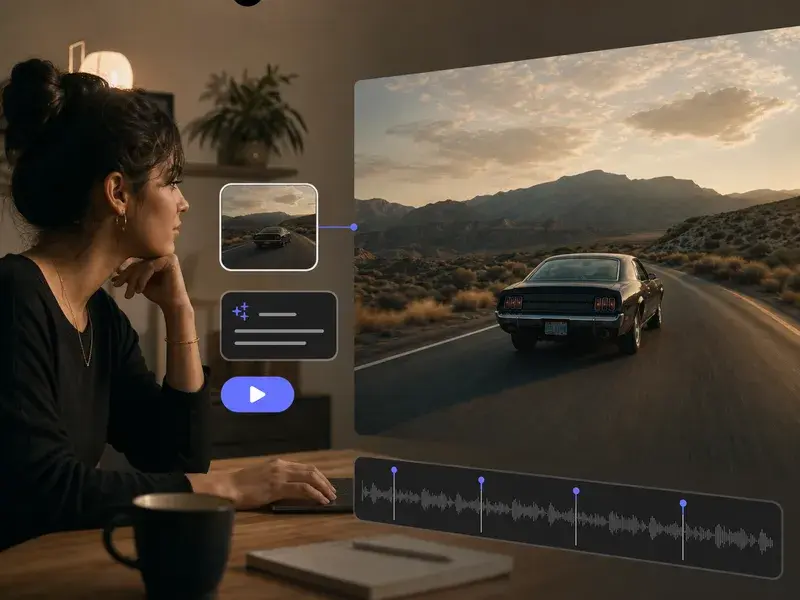
Upload a video and the audio you want, then tag each one so VideoAI knows the clip from the track. A prompt tells it to add music to video as a score, a voiceover, or a layer of effects, and it renders the finished cut for you.
Sound That Lands on Cue
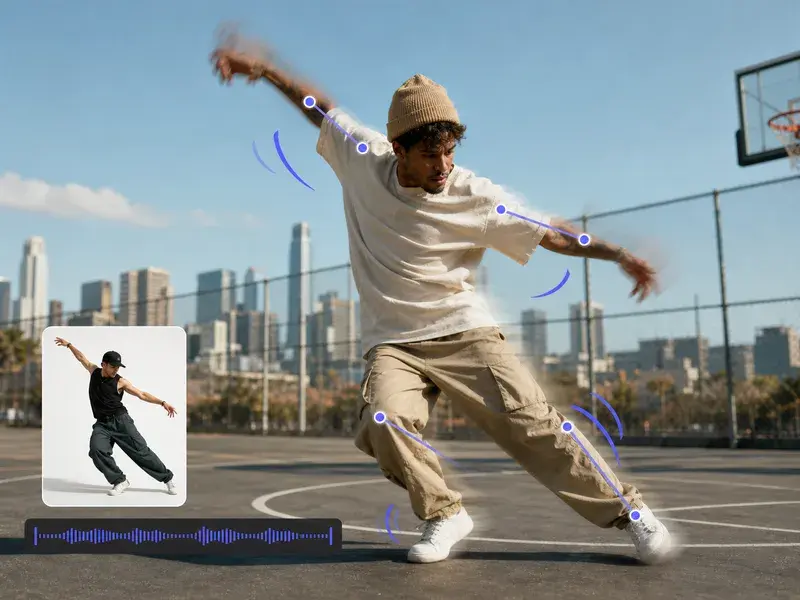
Point to a moment and VideoAI lines the audio up with it, so a cut, a step, or a reveal falls right on the beat. This is how you add sound to video that feels matched to the picture instead of dropped on top.
Direct It With a Prompt
Describe the feel you want in plain words, whether the track sits under the scene or drives the pacing of each shot. Prompts and tags do the work here, and VideoAI reads them to add background music to video exactly the way you asked.
Music, Voice, or Effects
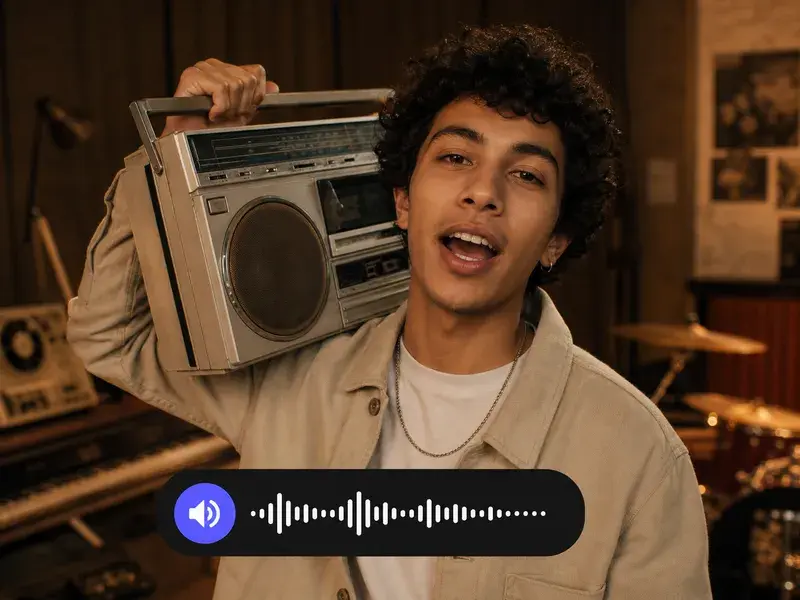
Feed it a song, a spoken narration, or a single sound effect, and pair that with text or image references in the same job. You can add voice to video for a walkthrough or put music on video for a promo when you add audio to video online in one flow.
Scenes That Come Alive With Sound
A few everyday moments where the right track changes how a clip reads.
Give a Social Clip a Pulse
You filmed a quick clip for a social feed and it feels flat in silence. Drop in a track and let VideoAI set it under the footage, and the same shot suddenly holds attention all the way through.
Voice Over a Silent Recording
A screen recording captures every step yet says nothing on its own. Record a narration, hand both files over with a prompt, and the walkthrough gains a clear voice that follows the action on screen.
Add Tension With Ambience
Some sequences need texture more than a melody. Layer in a low ambience or a sharp effect at the right moment, and a plain stretch of footage gains the tension that keeps people watching.
Score a Product Promo
A promo only works when picture and sound move as one. Combine audio and video in a single job, describe the mood you are after, and the clip lands with music that matches its pacing.
Common Questions About Adding Audio
Explore
Discover our AI design tools




Explore related tools

Add Audio to Video Today
Bring a clip and a track, describe the result you want, and let VideoAI render the sound onto your video.
Get Started