

Script To Video Ai
Write a timed storyboard, add your references, and let VideoAI generate a video that follows your shots, camera cues, voiceover, and music direction.
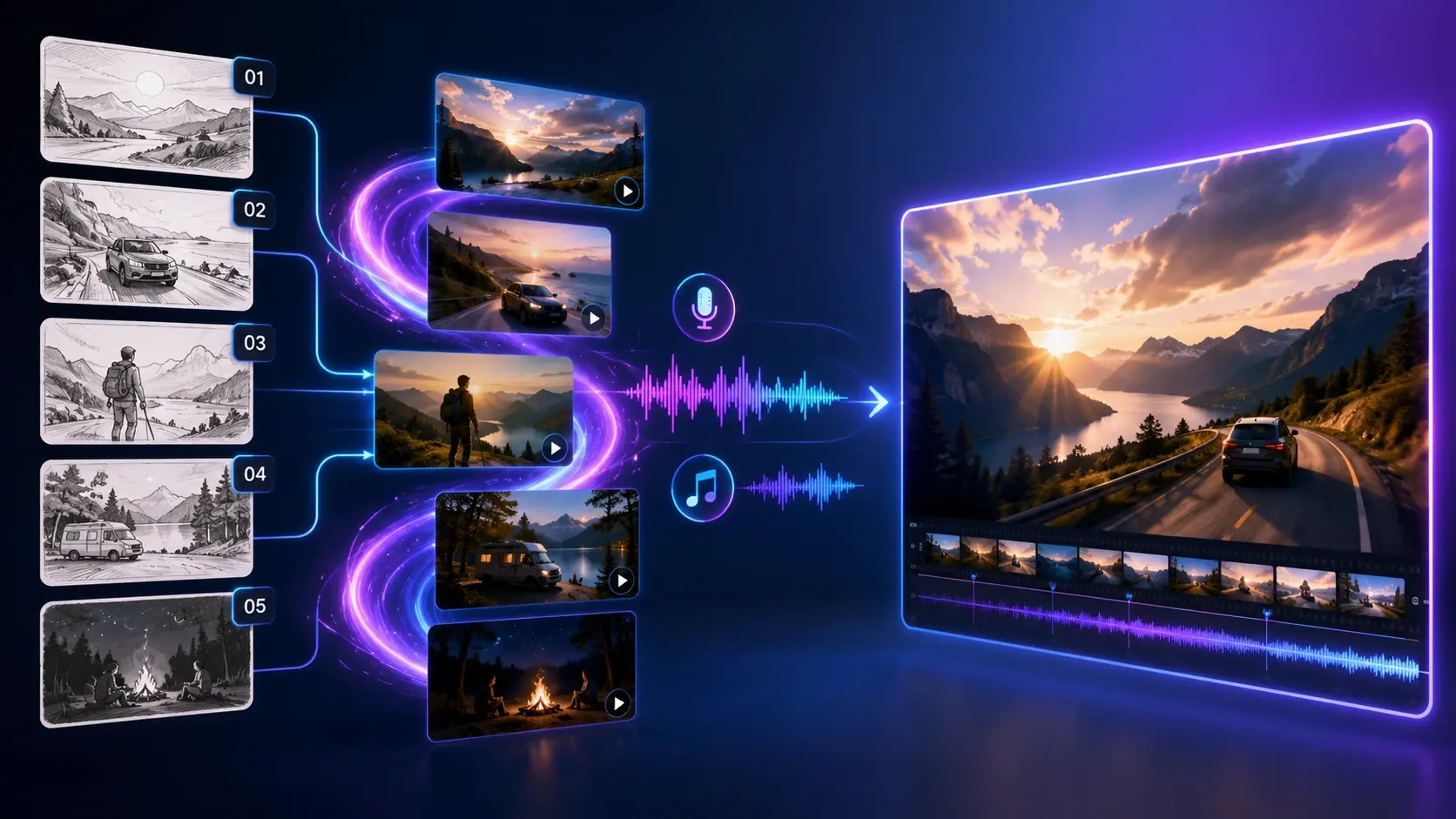
What Your Script to Video AI Delivers
Each capability keeps the finished video tied to your script, so this script to video ai follows your storyboard instead of an automatic guess.
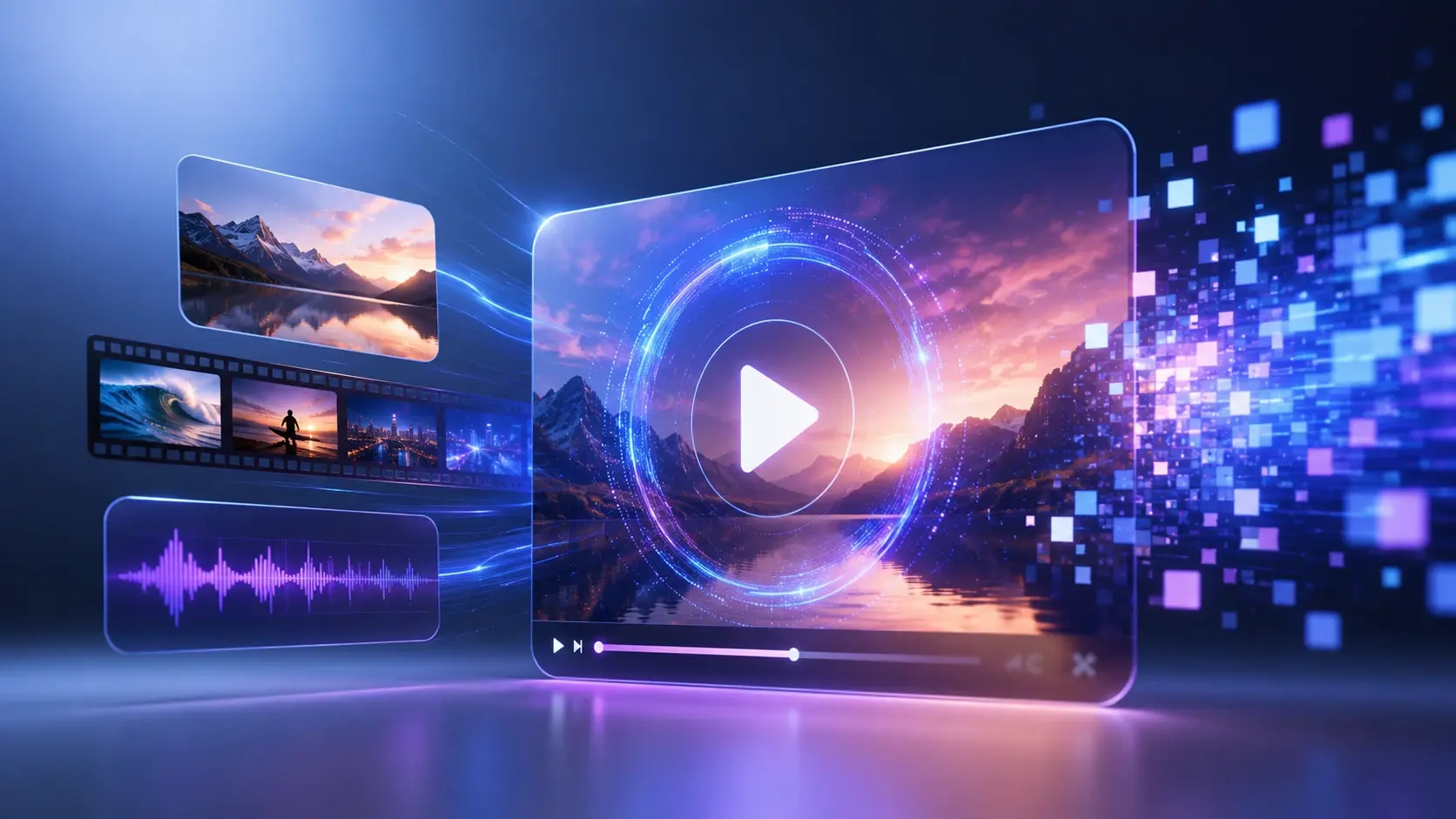
Combine Images, Video, Audio, and Text
Attach reference images, a sample clip, audio, and your written script in one job, then use the @ tag to tell VideoAI what each asset is for, such as a first frame, a subject, a camera reference, or the background track. This is how the ai script to video generator knows which source shapes which part of the shot.
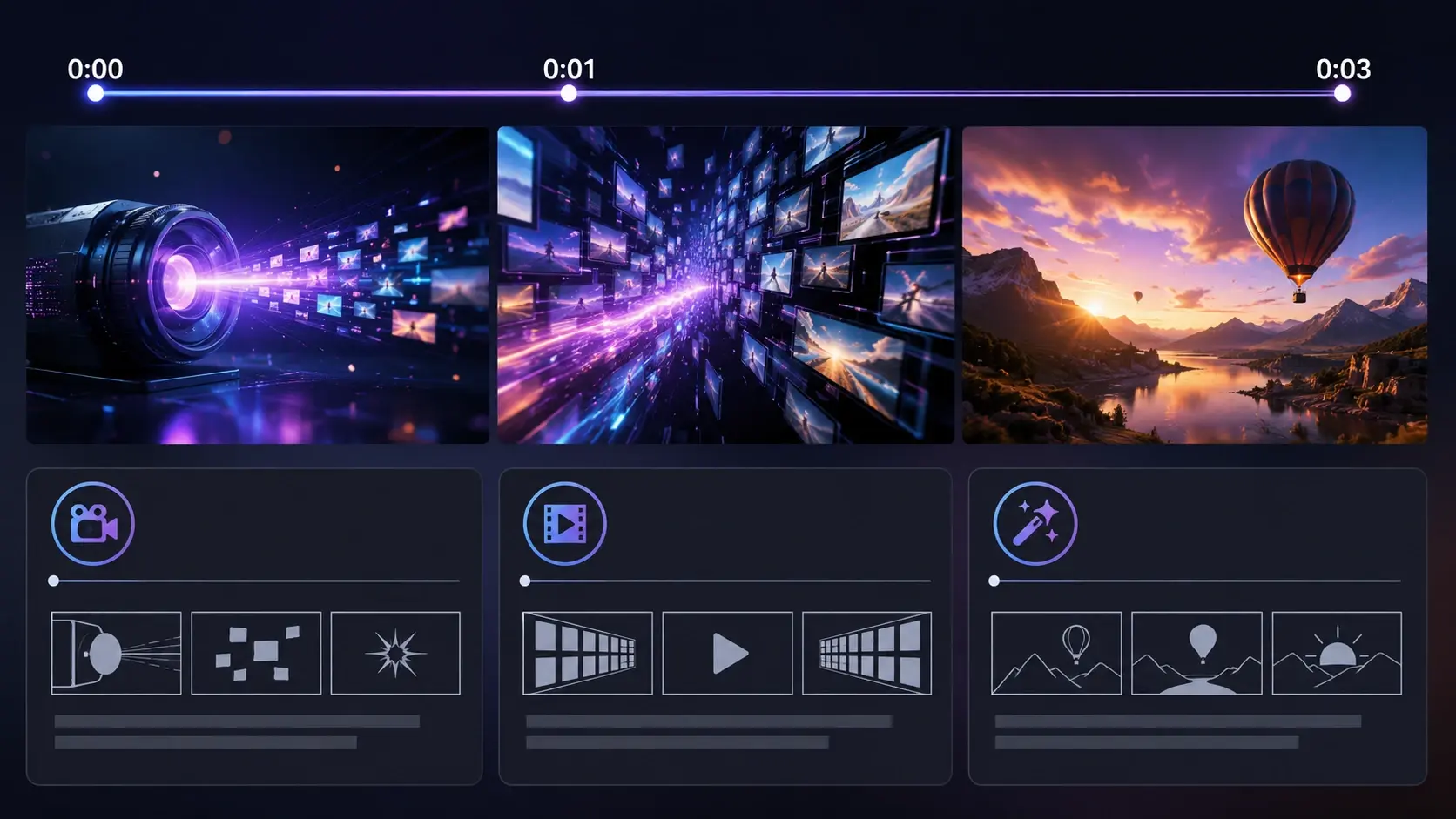
Storyboard Your Script by the Second
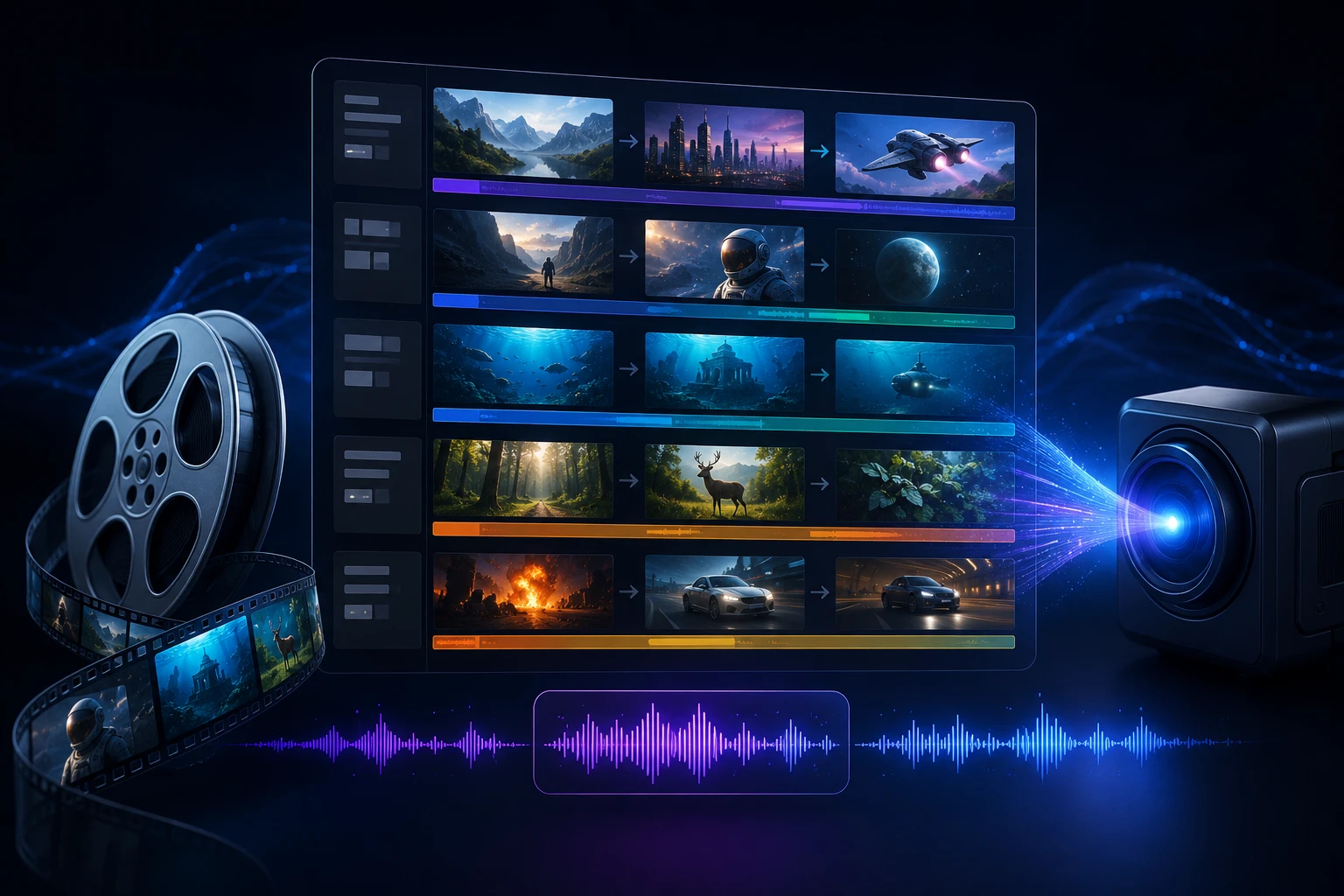
Choose the length you want and split your script into timed segments, then describe the framing, action, and camera move for each one. Because you arrange the shots yourself, the pacing of the story to video ai output matches the script you planned rather than an automatic guess.

Set a Reference Frame per Shot
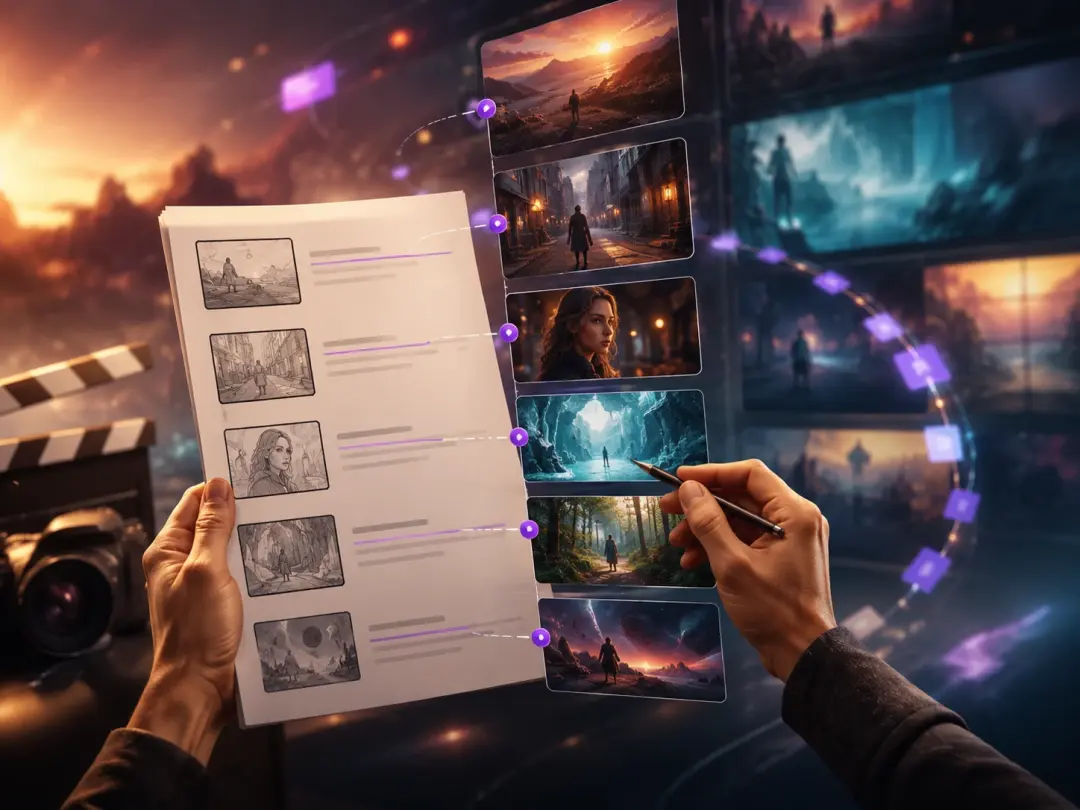
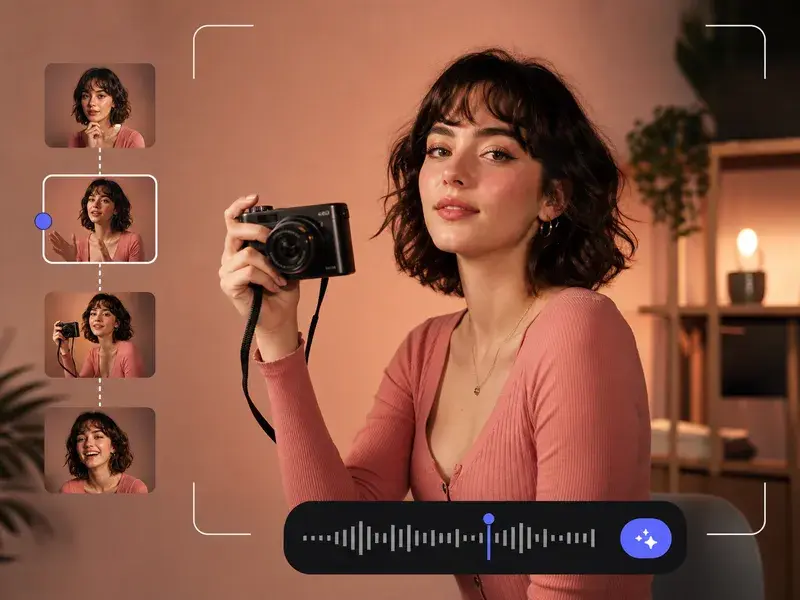
Give any segment its own reference image to act as that shot's first frame or scene, so the look of each moment stays under your control. Several frames also hold a character's outfit and motion steady as the video moves from one shot to the next.
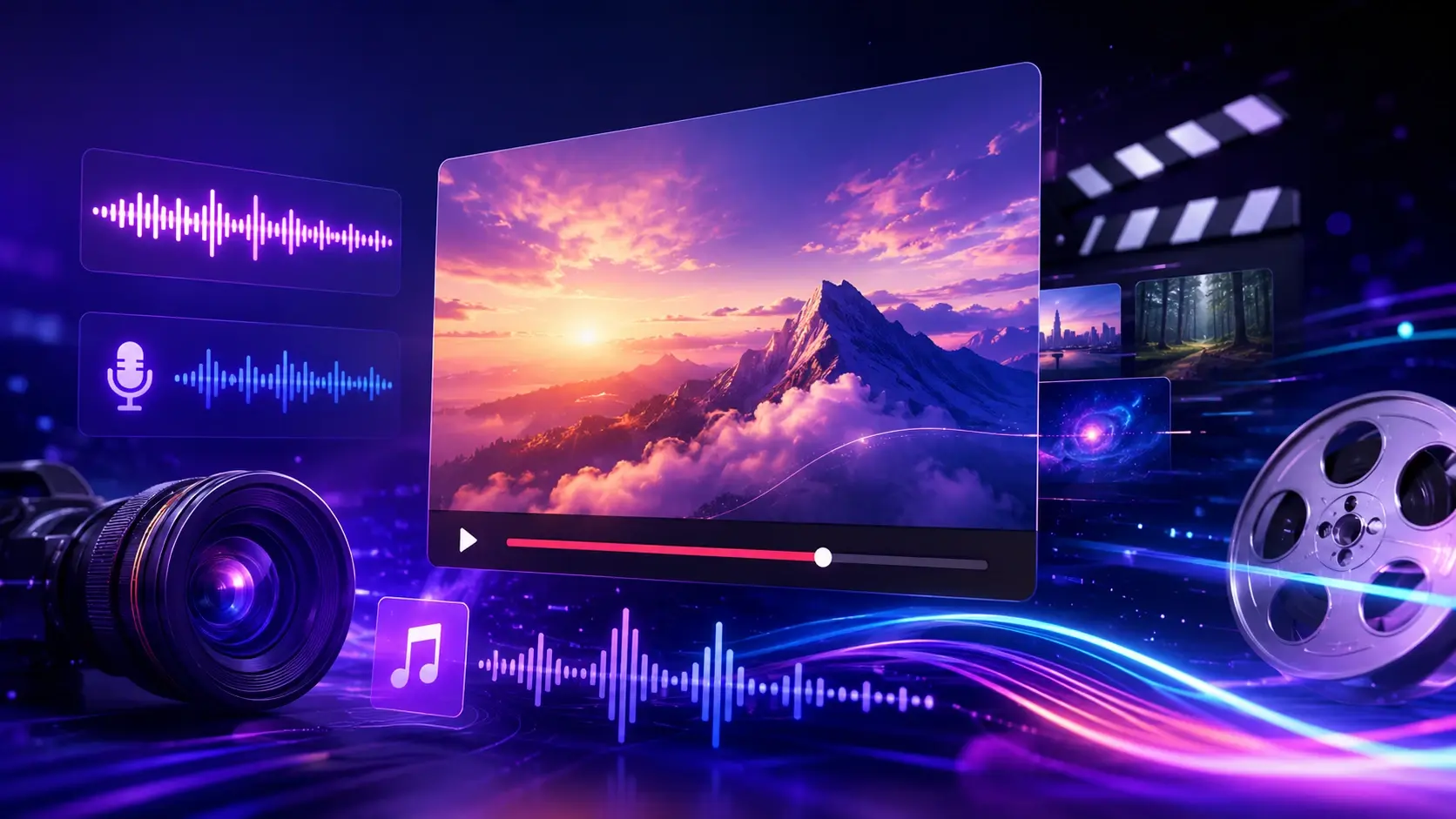
Add Voiceover, Music, and Camera Cues
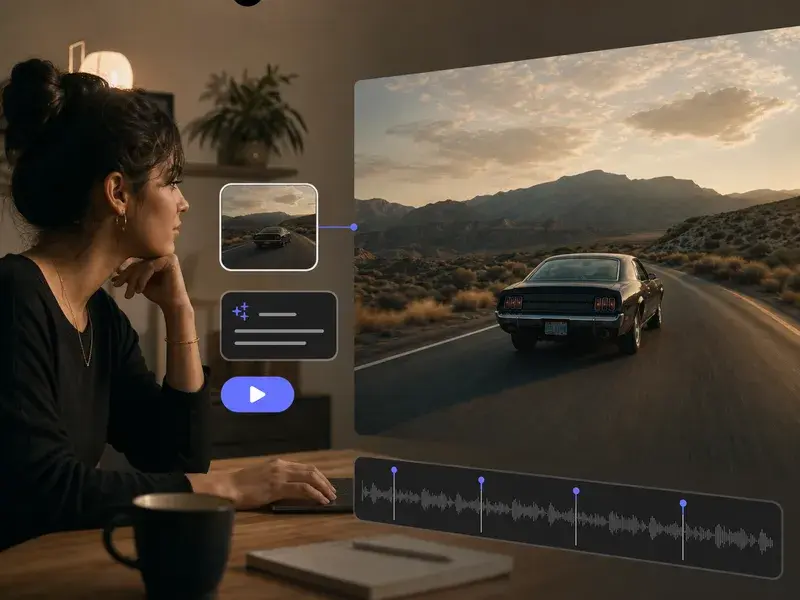
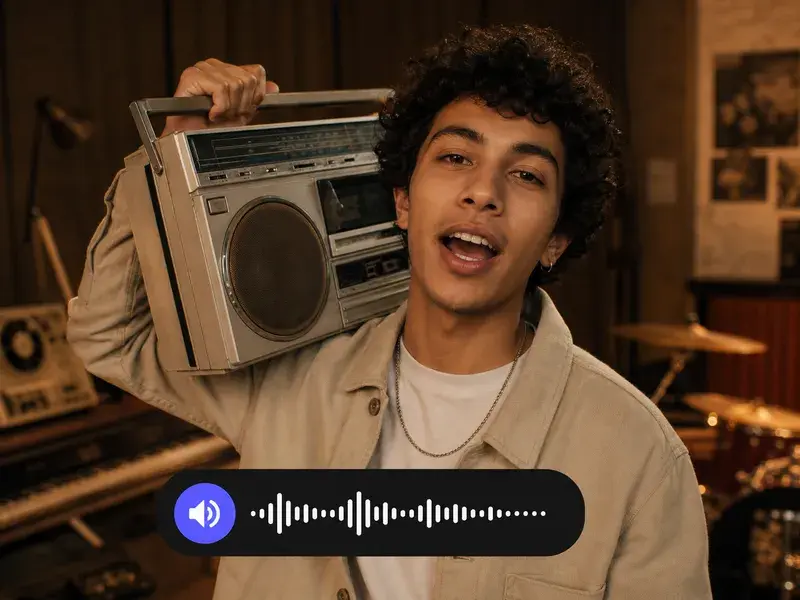
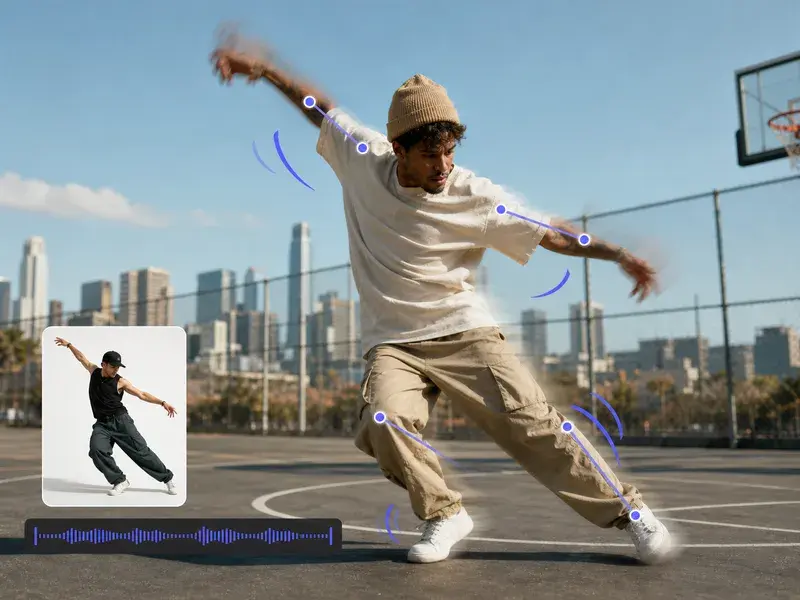
Turn on narration and point to a voice you want it to follow, then bring in background music or match the beat with your own track. You can also reference the camera work and transitions from a sample clip, which makes this a script to video maker that carries sound and motion together.
Three Steps to Your Finished Video
The script to video ai workflow stays in your hands from your first line of script to the final preview.
Where Script to Video AI Fits Best
Different scripts, the same directed workflow from storyboard to finished cut.
Short Drama Scenes, Shot by Shot
You have a short story or drama and need continuous scenes rather than loose clips. Break it into segments, attach a reference frame and narration to each beat, and generate connected shots that follow the plot you wrote.
Narration With Matching Visuals
A spoken explainer reads well but has no picture to carry it. Split the narration second by second, pair each part with the scene you want and a voice to match, and turn the words into a finished piece where the visuals track what is said.
Branded Ads From Your Assets
Your ad needs to stay on brand rather than lean on stock footage. Bring your brand reference frames and a sample clip, arrange them across a storyboard, and produce a short spot with music that keeps the house style in every shot.
Explainers With Controlled Camera Moves
An educational piece falls flat when the framing drifts. Set a reference image and a camera cue on each timed shot, describe the action you want, and get a controlled render where the motion supports the point instead of distracting from it.
Made for Storytellers and Content Teams

Creators Who Want Control and Speed
You write your own storyboard and need to ship quickly without giving up the look of each shot. Direct the script yourself, attach your reference frames, and generate a video that follows your plan while VideoAI handles the render.

Marketing Teams Building Branded Clips
Your team needs an ad or social clip that stays on brand. Bring in brand reference images and a sample clip, arrange them across your storyboard, and produce a short piece with music, so the script to video generator reflects the style guide instead of stock footage.
Story and Explainer Makers
You produce narrative or educational pieces that need tight control over framing and camera moves. Break the script into timed shots, guide each one with a reference image and a camera cue, and get a render where every second follows your direction.
Answers About Script to Video AI Basics
Explore
Discover our AI design tools



Explore related tools

Ready to See Your Script Move
Bring your storyboard, references, and voice, and let VideoAI generate the video shot by shot.
Get Started