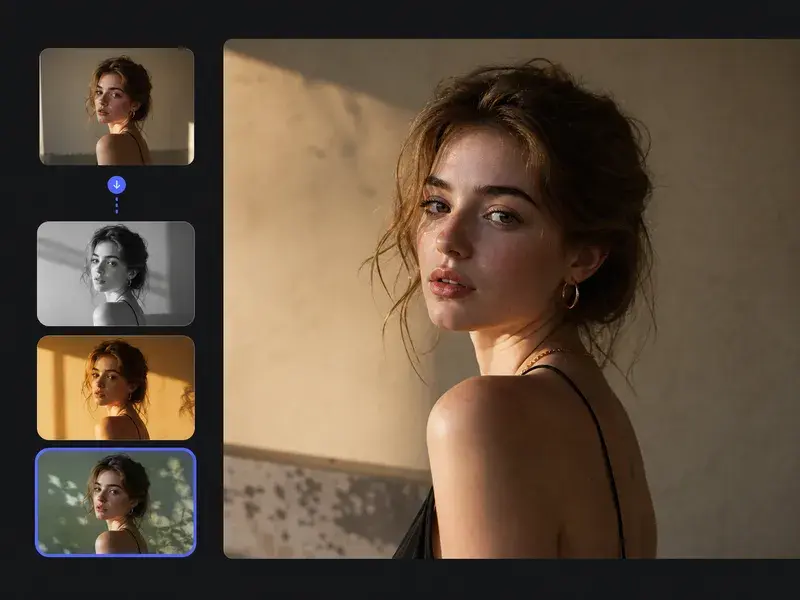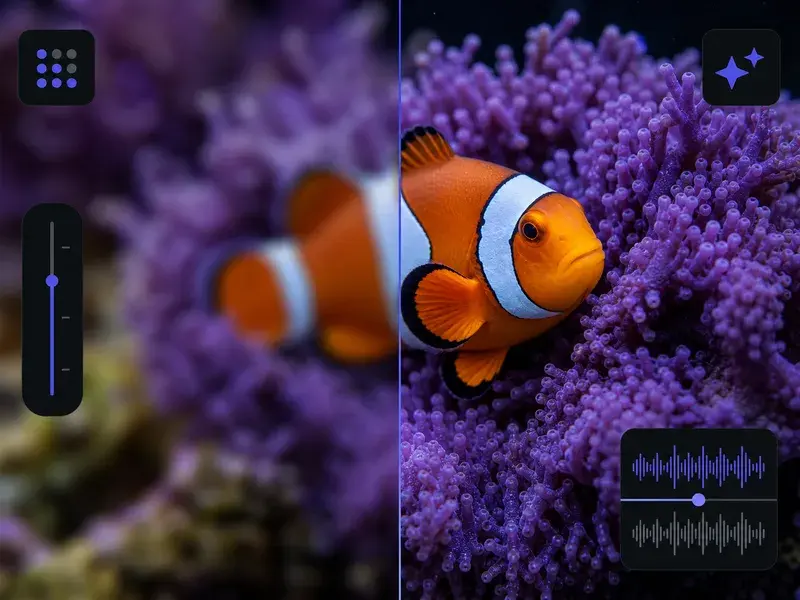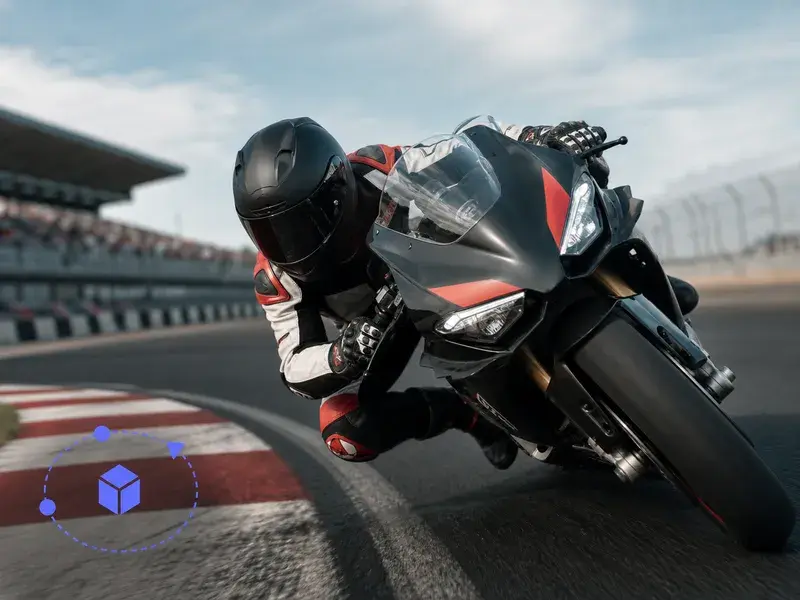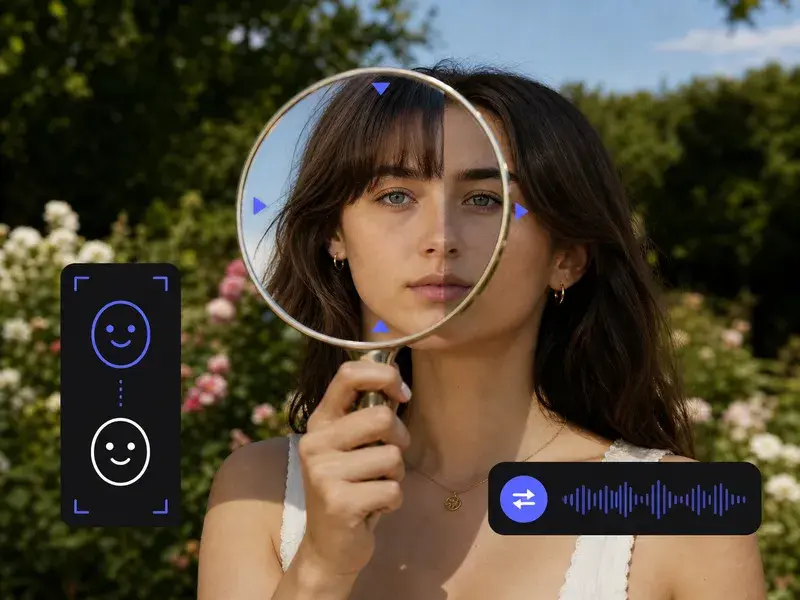
Step 01
Upload The Picture To Extend
Choose the photo or graphic you want to widen from a common image format. VideoAI keeps the content of that original intact, treating it as the fixed center that everything new will grow around.

Upload one picture and the ai image extender paints matching content past your original edges, so you reshape the frame while every original pixel stays exactly as it was.
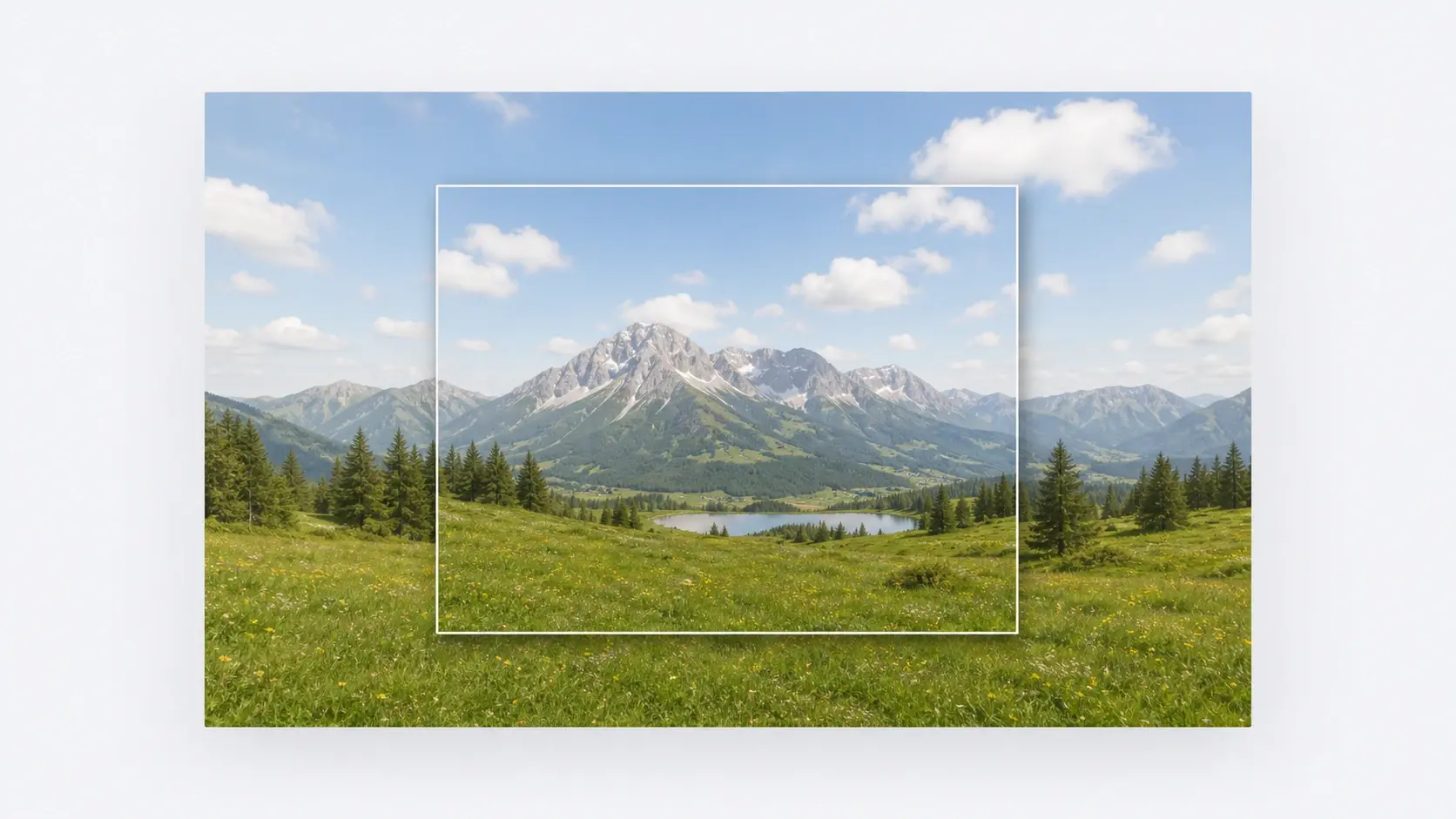
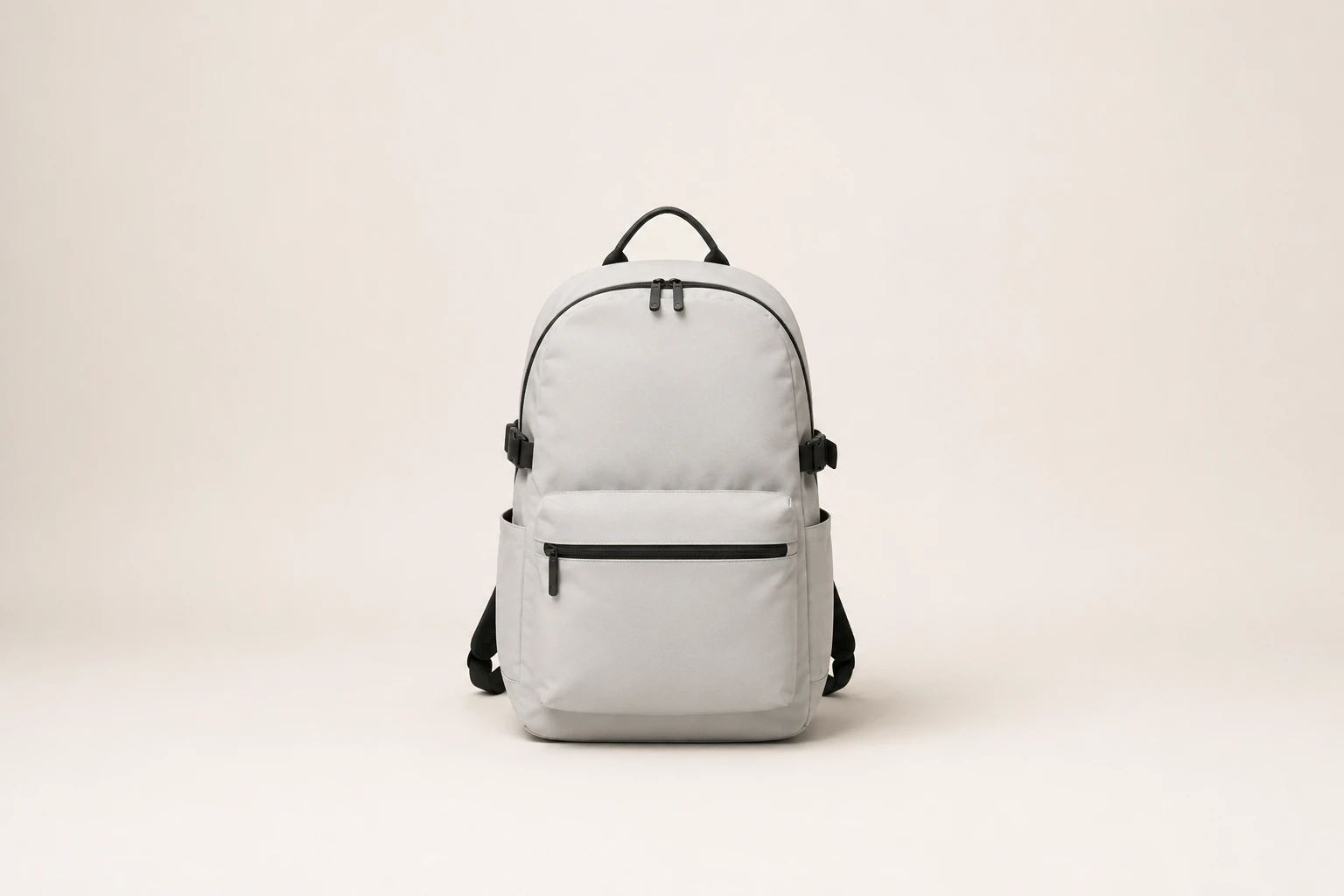
Each capability below names one thing the ai image extender does to your picture and what the result looks like when the AI finishes filling the new canvas.
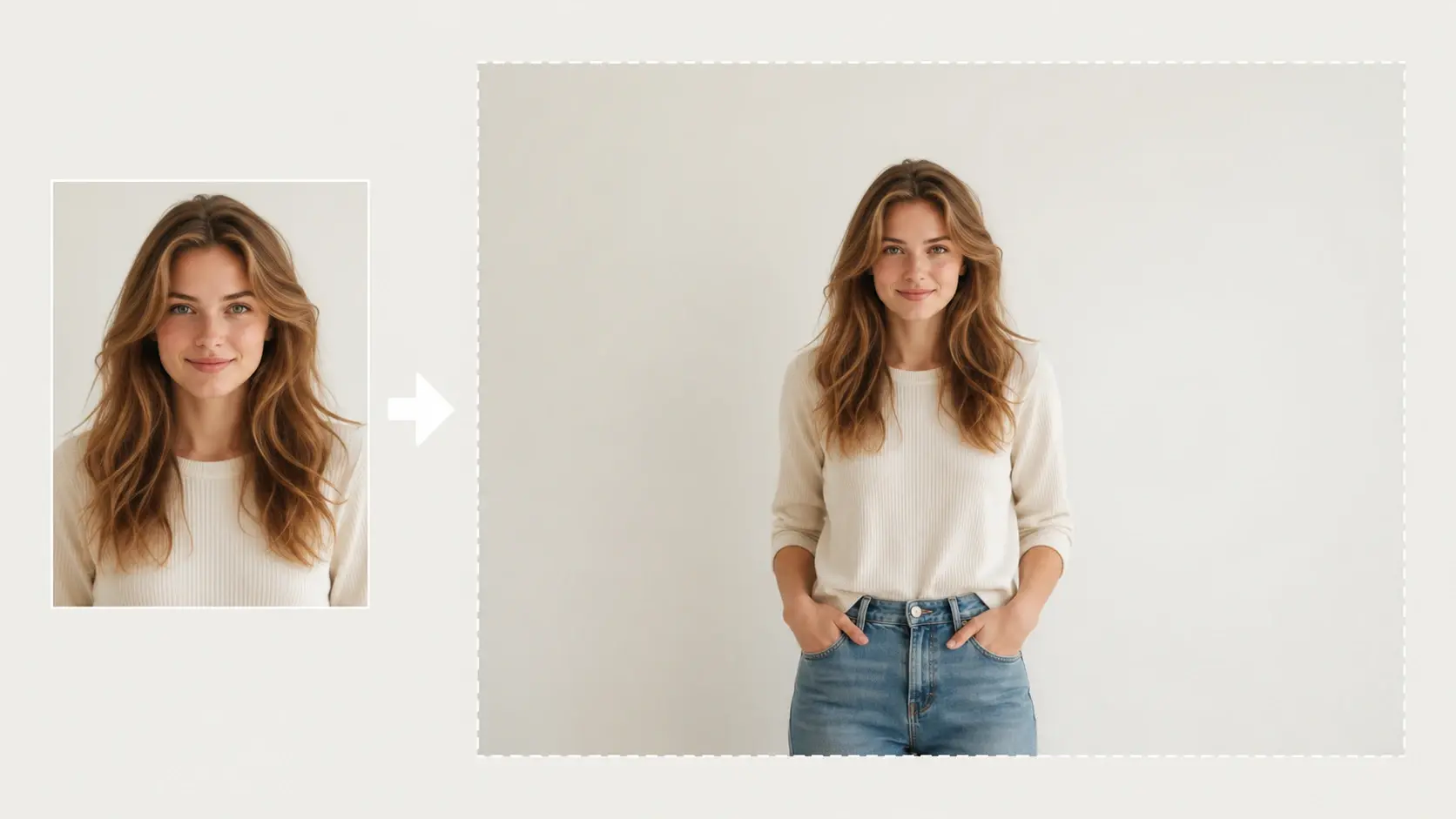
The subject keeps its shape because the ai image extender never redraws what you uploaded. When you expand image area, the AI only adds pixels outside the old border, so faces and product edges look identical to the source you started with.
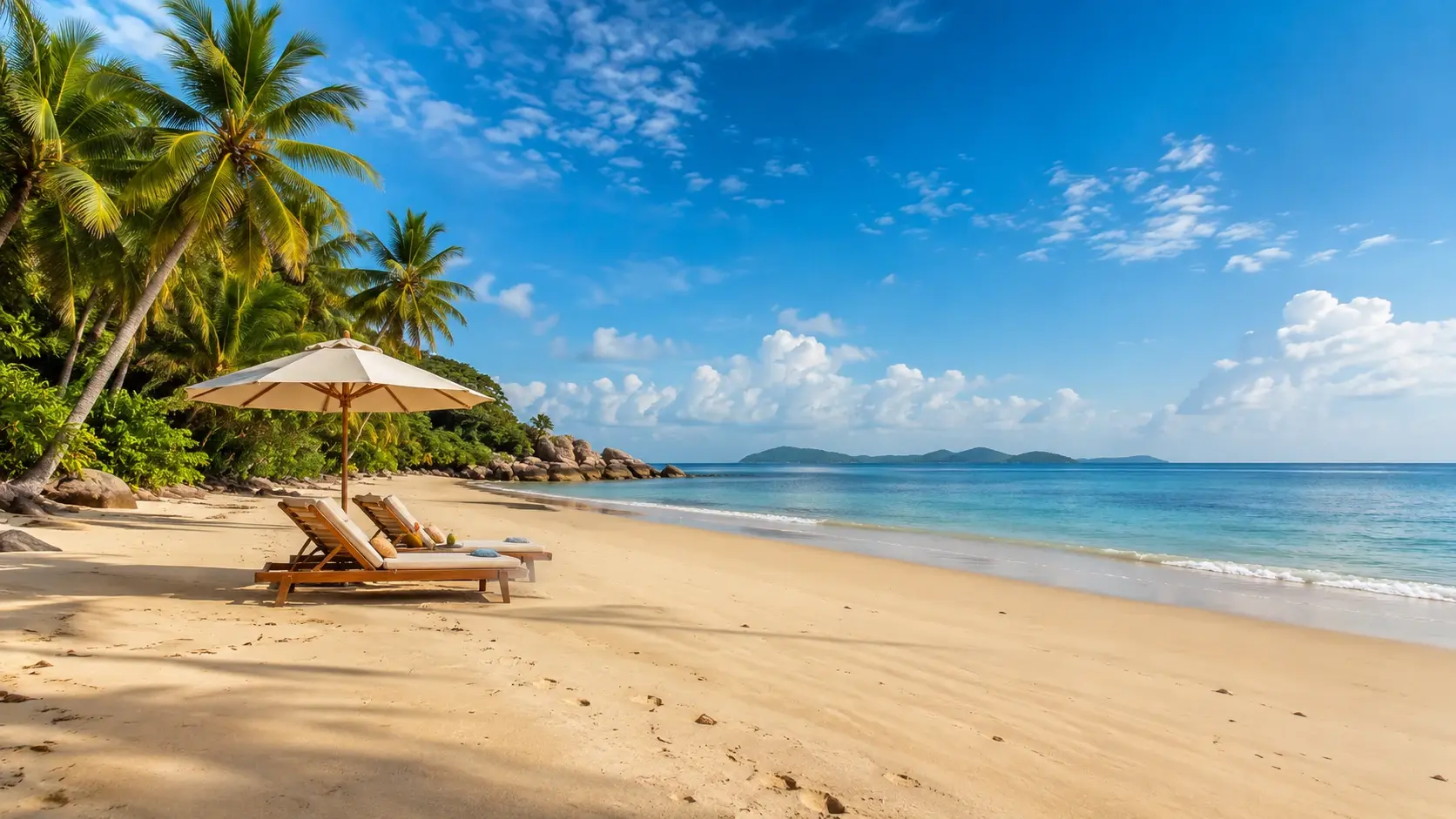
New areas inherit the light, color, and perspective already present in your shot. Rather than pasting a flat backdrop, the ai image extender reads the border and grows the scene outward, so an ai image expand of a beach keeps the same horizon line.
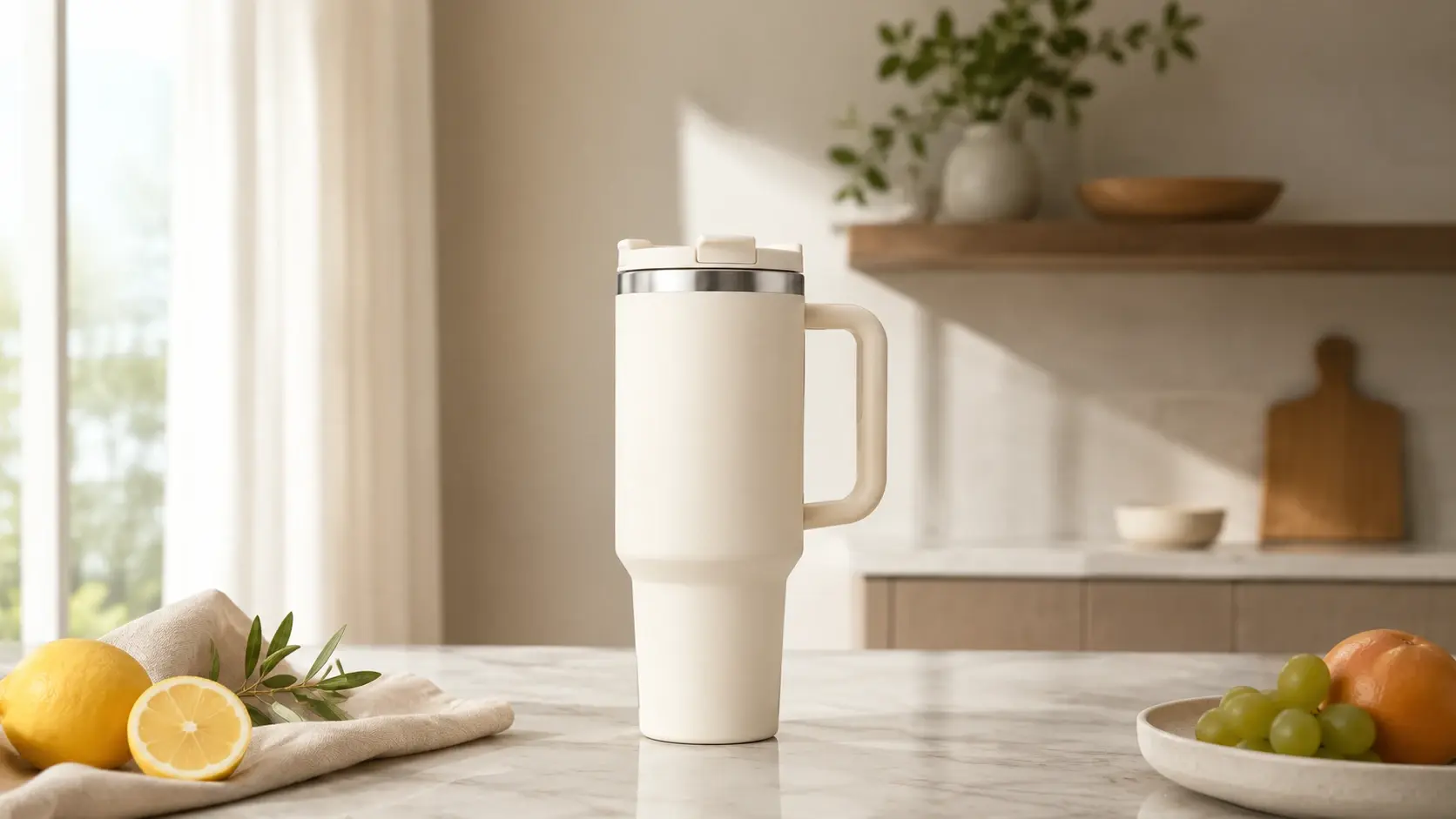
A square post can become a tall story without cropping the subject. Because content is added instead of removed, you expand picture dimensions in the direction you choose and the main element stays fully in view.
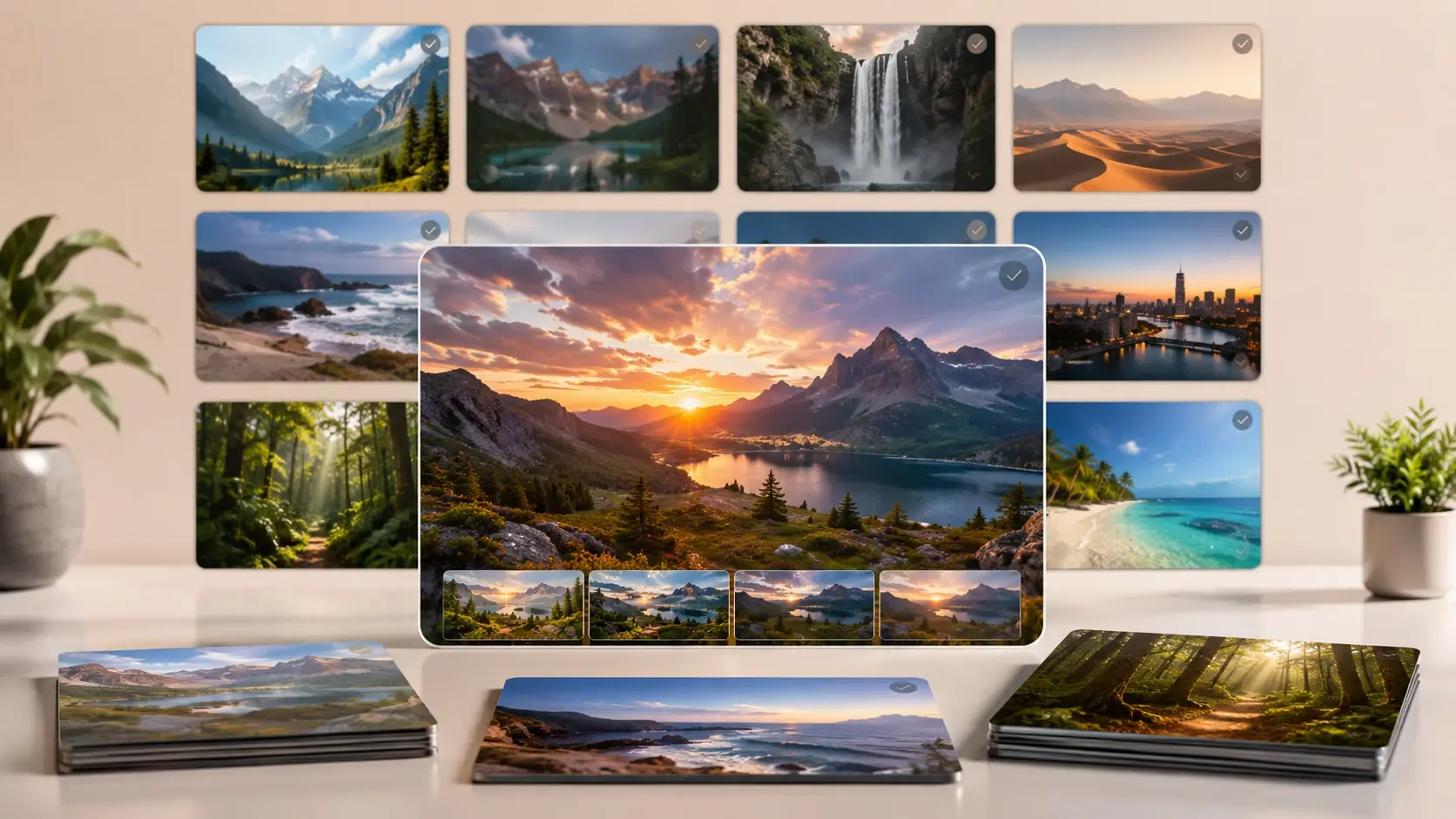
Every result lands in your workspace, where you can open it again, run another expand image ai pass, or carry it into other projects such as source material for video. Batch handling lets you extend several pictures in one go, and exports download without a watermark.
Three concrete steps take you from an uploaded file to a wider picture you can download or send back for another pass.
Step 01
Choose the photo or graphic you want to widen from a common image format. VideoAI keeps the content of that original intact, treating it as the fixed center that everything new will grow around.

Step 02
Select the aspect ratio you want or the sides you want to extend. With that choice set, the ai image extender reads the light and scene along the edge so it knows what to continue when you expand photo space outward.
Step 03
Press generate and the ai image extender paints matching content into the new region while the source pixels hold still. Check whether the join reads naturally, download it without a watermark, or run it again if you want a different fill.
From tight crops to backdrops that need breathing room, here is where people reach for VideoAI.
A photo cropped too close leaves the subject pressed against the frame with no air. Point the ai image extender outward and it paints a believable extension of the scene, giving the composition room again. This is a generated continuation based on the edges, not a recovery of the real pixels that were cut away.
Product shots and portraits often lack the surrounding space a banner or cover needs for headline text. Here VideoAI fills clean background around the subject that matches the original light and texture, so you gain a wider canvas with room to place copy.
Posting the same visual to a feed, a story, and a thumbnail means three different ratios. Instead of cropping the subject three ways, you extend image edges to each target shape and keep the full composition on every platform.
A quick phone snap sometimes clips a shoulder or cuts the scene short. Feed it in, choose the direction that felt missing, and the ai image extender continues the picture outward so the moment reads as a fuller frame.

You post a single visual across platforms that each demand a different shape. With an ai expand image pass you change the ratio by adding content, so the subject never gets sliced to fit a feed or a vertical story.
Explore
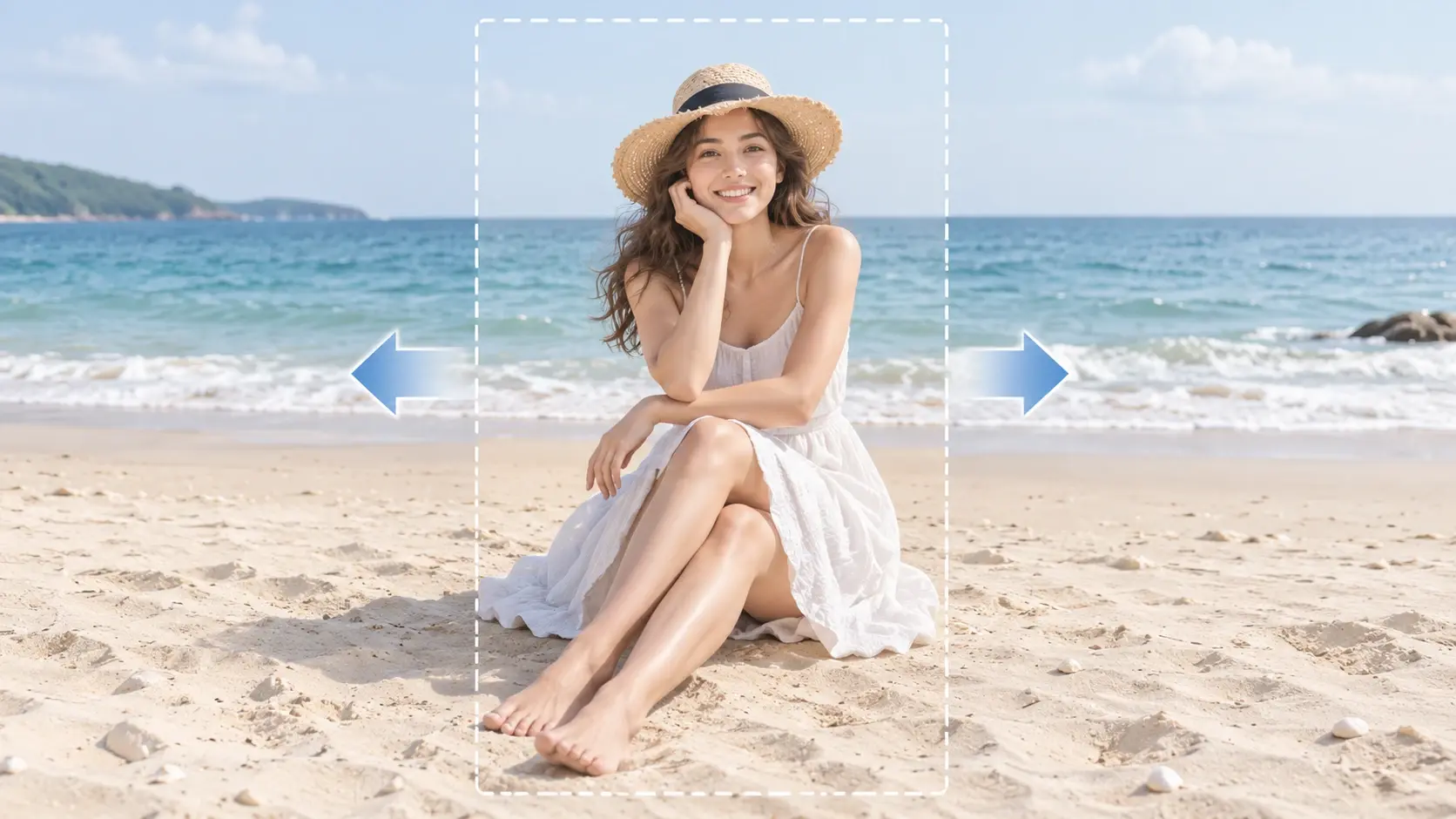
Upload a shot, choose the frame you want, and let the ai image extender paint the rest while your original holds still.
Get Started