

AI Photo Editor
Edit images using AI prompts, remove distractions, and enhance every shot without leaving your browser. Type what you want changed and this online ai photo editor handles the rest, from background swaps to portrait touch ups, in one editing workflow.
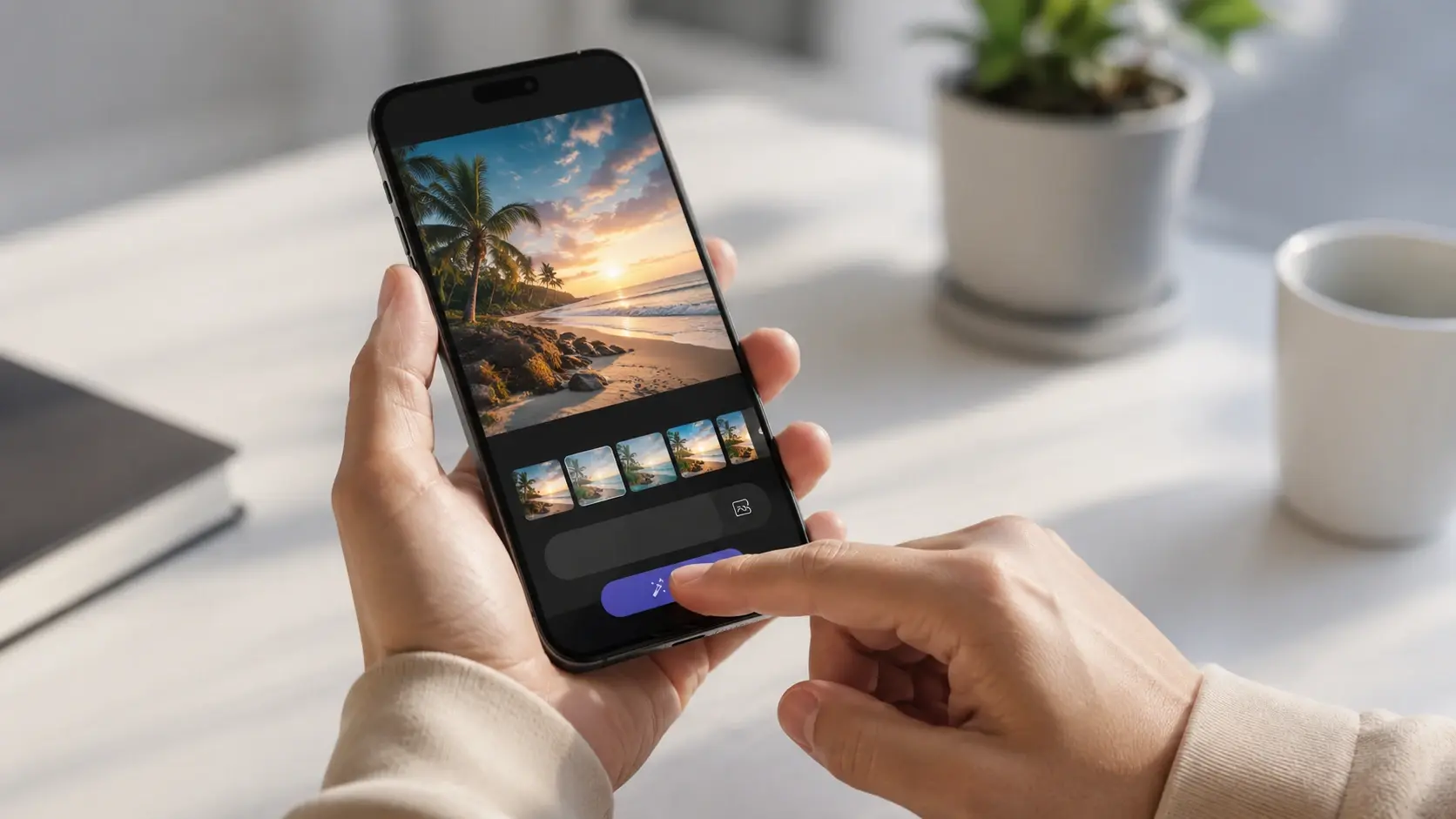
AI Photo Editor Capabilities
Each capability below changes something specific and visible in your image using our ai photo editor. No layers, no masks, no prior editing experience required.
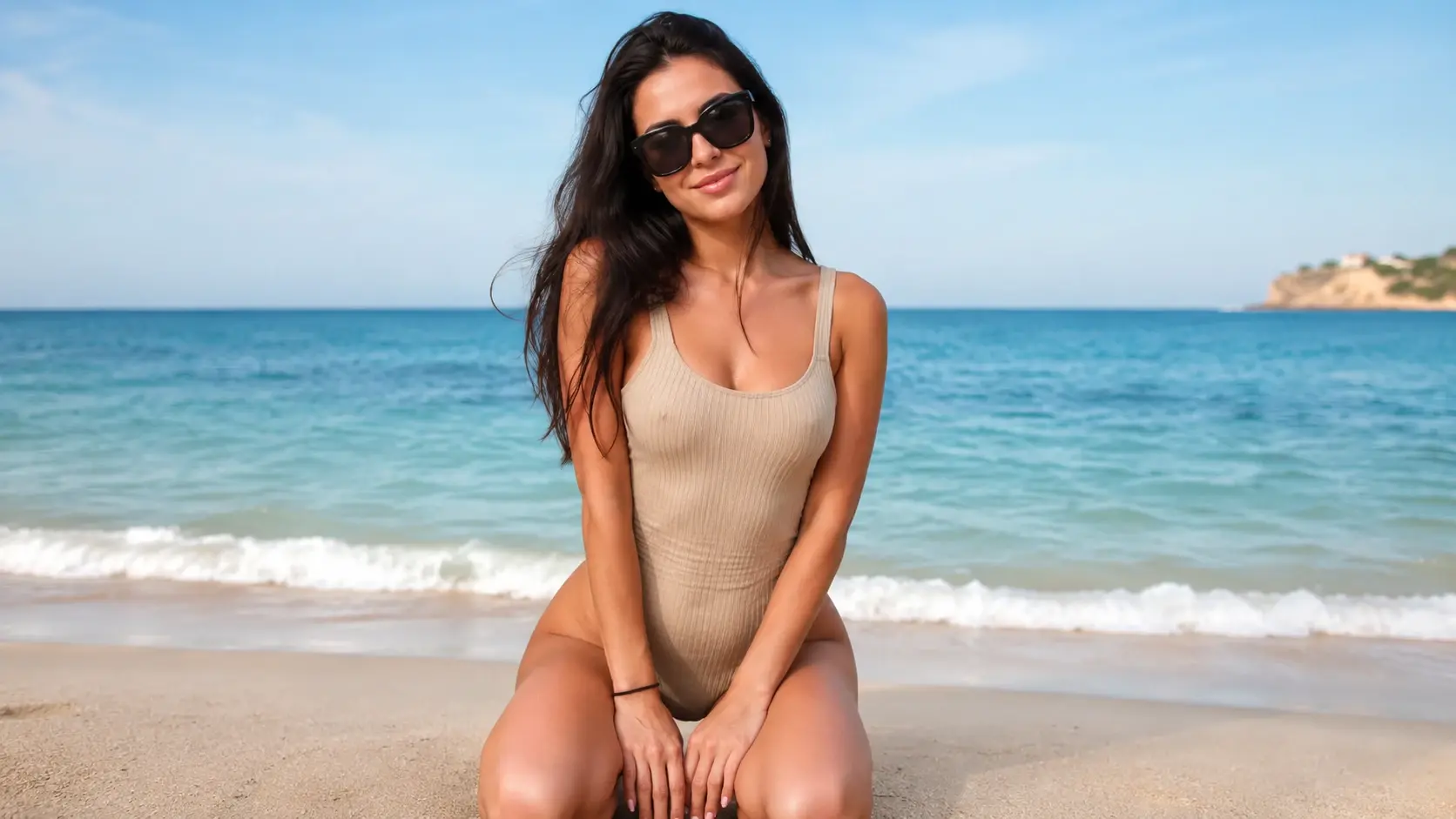
Prompt Based Editing
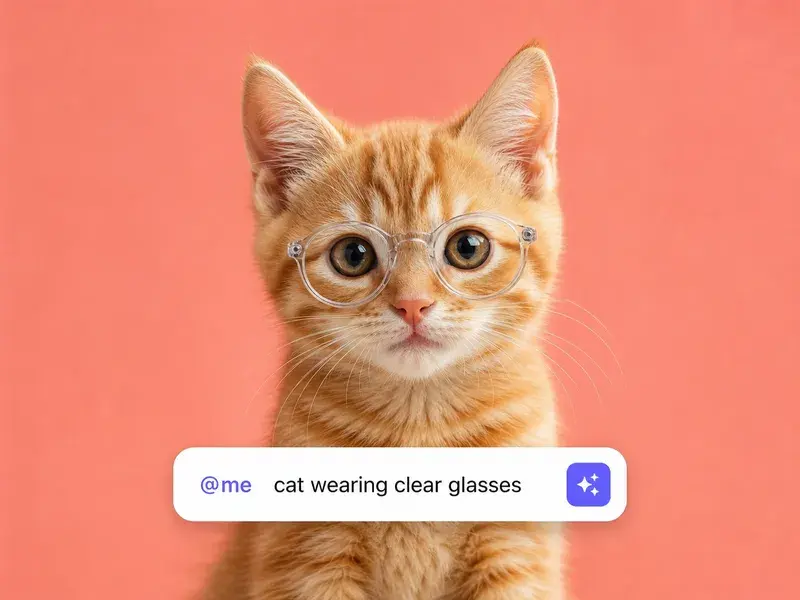
Type a plain language instruction and VideoAI applies the change directly to your photo. Swap a background to a beach, add sunglasses to a subject, or shift the lighting mood. Works best when the instruction names one clear change at a time for the ai photo editor.
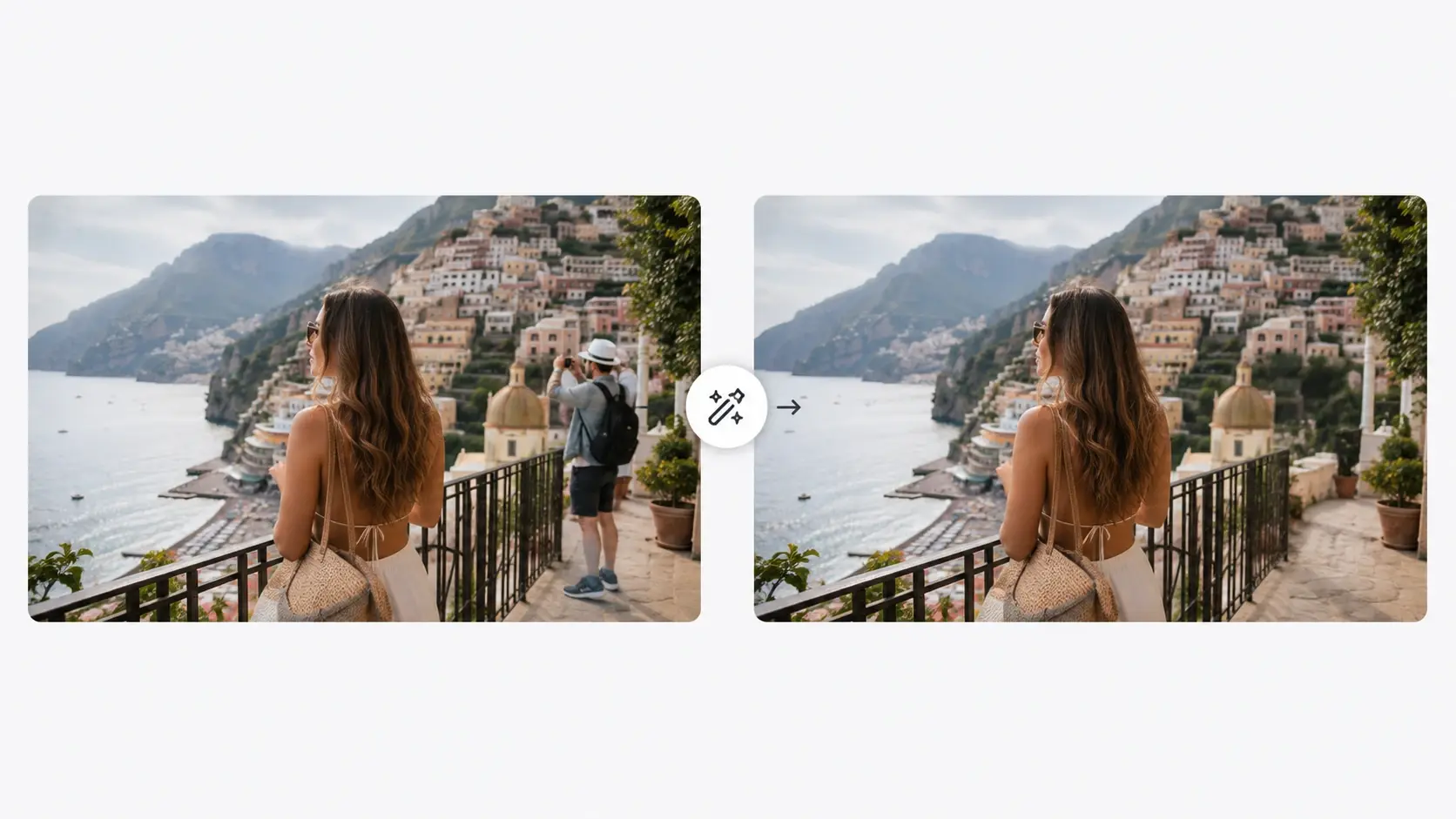
Object Remover And Replacer
Brush over any unwanted element and VideoAI erases it, then fills the gap with a background that matches the surrounding area. Use the tool to replace the selected object with something new. The ai object remover works cleanly on subjects with distinct edges against a clear background.
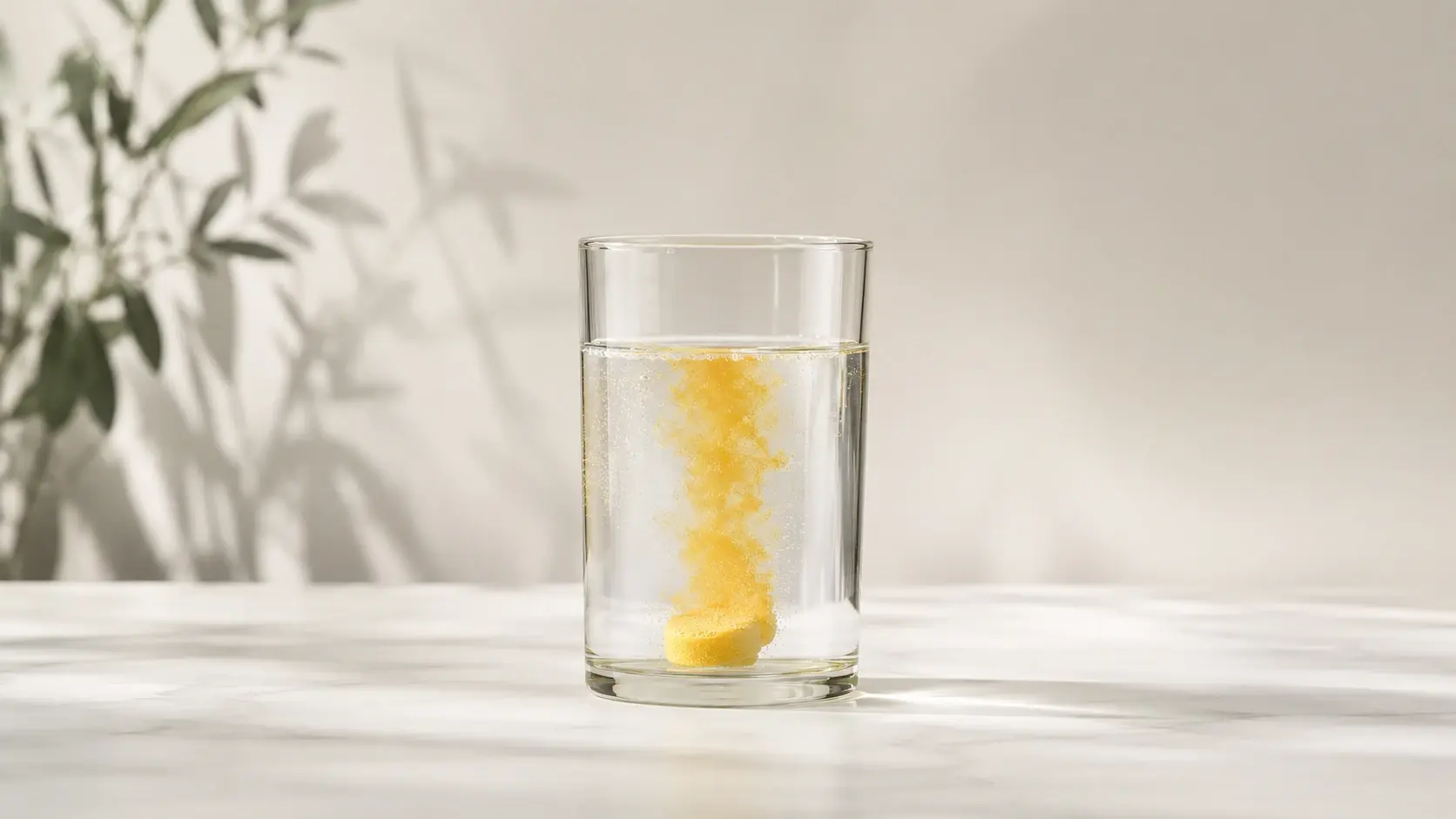
Generative Canvas Expand
VideoAI reads the edges of your original image and extends the frame outward, filling the new area with content that matches the scene. This ai photo editor feature is useful for reformatting a square shot into a portrait crop. When your source image has clear lighting, the output is sharper.
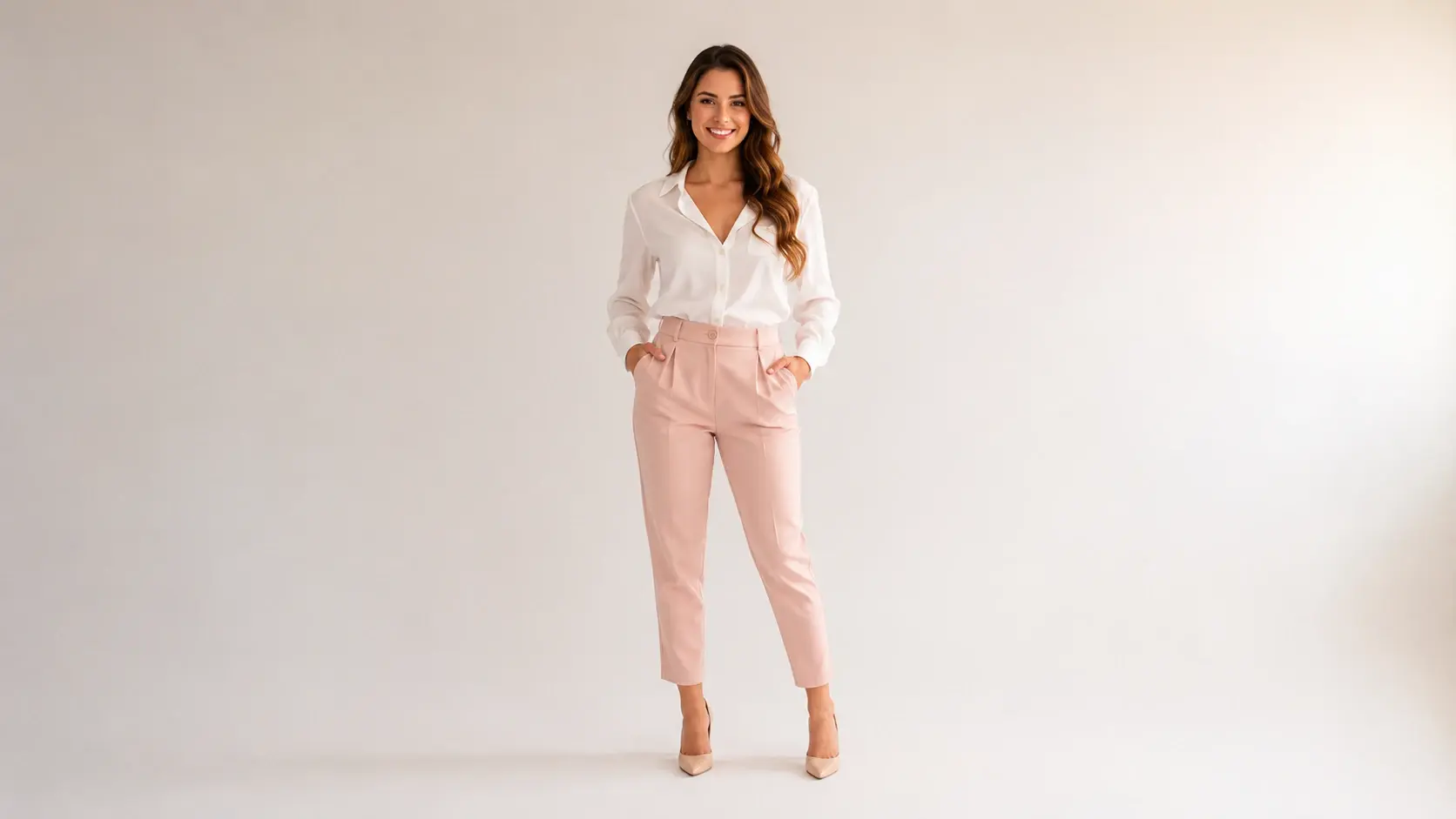
Portrait Refinement
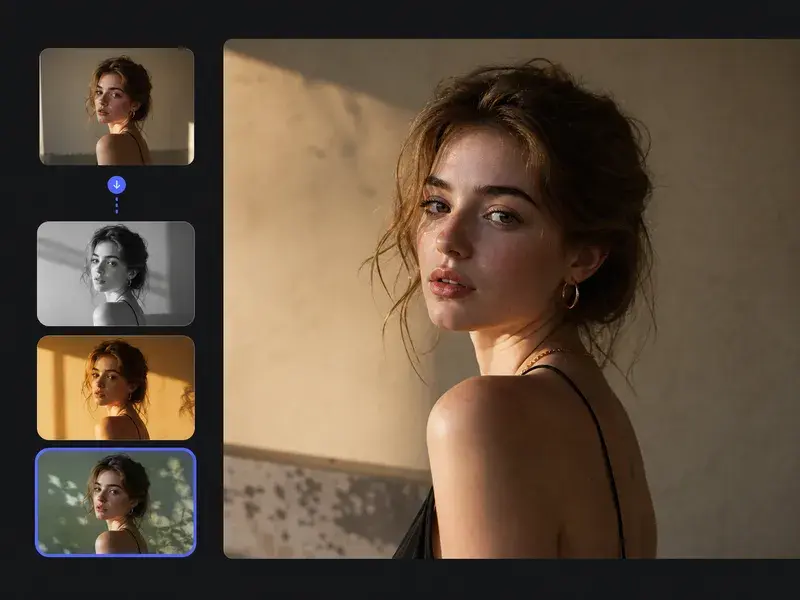
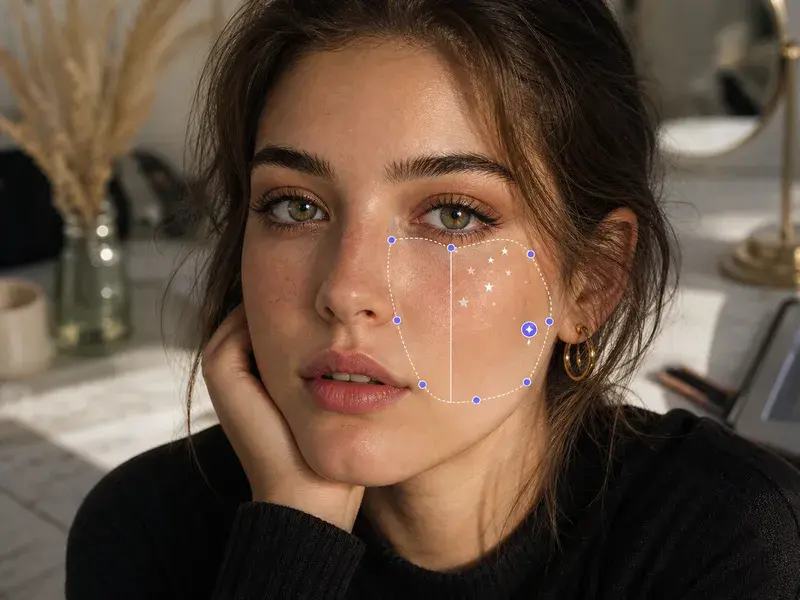
Smooth facial detail, swap an outfit, or change hair color. Let the ai photo editor apply these adjustments as a single step without manual masking. Output quality depends on how well lit and sharply focused the original portrait is.
AI Photo Editor Output Examples
These are the kinds of finished images creators are producing with this ai photo editor right now.
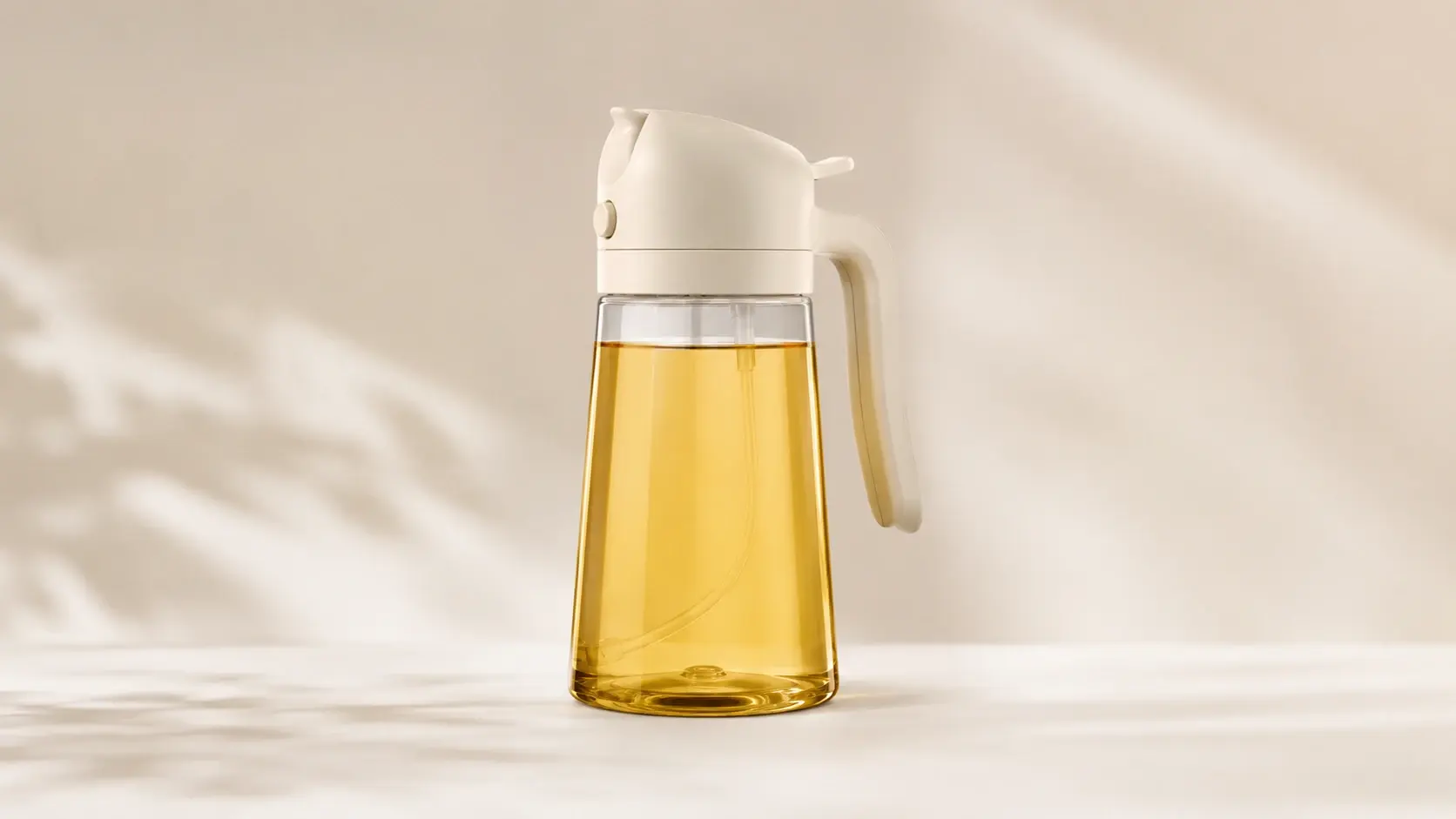
Studio Quality Product Shot
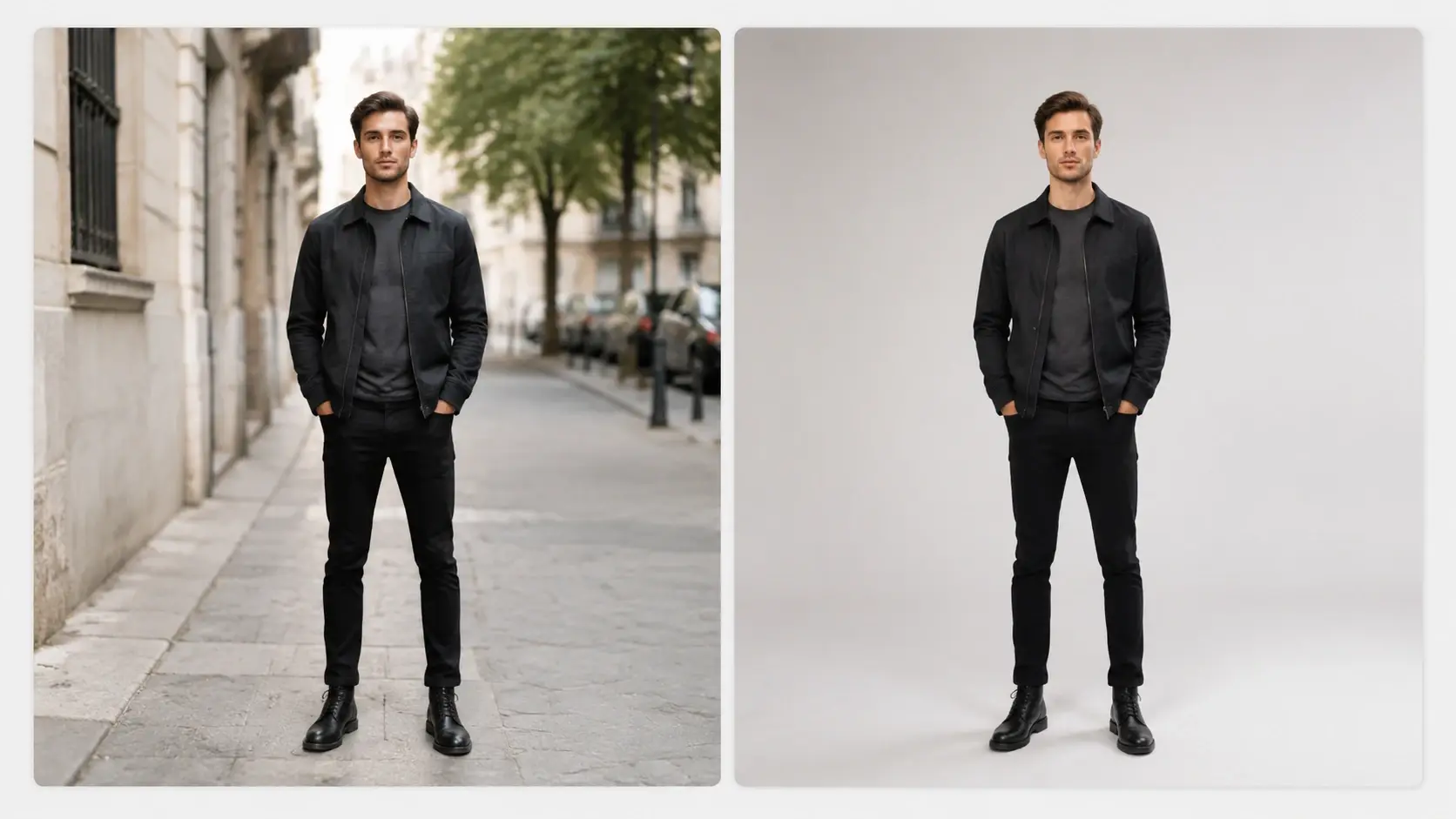
A product photographed on a kitchen counter becomes a clean, neutral studio look after a background swap. The ai picture editor reads the product silhouette and places it against a new setting that fits a commercial brief. No reshoot needed with this ai photo editor.
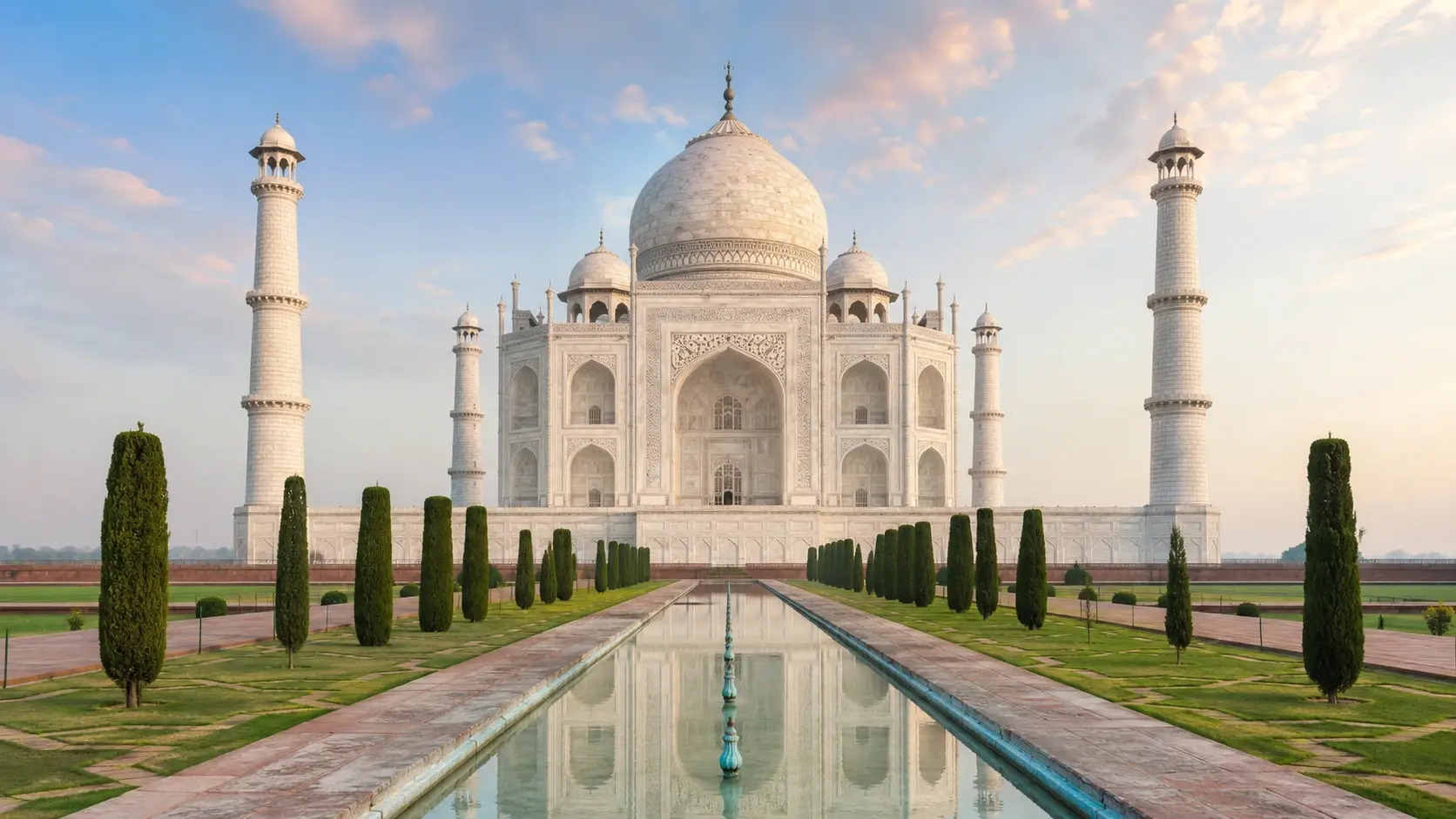
Travel Photo With Crowds Removed
A landmark shot full of passersby becomes a clean, frame worthy image after running the ai object remover across every unwanted figure. The reconstructed background holds the architectural detail without visible patching. This tool saves your best vacation memories.
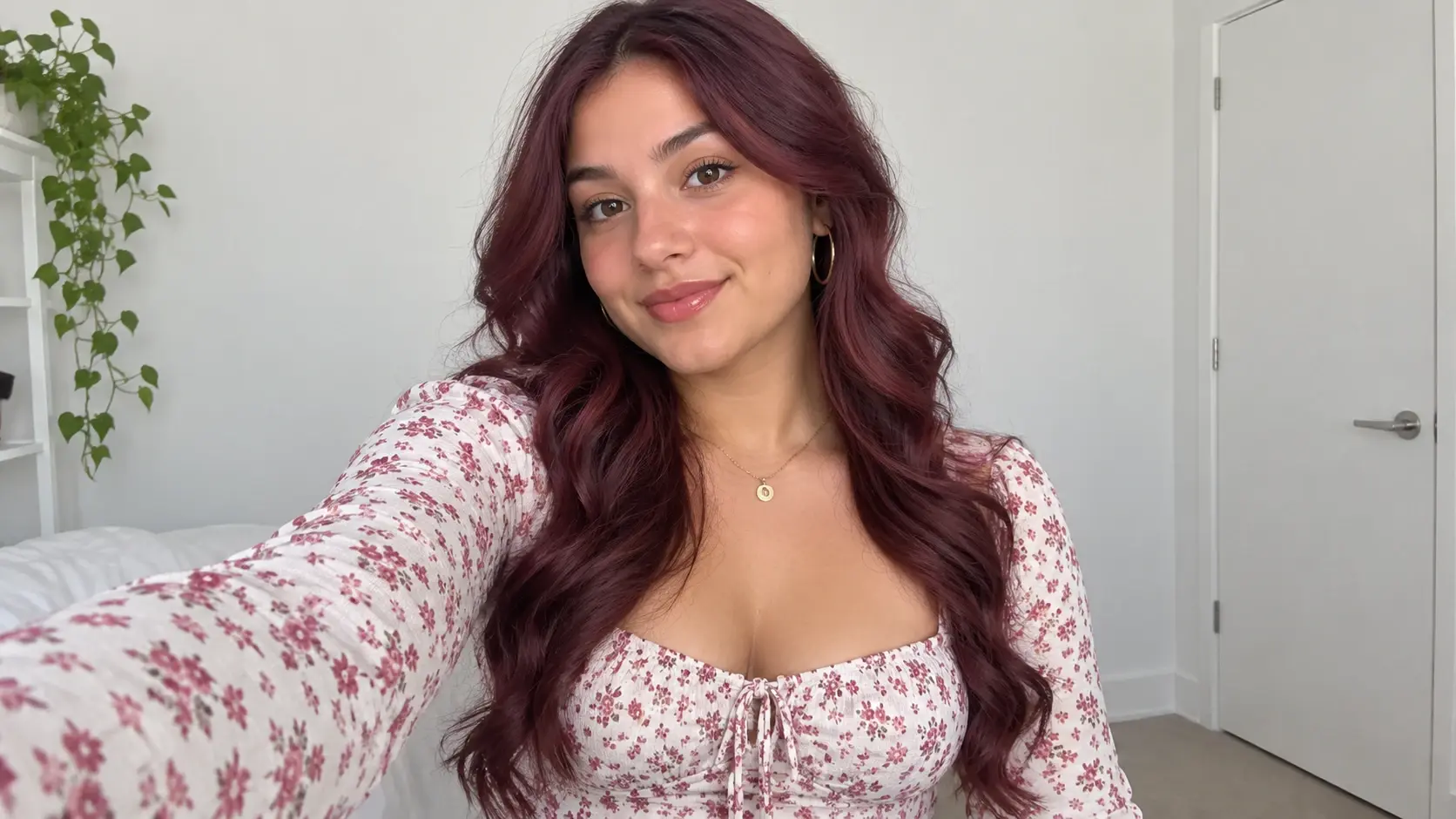
Social Media Portrait With Outfit Swap
A selfie taken in casual clothes is restyled with a new outfit and hair color before posting. The edit images using ai workflow takes one prompt and one confirmation step. If you need a consistent look, upload a reference style to the ai photo editor.
Low Light Photo Restored
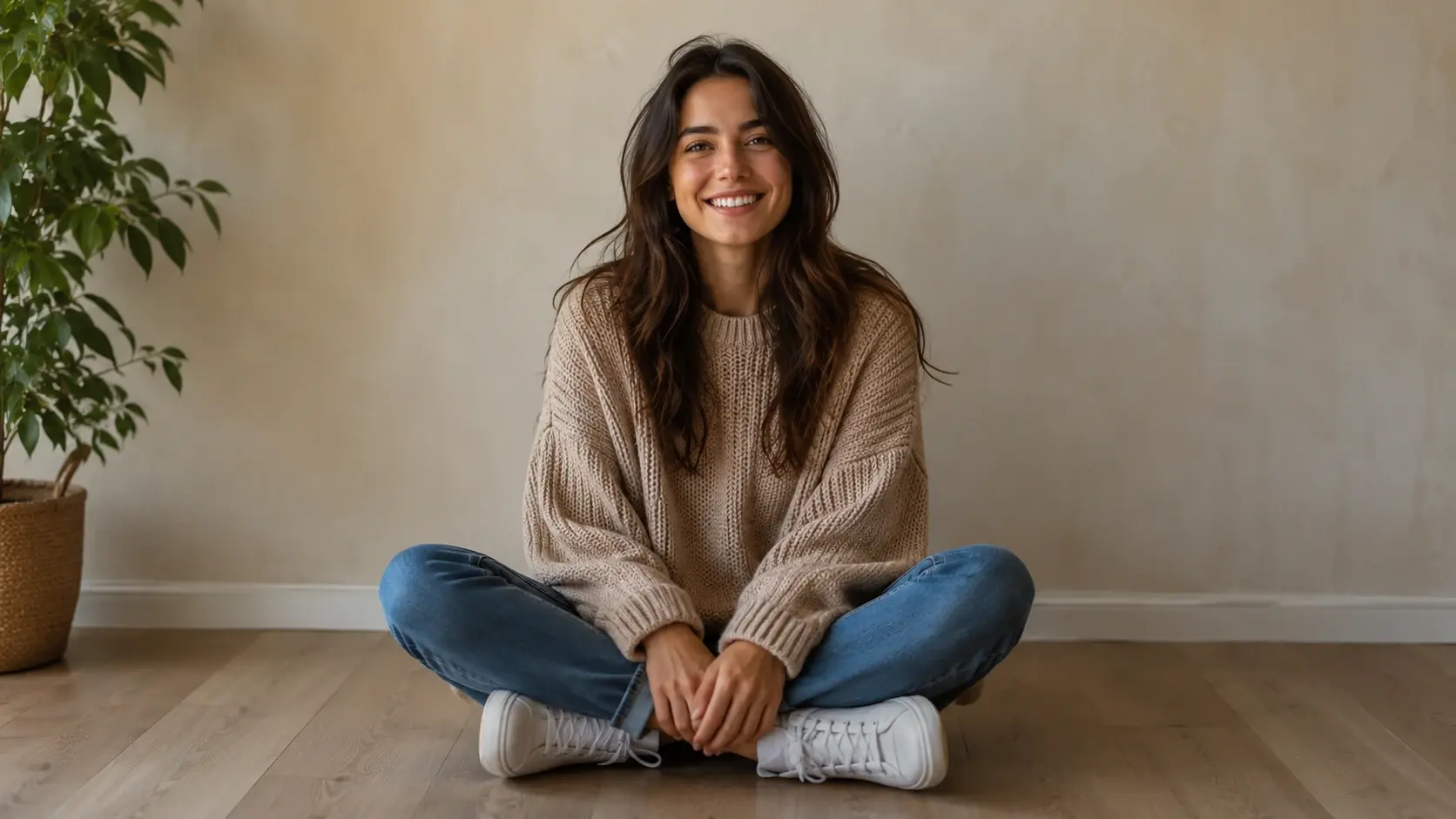
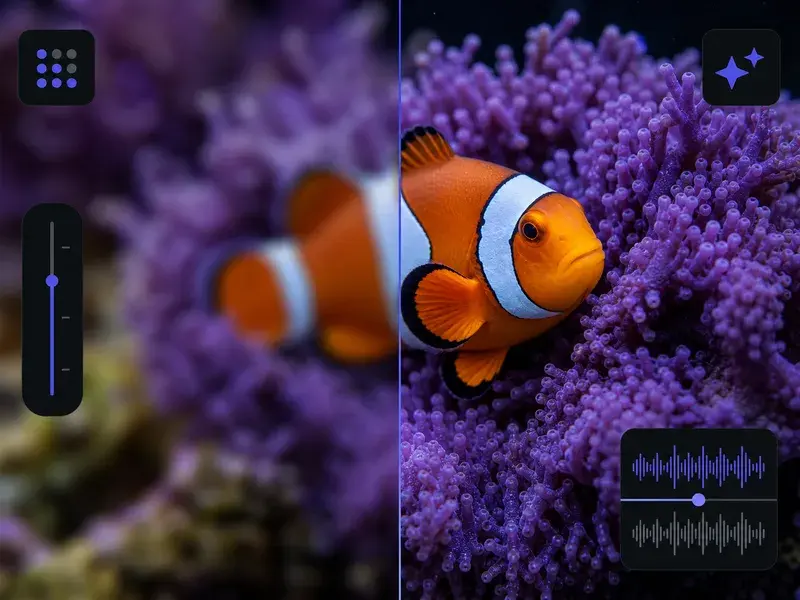
A photo taken in poor light gets sharpened and color corrected through the upscale and enhance step. Detail that was lost in shadow becomes readable again. The output from this ai photo editor suits a blog post or a social caption without looking over processed.
Creators Using This Platform
Here is what people across different workflows are saying after using our ai photo editor.
I run a small clothing resale account and every product photo I took looked amateur. The background swap prompt changed that immediately. My listings look like a proper shop now.
Priya Mehta
Ecommerce Seller
The object remover is the feature I use most. I travel a lot and my best shots always had someone walking through the frame. This ai photo editor fixes that without any fuss.
Daniel Osei
Travel Content Creator
I tried several ai image editor tools before landing here. The prompt interface is the most natural to use. I describe the change, it applies it. No slider hunting.
Sofia Lindqvist
Freelance Graphic Designer
The generative expand feature saved a campaign shoot. We needed portrait crops from images shot in landscape. This ai photo editor extended every frame and the fills matched the original lighting perfectly.
Marcus Reyes
Brand Marketing Manager
I use the style transfer to create anime versions of my photos for content. The output is clean and consistent enough to post without extra editing. My audience genuinely loves this ai photo editor.
Yuki Tanaka
Lifestyle Influencer
The portrait enhancement step recovered a whole set of photos from a low light event. I was ready to discard them. After one pass through this ai photo editor they were usable for the client report.
Amara Okonkwo
Event Photographer
AI Photo Editor Common Questions
Explore
Discover our AI design tools
Explore related tools
Start Using This AI Photo Editor Today
Sign in to VideoAI and access the full ai photo editor: prompt based edits, object removal, canvas expand, and portrait refinement all in one online ai photo editing tool.
Get Started