
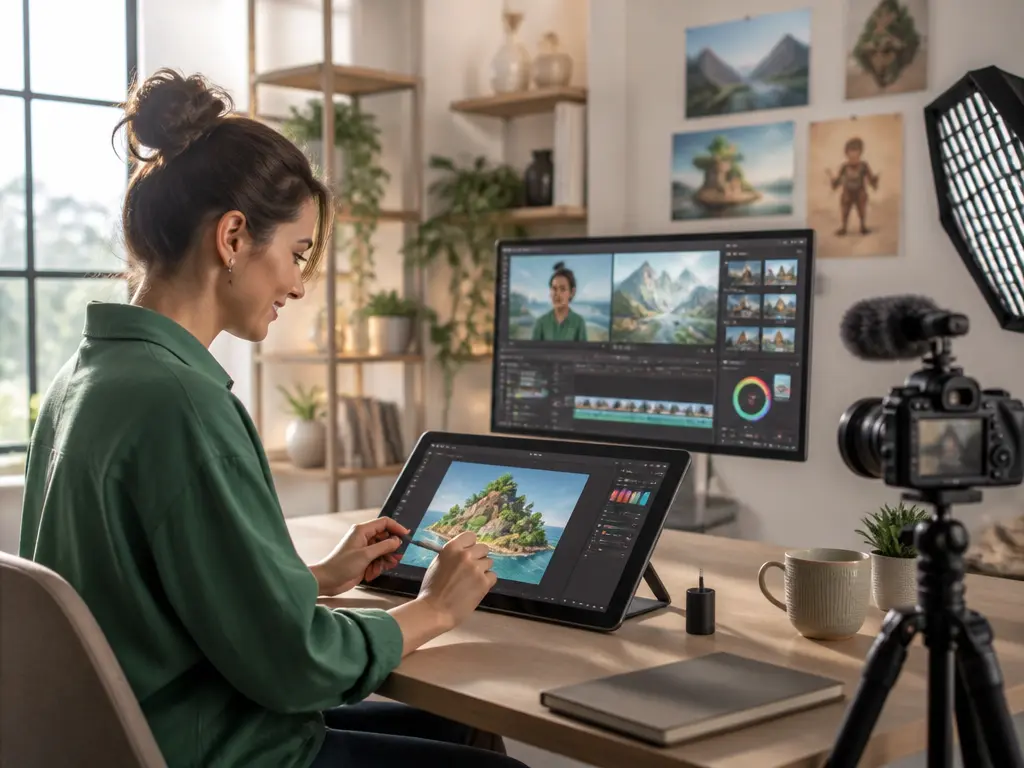

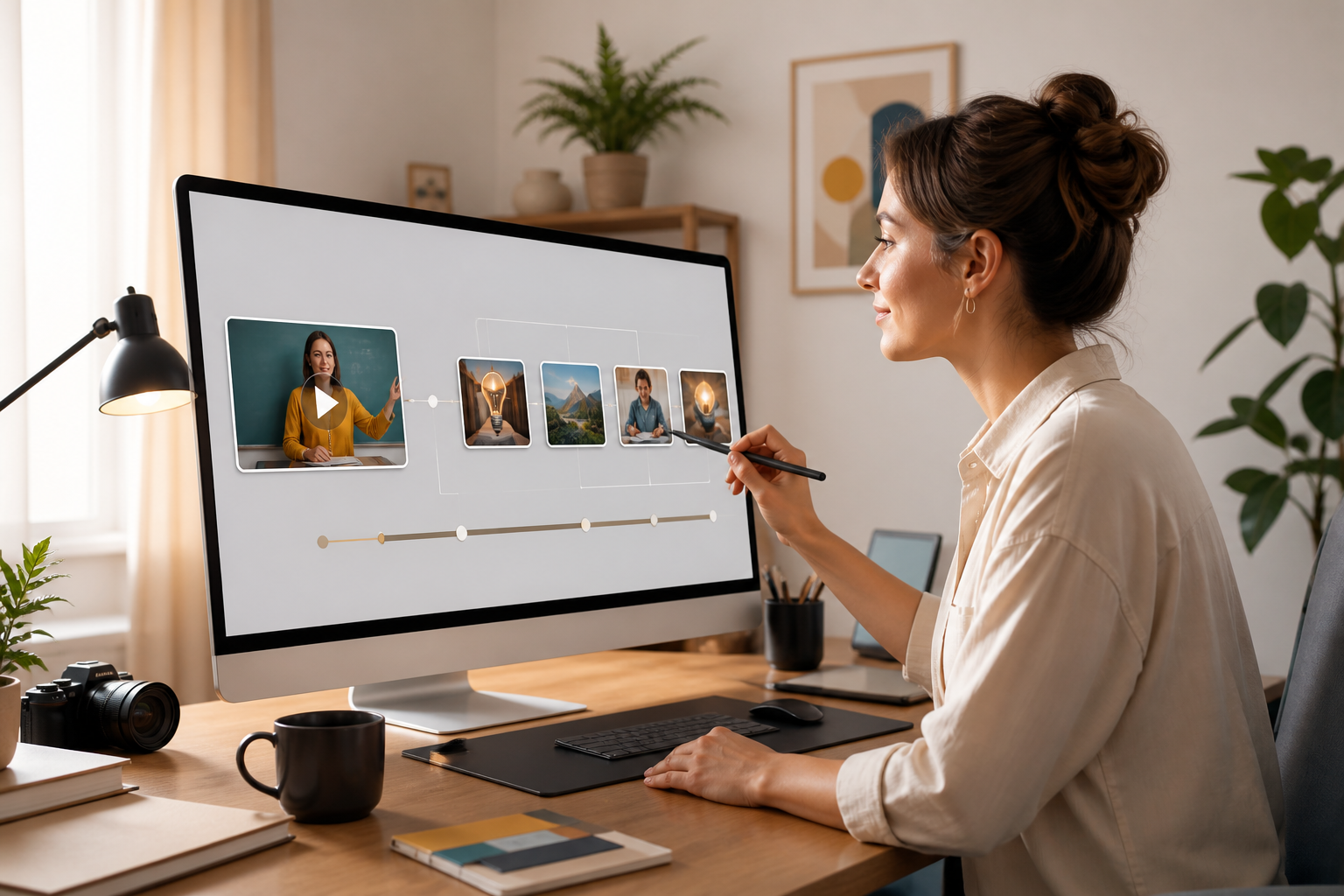
Step 01
Set the learning direction
Write the learning goal, audience, and concept you need to explain, or add an existing script with reference images, video, and audio. Specific inputs give VideoAI a clear starting point for the lesson.

Clear lessons, deliberate scenes
With VideoAI, turn a learning goal, script, or reference into a clear video while you decide the order, pacing, and on screen focus.






Start with a lesson objective, decide which example belongs in each time segment, and use VideoAI to keep explanations focused for class use.
Give each lesson a clear purpose, then shape the scenes, text, and pacing around the idea students need to understand.
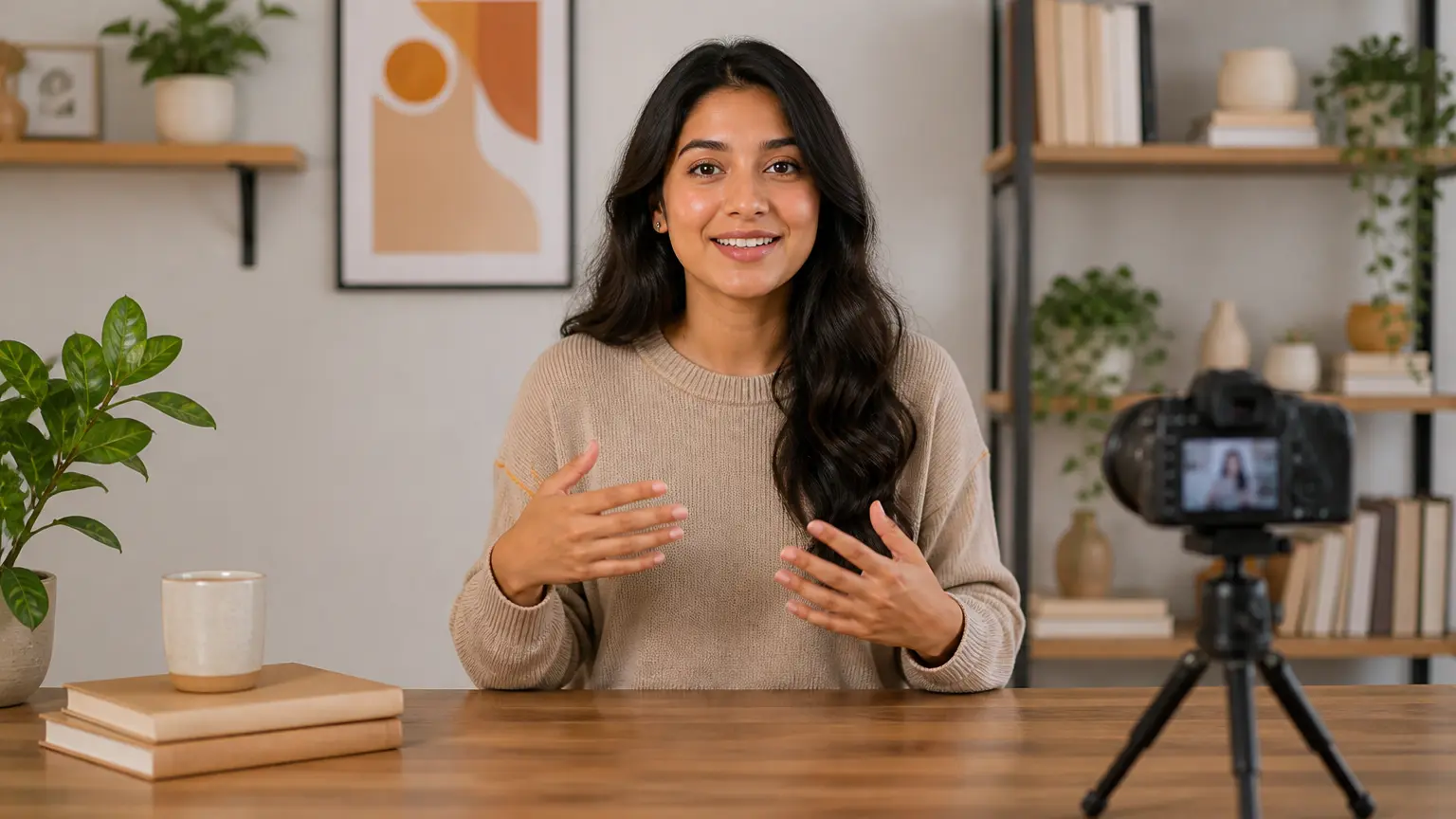
Start with the learning goal, audience, and concept before choosing a scene. An educational video maker workflow keeps each time segment tied to the point you want to teach.

For study visuals, VideoAI can help when a concept needs an example, setting, or short title that learners can inspect. Describe that visual direction, then review the generated scene before moving on.
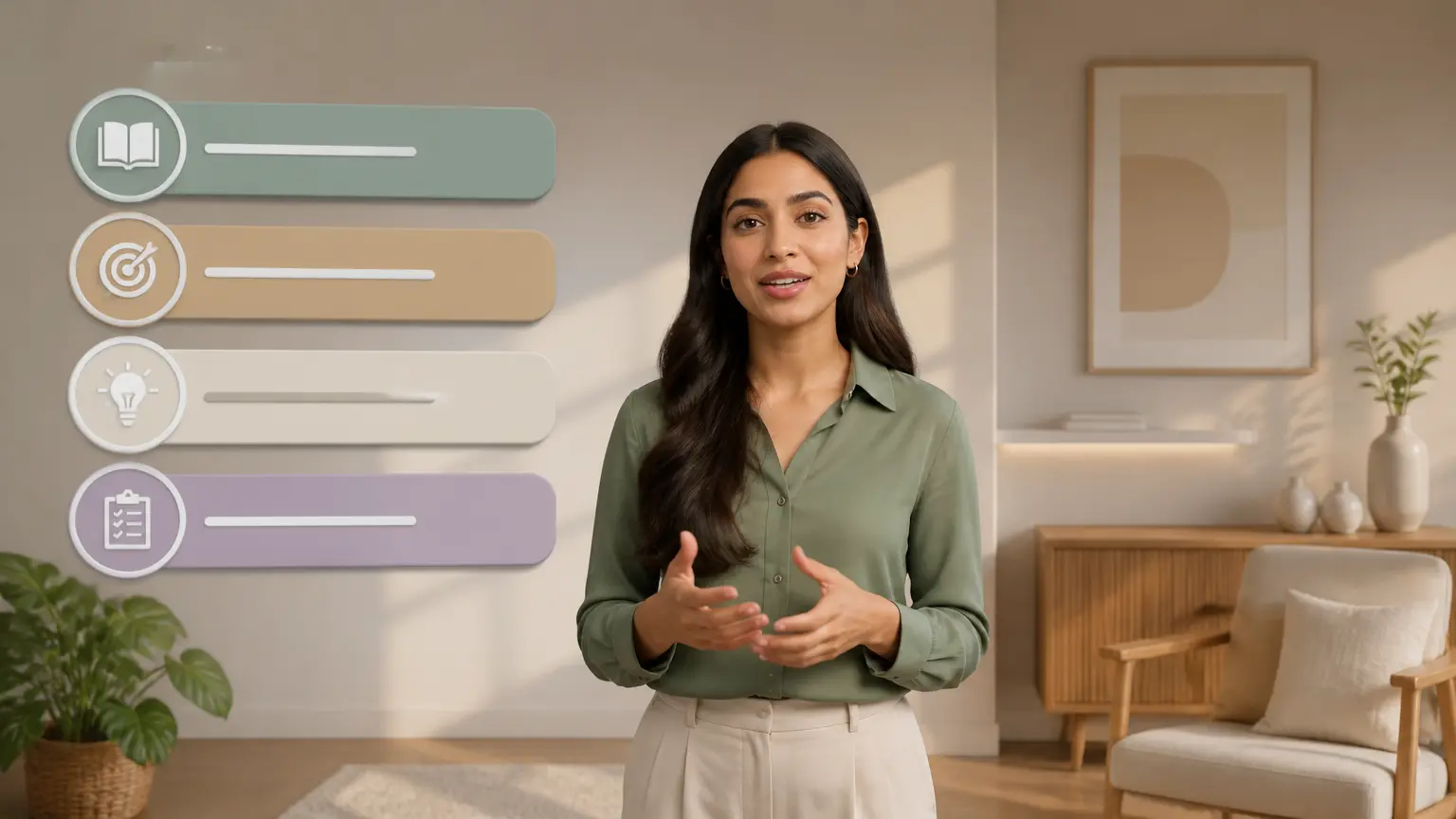
The tool places chapter names and key points inside the scene so viewers can see the structure as they watch. This short text helps you check whether each frame carries the right emphasis for the viewer.

Review the first version, then give VideoAI a text instruction to adjust the direction or extend the piece. This workflow keeps the next decision close to the result you are refining.
Move from a clear learning goal to planned scenes, a first version, and a reviewed export while keeping the teaching decision in your hands.
Step 01
Write the learning goal, audience, and concept you need to explain, or add an existing script with reference images, video, and audio. Specific inputs give VideoAI a clear starting point for the lesson.

Step 02
Divide the lesson into time segments, then choose the scene, action, example, and title for each part, and select the supported output format for the video.
Step 03
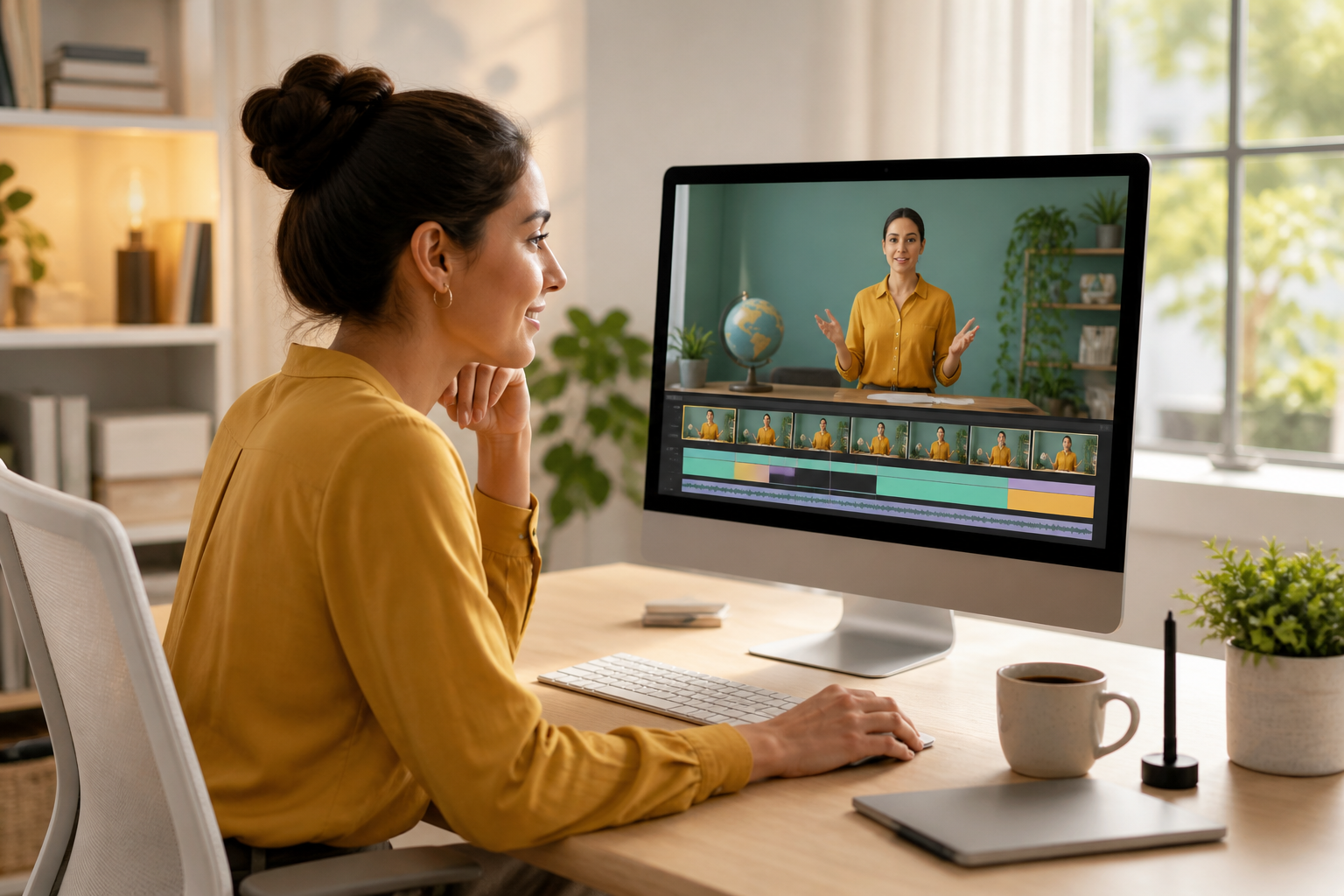
Create a first version, preview the explanation and key text, then use a text instruction to revise the direction. For more room, continue extending the result before exporting it.
Review the specific ways to turn teaching goals and reference materials into clear lesson segments.
When you have several concepts, use VideoAI to shape each one around a learning goal, arrange scenes and key points, and export a reusable lesson video for the course.
Creators preparing one topic for a course page and a mobile lesson can build separate scene plans and aspect ratios for each viewing setting and compare the resulting versions.
When dense study notes require a clearer path, a student selects the concepts to explain, adds reference material, and places short focus text inside each scene.
If teams building onboarding materials bring a script and reference media, they can guide the order of scenes and export a clear clip when an internal process needs demonstration.

Use this educational video maker with a goal, script, or reference, then shape the first lesson around the decision your audience needs to understand.
Get Started