













Facebook Video Ad Maker

Use the Facebook video ad maker to turn a brief and references into ad creative, revise the result, prepare placement variants, and export the finished video for Meta Ads Manager. VideoAI supports creative production in the browser; Meta owns campaign setup, review, delivery, and measurement. Meta specifications and interface steps were reviewed September 17, 2026 and should be checked again before launch.

Bright citrus product advertising scene with a sparkling drink bottle, dynamic fruit, water droplets, and blank storyboard cards on a colorful studio set

What the Facebook Video Ad Maker Does

The Facebook video ad maker supports the creative-production stage. A Facebook ad is not complete when the clip is exported: creative production and campaign operations have different owners, controls, and evidence.

Create the video asset

Develop the hook, message, proof, shot plan, voiceover, music, and placement versions. The Facebook video ad maker can support this creative-production stage with multimodal references, script-text drafting, user-directed shot timing, generic templates or styles, and prompt-led revisions.

Configure and publish the ad

Who owns publishing when deciding how to create Facebook video ads? Use Meta Ads Manager for objectives, audience, budget, tracking, thumbnail and caption options, review, publishing, and performance reporting. VideoAI does not claim a direct Meta account connection or one-click Facebook publishing.

Give the Facebook Video Ad Maker a Clear Brief

A clear brief helps the Facebook video ad maker produce creative that is easier to judge before media spend begins. Confirm Meta-side choices in the current Ads Manager and help documentation.

01

Choose the campaign outcome and call to action

State the action the campaign should support, then confirm the currently available objective in Meta Ads Manager. Choose the next step the ad should support and make the creative lead toward it. The ad-level button, destination, tracking, approval, objective selection, and optimization remain Meta-side controls; VideoAI does not claim to manage them.

02

Define one audience

Describe who should recognize the problem, product, or result in the opening moments. Keep targeting settings in Meta; use the audience description only to guide the creative choices.

03

Name the intended placement

Which placement matters when planning how to create Facebook video ads? Decide whether the first deliverable is for a vertical, square, portrait, or landscape viewing surface. Check Meta's current placement specifications before choosing final dimensions.

04

Write one message and one proof point

Give the viewer one reason to care and one reason to believe it. A short Facebook ad video becomes hard to follow when several products, claims, or offers compete in the same opening.

Create with the Facebook Video Ad Maker

Use the Facebook video ad maker for the confirmed creative workflow, not for unconfirmed Meta integrations, automatic captions, or manual timeline controls.

01

Bring the concept and references

What should you gather before choosing how to create Facebook video ads? Start with text and add relevant image, video, or audio references. Assign each reference a role so the product, visual direction, motion, or sound is intentional rather than inferred from a vague prompt.

02

Draft the script and direct the shots

Use AI to draft script text when the idea is rough, then plan the shots and timing yourself. Put the strongest visual, product, result, or brand cue in the opening instead of saving the main point for the end.

03

Add voice, music, and visual direction

Use voiceover, music or an audio reference, plus a generic template or visual style where useful. These are creative inputs; they are not Facebook-specific templates or certified placement presets.

04

Review, revise, and export

Describe the change you want and generate a revised version. VideoAI's confirmed workflow is prompt-led revision, not a manual trim, split, frame-edit, or timeline interface. Download an MP4 only after the message and motion survive a complete review.

Review Every Facebook Video Ad Maker Output

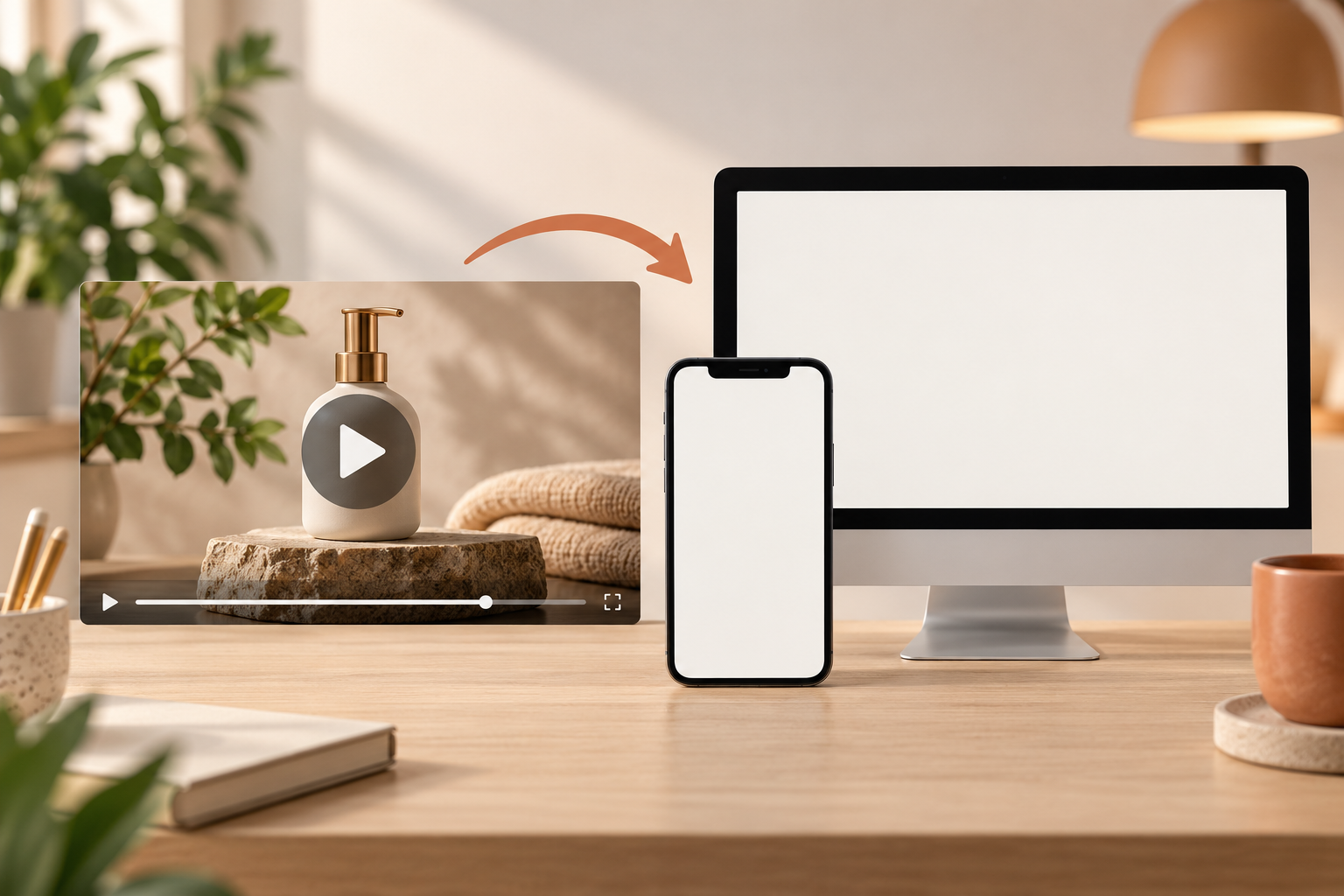
The Facebook video ad maker supports 9:16, 4:5, 1:1, and 16:9 video output. Choose among them after checking the current Meta specification for the placement you will actually use.

01

Make the first frame earn attention

Use a clear subject, motion, product view, or result immediately. Meta's reviewed guidance emphasizes an early brand and key message, but exact creative recommendations can change and should stay attributed to Meta.

02

Check the opening three seconds

Confirm that the hook, visual subject, and main message arrive early enough to be understood. Do not rely on a slow reveal when the placement is likely to be viewed quickly on mobile.

03

Make the story understandable without sound

Should silent viewing affect how to create Facebook video ads? Review the entire creative muted. If spoken dialogue needs captions, add them through a separate confirmed post-production or Meta-side workflow; VideoAI is not claimed here to provide automatic speech-to-caption or subtitle-file export.

04

Protect important visual information

Keep critical subjects and requested in-scene text away from likely interface overlays, then use Meta's current safe-area guidance for the exact placement. VideoAI does not promise a Facebook-certified safe zone.

05

Check each aspect ratio as a composition

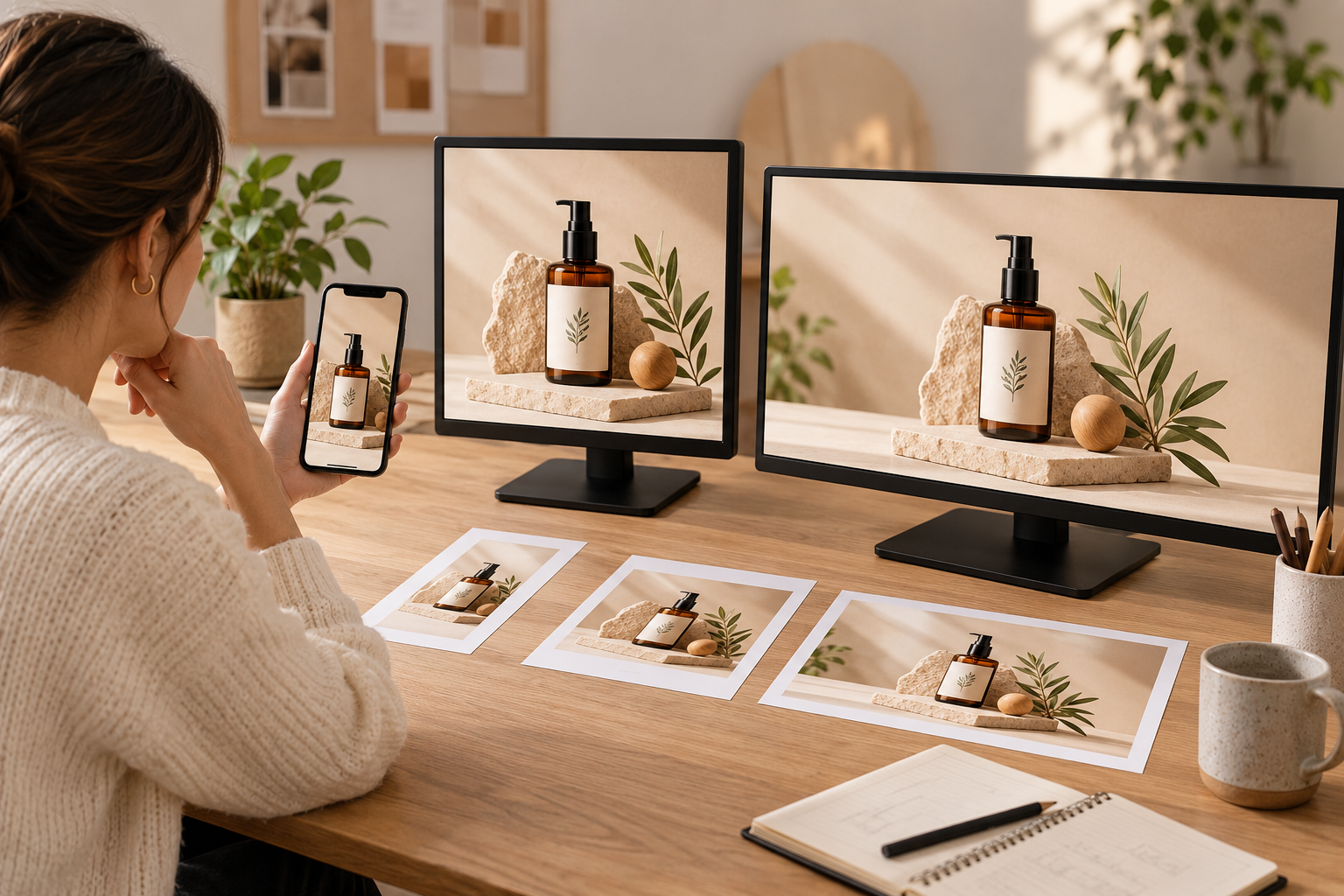
Do not assume one landscape master will crop cleanly everywhere. Review 9:16, 4:5, 1:1, and 16:9 versions separately for subject scale, legibility, and the timing of visual information.

06

Confirm delivery and rights

Check the exported MP4, audio, supplied references, music, trademarks, people, and claims before upload. VideoAI permits commercial use of its video output, but that does not clear third-party rights or guarantee Meta approval.

Move from the Facebook Video Ad Maker to Meta

Meta's interface, objectives, specifications, and policies are volatile. Use the current first-party help flow rather than treating this page as a permanent screen-by-screen map.

Step 01

Open the current Meta creation flow

Where does publishing happen after you decide how to create Facebook video ads? Start in Meta Ads Manager and choose the objective and ad setup supported in the current account. Confirm placement and media requirements in Meta's help center before uploading the creative.
Step 02

Upload and configure the ad

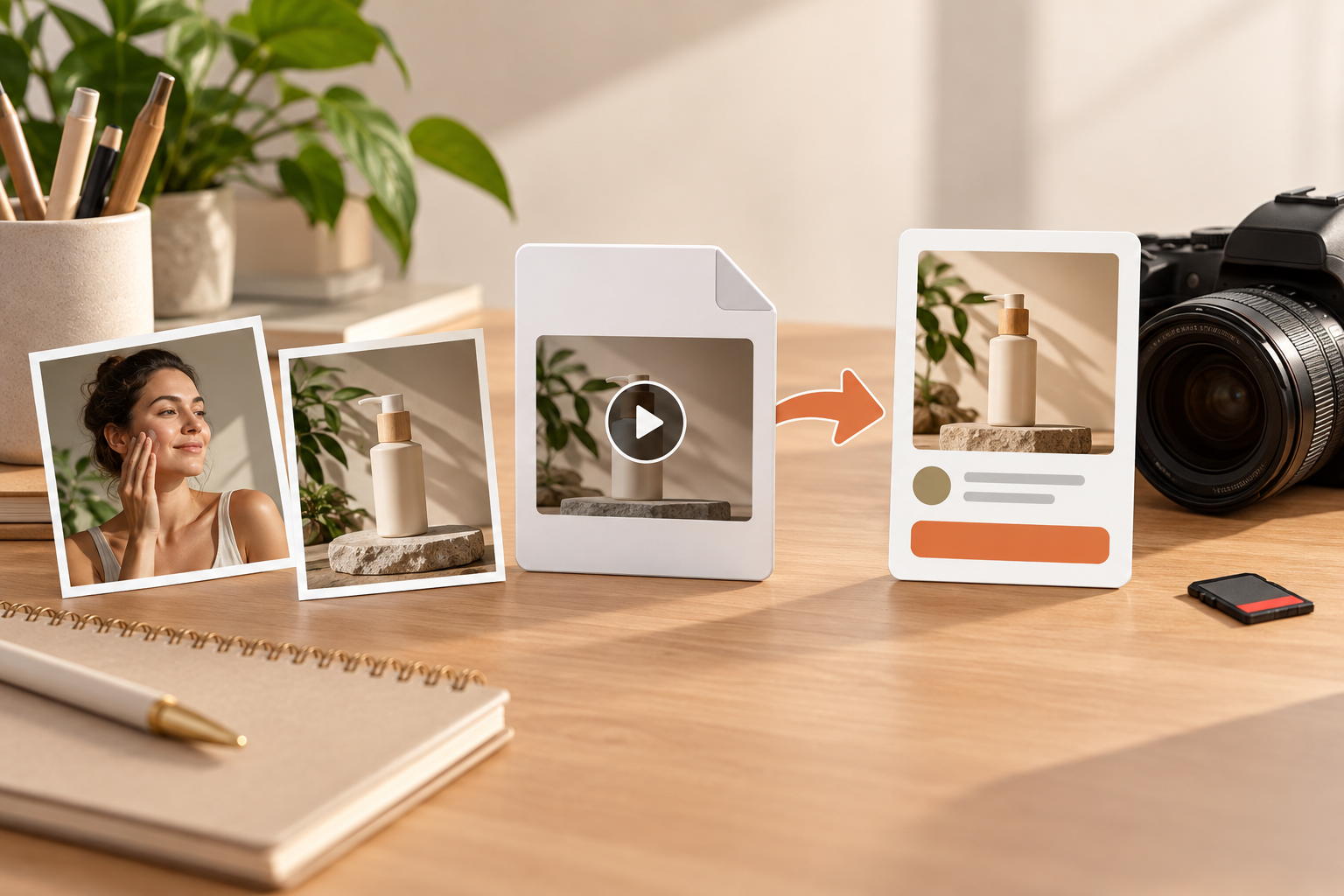
Upload the finished file manually, then configure the thumbnail, copy, call to action, destination, tracking, and any caption options available in Meta. These controls are not VideoAI product features.

Step 03

Preview before publishing

Inspect each selected placement, confirm the crop and overlays, and follow Meta's current review and publishing process. No tool can guarantee approval, delivery, views, clicks, conversions, or acquisition cost.

Test Facebook Video Ad Maker Variants

The Facebook video ad maker can produce creative variants; Meta owns campaign experiments and performance data. Keep the test interpretable by changing one meaningful decision per comparison.

01

Opening hook

Which hook should lead when testing how to create Facebook video ads? Compare a product-in-use opening with a problem-led opening while holding the rest of the creative steady.

02

First-frame subject

Compare a close product or result view with a human reaction or contextual scene.

03

Message order

Compare benefit-first and proof-first versions without changing the underlying offer.

04

Call-to-action timing

Compare an earlier cue with an end-only cue while using the same destination and ad setup.

05

Creative length

Compare a short cut with a longer explanation only after checking current placement limits and keeping the main claim consistent.

06

Placement composition

Compare the appropriate 9:16, 4:5, or 1:1 composition rather than merely cropping the same master automatically.

FAQ

Facebook Video Ad Maker Questions

Use the Facebook video ad maker to develop and review the creative from a clear brief, then make the needed aspect-ratio versions and manually upload the finished MP4 to the current Meta Ads Manager flow. Configure and publish the campaign in Meta, not in VideoAI.

Yes. Meta supports video ads in multiple placements, but the available objectives, aspect ratios, duration limits, and interface steps can change. Check Meta's current first-party specifications for the selected placement before export and upload.

Show a strong visual reason to continue, the product or outcome, and an early brand or message cue. Keep the opening focused on one promise rather than introducing several unrelated claims.

Yes. Review the story muted and make the visual sequence understandable. Voiceover and music can add meaning for listeners, but captions for dialogue require a separately confirmed caption workflow; this page does not claim that VideoAI automatically creates a subtitle track.

VideoAI supports 9:16, 4:5, 1:1, and 16:9 output. Choose the versions that match the current Meta placement requirements, then inspect every composition rather than assuming an automatic crop is ready to publish.

No direct Meta account connection or publishing integration is confirmed. Download the finished creative and upload it manually through Meta's current workflow.

Facebook-specific templates and certified placement presets are not confirmed. Use VideoAI's generic video templates or visual styles and the supported output ratios, then verify the final asset against Meta's current rules.

Create variants that change one variable, such as the hook, first frame, message order, call-to-action timing, length, or crop. Run and measure the test in Meta. VideoAI can help make the variants but does not run the campaign or read its performance.

Open the Facebook Video Ad Maker

Bring the brief, references, shot plan, voice, and music into the Facebook video ad maker. Review the creative, export the placement versions you need, and complete campaign setup in Meta Ads Manager.

Get Started
Facebook Video Ad Maker for Online Ad Creative