
Step 01
Start With A Concept Or Script
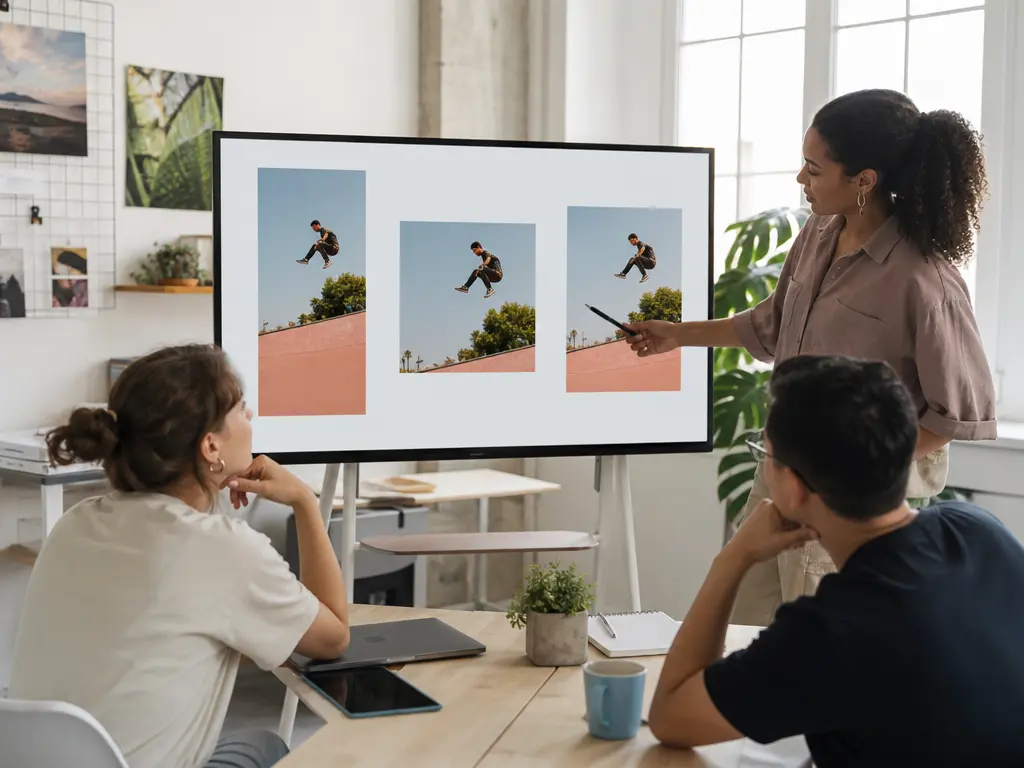
Write the starting idea or script. Add image, video, or audio references when they help define the visual or sound direction, and keep them in the workspace for reuse.

Prompt Led Video Direction
VideoAI turns a concept or script into a directed video while you choose the references, scenes, motion, camera, and sound.
Start with the decision your video needs to make, then direct the inputs and output around it.
A script can carry the message without showing the visual direction. Describe the scene, action, camera, and sound in VideoAI, then review a short draft that makes the concept visible.
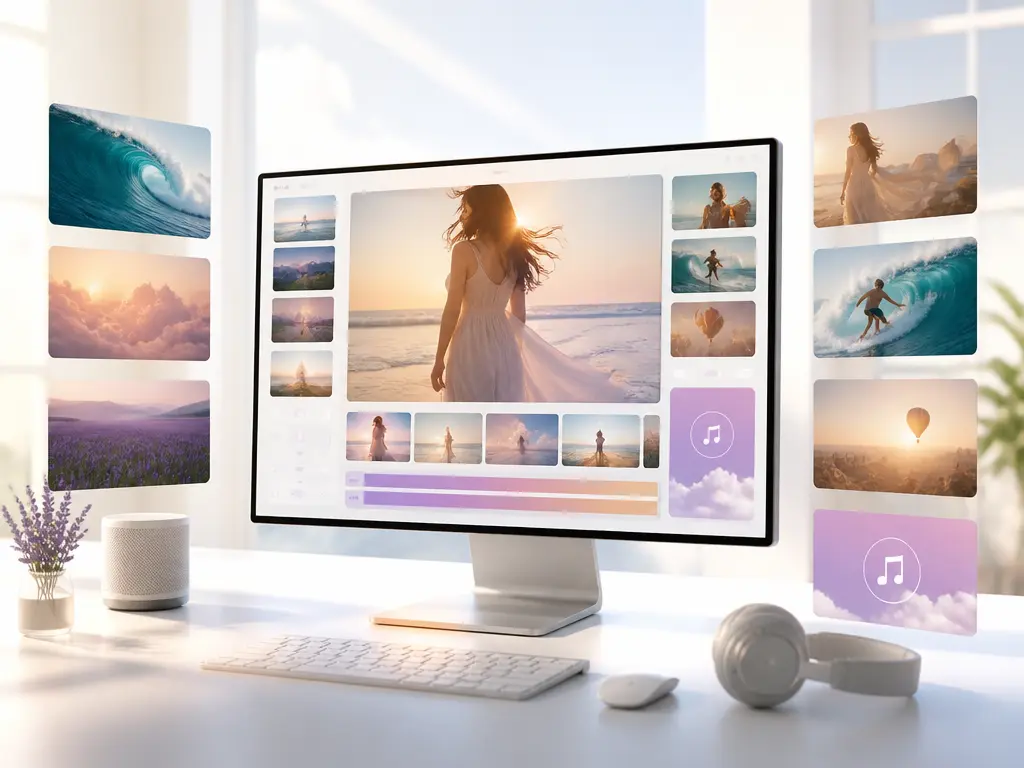
A product image, motion clip, and audio idea may each point somewhere different. Add them to the workspace, use @ to assign their roles, and shape one video with a clear creative direction.
Video branding may need vertical, square, and 4:5 versions. Choose 9:16, 1:1, or 4:5 before generating so each output fits the channel your team selected.
Use text and reference media to direct video branding, then return to the saved work as the brief develops.
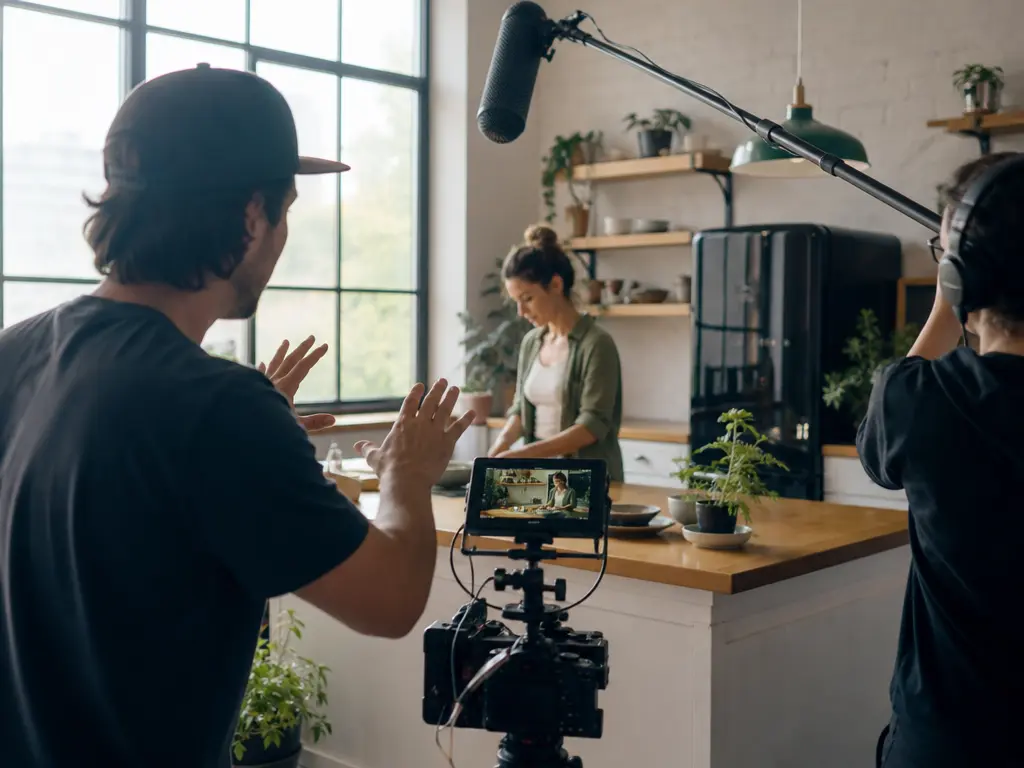
Video creators can start with a concept or script and set visual intent through prompts. VideoAI keeps the creator in charge of reference use, camera direction, movement, and sound, with saved work ready for another instruction.
Each control answers a practical production question, from what to reference to how to revise the result.
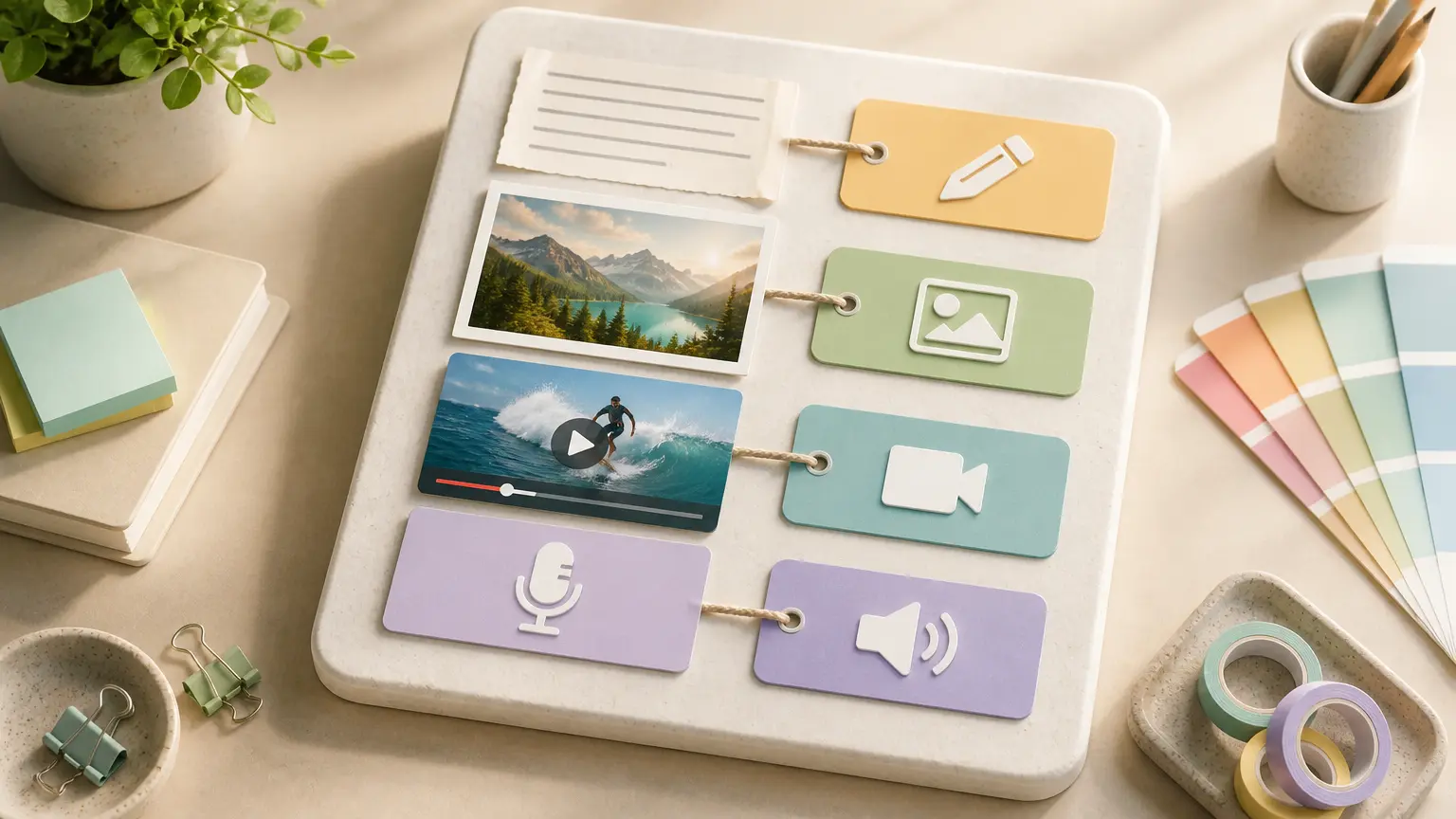
A clearer starting point emerges when each reference has a defined job. Add text, image, video, and audio references to the workspace, then use @ to assign their roles before generating with VideoAI.
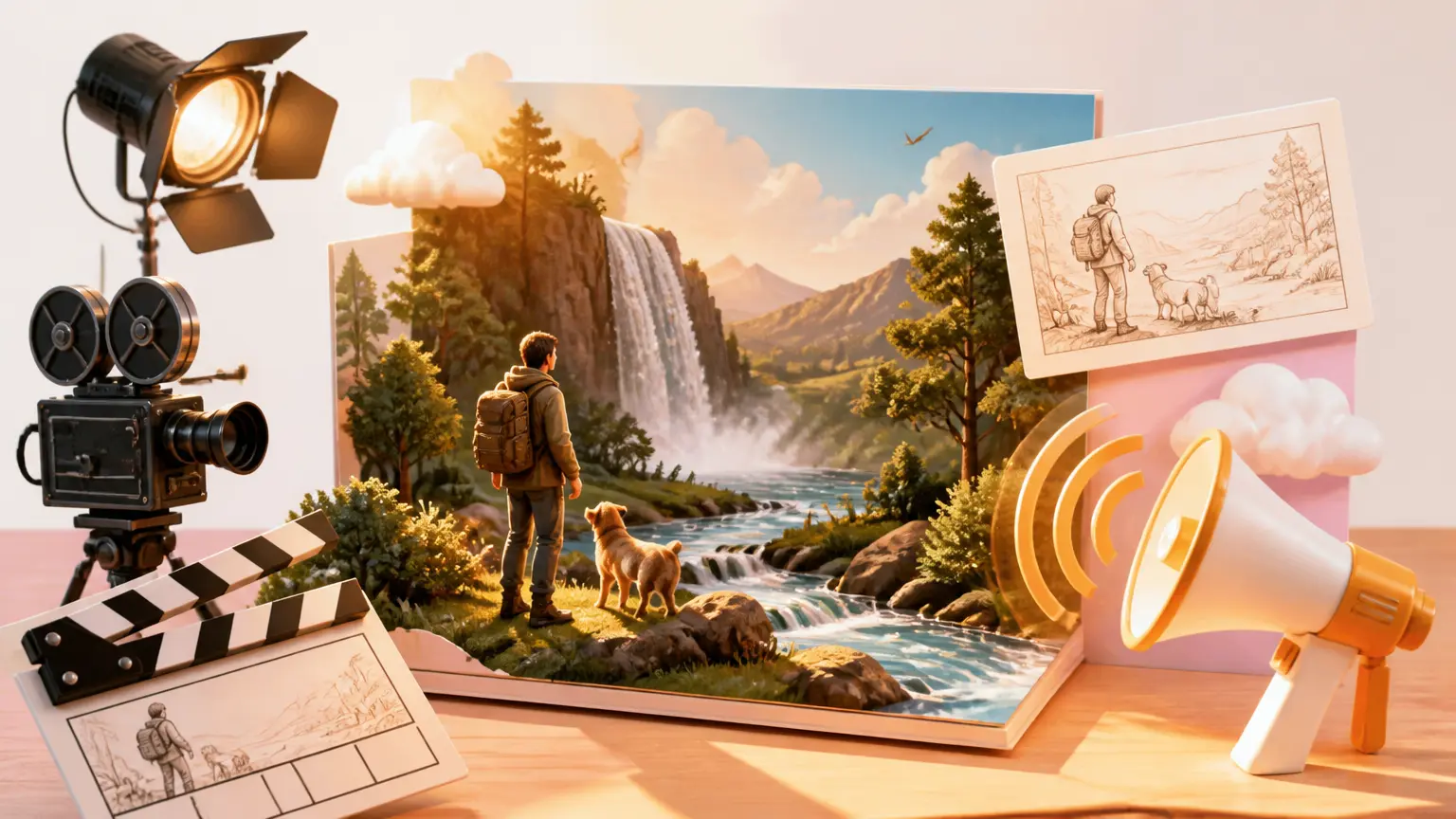
The generated shot follows a plan you can inspect. Describe the scene, action, camera, on screen text, and sound in your prompt, and VideoAI creates from that direction.
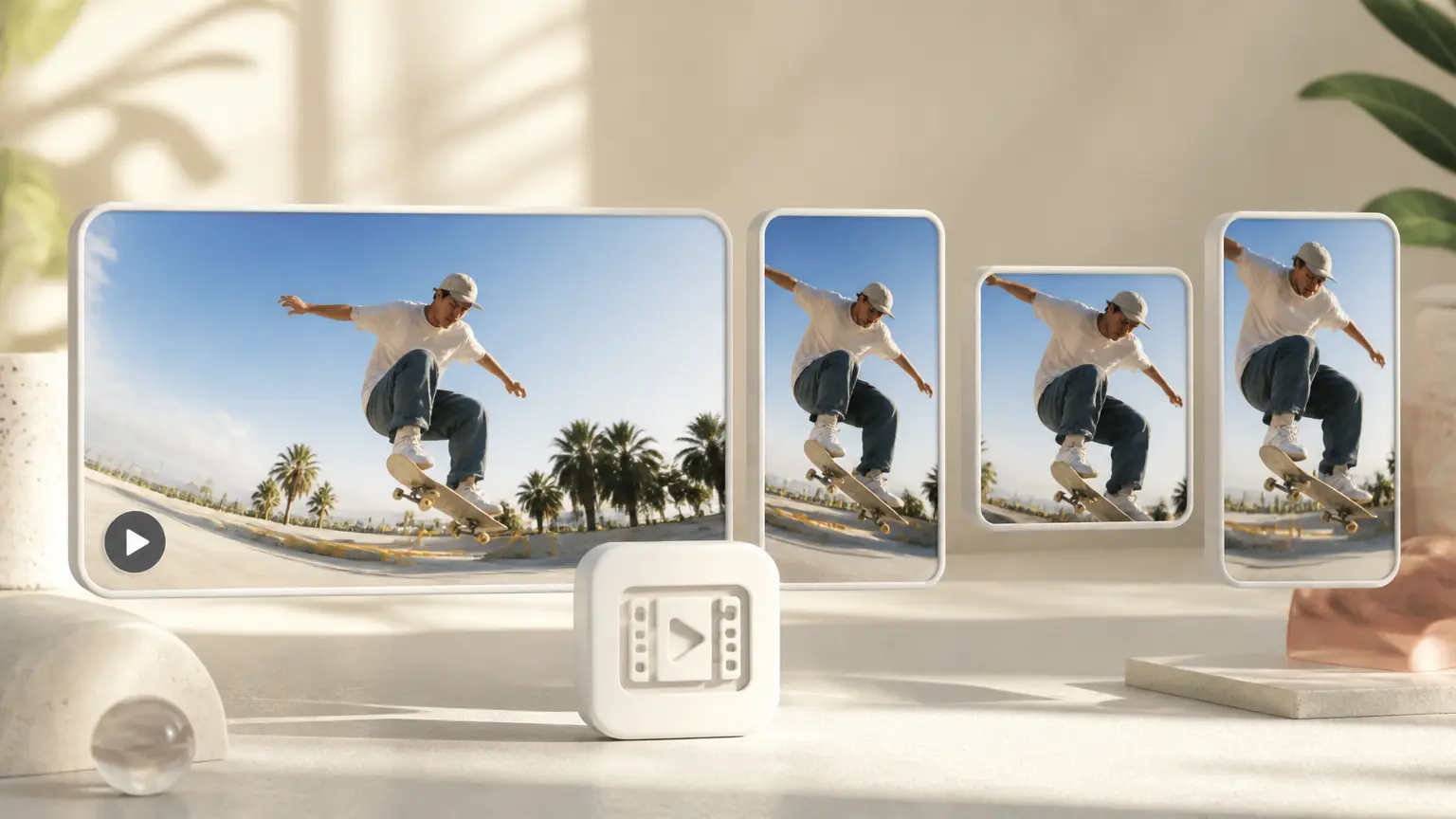
A defined frame and downloadable file make delivery easier. Choose 16:9, 9:16, 1:1, or 4:5, then download a 4K MP4 with no watermark for commercial use.
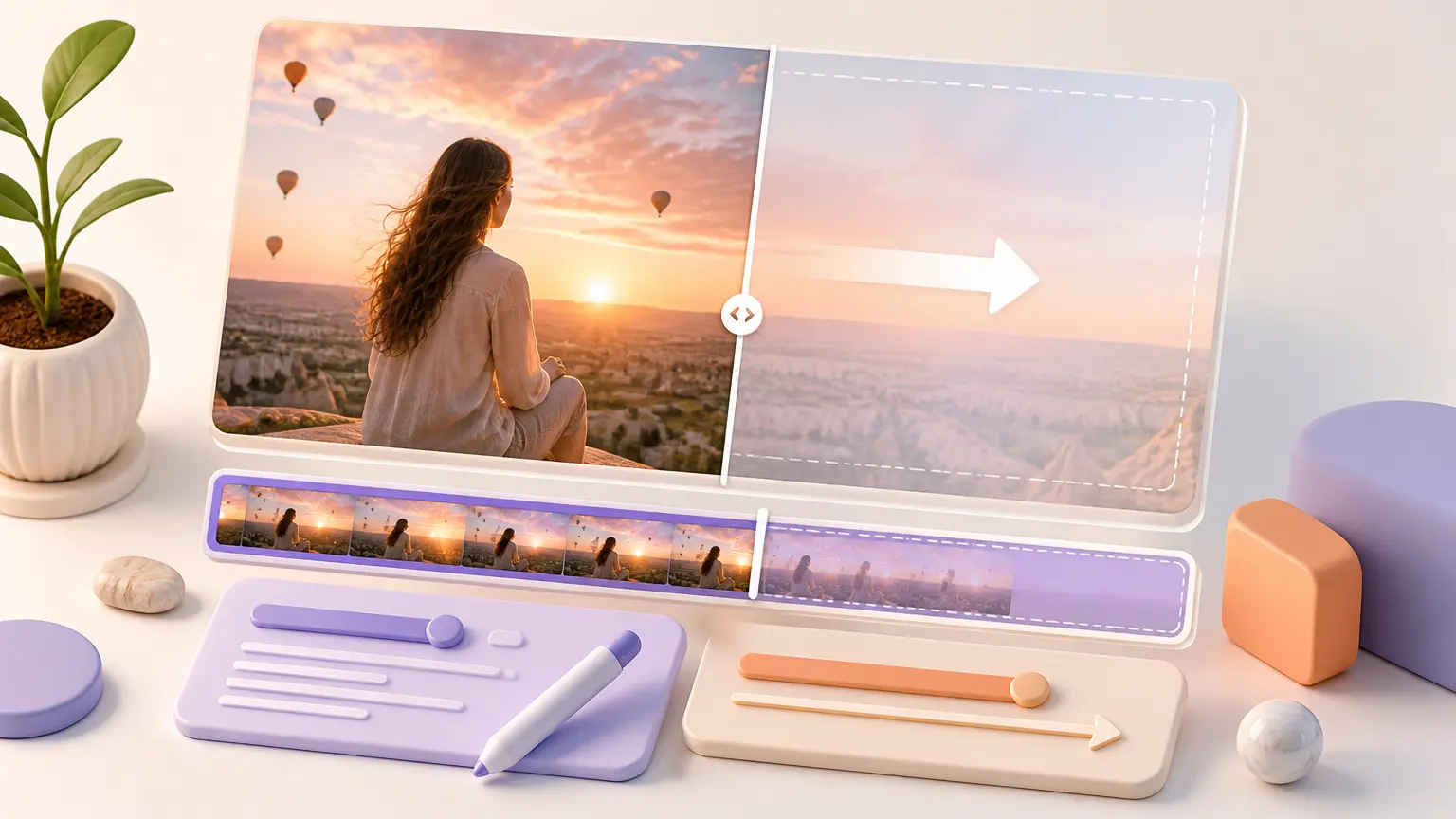
A revised scene stays connected to the saved project. Reopen generated work in the workspace, issue another text instruction, and extend a single generation that reaches up to 30 seconds when longer content needs more room.
The workflow keeps the creative decisions with you from first input through final download.
Step 01
Write the starting idea or script. Add image, video, or audio references when they help define the visual or sound direction, and keep them in the workspace for reuse.
Step 02
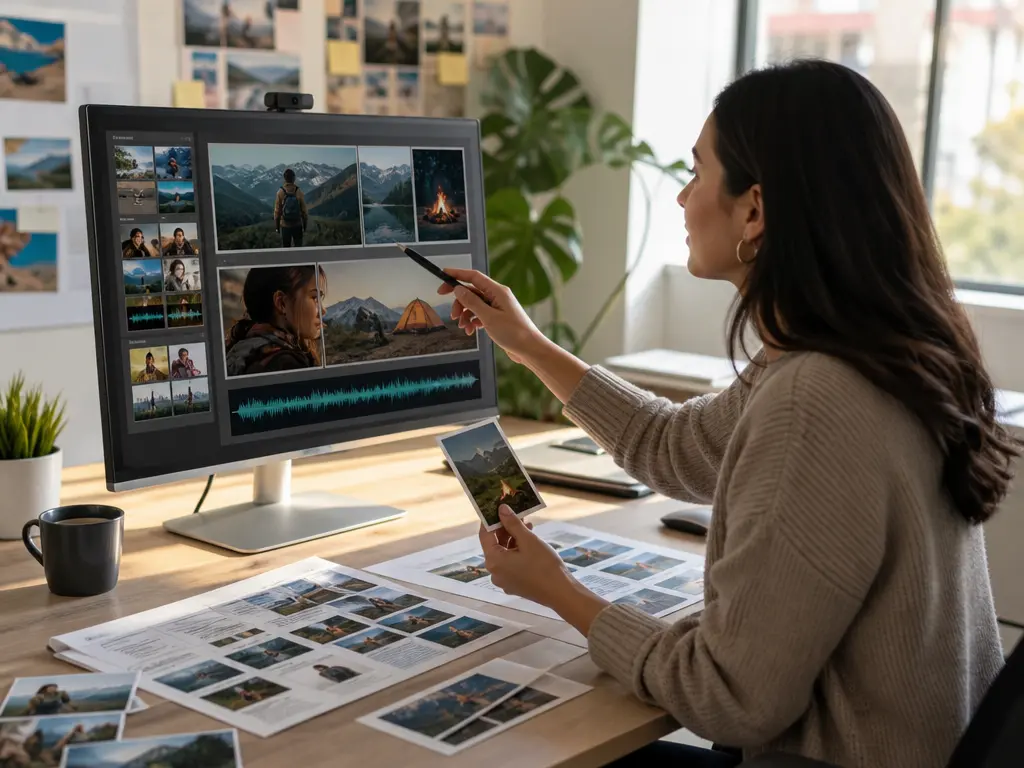
Use @ to name what each reference should do, then describe the scene, action, camera, on screen text, and sound in your prompt. Your direction sets the arrangement.
Step 03
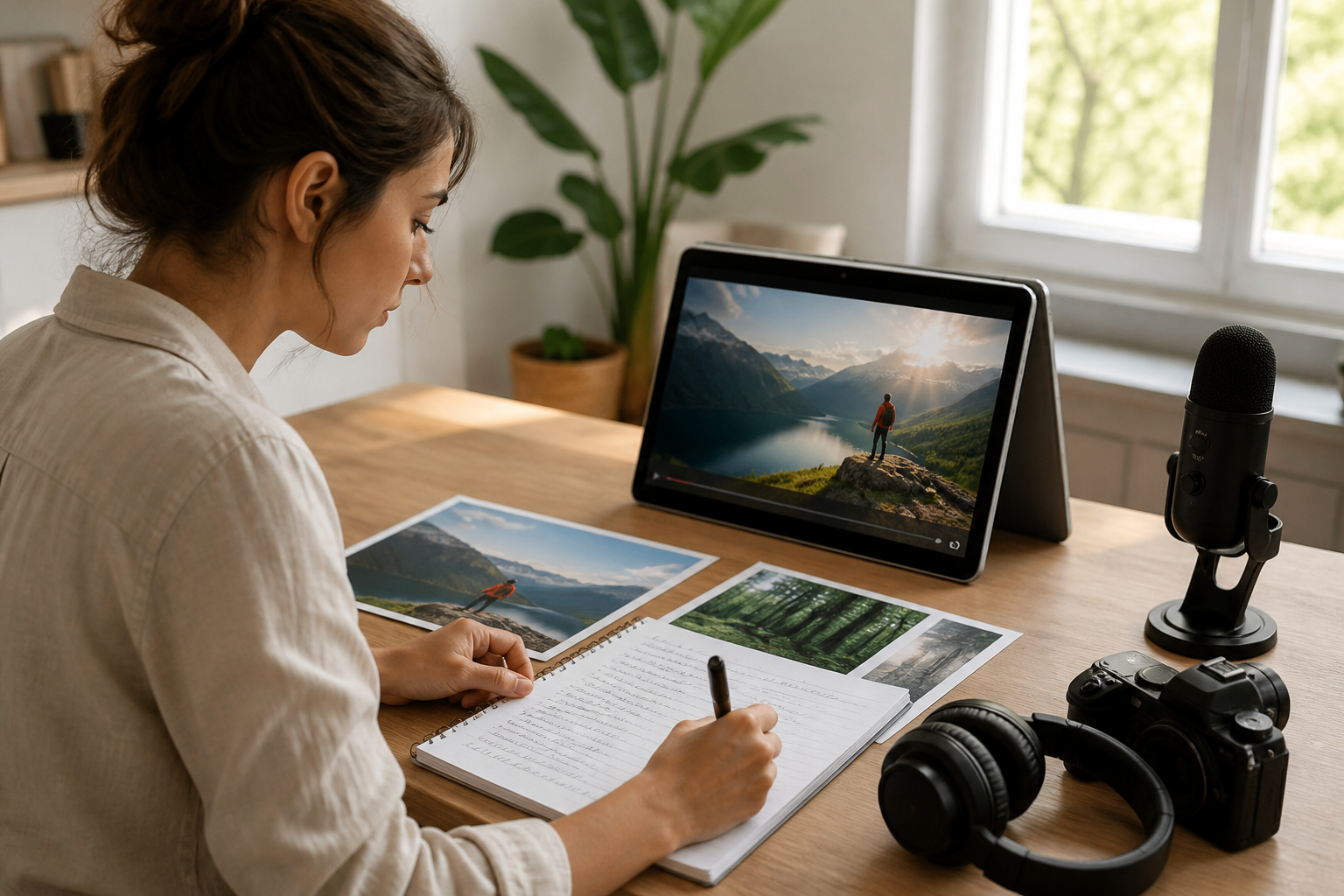
Submit the instruction, review the result, and return to saved work for another text change. Download the selected 4K MP4 output, or continue with video extension for longer content.

Bring a concept, script, or reference set to VideoAI and shape the first video direction with your own prompt.
Get Started