
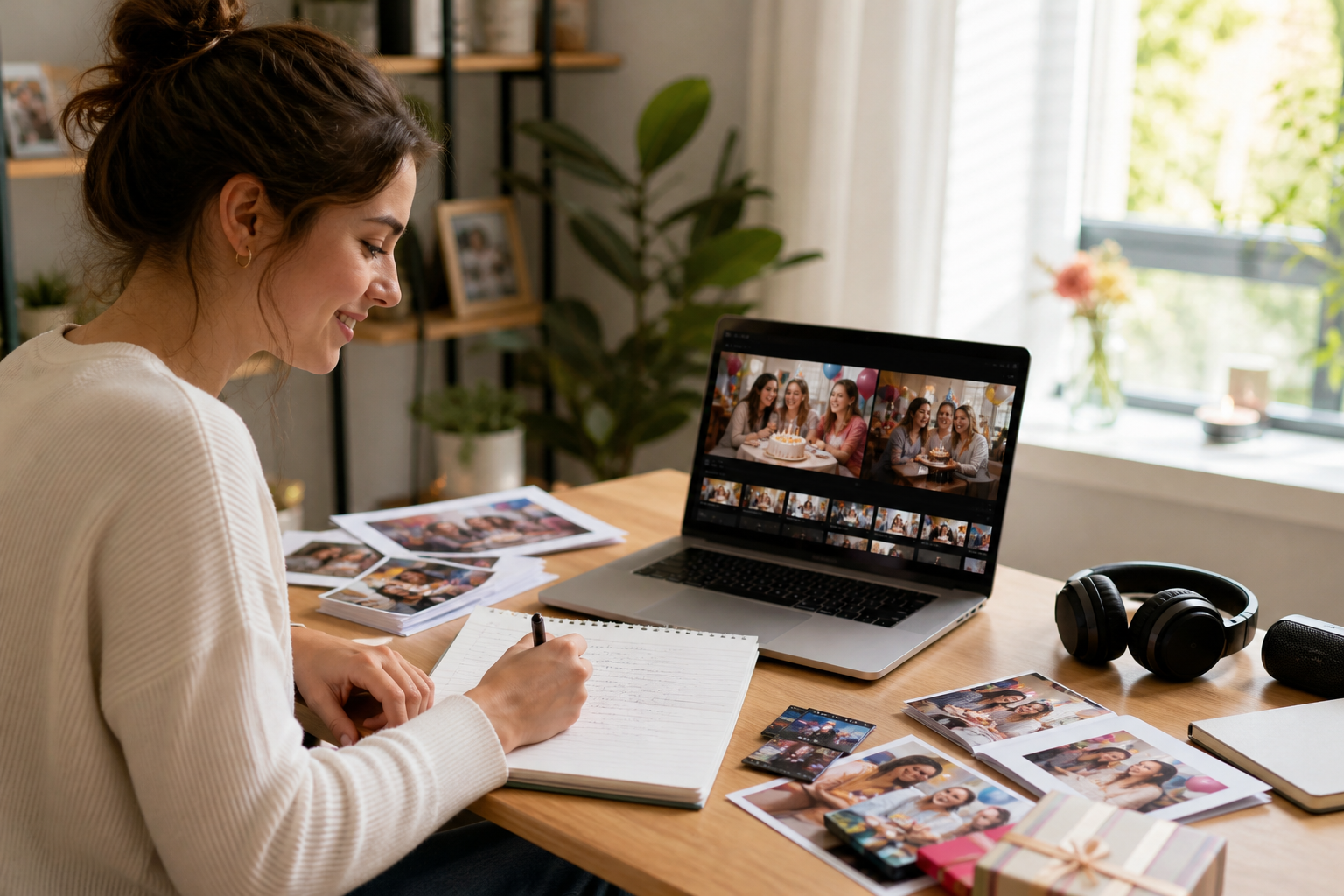
Step 01
Start with a concept or script
Write the idea or script for your video, then add image, video, or audio references when they support the direction. Uploaded materials enter the workspace so you can reuse them during the project.

Prompt driven birthday video creation
Build a happy birthday edit by directing the scene, motion, sound, and reference materials you want to keep.
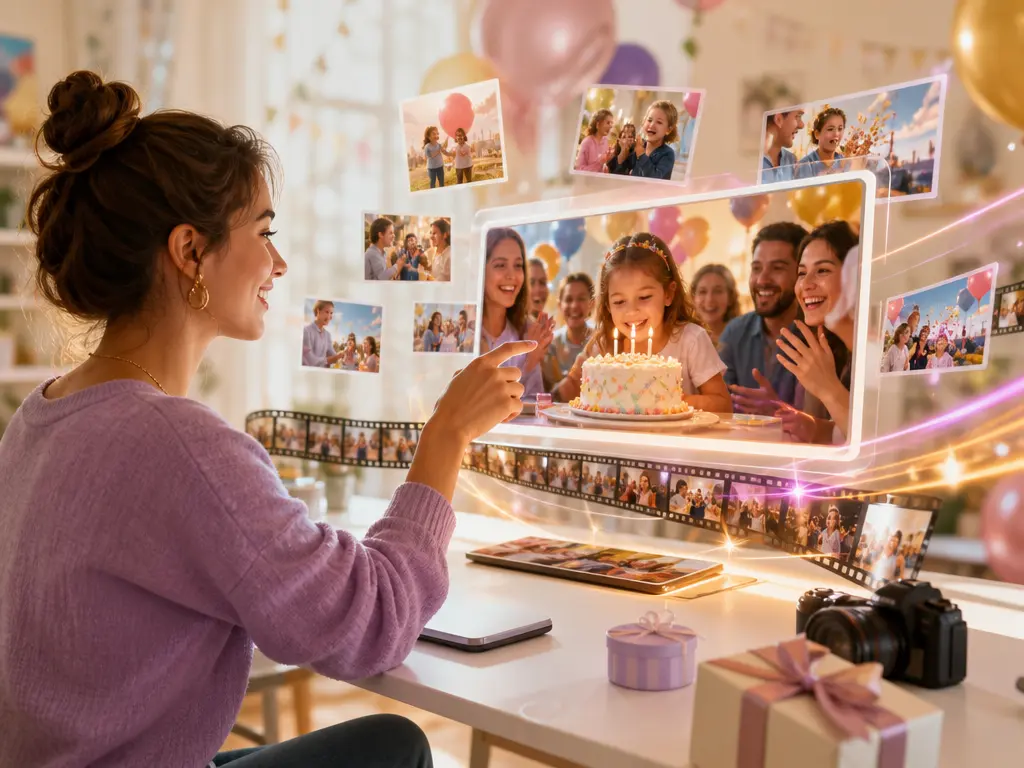
Use the same directed workflow for different creative starting points and delivery needs.
A creator has a birthday message but only a rough script. They use VideoAI to turn the idea into a happy birthday edit, then review the generated scene before refining the saved result.
When photos, video clips, and audio each carry part of a memory, a user combines them in the workspace and assigns their roles with @. The result is a birthday edit shaped around the selected references.
A social team needs a celebratory video for several placements. They choose the suitable aspect ratio for each planned destination and download MP4 output that matches the way the content will be shown.
A marketer needs a short campaign concept with clear visual and sound direction. They describe the camera, action, text, and audio in the prompt, then use the saved result as the next step in birthday video editing.
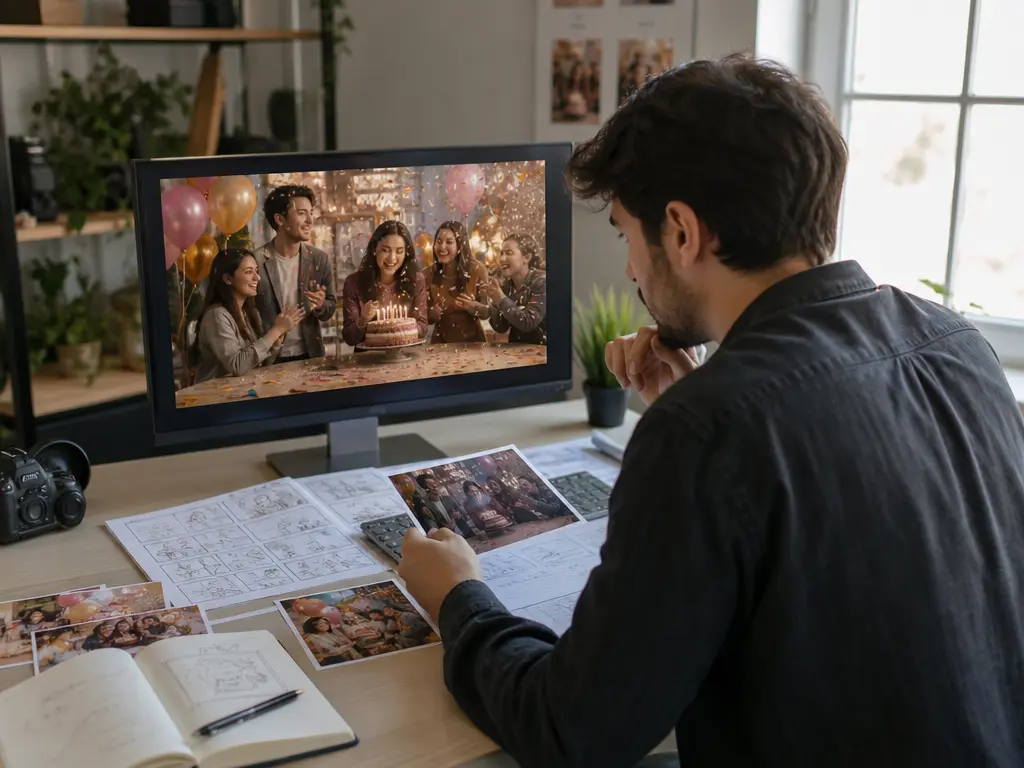
A creator planning a happy birthday edit can start from a concept or script, add selected references, and direct the scene through a detailed prompt. VideoAI helps turn those decisions into a video draft they can review and refine.
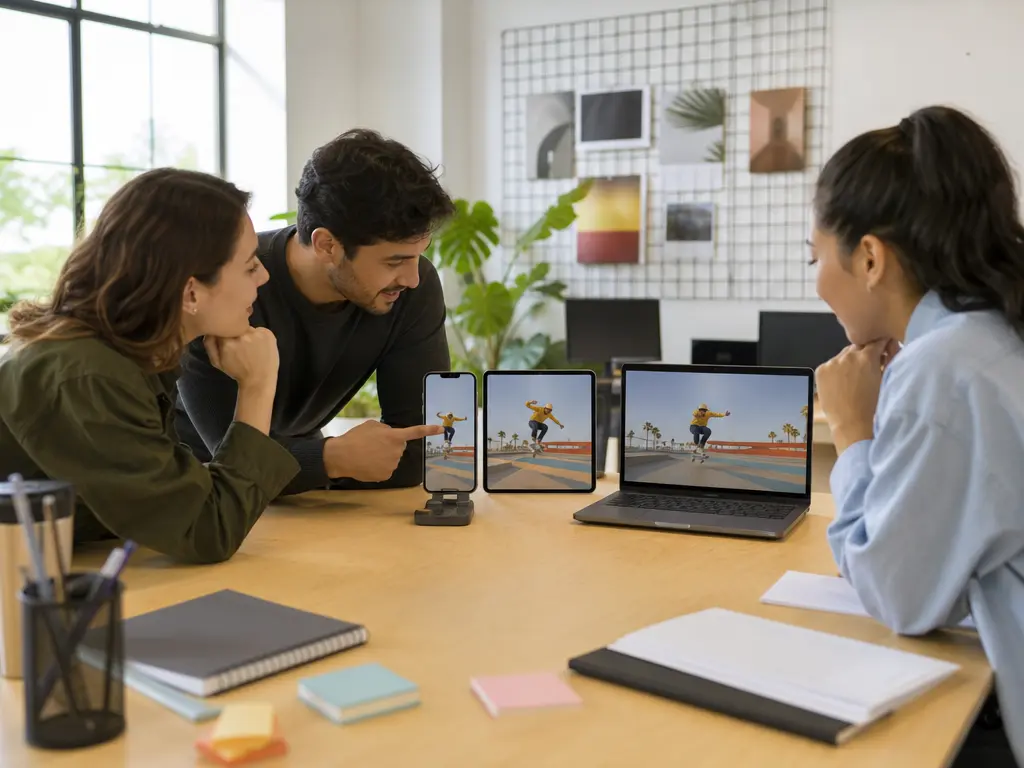
Social teams can prepare a birthday edit for portrait, square, or landscape placements by choosing 9:16, 1:1, or 4:5 alongside 16:9. The selected format keeps the output aligned with its planned destination.
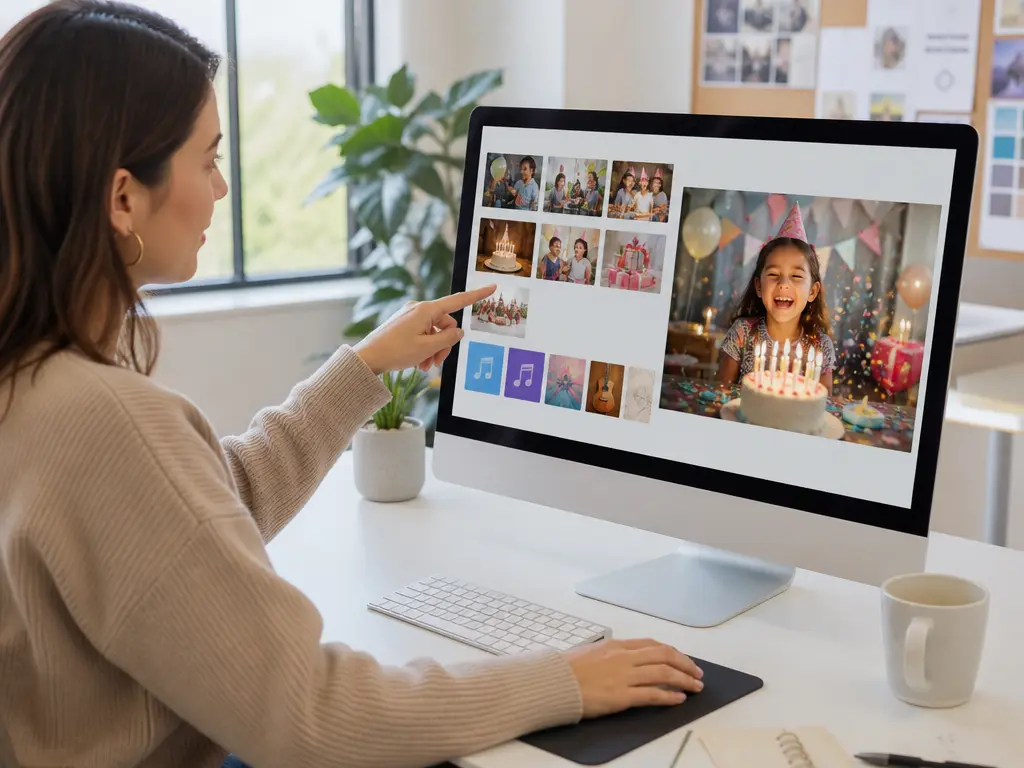
When a campaign starts with photos, video clips, or audio, marketers can place the materials in the workspace and use @ to assign each purpose. VideoAI keeps the creative direction connected to the references the user selected.
Set the creative direction, choose the output, and keep working from the saved result.
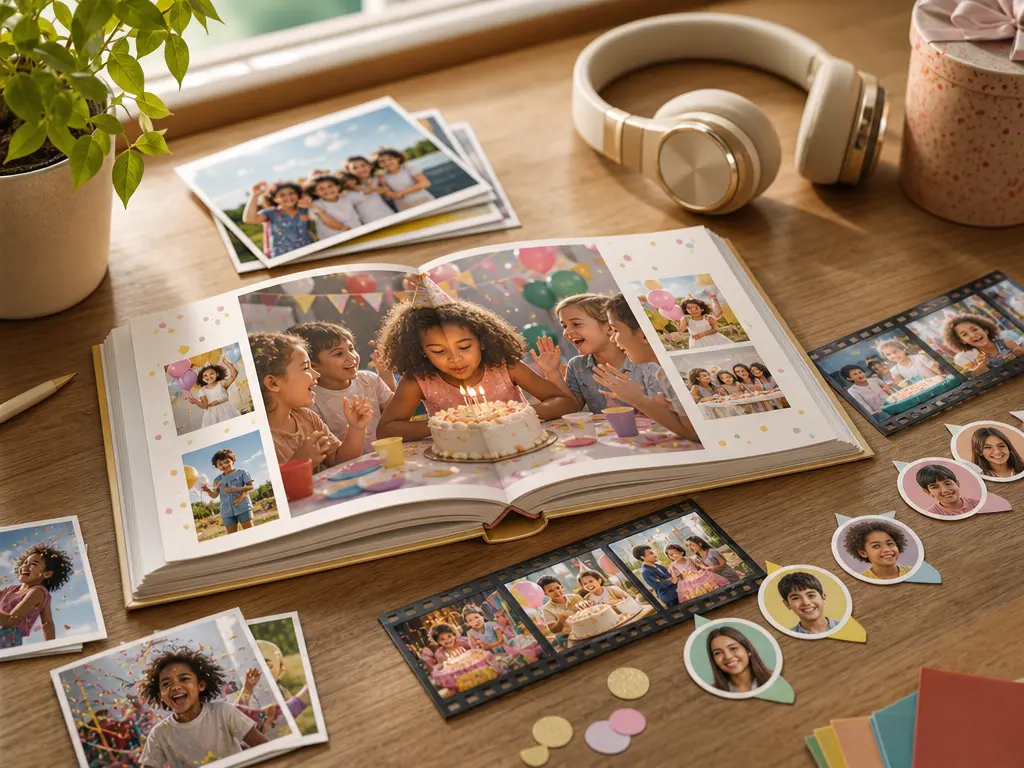
For a happy birthday edit, your scene can follow a text idea while using chosen photos, video clips, and audio. Add each reference to the workspace and use @ to assign its role before VideoAI generates the result.

The finished sequence reflects the scene, action, camera, on screen text, and sound direction you describe. Write the prompt and arrange the creative decisions so VideoAI follows the direction you planned.
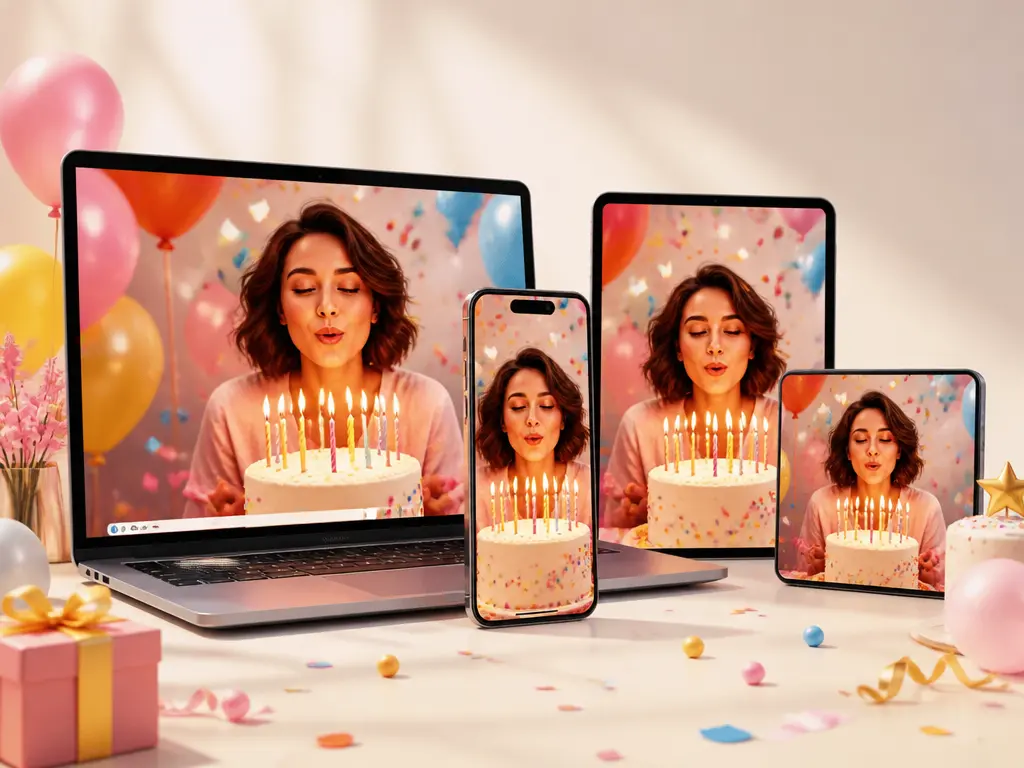
A ready MP4 arrives in the aspect ratio that fits its destination: 16:9, 9:16, 1:1, or 4:5. Choose 4K when you need a higher resolution file for your birthday edits.
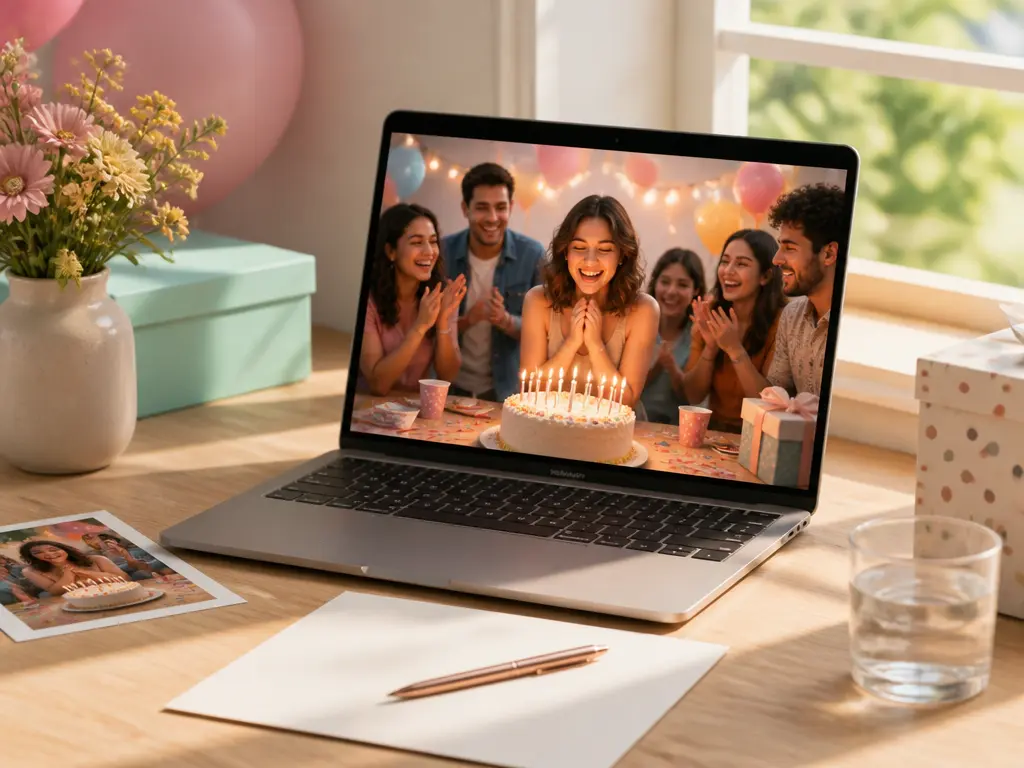
A saved result stays in your workspace for another pass. Return to the happy birthday edit, give VideoAI a new text instruction, and guide the next version from what you already made.
Move from an idea to an MP4 by supplying references, directing the generation, and refining the saved result.
Step 01
Write the idea or script for your video, then add image, video, or audio references when they support the direction. Uploaded materials enter the workspace so you can reuse them during the project.
Step 02
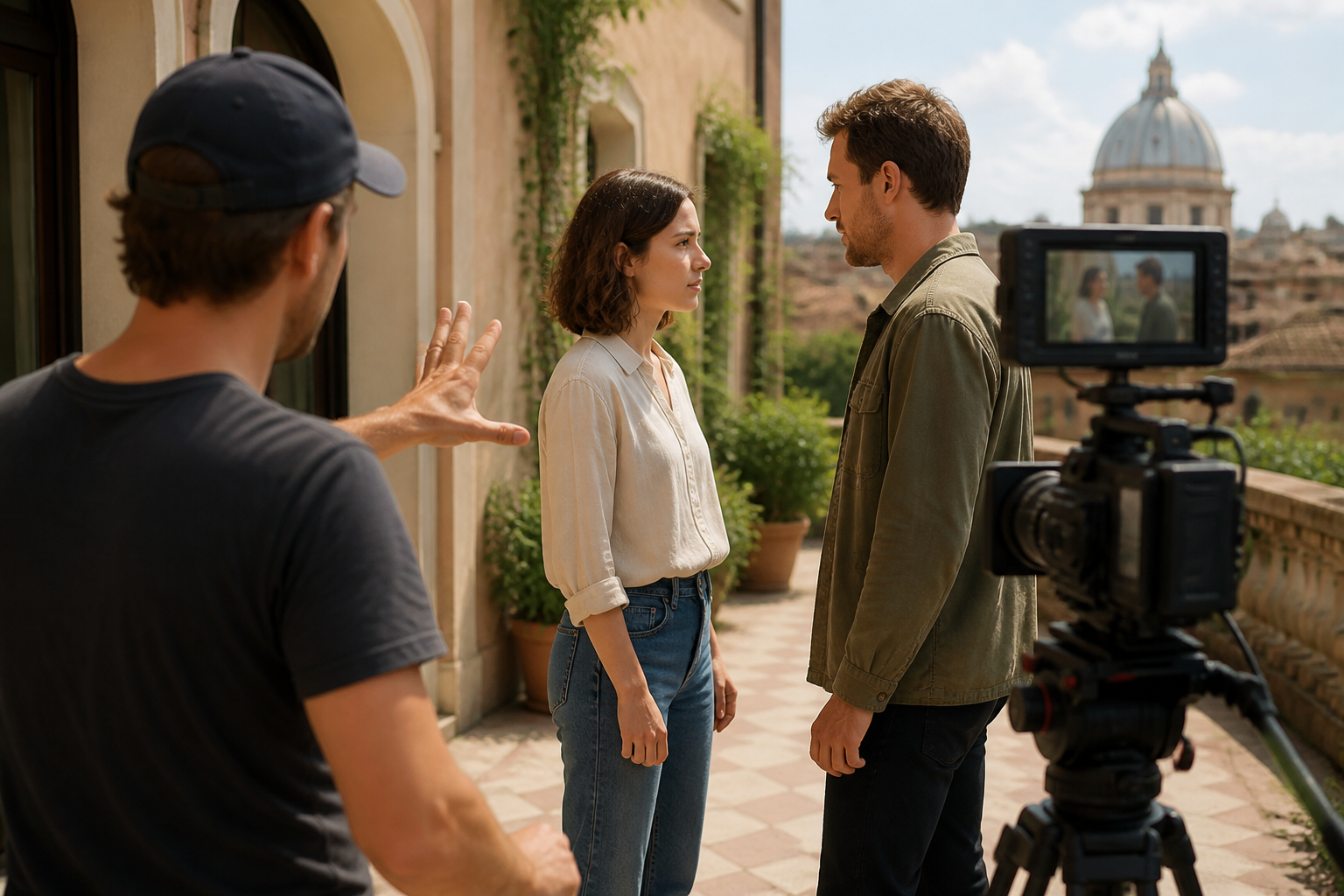
Use @ to tell VideoAI what each reference should guide. In the same prompt, describe the scene, action, camera movement, on screen text, and sound you want to see in the result.
Step 03
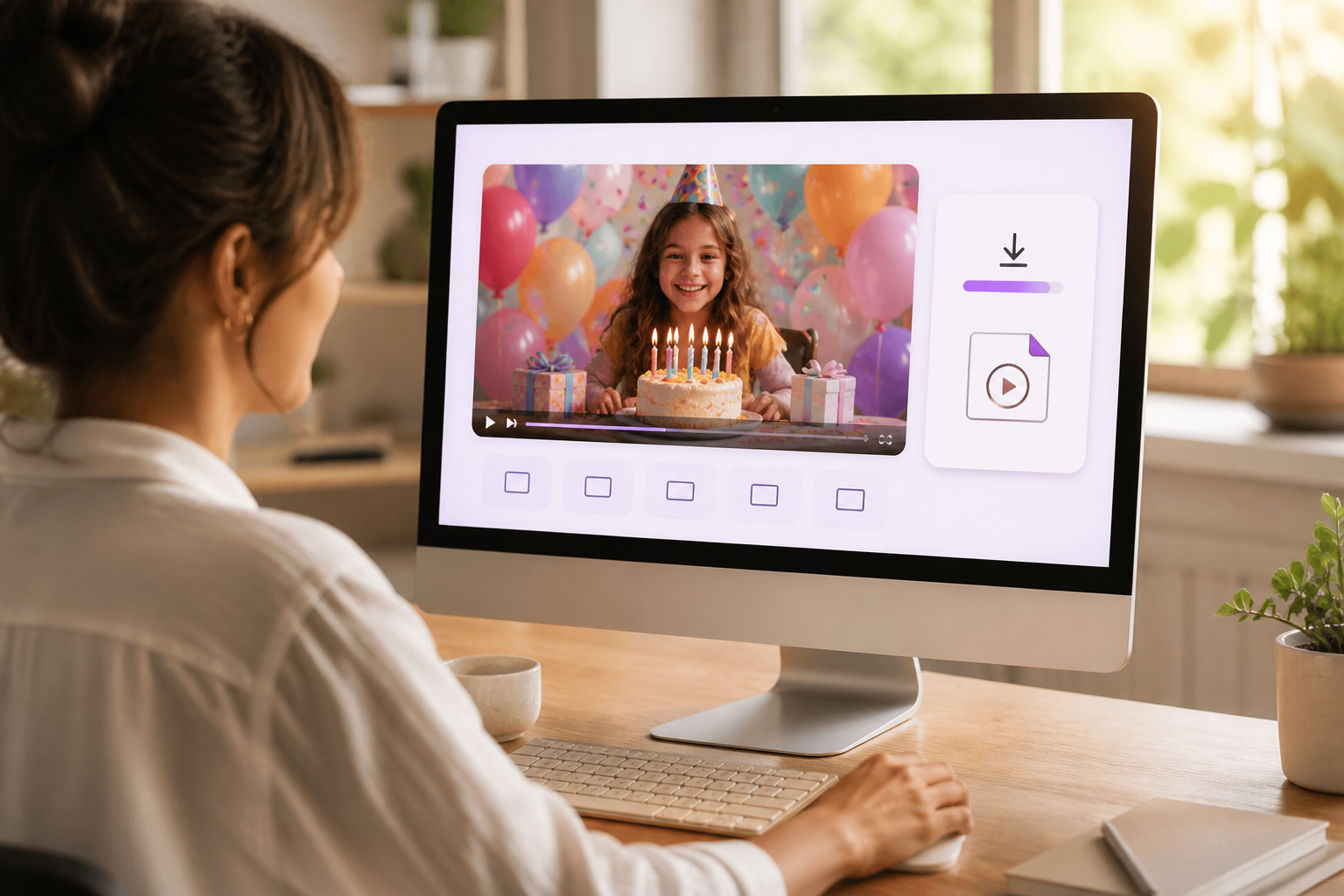
Submit the instruction and review the generated video. Return to the saved work with another text instruction when the direction needs adjustment, then choose an aspect ratio and download the 4K MP4. Longer content can continue through video extension.

Add a concept or reference, direct the result, and download your MP4.
Get Started