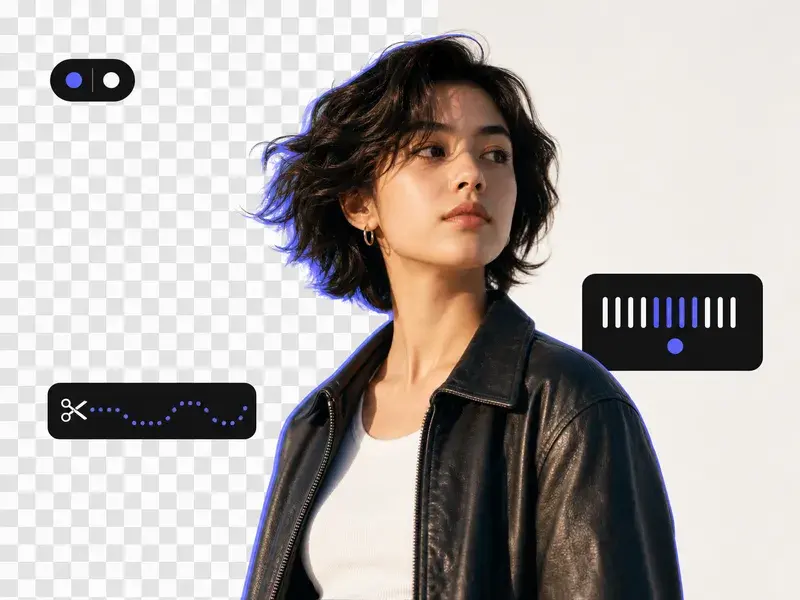
Step 01
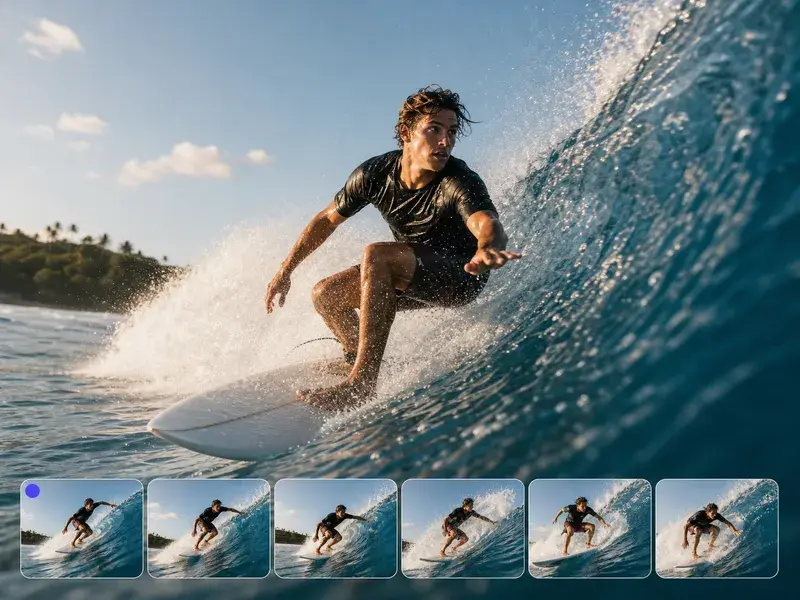
Upload Your Footage and Sound
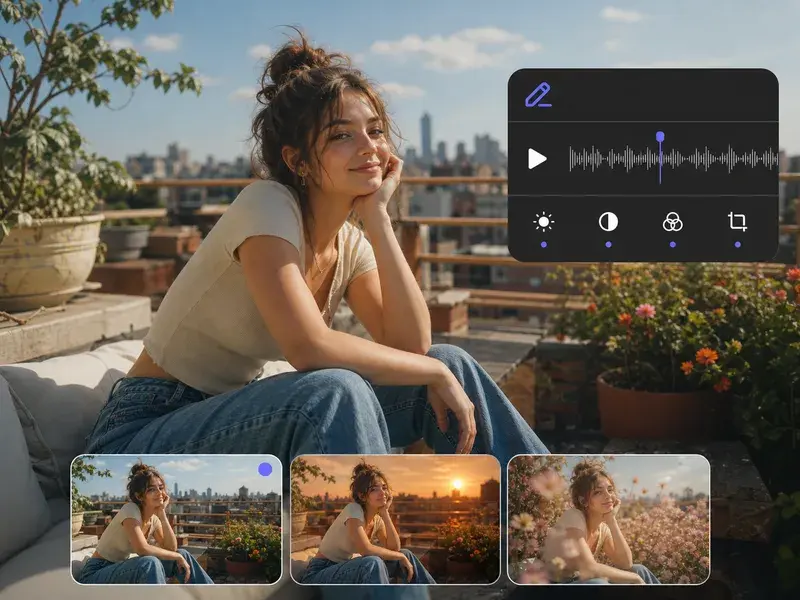
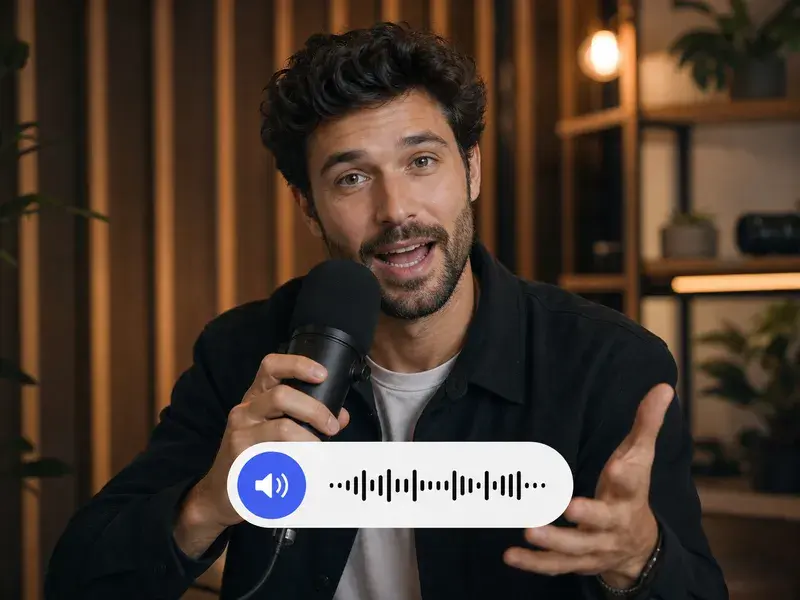
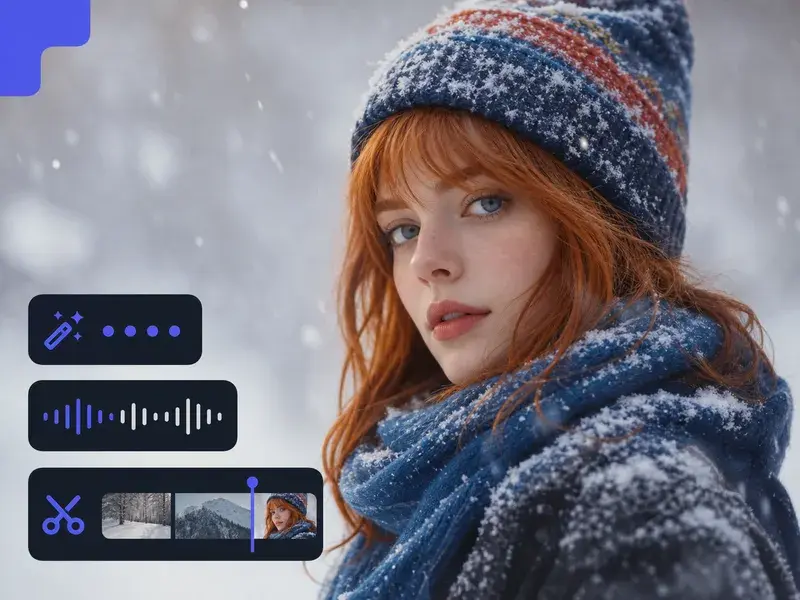
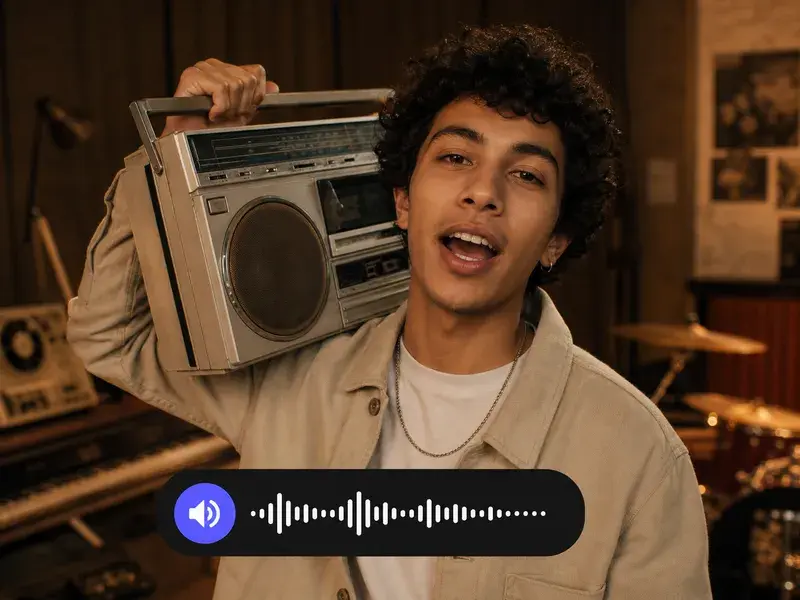
Bring in the pieces the outro maker needs for this ending, such as clips, photos, your logo, and the music or voice you want behind it. You can add up to 3 videos and 3 audio files, with 12 assets in total and each video under 50MB, and everything you upload stays in your workspace to reuse later.
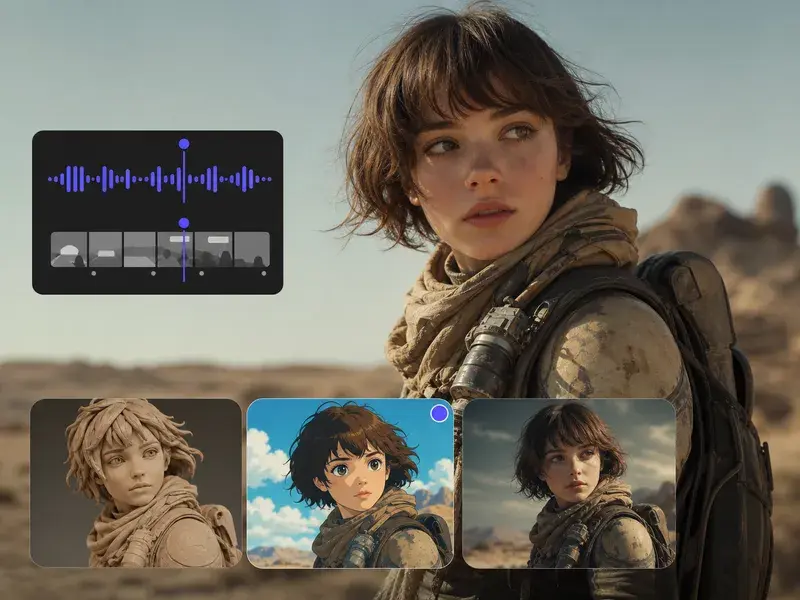
Step 02
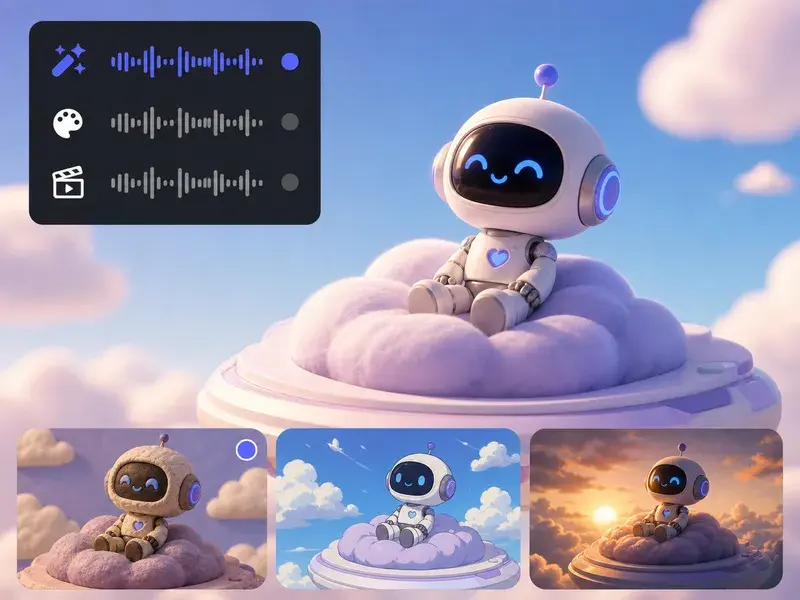
Direct the Ending Second by Second
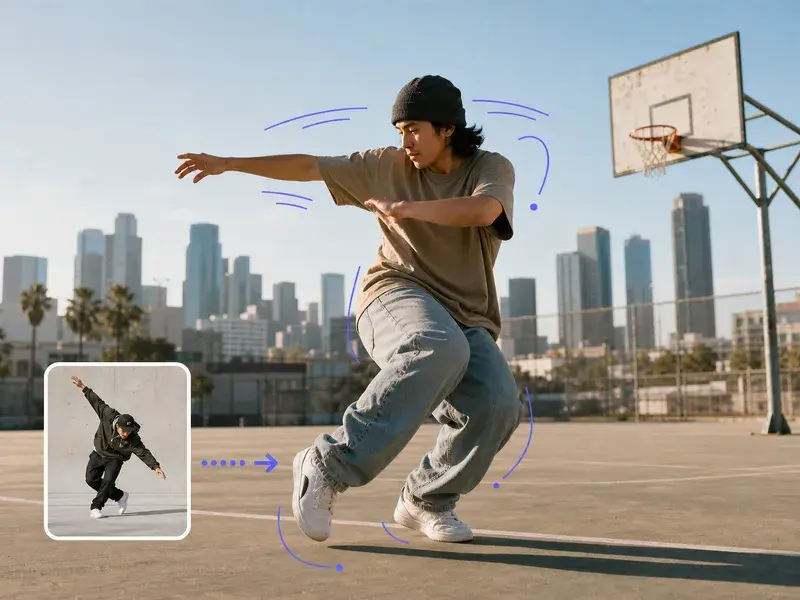
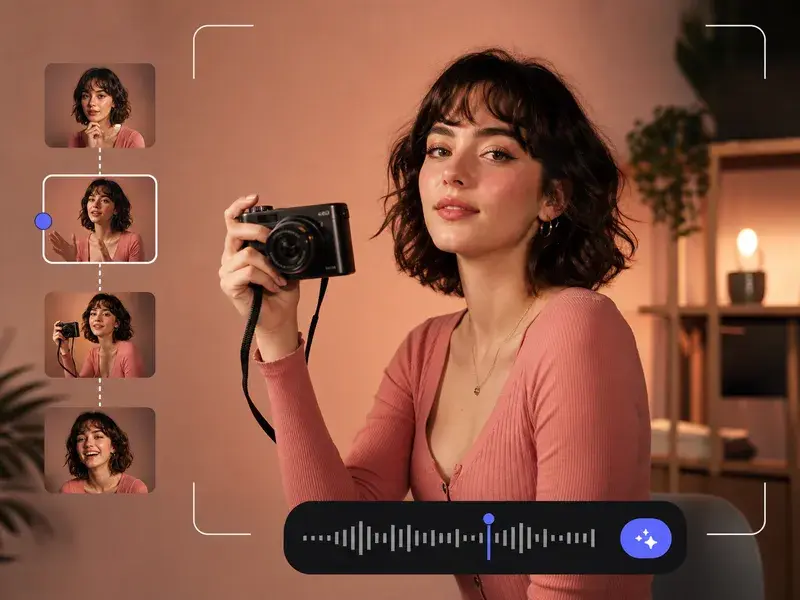
Write what each stretch of time should show, for example a held logo for the first 3 seconds and the channel name with a subscribe line after that. You point each asset at its job with an @ mention, set the frame to 16:9 or 9:16, and mark the corner to keep clear, so the outro maker gives you control second by second.
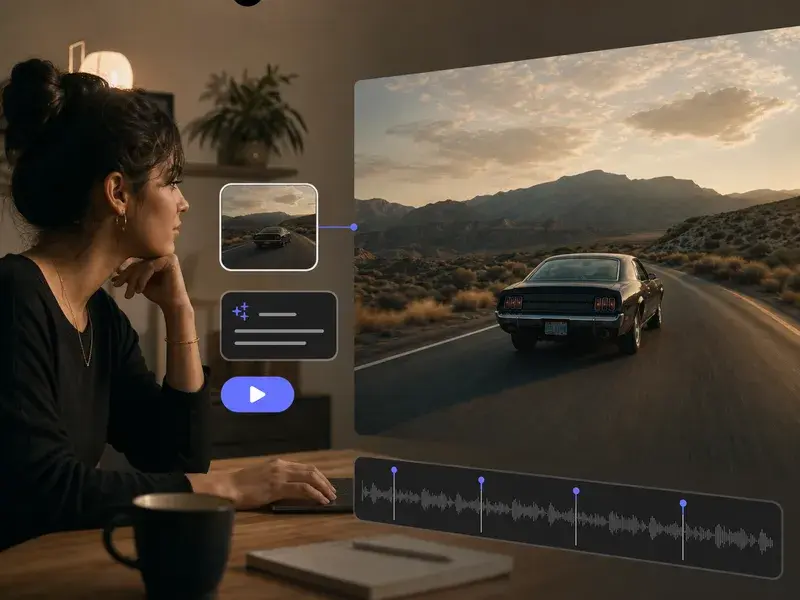
Step 03
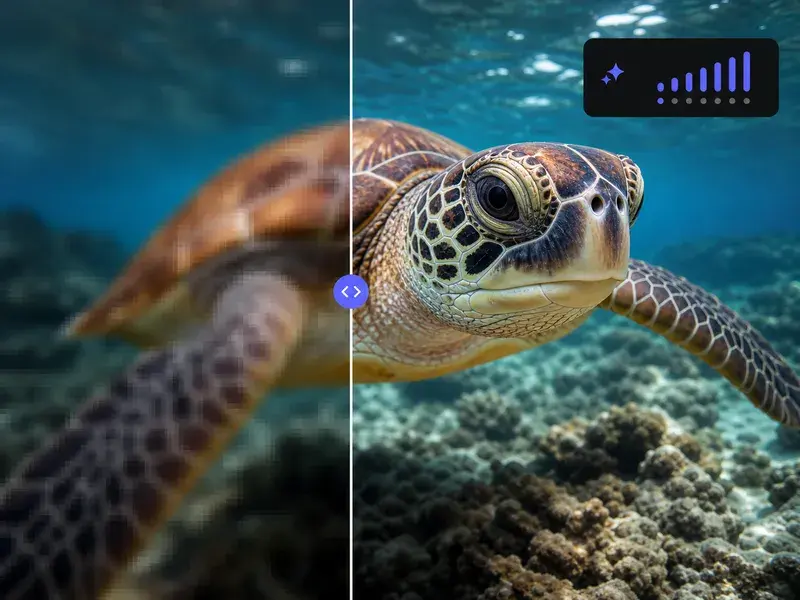
Generate, Download, and Reuse
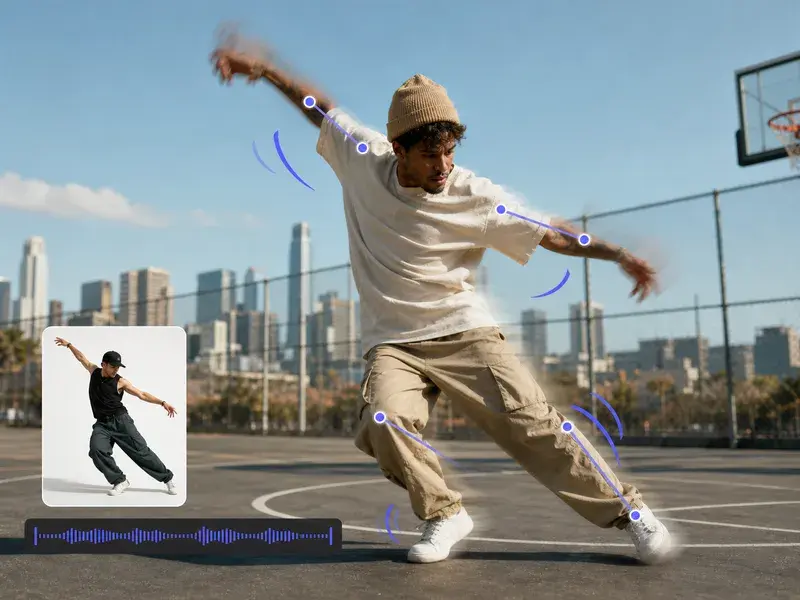
The tool renders a single outro clip between 4 and 15 seconds long, about the length an ending runs. You download it from the outro maker without a watermark, drop it after the main footage in your own edit, and keep the same clip on every upload that follows.