
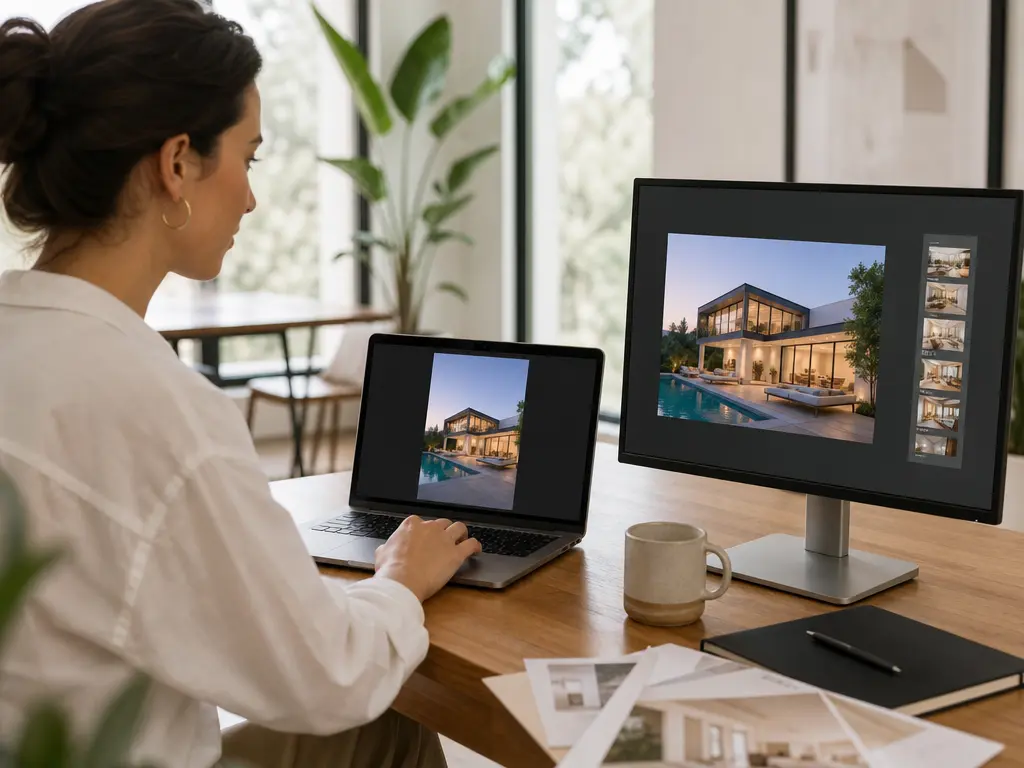
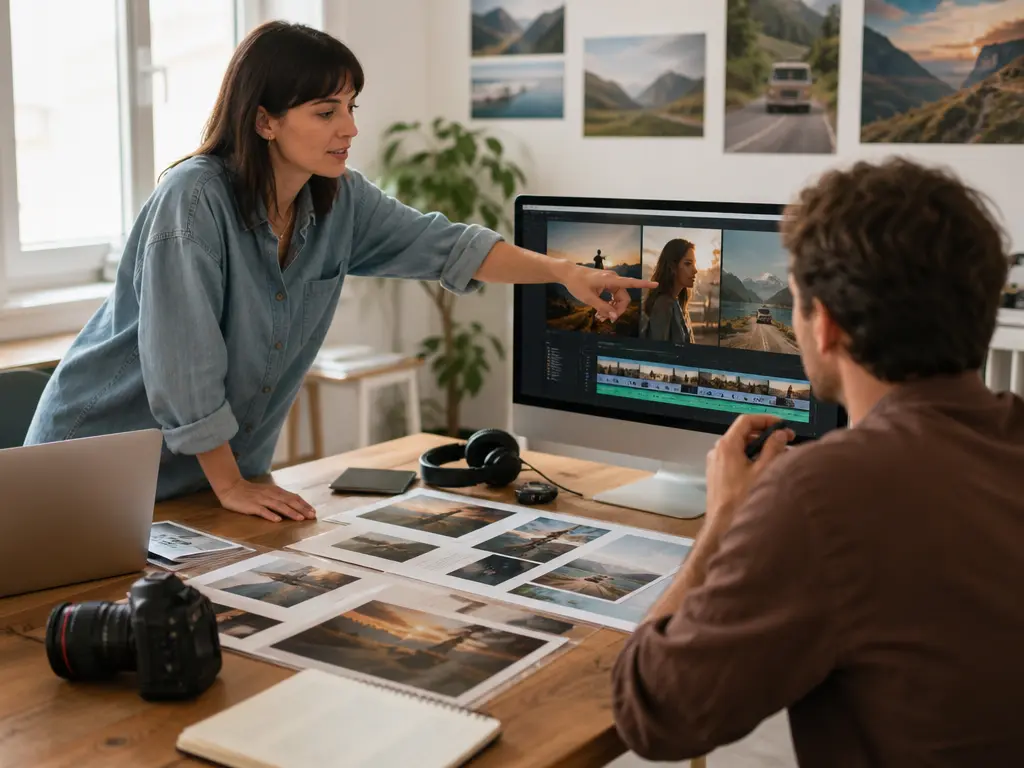
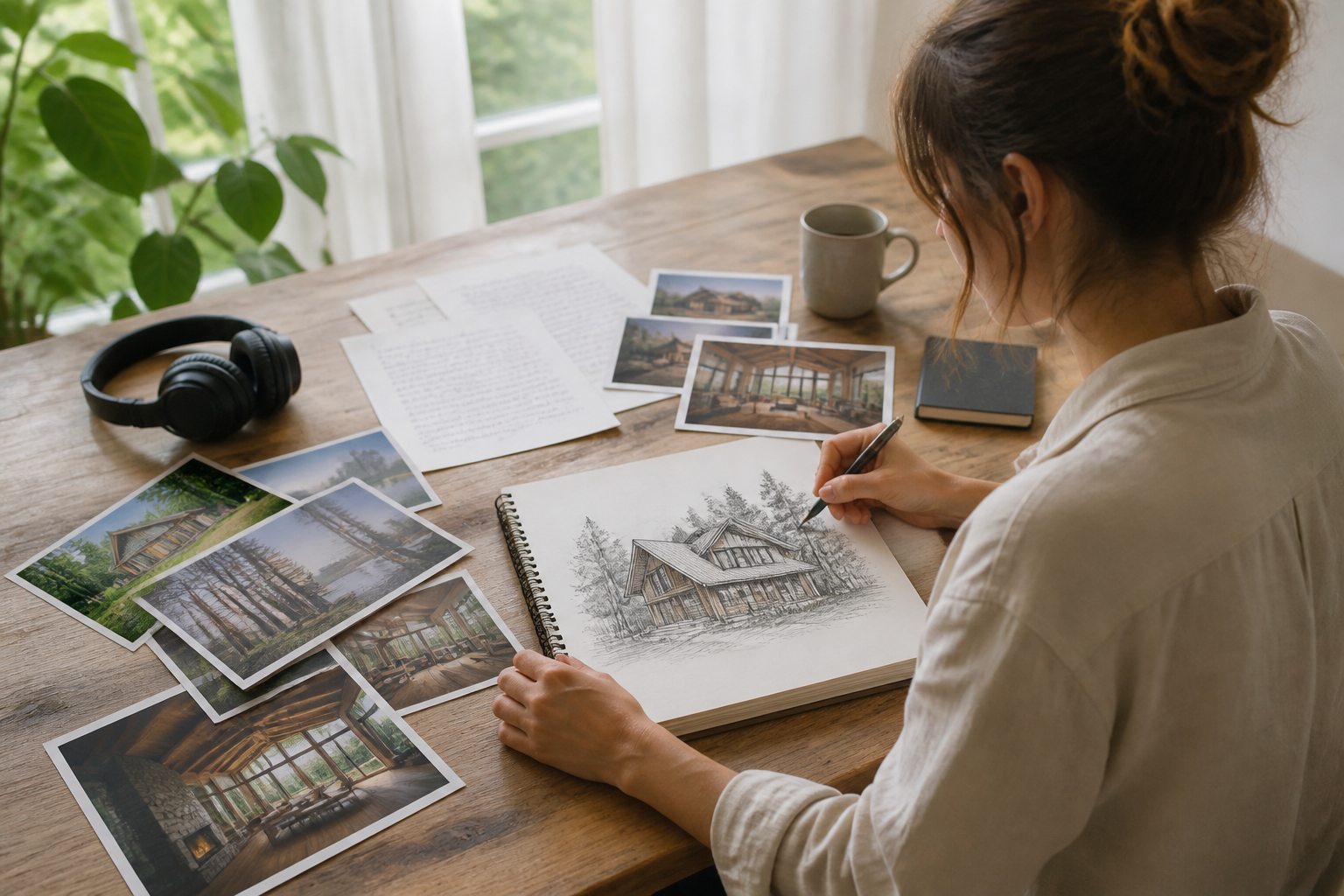
Step 01
Start With A Concept And References
Enter a text concept or script. Add image, video, or audio references when they help define the property, visual direction, movement, or sound, then keep them in the workspace for reuse.

Prompt led property video creation
With VideoAI, turn a property concept into a directed walkthrough video while you choose the references, shots, actions, and sound.
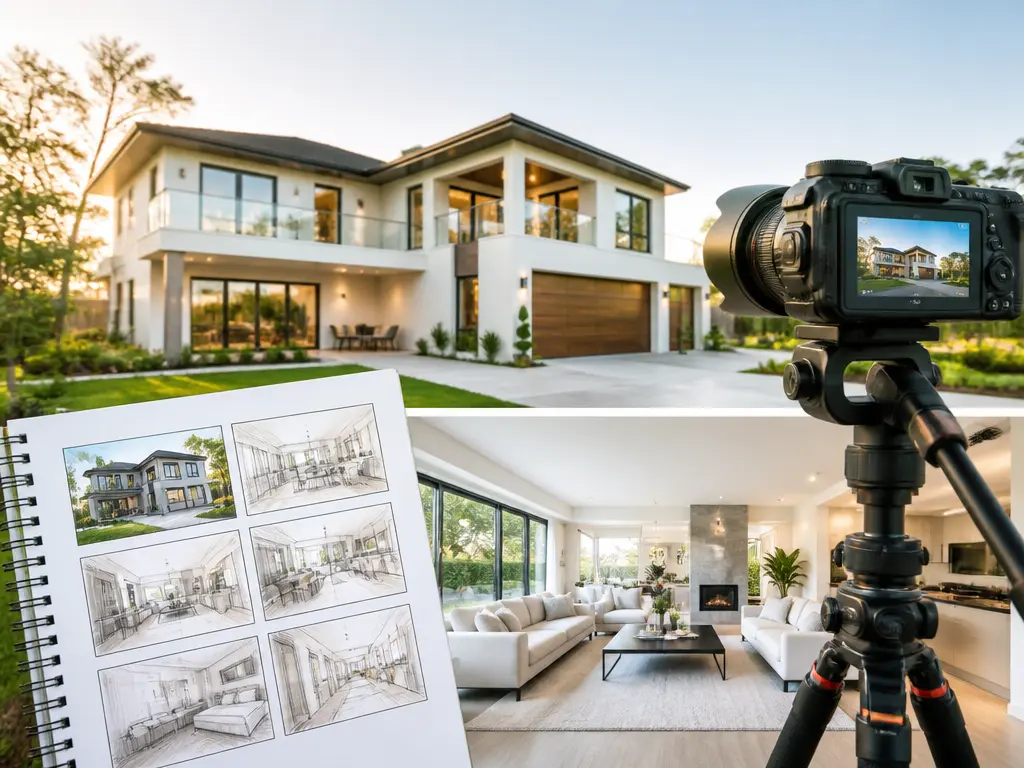
Move from an idea to a practical draft when the story, references, or format still need decisions.
A listing team starts with a script for a house tour video. In VideoAI, real estate walkthrough video takes shape as they describe the rooms, movement, camera direction, and sound, then receive a short draft they can inspect and refine.
When room photos, a clip, and an audio reference need one visual direction, add them to the workspace and use @ to assign each purpose. The result is a real estate video walkthrough shaped by your chosen inputs.
A content team needs a real estate walk through video for multiple feeds. Set 9:16, 1:1, or 4:5 before generation, then direct the concept for the format each channel needs.
An agent preparing real estate video tours wants each version to follow a clear property story. Build the sequence from a prompt and reference material in VideoAI, then review the saved result before downloading the version you need.
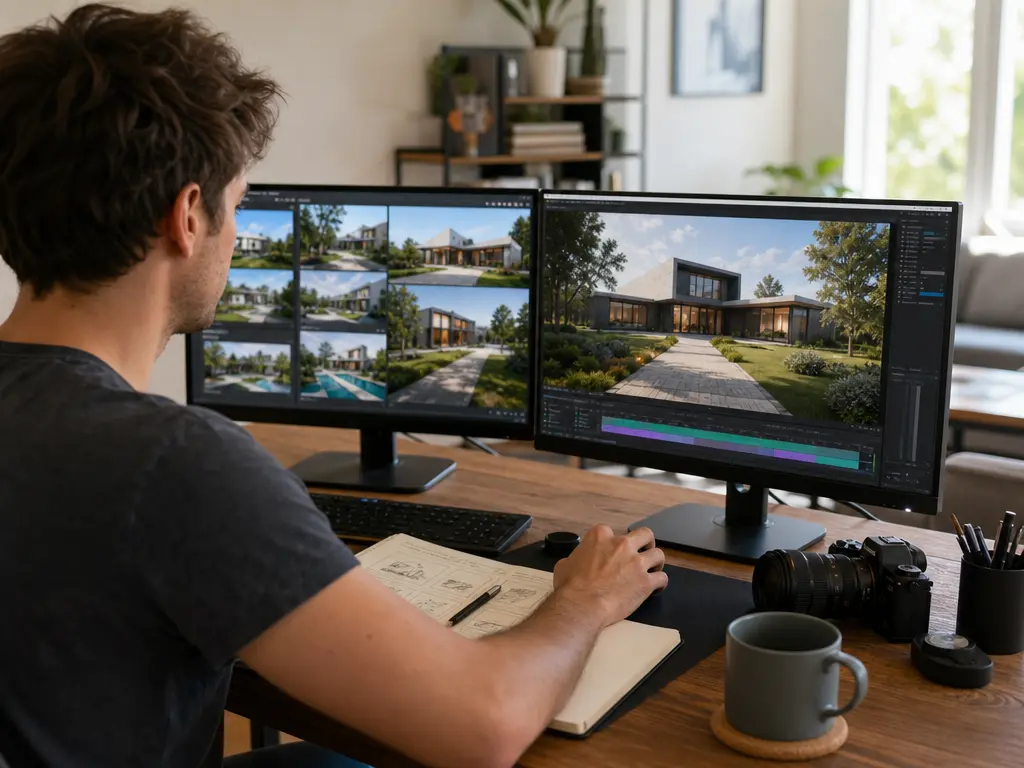
Video creators use VideoAI when real estate walkthrough video needs clear scene direction. Start with text or a script, add references when useful, and decide the shots, movement, and sound through prompts.
The controls stay visible in the decisions that shape your finished video.
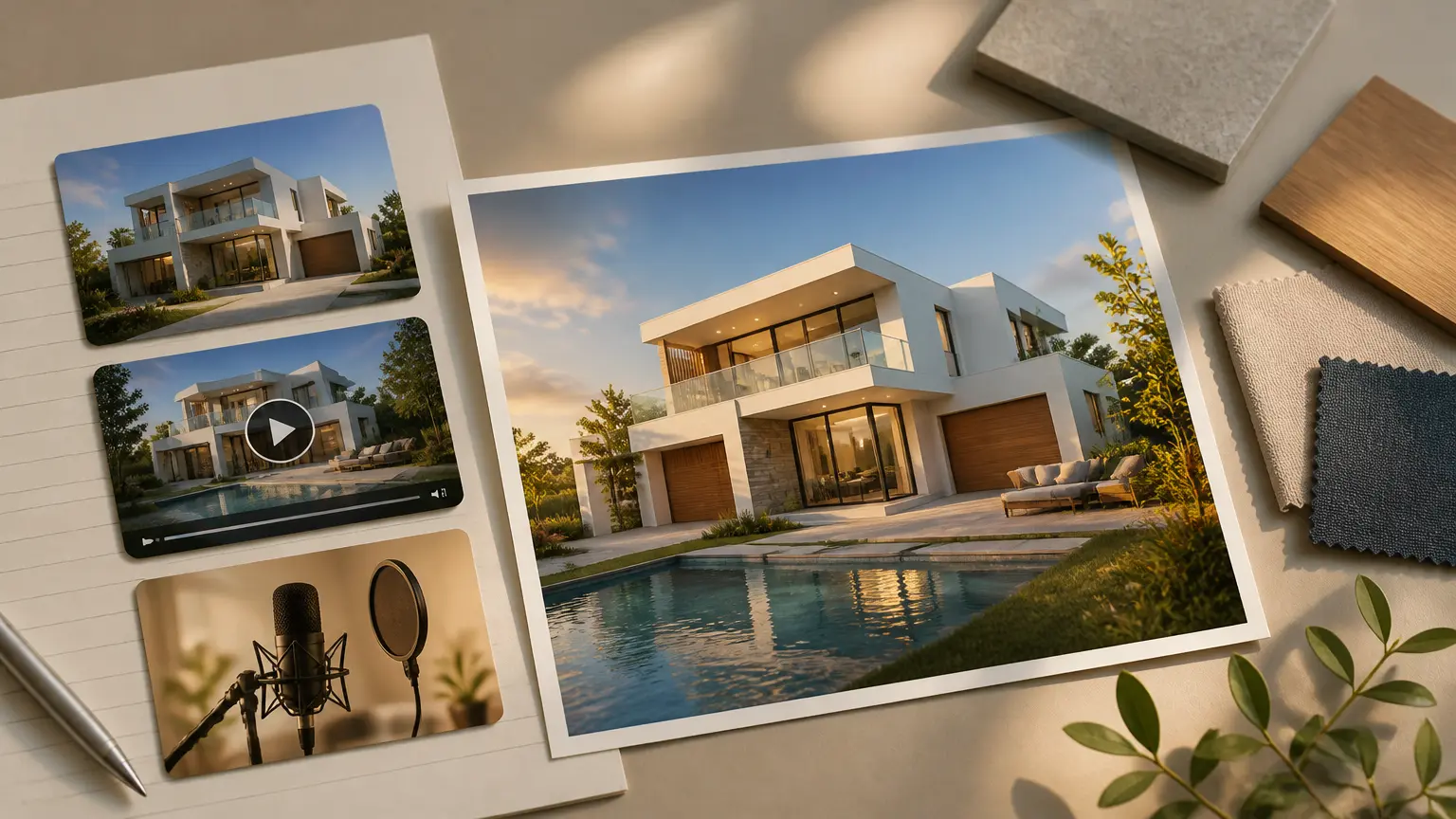
Combine text, images, video, and audio, then use @ to assign what each reference should guide. VideoAI keeps the material in the workspace so you can reuse it while shaping one directed result.
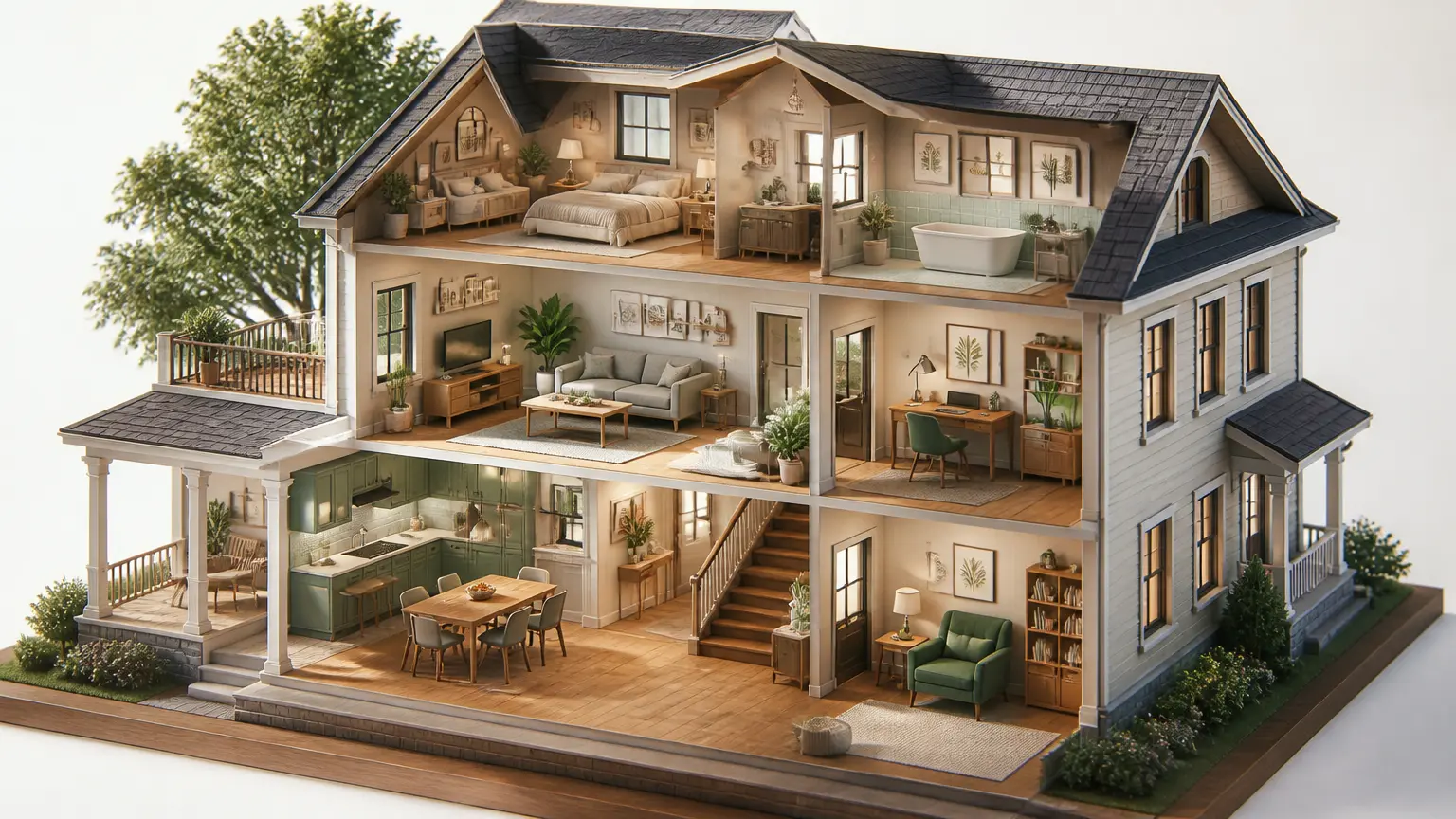
Describe the scene, action, camera movement, on screen text, and sound you want. Choose a confirmed video style when you need a consistent visual direction. You arrange the creative decisions, and VideoAI generates real estate walkthrough video.
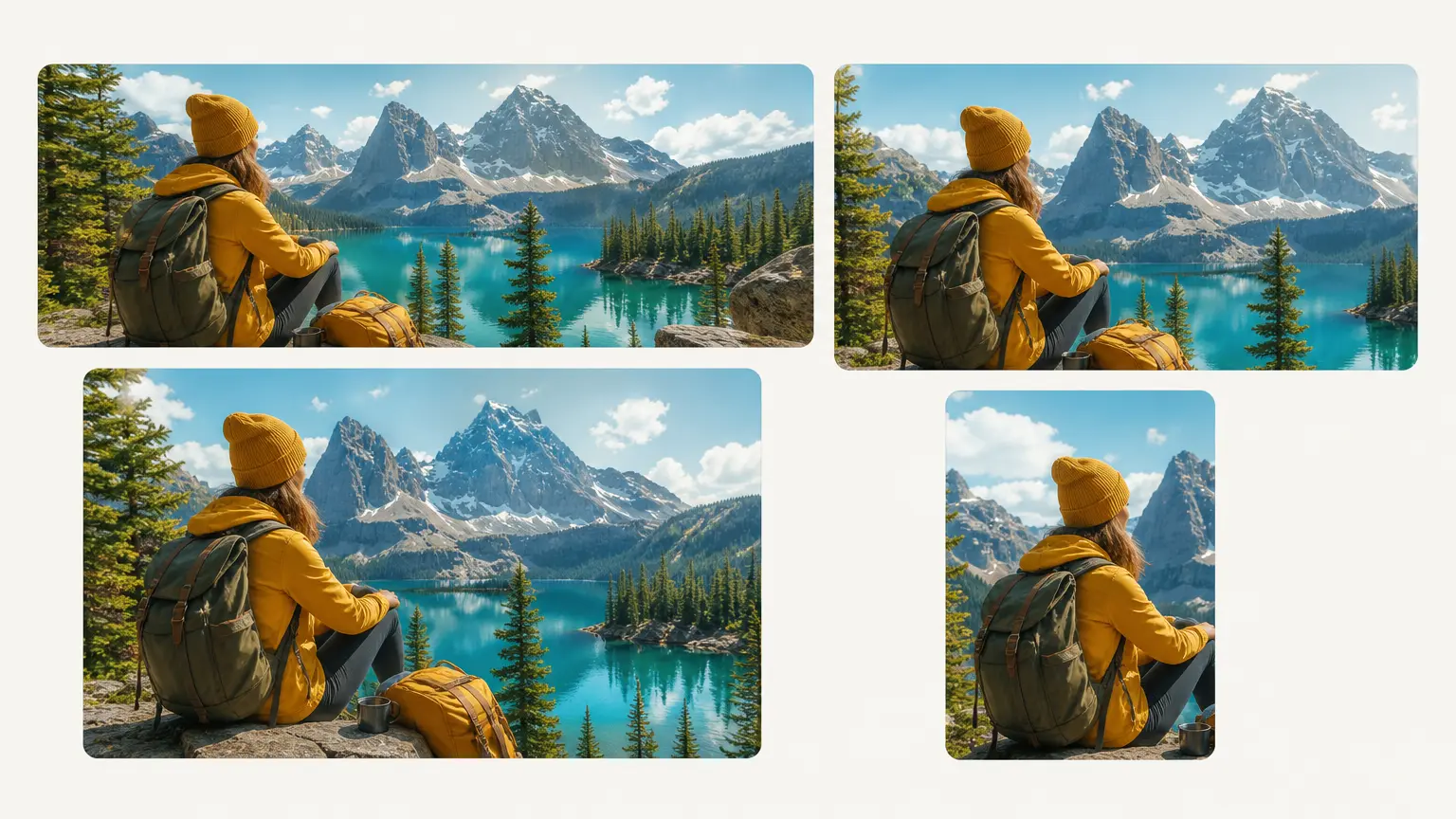
Select 16:9, 9:16, 1:1, or 4:5 for the version you are preparing. Download a 4K MP4 when the generated real estate video walkthrough is ready.
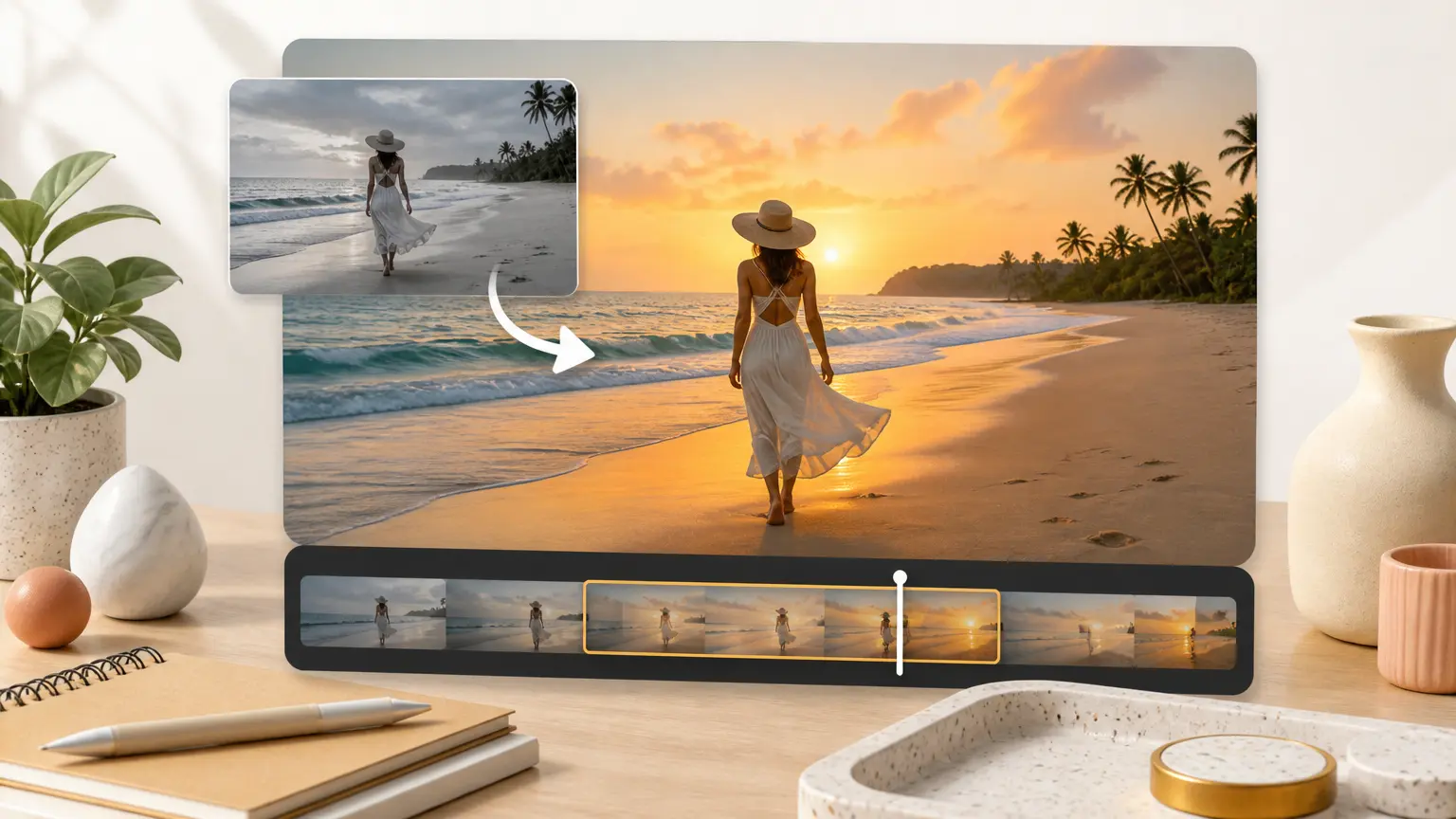
Your generated work stays in the workspace for reuse. Return with a text instruction to adjust a scene, then review the revised result and continue shaping the video.
Start with the material you have, make the creative calls, and refine the saved result before download.
Step 01
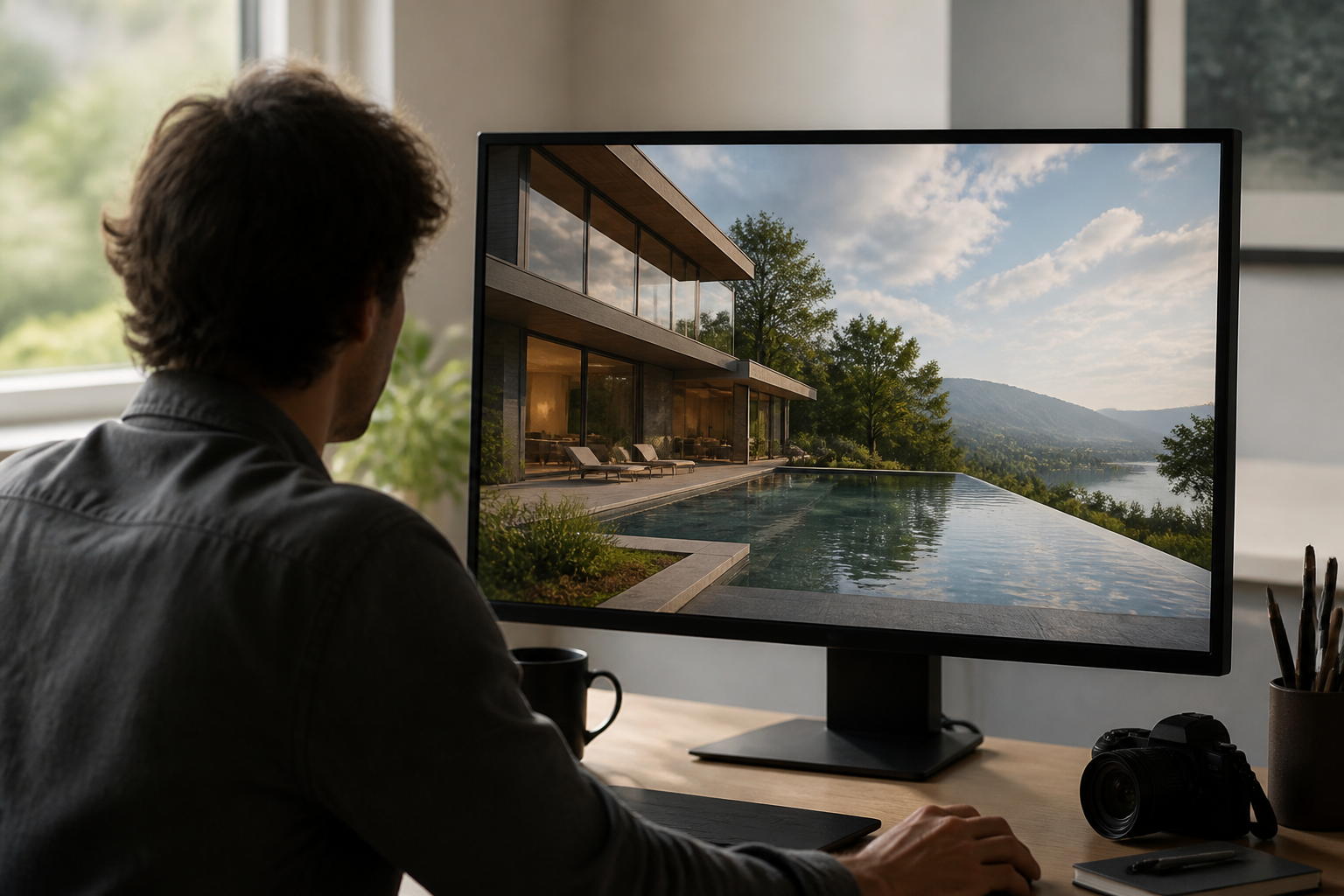
Enter a text concept or script. Add image, video, or audio references when they help define the property, visual direction, movement, or sound, then keep them in the workspace for reuse.
Step 02
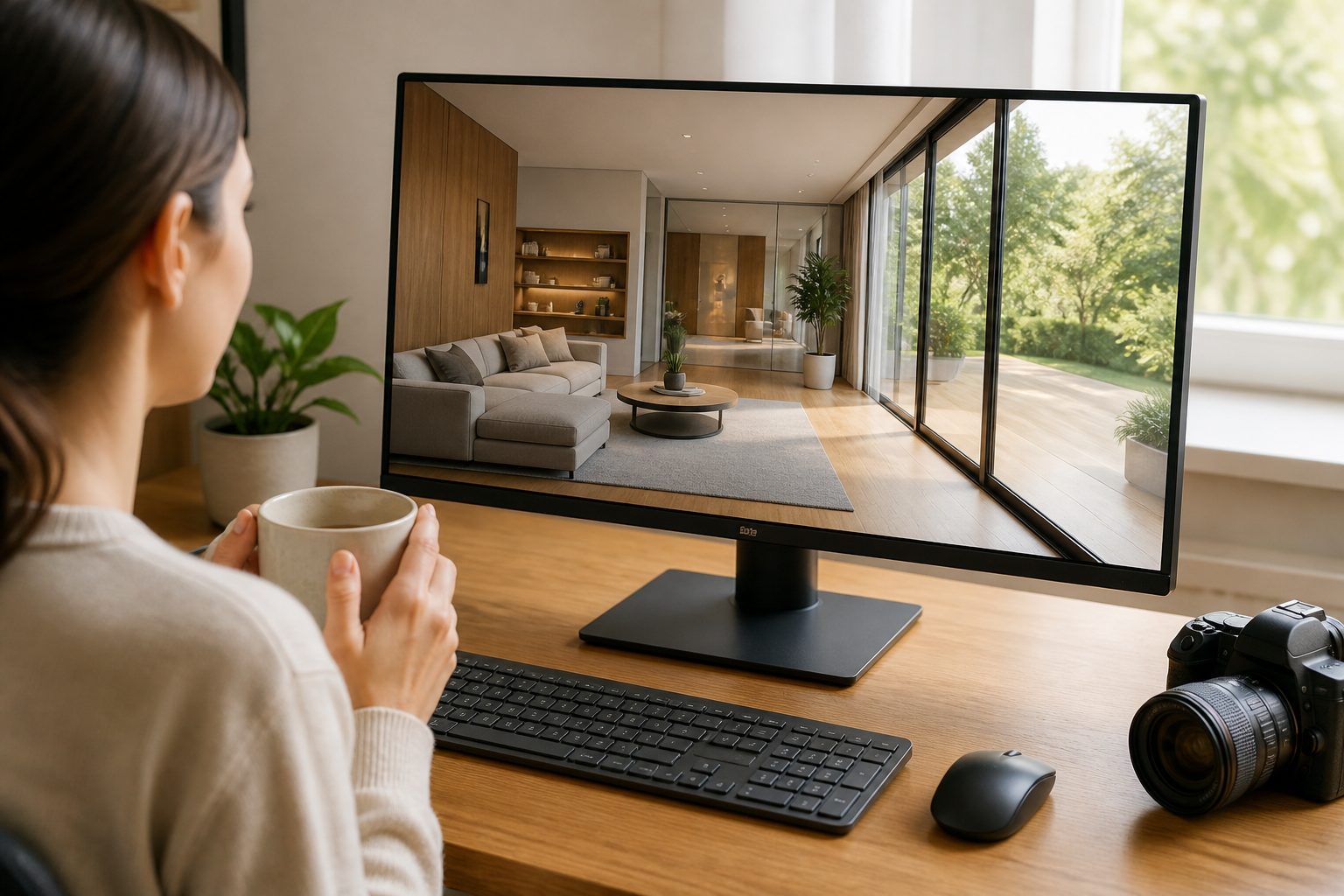
Use @ to state what each reference should do, then write the shot, action, camera, on screen text, and sound direction in your prompt. VideoAI turns your plan into real estate walkthrough video.
Step 03
Generate a result and inspect it. If the cut needs a change, return to the saved work with another text instruction. Each generation can run for up to 30 seconds, and longer content can continue through video extension before you download the selected 4K MP4.
Bring your concept and references to VideoAI, then shape the result with prompts and revisions.
Get Started