Step 01
Add The Clip You Want Fixed
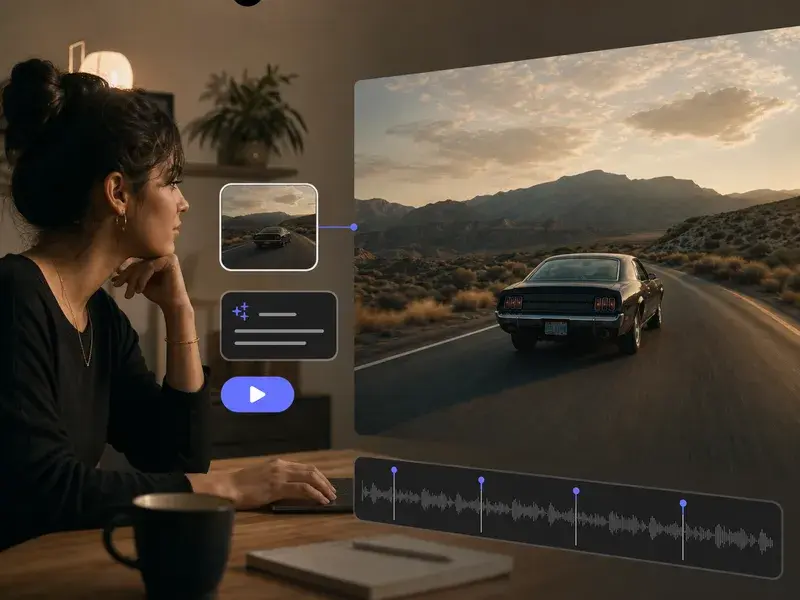
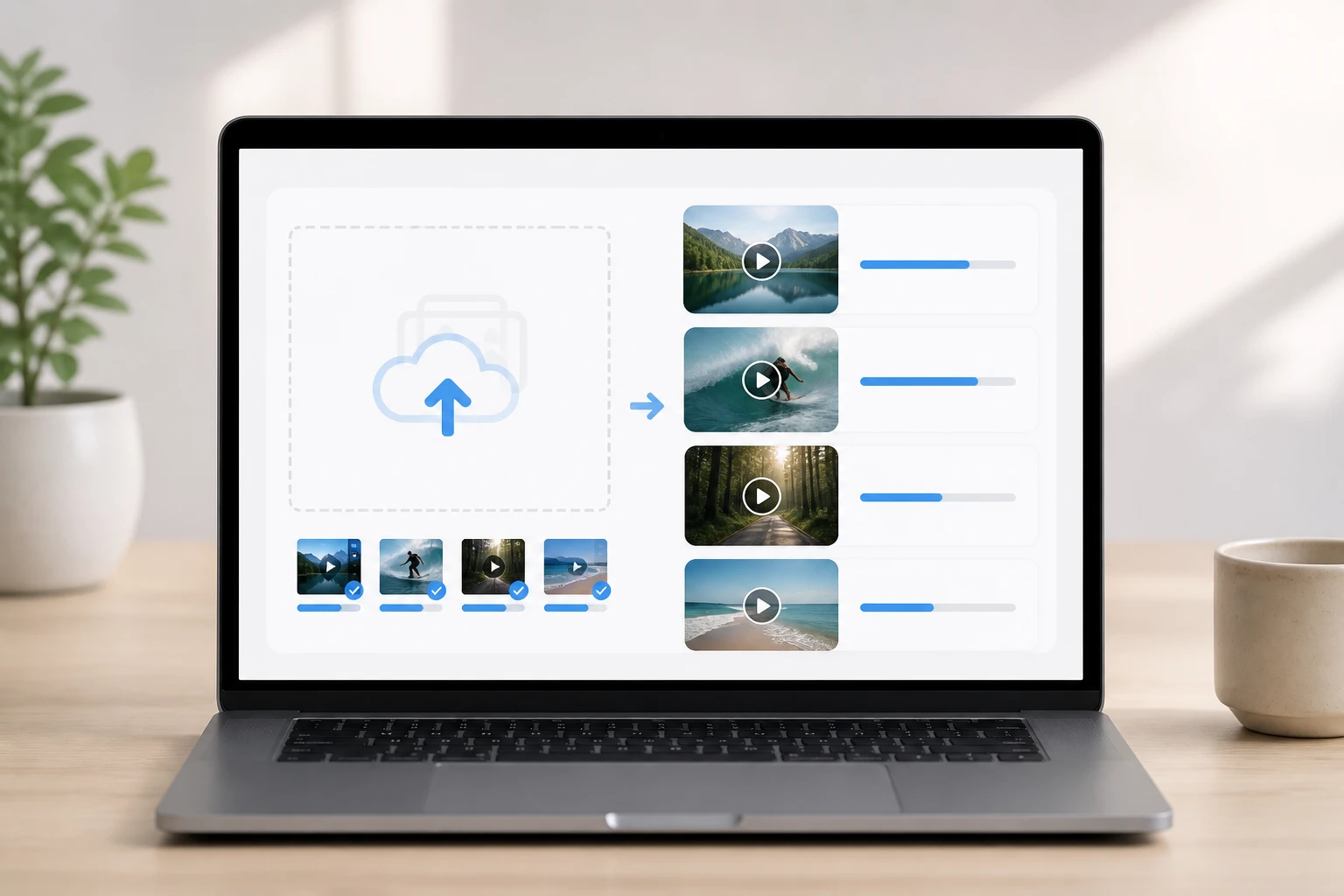
In the browser, upload a video in any common format. More files can follow the first, so a batch of clips goes into the same queue and gets worked one after another.

Upload a rough clip and the video quality enhancer reads it frame by frame, finds the exact blur, and repairs only the parts that need it while the rest of the picture stays as you shot it.
No picture on hand? Try with one of these
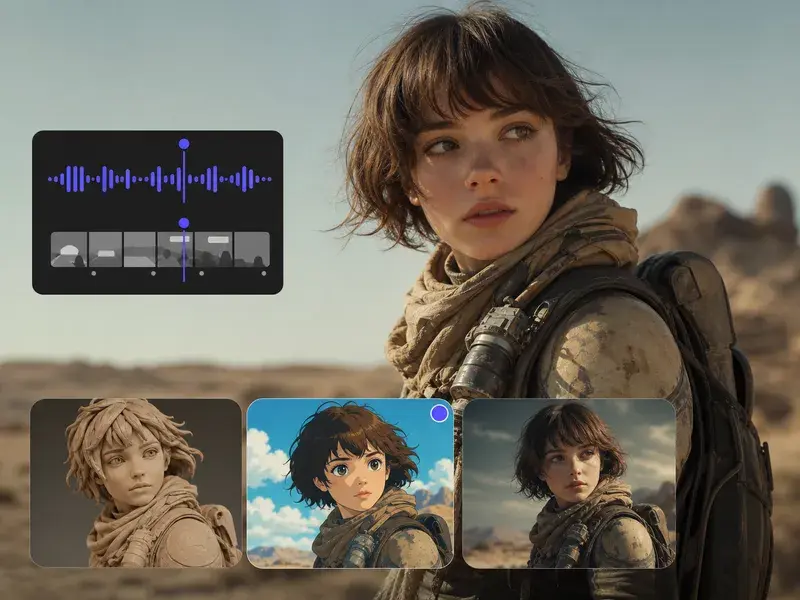
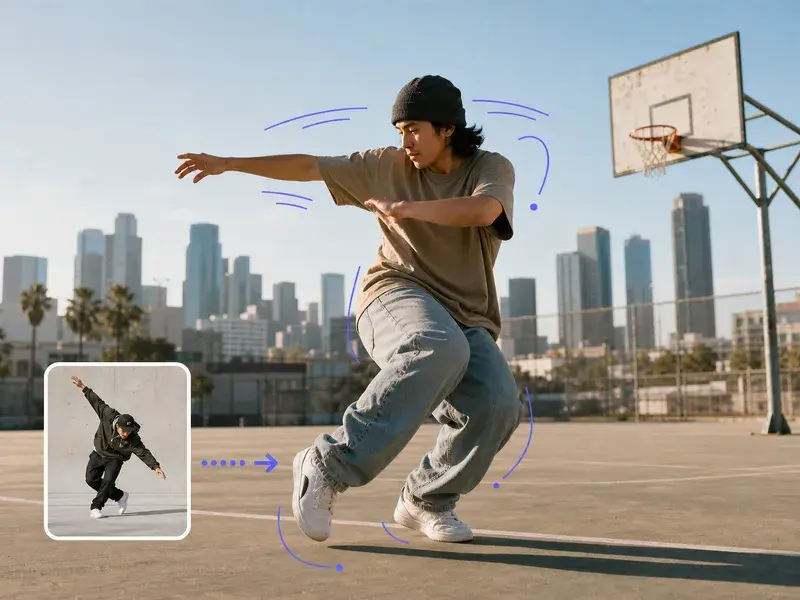
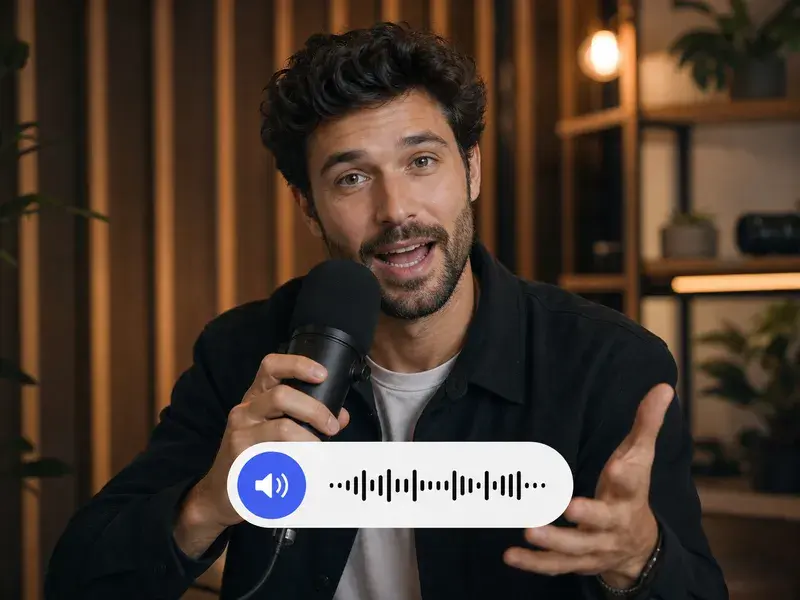
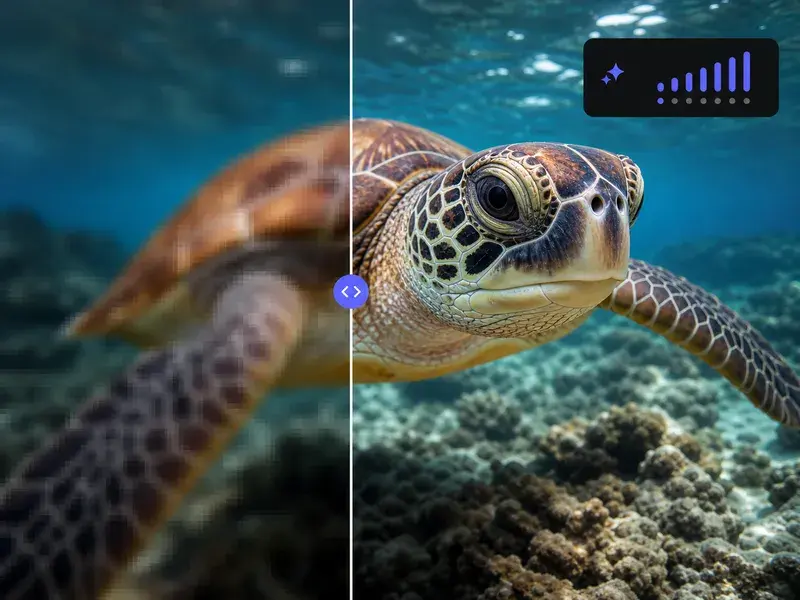
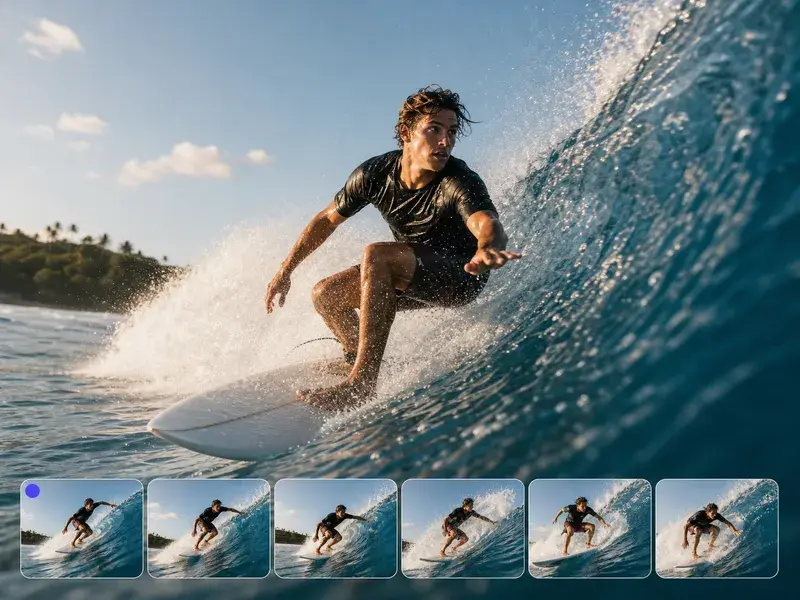
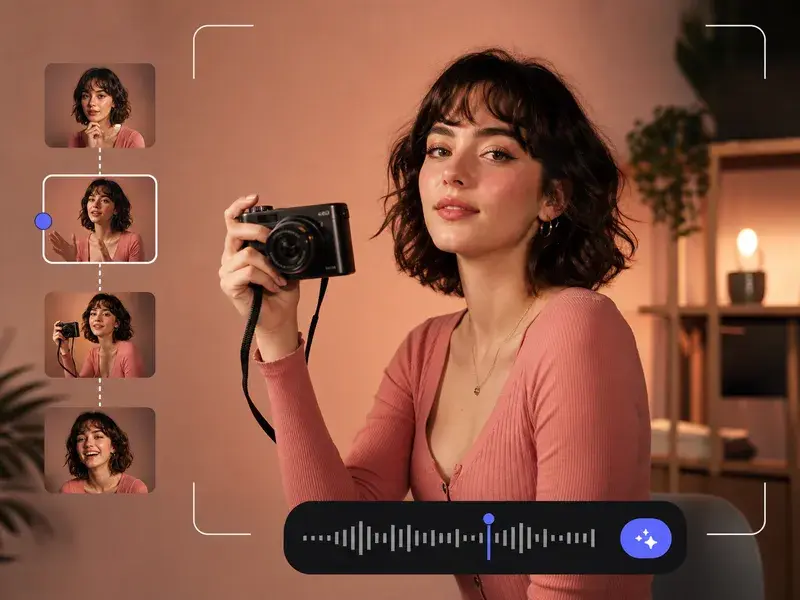
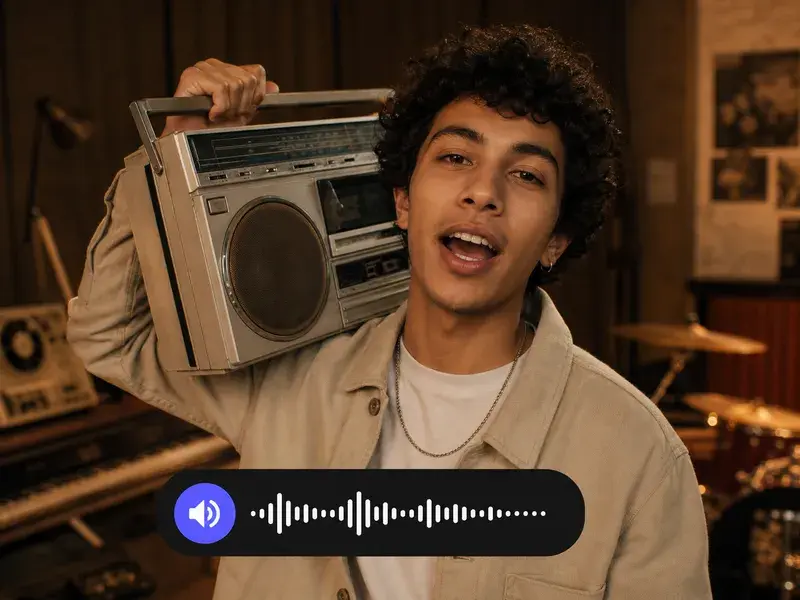
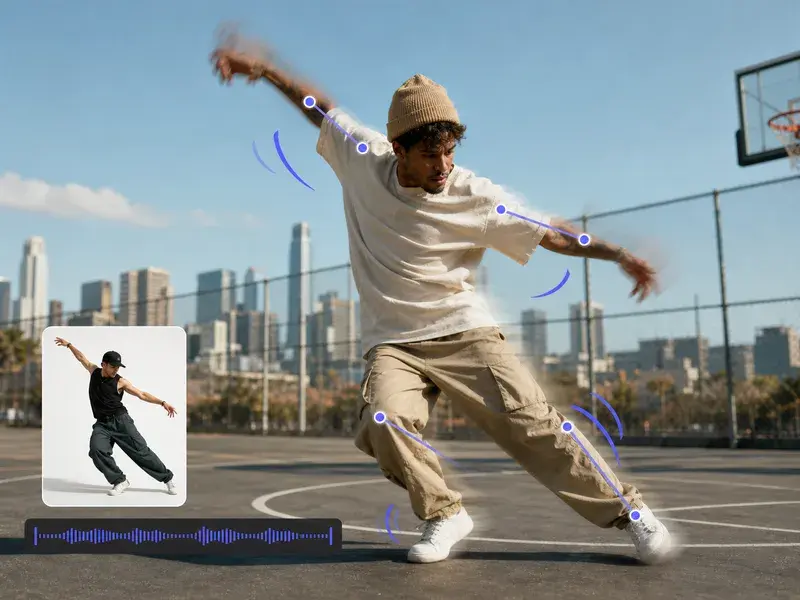
Each card is one way VideoAI works to enhance video quality, always on the damaged areas rather than the whole frame.
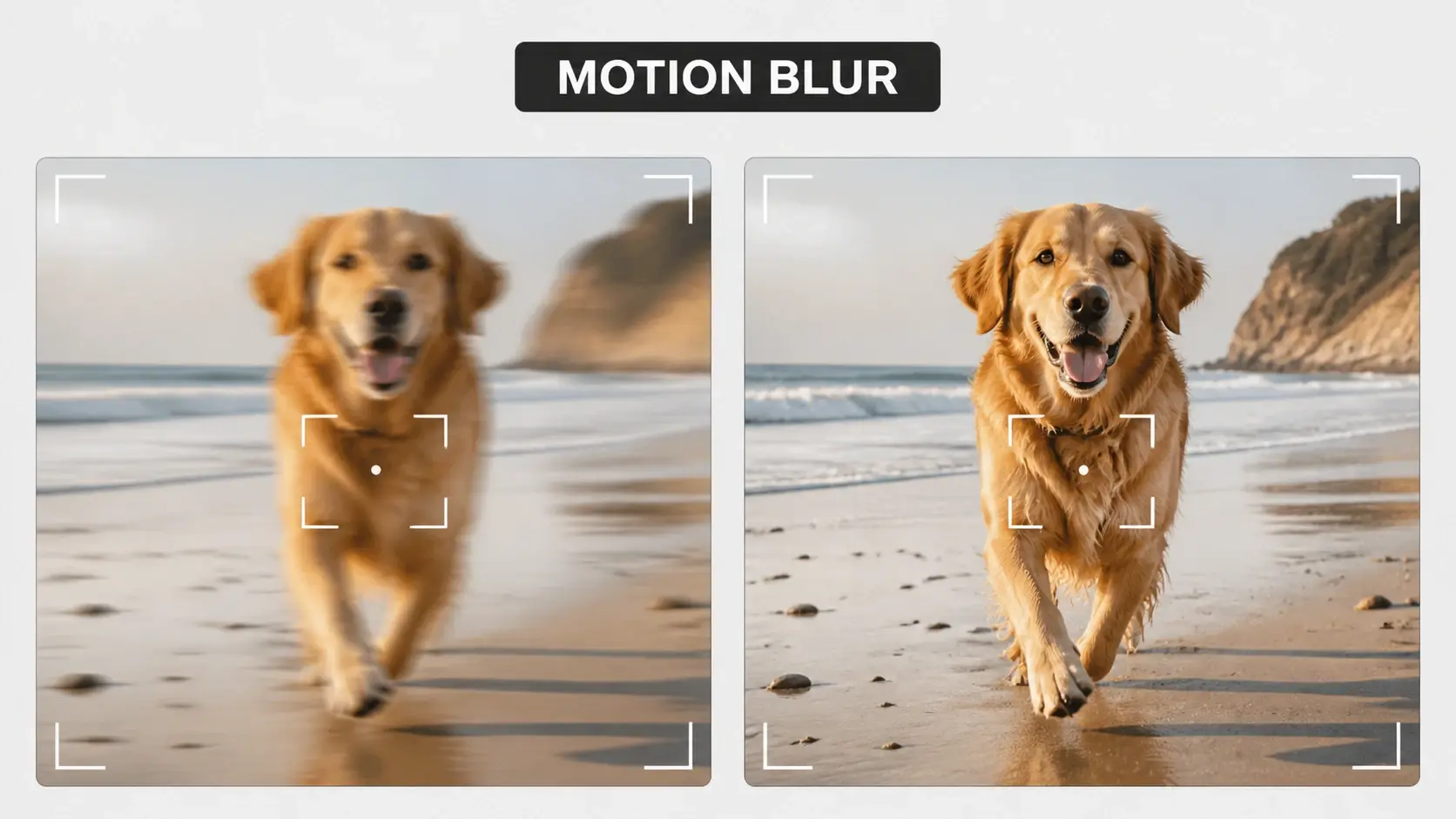
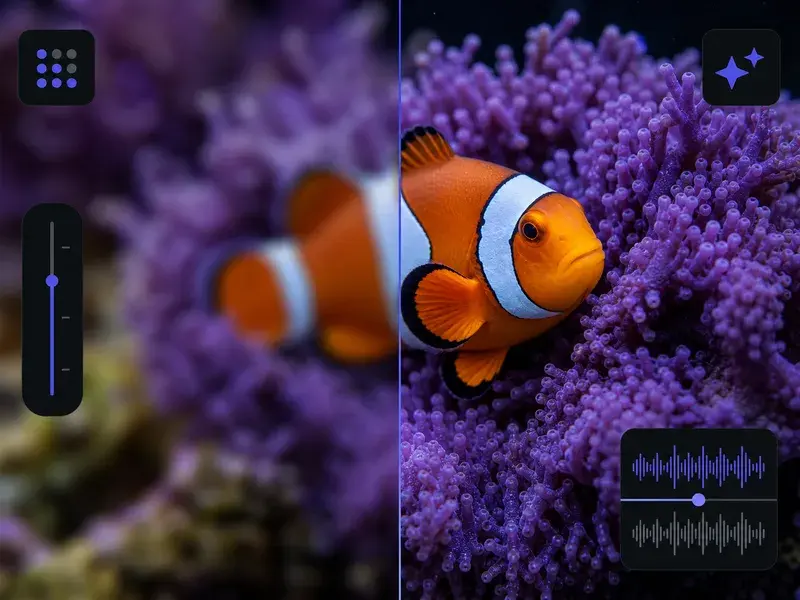
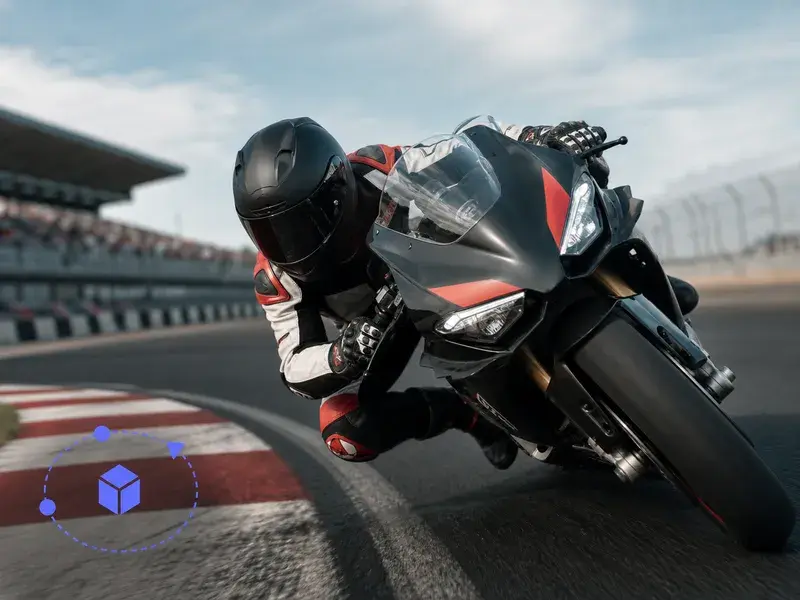
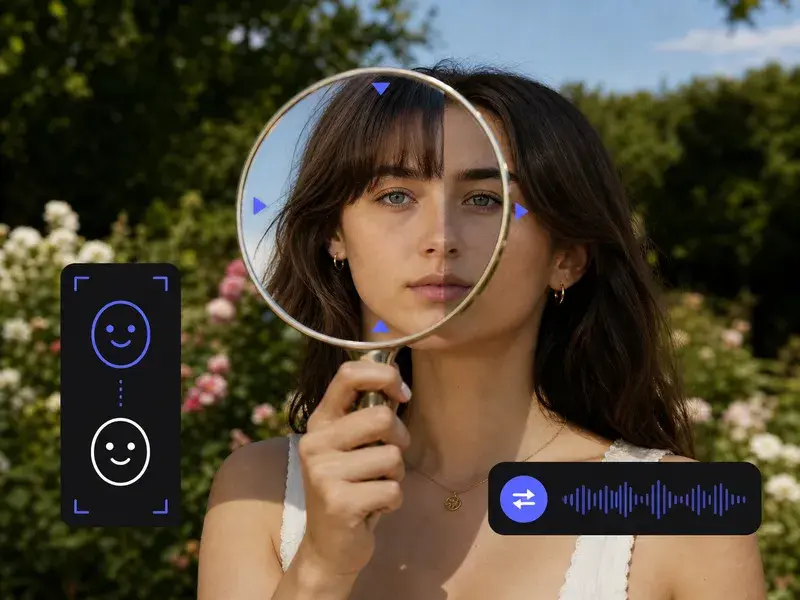
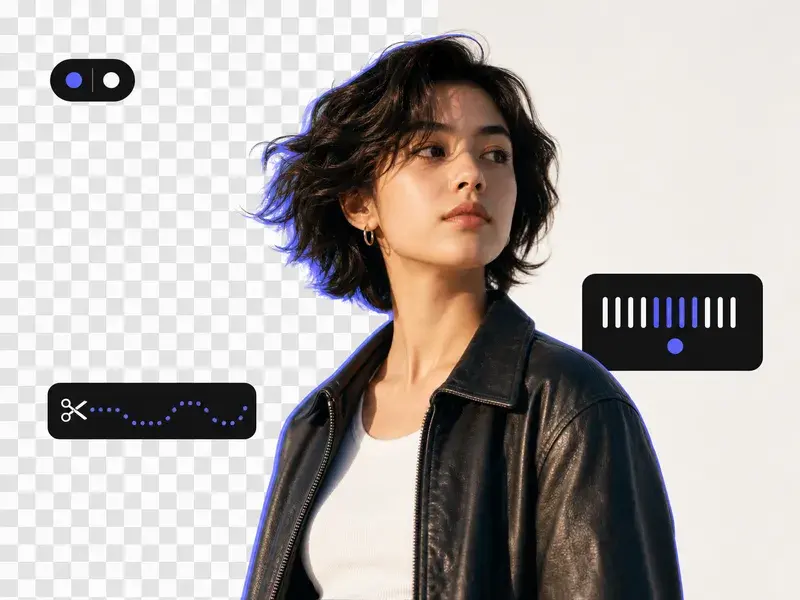
Motion blur, soft focus, compression, and low light each call for a different repair. The video quality enhancer compares the frames, works out which problem it is looking at, and touches only the blurred region while the rest of the picture holds still.
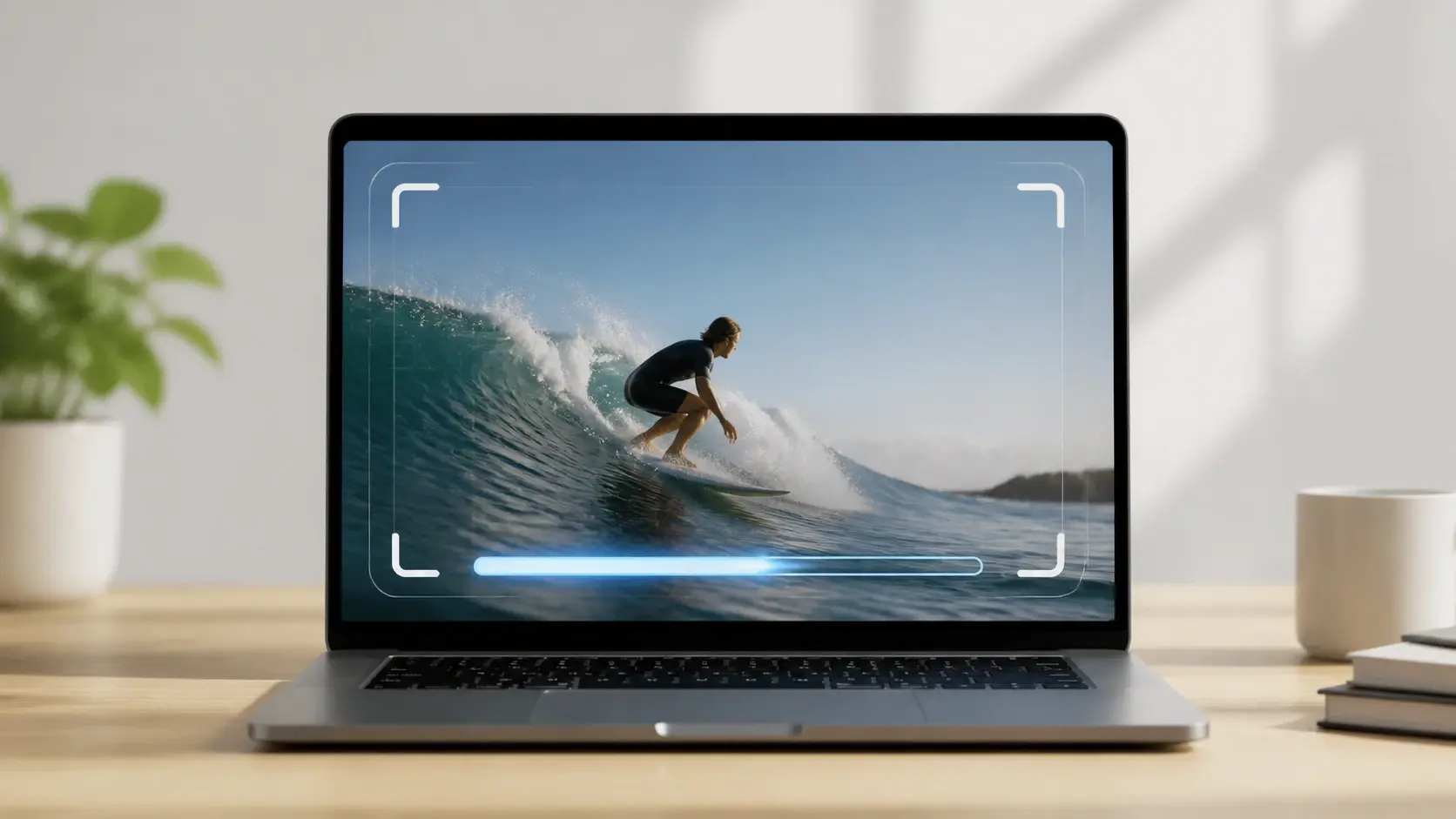
Upload the clip and the ai video quality enhancer starts on its own, reading the material, finding where the damage sits, and choosing the fix it needs. You keep one choice for yourself: whether to lift the frame rate for smoother motion.

In the same pass it can enhance video quality online, lifting the frame to 2K or 4K while it corrects the color that drifted and presses the noise down. The picture gets bigger and cleaner at once.
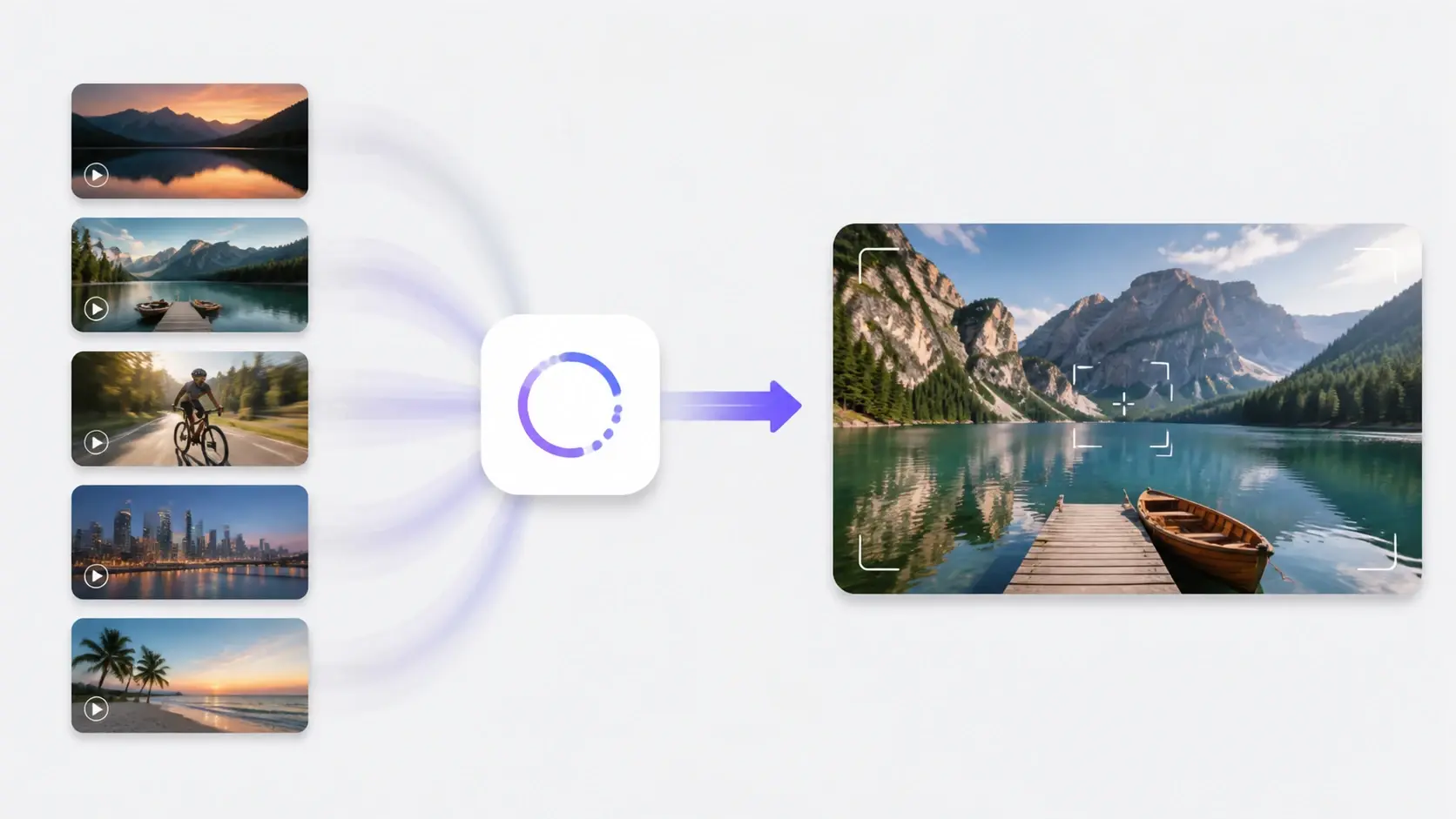
Give the video quality fixer more than one source clip and it pulls them into a single queue, working each in turn so a full run of footage reaches the same standard. Line up the batch and every output comes back leveled, ready to carry straight into the edit.
Three moves are all the video quality enhancer asks before the download is ready.
Step 01
In the browser, upload a video in any common format. More files can follow the first, so a batch of clips goes into the same queue and gets worked one after another.
Step 02
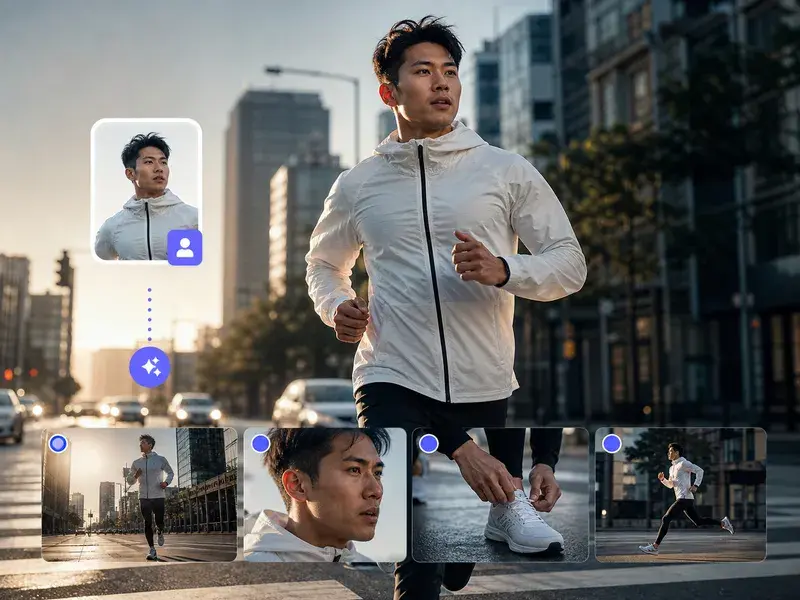
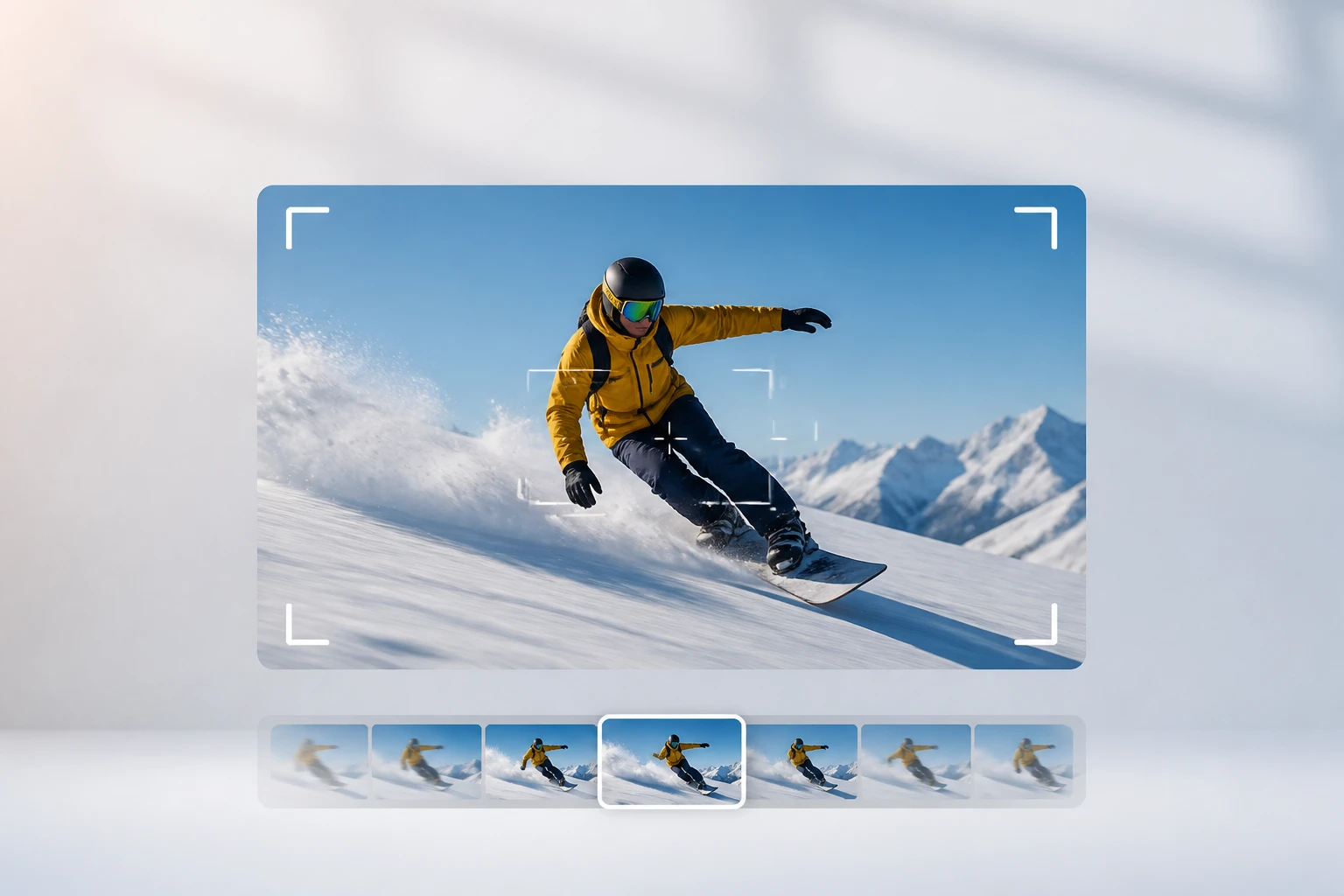
Nothing here is on you. The video quality enhancer goes frame by frame, tells motion blur from soft focus from compression damage, and repairs each one. When fast action looks choppy, ask it to lift the frame rate to 30fps or 60fps.
Step 03
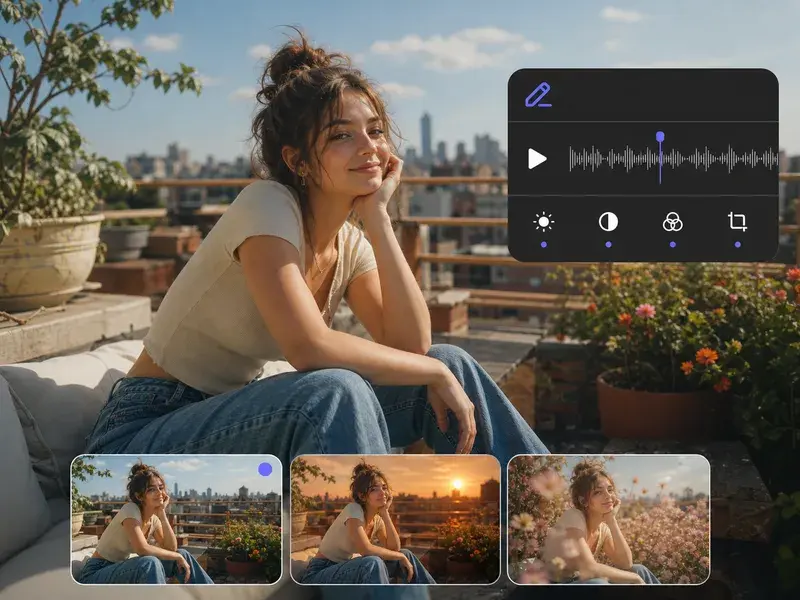
The finished clip comes back up to 2K or 4K, with color corrected and noise cleared, ready to download without a watermark and cleared to sell.
Real clips people bring to the video quality enhancer, and what comes back after a single pass.
That camcorder box in the closet holds footage stuck at the resolution of its day, soft in detail and muddy in color. A pass rebuilds what faded and lifts it to 4K, so faces and rooms read clearly on a modern screen again.
The master file is long gone and all that survives is one low resolution copy with mushy edges. VideoAI rebuilds those edges and can convert low quality video to hd that holds up when you post it.
Anything filmed at night or indoors comes back speckled through the shadows. Low light is one of the types it recognizes, so it can fix grainy video and correct the color in the same run.
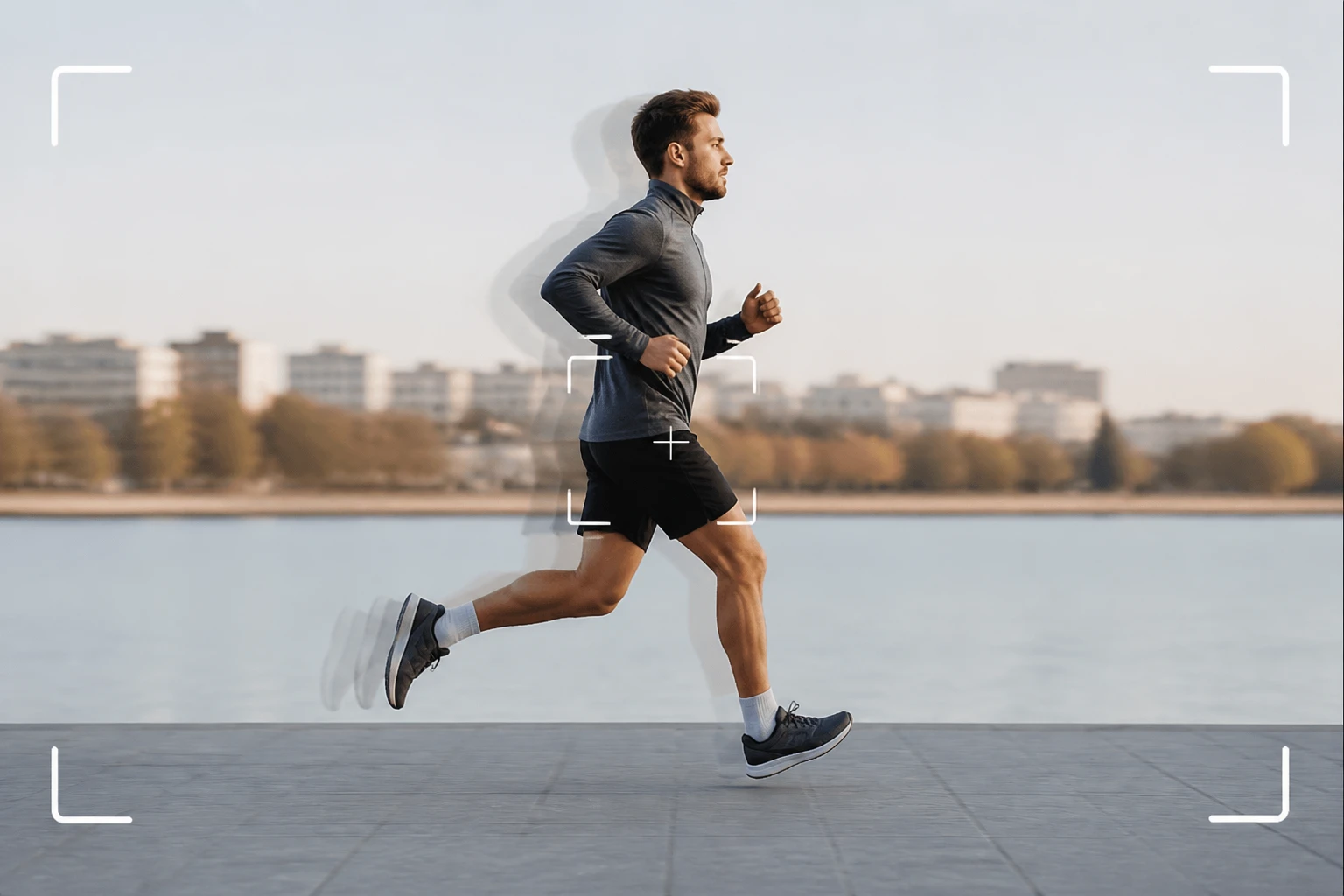
Sports, a running pet, a quick whip pan, all of it jerks and smears when the motion outruns the frame rate. New frames get built between the ones you shot, so the movement plays smoothly at 30fps or 60fps.
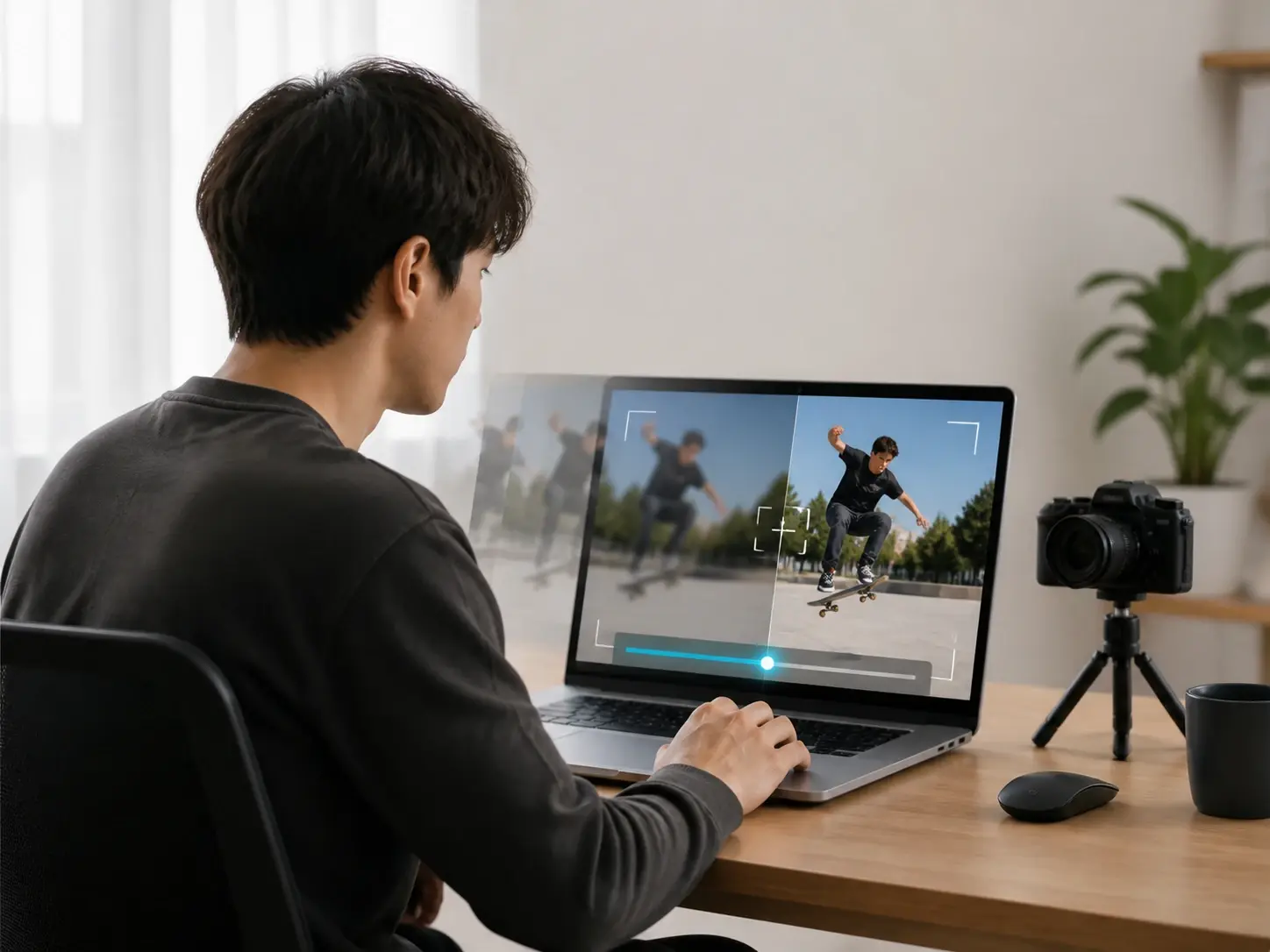
You shoot fast or generate clips inside VideoAI, and going back for another take costs more than a quick repair. Run the clip through the video quality enhancer, get it clean, and drop it straight into the edit.
Explore
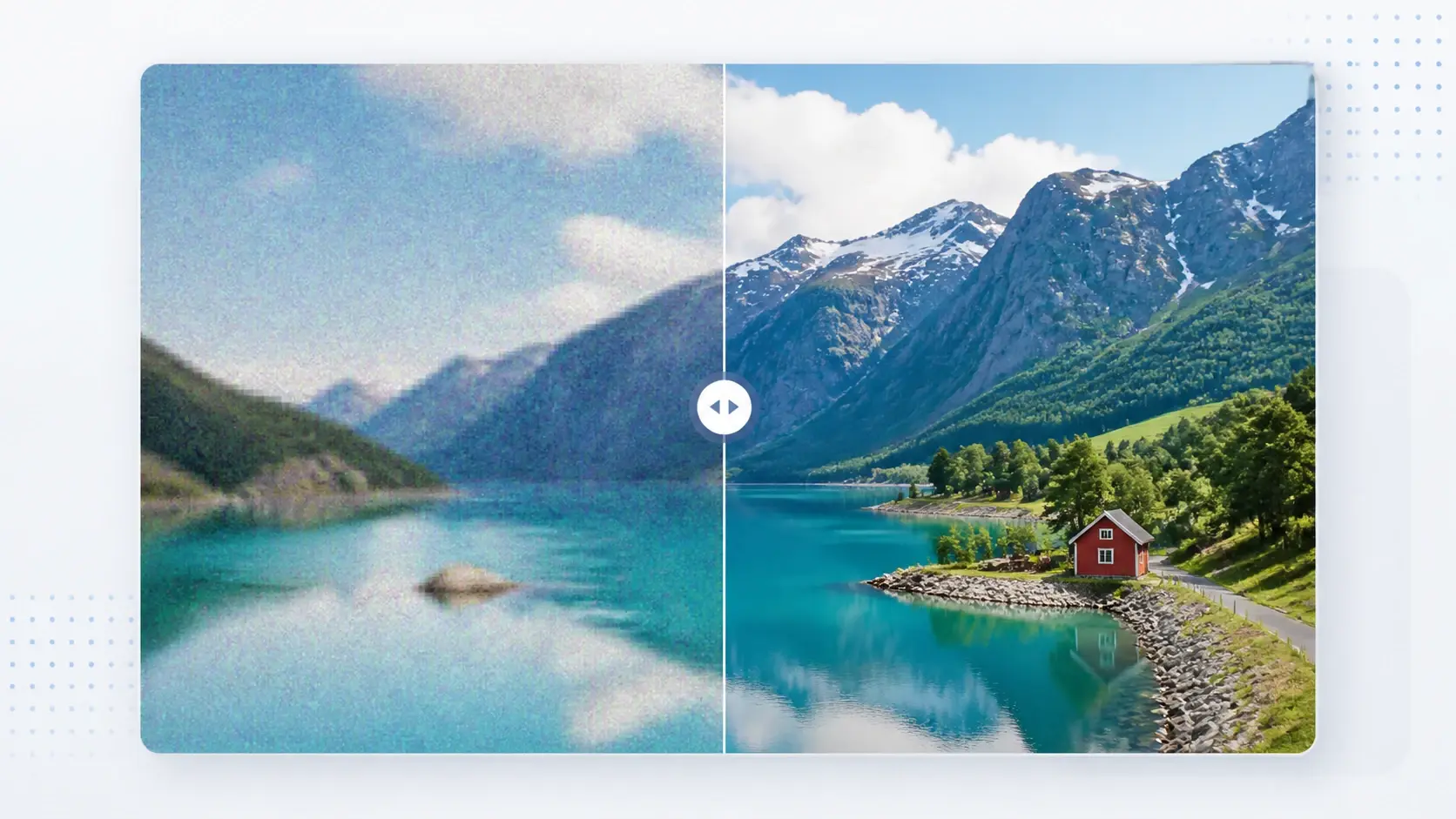
Upload one rough clip and let VideoAI find the blur, rebuild the detail, and make video clearer before you download.
Get Started