



Step 01
Add the goal and references
Describe the recruitment video you need or provide a script, then add image, video, and audio references. The materials enter your workspace so you can reuse them while developing the project.

From brief to finished video
Turn your hiring goal, script, and reference media into a focused result while keeping control of the scenes, style, and final direction.

Start with the message you need to share, then guide the visual result around the people you want to reach.
A role opens and your social audience needs a clear reason to care. Describe the video you want, add image or video references, and shape a concise result that gives candidates a stronger view of the opportunity.
A growing team needs to explain its work to potential hires. Build the video from a script, visual references, and a timed scene plan so the product story feels focused and ready to share.
Applicants want to understand the people and purpose behind a role. Use VideoAI to organize a recruitment video around your message, then preview and revise the scenes until the communication feels right.
A brand message needs more context than a job listing can provide. Create a recruitment video with selected references and clear scene direction, giving your culture story a consistent visual shape.

You need a recruitment video that fits a social content plan without handing over creative decisions. VideoAI lets you provide the goal, select reference media, and direct each scene so the finished video reflects your intended message.
Choose a starting point, describe the intended result, and keep the important creative decisions visible as you build.

Bring together text, images, videos, and audio references in one recruitment video workspace. Use @ to assign each reference its intended purpose, so the generated result follows a clearer creative direction.

Begin with a template when the structure is already familiar, or describe the recruitment video you want from zero. This gives you a practical starting point for campaign, explainer, or hiring communication work.
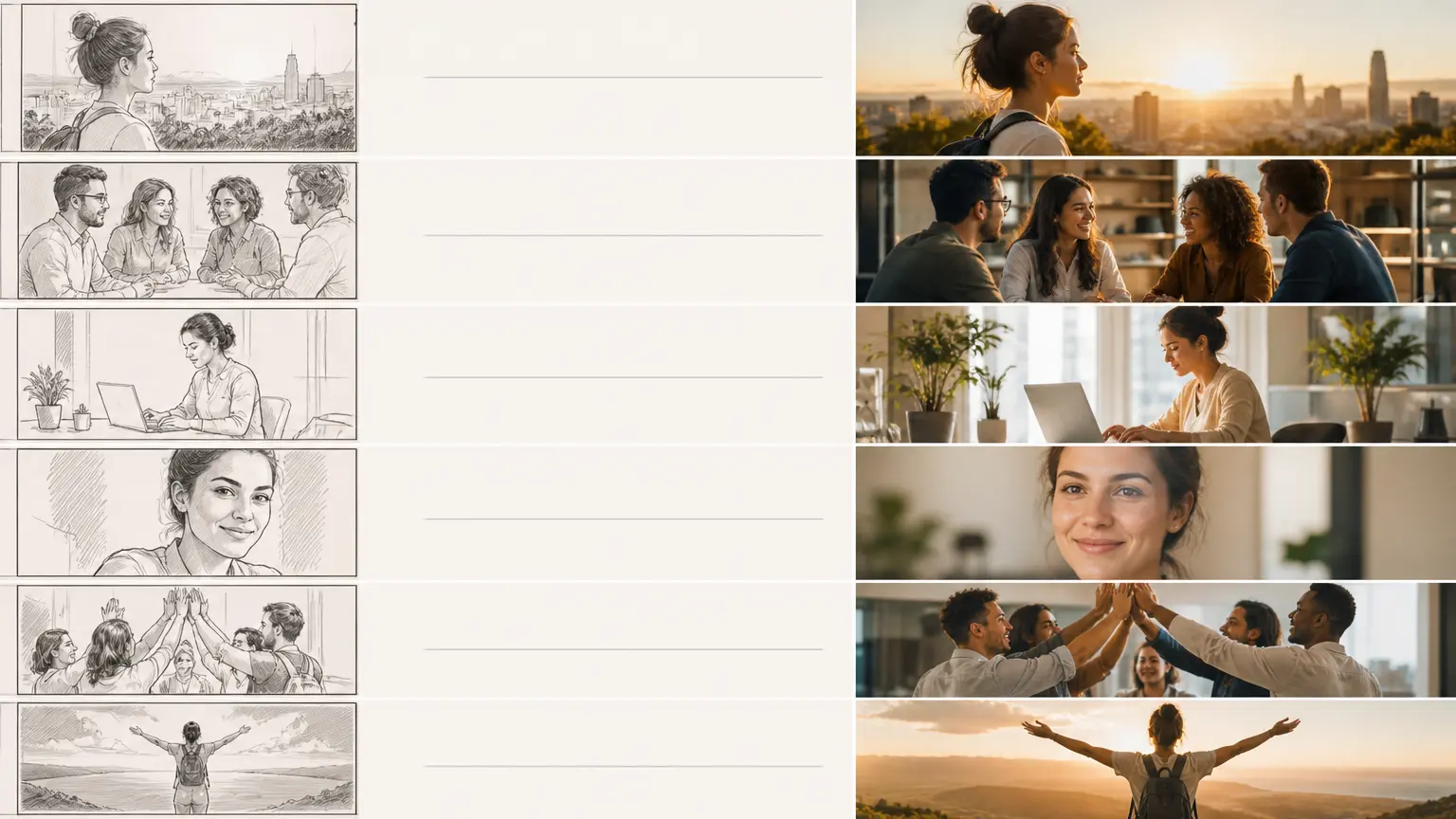
Plan the recruitment video in time based sections and describe what should happen in each one. Choose the format and style that fit your intended audience before generating the sequence.

See the recruitment video before downloading it, then describe the changes you want in words. VideoAI uses your revision direction to help you continue shaping the output until it matches the goal.
Move from source material to a reviewed result through three clear actions.
Step 01
Describe the recruitment video you need or provide a script, then add image, video, and audio references. The materials enter your workspace so you can reuse them while developing the project.

Step 02
Choose a format, style, or template, then describe each scene by time period. Use @ to clarify how your reference materials should contribute to the recruitment video.

Step 03
Generate the recruitment video and review the preview. Describe any changes you want, continue refining the result, and download the video when the direction is ready.

Bring your goal and reference media to VideoAI, then shape the result one scene at a time.
Get Started