Step 01
Add a Photo or Skip It
Add a photo in a common image format, and it lands in your own workspace, ready to reuse next time or delete yourself. Prefer to start from nothing? Skip the upload and describe the shot you want in words instead.

Choose the sepia filter, upload your photo, and VideoAI repaints the whole frame in warm brown tone while the people and objects stay the ones you uploaded.
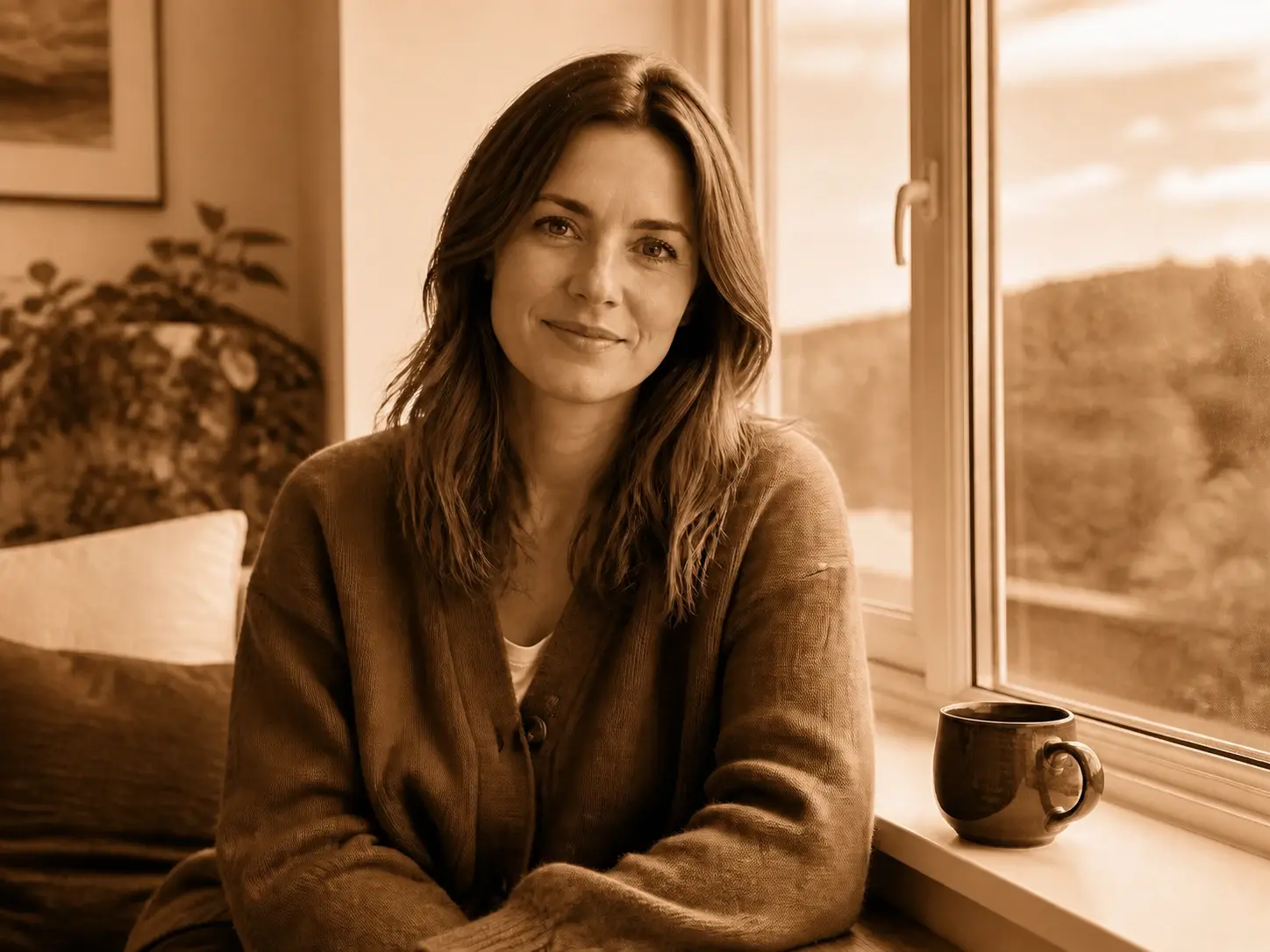
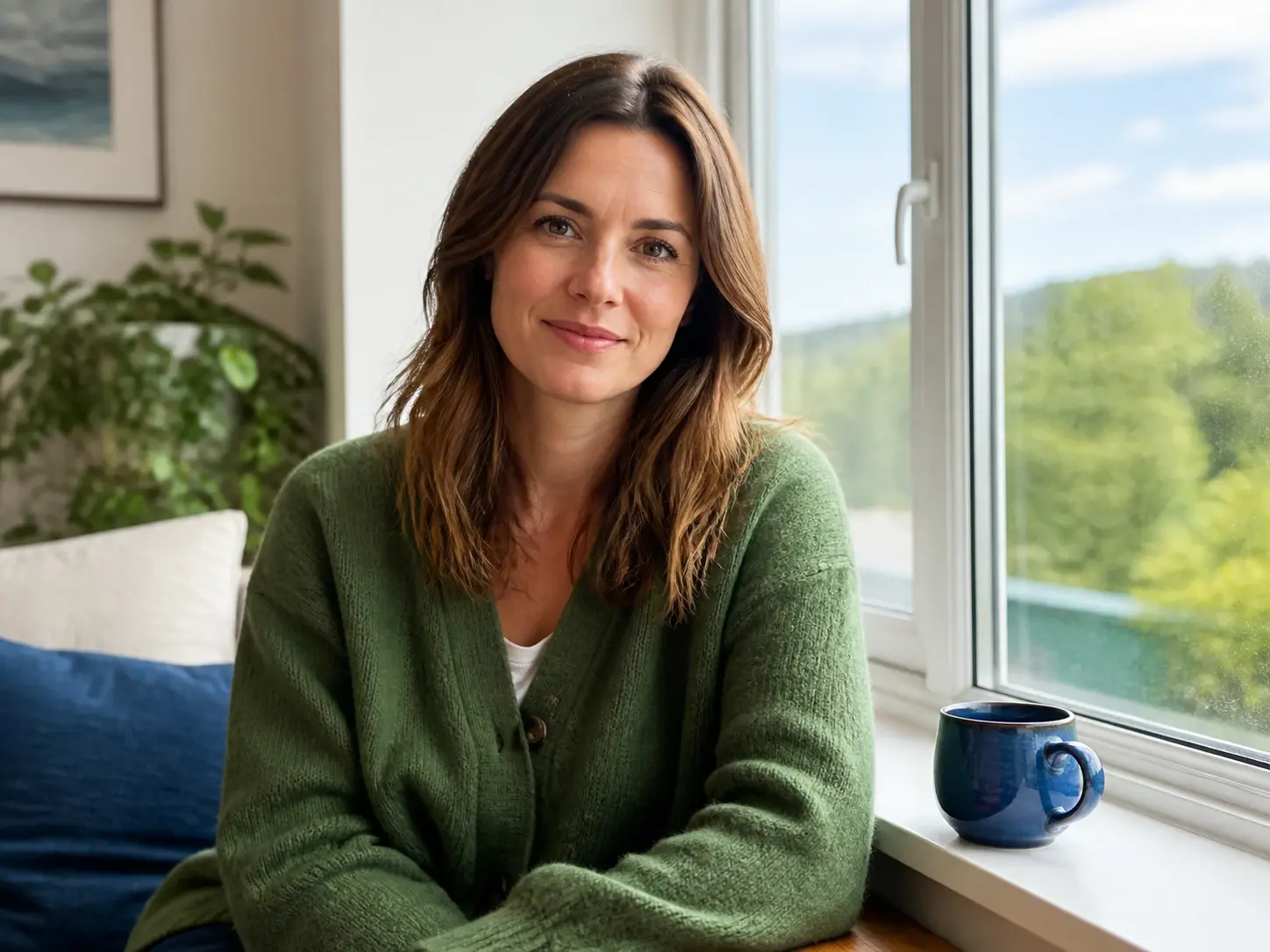
No picture on hand? Try with one of these
Three steps to make photo sepia and download the version you like.
Step 01
Add a photo in a common image format, and it lands in your own workspace, ready to reuse next time or delete yourself. Prefer to start from nothing? Skip the upload and describe the shot you want in words instead.
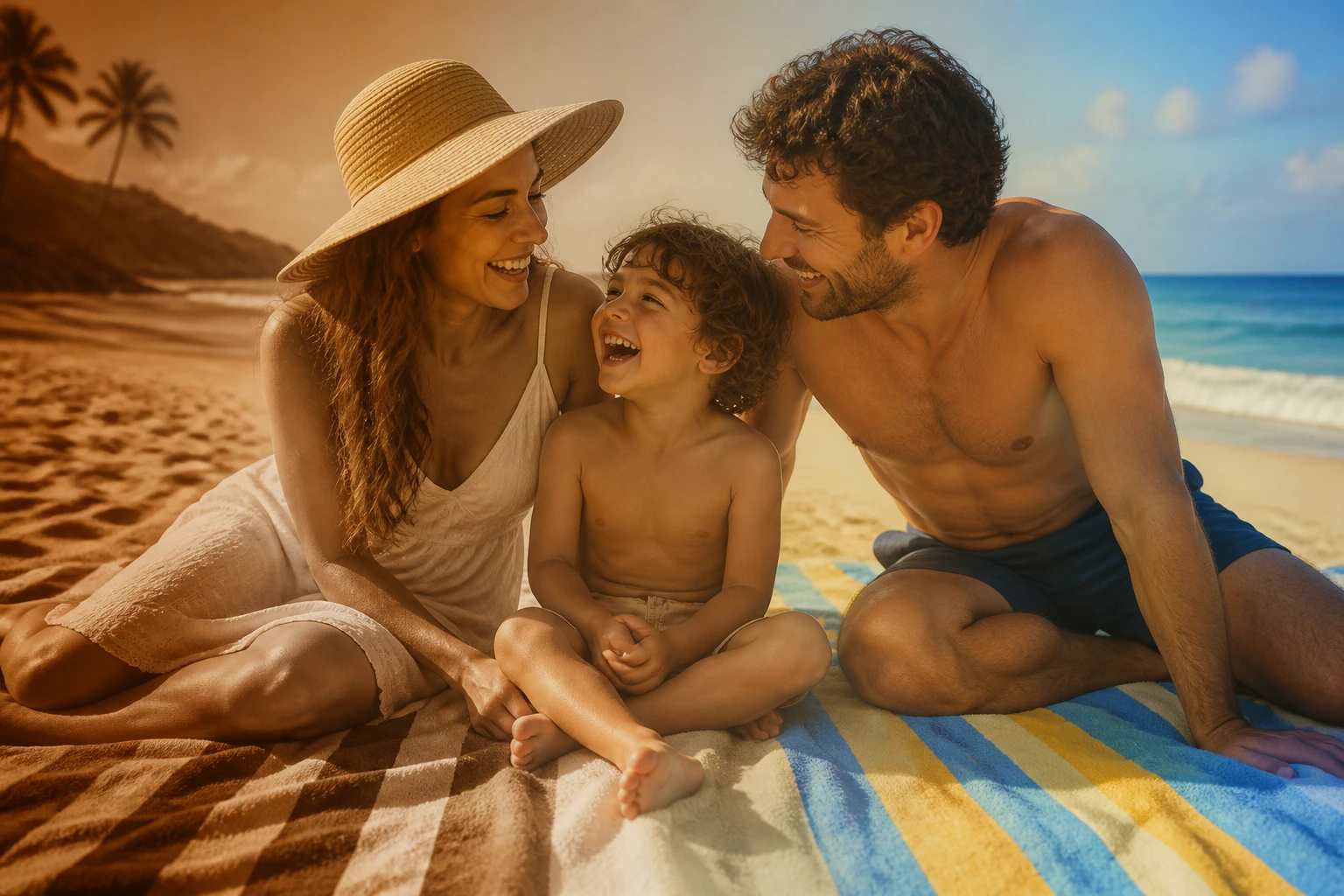
Step 02
Choose the sepia tone from the preset style list, or type the mood you want, such as a warmer old print with a little grain. Picking the style or writing that line is the whole setup, so the sepia filter is ready to render in one step.
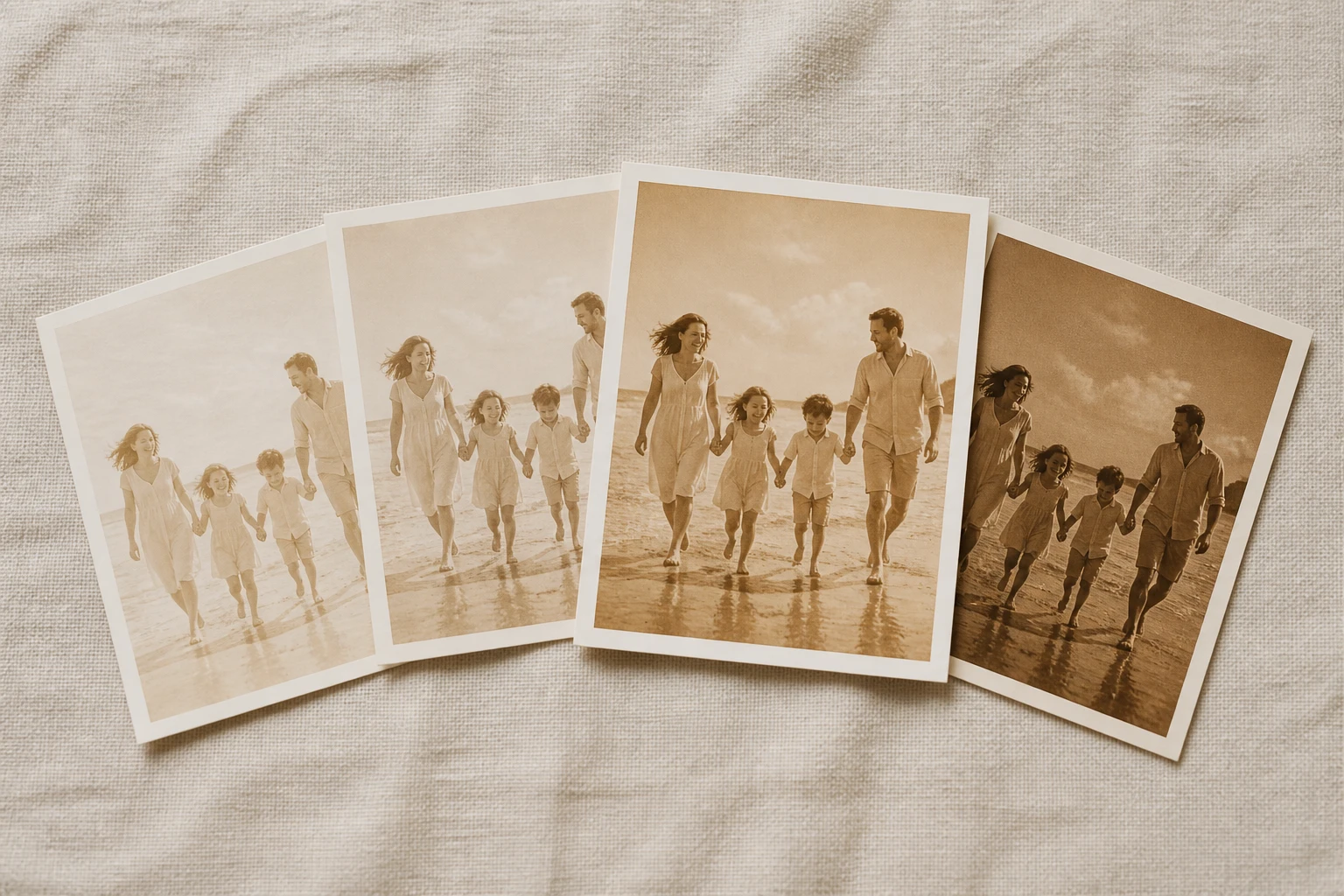
Step 03
Press generate and the sepia filter repaints the full photo in brown tone, keeping the people and framing intact. One prompt returns four candidates, so you pick the frame you like and download it at up to 4K with no watermark.
Where sepia photography actually helps, from single portraits to whole albums.
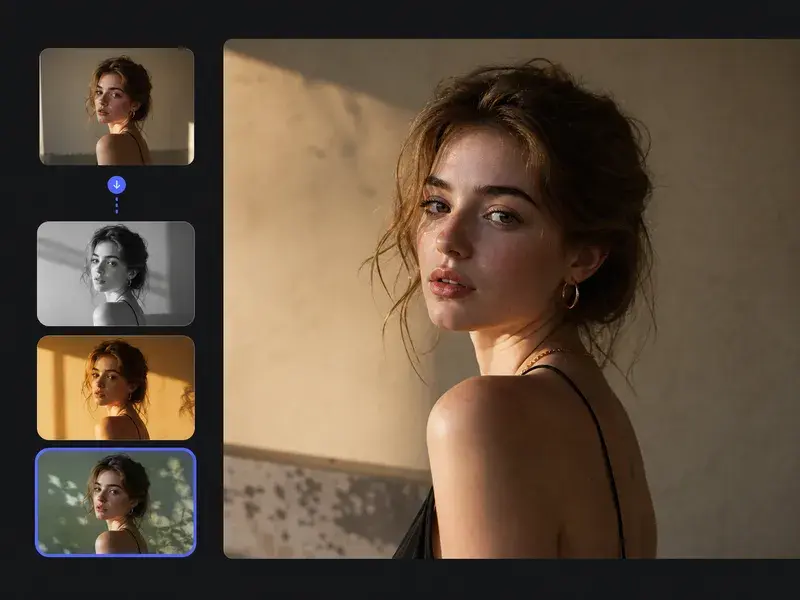
A face gets lost when the shirt, the wall, and the skin all pull for attention. Drop the color and only light and outline remain, so the eyes step forward. Here the sepia filter takes one portrait and returns a quiet sepia tone portrait of the same person.
One wedding runs to hundreds of frames, and the light swings warm then cool until the set looks like several different days. Run the batch through one sepia filter and the whole gallery settles into a single tone. Up to 30 photos go in together, which is why a full album ends up consistent.
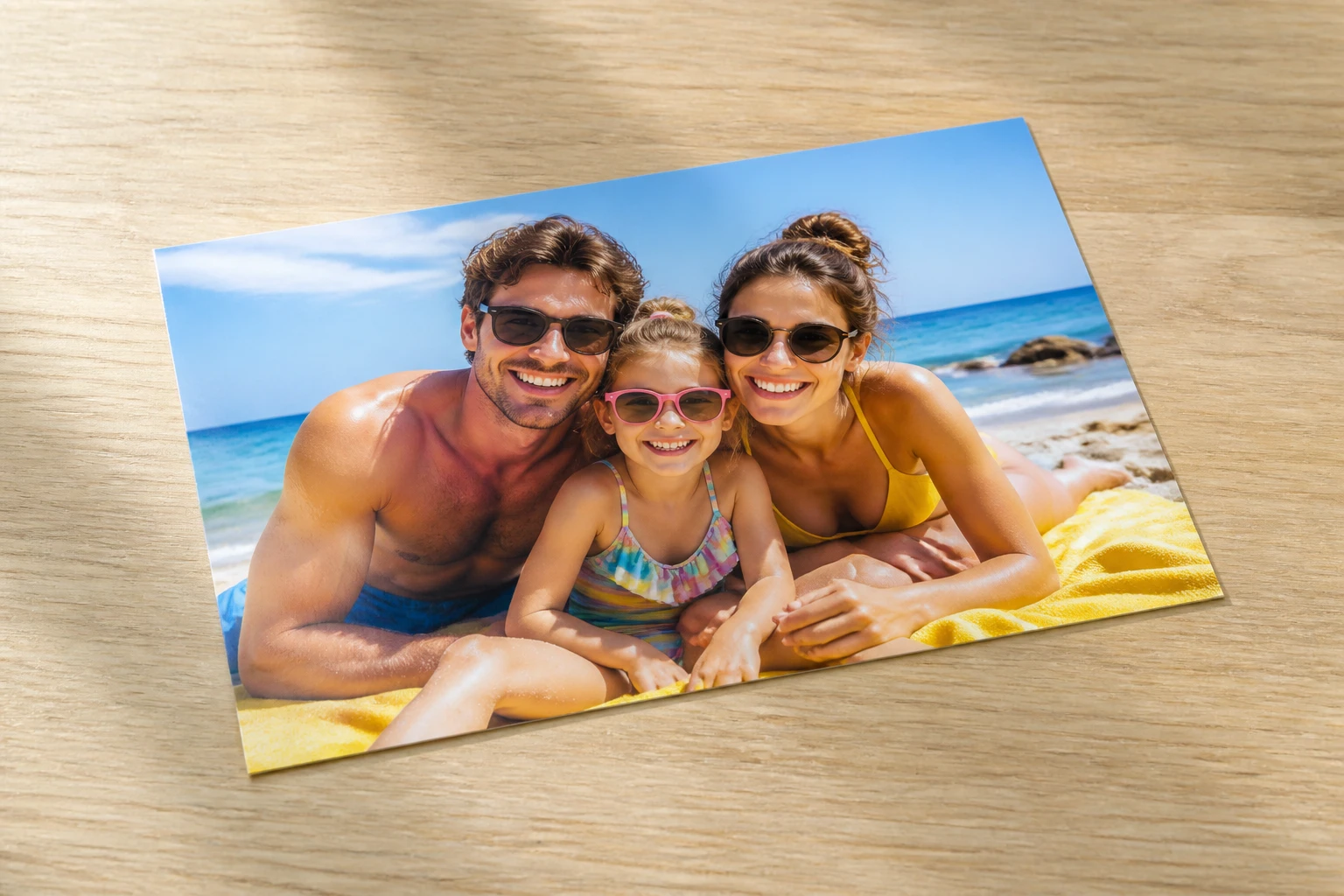
You want the new group shot to sit beside the old album without clashing, yet you worry no one will be recognisable afterward. Under the sepia filter the content and framing hold, so the people stay themselves and only the color falls back to an older print. The result reads like it always belonged on that shelf.
A batch headed for the same feed carries shots from different cameras and different hours, and the tones never match. Send them through one sepia picture filter pass and the group looks shot in a single sitting. It is the quickest way to make a scattered set feel deliberate.
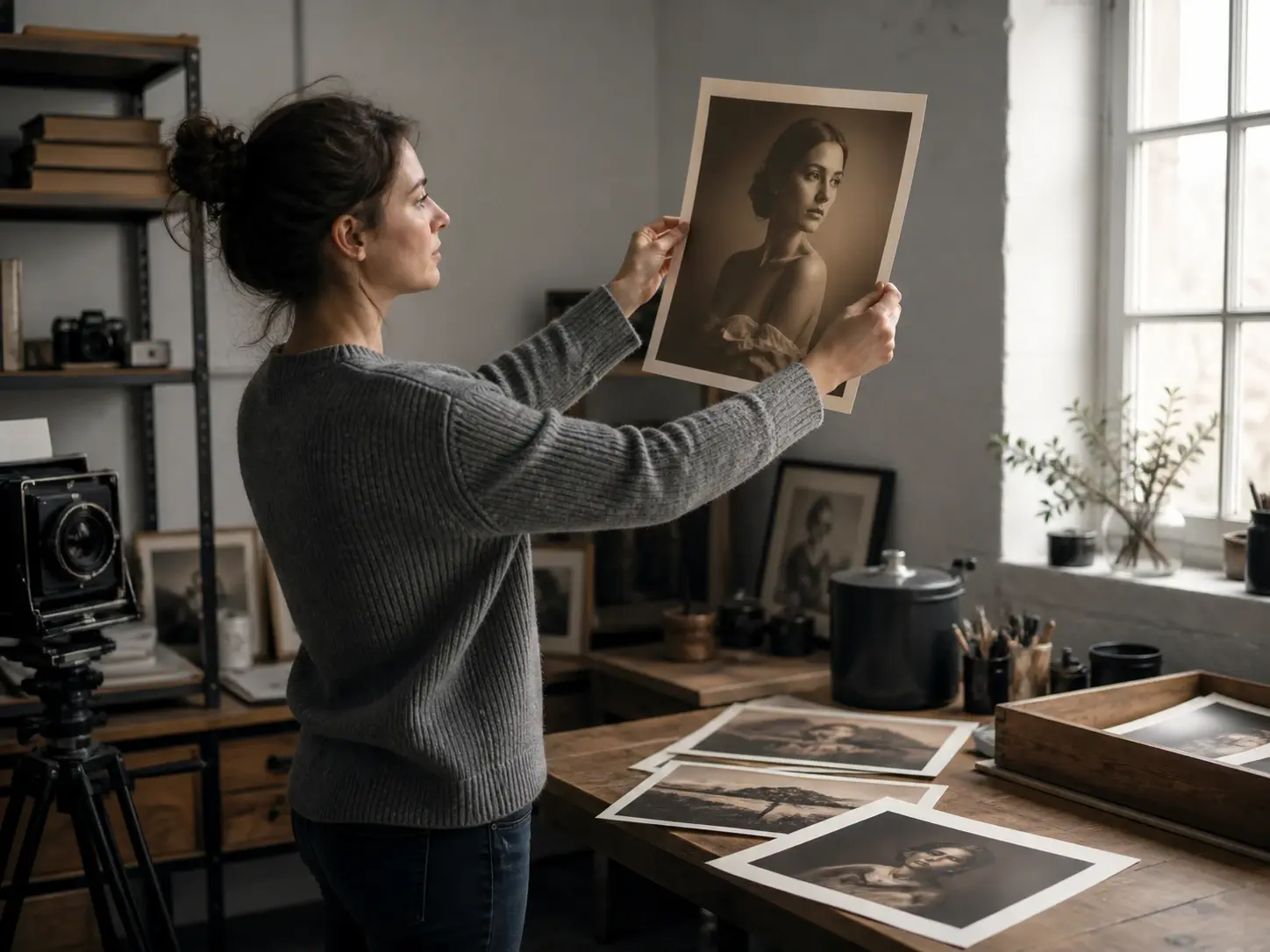
A portrait where the color scatters attention is a common headache for freelance photographers. You want a more restrained read without editing the shot frame by frame, so you pick the style and let the sepia filter carry the change across the face.
The parts that decide your sepia photo effect.
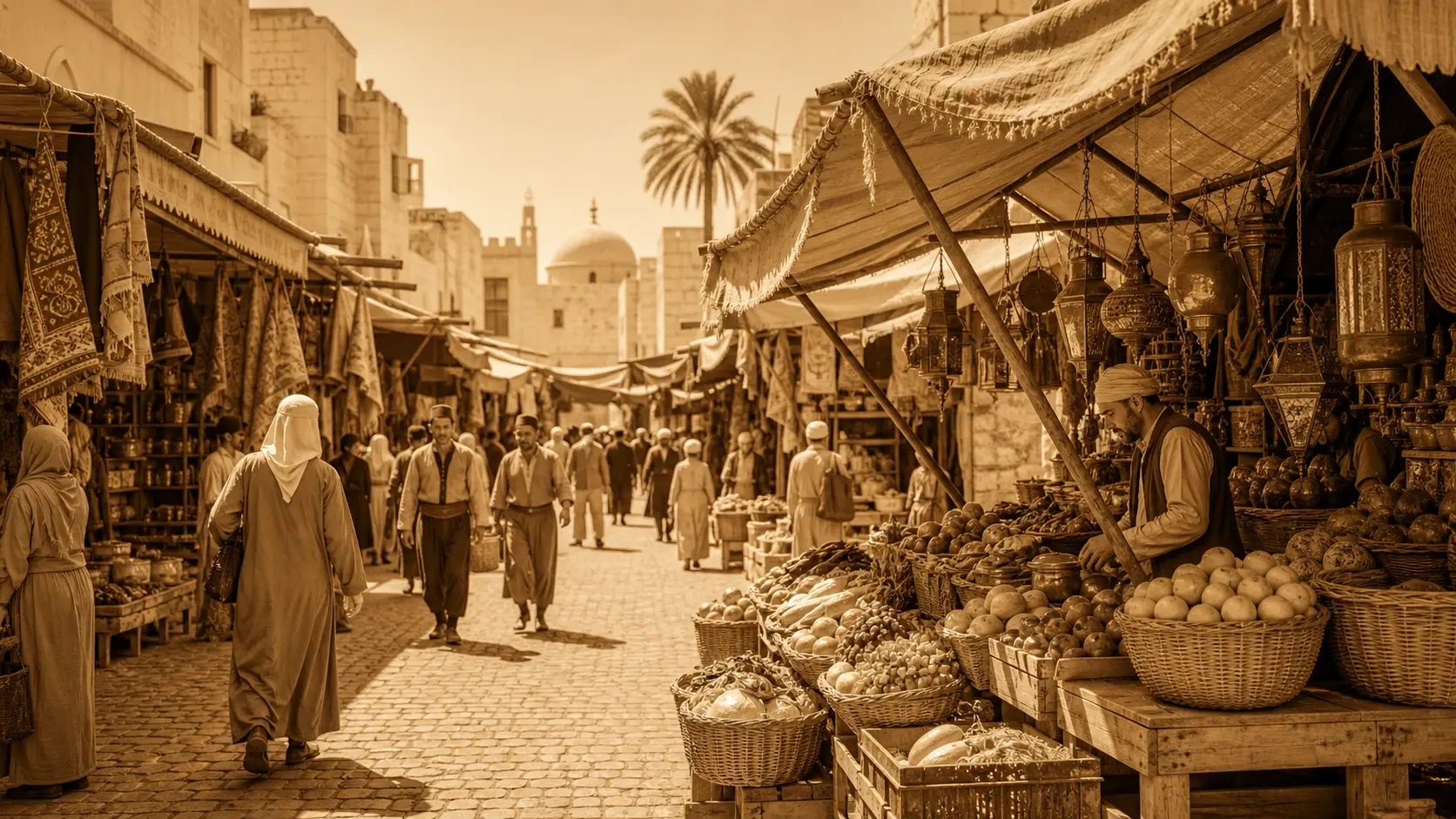
The people, the objects, and the framing are the ones you uploaded; what shifts is the color. Clarity and detail hold through the shift, so the sepia filter still reads sharp.
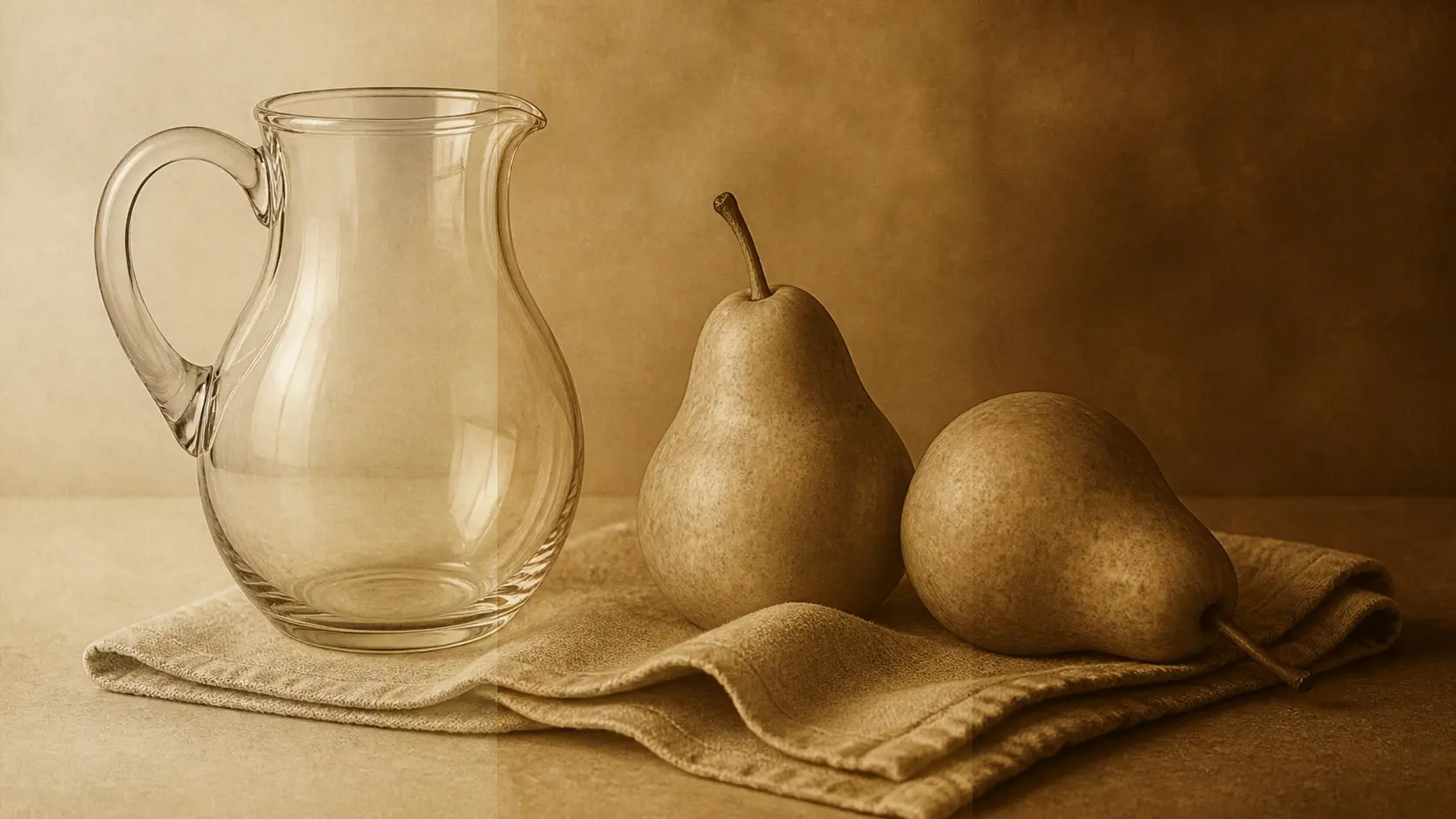
You do not have to define what brown means; choose the sepia tone from the style list and the render begins. There is nothing to tune, which keeps a sepia tone effect one decision away, lighter than a full sepia photo editor.
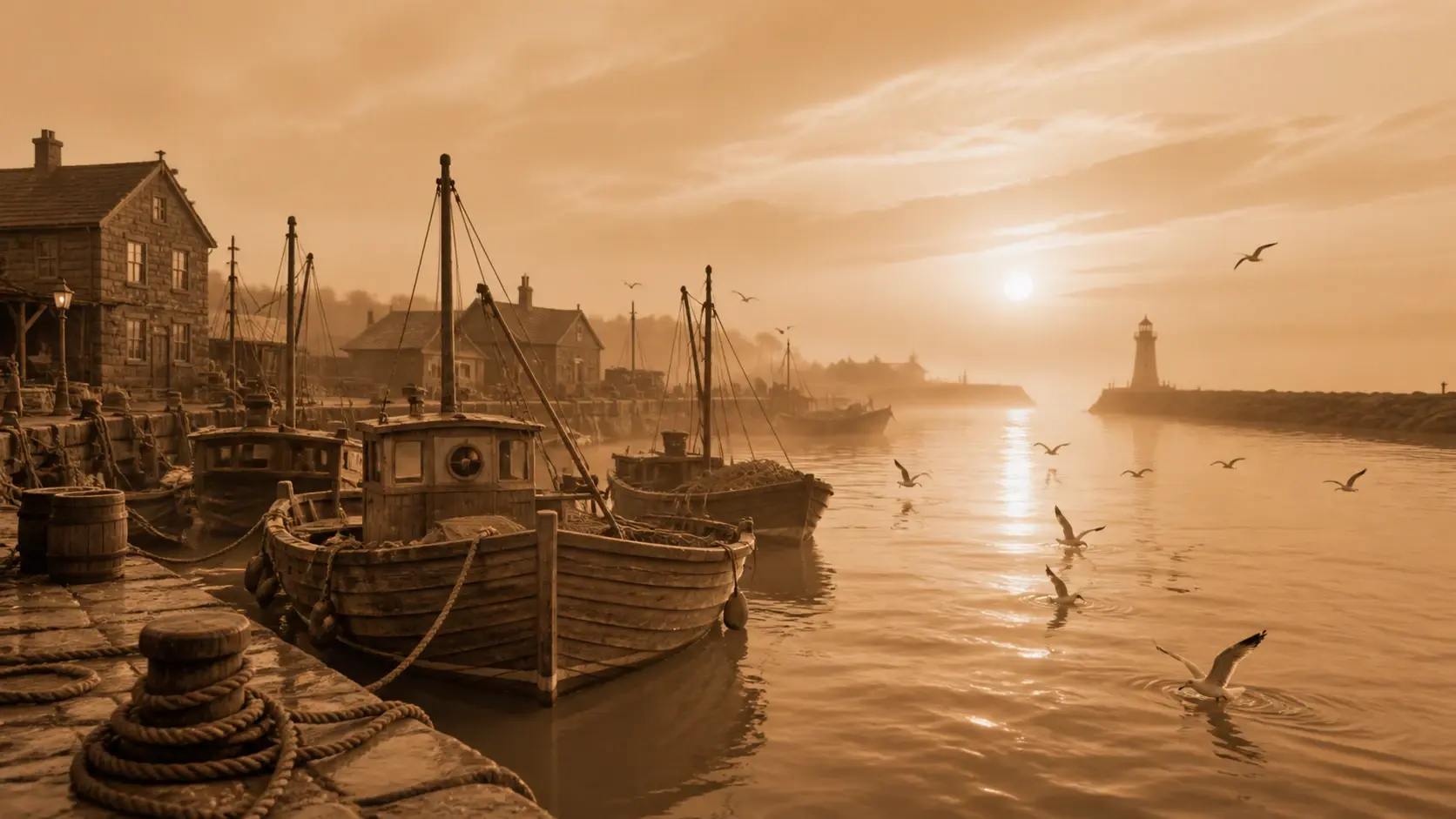
No photo on hand? Describe the shot and VideoAI generates a sepia image from the words alone. It is the same warm brown tone, built from a prompt when you have nothing to upload.
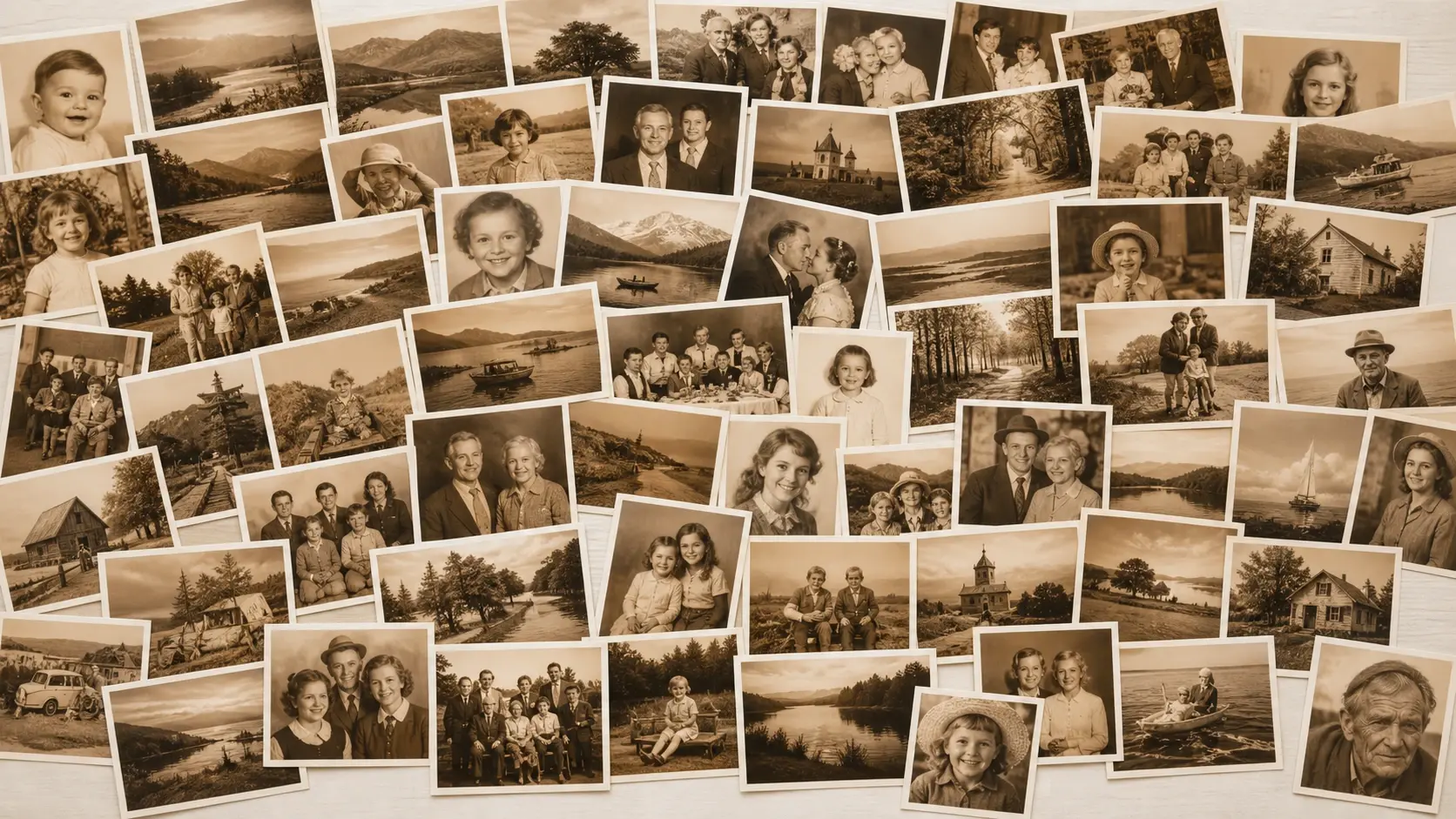
Send up to 30 photos through at once and every one lands on the same tone from a single sepia filter pass, while one prompt still returns four candidates to choose from. Downloads come at up to 4K with no watermark, ready for commercial use.
Explore
Pick the sepia filter and watch the first brown frame land on the photo you upload.
Get Started