Transparent Image Maker

Upload a photo and use a transparent image maker without tracing every edge. VideoAI finds the main subject, separates it from the scene, and prepares a clean cutout for product pages, profiles, presentations, and design work. Start with one file, review the cutout result, then download the PNG when it is ready.

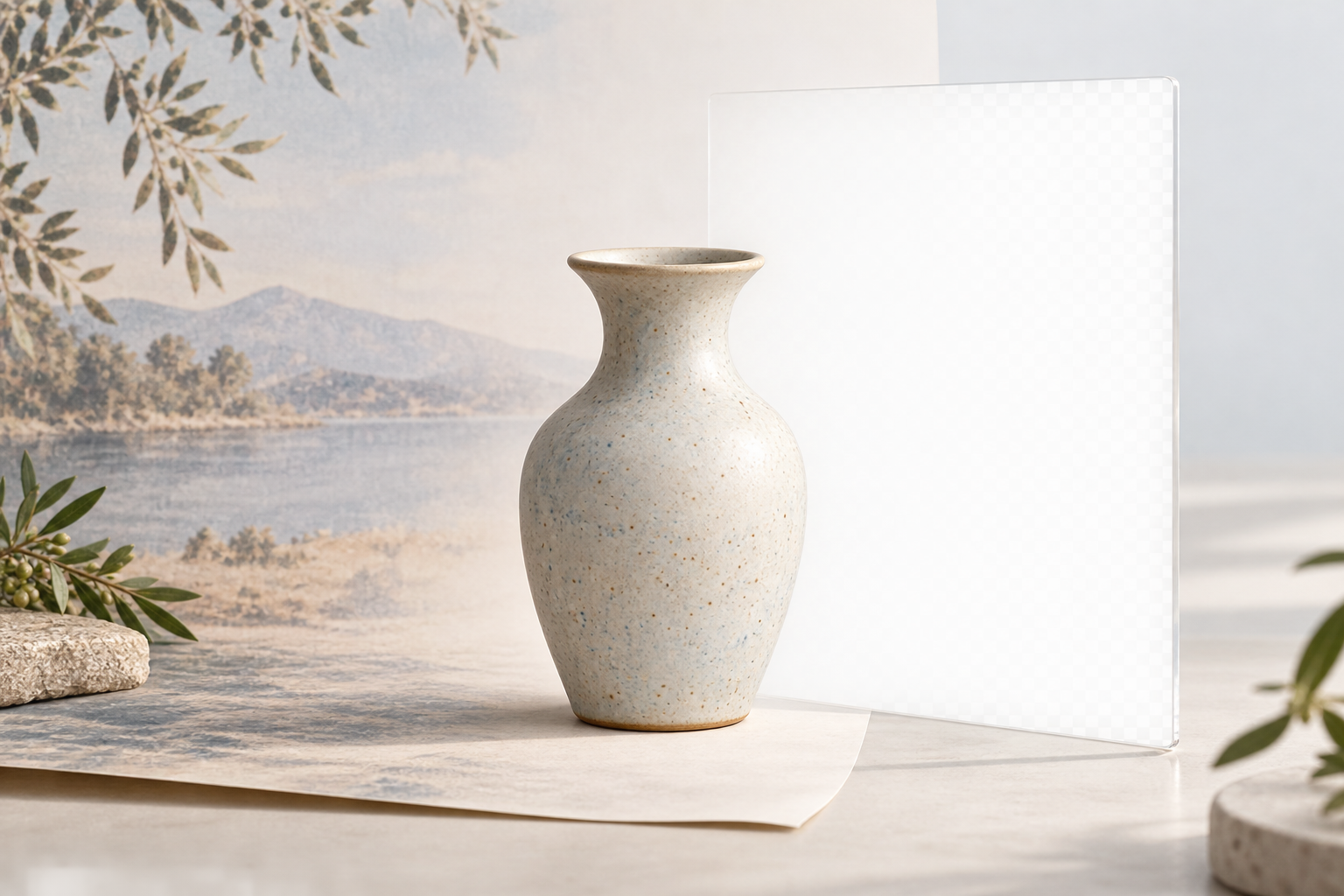
A product photo beside the same subject as a clean PNG cutout on a checkered canvas

What A Clean Cutout Workflow Gives You

Use one focused process to isolate the subject, preserve useful detail, and prepare a clean cutout for the next layout.

A portrait being separated into a clean PNG cutout while the background falls away

Clean Cutouts Without Manual Masking

Upload a photo and let VideoAI identify the subject automatically. The cutout workflow removes the surrounding scene without asking you to draw around hair, product edges, or small accessories, which keeps the first pass quick for everyday images. The result stays easy to review because the subject remains separate from the original room or studio backdrop. Keep the first file simple, then use what you learn about edge quality and lighting when preparing a larger batch.

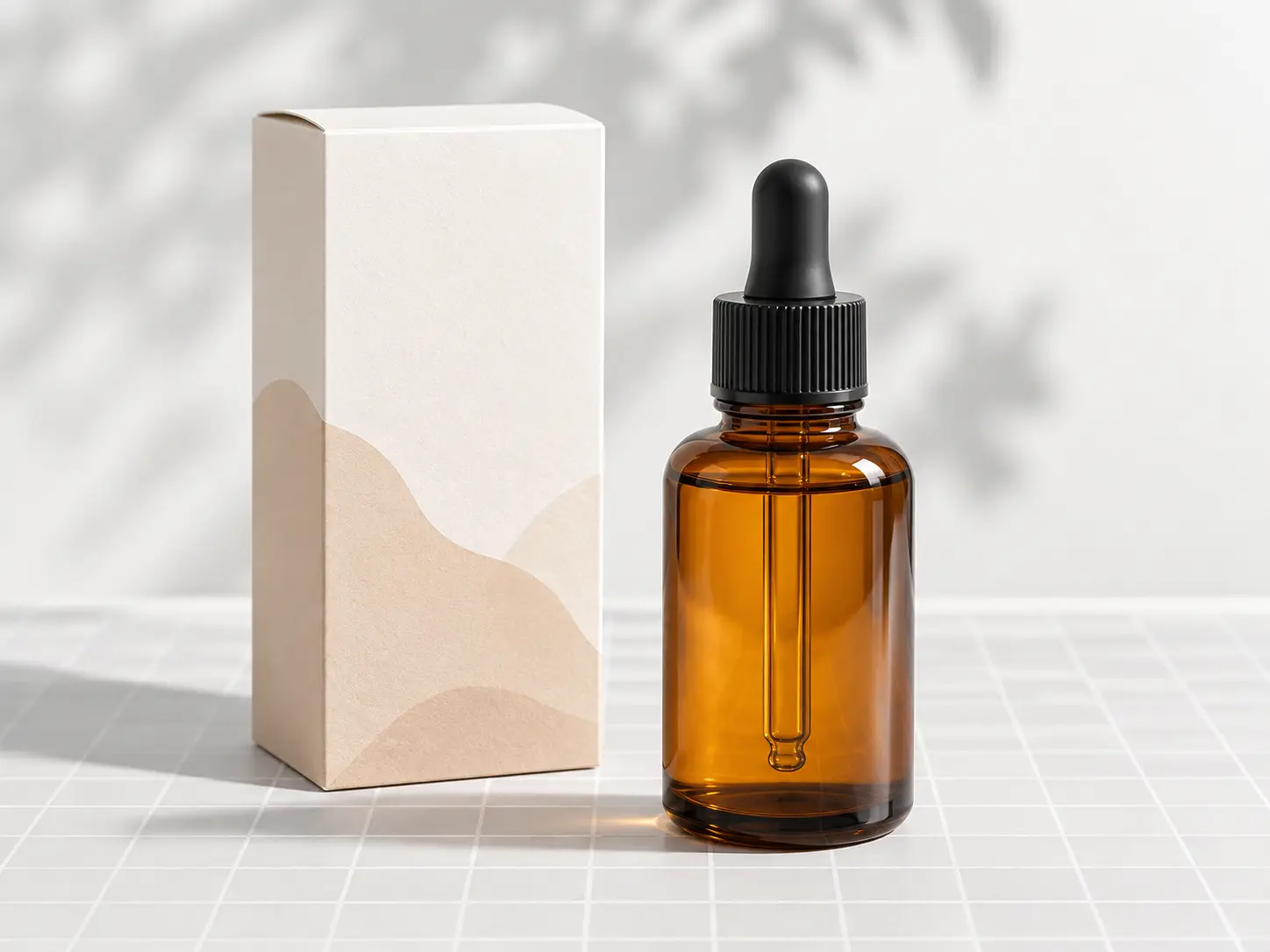
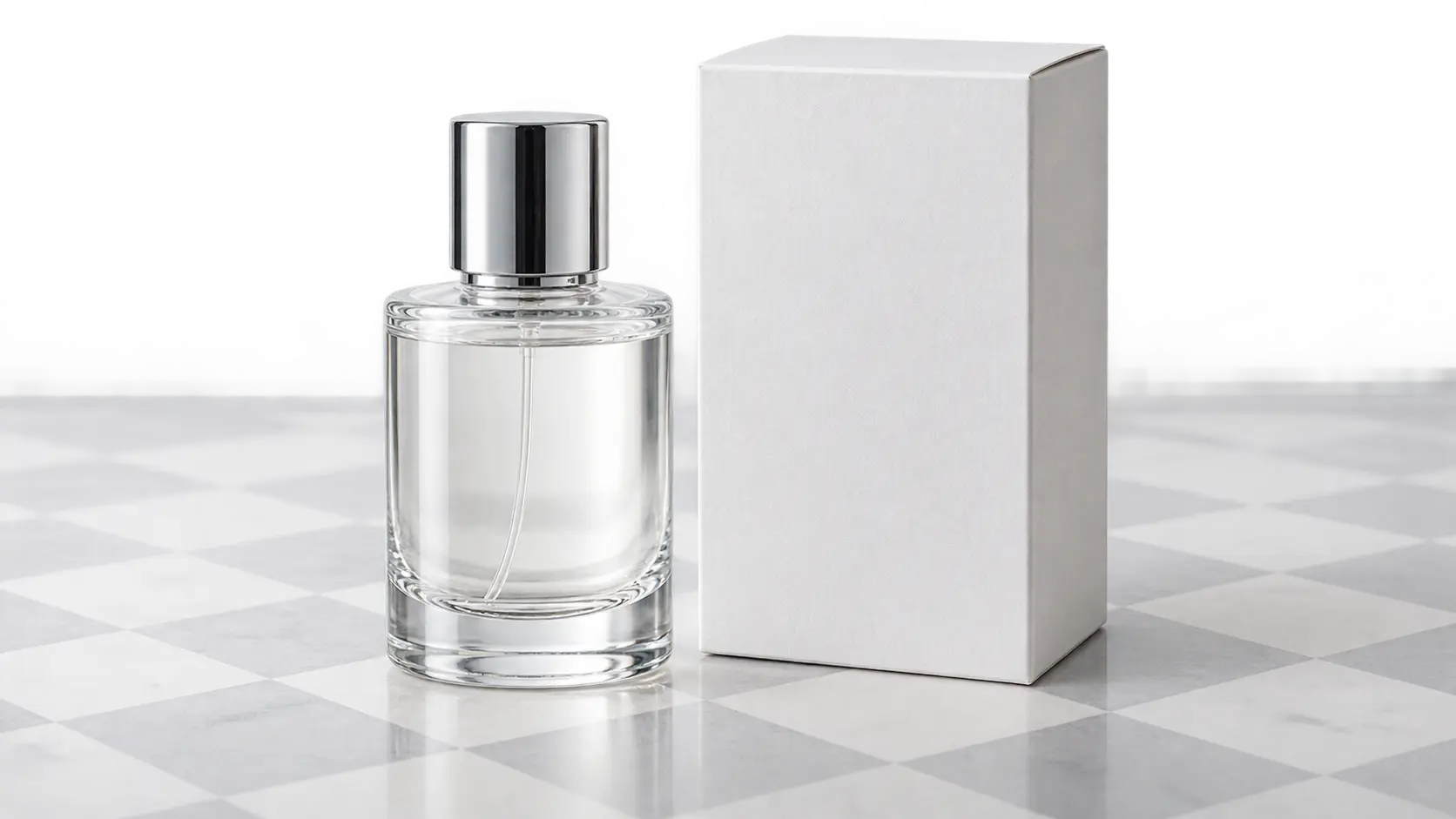
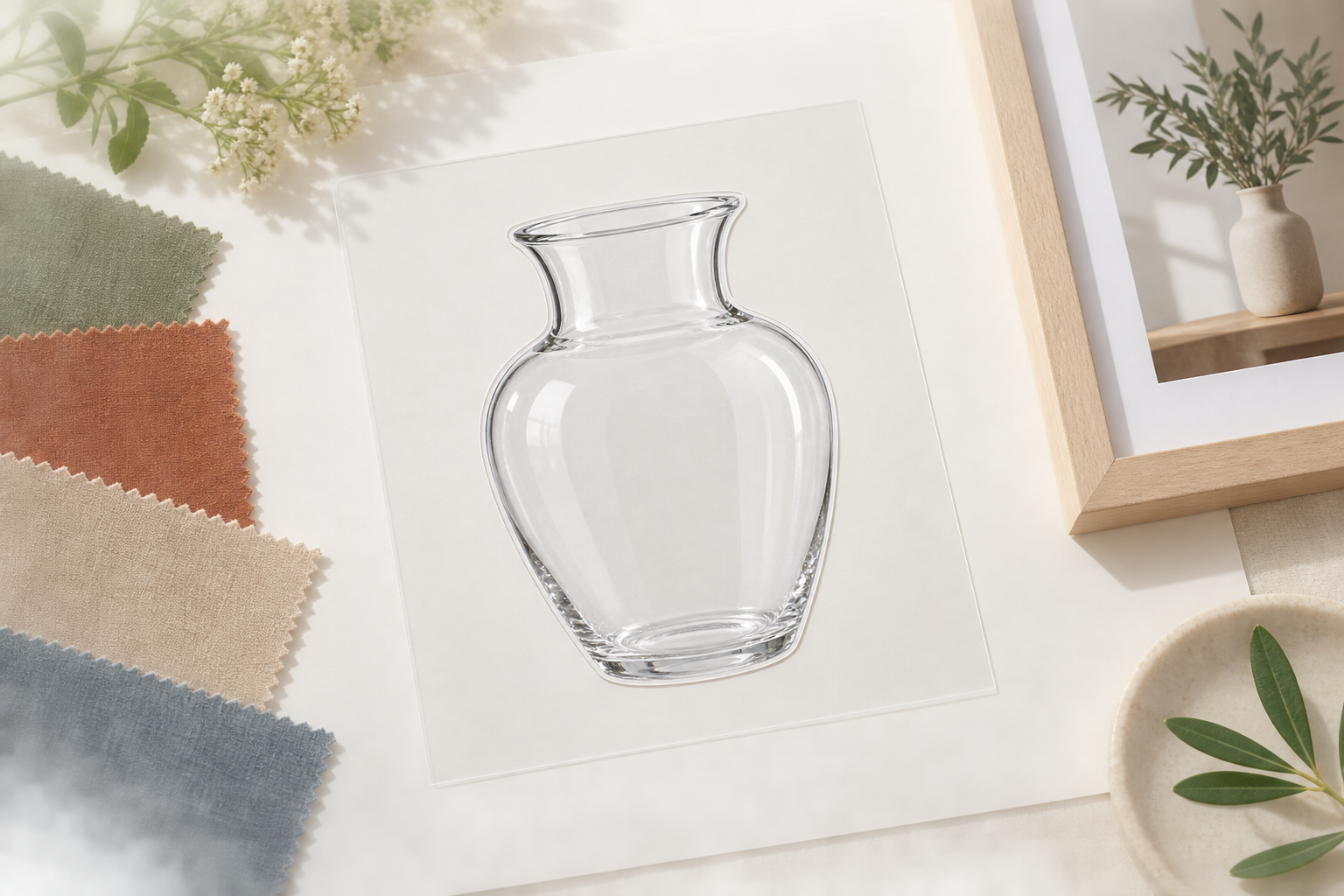
A glass bottle and box isolated as a clean PNG cutout with crisp edges on a pale layout

Clean Edges For Product Photos

Product shots often sit on a studio sweep or marketplace background that cannot follow the item into a new design. The cutout result keeps the product silhouette, label, and useful surface detail while removing the original backdrop. This matters when a catalog image must move from one channel to another without repeating the same manual selection. Keep the product centered with room around its silhouette, and inspect thin handles, labels, and clear packaging before reuse.

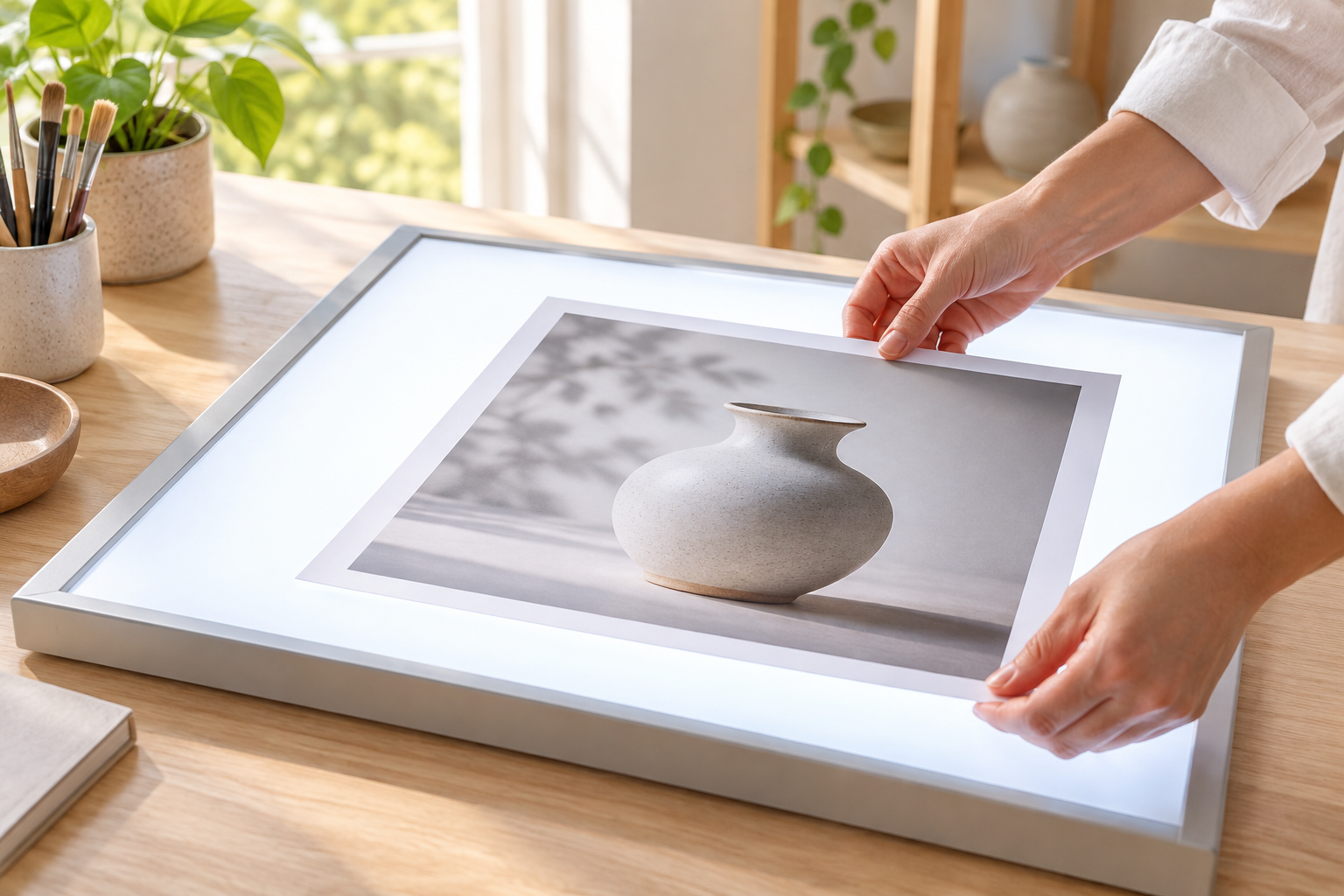
One PNG cutout placed across a poster, profile card, and storefront layout

Reusable PNG Files For Any Layout

A finished cutout can move onto a solid color, photograph, slide, storefront banner, or printed composition without a visible white box. The same PNG becomes a flexible asset instead of a one-off edit tied to its first background. That saves a fresh selection for every new format and keeps the subject consistent across a campaign. Check the alpha edge at the final display size, especially where hair, glass, or soft shadows meet a new color.

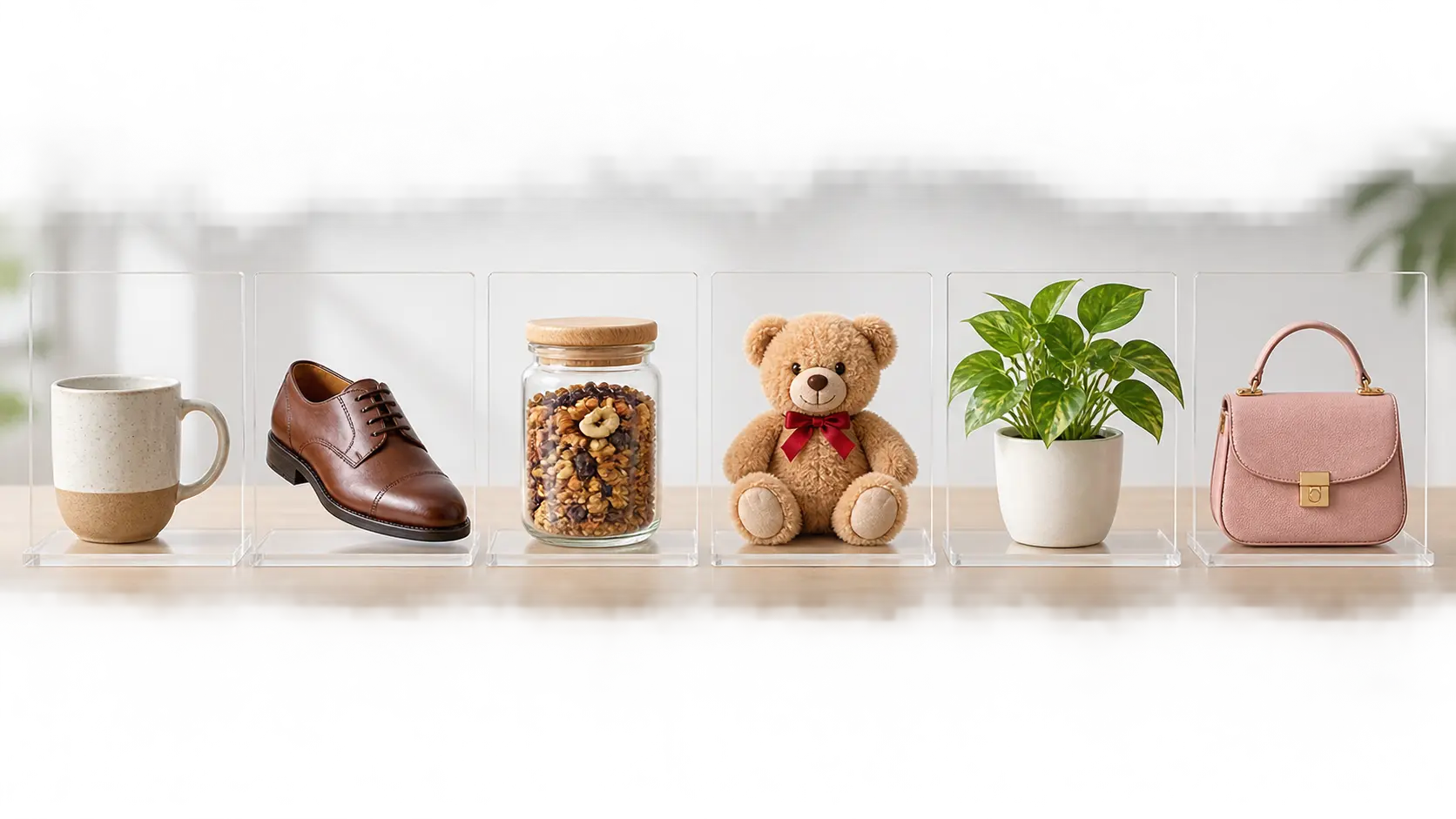
Several product photos prepared as separate PNG cutouts in a row

One Workflow For Single Or Batch Cuts

When one cutout is enough, work file by file. When a catalog needs a consistent treatment, prepare several uploads in the same session and keep the background removal method consistent across the set. Keep lighting and camera distance reasonably consistent so the group feels related rather than assembled from unrelated sources. Review each result at full size, then export the files with clear names that make later handoff easier.

How To Make A Transparent PNG In Three Steps

The path stays simple: add the source, let VideoAI remove the background, then download the final PNG.

A clean product photo being placed into an upload area for background removal processing

Step 01

Upload The Source Image

Choose a JPEG, PNG, or WebP that clearly shows the subject. A sharp photo with a visible outline gives the background removal tool more reliable shape information, whether you are starting with a portrait, product, logo, or object.

A busy studio background disappearing around a product during background removal processing

Step 02

Remove The Background Automatically

VideoAI separates the subject from the scene and leaves the cutout on a clear canvas. Review the result for fine edges, small gaps, or details that need another pass before you continue.

A finished PNG file being placed onto a dark presentation layout

Step 03

Download The PNG Cutout

Save the finished PNG and place it into the next layout. A clean cutout is ready for product pages, profile graphics, presentation slides, storefront artwork, and design systems that need an isolated subject.

Where A Transparent Image Maker Helps

Three practical situations where a clean cutout saves time and keeps the subject flexible.

Transparent image cutout of a skincare product placed on a clean marketplace listing card

Ecommerce Product Listings

Online sellers often need the same item on a white catalog card, a seasonal campaign background, and a social post. Using a transparent image maker once keeps the product intact while the surrounding color and layout change. Review the edges around transparent packaging and reflective surfaces before publishing the final asset.

Transparent image portrait layered over a bold social profile background

Profiles And Social Content

A transparent image maker can prepare a portrait or mascot for an avatar, story graphic, thumbnail, or community post. Removing the original room or street scene lets the subject sit on a brand color without losing the expression and pose that make the image recognizable.

Transparent image elements arranged across a brand presentation and printed campaign layout

Brand And Presentation Assets

Design and marketing teams can keep logos, signatures, people, and product cutouts ready for slides, documents, and campaign templates. A transparent image maker removes the need to rebuild the same selection from a flat background whenever the layout changes.

Benefits Of A Clean Transparent Image Maker

The value is not only a missing background. A useful transparent image maker makes every later layout faster to build.

No Tracing Required

Skip the slow brush and lasso work. The transparent image maker tool handles the first separation so you can spend time judging the result rather than drawing every edge.

Faster Repetition

Use the same process when several product shots, people, or objects need a consistent treatment instead of rebuilding a cutout for every file.

Cleaner Composites

A real transparent image maker avoids the white or gray box that appears when a flat JPG is placed over a different color.

Better Subject Focus

Removing a busy scene lets the viewer read the face, product shape, logo, or object detail without competing background elements.

Reusable Asset Library

Keep the cutout as a source file and reuse it across campaigns, profile systems, decks, thumbnails, and product updates.

Easier Handoff

A transparent image maker is straightforward for clients, designers, and collaborators to place into a layout without special instructions.

Who Needs A Transparent Image Maker Tool

Online seller arranging transparent image maker cutouts for an ecommerce catalog

Online sellers

Use a transparent image maker to prepare marketplace cards, campaign banners, and social ads while keeping the item ready for a different background.

Designer placing a transparent image maker cutout portrait into a colorful poster composition

Designers and creators

Use a transparent image maker to turn portraits, objects, and artwork into cutouts for profiles, thumbnails, posters, and client compositions.

Marketing team reviewing transparent image maker logo cutouts for a campaign board

Marketing teams

Build a dependable set of cutout assets with a transparent image maker for presentations, ads, emails, and recurring brand templates.

FAQ

Transparent Image Maker Questions

Upload a JPEG, PNG, or WebP with a clear subject. VideoAI uses the transparent image maker to separate the main object from the background and create a cutout you can review before download. Strong lighting and a visible outline usually make the first result easier to judge, especially around hair or fine product details. If the result misses a fine strand or turns a soft shadow into a hard edge, adjust the source crop or choose a cleaner starting photo instead of forcing extra detail into the prompt.

PNG is the usual format for a transparent image maker because it supports transparency and keeps edges crisp for layouts. The source can be a JPEG, PNG, or WebP; the important part is that the subject is large, sharp, and not hidden behind other objects. A lossless PNG is the safest final format because JPEG compression can reintroduce a visible edge or blocky halo. If a platform requires JPG, place the cutout on the chosen background first and export that composite rather than converting the transparent file.

Yes. The goal is to preserve the subject while removing the scene around it. Check soft edges, transparent packaging, and small accessories after processing, then regenerate if the transparent image maker needs a cleaner separation. Complex reflections may need an extra review. Soft hair, sheer fabric, glass, smoke, and reflective surfaces are the hardest areas to separate because they blend into the original surroundings. Review those edges at full size and regenerate with a simpler crop when the subject cannot be isolated cleanly.

A transparent image maker is designed to sit over a different background without carrying the original rectangle with it. You can place the cutout on a solid color, photo, gradient, or layout, then scale and position it as part of the new composition. The PNG keeps the alpha channel and moves with the subject, so you can rotate and layer it without a rectangular color fill. If a layout tool shows a pale outline, inspect the layer background and the original edge before blaming the cutout itself.

This workflow focuses on fast background removal and clean transparent image maker output. It removes the repetitive first step of masking, while final compositing, typography, retouching, and layout decisions can still happen in the design tool you already use. This keeps the repetitive separation step fast while preserving full control over the final design. Use the result as a clean starting layer, then finish color, shadows, and composition in the editor you already know.

You can prepare multiple source files when a catalog or campaign needs a consistent treatment. Keep the subject style and lighting reasonably similar, review each transparent image maker, and export the cutouts before moving them into the next layout. A batch is most reliable when the source files share a similar subject type and lighting setup. Review every output individually, correct the few difficult edges, and download only the versions that meet the destination requirements.
A clean desktop arranged with transparent image maker cutouts on bright paper and colorful cards

Create Your Transparent Image Maker

Upload one photo, remove the background, and keep the subject ready for the next layout.

Get Started
Transparent Image Maker - Clean PNG Cuts - VideoAI