Video Editing Tools

Compare timeline editors, online video editing tools, AI-assisted editors, prompt-led video workspaces, audio and caption tools, and export utilities by the job you need to finish.

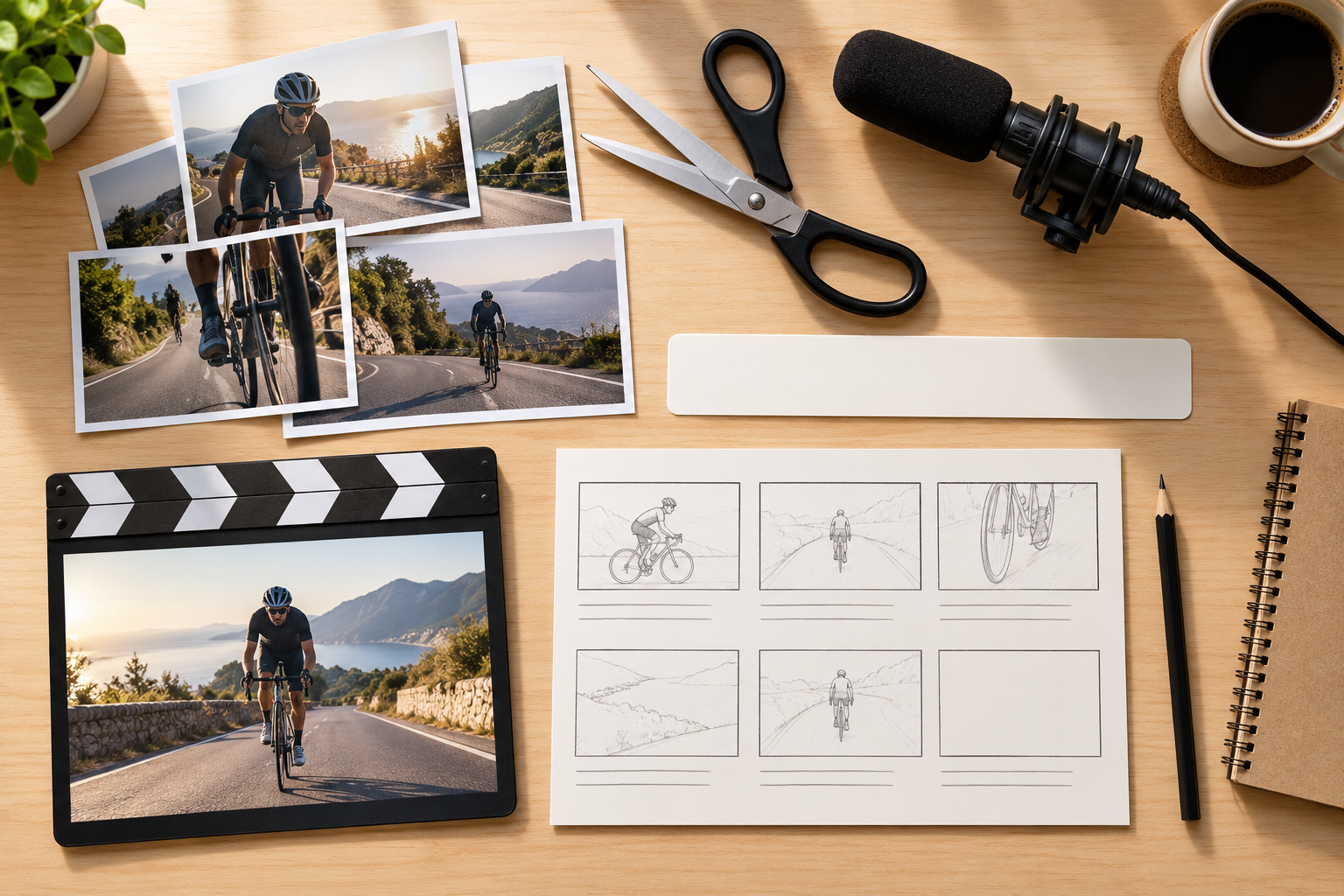
Overhead video production desk with film strips showing a cyclist in motion, color swatches, an editing dial, and scissors

How to Choose Video Editing Tools

Start with the work in front of you. The best fit depends on the source footage, the control you need, and where the finished video will go.

01

Name the Editing Job

Decide whether you need precise cutting, a quick browser edit, prompt-led changes, captions, audio cleanup, format conversion, or newly generated footage.

02

Choose the Control Model

Use a timeline for frame-level decisions, a template editor for speed, or an AI workspace when text instructions and automated changes fit the project.

03

Check the Real Limits

When comparing video editing tools, confirm login requirements, free credits or export caps, watermarks, supported inputs, output resolution, licensing, and collaboration before you commit.

04

Test One Complete Export

Run a representative clip from import to export. Check quality, speed, control, and whether the result moves cleanly into the rest of your workflow.

Six Types of Video Editing Tools

Tool categories overlap, but each one starts from a different editing need.

Timeline Editors

These video editing tools are built for arranging clips, trimming, splitting, tracks, transitions, color, audio, effects, and detailed timing. Choose this type when precise editorial control matters most.
Online Video Editors

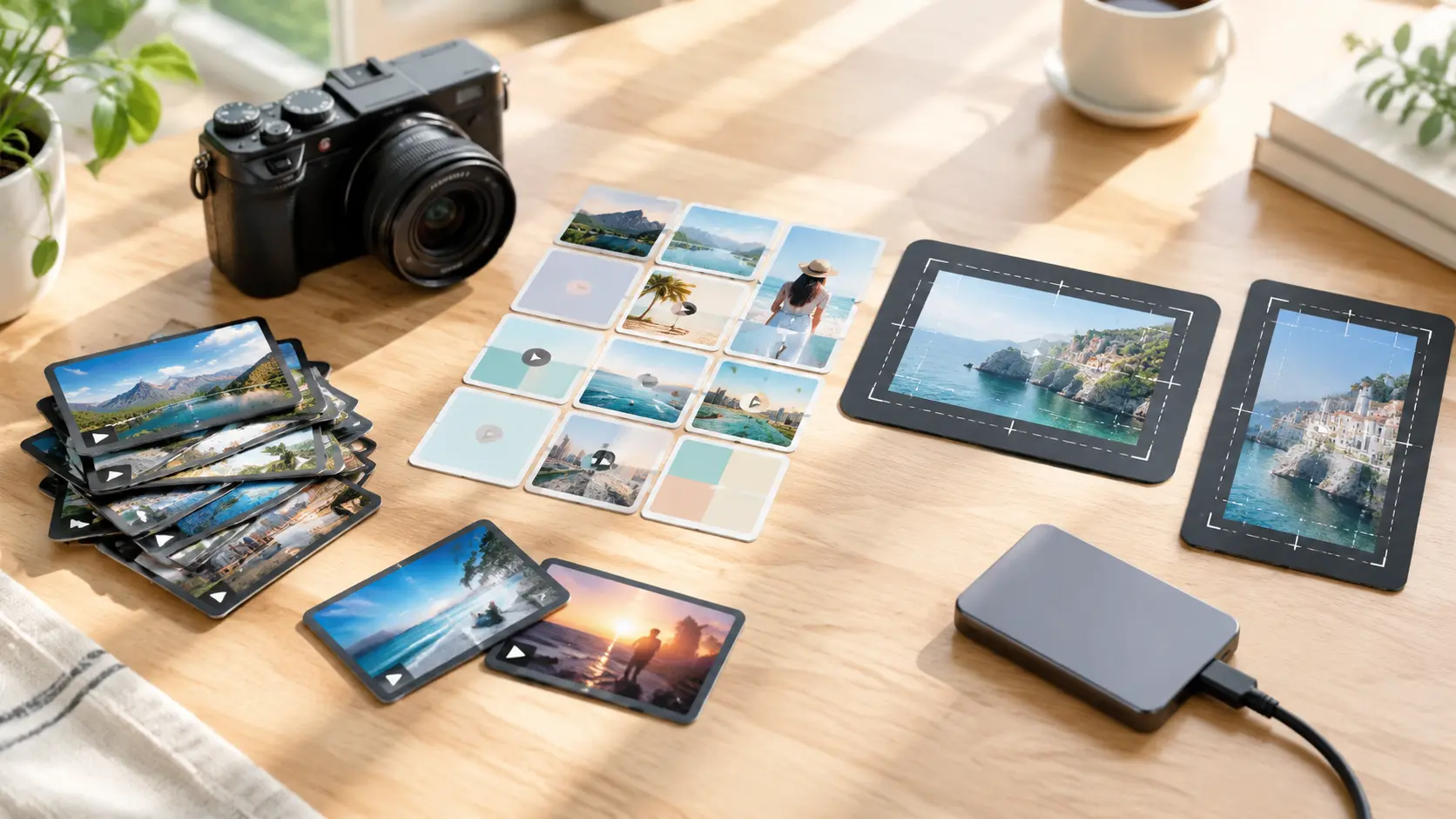
These video editing tools run in a browser and usually emphasize fast uploads, templates, captions, stock assets, resizing, and social exports. Check upload and free-export limits.
AI-Assisted Editors

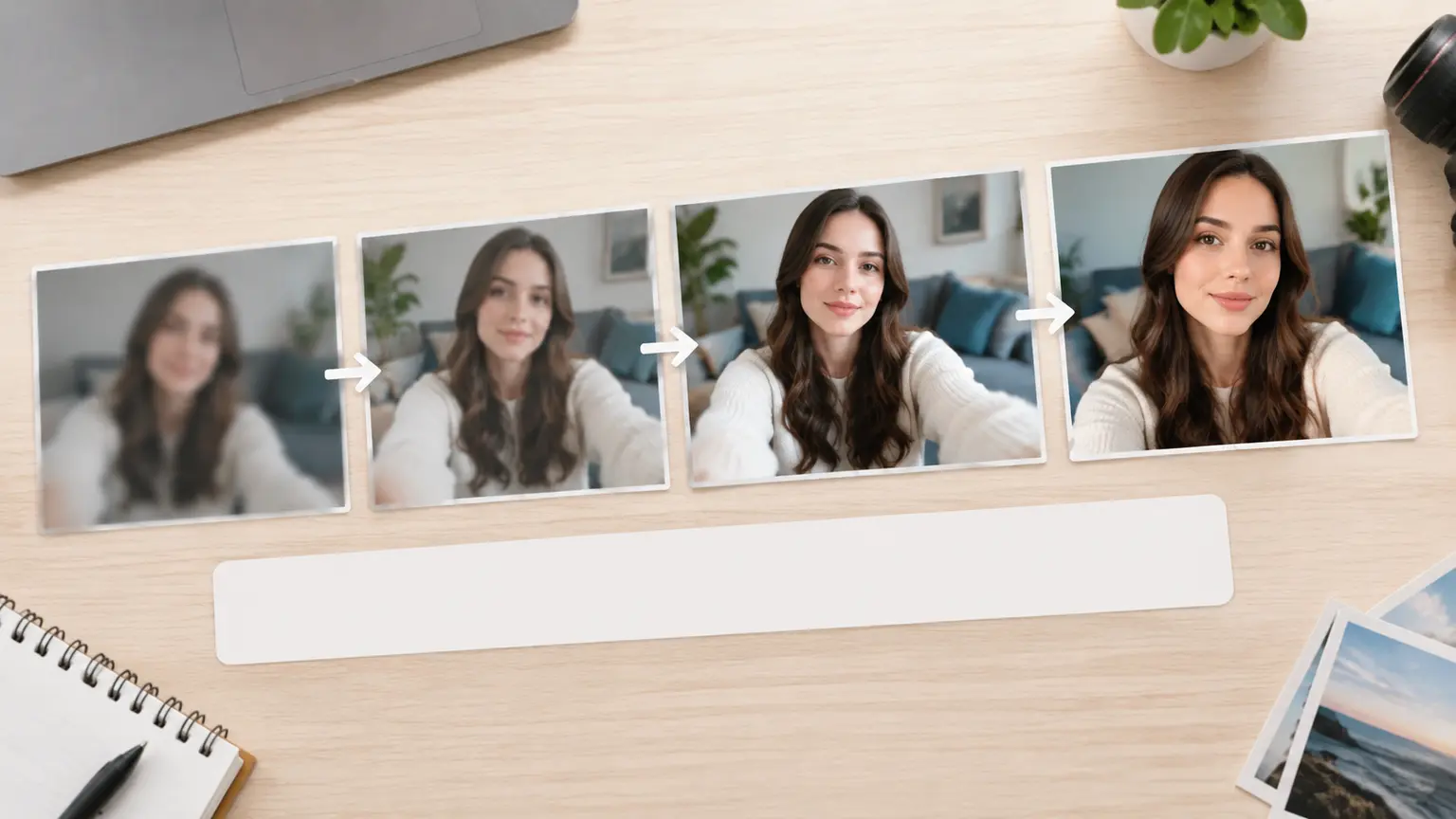
Automate tasks such as scene changes, reframing, captioning, cleanup, or rough assembly while keeping some manual controls available.
Prompt-Led Video Workspaces

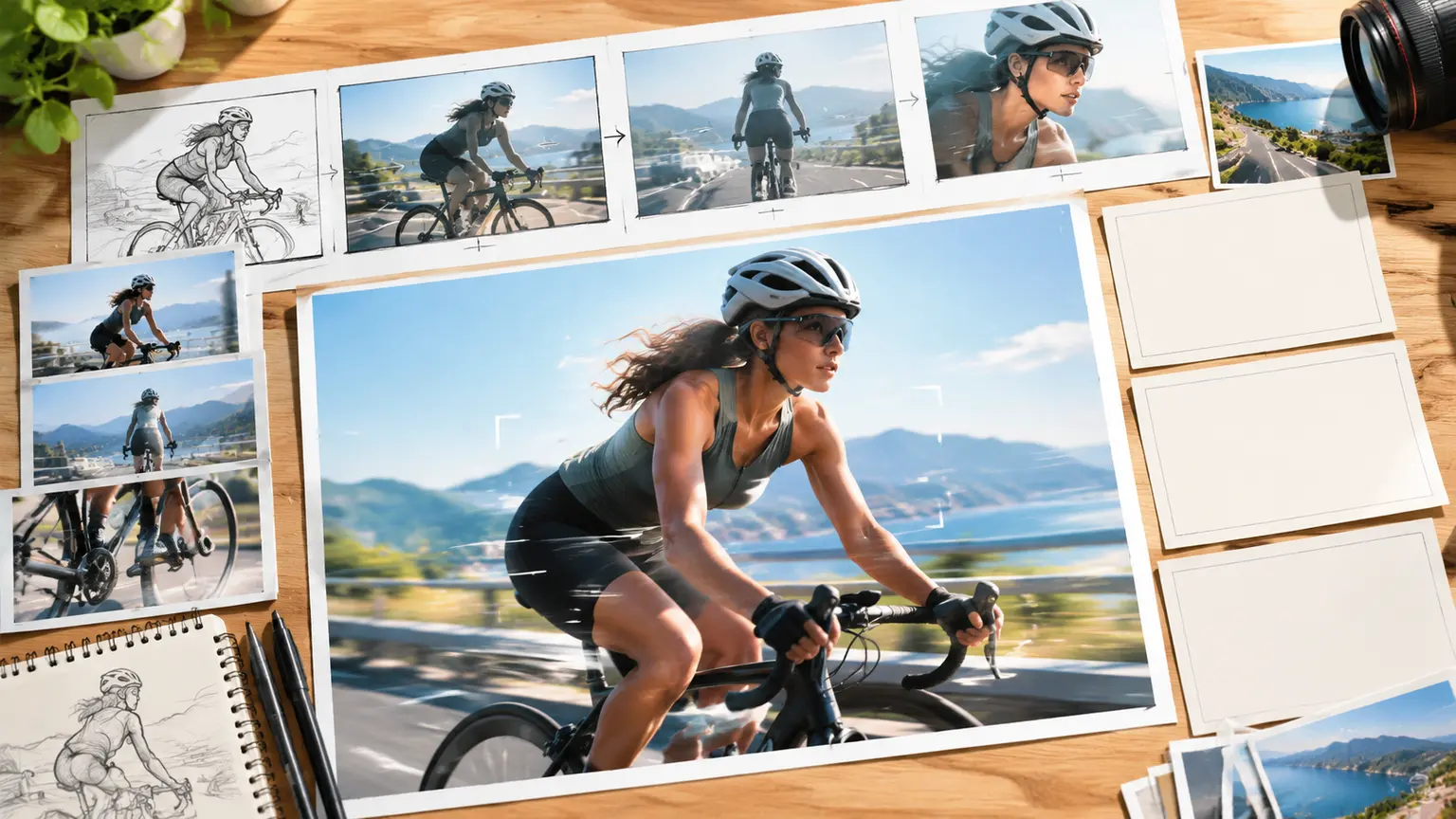
Create or revise video through prompts, scripts, and visual references. They are useful for generating new footage and guided variations, with less emphasis on frame-level editing.
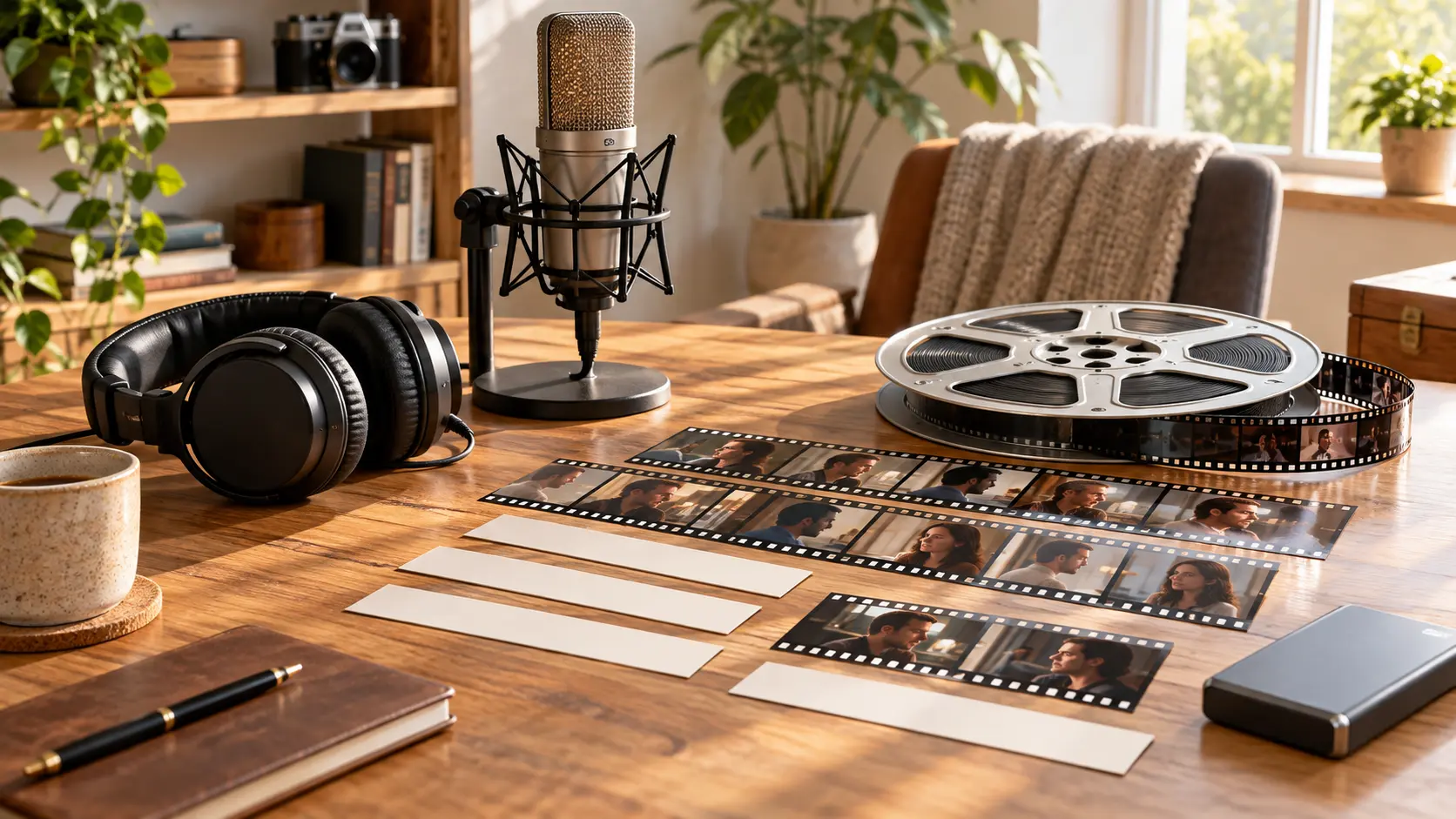
Audio and Caption Tools

Specialize in transcription, subtitles, translation, voice, music, noise cleanup, or silence removal. They often complement a broader editor.

Format and Delivery Tools

Resize, convert, compress, or package finished video for a platform. They solve the last mile without replacing a full editor.

A Practical Map of Video Editing Tools

Compare each product's editing approach with your task. Third-party descriptions use official-source research collected on September 15, 2026; current plans and performance have not been independently tested for this guide.

Adobe Express

An online editor centered on upload, templates, crop, trim, split, audio, and MP4 export. It fits quick browser edits and template-led content.

Adobe Firefly

Combines prompt-based AI editing with timeline tools, connecting generative changes with create, refine, and rearrange controls.

InVideo

Uses text commands to revise generated videos, including style changes, media swaps, and scene changes.

Kapwing

A browser workspace that brings AI generation and editing together, with prompt- and script-led ways to begin a project.

Renderforest

Positions its AI video editor around accessible creation and editing. Verify current plan and export conditions for the exact workflow you need.

VideoAI

A generative video workspace for prompts, mixed references, planned scenes, and text-led revisions. It fits new footage and variations rather than a manual timeline workflow.

Where VideoAI Fits

Use VideoAI when the project needs generated footage or a new prompt-led version. Choose timeline-based video editing tools when you need exact cuts and track-level control.

01

Start from Mixed References

Guide a video with text, images, video, and audio references, then assign those materials to the role they should play in the result.

02

Plan Scenes and Timing

Describe the sequence you want and direct what should happen in each part of the generated video.

03

Revise with Text Instructions

Continue from a generated result by changing the prompt or scene direction and generating a new version to review.

04

Export Generated Video

VideoAI supports MP4 output up to 4K, commercial use, batch generation, and no visible watermark. Login is required and new accounts start with 10 credits.
05

Know the Boundary

Manual timeline, cut, trim, split, and frame-level editing are not established VideoAI capabilities. Use traditional video editing tools when those controls are essential.

FAQ

Video Editing Tools FAQs

Video editing tools let you cut, arrange, enhance, generate, caption, convert, or export video. The category includes timeline editors, browser editors, mobile editors, AI editors, specialist utilities, and generative video workspaces.

Choose a timeline editor for precise cuts and tracks, an online editor for quick browser work, an AI-assisted editor for automation, a prompt-led workspace for new footage and variations, or a specialist tool for captions, audio, conversion, and delivery.

They can be for short-form content, reviews, templates, captions, and simple exports. Long-form projects, complex audio, detailed color work, or large media libraries may still need a desktop timeline editor.

Check export resolution, watermarks, project limits, storage, supported formats, premium-only features, commercial-use terms, and whether an account or payment method is required. Free-plan rules can change, so verify the current official plan.

AI can speed up generation, rough assembly, captions, cleanup, and prompt-led revisions. It does not automatically replace detailed timeline decisions, editorial judgment, rights checks, or final quality control.

VideoAI is confirmed for generative video and prompt-led revisions. Manual timeline, cut, trim, split, and frame-level editing are not established capabilities, so use a timeline editor when you need those controls.

VideoAI supports generated MP4 video up to 4K with no visible watermark. Commercial use and batch generation are supported for this video-generation workflow.

Create the Footage Your Edit Is Missing

When the next step is a new shot or a prompt-led variation, bring your direction and references into VideoAI, plan the scene, generate, revise, and export the result.

Get Started
Video Editing Tools: Compare Types and Workflows