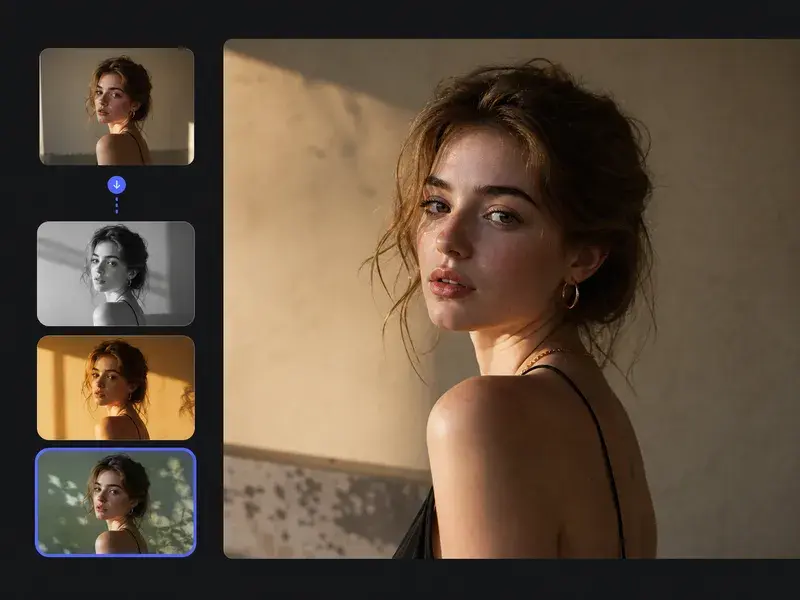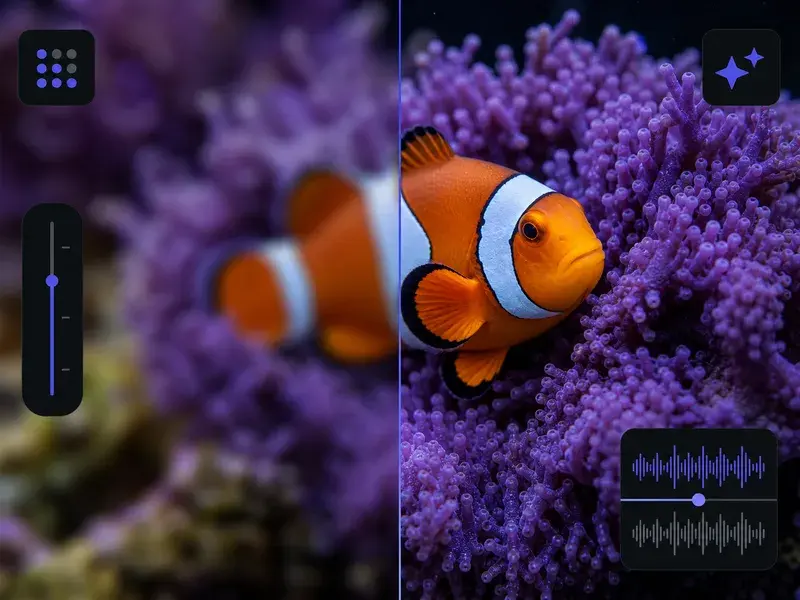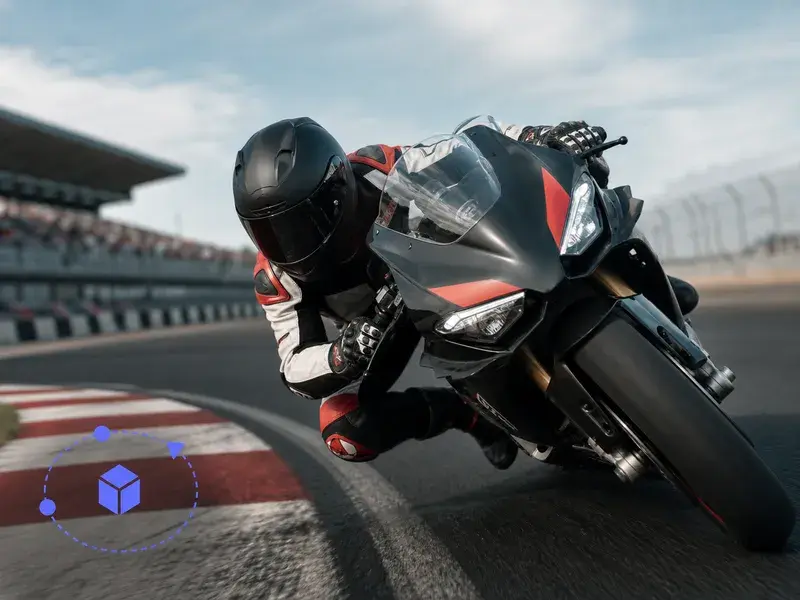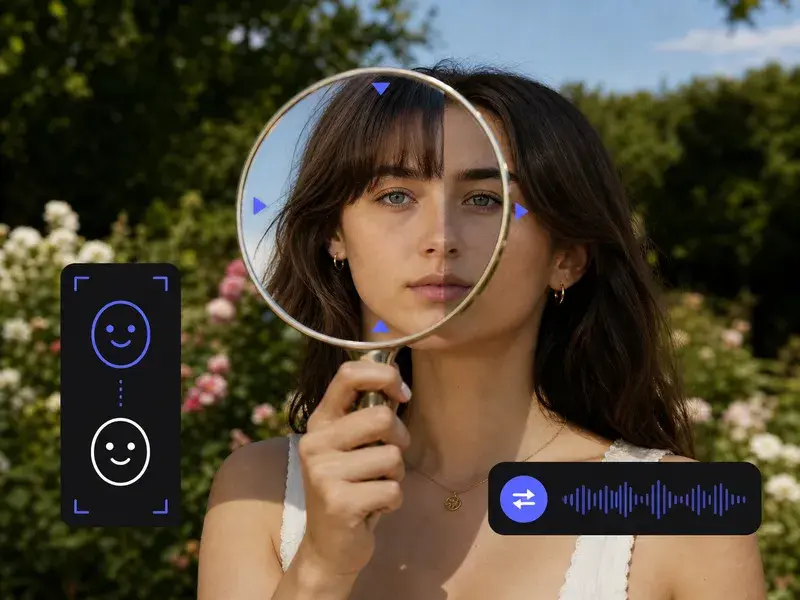
Step 01
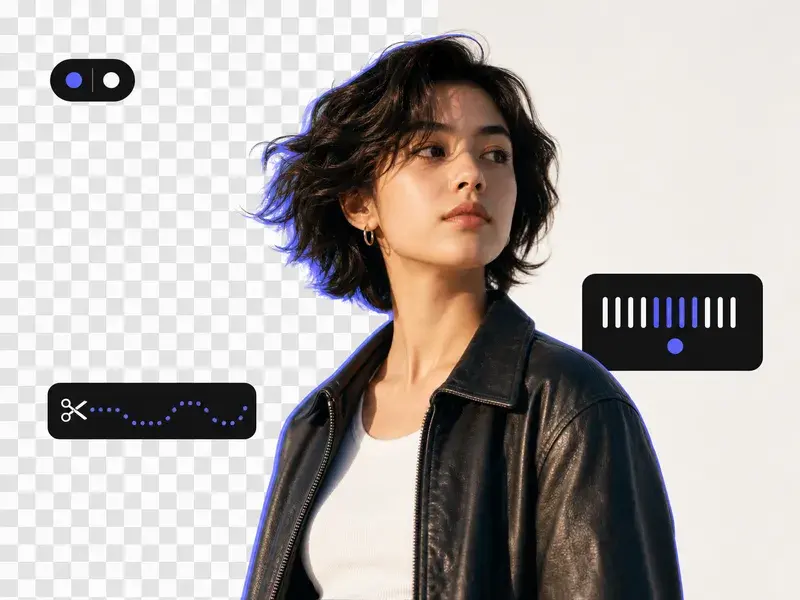
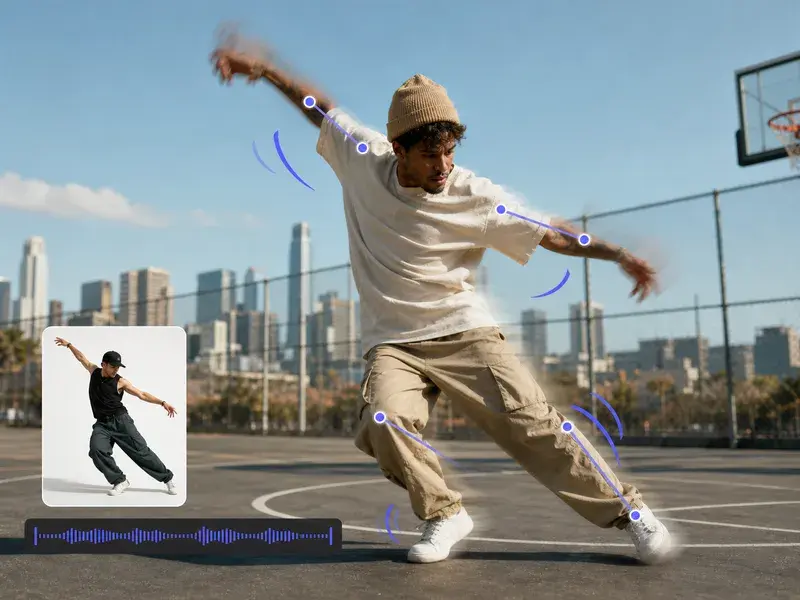
Pin your start photo
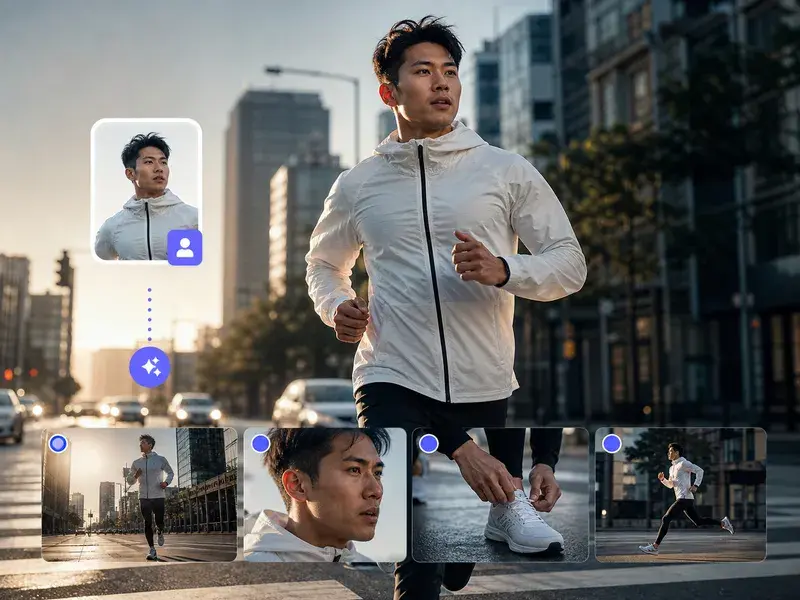
Upload the photo you want the clip to open on and assign it as the start; it saves to your own workspace, so you can reuse it later or delete it yourself, and common image formats work here.

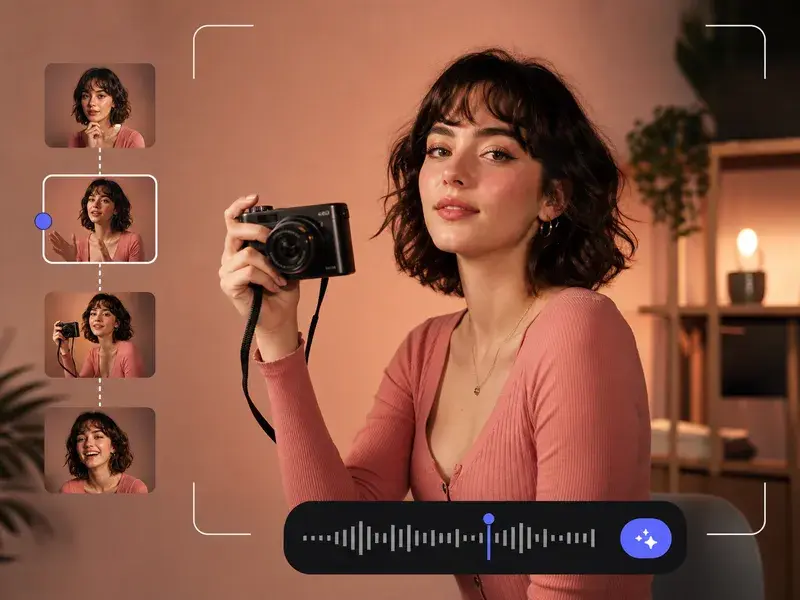
Upload a start photo and an end photo, describe how the middle should change, and VideoAI builds every frame of the photo morph between them into one video.
Four practical photo morph projects for when you have two stills and nothing in between, each built for a different kind of photo morphing.
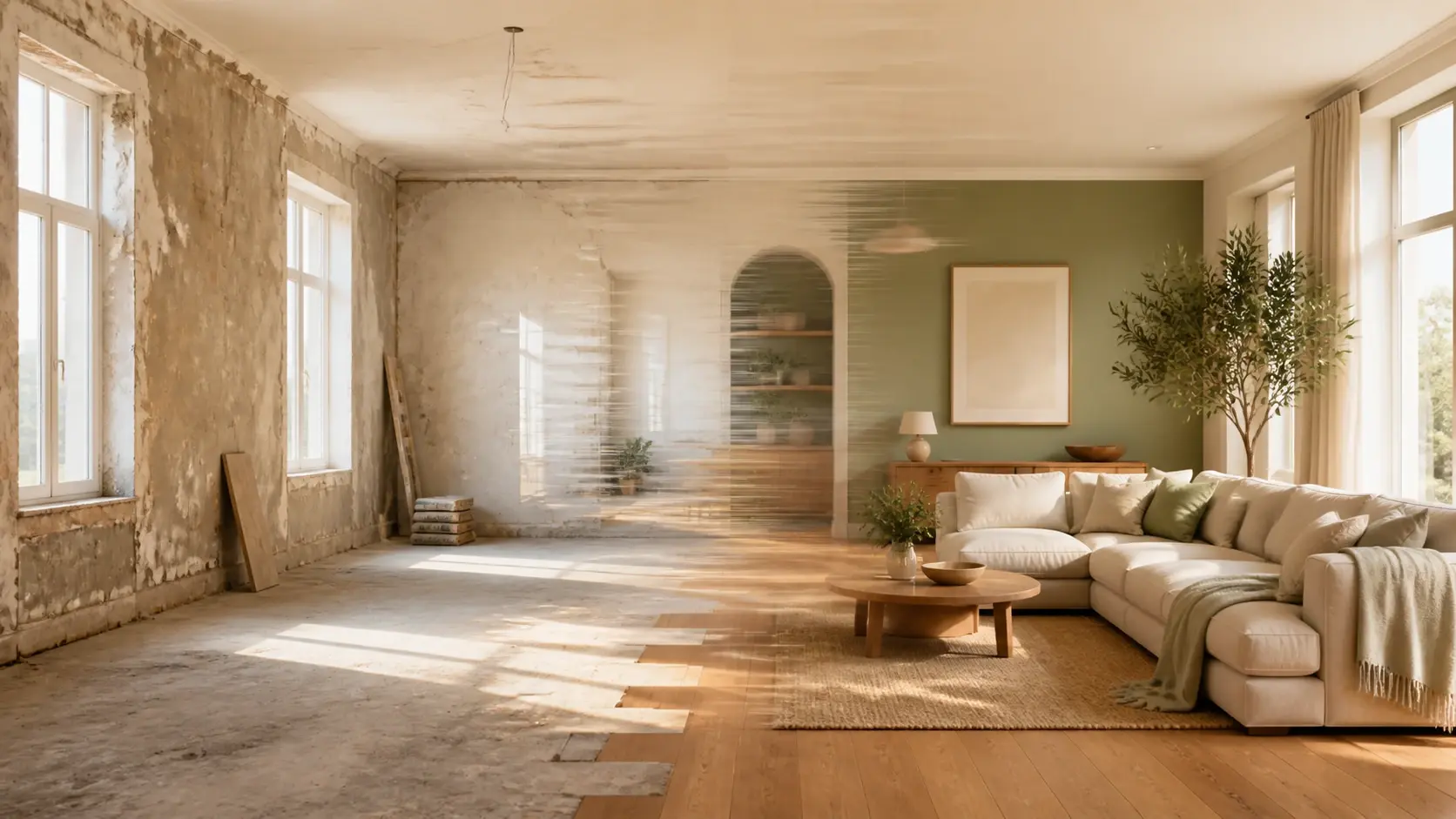
The remodel is finished, and all you kept was one shot from before and one from after; hand both over and VideoAI grows the missing stretch in the middle on its own, so your photo morph becomes a before and after transition you never filmed.
Tracking a slow change in yourself reads as choppy when you cut one still straight to the next, so lock the earliest photo as the start and the latest as the end, and VideoAI plays the shift back as a gradual morphing video rather than a hard jump, keeping your photo morph smooth end to end.
Same field, same tripod spot, one frame in spring and one in autumn: set them as your two ends and VideoAI turns the season across the clip, so the photo morph spares you a second trip to reshoot the weeks in between.
You have the boxed product and the styled hero shot but nothing of the moment it opens; drop both in as start and end, and VideoAI generates the reveal between them, turning your photo morph into a short clip you can post.
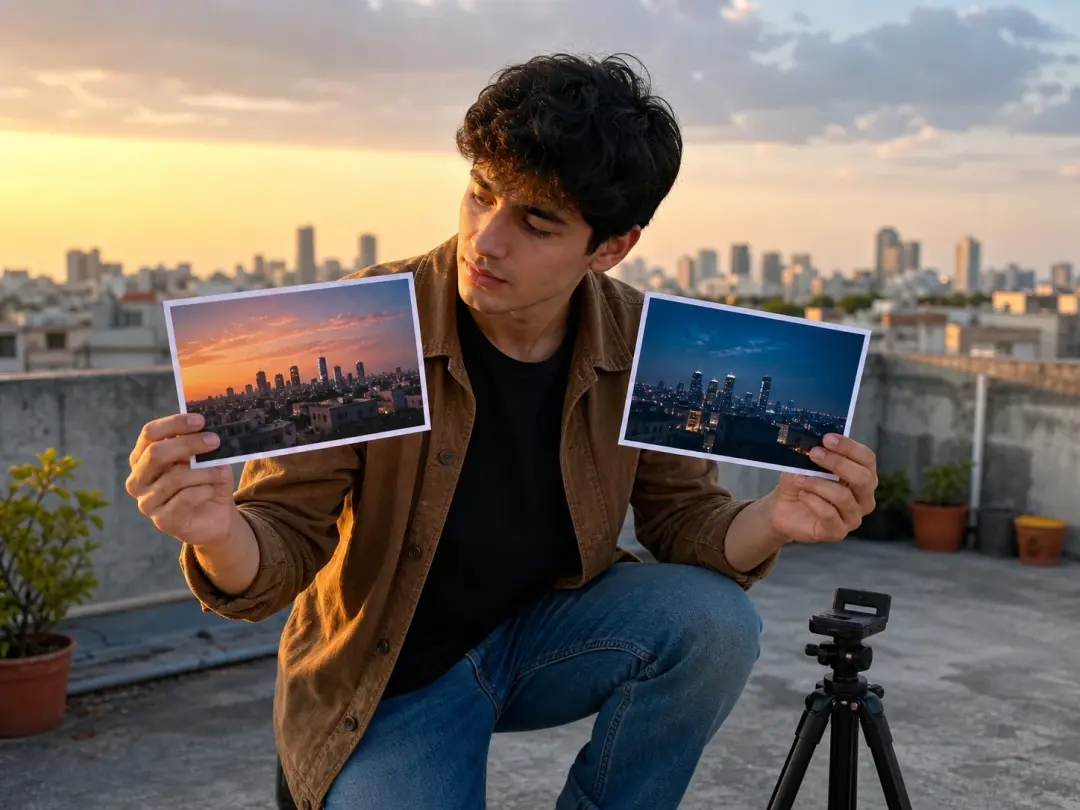
When you have two key stills but never captured the motion between them, and going back to reshoot costs too much, you give VideoAI one photo as the start and one as the end, and it builds the ai transition video that carries the first shot into the second.
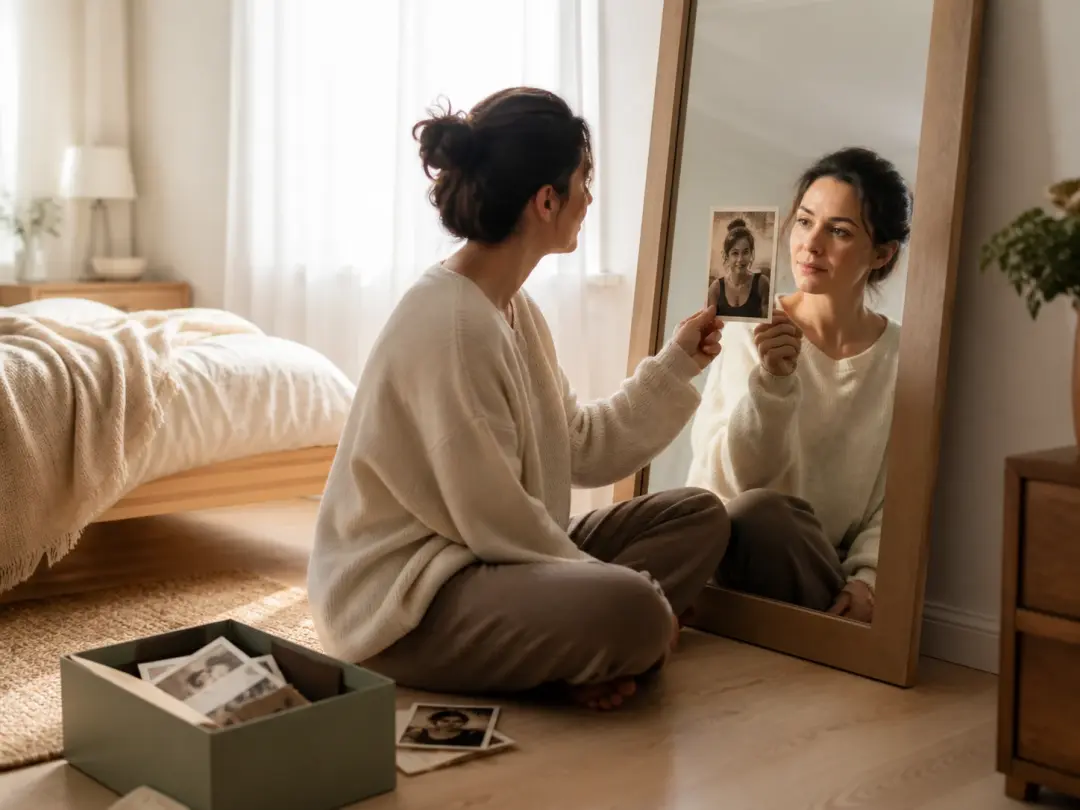
Most people documenting a personal change hold only the before and the after, never the weeks between, so you pin those two photos and watch the middle fill in through photo morph as a face morph that moves instead of two flat stills.

A small team shipping product content needs those few beats of reveal, which are not worth an outside shoot and impossible to cut when no middle footage exists, so VideoAI builds the reveal between your packshot and your final frame.
Every part of the photo morph stays in your hands, from choosing the two ends to how you morph one photo into another.
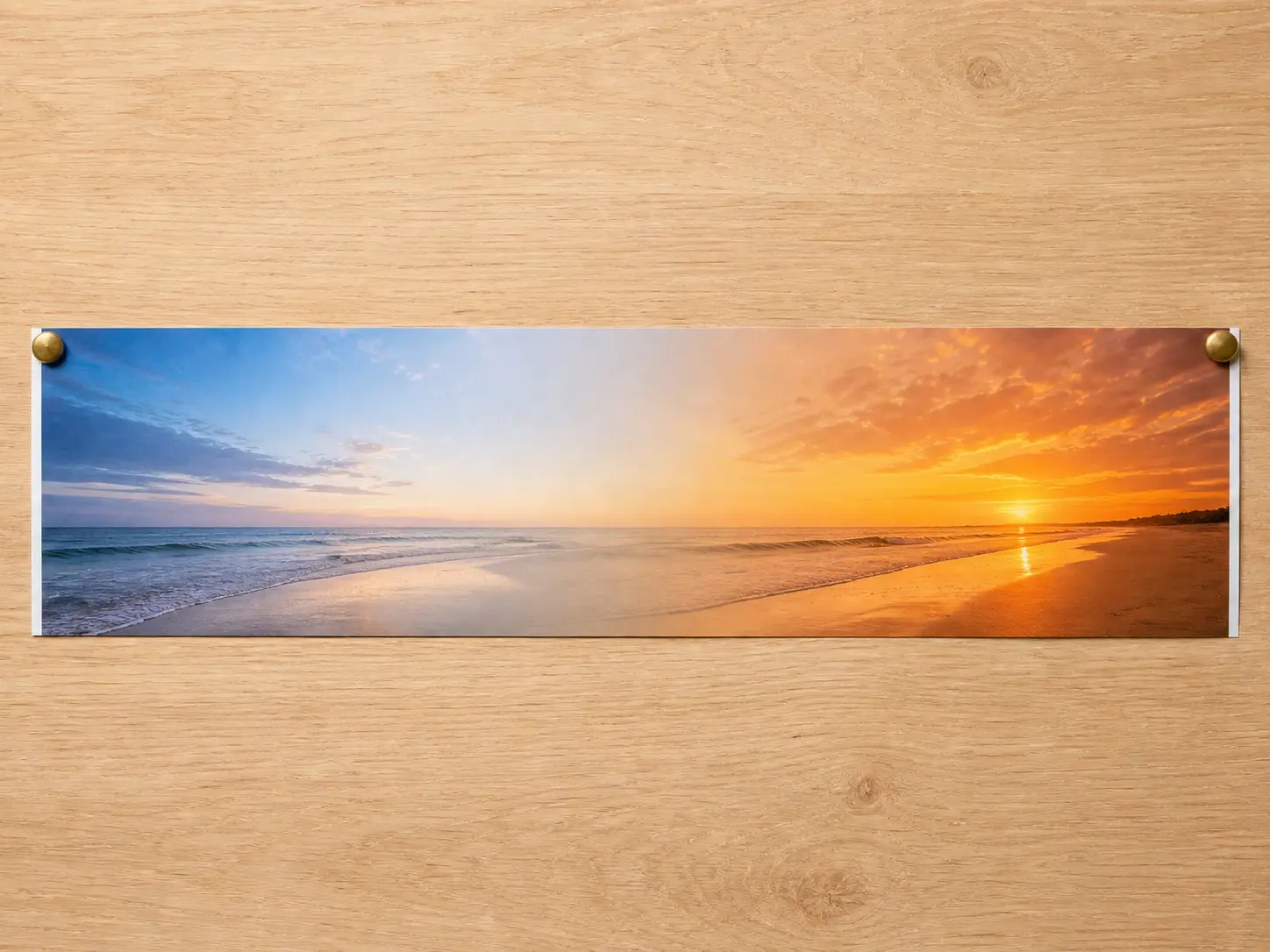
Your start photo stays the first frame and your end photo stays the last, so the landing point is fixed by you rather than guessed; VideoAI fills only the path between the two ends you chose, and that stretch becomes your photo morph.
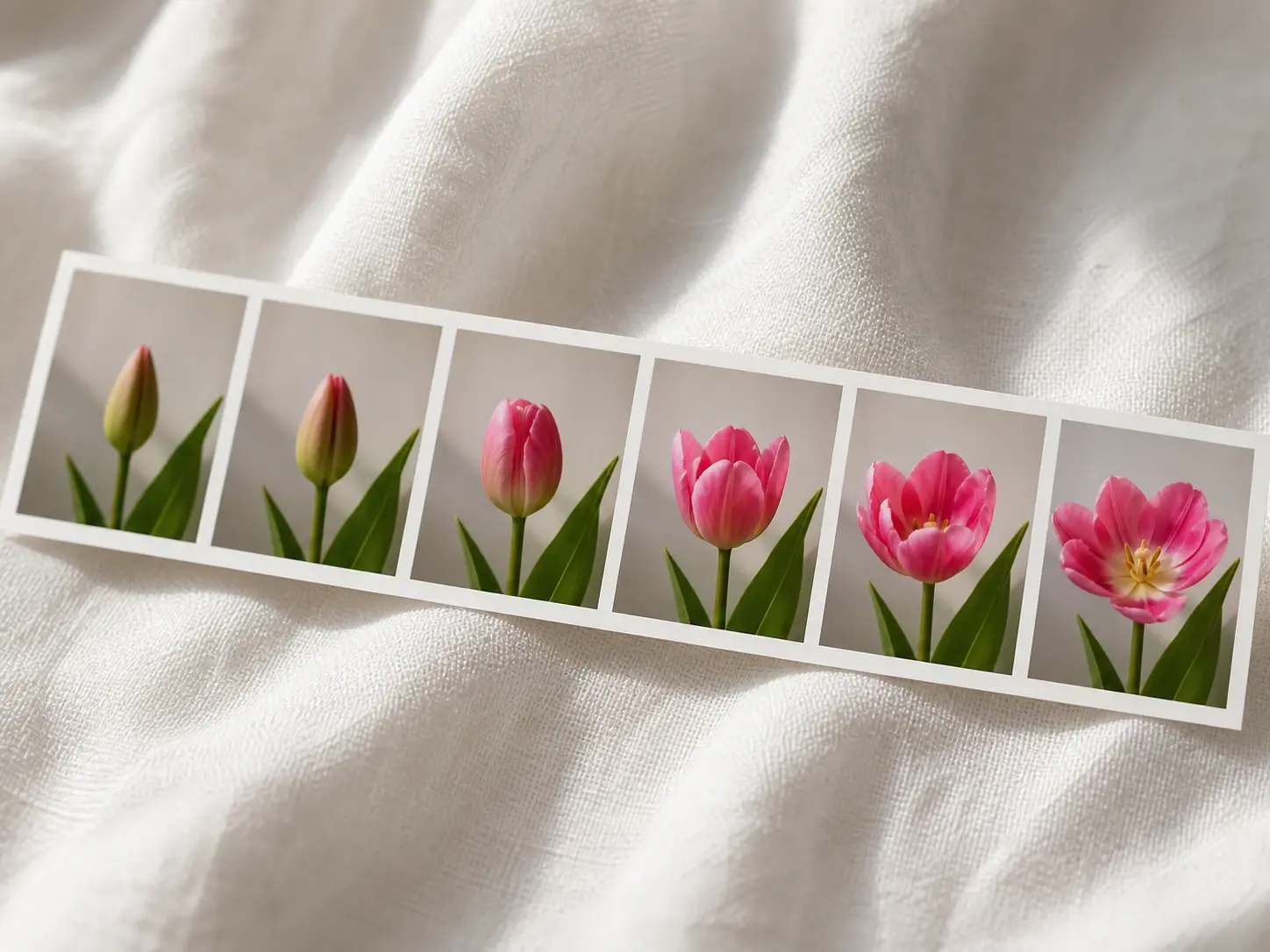
VideoAI generates the frames in the middle one after another and carries the picture across on its own, so your photo morph reads as a true face morph animation rather than two images cross fading.
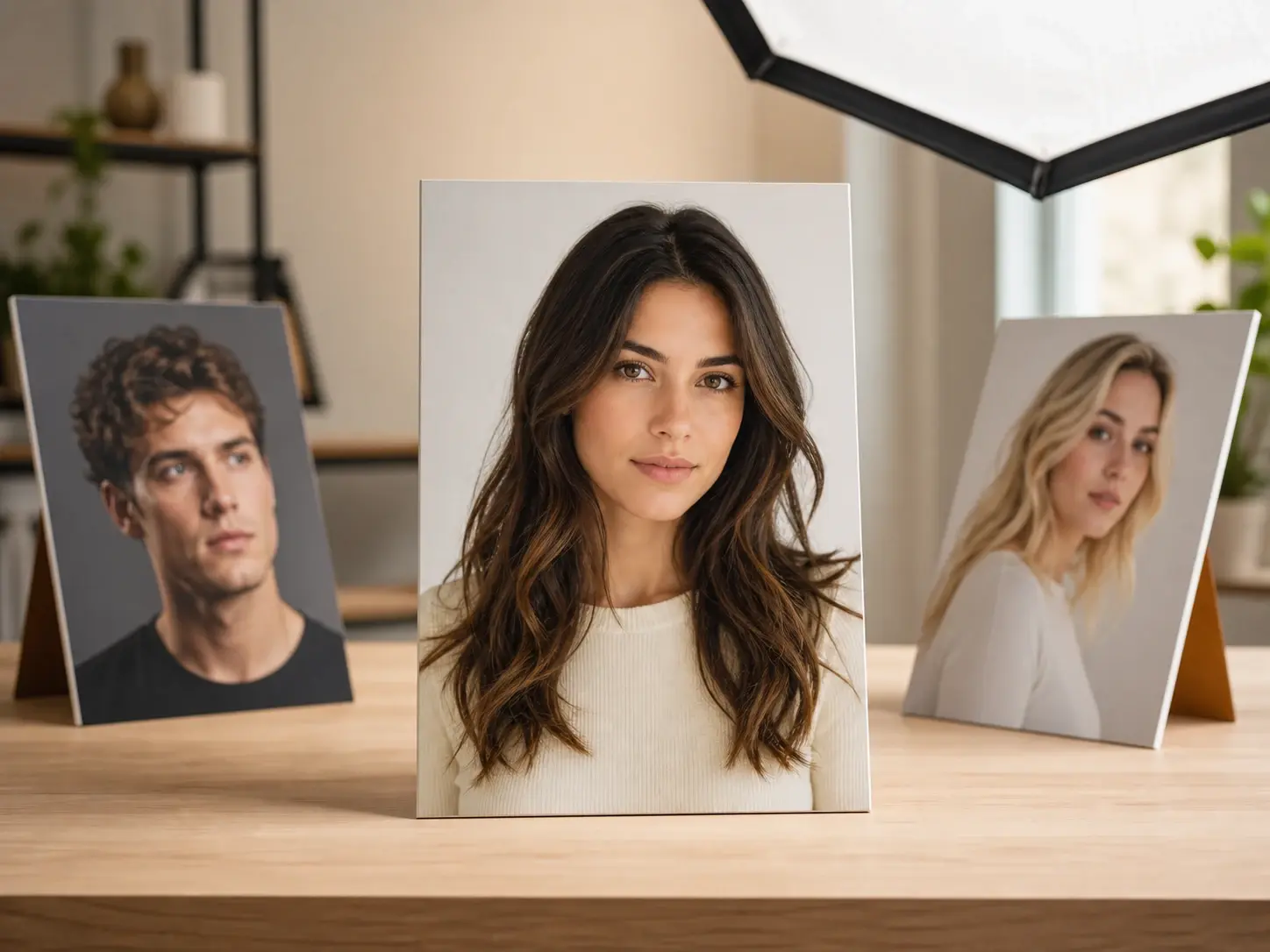
Set one face as your start photo and a different face as your end photo, and the middle stretch is drawn out for you, so an ai face morph moves from this person to that one while each stays recognisable as themselves.
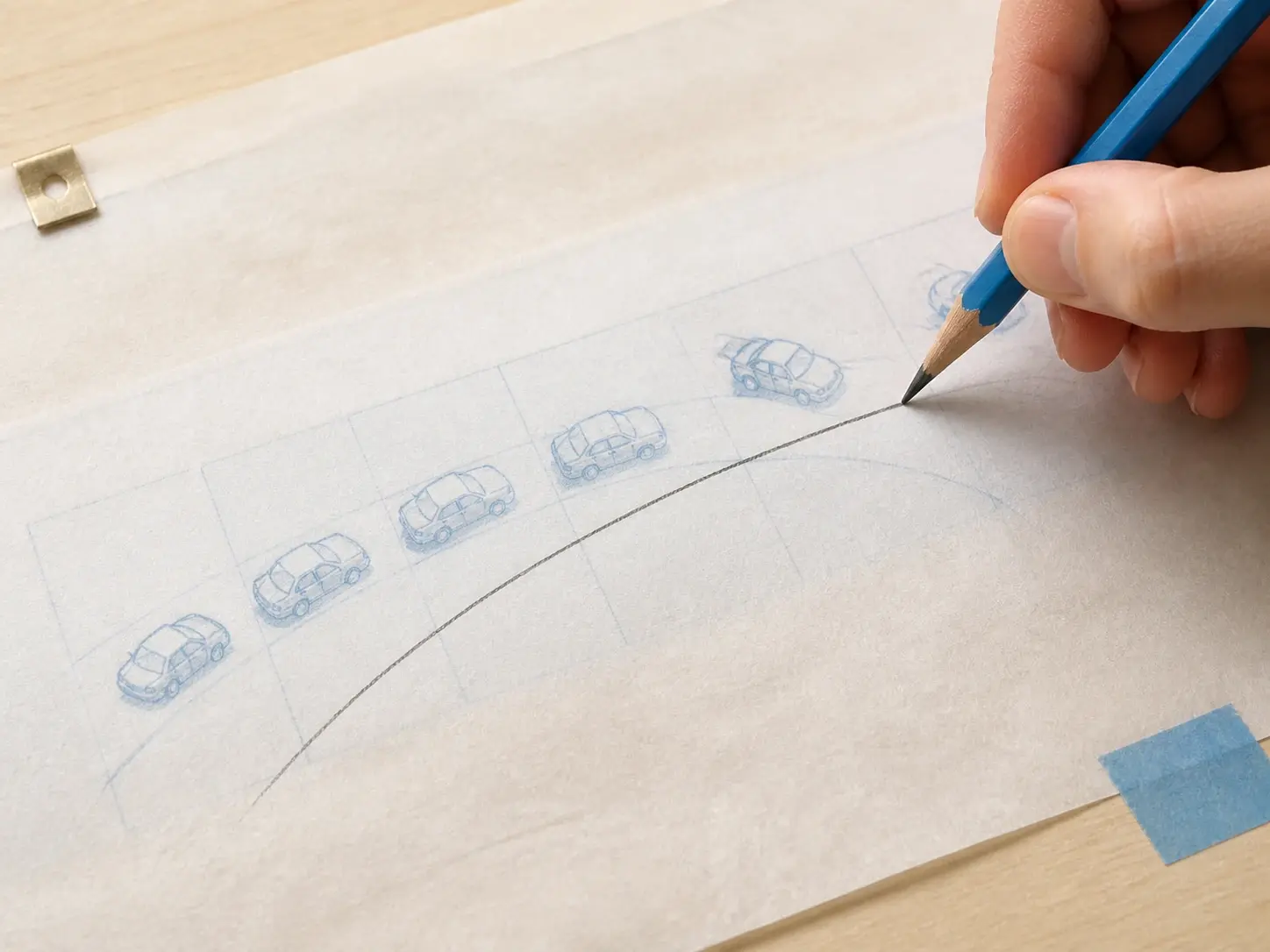
Write one line about how the change should happen, whether it moves straight across, turns first, or pushes in with the camera, and VideoAI shapes the middle to follow it, giving you an ai morph between images that runs the way you asked inside one photo morph.
Three moves take you from a start photo and an end photo to a finished clip.
Step 01
Upload the photo you want the clip to open on and assign it as the start; it saves to your own workspace, so you can reuse it later or delete it yourself, and common image formats work here.
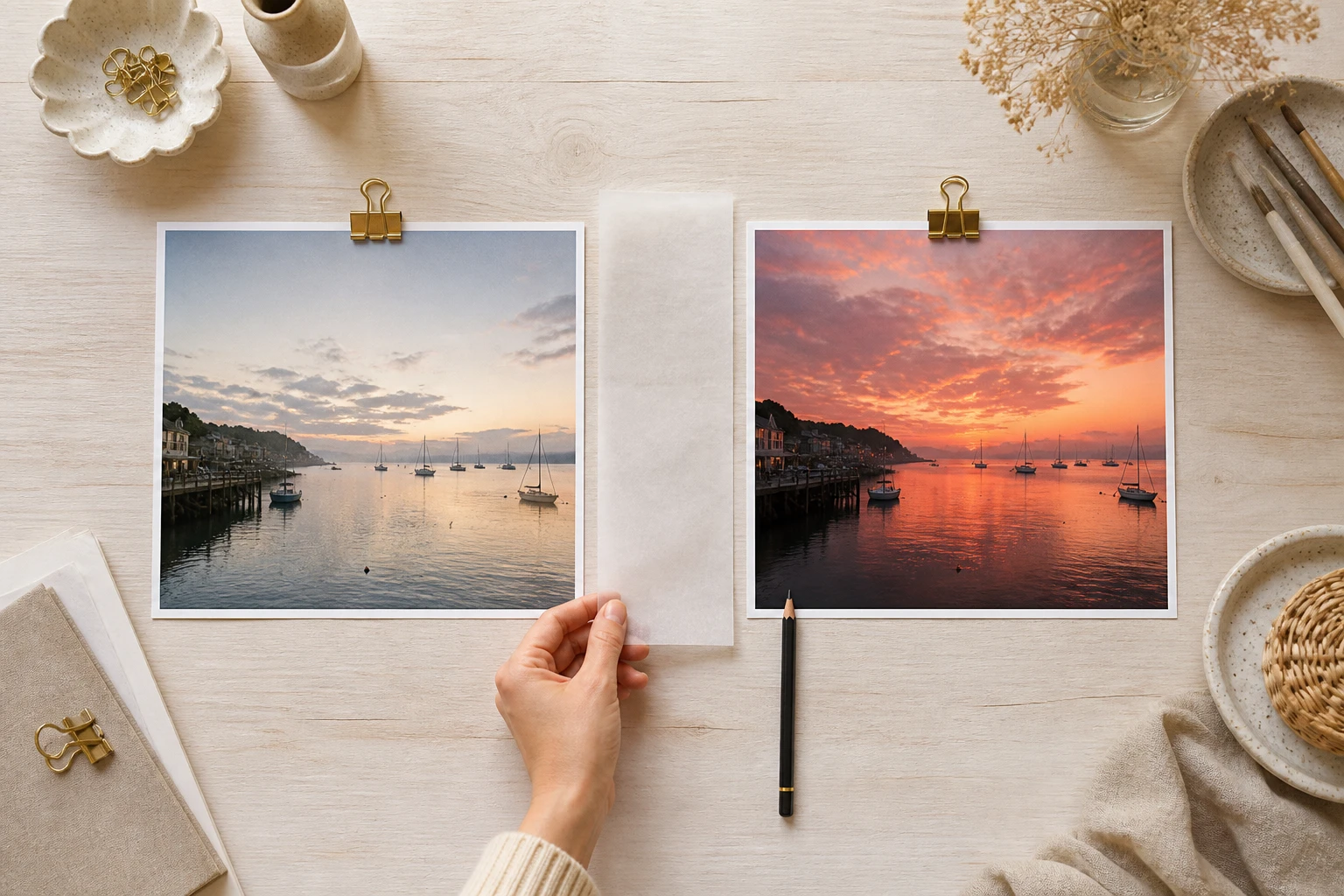
Step 02
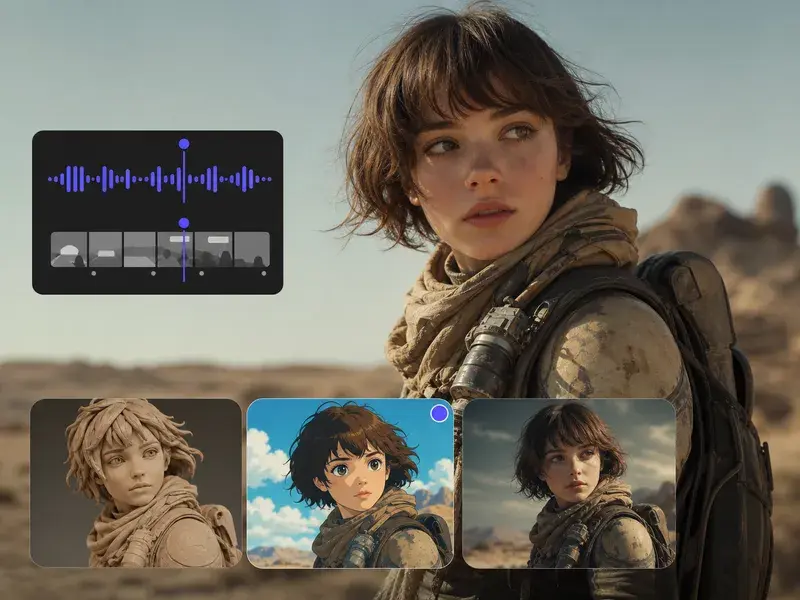
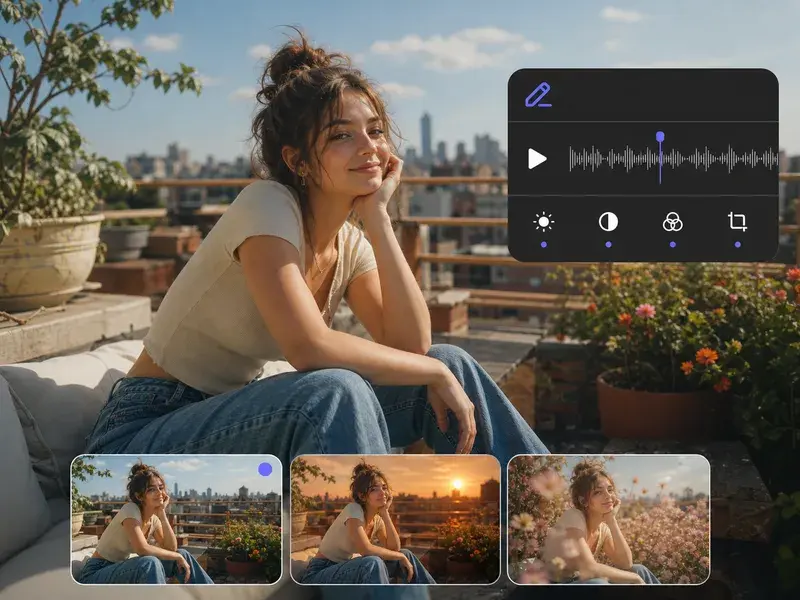
Bring in the second photo as the end so the landing point is yours, then write one line describing how the middle should move, straight across or turning first, and pick an output ratio for the platform you are posting to.
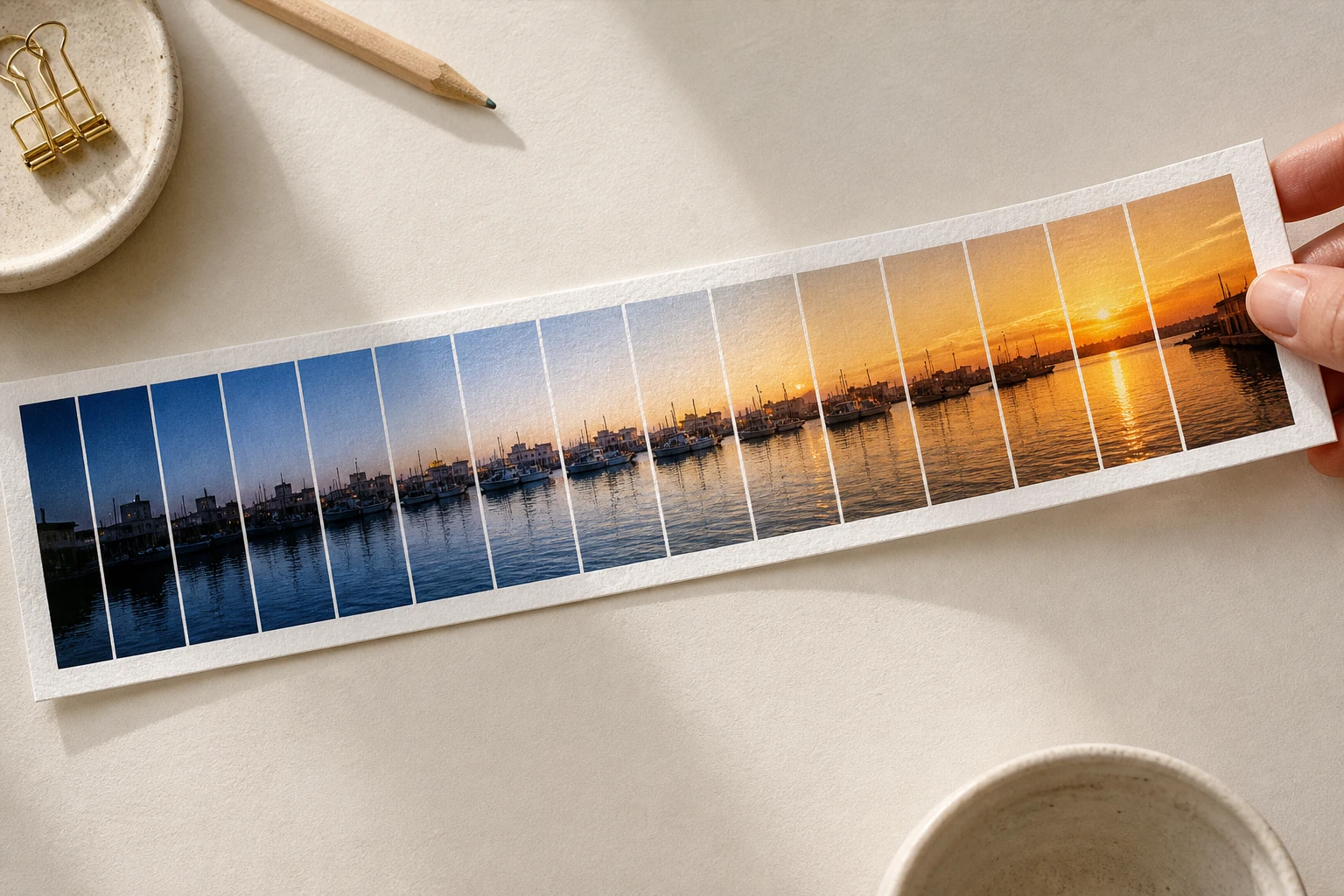
Step 03
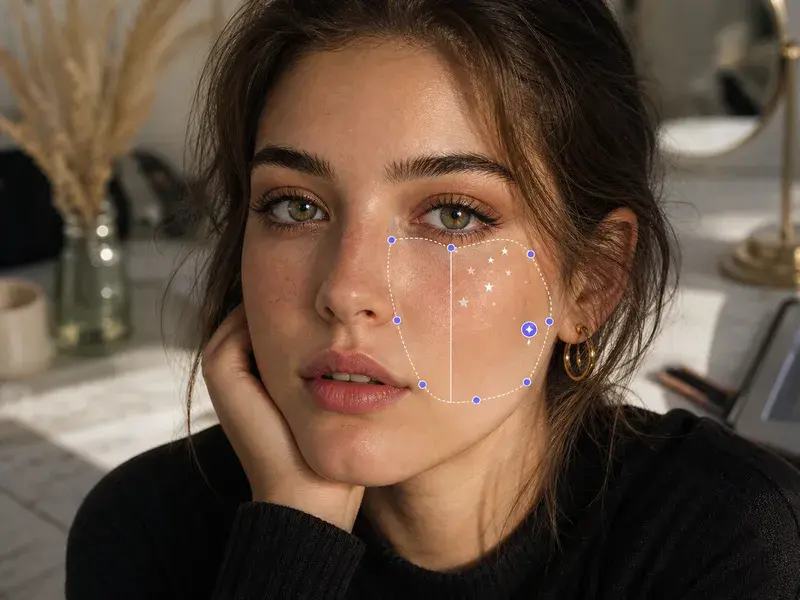
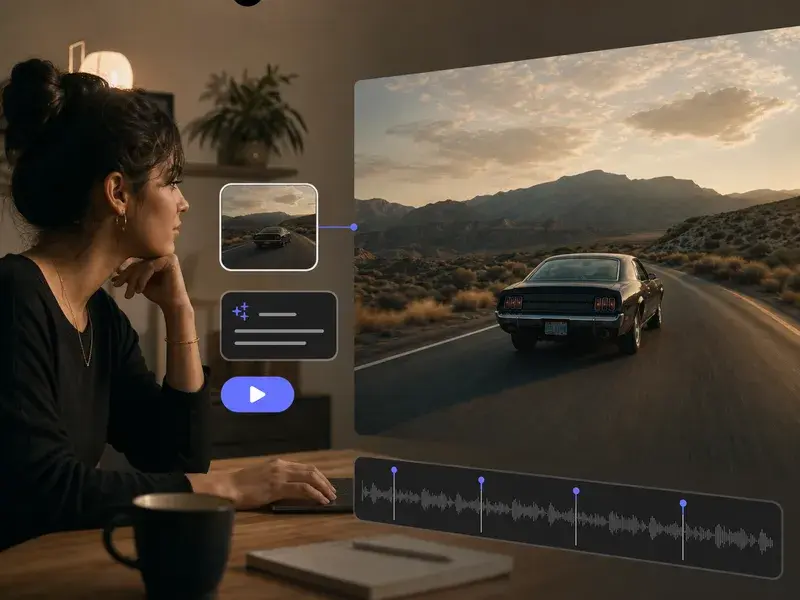
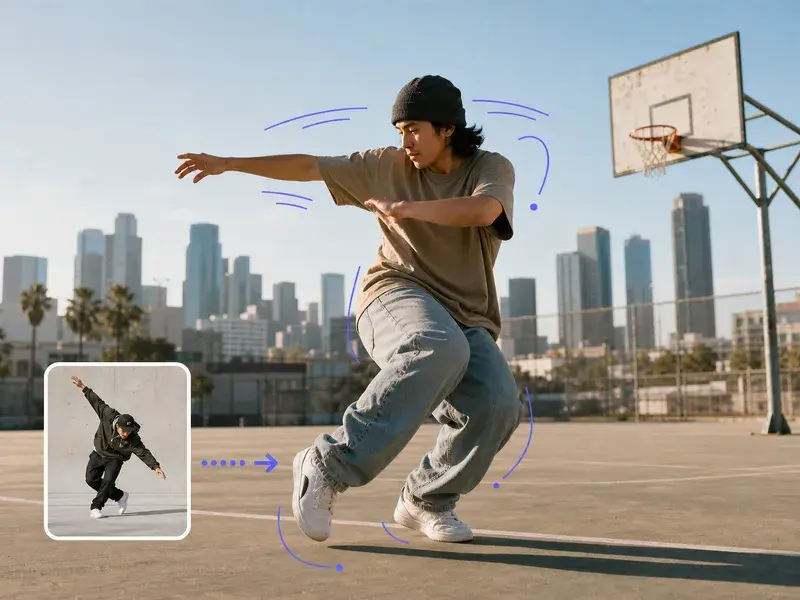
Press generate and photo morph builds every frame between the two, then download the clip as an MP4 up to 4K with no watermark; a single pass runs up to thirty seconds, and you can keep extending the finished clip or reword the prompt for another take.
Explore
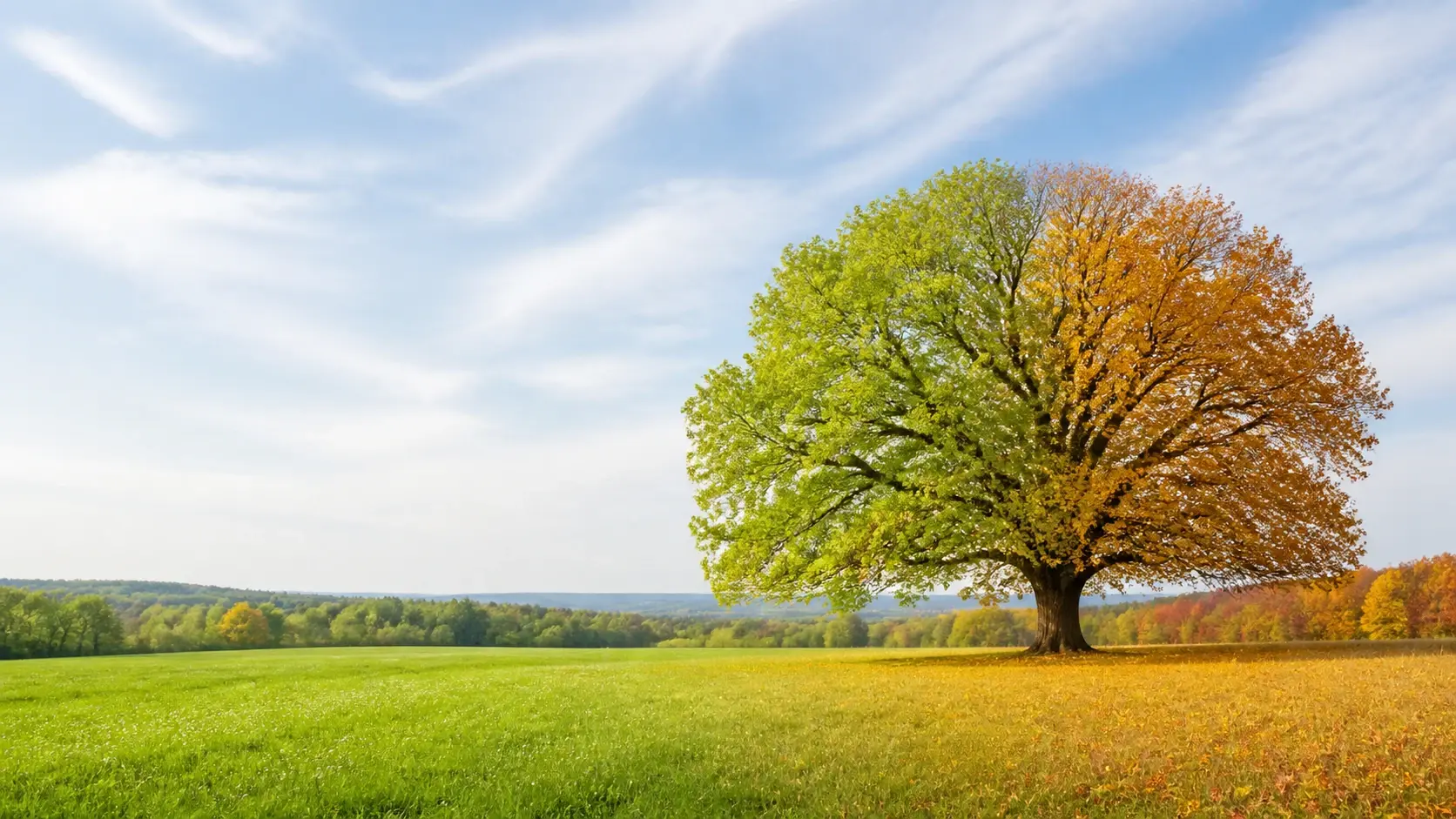
This morph maker turns a start and an end into one clip, so upload both, describe the middle, and let VideoAI build the frames in between.
Get Started