

AI Photo Extender
Use this AI Photo Extender, or photo expander, when a good photo is framed too tightly for a listing, cover, print, or post. Upload the original, choose which edge should grow, and describe the scene that should continue outward. The original area stays as your visual reference while the tool adds new edge content, giving you a wider composition to compare and revise before download.

No picture on hand? Try with one of these
Expand the Frame Without Rebuilding the Whole Picture
The AI Photo Extender is designed around edge continuity, subject protection, and a review step before you download a new file.

Add Space Around the Original Area
Start with the photo you already have, then choose whether it needs more room on the left, right, top, bottom, or several sides at once. The AI Photo Extender uses the existing image as its visual anchor while it builds the new edge area, so you can expand a photo with AI without asking to crop again, reshoot the scene, or rebuild every background element from scratch. Keep the subject near the center when possible and describe what should continue beyond the frame.
Continue Texture, Light, and Perspective
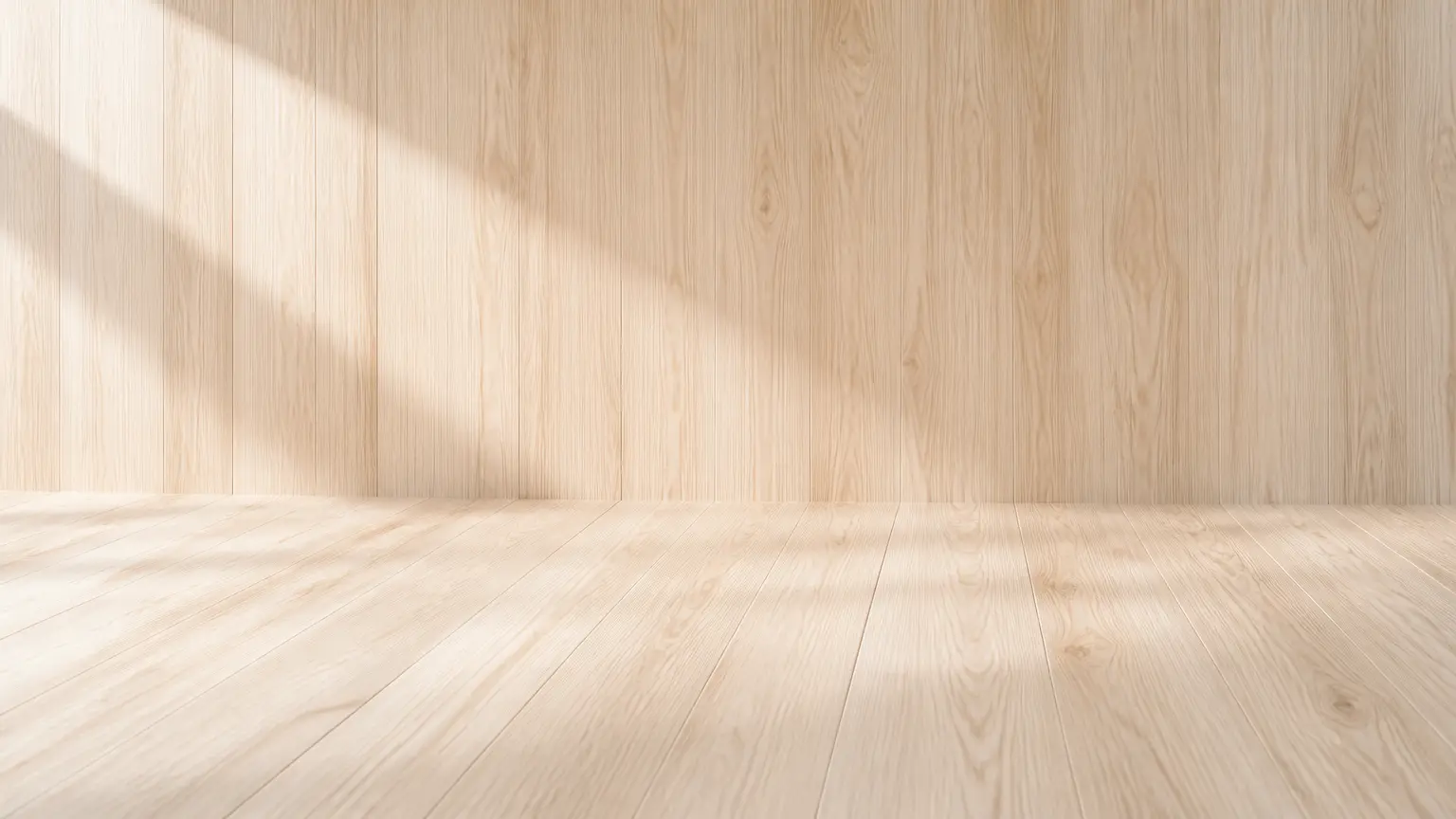
A useful edge extension should follow the direction of the original scene. Wood grain, fabric, paving, walls, sky, and shadows need to continue with believable scale and perspective. The AI Photo Extender can use a description of the surroundings to guide that new area. Check diagonal lines and repeated structures closely after generating, especially around buildings, furniture, and patterned surfaces. If an edge feels disconnected, narrow the extension or add a clearer description of the material and lighting around it.
Choose a Direction and Target Ratio
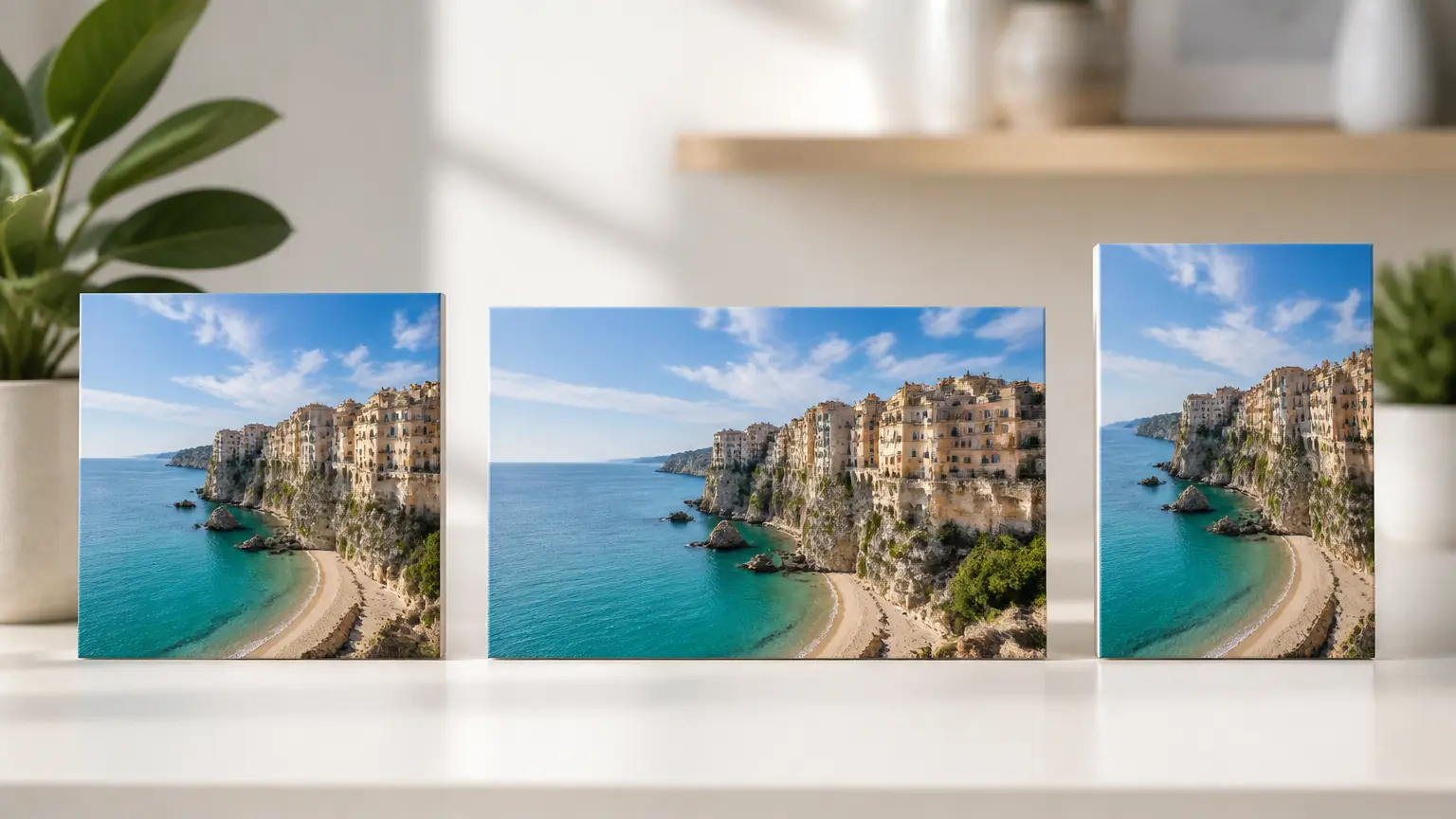
Photo expansion is easier when the destination is clear. Decide whether the final image should be square, landscape, portrait, or simply wider than the source. Then describe which side needs the most room and what the new space is for. The AI Photo Extender can create breathing room for a headline, move a subject away from the edge, or fit a photo into a different layout. Review the result against the original so you can confirm that the subject still holds the intended visual position.
How the AI Photo Extender Works
Upload the source, define where the scene should grow, and compare the new edges with the original before you download.
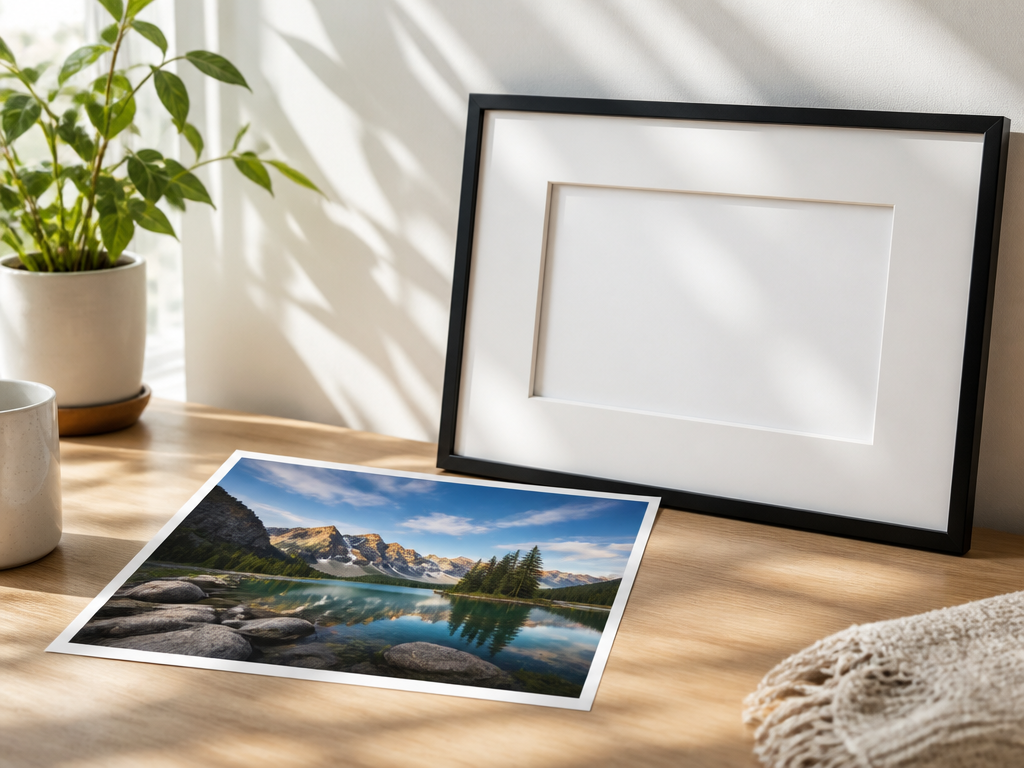
Photo Expansion Jobs This Tool Handles
Use the AI Photo Extender when the canvas is the problem, not the original subject or composition.
Fit a Marketplace Listing
A product photo may be too narrow for a storefront, catalog, or social placement. Extend the table, wall, or studio backdrop around the item instead of cropping the product or scheduling another shoot. Keep the added area plain and believable so attention remains on the item.
Make Room for a Headline
Create clean space above or beside a person, product, or location for a cover title. Ask for a simple continuation of the sky, wall, pavement, or background so the new area supports the layout without competing with the subject.
Prepare a Print-Friendly Frame
A photo that looks balanced on screen can feel cramped in a larger print or picture frame. Expand the outer composition while preserving the original crop inside. Compare the final proportions with the intended print size before ordering.
Correct a Tight Real-Estate Shot
Interior and exterior photos often need more room for a listing layout. Extend only the surrounding floor, ceiling, wall, or sky, and inspect repeated windows, furniture, and architecture carefully because those structures reveal perspective errors quickly.
Give a Family Photo More Breathing Room
When a meaningful photo was cropped too close, add space around the group while keeping the original people unchanged. Treat the new edge area as a visual reconstruction rather than a record of what the camera captured, and review faces before sharing or printing.
Reframe a Landscape for Social Posts
A wide travel or landscape photo may need a taller canvas for a story, pin, or mobile post. Extend simple areas such as sky, water, sand, or grass instead of cropping away the focal point, then check the horizon and repeated textures before publishing.
Who Uses the AI Photo Extender

Adapt Product Photos to More Placements
Sellers can widen studio shots, add negative space around a product, or reshape a listing image without moving the item. The key decision is whether the new background looks credible enough for a commercial page and keeps the product unchanged.
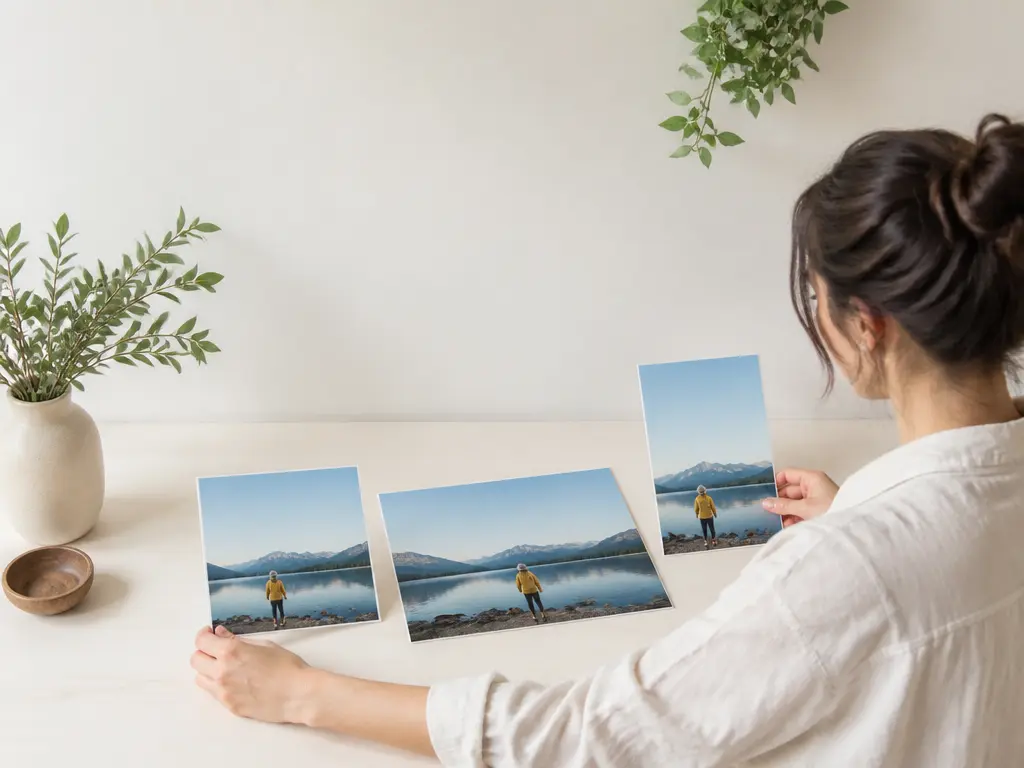
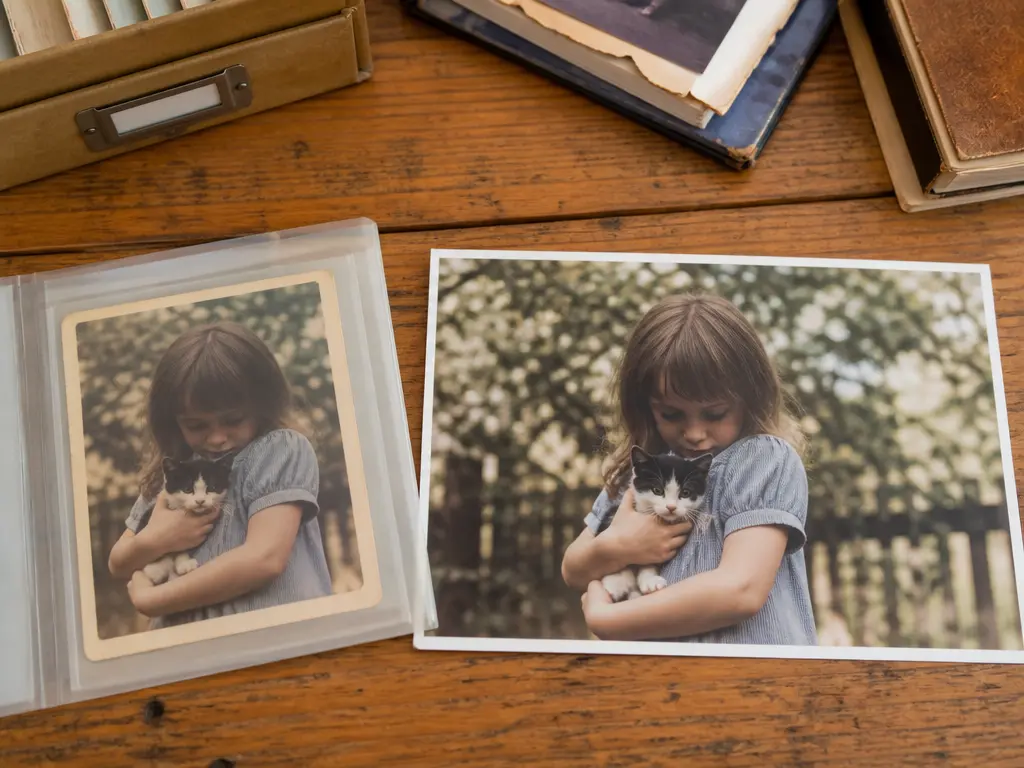
Related Photo Resize and Editing Tools
AI Photo Extender Questions
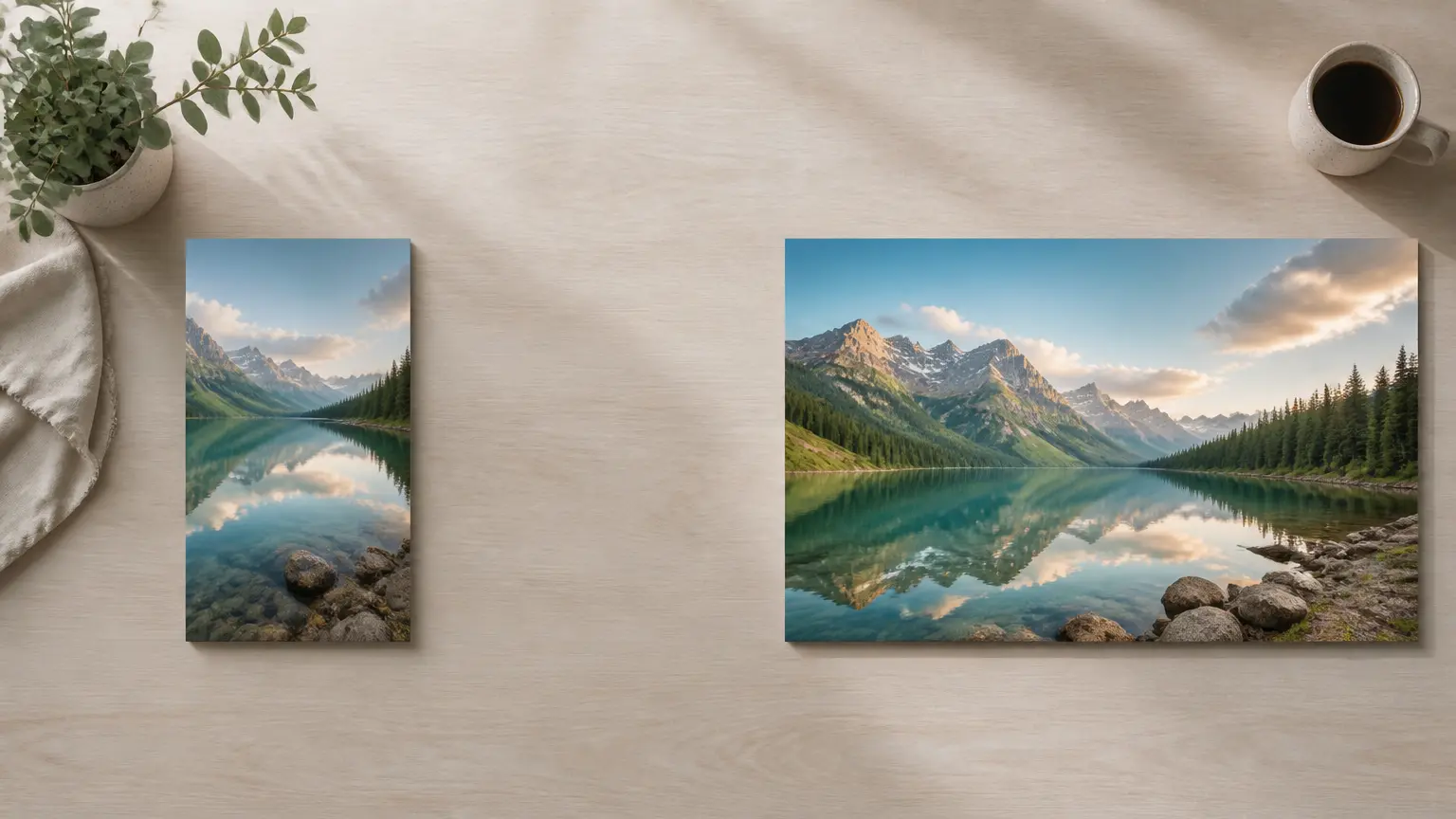
Give Your Photo the Space It Needs
Upload the original, describe how the scene should continue, and use the AI Photo Extender to create a wider version for your next layout.
Get Started